-
QCefView 简介
什么是QCefView
QCefView 是为 Qt 开发的一个封装集成了CEF(Chromium Embedded Framework)库的Wdiget UI组件。使用QCefView可以充分发挥CEF丰富强大的Web能力,快速开发混合架构的应用程序。它不需要开发者理解CEF的细节,能够在Qt中更容易的使用CEF,发挥CEF的能力。
它可以将网页轻松嵌入到Qt QWidget中,以Qt的开发逻辑来使用它,同时提供了方便直观的 JavaScript 与 C++ 互交互能力。所以,我们甚至可以直接以web的方式编写UI界面。
编译QCefView
首先,下载QCefView源代码:
git clone --recursive https://github.com/CefView/QCefView.git- 1
在编译之前,先进行一些配置,修改根目录的
CMakeLists.txt:option(BUILD_DEMO "Build the demo" ON)- 1
即将编译demo的选项打开
然后,设置Qt的路径,如果已将Qt设置为环境变量,则不用管。
修改
QtConfig.cmakeset(QT_SDK_DIR # Change this value to the Qt SDK path of your build environment "D:/Qt/5.15.2/msvc2019_64" )- 1
- 2
- 3
- 4
修改Qt SDK 的路径,如这里的
D:/Qt/5.15.2/msvc2019_64Windows 平台编译
这里以 Clion IDE为例,介绍如何编译并运行QCefView的example
选中根目录的
CMakeLists.txt,右键使用Clion打开
注意,Clion打开之后,配置的时候,工具链需要选择
Visual Studio

然后运行的时候,会自动下载CEF的二进制分发包,如果要指定CEF的分支或版本,可在
CefViewCore/CefConfig.cmake里修改。注意,这里的格式为
112.3.0+gb09c4ca+chromium-112.0.5615.165,即将文件名cef_binary_112.3.0+gb09c4ca+chromium-112.0.5615.165_windows64删除首尾的字符串。同时,别忘了Clion配置需要选择QCefViewTest


Linux 平台编译
Linux平台可使用QtCreator打开
CMakeLists.txt,这里直接使用CMake命令演示:在QCefView根目录下,打开终端,运行:
cmake -B build -DCMAKE_BUILD_TYPE=Release cmake --build -j10- 1
- 2
然后即可在
QCefView/build/example/QCefViewTest/output/Debug/bin路径下运行QCefViewTest程序demo 讲解
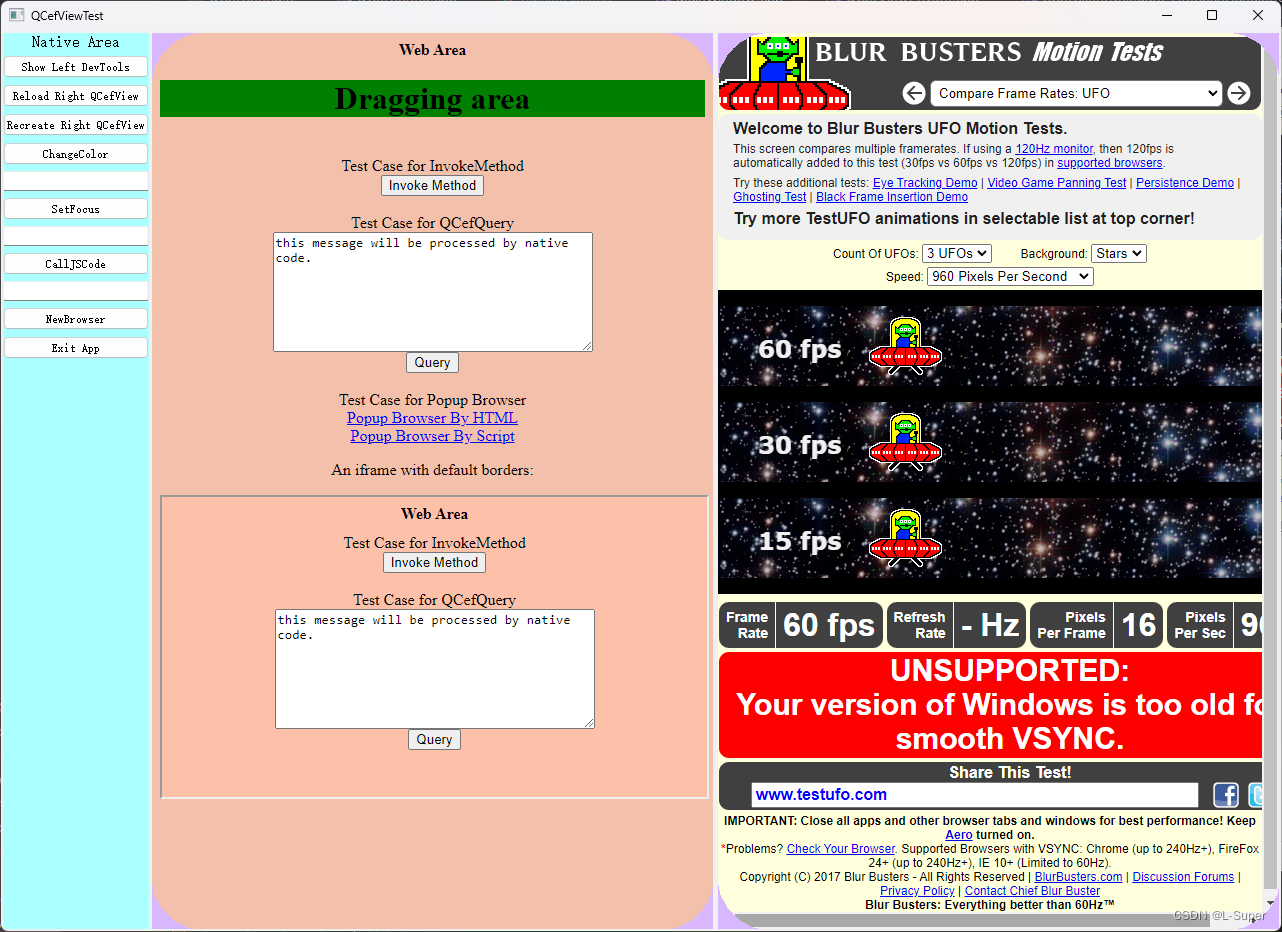
这个QCefViewTest涉及的东西不少,依次讲解一番。
最左侧的这些按钮为Qt自带的控件:
Show Left DevTools即打开左侧网页的的开发者工具
void MainWindow::onBtnShowDevToolsClicked() { if (m_pLeftCefViewWidget) { m_pLeftCefViewWidget->showDevTools(); } }- 1
- 2
- 3
- 4
- 5
- 6
- 7

Reload Right QCefView右侧网页重新加载url,这里设置的是加载Google(国内打不开)
void MainWindow::onBtnReloadRightViewClicked() { if (m_pRightCefViewWidget) { m_pRightCefViewWidget->navigateToUrl("https://www.google.com"); } }- 1
- 2
- 3
- 4
- 5
- 6
- 7
Recreate Right QCefView即重新加载右侧网页
void MainWindow::onBtnRecreateRightViewClicked() { createRightCefView(); }- 1
- 2
- 3
- 4
- 5
ChangeColor生成随机颜色改变左侧网页的颜色,这里是通知网页端进行更改的
void MainWindow::onBtnChangeColorClicked() { if (m_pLeftCefViewWidget) { // create a random color QColor color(QRandomGenerator::global()->generate()); // create the cef event and set the arguments QCefEvent event("colorChange"); event.arguments().append(QVariant::fromValue(color.name(QColor::HexArgb))); // broadcast the event to all frames in all browsers created by this QCefView widget m_pLeftCefViewWidget->broadcastEvent(event); } }- 1
- 2
- 3
- 4
- 5
- 6
- 7
- 8
- 9
- 10
- 11
- 12
- 13
- 14
- 15
// index.in.html function onLoad() { if (typeof CallBridge == "undefined") { alert("Not in CefView context"); return; } CallBridge.addEventListener("colorChange", function (color) { document.getElementById("main").style.backgroundColor = color; }); }- 1
- 2
- 3
- 4
- 5
- 6
- 7
- 8
- 9
- 10
- 11
SetFocus设置左侧的焦点,可参考QWidget的
setFocus()CallJsCode为执行JavaScript代码,这里是弹出一个alert的对话框。
void MainWindow::onBtnCallJSCodeClicked() { QString context = "helloQCefView"; QString code = "alert('hello QCefView'); return {k1: 'str', k2: true, k3: 100};"; m_pLeftCefViewWidget->executeJavascriptWithResult(QCefView::MainFrameID, code, "", context); }- 1
- 2
- 3
- 4
- 5
- 6
- 7

NewBrowser
则是新建一个窗口

左侧网页
左侧网页为本地网页
index.in.html,有很多元素用来演示C++与JavaScript的交互,popup窗口、iframe等。Web Area
演示可以通过网页实现窗口的拖拽移动,按住鼠标左键移动窗口。

Test Case for InvokeMethod
Invoke Method是Javascript通知C++端的演示,弹出的对话框就是由QMessageBox弹出的
function onInvokeMethodClicked(name, ...arg) { CallBridge.invokeMethod(name, ...arg); } function testInvokeMethod() { let d = { d1: true, d2: 5678, d3: "test object", d4: [1, "2", false], d5: { d1: true, d2: 5678, d3: "nested object", d4: [1, "2", true], }, }; onInvokeMethodClicked("TestMethod", 1, false, "arg3", d); }- 1
- 2
- 3
- 4
- 5
- 6
- 7
- 8
- 9
- 10
- 11
- 12
- 13
- 14
- 15
- 16
- 17
- 18
void MainWindow::onInvokeMethod(int browserId, int64_t frameId, const QString& method, const QVariantList& arguments) { // extract the arguments and dispatch the invocation to corresponding handler if (0 == method.compare("TestMethod")) { QString title("QCef InvokeMethod Notify"); QString text = QString("================== Current Thread: QT_UI ==================\r\n" "Frame: %1\r\n" "Method: %2\r\n" "Arguments:\r\n") .arg(frameId) .arg(method); for (int i = 0; i < arguments.size(); i++) { auto jv = QJsonValue::fromVariant(arguments[i]); // clang-format off text.append( QString("%1 Type:%2, Value:%3\r\n") .arg(i).arg(arguments[i].typeName()).arg(arguments[i].toString()) ); // clang-format on } auto jsonValue = QJsonDocument::fromVariant(arguments); auto jsonString = QString(jsonValue.toJson()); text.append(QString("\r\nArguments List in JSON format:\r\n%1").arg(jsonString)); QMessageBox::information(this->window(), title, text); } else { } }- 1
- 2
- 3
- 4
- 5
- 6
- 7
- 8
- 9
- 10
- 11
- 12
- 13
- 14
- 15
- 16
- 17
- 18
- 19
- 20
- 21
- 22
- 23
- 24
- 25
- 26
- 27
- 28
- 29
- 30
- 31
- 32

Test Case for QCefQuery
演示将输入框里的内容发送给C++端
function onCallBridgeQueryClicked() { var query = { request: document.getElementById("message").value, onSuccess: function (response) { alert(response); }, onFailure: function (error_code, error_message) { alert(error_message); }, }; window.CefViewQuery(query); }- 1
- 2
- 3
- 4
- 5
- 6
- 7
- 8
- 9
- 10
- 11
- 12
void MainWindow::onQCefQueryRequest(int browserId, int64_t frameId, const QCefQuery& query) { QString title("QCef Query Request"); QString text = QString("Current Thread: QT_UI\r\n" "Query: %1") .arg(query.request()); QMessageBox::information(this->window(), title, text); QString response = query.request().toUpper(); query.setResponseResult(true, response); m_pLeftCefViewWidget->responseQCefQuery(query); }- 1
- 2
- 3
- 4
- 5
- 6
- 7
- 8
- 9
- 10
- 11
- 12
- 13
- 14

Test Case for Popup Browser
演示弹出两种popup窗口方式
<a href="#" target="_blank">Popup Browser By HTML</a> <br /> <a href="#" onClick="window.open('#','QCefView Popup','width=800, height=600'); return false;">Popup Browser By Script</a>- 1
- 2
- 3
An iframe with default borders
演示的是本地网页加载一个iframe页面,其余功能一致
右侧网页
右侧网页则是加载的在线网页
总结
至此,对于QCefView的编译及demo的功能讲解就结束了。由此可见QCefView的强大,与Web页面的交互能力,可以使得开发能更加的简便,也能使UI按照前端的逻辑设计成为可能。
-
相关阅读:
壁纸小程序Vue3(分类页面和用户页面基础布局)
【编程题 】HJ64 MP3光标位置(详细注释 易懂)
Rust 从入门到精通10-所有权
Mybatis学习笔记——mybatis的整体架构
QUIC协议详解
防御-day6-内容安全()
【大数据实训】—Hadoop开发环境搭建(一)
预推免常见问题
抖音电商,流量尽头唯有直播间
phpcms V9实战标签代码记录 - list
- 原文地址:https://blog.csdn.net/no_say_you_know/article/details/133443284

- 最新文章
-
沪漂五周年了:我越来越迷茫了
Agentic Skill Routing 实战:别再把所有 Skill 塞进 AI Agent 上下文
MySQL-Seconds_behind_master的精度误差
[MAF预定义ChatClient中间件-03]CachingChatClient——利用缓存省钱省时间
AI的至暗历史:从万众期待到被政府撤资,AI的两次死亡徘徊
Agent OS :五种驯服不确定性的范式
PortSwigger SQL注入LAB11
数据库即时编译JIT
[Begin]AI Learn Data Day 0
深度学习进阶(二十七)现代 LLM 的核心架构设计其二:SwiGLU