-
【Web开发】使用Apache搭建Http下载服务器
前言
前段时间因为某些原因,几大主流网盘都无法使用,正好手头上有台闲置的云服务器,于是就想来搭建一个文件下载服务,用户只需通过一个链接就能下载软件。
Apache快速上手
经过调研,发现Ubuntu采用Apache2这个软件就可以快速满足我的需求。
安装Apache2
apt-get install apache2- 1
安装好之后,启动Apache2服务:
/etc/init.d/apache2 start- 1
查看启动状态:
/etc/init.d/apache2 status- 1
然后,访问服务器的公网ip或域名,就可以看到如下界面,此时说明Apache正常工作:

最后在
/var/www/html路径下,删除index.html,上传自己想要被下载的文件,再次访问,就可以进行下载了。
(注:如果是云服务器,还需要在安全组开放80和443端口号)
同时,也可以通过域名/文件名的方式直接给别人一个链接,进行下载。
如果有一台单独的服务器用于临时文件的分享,这样很快就搞定了。
下面来继续进行深入研究,考虑更现实的场景。修改端口号
Apache2默认采用的是80端口号,因此直接通过公网ip或域名就能访问。现实中,很多服务器本身就部署了许多其它服务,80端口号往往被占用,因此就需要将Apache2改成其它访问端口。
修改端口,首先需要修改
/etc/apache2/ports.conf这个文件:
这里吧80改成其它不冲突的端口号,我这里以1024为例#Listen 80 Listen 1024 <IfModule ssl_module> Listen 443 </IfModule> <IfModule mod_gnutls.c> Listen 443 </IfModule>- 1
- 2
- 3
- 4
- 5
- 6
- 7
- 8
- 9
- 10
- 11
- 12
然后修改
/etc/apache2/sites-available/000-default.conf#<VirtualHost *:80> <VirtualHost *:1024> # The ServerName directive sets the request scheme, hostname and port that # the server uses to identify itself. This is used when creating- 1
- 2
- 3
- 4
注:这个文件中还有一个
DocumentRoot,修改该参数可以调整文件系统的根路径。修改完成之后,重启apache2:
/etc/init.d/apache2 restart- 1
此时,就可以通过访问
域名:1024的形式访问到同样内容,例如我的服务器访问url为http://xdxsb.top:1024设置访问限制
个人服务器很容易遭到别人的攻击,如果有人开好多线程来反复请求下载,这就将导致流量带宽消耗巨大,甚至会让服务器宕机。因此,长期提供下载服务的服务器必须设置访问限制。
配置文件参数详解
访问限制主要涉及到
/etc/apache2/apache2.conf这个配置文件,首先来对该文件进行解读。
这个文件内容如下:# This is the main Apache server configuration file. It contains the # configuration directives that give the server its instructions. # See http://httpd.apache.org/docs/2.4/ for detailed information about # the directives and /usr/share/doc/apache2/README.Debian about Debian specific # hints. # # # Summary of how the Apache 2 configuration works in Debian: # The Apache 2 web server configuration in Debian is quite different to # upstream's suggested way to configure the web server. This is because Debian's # default Apache2 installation attempts to make adding and removing modules, # virtual hosts, and extra configuration directives as flexible as possible, in # order to make automating the changes and administering the server as easy as # possible. # It is split into several files forming the configuration hierarchy outlined # below, all located in the /etc/apache2/ directory: # # /etc/apache2/ # |-- apache2.conf # | `-- ports.conf # |-- mods-enabled # | |-- *.load # | `-- *.conf # |-- conf-enabled # | `-- *.conf # `-- sites-enabled # `-- *.conf # # # * apache2.conf is the main configuration file (this file). It puts the pieces # together by including all remaining configuration files when starting up the # web server. # # * ports.conf is always included from the main configuration file. It is # supposed to determine listening ports for incoming connections which can be # customized anytime. # # * Configuration files in the mods-enabled/, conf-enabled/ and sites-enabled/ # directories contain particular configuration snippets which manage modules, # global configuration fragments, or virtual host configurations, # respectively. # # They are activated by symlinking available configuration files from their # respective *-available/ counterparts. These should be managed by using our # helpers a2enmod/a2dismod, a2ensite/a2dissite and a2enconf/a2disconf. See # their respective man pages for detailed information. # # * The binary is called apache2. Due to the use of environment variables, in # the default configuration, apache2 needs to be started/stopped with # /etc/init.d/apache2 or apache2ctl. Calling /usr/bin/apache2 directly will not # work with the default configuration. # Global configuration # # # ServerRoot: The top of the directory tree under which the server's # configuration, error, and log files are kept. # # NOTE! If you intend to place this on an NFS (or otherwise network) # mounted filesystem then please read the Mutex documentation (available # at <URL:http://httpd.apache.org/docs/2.4/mod/core.html#mutex>); # you will save yourself a lot of trouble. # # Do NOT add a slash at the end of the directory path. # #ServerRoot "/etc/apache2" # # The accept serialization lock file MUST BE STORED ON A LOCAL DISK. # #Mutex file:${APACHE_LOCK_DIR} default # # The directory where shm and other runtime files will be stored. # DefaultRuntimeDir ${APACHE_RUN_DIR} # # PidFile: The file in which the server should record its process # identification number when it starts. # This needs to be set in /etc/apache2/envvars # PidFile ${APACHE_PID_FILE} # # Timeout: The number of seconds before receives and sends time out. # Timeout 300 # # KeepAlive: Whether or not to allow persistent connections (more than # one request per connection). Set to "Off" to deactivate. # KeepAlive On # # MaxKeepAliveRequests: The maximum number of requests to allow # during a persistent connection. Set to 0 to allow an unlimited amount. # We recommend you leave this number high, for maximum performance. # MaxKeepAliveRequests 100 # # KeepAliveTimeout: Number of seconds to wait for the next request from the # same client on the same connection. # KeepAliveTimeout 5 # These need to be set in /etc/apache2/envvars User ${APACHE_RUN_USER} Group ${APACHE_RUN_GROUP} # # HostnameLookups: Log the names of clients or just their IP addresses # e.g., www.apache.org (on) or 204.62.129.132 (off). # The default is off because it'd be overall better for the net if people # had to knowingly turn this feature on, since enabling it means that # each client request will result in AT LEAST one lookup request to the # nameserver. # HostnameLookups Off # ErrorLog: The location of the error log file. # If you do not specify an ErrorLog directive within a <VirtualHost> # container, error messages relating to that virtual host will be # logged here. If you *do* define an error logfile for a <VirtualHost> # container, that host's errors will be logged there and not here. # ErrorLog ${APACHE_LOG_DIR}/error.log # # LogLevel: Control the severity of messages logged to the error_log. # Available values: trace8, ..., trace1, debug, info, notice, warn, # error, crit, alert, emerg. # It is also possible to configure the log level for particular modules, e.g. # "LogLevel info ssl:warn" # LogLevel warn # Include module configuration: IncludeOptional mods-enabled/*.load IncludeOptional mods-enabled/*.conf # Include list of ports to listen on Include ports.conf # Sets the default security model of the Apache2 HTTPD server. It does # not allow access to the root filesystem outside of /usr/share and /var/www. # The former is used by web applications packaged in Debian, # the latter may be used for local directories served by the web server. If # your system is serving content from a sub-directory in /srv you must allow # access here, or in any related virtual host.Options FollowSymLinks AllowOverride None Require all denied AllowOverride None Require all granted Options Indexes FollowSymLinks AllowOverride None Require all granted # # Options Indexes FollowSymLinks # AllowOverride None # Require all granted # # AccessFileName: The name of the file to look for in each directory # for additional configuration directives. See also the AllowOverride # directive. # AccessFileName .htaccess # # The following lines prevent .htaccess and .htpasswd files from being # viewed by Web clients. # Require all denied # # The following directives define some format nicknames for use with # a CustomLog directive. # # These deviate from the Common Log Format definitions in that they use %O # (the actual bytes sent including headers) instead of %b (the size of the # requested file), because the latter makes it impossible to detect partial # requests. # # Note that the use of %{X-Forwarded-For}i instead of %h is not recommended. # Use mod_remoteip instead. # LogFormat "%v:%p %h %l %u %t \"%r\" %>s %O \"%{Referer}i\" \"%{User-Agent}i\"" vhost_combined LogFormat "%h %l %u %t \"%r\" %>s %O \"%{Referer}i\" \"%{User-Agent}i\"" combined LogFormat "%h %l %u %t \"%r\" %>s %O" common LogFormat "%{Referer}i -> %U" referer LogFormat "%{User-agent}i" agent # Include of directories ignores editors' and dpkg's backup files, # see README.Debian for details. # Include generic snippets of statements IncludeOptional conf-enabled/*.conf # Include the virtual host configurations: IncludeOptional sites-enabled/*.conf # vim: syntax=apache ts=4 sw=4 sts=4 sr noet- 1
- 2
- 3
- 4
- 5
- 6
- 7
- 8
- 9
- 10
- 11
- 12
- 13
- 14
- 15
- 16
- 17
- 18
- 19
- 20
- 21
- 22
- 23
- 24
- 25
- 26
- 27
- 28
- 29
- 30
- 31
- 32
- 33
- 34
- 35
- 36
- 37
- 38
- 39
- 40
- 41
- 42
- 43
- 44
- 45
- 46
- 47
- 48
- 49
- 50
- 51
- 52
- 53
- 54
- 55
- 56
- 57
- 58
- 59
- 60
- 61
- 62
- 63
- 64
- 65
- 66
- 67
- 68
- 69
- 70
- 71
- 72
- 73
- 74
- 75
- 76
- 77
- 78
- 79
- 80
- 81
- 82
- 83
- 84
- 85
- 86
- 87
- 88
- 89
- 90
- 91
- 92
- 93
- 94
- 95
- 96
- 97
- 98
- 99
- 100
- 101
- 102
- 103
- 104
- 105
- 106
- 107
- 108
- 109
- 110
- 111
- 112
- 113
- 114
- 115
- 116
- 117
- 118
- 119
- 120
- 121
- 122
- 123
- 124
- 125
- 126
- 127
- 128
- 129
- 130
- 131
- 132
- 133
- 134
- 135
- 136
- 137
- 138
- 139
- 140
- 141
- 142
- 143
- 144
- 145
- 146
- 147
- 148
- 149
- 150
- 151
- 152
- 153
- 154
- 155
- 156
- 157
- 158
- 159
- 160
- 161
- 162
- 163
- 164
- 165
- 166
- 167
- 168
- 169
- 170
- 171
- 172
- 173
- 174
- 175
- 176
- 177
- 178
- 179
- 180
- 181
- 182
- 183
- 184
- 185
- 186
- 187
- 188
- 189
- 190
- 191
- 192
- 193
- 194
- 195
- 196
- 197
- 198
- 199
- 200
- 201
- 202
- 203
- 204
- 205
- 206
- 207
- 208
- 209
- 210
- 211
- 212
- 213
- 214
- 215
- 216
- 217
- 218
- 219
- 220
- 221
- 222
- 223
- 224
- 225
- 226
- 227
参数解释:
-
PidFile:记录服务器启动进程号的文件
-
Timeout:接收和发送前超时秒数
-
KeepAlive:是否允许稳固的连接(每个连接有多个请求),设为"Off"则停用
-
MaxKeepAliveRequests:在稳固连接期间允许的最大请求数,设为0表示无限制接入
-
KeepAliveTimeout:在同一个连接上从同一台客户上接收请求的秒数
-
User/Group:运行的用户和组
-
HostnameLookups:指定记录用户端的名字还是IP地址
例如,本指令为on时记录主机名,如www.apache.org;为off时记录IP地址,204.62.129.132。默认值为off,这要比设为on好得多,因为如果设为on则每个用户端请求都将会至少造成对 nameserver 进行一次查询。 -
ErrorLog:错误日志文件定位
-
LogLevel:控制记录在错误日志文件中的日志信息
可选值:debug,info,notice,warn,error,crit,alert,emerg -
Directory:在标签对里面可以设置各文件夹属性
-
Options:控制在特定目录中将使用哪些服务器特性
- All:除MultiViews之外的所有特性,这是默认设置
- ExecCG:允许使用mod_cgi执行CGI脚本
- FollowSymLinks:服务器允许在此目录中使用符号连接,如果此配置位于配置段中,则会被忽略
- Includes:允许使用mod_include提供的服务器端包含
- IncludesNOEXEC:允许服务器端包含,但禁用"#exec cmd"和"#exec cgi",但仍可以从ScriptAlias目录使用"#include virtual"虚拟CGI脚本
- Indexes:如果一个映射到目录的URL被请求,而此目录中又没有DirectoryIndex(例如:index.html),那么服务器会返回由mod_autoindex生成的一个格式化后的目录列表
- MultiViews:允许使用mod_negotiation提供内容协商的"多重视图"(MultiViews)
- SymLinksIfOwnerMatch:服务器仅在符号连接与其目的目录或文件的拥有者具有相同的uid时才使用它。 如果此配置出现在配置段中,则将被忽略
-
AllowOverride:确定允许存在于.htaccess文件中的指令类型
语法:AllowOverride All|None|directive-type [directive-type]
如果此指令被设置为None ,那么.htaccess文件将被完全忽略。
directive-type可以是下列各组指令之一:- AuthConfig : 允许使用与认证授权相关的指令
- FileInfo : 允许使用控制文档类型的指令、控制文档元数据的指令、mod_rewrite中的指令、mod_actions中的Action指令
- Indexes : 允许使用控制目录索引的指令
- Limit : 允许使用控制主机访问的指令
-
Order:控制默认的访问状态与Allow和Deny指令生效的顺序
- Deny,Allow : Deny指令在Allow指令之前被评估。默认允许所有访问。任何不匹配Deny指令或者匹配Allow指令的客户都被允许访问
- Allow,Deny : Allow指令在Deny指令之前被评估。默认拒绝所有访问。任何不匹配Allow指令或者匹配Deny指令的客户都将被禁止访问
- Mutual-failure : 只有出现在Allow列表并且不出现在Deny列表中的主机才被允许访问。这种顺序与"Order Allow,Deny"具有同样效果
-
Allow:控制哪些主机可以访问服务器的该区域。可以根据主机名、IP地址、 IP地址范围或其他环境变量中捕获的客户端请求特性进行控制。
语法:Allow from all|host|env=env-variable [host|env=env-variable] -
Deny:控制哪些主机被禁止访问服务器的该区域。可以根据主机名、IP地址、 IP地址范围或其他环境变量中捕获的客户端请求特性进行控制。
语法:Deny from all|host|env=env-variable [host|env=env-variable] -
Require:访问限制
- all granted:表示允许所有主机访问
- all denied:表示拒绝所有主机访问
- local:表示仅允许本地主机访问
- [not] host <主机名或域名列表>:表示允许或拒绝指定主机或域名访问
- [not] ip:表示允许或拒绝指定的IP地址或网段访问
-
-
AccessFileName:设置分布式配置文件的名字,默认为.htaccess
如果为某个目录启用了分布式配置文件功能,那么在向客户端返回其中的文档时,服务器将在这个文档所在的各级目录中查找此配置文件 -
-
LogFormat:定义访问日志的格式
限制连接量
通过上面对配置文件参数的研究,注意到
MaxKeepAliveRequests这个参数限制了对于单个连接最大的访问量为100,因此无需担心单线程脚本反复频繁请求的问题。
那么对于高并发的请求,Apache是否有默认设置的策略呢?也是有的,从2.0开始,apache引入了MPM(Multi-Processing Module,多进程处理模块),MPM有prefork, worker和event这三种模式[4],可以通过下面的命令查看当前apache所采用的模式:apachectl -V | grep -i mpm- 1
默认采用的应该是event模式。
这个模式的配置文件位于
/etc/apache2/mods-availablempm_event.conf
默认参数:<IfModule mpm_event_module> StartServers 2 MinSpareThreads 25 MaxSpareThreads 75 ThreadLimit 64 ThreadsPerChild 25 MaxRequestWorkers 150 MaxConnectionsPerChild 0 </IfModule>- 1
- 2
- 3
- 4
- 5
- 6
- 7
- 8
- 9
参数解释:
- StartServers:启动时进程数
- MinSpareThreads:最小空闲线程数
- MaxSpareThreads:最大空闲线程数
- ThreadLimit:每个进程可以启动的线程数量上限值
- ThreadsPerChild:每个进程可以启动的线程数量
- MaxRequestWorkers:线程数量最大值
- MaxConnectionsPerChild:最大连接数限制
我这里没去调整,先用JMeter来进行一个多线程并发测试:
JMeter下载地址:https://jmeter.apache.org/download_jmeter.cgi
解压之后,运行apache-jmeter-5.5/bin/jmeter.bat,即可启动。创建一个线程组,我这设置了1000个线程数,时间设为0.01秒

再设置HTTP请求,填写请求域名,端口号,文件路径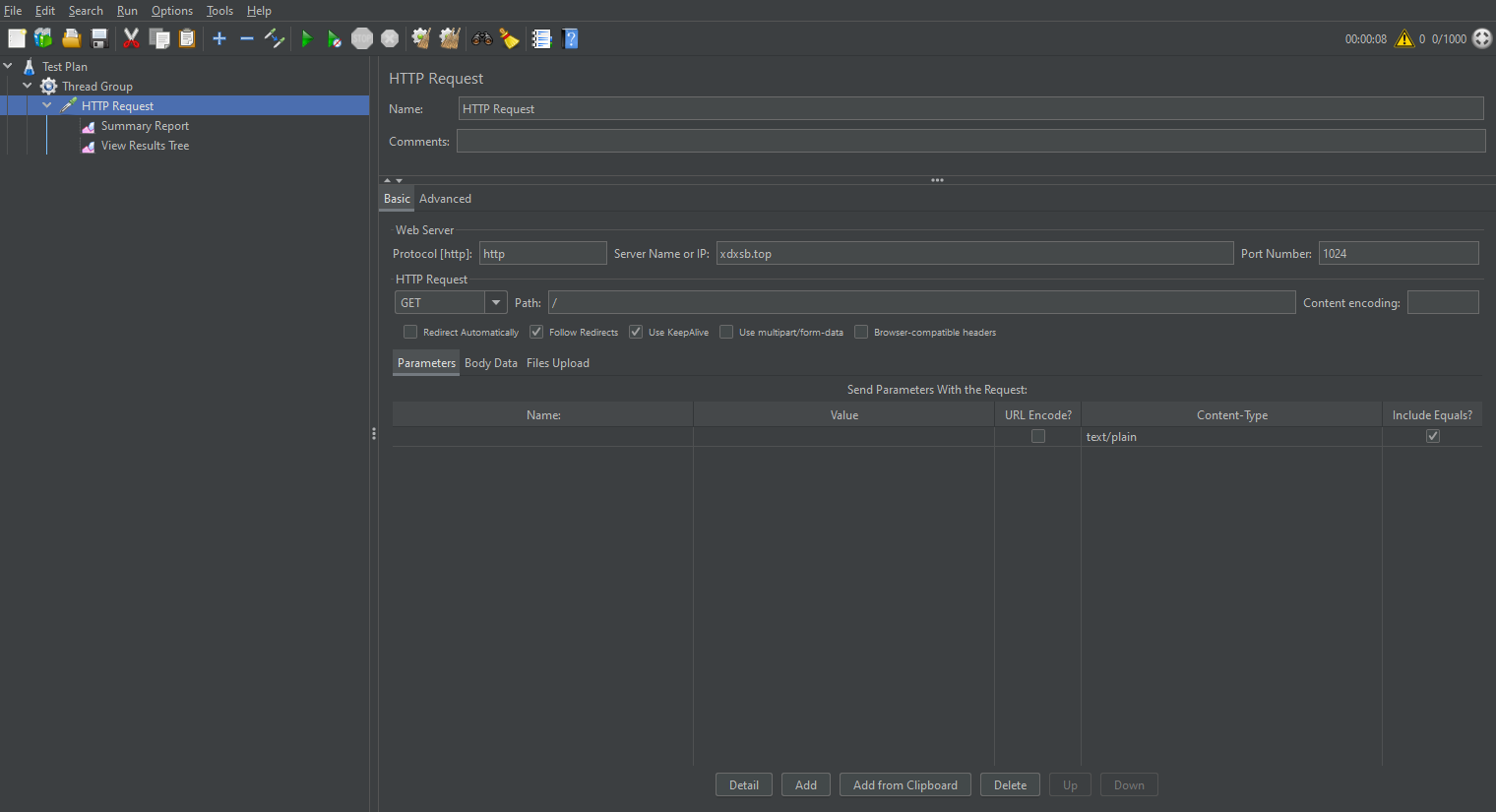
测试结果显示,请求失败率为16%,因此我这小破服务器,基本上1000个并发请求都难以满足。

封禁ip
如果面对恶意攻击,那最快解决问题的办法无疑是封禁它的ip,这里尝试一下封禁本机ip,看看是否有效。
首先查询本机ip,直接在百度搜索
ip,即可查询到公网ip,注意这里一定要是公网ip,通过ipconfig查询出的是内网ip。修改配置文件:
vim /etc/apache2/apache2.conf- 1
修改
/var/www/文件内容:<Directory /var/www/> Options Indexes FollowSymLinks AllowOverride None <RequireAll> Require all granted Require not ip 111.11.81.152 </RequireAll> </Directory>- 1
- 2
- 3
- 4
- 5
- 6
- 7
- 8
重启服务:
/etc/init.d/apache2 restart- 1
再次访问,发现权限受限,说明设置成功。

拓展:如果只允许某个固定ip访问,那么可以这样修改:
<Directory /var/www/> Options Indexes FollowSymLinks AllowOverride None # Require all granted Require ip 111.11.82.8 </Directory>- 1
- 2
- 3
- 4
- 5
- 6
设置账号密码访问
对于某些私密文件,可以进一步配置账号密码进行身份验证。
首先创建一个文件夹用来保存用户信息:
mkdir -p /usr/local/conf- 1
然后创建用户:
htpasswd -c /usr/local/conf/.usr zstar- 1
zstar是我创建的用户名输入密码后,Apache会以密文方式存储密码,可以通过下面的方式查看用户名和密码密文:
cat /usr/local/conf/.usr- 1
再次修改配置文件:
vim /etc/apache2/apache2.conf- 1
修改内容:
<Directory /var/www/> Options Indexes FollowSymLinks AllowOverride All AuthName "apache" AuthType Basic AuthUserFile "/usr/local/conf/.usr" Require user zstar </Directory>- 1
- 2
- 3
- 4
- 5
- 6
- 7
- 8
重启服务:
/etc/init.d/apache2 restart- 1
再次访问,成功弹出登录验证,说明配置成功。

参考
[1]ubuntu搭建http服务器用于下载ubuntu文件:https://blog.csdn.net/yy1695990107/article/details/116976994
[2]Apache2 httpd.conf 配置详解:https://blog.csdn.net/assassinice/article/details/78854139
[3]Apache的访问控制:https://blog.csdn.net/m0_54434140/article/details/122249712
[4]apache2三种模式及参数调优:https://blog.csdn.net/zhihui1017/article/details/54959194 -
相关阅读:
LVS负载均衡群集之原理叙述
【scikit-learn基础】--『分类模型评估』之评估报告
OpenCV快速入门:图像滤波与边缘检测
vue中Promise的使用
大数据(9h)FlinkSQL之Lookup Join
mac 下载使用sshpass+命令起别名
JPA自动建表字段名称采用驼峰形式
解封了 开始寻找牛人
基于ReadWriteLock的全局安全缓存实现
二十一、商城 - 商品录入-KindEditor 编辑器(9)
- 原文地址:https://blog.csdn.net/qq1198768105/article/details/127547977