-
windows10 + visual studio配置C/C++编译环境 和 vscode配置C/C++编译环境,以及opencv4.5.5环境
1 visual studio配置C/C++编译环境
- visual studio文档:https://docs.microsoft.com/zh-cn/visualstudio/ide/?view=vs-2022
1.1 下载和安装visual studio
1.1.1 下载visual studio
1、下载visual studio安装包地址:
windows可以直接下载社区版本即可(
免费),专业版的要收费(可以看到右下角还提供了Visual Studio Code的下载,说明VScode还是比较好用,比较轻量化)
安装包下载之后,看似很小只有1.6MB,这其实只相当于是一个启动程序,后面在安装的过程中,会下载很多安装文件!

1.1.2 安装visual studio
安装visual studio可以参考官方文档:
1、下载的程序直接点击安装可执行文件即可:
- 1)直接选择
使用C++的桌面开发:如果知识进行C++的编程选用该选线即可,在右边有安装的选项的详细信息,如果其他的不需要建议不要勾选,可以看到我的安装要求空间大小已经占用10.04GB了! - 2)安装位置也可以修改,建议使用默认
从下面的界面可以看到,你还可以设置一些其他的选项:
- 工作负荷
- 单个组件
- 语言包(这里选择
中文简体) - 安装路径

2、更过关于选线的介绍可以参考官方文档

3、默认的安装位置:
- visual studio IDE:
C:\Program Files\Microsoft Visual Studio\2022\Community4.57GB - 下载缓存:
C:\ProgramData\Microsoft\VisualStudio\Packages2.29GB - 共享组件、工具和SDK:
C:\Program Files (x86)\Microsoft Visual Studio\Shared1.75GB

安装的过程时间比较长,耐心等待吧(我的网速感人)

安装好如下图,此时还可以点击
修改继续选择安装其它模块组件功能扩展包

4、安装好之后可能需要登录,使用微软账号登录就可以,登录比较慢,这里选择
暂时跳过此项

5、然后设置界面风格等就可以打开了

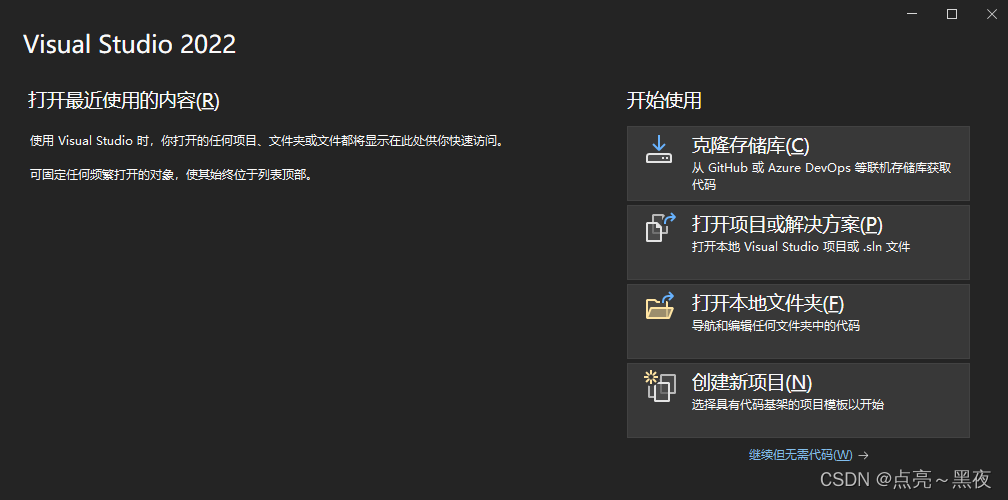
1.1.3 visual studio按照之后,如何添加其它模块组件功能扩展包
如果我们的visual studio已经安装好之后,后面又想要
添加其他的组件和功能扩展包,应该如何添加安装呢1、在
工具-获取工具和功能,点开即可看到和我们安装时一样的组件选择界面,选择对应的组件安装即可!(参考)

1.1.4 visual studio 创建C++示例程序
1、点击
文件-新建-项目或者直接按快捷键Ctrl+Shift+N打开新建项目页面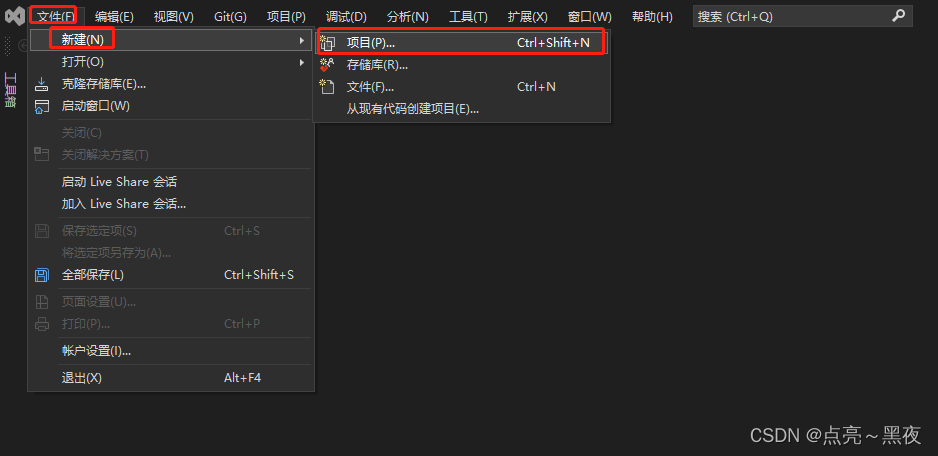
1、然后选择第一个创建
空项目,当然这里还可以选择语言、平台、项目类型:


不选择默认就是
C++、windows、控制台,项目的默认的位置是:C:\Users\Administrator\source\repos

新建好的项目如下:

2、创建好目录之后,会自动生成如下文件:
在windows下使用
tree /f查看文件树结构!D:. └─learn └─Project1 │ Project1.sln │ └─Project1 Project1.vcxproj Project1.vcxproj.filters Project1.vcxproj.user- 1
- 2
- 3
- 4
- 5
- 6
- 7
- 8
- 9
3、创建一个测试程序
在项目的
源文件上鼠标右键,然后选择:添加-新建项(或 直接使用快捷键Ctrl+Shift+A)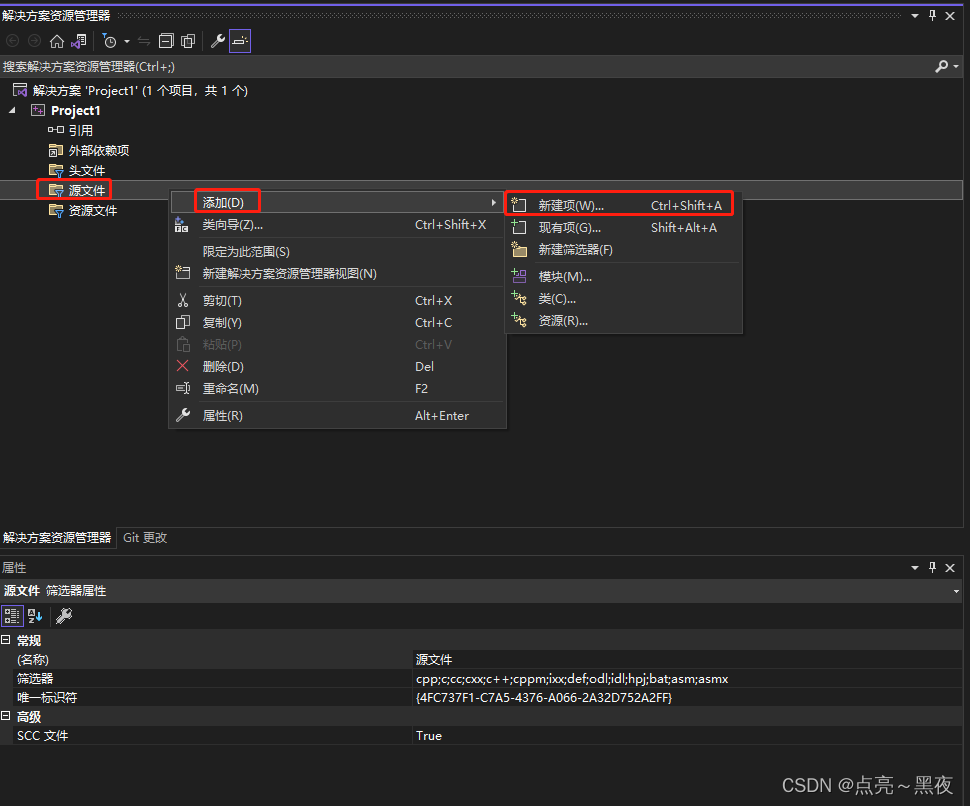
然后选择
C++文件(.cpp)创建一个测试的test.cpp的c++测试文件!

4、测试程序test.cpp,这里是打印一下hello wold
#includeusing namespace std; int main() { cout << "Hello World" << endl; return 0; } - 1
- 2
- 3
- 4
- 5
- 6
- 7

5、开始执行测试程序:点击如下图中的绿色按钮 或 直接按Ctrl+F5开始执行(不调试)
执行后,会自动打开命令行界面,显示如下:

同时会在:
D:\projectCPlus\learn\Project1\x64\Debug目录下生成一个Project1.exe的可执行文件!
1.1.4 创建空目录下的.sln和Project1.vcxproj文件说明
1、.sln文件
.sln文件:是解决方案的配置,主要是管理这个方案里的多个vcxproj。sln文件不是很重要,即使删除也可以重新生成!.sln文件通常由三部分组成(参考)- 文件版本
- 工程信息
- 全局设置
2、
.vcproj/.vcxproj文件:是工程的配置文件,管理工程中细节比如包含的文件,引用库等-
.vcproj后缀的文件:VS2008以及VS2008之前版本的VS工程文件 -
.vcxproj后缀的文件:VS2010以及VS2010之后版本的VS工程文件。我下载的是visual studio 2022版本,因此生成工程的配置文件的后缀名为.vcxproj
一般没有sln,也可以直接打开vcxproj,也可以重新生成sln
如下是我使用visual studio创建一个空项目后生成的项目配置文件里的信息,如下:
1)Project1.sln文件中的内容:
Microsoft Visual Studio Solution File, Format Version 12.00 # Visual Studio Version 17 VisualStudioVersion = 17.3.32804.467 MinimumVisualStudioVersion = 10.0.40219.1 Project("{8BC9CEB8-8B4A-11D0-8D11-00A0C91BC942}") = "Project1", "Project1\Project1.vcxproj", "{040374C9-9063-4E4C-BD40-BB318CCC6B6E}" EndProject Global GlobalSection(SolutionConfigurationPlatforms) = preSolution Debug|x64 = Debug|x64 Debug|x86 = Debug|x86 Release|x64 = Release|x64 Release|x86 = Release|x86 EndGlobalSection GlobalSection(ProjectConfigurationPlatforms) = postSolution {040374C9-9063-4E4C-BD40-BB318CCC6B6E}.Debug|x64.ActiveCfg = Debug|x64 {040374C9-9063-4E4C-BD40-BB318CCC6B6E}.Debug|x64.Build.0 = Debug|x64 {040374C9-9063-4E4C-BD40-BB318CCC6B6E}.Debug|x86.ActiveCfg = Debug|Win32 {040374C9-9063-4E4C-BD40-BB318CCC6B6E}.Debug|x86.Build.0 = Debug|Win32 {040374C9-9063-4E4C-BD40-BB318CCC6B6E}.Release|x64.ActiveCfg = Release|x64 {040374C9-9063-4E4C-BD40-BB318CCC6B6E}.Release|x64.Build.0 = Release|x64 {040374C9-9063-4E4C-BD40-BB318CCC6B6E}.Release|x86.ActiveCfg = Release|Win32 {040374C9-9063-4E4C-BD40-BB318CCC6B6E}.Release|x86.Build.0 = Release|Win32 EndGlobalSection GlobalSection(SolutionProperties) = preSolution HideSolutionNode = FALSE EndGlobalSection GlobalSection(ExtensibilityGlobals) = postSolution SolutionGuid = {27CBC4B0-714F-472B-B16A-47B7A1672990} EndGlobalSection EndGlobal- 1
- 2
- 3
- 4
- 5
- 6
- 7
- 8
- 9
- 10
- 11
- 12
- 13
- 14
- 15
- 16
- 17
- 18
- 19
- 20
- 21
- 22
- 23
- 24
- 25
- 26
- 27
- 28
- 29
- 30
2)
Project1.vcxproj<?xml version="1.0" encoding="utf-8"?> <Project DefaultTargets="Build" xmlns="http://schemas.microsoft.com/developer/msbuild/2003"> <ItemGroup Label="ProjectConfigurations"> <ProjectConfiguration Include="Debug|Win32"> <Configuration>Debug</Configuration> <Platform>Win32</Platform> </ProjectConfiguration> <ProjectConfiguration Include="Release|Win32"> <Configuration>Release</Configuration> <Platform>Win32</Platform> </ProjectConfiguration> <ProjectConfiguration Include="Debug|x64"> <Configuration>Debug</Configuration> <Platform>x64</Platform> </ProjectConfiguration> <ProjectConfiguration Include="Release|x64"> <Configuration>Release</Configuration> <Platform>x64</Platform> </ProjectConfiguration> </ItemGroup> <PropertyGroup Label="Globals"> <VCProjectVersion>16.0</VCProjectVersion> <Keyword>Win32Proj</Keyword> <ProjectGuid>{040374c9-9063-4e4c-bd40-bb318ccc6b6e}</ProjectGuid> <RootNamespace>Project1</RootNamespace> <WindowsTargetPlatformVersion>10.0</WindowsTargetPlatformVersion> </PropertyGroup> <Import Project="$(VCTargetsPath)\Microsoft.Cpp.Default.props" /> <PropertyGroup Condition="'$(Configuration)|$(Platform)'=='Debug|Win32'" Label="Configuration"> <ConfigurationType>Application</ConfigurationType> <UseDebugLibraries>true</UseDebugLibraries> <PlatformToolset>v143</PlatformToolset> <CharacterSet>Unicode</CharacterSet> </PropertyGroup> <PropertyGroup Condition="'$(Configuration)|$(Platform)'=='Release|Win32'" Label="Configuration"> <ConfigurationType>Application</ConfigurationType> <UseDebugLibraries>false</UseDebugLibraries> <PlatformToolset>v143</PlatformToolset> <WholeProgramOptimization>true</WholeProgramOptimization> <CharacterSet>Unicode</CharacterSet> </PropertyGroup> <PropertyGroup Condition="'$(Configuration)|$(Platform)'=='Debug|x64'" Label="Configuration"> <ConfigurationType>Application</ConfigurationType> <UseDebugLibraries>true</UseDebugLibraries> <PlatformToolset>v143</PlatformToolset> <CharacterSet>Unicode</CharacterSet> </PropertyGroup> <PropertyGroup Condition="'$(Configuration)|$(Platform)'=='Release|x64'" Label="Configuration"> <ConfigurationType>Application</ConfigurationType> <UseDebugLibraries>false</UseDebugLibraries> <PlatformToolset>v143</PlatformToolset> <WholeProgramOptimization>true</WholeProgramOptimization> <CharacterSet>Unicode</CharacterSet> </PropertyGroup> <Import Project="$(VCTargetsPath)\Microsoft.Cpp.props" /> <ImportGroup Label="ExtensionSettings"> </ImportGroup> <ImportGroup Label="Shared" > </ImportGroup> <ImportGroup Label="PropertySheets" Condition="'$(Configuration)|$(Platform)'=='Debug|Win32'"> <Import Project="$(UserRootDir)\Microsoft.Cpp.$(Platform).user.props" Condition="exists('$(UserRootDir)\Microsoft.Cpp.$(Platform).user.props')" Label="LocalAppDataPlatform" /> </ImportGroup> <ImportGroup Label="PropertySheets" Condition="'$(Configuration)|$(Platform)'=='Release|Win32'"> <Import Project="$(UserRootDir)\Microsoft.Cpp.$(Platform).user.props" Condition="exists('$(UserRootDir)\Microsoft.Cpp.$(Platform).user.props')" Label="LocalAppDataPlatform" /> </ImportGroup> <ImportGroup Label="PropertySheets" Condition="'$(Configuration)|$(Platform)'=='Debug|x64'"> <Import Project="$(UserRootDir)\Microsoft.Cpp.$(Platform).user.props" Condition="exists('$(UserRootDir)\Microsoft.Cpp.$(Platform).user.props')" Label="LocalAppDataPlatform" /> </ImportGroup> <ImportGroup Label="PropertySheets" Condition="'$(Configuration)|$(Platform)'=='Release|x64'"> <Import Project="$(UserRootDir)\Microsoft.Cpp.$(Platform).user.props" Condition="exists('$(UserRootDir)\Microsoft.Cpp.$(Platform).user.props')" Label="LocalAppDataPlatform" /> </ImportGroup> <PropertyGroup Label="UserMacros" /> <ItemDefinitionGroup Condition="'$(Configuration)|$(Platform)'=='Debug|Win32'"> <ClCompile> <WarningLevel>Level3</WarningLevel> <SDLCheck>true</SDLCheck> <PreprocessorDefinitions>WIN32;_DEBUG;_CONSOLE;%(PreprocessorDefinitions)</PreprocessorDefinitions> <ConformanceMode>true</ConformanceMode> </ClCompile> <Link> <SubSystem>Console</SubSystem> <GenerateDebugInformation>true</GenerateDebugInformation> </Link> </ItemDefinitionGroup> <ItemDefinitionGroup Condition="'$(Configuration)|$(Platform)'=='Release|Win32'"> <ClCompile> <WarningLevel>Level3</WarningLevel> <FunctionLevelLinking>true</FunctionLevelLinking> <IntrinsicFunctions>true</IntrinsicFunctions> <SDLCheck>true</SDLCheck> <PreprocessorDefinitions>WIN32;NDEBUG;_CONSOLE;%(PreprocessorDefinitions)</PreprocessorDefinitions> <ConformanceMode>true</ConformanceMode> </ClCompile> <Link> <SubSystem>Console</SubSystem> <EnableCOMDATFolding>true</EnableCOMDATFolding> <OptimizeReferences>true</OptimizeReferences> <GenerateDebugInformation>true</GenerateDebugInformation> </Link> </ItemDefinitionGroup> <ItemDefinitionGroup Condition="'$(Configuration)|$(Platform)'=='Debug|x64'"> <ClCompile> <WarningLevel>Level3</WarningLevel> <SDLCheck>true</SDLCheck> <PreprocessorDefinitions>_DEBUG;_CONSOLE;%(PreprocessorDefinitions)</PreprocessorDefinitions> <ConformanceMode>true</ConformanceMode> </ClCompile> <Link> <SubSystem>Console</SubSystem> <GenerateDebugInformation>true</GenerateDebugInformation> </Link> </ItemDefinitionGroup> <ItemDefinitionGroup Condition="'$(Configuration)|$(Platform)'=='Release|x64'"> <ClCompile> <WarningLevel>Level3</WarningLevel> <FunctionLevelLinking>true</FunctionLevelLinking> <IntrinsicFunctions>true</IntrinsicFunctions> <SDLCheck>true</SDLCheck> <PreprocessorDefinitions>NDEBUG;_CONSOLE;%(PreprocessorDefinitions)</PreprocessorDefinitions> <ConformanceMode>true</ConformanceMode> </ClCompile> <Link> <SubSystem>Console</SubSystem> <EnableCOMDATFolding>true</EnableCOMDATFolding> <OptimizeReferences>true</OptimizeReferences> <GenerateDebugInformation>true</GenerateDebugInformation> </Link> </ItemDefinitionGroup> <ItemGroup></ItemGroup> <Import Project="$(VCTargetsPath)\Microsoft.Cpp.targets" /> <ImportGroup Label="ExtensionTargets"> </ImportGroup> </Project>- 1
- 2
- 3
- 4
- 5
- 6
- 7
- 8
- 9
- 10
- 11
- 12
- 13
- 14
- 15
- 16
- 17
- 18
- 19
- 20
- 21
- 22
- 23
- 24
- 25
- 26
- 27
- 28
- 29
- 30
- 31
- 32
- 33
- 34
- 35
- 36
- 37
- 38
- 39
- 40
- 41
- 42
- 43
- 44
- 45
- 46
- 47
- 48
- 49
- 50
- 51
- 52
- 53
- 54
- 55
- 56
- 57
- 58
- 59
- 60
- 61
- 62
- 63
- 64
- 65
- 66
- 67
- 68
- 69
- 70
- 71
- 72
- 73
- 74
- 75
- 76
- 77
- 78
- 79
- 80
- 81
- 82
- 83
- 84
- 85
- 86
- 87
- 88
- 89
- 90
- 91
- 92
- 93
- 94
- 95
- 96
- 97
- 98
- 99
- 100
- 101
- 102
- 103
- 104
- 105
- 106
- 107
- 108
- 109
- 110
- 111
- 112
- 113
- 114
- 115
- 116
- 117
- 118
- 119
- 120
- 121
- 122
- 123
- 124
- 125
- 126
- 127
- 128
- 129
- 130
- 131
- 132
- 133
- 134
- 135
- 136
- 137
- 138
- 139
3)
Project1.vcxproj.filters<?xml version="1.0" encoding="utf-8"?> <Project ToolsVersion="4.0" xmlns="http://schemas.microsoft.com/developer/msbuild/2003"> <ItemGroup> <Filter Include="源文件"> <UniqueIdentifier>{4FC737F1-C7A5-4376-A066-2A32D752A2FF}</UniqueIdentifier> <Extensions>cpp;c;cc;cxx;c++;cppm;ixx;def;odl;idl;hpj;bat;asm;asmx</Extensions> </Filter> <Filter Include="头文件"> <UniqueIdentifier>{93995380-89BD-4b04-88EB-625FBE52EBFB}</UniqueIdentifier> <Extensions>h;hh;hpp;hxx;h++;hm;inl;inc;ipp;xsd</Extensions> </Filter> <Filter Include="资源文件"> <UniqueIdentifier>{67DA6AB6-F800-4c08-8B7A-83BB121AAD01}</UniqueIdentifier> <Extensions>rc;ico;cur;bmp;dlg;rc2;rct;bin;rgs;gif;jpg;jpeg;jpe;resx;tiff;tif;png;wav;mfcribbon-ms</Extensions> </Filter> </ItemGroup> </Project>- 1
- 2
- 3
- 4
- 5
- 6
- 7
- 8
- 9
- 10
- 11
- 12
- 13
- 14
- 15
- 16
- 17
4)
Project1.vcxproj.user<?xml version="1.0" encoding="utf-8"?> <Project ToolsVersion="Current" xmlns="http://schemas.microsoft.com/developer/msbuild/2003"> <PropertyGroup /> </Project>- 1
- 2
- 3
- 4
1.1.5 visual studio 快速创建项目、程序和执行的快捷键
从上面的步骤已经知道如何创建项目、程序 和 执行程序,但是快捷键的使用会更方便一点:
- 创建空项目:
ctrl+shift+n - 创建cpp文件:
ctrl+shfit+a - 执行cpp文件(不调试):
ctrl+F5
1.2 visual studio 扩展(安装插件)
1.2.1 安装壁纸插件
参考:https://www.jb51.net/article/233878.htm
1.3 windows10 + visual studio + opencv4.5.5 安装与配置
1.3.1 下载opencv
1、下载解压 opencv

注意:
这里下载的opencv是exe文件,并不是源码下载好:
opencv-4.5.5-vc14_vc15.exe文件,直接双击解压到指定的目录下即可!

解压后的目录名为opencv,我们重新命名为
opencv455,方便知道版本!
2、配置opencv的环境变量
把
D:\software_install\opencv455\build\x64\vc15\bin路径添加到系统的PATH环境变量中

1.3.2 在visual studio2022 中配置opencv
1、先创建新项目

选择创建空项目


2、选中项目名称后,点击上方的
扳手图标即属性

打开属性界面如下:
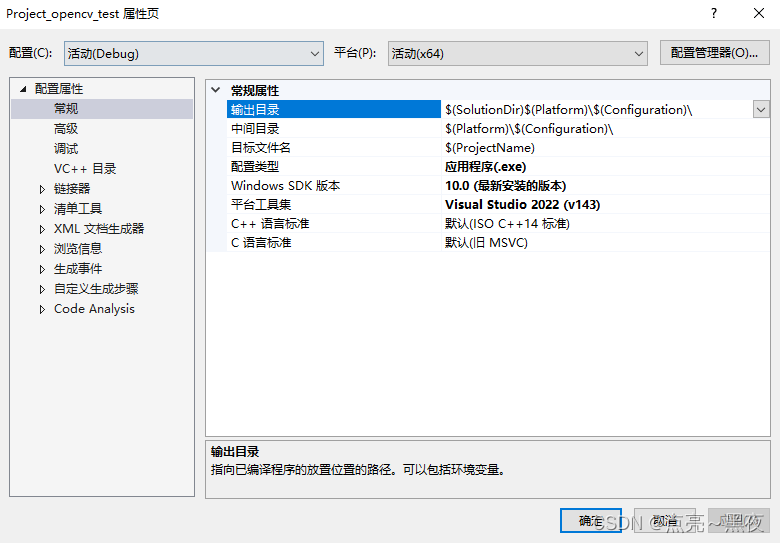
3、
添加包含目录:选中VC++ 目录-包含目录-编辑
然后把opencv的
包含(include)目录添加进去:D:\software_install\opencv455\build\include添加进去
4、
添加库目录:选中VC++ 目录-库目录-编辑
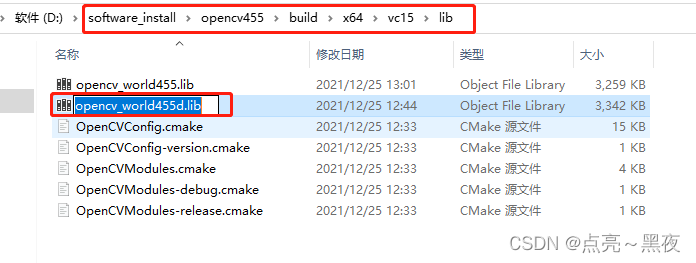
然后把opencv的库目录:D:\software_install\opencv455\build\x64\vc15\lib添加进去
5、添加
链接器的附加依赖项(附加依赖项就是动态库):选中链接器-输入-附加依赖项-编辑
然后把
D:\software_install\opencv455\build\x64\vc15\lib下的opencv_world455d.lib文件名粘贴到我们的附加依赖项中!

1.3.3 测试配置环境
1、新建一个test.cpp测试文件,测试代码:
#include#include #include #include using namespace cv; using namespace std; int main() { Mat image = Mat::zeros(300, 600, CV_8UC3); circle(image, Point(300, 200), 100, Scalar(0, 255, 120), -100); circle(image, Point(400, 200), 100, Scalar(255, 255, 255), -100); imshow("show window", image); waitKey(0); return 0; } - 1
- 2
- 3
- 4
- 5
- 6
- 7
- 8
- 9
- 10
- 11
- 12
- 13
- 14
- 15
程序执行结果如下,表面我们的环境配置成功!

参考:https://www.jb51.net/article/246632.htm
参考:https://blog.csdn.net/m0_66494900/article/details/125997895
参考:https://blog.csdn.net/weixin_43213895/article/details/121958969 #如果要配置opencv-contrib 参考该文档2 vscode配置C/C++编译环境
挖坑,待填
参考:
-
相关阅读:
找回消失的密钥 --- DFA分析白盒AES算法
【yolov7系列三】实战从0构建训练自己的数据集
元宇宙到底是什么?全球各行业纷纷入局,为什么会成为一种趋势?
一起Talk Android吧(第三百六十八回:多线程之精准唤醒)
怎么将图片旋转45度?
计算机毕业设计Java音乐视频分享网站(系统+程序+mysql数据库+Lw文档)
Jenkins+Docker+Harbor+SpringCloud微服务持续集成(docker操作在配置文件内)
Elasticsearch:运用 Python 实时通过 Logstash 写入日志到 Elasticsearch
XV6 Network解析-1
怎么查找和自己专业有关的英文文献?
- 原文地址:https://blog.csdn.net/weixin_41010198/article/details/126263212

- 最新文章
-
花了一晚上AI Coding, 在不熟悉的领域,使用AI帮同事解决了跳槽的小问题
一首《谦比希铜矿之歌》厂歌火爆全网,背后是AI的数学本质
园友特惠| 1Panel 企业版 & AI 一体机限量放售,最高直降 5100!
C# 内存安全性的重大演进:重新定义 unsafe 关键字
为了随时随地控制 AI Agent,我做了一个 Web Terminal
AAVE V3 v3.7 版本更新:Isolation Mode 被移除,清算流程精度修复
Agent 架构设计与能力构建
从 Responses API 到 Chat Completions:一个模型网关的设计复盘
上位机程序发布打包成安装包---Inno Setup
【EF Core】继承策略——TPT