-
Qt5.9.1-下载安装环境搭建——HelloWorld
参考书籍/视频:《Qt 5.9 C++开发指南》2021
bilibili视频链接跳转
Qt5.7之前的版本不建议使用,很多功能都没有,现在最新的是5.15,可以选择5.14,低于该版本的可能没有VS2019对应的Qt.
5.14需要 断网安装,不然需要注册账号,很麻烦1 Qt5.9.1 下载、安装
链接啦:https://download.qt.io/archive/qt/5.9/5.9.1/
windows平台就下载: qt-opensource-windows-x86-5.9.1.exe

正常会调用迅雷下载啦安装选项

这里由于,已经安装了vs2019,结合视频,就只安装一部分

和

和

安装成功测试
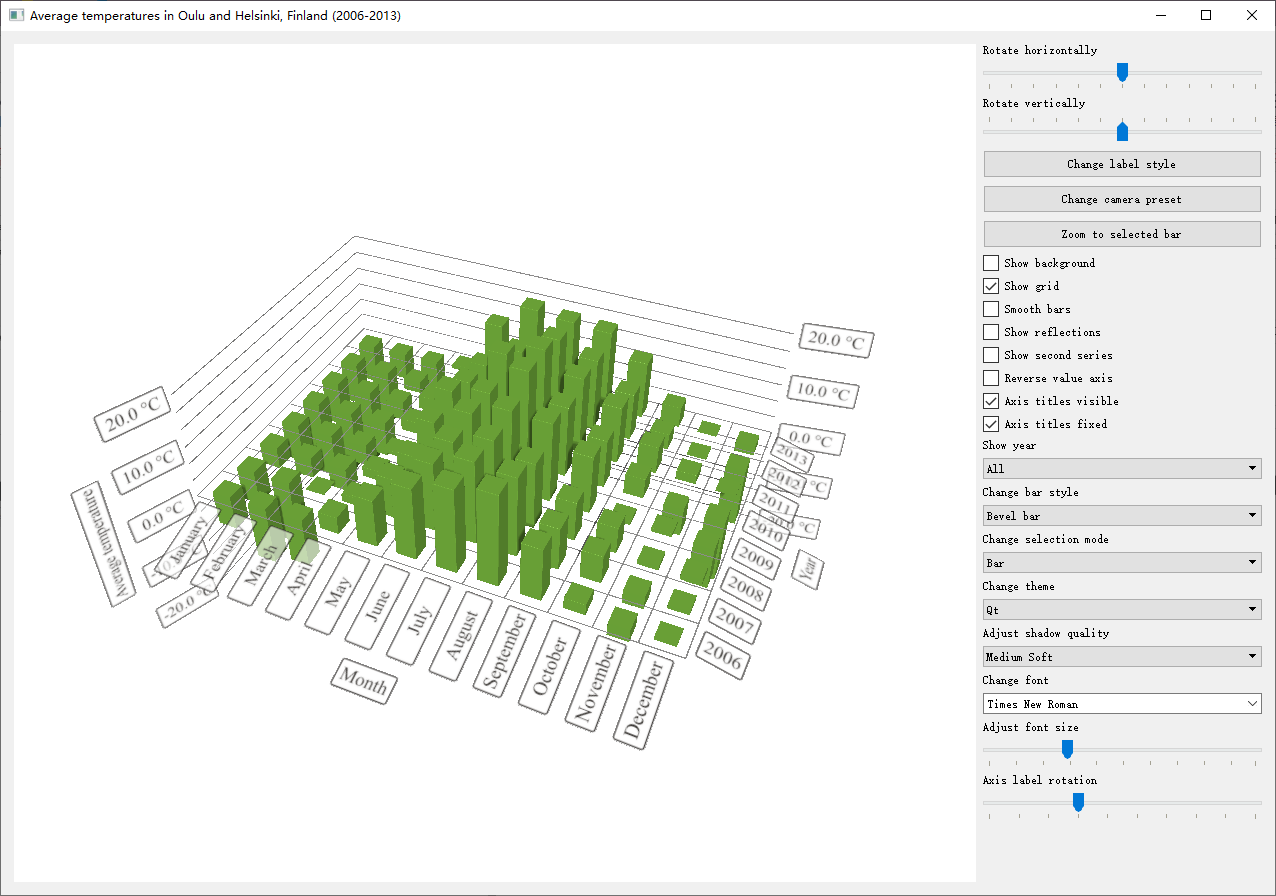
打开自带的示例,build 看看:Welcome ——》Example
可以点第一个Bars Example,再点左边的项目,勾选红框中的,建立独立的build 文件夹


点击Run,出现画面如下,鼠标右键点-拖动,三维画面可以动啦
其他
安装了其他选项,出现感叹号时:
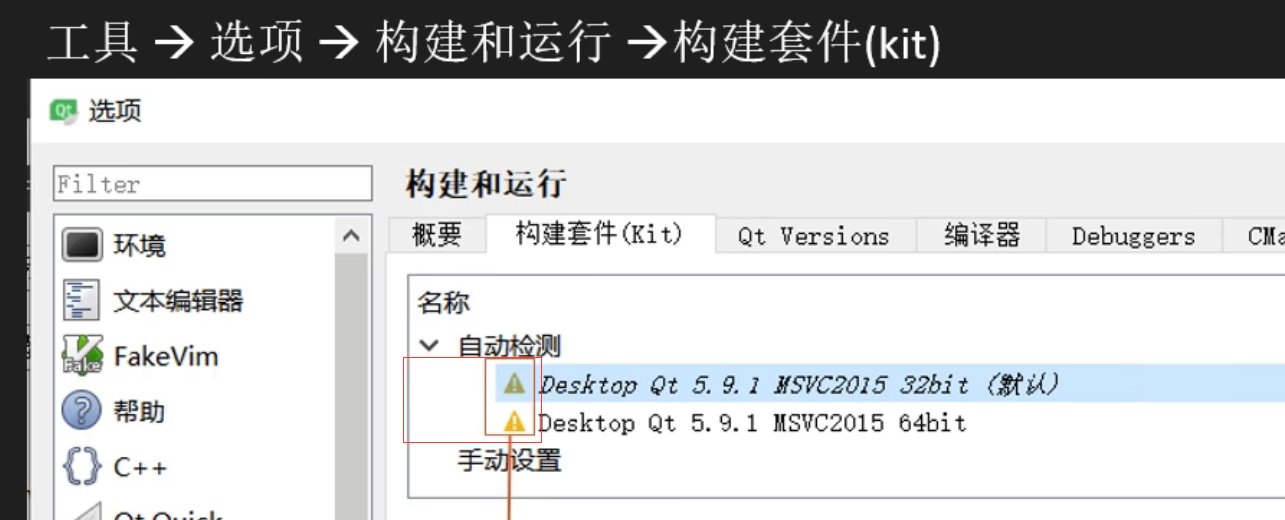
是说Qt找不到 VC 链接,需要安装8.0或者10.0的 SDK

安装后,重新启动Qt Creator,Tools – Options 可以看到感叹号转为显示器图标

修改中英文界面:Tools – Options – Enviorment – Interface里的language选项
注意:temp目录不能是中文
报错:无法运行“rc.exe”

卸载
安装目录下:MaintenaceTool.exe有卸载选项
2 新建Project——HelloWorld
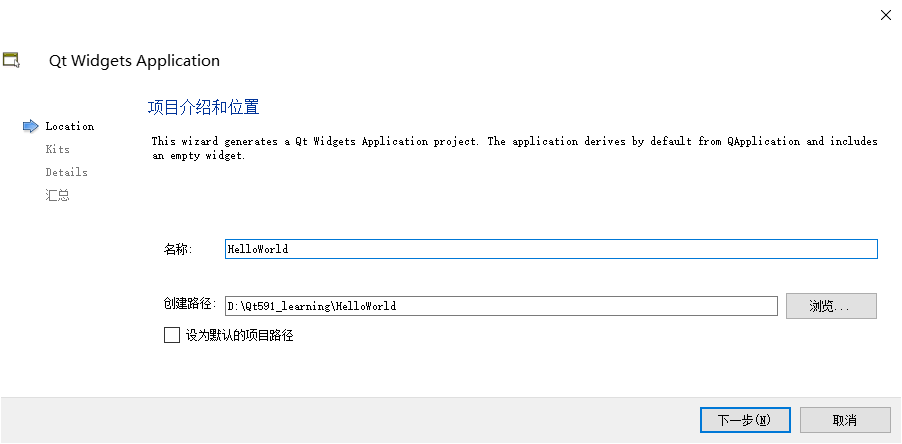
新建工程初期主要选择第一个,

设置目录:
QmainWindow:菜单栏、选项

如下:
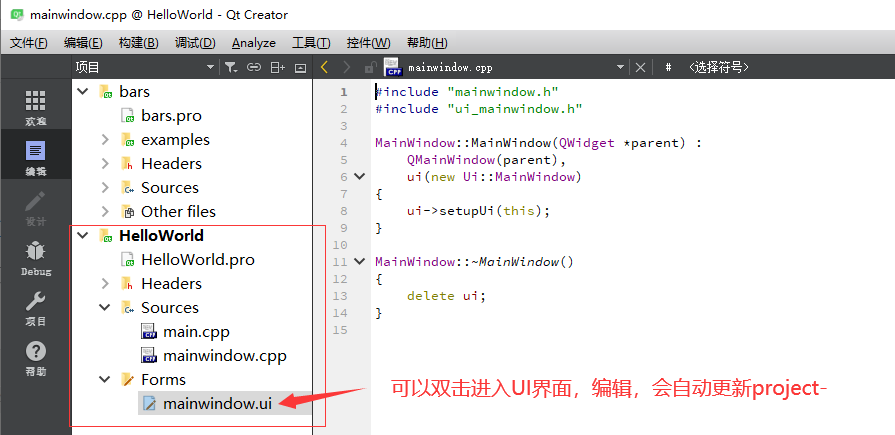
黑体加粗字为当前活动项目,
mainwindow.ui是界面文件,使用XML语言描述。在 .pro文件中,GUI应用需要添加,Qt版本大于4需要添加widgets
QT += core gui greaterThan(QT_MAJOR_VERSION, 4): QT += widgets- 1
- 2
- 3
- 4
利用UI界面设置
先拖动Label,修改属性,填内容
Ctrl+S 保存后,点击运行:

单击mainwindow.ui文件,可以看到XML语言文本内容:<?xml version="1.0" encoding="UTF-8"?> <ui version="4.0"> <class>MainWindow</class> <widget class="QMainWindow" name="MainWindow"> <property name="geometry"> <rect> <x>0</x> <y>0</y> <width>400</width> <height>300</height> </rect> </property> <property name="windowTitle"> <string>MainWindow</string> </property> <widget class="QWidget" name="centralWidget"> <widget class="QLabel" name="label"> <property name="geometry"> <rect> <x>70</x> <y>70</y> <width>291</width> <height>31</height> </rect> </property> <property name="font"> <font> <family>黑体</family> <pointsize>14</pointsize> </font> </property> <property name="text"> <string>假如时光倒流,我能做什么</string> </property> </widget> <widget class="QLabel" name="label_2"> <property name="geometry"> <rect> <x>141</x> <y>130</y> <width>151</width> <height>20</height> </rect> </property> <property name="font"> <font> <family>Times New Roman</family> <pointsize>16</pointsize> </font> </property> <property name="text"> <string>Hello World!</string> </property> </widget> </widget> <widget class="QMenuBar" name="menuBar"> <property name="geometry"> <rect> <x>0</x> <y>0</y> <width>400</width> <height>23</height> </rect> </property> <widget class="QMenu" name="menu"> <property name="title"> <string>先进算法升级器</string> </property> </widget> <addaction name="menu"/> </widget> <widget class="QToolBar" name="mainToolBar"> <attribute name="toolBarArea"> <enum>TopToolBarArea</enum> </attribute> <attribute name="toolBarBreak"> <bool>false</bool> </attribute> </widget> <widget class="QStatusBar" name="statusBar"/> </widget> <layoutdefault spacing="6" margin="11"/> <resources/> <connections/> </ui>- 1
- 2
- 3
- 4
- 5
- 6
- 7
- 8
- 9
- 10
- 11
- 12
- 13
- 14
- 15
- 16
- 17
- 18
- 19
- 20
- 21
- 22
- 23
- 24
- 25
- 26
- 27
- 28
- 29
- 30
- 31
- 32
- 33
- 34
- 35
- 36
- 37
- 38
- 39
- 40
- 41
- 42
- 43
- 44
- 45
- 46
- 47
- 48
- 49
- 50
- 51
- 52
- 53
- 54
- 55
- 56
- 57
- 58
- 59
- 60
- 61
- 62
- 63
- 64
- 65
- 66
- 67
- 68
- 69
- 70
- 71
- 72
- 73
- 74
- 75
- 76
- 77
- 78
- 79
- 80
- 81
- 82
- 83
- 84
- 85
- 86
目录变红说明 文件夹不存在
3 在VS 里使用Qt
下载 qt-vsaddin文件安装,
这里是使用的VS 2019,所以搜索下载安装:qt-vsaddin-msvc2019搭建环境参考:链接跳转
结合自己的安装目录,选择到bin目录中的qmake.exe文件:

点击下面红框的Qt选择相应的版本,Qt5.7之前的版本不建议使用,很多功能都没有,现在最新的是5.15,可以选择5.14,低于该版本的可能没有VS2019对应的Qt.vs2019添加对Qt5.1.4的支持
先配下环境:

有图有真相:

生成.pro文件
右击工程(不是解决方案)名称,Qt的子菜单中,点击Create basic .Pro file

点击显示所有文件后,可以看到:

4 安装Qt5.14

再安装qt-vsaddin-msvc2019-2.5.1.vsix,链接如下:
https://download.qt.io/archive/vsaddin/2.5.1/
安装后,编译器出现感叹号解决指定好 C/C++ builder后,打开example,Run测试下(需要点configure project—配置工程,指定下编译器):

code
#include "QtWidgetsApplication1.h" #include <QtWidgets/QApplication> int main(int argc, char *argv[]) { QApplication a(argc, argv); QtWidgetsApplication1 w; w.show(); return a.exec(); }- 1
- 2
- 3
- 4
- 5
- 6
- 7
- 8
- 9
- 10
widget:窗口小部件、小器具、装饰品

-
相关阅读:
消息中间件Kafuka学习——初次配置使用
机器学习——seaborn实用画图方法简介
matlab调用python自定义函数模块进行数据分析总结
操作系统------内存管理(2)非连续分配内存 段页式管理
Linux:Termius连接本地虚拟机与虚拟机快照
自动驾驶OS「百花齐放」,中国软件供应商「争夺」话语权
GO语言-反射reflect
spring注入的几种方式(文件配置以及注解方式)
艾美捷双链RNA定量试剂盒试验方案
如何选择正确的文档归档解决方案
- 原文地址:https://blog.csdn.net/dpasdfjk66/article/details/125474580

- 最新文章
-
沪漂五周年了:我越来越迷茫了
Agentic Skill Routing 实战:别再把所有 Skill 塞进 AI Agent 上下文
MySQL-Seconds_behind_master的精度误差
[MAF预定义ChatClient中间件-03]CachingChatClient——利用缓存省钱省时间
AI的至暗历史:从万众期待到被政府撤资,AI的两次死亡徘徊
Agent OS :五种驯服不确定性的范式
PortSwigger SQL注入LAB11
数据库即时编译JIT
[Begin]AI Learn Data Day 0
深度学习进阶(二十七)现代 LLM 的核心架构设计其二:SwiGLU