-
HTML,CSS,JavaScript
❤️ Author: 老九
☕️ 个人博客:老九的CSDN博客
🙏 个人名言:不可控之事 乐观面对
😍 系列专栏:HTMLHTML
<!DOCTYPE html> <html lang="en"> <head> <meta charset="UTF-8"> <title>Title</title> </head> <body> <h1>标题</h1> <h2>标题</h2> <p>段落标签</p> <p>段落标签</p><br> <p>段落标签</p> <span>文本标签</span> <span>文本标签</span> <span>文本标签</span> <div> <span>文本标签</span> <span>文本标签</span> </div> <img src="https://image.so.com/z?a=viewPage&ch=beauty&t1=625&src=home_beauty&ancestor=list&clw=326#grpid=0ed7fd5eed62add0431f080c36363fcb&id=15fc417c83083f2eddfc99aebfe40dfb&dataindex=17"> <table border="1"> <tr> <td>123</td> <td colspan="2">234</td> </tr> <tr> <td rowspan="2">123</td> <td>234</td> <td>345</td> </tr> <tr> <td>123</td> <td>234</td> <td>345</td> </tr> </table> </body> </html>- 1
- 2
- 3
- 4
- 5
- 6
- 7
- 8
- 9
- 10
- 11
- 12
- 13
- 14
- 15
- 16
- 17
- 18
- 19
- 20
- 21
- 22
- 23
- 24
- 25
- 26
- 27
- 28
- 29
- 30
- 31
- 32
- 33
- 34
- 35
- 36
- 37
- 38
- 39

CSS
属性
- CSS文字属性
font-family 字体类型 font-family:微软雅⿊,Arial,Times New Roman;
font-size 字体⼤⼩ font-size:16px;
font-weight 字体粗细 font-weight: normal/lighter/bold/bolder;
font-style 字体斜体 font-style: italic;
color 颜⾊ color: red;- 边框的三个属性
border-width 边框的宽度
border-style 边框的外观
border-color 边框的颜⾊- CSS背景图像属性
background-image 定义背景图像的路径,这样图⽚才能显示嘛
background-repeat 定义背景图像显示⽅式,例如纵向平铺、横向平铺
background-position 定义背景图像在元素哪个位置
background-attachment 定义背景图像是否随内容⽽滚动
background:url(images/11.jpg) no-repeat;定义背景图像不重复出现属性添加
- 我们可以使用style属性,为标签添加样式
<h1 style="color: red;font-size: 20px;background: blue;">标题</h1> <h2 style="color: red;font-size: 16px;background: blue;">标题</h2> <p style="color: red;font-size: 100px;background: blue;">段落标签</p>- 1
- 2
- 3
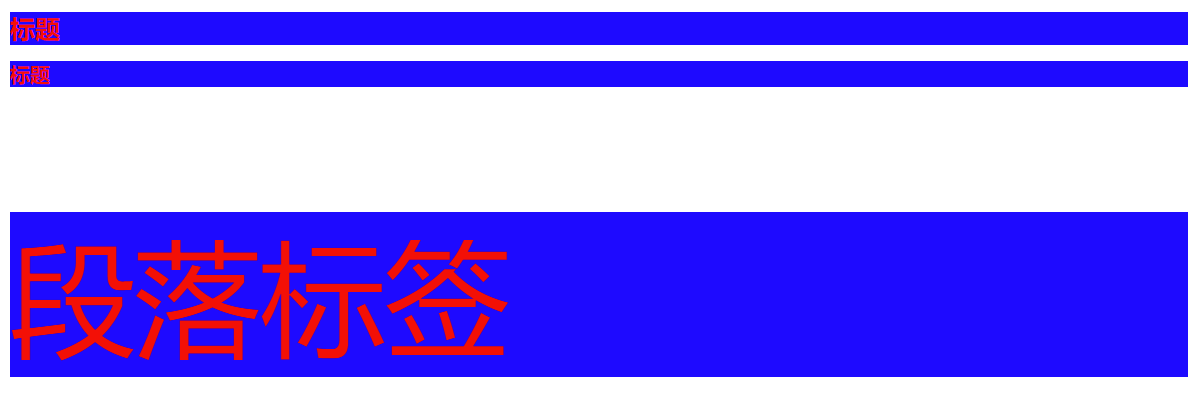
选择器添加
标签选择器
标签选择器(根据标签名称获取标签) 对⻚⾯中的所有该标签都有效
<!DOCTYPE html> <html lang="en"> <head> <meta charset="UTF-8"> <title>Title</title> <style> p{ color: red; } </style> </head> <body> <p>hello</p> </body> </html>- 1
- 2
- 3
- 4
- 5
- 6
- 7
- 8
- 9
- 10
- 11
- 12
- 13
- 14
- 15

类选择器
类选择器(获取标签class=xxx的标签)可以选择⻚⾯中的⼀组标签,class=”xxx”的⼀组标签进⾏
<!DOCTYPE html> <html lang="en"> <head> <meta charset="UTF-8"> <title>Title</title> <style> .lmp{ color: aqua; } </style> </head> <body> <h1 class="lmp">标题1</h1> </body> </html>- 1
- 2
- 3
- 4
- 5
- 6
- 7
- 8
- 9
- 10
- 11
- 12
- 13
- 14
- 15

id选择器
ID选择器(获取标签id=xxx的标签)对⻚⾯中指定id的标签进⾏修饰,⼀般都是修饰唯⼀的标签
<!DOCTYPE html> <html lang="en"> <head> <meta charset="UTF-8"> <title>Title</title> <style> #lmp{ color: aquamarine; } </style> </head> <body> <h1 id="lmp">标题1</h1> </body> </html>- 1
- 2
- 3
- 4
- 5
- 6
- 7
- 8
- 9
- 10
- 11
- 12
- 13
- 14
- 15

包含选择器
包含选择器(获取某类标签中的所有的⼦标签)
<!DOCTYPE html> <html lang="en"> <head> <meta charset="UTF-8"> <title>Title</title> <style> #lmp span{ color: antiquewhite; } </style> </head> <body> <h1 id="lmp"> <span>标题</span> </h1> </body> </html>- 1
- 2
- 3
- 4
- 5
- 6
- 7
- 8
- 9
- 10
- 11
- 12
- 13
- 14
- 15
- 16
- 17

盒子模型


- margin:外边距,padding:内边距,border:边框
JavaScript
变量
- var 变量名 = 初始值
- let 和 var 用法一样
<script> var num = 10; var arr = []; </script>- 1
- 2
- 3
- 4
函数
// 创建函数/函数声明/函数定义 function 函数名(形参列表) { 函数体 return 返回值; } // 函数调用 函数名(实参列表) // 不考虑返回值 返回值 = 函数名(实参列表) // 考虑返回值- 1
- 2
- 3
- 4
- 5
- 6
- 7
- 8
- 9
<script> function add(x,y){ return x+y; } var result = add(10,20); console.log(result); </script>- 1
- 2
- 3
- 4
- 5
- 6
- 7

DOM API
获取元素
- 其中,本文主要就介绍两种最核心的方法。
1、querySelector
2、querySelectorAll
这两个函数,其实是一个 document 这样的对象的属性。
document:是属于 页面中的 一个 全局对象。
<!DOCTYPE html> <html lang="en"> <head> <meta charset="UTF-8"> <title>Title</title> <style> .lmp{ color: antiquewhite; } </style> </head> <body> <div class="lmp"> hello </div> <script> var div = document.querySelector('.lmp'); console.log(div); </script> </body> </html>- 1
- 2
- 3
- 4
- 5
- 6
- 7
- 8
- 9
- 10
- 11
- 12
- 13
- 14
- 15
- 16
- 17
- 18
- 19
- 20
- 21

事件
<!DOCTYPE html> <html lang="en"> <head> <meta charset="UTF-8"> <title>Title</title> </head> <body> <button>lmp</button> <script> var buttom = document.querySelector('button'); buttom.onclick = function(){ alert("hello"); } </script> </body> </html>- 1
- 2
- 3
- 4
- 5
- 6
- 7
- 8
- 9
- 10
- 11
- 12
- 13
- 14
- 15
- 16

操作样式属性
<!DOCTYPE html> <html lang="en"> <head> <meta charset="UTF-8"> <title>Title</title> </head> <body> <div style = "font-size: 20px;">文本</div> <script> var div = document.querySelector('div'); div.onclick = function(){ console.log(div.style.fontSize); var tmp = parseInt(div.style.fontSize); tmp +=5; div.style.fontSize = tmp+"px"; } </script> </body> </html>- 1
- 2
- 3
- 4
- 5
- 6
- 7
- 8
- 9
- 10
- 11
- 12
- 13
- 14
- 15
- 16
- 17
- 18
- 19

开灯关灯小项目

小项目
猜数字
<!DOCTYPE html> <html lang="en"> <head> <meta charset="UTF-8"> <meta http-equiv="X-UA-Compatible" content="IE=edge"> <meta name="viewport" content="width=device-width, initial-scale=1.0"> <title>猜数字</title> </head> <body> <button id = "reset">重新开始一局游戏</button> <br> 请输入要猜的数字:<input type="text" id="number"> <button id="guess">猜</button> <br> 已经猜的次数:<span id="count">0</span> <br> 结果:<span id="result"></span> <script> //1.先把需要用到的元素获取到 let resetButton = document.querySelector('#reset'); let numberInput = document.querySelector('#number'); var guessButton = document.querySelector('#guess'); let countSpan = document.querySelector('#count'); let resultSpan = document.querySelector('#result'); //2.生成一个随机的整数,范围是1-100,floor是向下取整 let guessNum = Math.floor(Math.random() * 100)+1; //3.给 guessButton设置一个点击事件 let guessCount = 0;//猜的次数 guessButton.onclick = function(){ //1.先更新猜的次数的显示 guessCount += 1; countSpan.innerHTML = guessCount; //2.把输入框的内容取出来,和待猜的元素进行对比,返回判断结果 //3.能够在界面上显示高低的结果 let userNum = parseInt(numberInput.value); if(userNum == guessNum){ resultSpan.innerHTML = '猜对了'; resultSpan.style.color = 'green'; }else if(userNum > guessNum){ resultSpan.innerHTML = '猜高了'; resultSpan.style.color = 'red'; }else{ resultSpan.innerHTML = '猜低了'; resultSpan.style.color = 'blue'; } //4. 给resetButton 设置点击事件 resetButton.onclick = function() { // //1.重新生成随机数 // let guessNum = Math.floor(Math.random() * 100)+1; // //2.把猜的次数设回0 // guessCount = 0; // countSpan.innerHTML = guessCount; // //3.把猜的结果清空 // resultSpan.innerHTML = ''; // //4.用户的输入框清空 // numberInput.value = ''; //上面的操作固然能完成清空,但还有更简单的方法 //还可以直接刷新页面,前面创建的DOM,各种JS变量全都重来了 //location 和 document 类似,都是浏览器提供的全局变量 location.reload(); } } </script> </body> </html>- 1
- 2
- 3
- 4
- 5
- 6
- 7
- 8
- 9
- 10
- 11
- 12
- 13
- 14
- 15
- 16
- 17
- 18
- 19
- 20
- 21
- 22
- 23
- 24
- 25
- 26
- 27
- 28
- 29
- 30
- 31
- 32
- 33
- 34
- 35
- 36
- 37
- 38
- 39
- 40
- 41
- 42
- 43
- 44
- 45
- 46
- 47
- 48
- 49
- 50
- 51
- 52
- 53
- 54
- 55
- 56
- 57
- 58
- 59
- 60
- 61
- 62
- 63
- 64
- 65
- 66
- 67
表白墙
<!DOCTYPE html> <html lang="en"> <head> <meta charset="UTF-8"> <meta http-equiv="X-UA-Compatible" content="IE=edge"> <meta name="viewport" content="width=device-width, initial-scale=1.0"> <title>表白墙</title> </head> <body> <div class="container"> <h1>表白墙</h1> <p>输入后点击提交,会讲信息显示在墙上</p> <div class="row"> <span>谁</span> <input type="text" class="edit"> </div> <div class="row"> <span>对谁</span> <input type="text" class="edit"> </div> <div class="row"> <span>说什么</span> <input type="text" class="edit"> </div> <div class="row"> <input type="button" value="提 交" id="submit"> </div> <!--每次点击提交,都在下面新增一个.row,里面放置用户输入的框--> </div> <script> let submitButton = document.querySelector('#submit'); submitButton.onclick = function(){ //1.先获取到编辑框的内容 let edits = document.querySelectorAll('.edit'); let from = edits[0].value; let to = edits[1].value; let message =edits[2].value; console.log(from+","+to+","+message); if(from == '' || to == '' || message == ''){ return; } //2.根据内容构造html元素 let row = document.createElement('div'); row.className = 'row'; row.innerHTML = from + '对' + to + '说:' + message; //3.把这个新的元素添加到DOM上 let container = document.querySelector('.container'); container.appendChild(row); //4.清空原来的输入框 for(let i =0;i<edits.length;i++){ edits[i].value =''; } } </script> <style> * { margin: 0; padding: 0; box-sizing: border-box; } .container{ width:400px; margin:0 auto; } h1{ text-align: center; padding:20px 0; } p{ text-align: center; color:#666; padding:10px 0; font-size: 14px; } .row{ height:50px; display: flex; justify-content: center; align-items: center; } span{ width : 90px; font-size:20px; } input{ width:310px; height:40px; } #submit{ width:400px; color: white; background-color: orange; border: none; border-radius: 5px; font-size: 18px; } #submit:active{ background-color: black; } </style> </body> </html>- 1
- 2
- 3
- 4
- 5
- 6
- 7
- 8
- 9
- 10
- 11
- 12
- 13
- 14
- 15
- 16
- 17
- 18
- 19
- 20
- 21
- 22
- 23
- 24
- 25
- 26
- 27
- 28
- 29
- 30
- 31
- 32
- 33
- 34
- 35
- 36
- 37
- 38
- 39
- 40
- 41
- 42
- 43
- 44
- 45
- 46
- 47
- 48
- 49
- 50
- 51
- 52
- 53
- 54
- 55
- 56
- 57
- 58
- 59
- 60
- 61
- 62
- 63
- 64
- 65
- 66
- 67
- 68
- 69
- 70
- 71
- 72
- 73
- 74
- 75
- 76
- 77
- 78
- 79
- 80
- 81
- 82
- 83
- 84
- 85
- 86
- 87
- 88
- 89
- 90
- 91
- 92
- 93
- 94
- 95
- 96
- 97
- 98
- 99
- 100
- 101
- 102
- 103
- 104
- 105
- 106
- 107
- 108
- 109
- 110
- 111
- 112
- 113
- 114
- 115
- 116
- 117
- 118
代办事项
<!DOCTYPE html> <html lang="en"> <head> <meta charset="UTF-8"> <meta http-equiv="X-UA-Compatible" content="IE=edge"> <meta name="viewport" content="width=device-width, initial-scale=1.0"> <title>代办事项</title> </head> <body> <div class="nav"> <input type="text"> <button>新建任务</button> </div> <div class="container"> <!--左侧部分--> <div class="todo"> <h3>未完成</h3> <!-- <div class="row"> <input type="checkbox"> <span>吃饭</span> <button>删除</button> </div> --> </div> <!--右侧部分--> <div class="done"> <h3>已完成</h3> </div> </div> <script> //1.实现新建任务功能 //1.1获取到新增按钮 let addTaskButton = document.querySelector('.nav button'); //1.2给新增按钮注册一个点击事件 addTaskButton.onclick = function () { //1.3获取到输入框内容 let input = document.querySelector('.nav input'); let taskContent = input.value; if (taskContent == '') { console.log('当前任务为空,不能进行新增操作'); return; } //1.4根据内容任务,创建元素 let row = document.createElement('div'); row.className = 'row'; let checkbox = document.createElement('input'); checkbox.type = 'checkbox'; let span = document.createElement('span'); span.innerHTML = taskContent; let button = document.createElement('button'); button.innerHTML = '删除'; //1.5把这些元素挂到 DOM 树上 row.appendChild(checkbox); row.appendChild(span); row.appendChild(button); let todo = document.querySelector('.todo'); todo.appendChild(row); //1.6把输入框清空 input.value = ''; //2.实现”已完成功能“,针对 checkbox 新增一个点击事件处理函数 checkbox.onclick = function () { //操作 row 这个对象,看把row 是放到todo 还是放到done中 //根据 checkbox选中状态来判定 if (checkbox.checked) { //选中状态,把 row 放到done中 let target = document.querySelector('.done'); target.appendChild(row); } else { //未选中状态,把row 放到todo中 let target = document.querySelector('.todo'); target.appendChild(row); } } //3.实现”删除“功能,针对删除按钮,增加一个点击事件 button.onclick = function () { //要删除的是 row 这个元素 //row 的 parent 可能是todo,也可能是done //可以直接通过parentNode属性,获取到某个元素的父元素是谁 let parent = row.parentNode; parent.removeChild(row); } } </script> <style> * { margin: 0; padding: 0; box-sizing: border-box; } .nav { /* background-color: red; */ width: 800px; height: 100px; margin: 0 auto; display: flex; align-items: center; } /*任务的输入框*/ .nav input { height: 50px; width: 600px; } .nav button { height: 50px; width: 200px; background-color: orange; color: white; border: none; } .container { /* background-color: orange; */ width: 800px; height: 800px; margin: 0 auto; display: flex; } .todo { /* background-color: green; */ width: 50%; height: 100%; } .done { /* background-color: blue; */ width: 50%; height: 100%; } .container h3 { height: 50px; text-align: center; line-height: 50px; color: #fff; background-color: #333; } .row { height: 50px; display: flex; align-items: center; } .row input { /*设置上下外边距为0,左右外边距10px*/ margin: 0 10px; } .row span { width: 300px; } .row button { width: 50px; height: 40px; } </style> </body> </html>- 1
- 2
- 3
- 4
- 5
- 6
- 7
- 8
- 9
- 10
- 11
- 12
- 13
- 14
- 15
- 16
- 17
- 18
- 19
- 20
- 21
- 22
- 23
- 24
- 25
- 26
- 27
- 28
- 29
- 30
- 31
- 32
- 33
- 34
- 35
- 36
- 37
- 38
- 39
- 40
- 41
- 42
- 43
- 44
- 45
- 46
- 47
- 48
- 49
- 50
- 51
- 52
- 53
- 54
- 55
- 56
- 57
- 58
- 59
- 60
- 61
- 62
- 63
- 64
- 65
- 66
- 67
- 68
- 69
- 70
- 71
- 72
- 73
- 74
- 75
- 76
- 77
- 78
- 79
- 80
- 81
- 82
- 83
- 84
- 85
- 86
- 87
- 88
- 89
- 90
- 91
- 92
- 93
- 94
- 95
- 96
- 97
- 98
- 99
- 100
- 101
- 102
- 103
- 104
- 105
- 106
- 107
- 108
- 109
- 110
- 111
- 112
- 113
- 114
- 115
- 116
- 117
- 118
- 119
- 120
- 121
- 122
- 123
- 124
- 125
- 126
- 127
- 128
- 129
- 130
- 131
- 132
- 133
- 134
- 135
- 136
- 137
- 138
- 139
- 140
- 141
- 142
- 143
- 144
- 145
- 146
- 147
- 148
- 149
- 150
- 151
- 152
- 153
- 154
- 155
- 156
- 157
- 158
- 159
- 160
- 161
- 162
- 163
- 164
- 165
- 166
- 167
- 168
- 169
- 170
- 171
- 172

————————————————————————
♥♥♥码字不易,大家的支持就是我坚持下去的动力♥♥♥
版权声明:本文为CSDN博主「亚太地区百大最帅面孔第101名」的原创文章 -
相关阅读:
【Kettle实战】字符串处理及网络请求JSON格式处理
Java运算符
LeeCode AutoX-4 计算几何
java技术:knife4j实现后端swagger文档
贪心算法之——背包问题(nyoj106)
VS+CUDA环境配置
短信在企业中的应用有哪些?
从聚水潭到金蝶云星空通过接口配置打通数据
自学黑客(网络安全)技术——2024最新
requests.sessions.Session() 和 requests.Session()是相同的
- 原文地址:https://blog.csdn.net/partworld/article/details/125370427