-
qml基础语法
基础语法
QML是一种用于描述对象如何相互关联的声明式语言。
QtQuick是一个基于QML的框架。例子
import QtQuick import QtQuick.Window Rectangle { id:root width: 220;height: 260 color:"#4A4A4A" Image { id: image x:(parent.width-width)/2; y:20 source: "../../images/pinwheel.png" } Text { y:image.height+image.y+20 text: "大风车" color:"white" horizontalAlignment: Text.AlignHCenter width: parent.width } }- 1
- 2
- 3
- 4
- 5
- 6
- 7
- 8
- 9
- 10
- 11
- 12
- 13
- 14
- 15
- 16
- 17
- 18
- 19
- 20
- 21
- 22
- 23

注解
1、import语句导入一个模块。qt6可以不写版本号,自动加载最高版本的模块。
2、对于单行注释,可以使用//,对于多行注释,可以通过/* */进行注释。就像在C/C++和JavaScript中一样。
3、每个QML文件都需要有一个唯一的根元素,就像HTML一样。
4、元素声明形式为:type{ }。
5、元素可以有属性,形式为:name:value。
6、QML文档中的任意元素可以通过使用其id(不带引号的标识符)进行访问。
7、元素可以嵌套,这意味着父元素可以有子元素。子元素可以使用parent关键字访问父元素。属性
属性是一个简单的键值对,例如:width: 100; text: 'Greetings’ ; color: ‘#FF0000’ 。
属性具有类型,并且可以具有初始值。例子
import QtQuick import QtQuick.Window Rectangle { width:300;height:300; Text{ // (1) identifier id: thisLabel // (2) set x- and y-position x: 24; y: 16 // (3) bind height to 2 * width height: 2 * width // (4) custom property property int times: 24 // (5) property alias property alias anotherTimes: thisLabel.times // (6) set text appended by value text: "thisLable " + anotherTimes // (7) font is a grouped property font.family: "Ubuntu" font.pixelSize: 24 // (8) KeyNavigation is an attached property KeyNavigation.tab: thatLabel // (9) signal handler for property changes onHeightChanged: console.log('height:', height) // focus is need to receive key events focus: false // change color based on focus value color: focus ? "red" : "black" } Text { id: thatLabel text: "thatLabel " + thisLabel.times KeyNavigation.tab: thisLabel // focus is need to receive key events focus: !thisLabel.focus // (1) handler for text changes. Need to use function to capture parameters onTextChanged: (text)=>/*function(text)*/ { console.log("text changed to:", text) } // change color based on focus value color: focus ? "red" : "black" Keys.onSpacePressed: {increment()} Keys.onEscapePressed: {text = ''} //JS函数 function increment(){ thisLabel.times+=1 } } }- 1
- 2
- 3
- 4
- 5
- 6
- 7
- 8
- 9
- 10
- 11
- 12
- 13
- 14
- 15
- 16
- 17
- 18
- 19
- 20
- 21
- 22
- 23
- 24
- 25
- 26
- 27
- 28
- 29
- 30
- 31
- 32
- 33
- 34
- 35
- 36
- 37
- 38
- 39
- 40
- 41
- 42
- 43
- 44
- 45
- 46
- 47
- 48
- 49
- 50
- 51
- 52
- 53
- 54
- 55
- 56
- 57
- 58
- 59
- 60
- 61
- 62
- 63
- 64
- 65
- 66

点击tab键可以切换焦点。
按下空格键可以递增times变量。
注解
1、id是用于引用QML文件(在QML中称为“document”)中的元素。id在文档中必须是唯一的,不能重置为其他值。(类似于C++的引用。)
2、属性可以设置值,具体取决于其类型。如果没有为属性指定值,将使用默认初始值。
3、属性可以依赖于一个或多个其他属性。这称为绑定。
4、可以使用property限定符向元素添加新属性,后跟类型、名称和可选的初始值(property<类型><名称>:<值>)。
5、声明属性的另一种重要方式是使用别名关键字(property alias<名称>:<引用>)。
6、基于int的值将自动转换为字符串类型。每次次times属性更改时都会更新文本。
7、编写grouped property的另一种方法是font{family:“Ubuntu”; pixelSize:24}。
8、快速切换焦点。
9、可以为属性提供处理程序。属性更改后被调用。核心元素
元素
元素可以分为视觉元素和非视觉元素。
- 视觉元素(如Rectangle)具有几何形状,
- 非视觉元素(Timer)提供一般功能,通常用于控制视觉元素。
item
Item是所有视觉元素的基础元素,因此所有其他视觉元素都从Item继承。它本身并不绘制任何东西,但定义了所有视觉元素的共同属性:
几何属性(Geometry):- x、y:用于定义元素展开的左上角位置
- z:用于定义堆叠顺序。
- width、 height:用于表示范围
布局处理: - anchors:(左、右、上、下、垂直和水平中心)相对于其他元素进行定位。
- 可选项margins
- 键处理
- Key和KeyNavigation属性用于控制键处理
- focus属性用启用键处理。
变换 - scale和rotate变换以及x、y、z变换的通用transform属性列表,以及transformOrigin。
视觉 - opacity用于控制透明度,visible用于显示/隐藏元素,clip用于限制对元素边界的绘制操作,smooth用于增强渲染质量。
状态定义 - states用于动画化状态更改。
- 包含所有支持的状态列表、当前state属性和transitions列表属性。
Rectangle
Rectangle扩展了Item,为其添加填充颜色。此外,还支持border.color和border.width。要创建圆角矩形,可以使用radius属性。
Rectangle { id: rect1 x: 12; y: 12 width: 76; height: 96 color: "lightsteelblue" } Rectangle { id: rect2 x: 112; y: 12 width: 76; height: 96 border.color: "lightsteelblue" border.width: 4 radius: 8 }- 1
- 2
- 3
- 4
- 5
- 6
- 7
- 8
- 9
- 10
- 11
- 12
- 13
- 14
- 15

除了填充颜色和边框,矩形还支持自定义渐变:Rectangle { id: rect3 x: 212; y: 12 width: 76; height: 96 gradient: Gradient { GradientStop { position: 0.0; color: "lightsteelblue" } GradientStop { position: 1.0; color: "slategray" } } border.color: "slategray" }- 1
- 2
- 3
- 4
- 5
- 6
- 7
- 8
- 9
- 10
- 11

Text
要显示文本,可以使用Text元素。它最显著的属性是字符串类型的text属性。元素根据给定的文本和使用的字体(例如font.family、font.pixelSize等)计算其初始宽度和高度。要更改文本的颜色,只需使用color属性。
例子
Text { text: "The quick brown fox" color: "#303030" font.family: "Ubuntu" font.pixelSize: 28 }- 1
- 2
- 3
- 4
- 5
- 6
- 可以使用horizontalAlignment和verticalAlignment属性对齐文本。使用style和styleColor属性,允许以轮廓、凸起和凹陷模式渲染文本。
- elide属性允许将省略符位置设置为文本的左侧、右侧或中间。
- 如果不希望省略符模式的“…”出现,但仍希望看到全文,可以使用wrapMode属性包装文本(仅在显式的设置了宽度时有效)。
Image
Image元素能够以各种格式(例如PNG、JPG、GIF、BMP、WEBP)显示图像。有关支持的图像格式的完整列表,请参阅Qt文档。除了提供图像URL的source属性外,它还包含一个控制大小调整行为的fillMode。
例子
Image { x: 12; y: 12 // width: 64 // height: 72 source: "assets/triangle_red.png" } Image { x: 12+64+12; y: 12 // width: 72 height: 72/2 source: "assets/triangle_red.png" fillMode: Image.PreserveAspectCrop clip: true }- 1
- 2
- 3
- 4
- 5
- 6
- 7
- 8
- 9
- 10
- 11
- 12
- 13
- 14
- 15
- 16

MouseArea
MouseArea这是一个矩形的不可见项,可以在其中捕获鼠标事件。
例子
Rectangle { id: rect1 x: 12; y: 12 width: 76; height: 96 color: "lightsteelblue" MouseArea { id: area width: parent.width height: parent.height onClicked: rect2.visible = !rect2.visible } Rectangle { id: rect2 x: 112; y: 12 width: 76; height: 96 border.color: "lightsteelblue" border.width: 4 radius: 8 }- 1
- 2
- 3
- 4
- 5
- 6
- 7
- 8
- 9
- 10
- 11
- 12
- 13
- 14
- 15
- 16
- 17
- 18
- 19
- 20
- 21
Component(组件)
组件是可重用的元素。QML提供了创建组件的不同方法。目前,最简单的形式是基于文件的组件:
在文件中放置QML元素并为该文件提供元素名(例如Button.qml)来创建的。然后就可以像Qt Quick模块中的其他元素一样使用该组件。例子
Button.qml
import QtQuick Item { id:root property alias text:label.text signal clicked Rectangle { // our inlined button ui id: button x: 12; y: 12 width: 116; height: 26 color: "lightsteelblue" border.color: "slategrey" Text { id:label anchors.centerIn: parent text: "Start" } MouseArea { anchors.fill: parent onClicked: { root.clicked() } } } }- 1
- 2
- 3
- 4
- 5
- 6
- 7
- 8
- 9
- 10
- 11
- 12
- 13
- 14
- 15
- 16
- 17
- 18
- 19
- 20
- 21
- 22
- 23
- 24
- 25
- 26
- 27
- 28
import QtQuick import QtQuick.Window Window { width: 640 height: 480 visible: true title: qsTr("Hello World") Button{ text:"开始" onClicked: { text1.text="按钮被点击" } } Text { // text changes when button was clicked id: text1 x: 12; y: 76 width: 116; height: 26 text: "waiting ..." horizontalAlignment: Text.AlignHCenter } }- 1
- 2
- 3
- 4
- 5
- 6
- 7
- 8
- 9
- 10
- 11
- 12
- 13
- 14
- 15
- 16
- 17
- 18
- 19
- 20
- 21
- 22
- 23
- 24
- 25
- 26
- 27
- 28

简单变换
包括平移、旋转和缩放操作。
- 平移:通过改变x、y位置完成简单的平移。
- 旋转:值以度(0-360)表示。
- 缩放:大于1表示放大,小于1表示缩小。
在展示示例之前,介绍一个小助手:ClickableImage元素。一个带有鼠标区域的图像。
例子
ClickableImage.qml
import QtQuick Image { id: root signal clicked MouseArea { anchors.fill: parent onClicked: root.clicked() } }- 1
- 2
- 3
- 4
- 5
- 6
- 7
- 8
- 9
- 10
- 11
import QtQuick import QtQuick.Window Window { width: 640 height: 480 visible: true title: qsTr("Hello World") MouseArea{ anchors.fill: parent onClicked: { qq1.x = 50; qq2.rotation = 0; qq3.rotation = 0; qq3.scale = 1.0; } } ClickableImage { x:50;y:68; id:qq1 source: "../../images/qq.png" onClicked: { x+=10; } } ClickableImage { x:150;y:68; id:qq2 source: "../../images/qq.png" onClicked: { rotation+=10; } } ClickableImage { x:250;y:68; id:qq3 source: "../../images/qq.png" onClicked: { rotation+=10; scale+=0.1; } } }- 1
- 2
- 3
- 4
- 5
- 6
- 7
- 8
- 9
- 10
- 11
- 12
- 13
- 14
- 15
- 16
- 17
- 18
- 19
- 20
- 21
- 22
- 23
- 24
- 25
- 26
- 27
- 28
- 29
- 30
- 31
- 32
- 33
- 34
- 35
- 36
- 37
- 38
- 39
- 40
- 41
- 42
- 43
- 44
- 45
- 46
- 47
- 48
- 49
- 50
- 51
- 52
- 53
- 54
- 55

定位器
QML中有许多用于定位的元素。这些称为定位器,其中Qt Quick模块提供以下功能:Row、Column、Grid和Flow。
// RedSquare.qml import QtQuick Rectangle { width: 48 height: 48 color: "#ea7025" border.color: Qt.lighter(color) }- 1
- 2
- 3
- 4
- 5
- 6
- 7
- 8
- 9
- 10
Column
// ColumnExample.qml import QtQuick DarkSquare { id: root width: 120 height: 240 Column { id: column anchors.centerIn: parent spacing: 8 RedSquare { } GreenSquare { width: 96 } BlueSquare { } } }- 1
- 2
- 3
- 4
- 5
- 6
- 7
- 8
- 9
- 10
- 11
- 12
- 13
- 14
- 15
- 16
- 17
- 18
Row
Row元素将其子项彼此相邻放置,从左到右或从右到左,具体取决于layoutDirection属性。同样,spacing用于分隔子项。
import QtQuick BrightSquare { id: root width: 400; height: 120 Row { id: row anchors.centerIn: parent spacing: 20 BlueSquare { } GreenSquare { } RedSquare { } } }- 1
- 2
- 3
- 4
- 5
- 6
- 7
- 8
- 9
- 10
- 11
- 12
- 13
- 14
- 15

Grid
Grid元素在网格中排列其子元素。通过设置rows和columns属性,可以约束行或列的数量。属性flow和layoutDirection用于控制项添加到网格的顺序,而spacing控制分隔子项的空间量。
import QtQuick BrightSquare { id: root width: 160 height: 160 Grid { id: grid rows: 2 columns: 2 anchors.centerIn: parent spacing: 8 RedSquare { } RedSquare { } RedSquare { } RedSquare { } } }- 1
- 2
- 3
- 4
- 5
- 6
- 7
- 8
- 9
- 10
- 11
- 12
- 13
- 14
- 15
- 16
- 17
- 18
- 19

Flow
import QtQuick BrightSquare { id: root width: 160 height: 160 Flow { anchors.fill: parent anchors.margins: 20 spacing: 20 RedSquare { } BlueSquare { } GreenSquare { } } }- 1
- 2
- 3
- 4
- 5
- 6
- 7
- 8
- 9
- 10
- 11
- 12
- 13
- 14
- 15
- 16

Repeater
import QtQuick DarkSquare{ id:root width: 252;height: 252 property var colorArray:["#00bde3", "#67c111", "#ea7025"] Grid{//columns默认值为4 anchors.centerIn: parent anchors.margins: 8 spacing: 4 Repeater{ model:16 Rectangle{ id:rect property int colorIndex: Math.floor(Math.random()*3) color: root.colorArray[colorIndex] width: 56; height:56 Text { anchors.centerIn: parent text:"Cell"+/*parent.index*/rect.Positioner.index color:'white' } } } } }- 1
- 2
- 3
- 4
- 5
- 6
- 7
- 8
- 9
- 10
- 11
- 12
- 13
- 14
- 15
- 16
- 17
- 18
- 19
- 20
- 21
- 22
- 23
- 24
- 25
- 26
- 27
- 28

布局
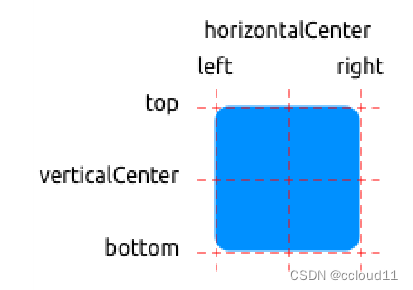
QML可以用锚来布局项目。锚定的概念是Item的基础,可用于所有可视化QML元素。
- 文本元素除了top、bottom、left、right、horizontalCenter、verticalCenter锚外,还有baseline锚
- 每个锚都有一个偏移。对于top、bottom、left、right锚,它们称为边距。对于horizontalCenter、verticalCenter和baseline,它们称为偏移。
import QtQuick import QtQuick.Window Window { width: 640 height: 480 visible: true title: qsTr("Hello World") GreenSquare { // BlueSquare { // anchors.fill: parent // anchors.margins: 8 // text: '(1)' // } // BlueSquare{ // text: '(2)' // anchors.left: parent.left // y:8 // anchors.margins: 8 // } // BlueSquare{ // text: '(3)' // anchors.left: parent.right // } // BlueSquare{ // id:blue1 // text: '(4-1)' // y:8 // anchors.horizontalCenter: parent.horizontalCenter // anchors.margins: 8 // height:25 // } // BlueSquare{ // text: '(4-2)' // anchors.top: blue1.bottom // anchors.horizontalCenter: parent.horizontalCenter // anchors.margins: 8 // height:25 // width:75 // } // BlueSquare{ // text: '(5)' // anchors.centerIn: parent // } BlueSquare{ text: '(6)' anchors.horizontalCenter: parent.horizontalCenter anchors.horizontalCenterOffset: -12 anchors.verticalCenter: parent.verticalCenter } } }- 1
- 2
- 3
- 4
- 5
- 6
- 7
- 8
- 9
- 10
- 11
- 12
- 13
- 14
- 15
- 16
- 17
- 18
- 19
- 20
- 21
- 22
- 23
- 24
- 25
- 26
- 27
- 28
- 29
- 30
- 31
- 32
- 33
- 34
- 35
- 36
- 37
- 38
- 39
- 40
- 41
- 42
- 43
- 44
- 45
- 46
- 47
- 48
- 49
- 50
- 51
- 52
- 53
- 54
- 55
- 56
- 57
- 58
- 59
- 60
- 61
- 62

Input
- 允许用户输入一行文本。元素支持输入约束,如validator、inputMask、echoMode。
- 可以在文本输入中单击以更改焦点。使用KeyNavigation属性可以通过键盘更改焦点。
TLineEditV1.qml
FocusScope{ width: 200;height:50 Rectangle{ anchors.fill: parent color:'lightsteelblue' border.color: "gray" } property alias text: input.text property alias input: input TextInput{ id:input anchors.fill: parent anchors.margins: 2 focus:true //wrapMode:Text.WordWrap } }- 1
- 2
- 3
- 4
- 5
- 6
- 7
- 8
- 9
- 10
- 11
- 12
- 13
- 14
- 15
- 16
- 17
- 18
使用tab键进行导航。焦点不会更改为input2。仅使用focus:true是不够的。问题是,当焦点转移到input2元素时,TlineEditV1内的顶级项接收到焦点,并且没有将焦点转发到TextInput。为了防止这种情况,QML提供了FocusScope。
import QtQuick import QtQuick.Window Window { width: 640 height: 480 visible: true title: qsTr("Hello World") // Rectangle{ // width:200;height:80; // color: "linen" // TextInput { // id: input1 // x: 8; y: 8 // width: 96; height: 20 // focus: true // text: "Text Input 1" // KeyNavigation.tab: input2 // } // TextInput { // id: input2 // x: 8; y: 36 // width: 96; height: 20 // text: "Text Input 2" // KeyNavigation.tab: input1 // } // } TLineEditV1{ id:input1 text: "Text input 1" input.font.pixelSize: 16 height: input.font.pixelSize+10 input.color: 'white' focus:true KeyNavigation.tab: input2 } TLineEditV1{ id:input2 text: "Text input 2" input.font.pixelSize: 16 y:input1.y+input1.height+12 height: input.font.pixelSize+10 input.color: 'white' KeyNavigation.tab: input1 } }- 1
- 2
- 3
- 4
- 5
- 6
- 7
- 8
- 9
- 10
- 11
- 12
- 13
- 14
- 15
- 16
- 17
- 18
- 19
- 20
- 21
- 22
- 23
- 24
- 25
- 26
- 27
- 28
- 29
- 30
- 31
- 32
- 33
- 34
- 35
- 36
- 37
- 38
- 39
- 40
- 41
- 42
- 43
- 44
- 45
- 46
- 47
- 48
- 49
- 50
- 51
Keys
允许基于某些按键执行代码。例如,要移动和缩放一个正方形,我们可以使用上、下、左和右键来平移元素,使用加号和减号键来缩放元素。
import QtQuick import QtQuick.Window Rectangle { width: 400; height: 200 Rectangle{ id:square width: 100;height:100 color:'green' border.color: Qt.lighter(color) } focus: true Keys.onLeftPressed: square.x -= 8 Keys.onRightPressed: square.x += 8 Keys.onUpPressed: square.y -= 8 Keys.onDownPressed: square.y += 8 Keys.onPressed: function(event){ switch(event.key) { case Qt.Key_Plus:square.scale+=0.2;break; case Qt.Key_Minus:square.scale-=0.2;break; } } }- 1
- 2
- 3
- 4
- 5
- 6
- 7
- 8
- 9
- 10
- 11
- 12
- 13
- 14
- 15
- 16
- 17
- 18
- 19
- 20
- 21
- 22
- 23
- 24
- 25
- 26
-
相关阅读:
小程序云开发笔记一
如何使用 CSS 为 SVG 制作动画:示例教程
java基于springboot英语学习网站
房贷结清后抵押注销及个税App专项扣除费修改
什么是 eCPM?它与 CPM 有何不同?
Linux 进程信号
电机应用-步进电机
Exception_json反序列化失败_JSONException
Elasticsearch(二)- 索引-分片过滤器与延迟再分配
【数据结构】树和二叉树概念
- 原文地址:https://blog.csdn.net/qq_45526401/article/details/133845338

