-
树莓派部署YOLOv5目标检测(详细篇)
前言
型号:树莓派4B
环境:Python3.7
远程控制软件:VNC Viewer(远程控制时,需要保证都处于同一个局域网中)
1、部署过程
1.1、下载YOLOv5
- 先去YOLOv5官网下载文件代码,然后在树莓派新建一个YOLOv5文件夹并把下载好的文件传输到里面
- 这里采用YOLOv5-6.0

3.然后安装依赖:
sudo apt-get install libopenblas-dev libblas-dev m4 cmake cython python3-dev python3-yaml python3-setuptools python3-wheel python3-pillow python3-numpy- 1
1.2、安装opencv、pytorch和numpy
1.2.1、安装opencv
sudo apt-get install python3-opencv- 1
建议是否安装成功:

1.2.2、安装pytorch&numpy
首先查看Python版本对应哪个Torch版本和torchvision版本

找到对应的torch和torchvision版本后,下载到树莓派中并安装
# 这里采用torch1.6.0的版本依旧能运行,所以也不一定得按版本对照来,不过能按照版本来就按照版本来 pip3 install torch-1.6.0a0+b31f58d-cp37-cp37m-linux_armv7l.whl pip3 install torchvision-0.8.0a0+10d5a55-cp37-cp37m-linux_armv7l.whl pip3 install numpy==1.18.5 -i https://mirrors.aliyun.com/pypi/simple/- 1
- 2
- 3
- 4
- 5
- 6
1.3、YOLOv5安装
去到YOLOv5项目,找到requirements.txt把 numpy、opencv-python、torch和torchvision注释
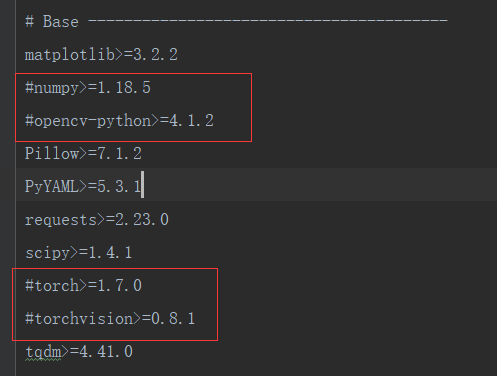
cd /home/pi/yolov5-waste #那个pi是我的用户名,注意要填自己的用户名 sudo nano requirements.txt # 按ctrl+o并回车完成写入,按ctrl+x退出。 # YOLOv5其他环境一键安装 pip3 install -r requirements.txt -i https://mirrors.aliyun.com/pypi/simple/- 1
- 2
- 3
- 4
- 5
- 6
安装完成图

1.4、运行detect.py
cd /home/pi/yolov5-waste #那个pi是我的用户名,注意要填自己的用户名 # 确保根目录有yolov5s.pt python3 detect.py # 成功检测!- 1
- 2
- 3
2、开机自动运行脚本
【方法一】
1、在终端上输入:
sudo vi /etc/rc.local- 1
2、就会出现一个文本编辑器,在文本内容的exit 0 上面添加一行:
python3 /home/pi/picam.py- 1
3、然后保存更改, 重启树莓派:
# 重启树莓派方式1: sudo reboot # 重启树莓派方式2: sudo shutdown -r now- 1
- 2
- 3
- 4
【方法二】
1、进入/home/pi/.config 路径cd /home/pi/.config- 1
2、 找到autostart 路径,没有就创建一个
mkdir autostart- 1
3、然后进入autostart 路径
cd autostart- 1
4、 在autostart 中创建一个.desktop 尾缀文件,例如test.desktop
touch test.desktop- 1
5、 该文件中输入:
[Desktop Entry] Name=controller Comment=controller Program Encoding=UTF-8 Exec=lxterminal -e bash -c 'python3 /home/pi/yolov5-waste/images_detect.py;$SHELL' Terminal=false MultipleArgs=false Type=Application Categories=Application;Development; StartupNotify=true- 1
- 2
- 3
- 4
- 5
- 6
- 7
- 8
- 9
- 10
其中,Name、Comment、Exec、Icon 分别代表启动项的名称、备注、图标(随便找个png图片)、Exec表示调用的指令,相当于在shell终端执行的指令.,例如sudo python3 /home/pi/yolov5-waste/images_detect.py
6、 最后重启即可观察到该程序自启了。
3、遇到的问题
3.1、pip3下载缓慢
如果你没有换成国内源话,下载速度有时候会很慢,甚至直接报错 Read timed out解决办法: 使用国内源去下载
3.1.1、国内源
- 阿里云:
https://mirrors.aliyun.com/pypi/simple/ - 清华:
https://pypi.tuna.tsinghua.edu.cn/simple - 中国科技大学
https://pypi.mirrors.ustc.edu.cn/simple/ - 华中理工大学:
https://pypi.hustunique.com/ - 山东理工大学:
https://pypi.sdutlinux.org/ - 豆瓣:
https://pypi.douban.com/simple/
3.1.2、单次使用
- pip install -r requirements.txt -i https://mirrors.aliyun.com/pypi/simple/
- pip install 单个包名 -i https://mirrors.aliyun.com/pypi/simple/
3.1.3、永久修改
设置$ pip3 config set global.index-url http://mirrors.aliyun.com/pypi/simple/ Writing to /root/.config/pip/pip.conf $ pip3 config set install.trusted-host mirrors.aliyun.com Writing to /root/.config/pip/pip.conf- 1
- 2
- 3
- 4
- 5
查看效果$ cat /root/.config/pip/pip.conf [global] index-url = http://mirrors.aliyun.com/pypi/simple/ [install] trusted-host = mirrors.aliyun.com $ pip config list global.index-url='http://mirrors.aliyun.com/pypi/simple/' install.trusted-host='mirrors.aliyun.com'- 1
- 2
- 3
- 4
- 5
- 6
- 7
- 8
- 9
- 10
删除设置pip config unset global.index-url Writing to /root/.config/pip/pip.conf cat /root/.config/pip/pip.conf [install] trusted-host = mirrors.aliyun.com- 1
- 2
- 3
- 4
- 5
- 6
- 7
- 8
3.2、手动安装whl文件失败
将下载好的Twisted-18.4.0-cp36-cp36m-win_amd64.whl放在E盘下面
包名中间的cp36是python3.6的意思,amd64是python的位数。
在安装python的whl包时,出现了以下问题:

解决办法: 查看当前环境支持包的类型
# 进入python,输入以下代码,查看pip支持的类型 import pip._internal print(pip._internal.pep425tags.get_supported()) 运行结果: [('cp38', 'cp38m', 'win32'), ('cp38', 'none', 'win32'), ('py3', 'none', 'win32'), ('cp38', 'none', 'any'), ('cp3', 'none', 'any'), ('py38', 'none', 'any'), ('py3', 'none', 'any'), ('py37', 'none', 'any'), ('py36', 'none', 'any'), ('py35', 'none', 'any'), ('py34', 'none', 'any'), ('py33', 'none', 'any'), ('py32', 'none', 'any'), ('py31', 'none', 'any'), ('py30', 'none', 'any')]- 1
- 2
- 3
- 4
- 5
可以看到,我们下载的whl包,命名不符合python3.8.0的安装支持,按照(‘cp38’, ‘cp38m’, ‘win32’),将其命名为:Twisted-20.3.0-cp38-cp38m-win32.whl 即可。
3.3、树莓派无法检测到摄像头
3.3.1、判断是否正确加载摄像头
方式1:检测摄像头vcgencmd get_camera # 输出supported=1 说明支持外设摄像头 # supported=1 detected=0.- 1
- 2
- 3
方式2:检测video设备ls /dev/video* #正确连接时,第一个设备会是video0 #/dev/video0 /dev/video1 /dev/video10 /dev/video11 /dev/video12- 1
- 2
- 3

3.3.2、开启摄像头
方法一: 系统开启摄像头
sudo raspi-config- 1
将光标移动到摄像头选项( Interface Options)处,并选择启用(Enable)。

将光标移动到摄像头选项(Camera option)处,并选择启用(Enable)。在退出 raspi-config 时会要求您重新启动。启用选项是为了确保重启后 GPU 固件能够正确运行(包括摄像头驱动和调节电路),并且 GPU 从主内存划分到了足够的内存使摄像头能够正确运行。

方法二: 加载摄像头驱动
sudo nano /etc/modules # 在编写的文件后面加上 bcm2835-v4l2 # 按ctrl+o并回车完成写入,按ctrl+x退出。- 1
- 2
参考文章
-
相关阅读:
算法刷题第二天:双指针--1
flink入门介绍
牛客--放苹果python
java智慧工地云平台源码,以物联网、移动互联网技术为基础,结合大数据、云计算等,实现工程管理绿色化、数字化、精细化、智能化的效果
Blog搭建:pycharm+虚拟环境+django
(八)SpringCloud+Security+Oauth2--token增强个性化和格式化输出
java基于springboot的火车高铁购票系统
代码混淆和加固,保障应用程序的安全性
RPM 与 DPKG 使用
你知道Spring使如何实现事务管理的?
- 原文地址:https://blog.csdn.net/qq_44231797/article/details/133270195