-
python通过tkinter制作词云图工具
一、基本功能

1.采取上传文本文档(仅支持.txt格式)的方式统计词频
2.背景图形样式可选择已经设定好的,也可选择本地上传的(支持.png .jpg .jpeg格式)
3.本地上传的图片需要进行抠图处理,并将抠图结果保存到本地
4.背景图形颜色可通过调节RGB值和十六进制颜色值的方式进行设置
5.绘制好的词云图可供预览,并且可保存到本地
二、python程序
import re import io import jieba import rembg import numpy as np import pandas as pd import tkinter as tk from tkinter.filedialog import * from tkinter.ttk import * from PIL import Image from wordcloud import WordCloud from wordcloud import ImageColorGenerator from matplotlib import pyplot as plt from matplotlib import patches as mp from matplotlib.path import Path from matplotlib.backends.backend_tkagg import FigureCanvasTkAgg def openfile(): global file_path, path1 file_path = askopenfilename(title='打开文本文档:', filetypes=[('Text Files', '*.txt')]) path1.set(file_path) print(path1.get()) return path1 def openbackground(): global background_path, path2 background_path = askopenfilename(title='打开图片文件:', filetypes=[('Picture Files', '*.png *.jpg *.jpeg')]) path2.set(background_path) print(path2.get()) return path2 def input_own_bg(): button_bg.config(state=tk.NORMAL) def input_basic_graphic_bg(): button_bg.config(state=tk.DISABLED) def input_rgb(): combobox_r.config(state=tk.NORMAL) combobox_g.config(state=tk.NORMAL) combobox_b.config(state=tk.NORMAL) entry3.config(state=tk.DISABLED) def input_hex(): combobox_r.config(state=tk.DISABLED) combobox_g.config(state=tk.DISABLED) combobox_b.config(state=tk.DISABLED) entry3.config(state=tk.NORMAL) def background(): if choice_color.get() == 1: hex_r = hex(r.get())[2:].upper() hex_g = hex(g.get())[2:].upper() hex_b = hex(b.get())[2:].upper() hex_r0 = hex_r.zfill(2) hex_g0 = hex_g.zfill(2) hex_b0 = hex_b.zfill(2) hexcolor = '#' + hex_r0 + hex_g0 + hex_b0 else: hexcolor = '#' + hex_color.get() plt.close(fig=None) fig_bg = plt.figure(figsize=(5, 5)) ax = fig_bg.add_subplot(111, facecolor='white') if choice_shape.get() == 1: # 心形 t = np.arange(-3, 3, 0.1) x = 18 * np.power(np.sin(t), 3) y = 16 * np.cos(t) - 4 * np.cos(2 * t) - 3 * np.cos(3 * t) - np.cos(4 * t) shape = plt.fill(x, y, hexcolor)[0] ax.add_patch(shape) plt.axis('equal') plt.axis('off') elif choice_shape.get() == 2: # 矩形 shape = mp.Rectangle(xy=(0.1, 0.2), width=0.8, height=0.6, color=hexcolor) ax.add_patch(shape) plt.axis('off') elif choice_shape.get() == 3: # 正方形 shape = mp.Rectangle(xy=(0, 0), width=1, height=1, color=hexcolor) ax.add_patch(shape) plt.axis('off') elif choice_shape.get() == 4: # 圆形 shape = mp.Circle(xy=(0.5, 0.5), radius=0.5, alpha=0.8, color=hexcolor) ax.add_patch(shape) plt.axis('off') elif choice_shape.get() == 5: # 五角星 verts = [] for i in [0, 3, 1, 4, 2, 0]: verts.append((np.sin(2 * np.pi / 5 * i), np.cos(2 * np.pi / 5 * i))) codes = [Path.MOVETO, Path.LINETO, Path.LINETO, Path.LINETO, Path.LINETO, Path.CLOSEPOLY] path = Path(verts, codes) shape = mp.PathPatch(path, facecolor=hexcolor, lw=0, alpha=1) ax.add_patch(shape) plt.axis('equal') plt.axis('off') else: # 自导入 return background_path buffer = io.BytesIO() # if hexcolor=='#FFFFFF': # fig_bg.patch.set_facecolor('black') canvas_bg = fig_bg.canvas canvas_bg.print_png(buffer) data = buffer.getvalue() buffer.write(data) plt.close(fig=None) return buffer def check(event): if path1.get() and len(hex_color.get()) == 6: button_draw.config(state=tk.NORMAL, fg='green') else: button_draw.config(state=tk.DISABLED, fg='red') def check_hex(hex_input): hex_characters = '0123456789abcdefABCDEF' if len(hex_input) <= 6 and all(char in hex_characters for char in hex_input): return True else: return False def wordcloud(): global button_save text = pd.read_csv(file_path, index_col=0, encoding='utf-8', sep='\t') text2 = str(text) text3 = re.sub("[a-zA-Z0-9'!""#$%&\'()*+,-./:;<=>?@,。?★、…【】《》:?“”‘'![\\]^_`{|}~\s]+", "", text2) text4 = jieba.lcut(text3) text5 = ' '.join(text4) stop_words = set() content = [line.strip() for line in open('stopwords.txt', 'r', encoding='utf-8').readlines()] stop_words.update(content) font = r'C:\Windows\Fonts\simhei.ttf' img = Image.open(background()) img_remove = rembg.remove(img, alpha_matting=True, bgcolor=(255, 255, 255, 1)) img_remove.save('background_remove.png') MASK = np.array(img_remove) img_col = ImageColorGenerator(MASK) plt.close(fig=None) fig = plt.figure(figsize=(5, 2.5)) plt.subplot(121) wordcloud = WordCloud(background_color='white', scale=2, max_words=500, max_font_size=50, min_font_size=1, font_path=font, stopwords=stop_words, mask=MASK, mode='RGB').generate_from_text(text5) plt.imshow(wordcloud.recolor(color_func=img_col), alpha=1) plt.axis('off') plt.subplot(122) plt.imshow(img) plt.axis('off') plt.subplots_adjust(top=1, bottom=0, right=1, left=0, hspace=0, wspace=0) plt.margins(0, 0) canvas = FigureCanvasTkAgg(figure=fig, master=windows) canvas.draw() canvas.get_tk_widget().grid(row=4, column=0, rowspan=1, columnspan=8, padx=0, pady=15) button_save = tk.Button(windows, text='保存词云图', command=show) button_save.grid(row=5, column=0, rowspan=1, columnspan=8) def show(): plt.show() button_save.config(state=tk.DISABLED) if __name__ == '__main__': windows = tk.Tk() windows.geometry('550x450+500+200') windows.resizable(width=False, height=False) windows.title('词云图') windows.iconbitmap('image.ico') path1 = tk.StringVar() tk.Label(windows, text='文件路径:').grid(row=0, column=0, pady=5, padx=2) entry1 = tk.Entry(windows, textvariable=path1, width=50, state=tk.DISABLED) entry1.grid(row=0, column=1, rowspan=1, columnspan=6, pady=5) tk.Button(windows, text='打开文件', command=openfile, fg='green', width=9).grid(row=0, column=7, pady=5, padx=2) choice_shape = tk.IntVar() choice_shape.set(1) tk.Label(windows, text='图形样式:').grid(row=1, column=0, padx=2) button_bg = tk.Button(windows, text='打开文件', command=openbackground, fg='green', width=9, state=tk.DISABLED) button_bg.grid(row=1, column=7, padx=2) path2 = tk.StringVar() entry2 = tk.Entry(windows, textvariable=path2, width=50, state=tk.DISABLED) entry2.grid(row=1, column=1, rowspan=1, columnspan=6) tk.Radiobutton(windows, text='心形', value=1, variable=choice_shape, justify=tk.LEFT, command=input_basic_graphic_bg).grid(row=2, column=1) tk.Radiobutton(windows, text='矩形', value=2, variable=choice_shape, justify=tk.LEFT, command=input_basic_graphic_bg).grid(row=2, column=2) tk.Radiobutton(windows, text='正方形', value=3, variable=choice_shape, justify=tk.LEFT, command=input_basic_graphic_bg).grid(row=2, column=3) tk.Radiobutton(windows, text='圆形', value=4, variable=choice_shape, justify=tk.LEFT, command=input_basic_graphic_bg).grid(row=2, column=4) tk.Radiobutton(windows, text='五角星', value=5, variable=choice_shape, justify=tk.LEFT, command=input_basic_graphic_bg).grid(row=2, column=5) tk.Radiobutton(windows, text='自导入', value=6, variable=choice_shape, justify=tk.LEFT, command=input_own_bg).grid(row=2, column=6) choice_color = tk.IntVar() choice_color.set(1) tk.Label(windows, text='图形颜色:').grid(row=3, column=0, padx=5) tk.Radiobutton(windows, text='RGB:', value=1, variable=choice_color, justify=tk.LEFT, width=5, command=input_rgb, state=tk.NORMAL).grid(row=3, column=1) r = tk.IntVar() combobox_r = Combobox(windows, textvariable=r, width=3) combobox_r['value'] = tuple(range(256)) combobox_r.set(0) combobox_r.grid(row=3, column=2) g = tk.IntVar() combobox_g = Combobox(windows, textvariable=g, width=3) combobox_g['value'] = tuple(range(256)) combobox_g.set(0) combobox_g.grid(row=3, column=3) b = tk.IntVar() combobox_b = Combobox(windows, textvariable=b, width=3) combobox_b['value'] = tuple(range(256)) combobox_b.set(0) combobox_b.grid(row=3, column=4) tk.Radiobutton(windows, text='十六进制:#', value=2, variable=choice_color, justify=tk.LEFT, width=8, command=input_hex).grid(row=3, column=5) hex_color = tk.StringVar() entry3 = tk.Entry(windows, textvariable=hex_color, validate='key', validatecommand=(windows.register(check_hex), '%P'), width=7, state=tk.DISABLED) hex_color.set('000000') entry3.grid(row=3, column=6) button_draw = tk.Button(windows, text='绘制词云图', command=wordcloud, fg='red', width=9, height=2, state=tk.DISABLED) button_draw.bind('' , check) button_draw.grid(row=2, column=7, rowspan=2, columnspan=1, padx=2) windows.mainloop()- 1
- 2
- 3
- 4
- 5
- 6
- 7
- 8
- 9
- 10
- 11
- 12
- 13
- 14
- 15
- 16
- 17
- 18
- 19
- 20
- 21
- 22
- 23
- 24
- 25
- 26
- 27
- 28
- 29
- 30
- 31
- 32
- 33
- 34
- 35
- 36
- 37
- 38
- 39
- 40
- 41
- 42
- 43
- 44
- 45
- 46
- 47
- 48
- 49
- 50
- 51
- 52
- 53
- 54
- 55
- 56
- 57
- 58
- 59
- 60
- 61
- 62
- 63
- 64
- 65
- 66
- 67
- 68
- 69
- 70
- 71
- 72
- 73
- 74
- 75
- 76
- 77
- 78
- 79
- 80
- 81
- 82
- 83
- 84
- 85
- 86
- 87
- 88
- 89
- 90
- 91
- 92
- 93
- 94
- 95
- 96
- 97
- 98
- 99
- 100
- 101
- 102
- 103
- 104
- 105
- 106
- 107
- 108
- 109
- 110
- 111
- 112
- 113
- 114
- 115
- 116
- 117
- 118
- 119
- 120
- 121
- 122
- 123
- 124
- 125
- 126
- 127
- 128
- 129
- 130
- 131
- 132
- 133
- 134
- 135
- 136
- 137
- 138
- 139
- 140
- 141
- 142
- 143
- 144
- 145
- 146
- 147
- 148
- 149
- 150
- 151
- 152
- 153
- 154
- 155
- 156
- 157
- 158
- 159
- 160
- 161
- 162
- 163
- 164
- 165
- 166
- 167
- 168
- 169
- 170
- 171
- 172
- 173
- 174
- 175
- 176
- 177
- 178
- 179
- 180
- 181
- 182
- 183
- 184
- 185
- 186
- 187
- 188
- 189
- 190
- 191
- 192
- 193
- 194
- 195
- 196
- 197
- 198
- 199
- 200
- 201
- 202
- 203
- 204
- 205
- 206
- 207
- 208
- 209
- 210
- 211
- 212
- 213
- 214
- 215
- 216
- 217
- 218
- 219
- 220
- 221
- 222
- 223
- 224
- 225
- 226
- 227
- 228
- 229
- 230
三、效果展示
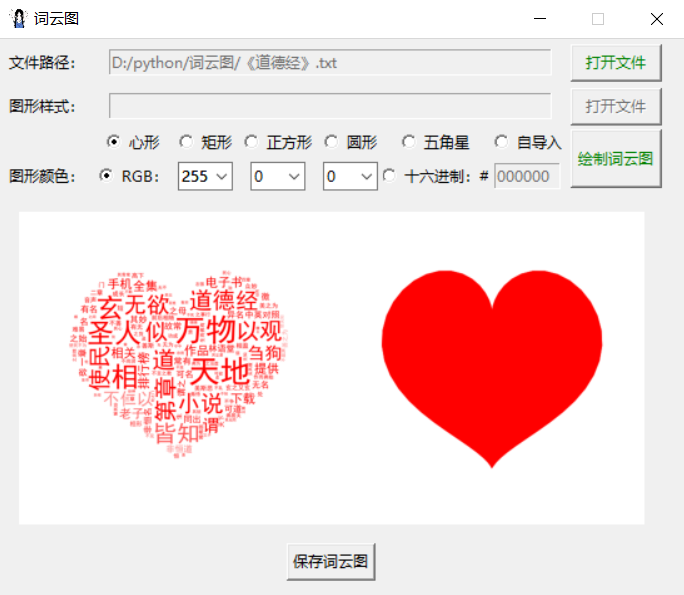

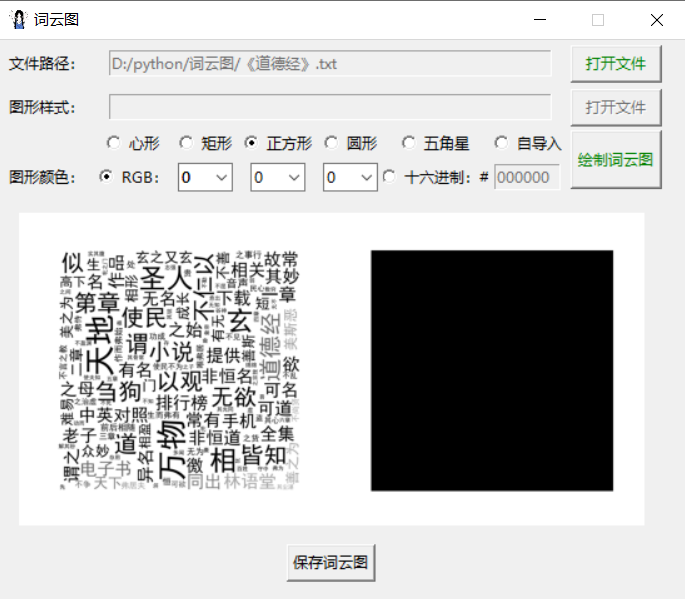
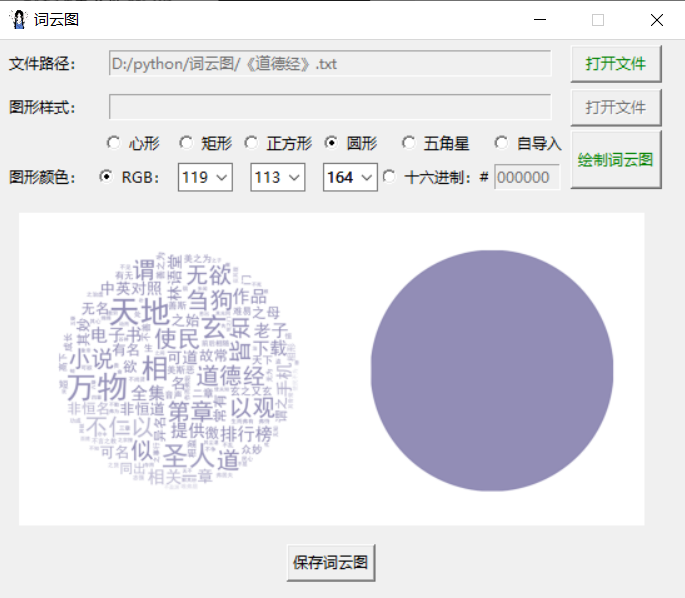


python通过tkinter制作词云图工具
四、源代码下载(含虚拟环境)

词云图工具下载链接:
https://url86.ctfile.com/f/32005086-932012628-2a8f6b?p=5422
访问密码:5422 -
相关阅读:
文心一言 VS 讯飞星火 VS chatgpt (96)-- 算法导论9.3 1题
用STM32F4的DMA实现高速、实时的同步并行通信——以读取高速ADC为例[原创www.cnblogs.com/helesheng]
linux网络加固操作
clickhouse 单节点多实例部署
MySQL-Q&A-异常问题及解决方案(持续更新)
套路【2】实验环境搭建
【华为OD机试真题 JAVA】根据某条件聚类最少交换次数
谈一下相对位置编码
Log4j日志框架多种日志级别
微信小程序基础
- 原文地址:https://blog.csdn.net/m0_67790374/article/details/132763788
