-
matplotlib从起点出发(8)_Tutorial_8_Legend
1 图例教程
在matplotlib中灵活地生成Legend。
本图例指南是
legend()中可用文档的扩展——在继续阅读本指南之前,请确保你熟悉legend()文档的内容。本指南使用了一些常用术语,为清楚起见,此处记录了这些术语:
-
legend entry
图例由一个或多个图例entry(条目)组成。entry(条目)仅由一个键和一个标签组成。 -
legend key
每个图例标签左侧的彩色/图案标记。 -
legend label
描述由键表示的句柄的文本。 -
legend handle
用于在图例中生成相应条目的原始对象。
2 控制图例的条目
调用不带参数的
legend()会自动获取图例句柄及其关联的标签。此功能等效于:handles, labels = ax.get_legend_handles_labels() ax.legend(handles, labels)- 1
- 2
get_legend_handles_labels()函数返回轴上存在的句柄/artist列表,可用于为生成的图例生成条目——值得注意的是,并非所有的artist都可以添加到图例中,此时必须创建一个“代理”(请参阅创建专门用于添加到图例的artist,又名代理artist,以获取更多详细信息。)注意
将忽略以空字符串作为标签或标签以下划线“_”开头的artist。为了完全控制要添加到图例的内容,通常将适当的句柄直接传递给
legend():fig, ax = plt.subplots() line_up, = ax.plot([1, 2, 3], label='Line 2') line_down, = ax.plot([3, 2, 1], label='Line 1') ax.legend(handles=[line_up, line_down])- 1
- 2
- 3
- 4
在某些情况下,无法设置句柄的标签,因此可以将标签列表传递给
legend():fig, ax = plt.subplots() line_up, = ax.plot([1, 2, 3], label='Line 2') line_down, = ax.plot([3, 2, 1], label='Line 1') ax.legend([line_up, line_down], ['Line Up', 'Line Down'])- 1
- 2
- 3
- 4
3 创建专门用于添加到legend的artist(代理artist)
并非所有句柄都可以自动转换为图例条目,因此通常需要创建一个可以的artist。图例句柄不必存在于Figure或Axes上即可使用。
假设我们想创建一个图例,其中包含一些由红色表示的数据条目:
import matplotlib.patches as mpatches import matplotlib.pyplot as plt fig, ax = plt.subplots() red_patch = mpatches.Patch(color='red', label='The red data') ax.legend(handles=[red_patch]) plt.show()- 1
- 2
- 3
- 4
- 5
- 6
- 7
- 8

有许多受支持的图例句柄。我们可以创建一条带有标记的线,而不是创建色块:
import matplotlib.lines as mlines fig, ax = plt.subplots() blue_line = mlines.Line2D([], [], color='blue', marker='*', markersize=15, label='Blue stars') ax.legend(handles=[blue_line]) plt.show()- 1
- 2
- 3
- 4
- 5
- 6
- 7
- 8

如图,图例换成了一条带有蓝色星星的线。
3 图例位置
图例的位置可以通过关键字参数
loc进行指定。有关更多详细信息,请参阅legend()中的文档。bbox_to_anchor关键字为手动图例放置提供了很大程度的控制。例如,如果你希望axes图例位于图形的右上角而不是axes的角,只需指定角的位置和该位置的坐标系:ax.legend(bbox_to_anchor=(1, 1), bbox_transform=fig.transFigure)- 1
- 2
自定义图例放置的更多示例:
fig, ax_dict = plt.subplot_mosaic([['top', 'top'], ['bottom', 'BLANK']], empty_sentinel="BLANK") ax_dict['top'].plot([1, 2, 3], label="test1") ax_dict['top'].plot([3, 2, 1], label="test2") # Place a legend above this subplot, expanding itself to # fully use the given bounding box. ax_dict['top'].legend(bbox_to_anchor=(0., 1.02, 1., .102), loc='lower left', ncols=2, mode="expand", borderaxespad=0.) ax_dict['bottom'].plot([1, 2, 3], label="test1") ax_dict['bottom'].plot([3, 2, 1], label="test2") # Place a legend to the right of this smaller subplot. ax_dict['bottom'].legend(bbox_to_anchor=(1.05, 1), loc='upper left', borderaxespad=0.)- 1
- 2
- 3
- 4
- 5
- 6
- 7
- 8
- 9
- 10
- 11
- 12
- 13
- 14

Figure的图例
有时,相对于(子)图形而不是单个Axes来放置图例会更有意义。通过使用
constrained_layout并在loc关键字参数的开头指定外部,图例将绘制在(子)图的Axes区域之外。fig, axs = plt.subplot_mosaic([['left', 'right']], layout='constrained') axs['left'].plot([1, 2, 3], label="test1") axs['left'].plot([3, 2, 1], label="test2") axs['right'].plot([1, 2, 3], 'C2', label="test3") axs['right'].plot([3, 2, 1], 'C3', label="test4") # Place a legend to the right of this smaller subplot. fig.legend(loc='outside upper right')- 1
- 2
- 3
- 4
- 5
- 6
- 7
- 8
- 9

这里接收的语法与普通
loc关键字略有不同,其中“外右上”与“外上右”不同。


4 同一Axes上的多个图例
有时,将图例条目拆分到 多个图例中会更清晰。虽然这样做的一个基本方法可能是多次调用
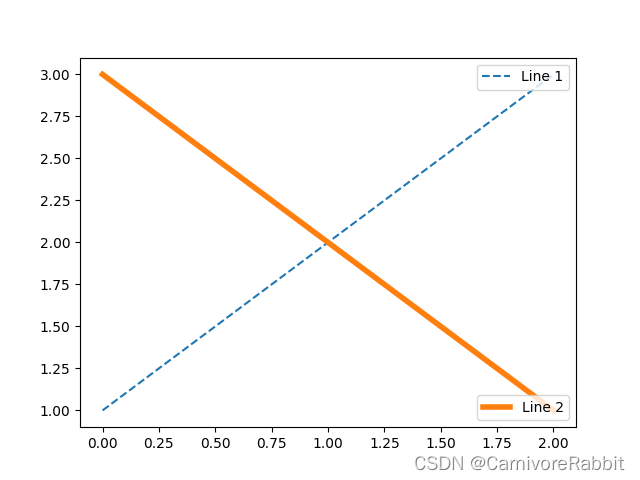
legend()函数,但你会发现Axes上只存在一个图例。这样做是为了可以重复调用legend()以将图例更新到 Axes上的最新句柄。要保留旧的图例实例,我们必须手动将它们添加到 Axes 中:fig, ax = plt.subplots() line1, = ax.plot([1, 2, 3], label="Line 1", linestyle='--') line2, = ax.plot([3, 2, 1], label="Line 2", linewidth=4) # Create a legend for the first line. first_legend = ax.legend(handles=[line1], loc='upper right') # Add the legend manually to the Axes. ax.add_artist(first_legend) # Create another legend for the second line. ax.legend(handles=[line2], loc='lower right') plt.show()- 1
- 2
- 3
- 4
- 5
- 6
- 7
- 8
- 9
- 10
- 11
- 12
- 13
- 14
5 图例句柄
为了创建图例条目,句柄作为参数提供给相应的HandlerBase子类。处理程序子类的选择由以下规则确定:
- 使用
handler_map关键字中的值更新get_legend_handler_map(); - 检查句柄是否在新创建的
handler_map中; - 检查句柄的类型是否在新创建的
handler_map中; - 检查句柄的mro中的任何类型是否位于新创建的
handler_map中。
为了完整起见,此逻辑主要在
get_legend_handler()中实现。所有这些灵活性意味着我们有必要的钩子来为我们自己的图例键类型实现自定义处理程序。
使用自定义处理程序的最简单示例是实例化现有
legend_handler之一。处理程序库子类。为了简单起见,让我们选择legend_handler。HandlerLine2D接受numpoints参数(为了方便起见,numpoints也是legend()函数上的关键字)。然后,我们可以将实例到Handler的映射作为图例的关键字传递。from matplotlib.legend_handler import HandlerLine2D fig, ax = plt.subplots() line1, = ax.plot([3, 2, 1], marker='o', label='Line 1') line2, = ax.plot([1, 2, 3], marker='o', label='Line 2') ax.legend(handler_map={line1: HandlerLine2D(numpoints=4)})- 1
- 2
- 3
- 4
- 5
- 6
- 7

如你所见,“第1行”现在有4个标记点,其中“第2行”有2个(默认值)。尝试上面的代码,只将map的键从第1行更改为type(第1行)。请注意,现在两个
Line2D实例都有4个标记。除了复杂给力类型(如误差图、词干图和直方图)的处理程序外,默认handler_map还有一个特殊的元组处理程序(
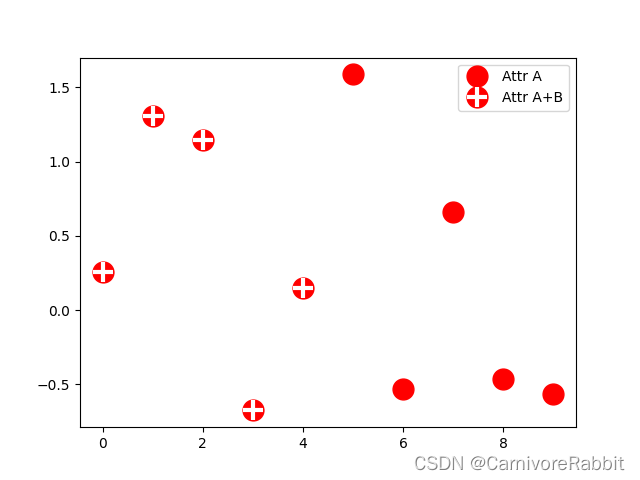
legend_handler.HandlerTuple),它只是将给定元组中的每个项目的句柄绘制在彼此之上。以下示例演示了将两个图例键相互叠加的组合:from numpy.random import randn z = randn(10) fig, ax = plt.subplots() red_dot, = ax.plot(z, "ro", markersize=15) # Put a white cross over some of the data. white_cross, = ax.plot(z[:5], "w+", markeredgewidth=3, markersize=15) ax.legend([red_dot, (red_dot, white_cross)], ["Attr A", "Attr A+B"])- 1
- 2
- 3
- 4
- 5
- 6
- 7
- 8
- 9
- 10
legend_handler.HandlerTuple类还可用于将多个图例键分配给同一条目:from matplotlib.legend_handler import HandlerLine2D, HandlerTuple fig, ax = plt.subplots() p1, = ax.plot([1, 2.5, 3], 'r-d') p2, = ax.plot([3, 2, 1], 'k-o') l = ax.legend([(p1, p2)], ['Two keys'], numpoints=1, handler_map={tuple: HandlerTuple(ndivide=None)})- 1
- 2
- 3
- 4
- 5
- 6
- 7
- 8

实现自定义图例处理程序
可以实现自定义处理程序以将任何句柄转换为图例键(句柄不一定需要是
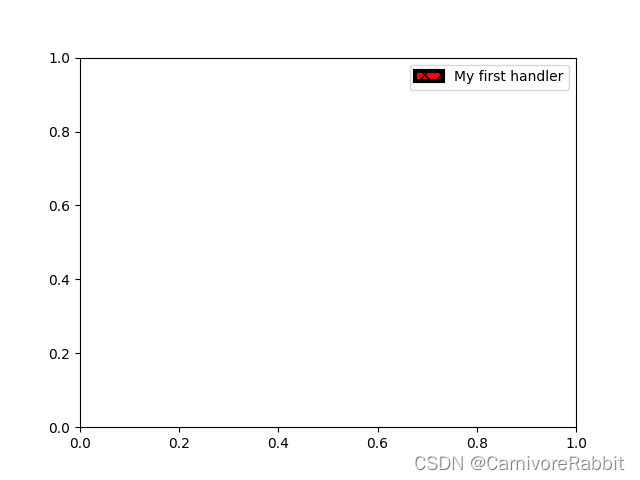
matplotlib artist)。处理程序必须实现一个legend_artist方法,该方法返回单 个artist供图例使用。legend_artist所需的签名记录在legend_artist的文档中。import matplotlib.patches as mpatches class AnyObject: pass class AnyObjectHandler: def legend_artist(self, legend, orig_handle, fontsize, handlebox): x0, y0 = handlebox.xdescent, handlebox.ydescent width, height = handlebox.width, handlebox.height patch = mpatches.Rectangle([x0, y0], width, height, facecolor='red', edgecolor='black', hatch='xx', lw=3, transform=handlebox.get_transform()) handlebox.add_artist(patch) return patch fig, ax = plt.subplots() ax.legend([AnyObject()], ['My first handler'], handler_map={AnyObject: AnyObjectHandler()})- 1
- 2
- 3
- 4
- 5
- 6
- 7
- 8
- 9
- 10
- 11
- 12
- 13
- 14
- 15
- 16
- 17
- 18
- 19
- 20
- 21
或者,如果我们想全局接受AnyObject实例,而不需要一直手动设置
handler_map关键字,我们可以注册新的处理程序:from matplotlib.legend import Legend Legend.update_default_handler_map({AnyObject: AnyObjectHandler()})- 1
- 2
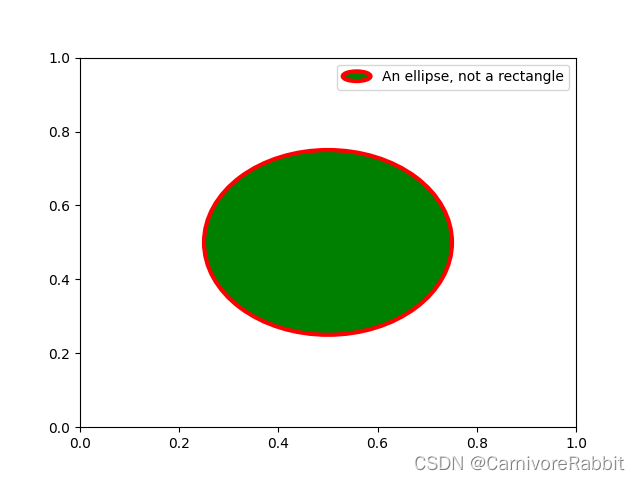
虽然这里的力量是显而易见的,但请记住,已经实现了许多处理程序,并且你想要实现的目标可能已经可以通过现有类轻松实现。例如,要生成椭圆图例键,而不是矩形图例键:
from matplotlib.legend_handler import HandlerPatch class HandlerEllipse(HandlerPatch): def create_artists(self, legend, orig_handle, xdescent, ydescent, width, height, fontsize, trans): center = 0.5 * width - 0.5 * xdescent, 0.5 * height - 0.5 * ydescent p = mpatches.Ellipse(xy=center, width=width + xdescent, height=height + ydescent) self.update_prop(p, orig_handle, legend) p.set_transform(trans) return [p] c = mpatches.Circle((0.5, 0.5), 0.25, facecolor="green", edgecolor="red", linewidth=3) fig, ax = plt.subplots() ax.add_patch(c) ax.legend([c], ["An ellipse, not a rectangle"], handler_map={mpatches.Circle: HandlerEllipse()})- 1
- 2
- 3
- 4
- 5
- 6
- 7
- 8
- 9
- 10
- 11
- 12
- 13
- 14
- 15
- 16
- 17
- 18
- 19
- 20
- 21
- 22

-
-
相关阅读:
线性插值方法介绍及图像缩放
java高级篇 Mybatis-Plus
java反射
java基于springboot+vue的大学生在线答疑系统 elementui
k8s的高可用集群搭建,详细过程实战版
Hudi第二章:集成Spark
.net程序员的android studio 初体验 (环境设置2022年10月)
IDEA——工程项目的两种窗口开发模式
大气环境一站式技能提升:SMOKE-CMAQ实践技术
OPC C#连接OPC C#上位机链接PLC程序源码
- 原文地址:https://blog.csdn.net/horsee/article/details/132782102
