一:背景
1. 讲故事
有很多朋友跟我说,在 Windows 上看过你文章知道了怎么抓 Crash, CPU爆高,内存暴涨 等各种Dump,为什么你没有写在 Docker 中如何抓的相关文章呢?瞧不上吗?
哈哈,在DUMP的分析旅程中,跑在 Docker 中的 .NET 占比真的不多,大概10个dump有 1-2 个是 docker 中的,市场决定了我的研究方向,为了弥补这一块的空洞,决定写一篇文章来分享下这三大异常下的捕获吧。
二:Docker 下的三大异常捕获
1. crash dump 捕获
前不久我写了一篇 Linux 上的 .NET 崩溃了怎么抓 Dump (https://www.cnblogs.com/huangxincheng/p/17440153.html) 的文章,使用了微软推荐的环境变量方式,其实这在 Docker 中是一样适用的。
为了让 webapi 崩溃退出,我故意造一个栈溢出异常,参考代码如下:
    public class Program
    {
        public static void Main(string[] args)
        {
            var builder = WebApplication.CreateBuilder(args);
            builder.Services.AddAuthorization();
            var app = builder.Build();
            app.UseAuthorization();

            //1. crash
            Task.Factory.StartNew(() =>
            {
                Test("a");
            });

            app.Run();
        }

        public static string Test(string a)
        {
            return Test("a" + a.Length);
        }
    }
有了代码之后,接下来写一个 Dockerfile,主要就是把三个环境变量塞进去。
FROM mcr.microsoft.com/dotnet/aspnet:6.0 AS runtime
WORKDIR /app
COPY ./ ./

# 1. 使用中科大镜像源
RUN sed -i 's/deb.debian.org/mirrors.ustc.edu.cn/g' /etc/apt/sources.list

ENV COMPlus_DbgMiniDumpType 4
ENV COMPlus_DbgMiniDumpName /dumps/%p-%e-%h-%t.dmp
ENV COMPlus_DbgEnableMiniDump 1

ENTRYPOINT ["dotnet", "AspNetWebApi.dll"]
这里有一个细节,为了能够让 Docker 中的 webapi 能够访问到,将 localhost 设置为 * ,修改 appsettings.json 如下:
{
  "urls": "http://*:5001",
  "Logging": {
    "LogLevel": {
      "Default": "Information",
      "Microsoft.AspNetCore": "Warning"
    }
  },
  "AllowedHosts": "*"
}
有了这些基础最后就是 docker build & docker run 啦。
[root@localhost data]# docker build -t aspnetapp .
[+] Building 0.3s (9/9) FINISHED
 => [internal] load build definition from Dockerfile                                                0.0s
 => => transferring dockerfile: 447B                                                                0.0s
 => [internal] load .dockerignore                                                                   0.0s
 => => transferring context: 2B                                                                     0.0s
 => [internal] load metadata for mcr.microsoft.com/dotnet/aspnet:6.0                                0.3s
 => [1/4] FROM mcr.microsoft.com/dotnet/aspnet:6.0@sha256:a2a04325fdb2a871e964c89318921f82f6435b54  0.0s
 => [internal] load build context                                                                   0.0s
 => => transferring context: 860B                                                                   0.0s
 => CACHED [2/4] WORKDIR /app                                                                       0.0s
 => CACHED [3/4] COPY ./ ./                                                                         0.0s
 => CACHED [4/4] RUN sed -i 's/deb.debian.org/mirrors.ustc.edu.cn/g' /etc/apt/sources.list          0.0s
 => exporting to image                                                                              0.0s
 => => exporting layers                                                                             0.0s
 => => writing image sha256:be69203995c0e5423b2af913549e618d7ee8306fff3961118ff403b1359ae571        0.0s
 => => naming to docker.io/library/aspnetapp                                                        0.0s

[root@localhost data]# docker run -itd  -p 5001:5001 --privileged -v /data2:/dumps --name aspnetcore_sample aspnetapp
ca34c9274d998096f8562cbef3a43a7cbd9aa5ff2923e0f3e702b159e0b2f447

[root@localhost data]# docker ps -a
CONTAINER ID   IMAGE       COMMAND                  CREATED          STATUS                       PORTS     NAMES
ca34c9274d99   aspnetapp   "dotnet AspNetWebApi…"   20 seconds ago   Exited (139) 9 seconds ago             aspnetcore_sample

[root@localhost data]# docker logs ca34c9274d99
   ...
   at AspNetWebApi.Program.Test(System.String)
   at AspNetWebApi.Program.Test(System.String)
   at AspNetWebApi.Program.Test(System.String)
   at AspNetWebApi.Program.Test(System.String)
   at AspNetWebApi.Program+<>c.b__0_0()
   at System.Threading.Tasks.Task.InnerInvoke()
   at System.Threading.Tasks.Task+<>c.<.cctor>b__272_0(System.Object)
   at System.Threading.ExecutionContext.RunFromThreadPoolDispatchLoop(System.Threading.Thread, System.Threading.ExecutionContext, System.Threading.ContextCallback, System.Object)
   at System.Threading.Tasks.Task.ExecuteWithThreadLocal(System.Threading.Tasks.Task ByRef, System.Threading.Thread)
   at System.Threading.Tasks.Task.ExecuteEntryUnsafe(System.Threading.Thread)
   at System.Threading.ThreadPoolWorkQueue.Dispatch()
   at System.Threading.PortableThreadPool+WorkerThread.WorkerThreadStart()
   at System.Threading.Thread.StartCallback()

[createdump] Gathering state for process 1 dotnet
[createdump] Crashing thread 0017 signal 6 (0006)
[createdump] Writing full dump to file /dumps/1-dotnet-ca34c9274d99-1687746929.dmp
[createdump] Written 261320704 bytes (63799 pages) to core file
[createdump] Target process is alive
[createdump] Dump successfully written

[root@localhost data2]# cd /data2
[root@localhost data2]# ls -ln
total 255288
-rw-------. 1 0 0 261414912 Jun 26 10:35 1-dotnet-ca34c9274d99-1687746929.dmp
上面的脚本已经写的非常清楚了,这里有几个注意点提一下:
- --privileged
一定要加上特殊权限,否则生成 dump 的时候会提示无权限。
- -v /data2:/dumps
防止dump丢失,记得挂载到宿主机目录 或者 共享容器 中。
2. 内存暴涨 dump 捕获
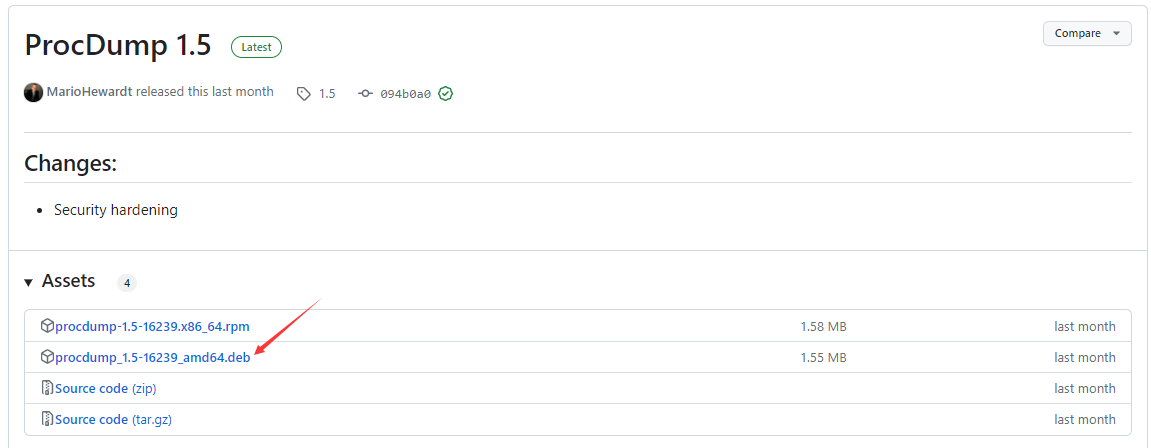
要想对 docker 中的 .NET 程序内存 进行监控,我一直都是极力推荐 procdump,目前最新的是版本是 1.5, github官网地址: https://github.com/Sysinternals/ProcDump-for-Linux 鉴于现在访问 github 太慢,大家可以把 procdump_1.5-16239_amd64.deb 下载到本地,为什么下载它,是因为容器中是 debain 系统。
下载好了之后放到项目中,使用默认代码骨架:
    public class Program
    {
        public static void Main(string[] args)
        {
            var builder = WebApplication.CreateBuilder(args);
            builder.Services.AddAuthorization();
            var app = builder.Build();
            app.UseAuthorization();

            app.Run();
        }
    }
接下来就是写 dockerfile 了,这里有一个细节,就是如何在 Docker 中开启多进程,这里用 start.sh 脚本的方式开启,参考代码如下:
FROM mcr.microsoft.com/dotnet/aspnet:6.0 AS runtime
WORKDIR /app
COPY ./ ./

# 1. 使用中科大镜像源
RUN sed -i 's/deb.debian.org/mirrors.ustc.edu.cn/g' /etc/apt/sources.list

# 2. 安装 gdb & procdump
RUN apt-get update && apt-get install -y gdb
RUN dpkg -i procdump.deb

RUN echo "#!/bin/bash \n\
procdump -m 30 -w dotnet /dumps & \n\
dotnet \$1 \n\
" > ./start.sh

RUN chmod +x ./start.sh

ENTRYPOINT ["./start.sh", "AspNetWebApi.dll"]
有了这些设置后,接下来就是 publish 代码用 docker 构建啦,为了方便演示,这里就用 前台模式 开启了哈。
[root@localhost data]# docker build -t aspnetapp .
[+] Building 11.5s (13/13) FINISHED

[root@localhost data]# docker rm -f aspnetcore_sample
aspnetcore_sample
[root@localhost data]# docker run -it --rm  -p 5001:5001 --privileged -v /data2:/dumps --name aspnetcore_sample aspnetapp
ProcDump v1.5 - Sysinternals process dump utility
Copyright (C) 2023 Microsoft Corporation. All rights reserved. Licensed under the MIT license.
Mark Russinovich, Mario Hewardt, John Salem, Javid Habibi
Sysinternals - www.sysinternals.com

Monitors one or more processes and writes a core dump file when the processes exceeds the
specified criteria.

[02:57:34 - INFO]: Waiting for processes 'dotnet' to launch

[02:57:34 - INFO]: Press Ctrl-C to end monitoring without terminating the process(es).
Process Name:                           dotnet
CPU Threshold:                          n/a
Commit Threshold:                       >=30 MB
Thread Threshold:                       n/a
File Descriptor Threshold:              n/a
Signal:                                 n/a
Exception monitor                       Off
Polling Interval (ms):                  1000
Threshold (s):                          10
Number of Dumps:                        1
Output directory:                       /dumps
[02:57:34 - INFO]: Starting monitor for process dotnet (9)
info: Microsoft.Hosting.Lifetime[14]
      Now listening on: http://[::]:5001
info: Microsoft.Hosting.Lifetime[0]
      Application started. Press Ctrl+C to shut down.
info: Microsoft.Hosting.Lifetime[0]
      Hosting environment: Production
info: Microsoft.Hosting.Lifetime[0]
      Content root path: /app/
[02:57:35 - INFO]: Trigger: Commit usage:48MB on process ID: 9
[createdump] Gathering state for process 9 dotnet
[createdump] Writing full dump to file /dumps/dotnet_commit_2023-06-26_02:57:35.9
[createdump] Written 254459904 bytes (62124 pages) to core file
[createdump] Target process is alive
[createdump] Dump successfully written
[02:57:35 - INFO]: Core dump 0 generated: /dumps/dotnet_commit_2023-06-26_02:57:35.9
[02:57:36 - INFO]: Stopping monitors for process: dotnet (9)

[root@localhost data2]# ls -lh
total 243M
-rw-------. 1 root root 243M Jun 26 10:57 dotnet_commit_2023-06-26_02:57:35.9
从脚本信息看,当内存到了 48MB 的时候触发的 dump 生成,也成功的进入了 /dumps 目录中,太棒了。
3. cpu爆高 dump 捕获
抓 cpu 爆高的dump最好的方式就是多抓几个,比如说:当 CPU >20% 连续超过 5s 抓 2个dump,这种方式抓的dump很容易就能找到真凶,为了方便演示,让两个 cpu 直接打满,参考代码如下:
        public static void Main(string[] args)
        {
            var builder = WebApplication.CreateBuilder(args);
            builder.Services.AddAuthorization();
            var app = builder.Build();
            app.UseAuthorization();

            //3. cpu
            app.MapGet("/cpu", (HttpContext httpContext) =>
            {
                Task.Factory.StartNew(() => { bool b = true; while (true) { b = !b; } });
                Task.Factory.StartNew(() => { bool b = true; while (true) { b = !b; } });

                return new WeatherForecast();
            });

            app.Run();
        }
接下来就是修改 dockerfile,因为我的虚拟机是 8 核心,如果两个核心被打满,那应该会占用大概 24% 的 cpu 利用率,所以脚本中就设置 20% 吧。
FROM mcr.microsoft.com/dotnet/aspnet:6.0 AS runtime
WORKDIR /app
COPY ./ ./

# 1. 使用中科大镜像源
RUN sed -i 's/deb.debian.org/mirrors.ustc.edu.cn/g' /etc/apt/sources.list

# 2. 安装 wget
RUN apt-get update && apt-get install -y gdb
RUN dpkg -i procdump.deb

RUN echo "#!/bin/bash \n\
procdump -c 20 -n 2 -s 5 -w dotnet /dumps & \n\
dotnet \$1 \n\
" > ./start.sh

RUN chmod +x ./start.sh

ENTRYPOINT ["./start.sh", "AspNetWebApi.dll"]
最后就是 docker 构建。
[root@localhost data]# docker build -t aspnetapp .
[+] Building 0.4s (13/13) FINISHED

[root@localhost data]# docker run -it --rm  -p 5001:5001 --privileged -v /data2:/dumps --name aspnetcore_sample aspnetapp

ProcDump v1.5 - Sysinternals process dump utility
Copyright (C) 2023 Microsoft Corporation. All rights reserved. Licensed under the MIT license.
Mark Russinovich, Mario Hewardt, John Salem, Javid Habibi
Sysinternals - www.sysinternals.com

Monitors one or more processes and writes a core dump file when the processes exceeds the
specified criteria.

[03:35:56 - INFO]: Waiting for processes 'dotnet' to launch

[03:35:56 - INFO]: Press Ctrl-C to end monitoring without terminating the process(es).
Process Name:                           dotnet
CPU Threshold:                          >= 20%
Commit Threshold:                       n/a
Thread Threshold:                       n/a
File Descriptor Threshold:              n/a
Signal:                                 n/a
Exception monitor                       Off
Polling Interval (ms):                  1000
Threshold (s):                          5
Number of Dumps:                        2
Output directory:                       /dumps
[03:35:56 - INFO]: Starting monitor for process dotnet (8)
info: Microsoft.Hosting.Lifetime[14]
      Now listening on: http://[::]:5001
info: Microsoft.Hosting.Lifetime[0]
      Application started. Press Ctrl+C to shut down.
info: Microsoft.Hosting.Lifetime[0]
      Hosting environment: Production
info: Microsoft.Hosting.Lifetime[0]
      Content root path: /app/
看输出是正在监控,接下来我们访问下网址: http://192.168.17.129:5001/cpu ,
稍等片刻之后就会生成两个dump 文件。

三:总结
虽然Docker中的 .NET 程序占比较少,但把经验总结出来还是很值得的,以后有人问怎么抓,可以把这篇文章直接丢过去啦!