-
Android基础一:Android UI基础容器
从今天开始,我来分享一些关于Android的一些基础知识,感兴趣一起来学啊!
大学生交流群:728910358
目录
前言
从今天开始,我准备分享我最近一年所学到的一些Android基础知识,一方面为了巩固一下我的知识体系,还有一方面是方便各位CSDN有需求的小伙伴学习,接下来让我们一起来学习Android的第一次内容:基础布局容器。
一、线性布局LinearLayout
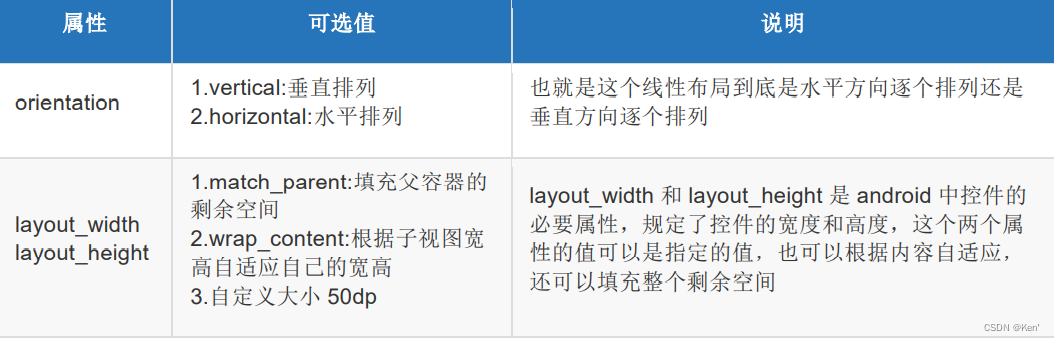
线性布局就是从左到右或从上到下按顺序排列的一种布局。下面讲一讲 LinearLayout 的基础属性。

效果展示
android:orientation ="vertical"所有子视图纵向摆放

- "1.0" encoding="utf-8"?>
- <LinearLayout xmlns:android="http://schemas.android.com/apk/res/android"
- android:layout_width="match_parent"
- android:layout_height="match_parent"
- android:gravity="center" //子视图相对父视图居中显示
- android:orientation="vertical"> //所有子视图纵向摆放
- <Button
- android:layout_width="wrap_content"
- android:layout_height="wrap_content"
- android:text="普通按钮" />
- <Button
- android:layout_width="wrap_content"
- android:layout_height="wrap_content"
- android:text="普通按钮" />
- <Button
- android:layout_width="wrap_content"
- android:layout_height="wrap_content"
- android:text="普通按钮" />
- <Button
- android:layout_width="wrap_content"
- android:layout_height="wrap_content"
- android:text="普通按钮" />
- LinearLayout>
android:orientation ="horizontal"所有子视图横向摆放

- "1.0" encoding="utf-8"?>
- <LinearLayout xmlns:android="http://schemas.android.com/apk/res/android"
- android:layout_width="match_parent"
- android:layout_height="match_parent"
- android:gravity="center" //子视图相对父视图居中显示
- android:orientation="horizontal"> //所有子视图横向摆放
- ......... 省略
- LinearLayout>
二、相对布局RelativeLayout
相对于父元素 7 个常用属性

相对于兄弟元素 4 个常用属性

相对于兄弟元素的对齐方式


效果演示

使用 layout_below 使得后面一个组件位于前面一个组件的下方,配合 layout_toRightOf 使得后面一个组件位于前面一个组件的右方。
- "1.0" encoding="utf-8"?>
- <RelativeLayout
- xmlns:android="http://schemas.android.com/apk/res/android"
- android:layout_width="match_parent"
- android:layout_height="match_parent">
- <Button
- android:id="@+id/btn1"
- android:layout_width="wrap_content"
- android:layout_height="wrap_content"
- android:text="普通按钮 1" />
- <Button
- android:id="@+id/btn2"
- android:layout_width="wrap_content"
- android:layout_height="wrap_content"
- android:layout_below="@+id/btn1"
- android:layout_toRightOf="@+id/btn1"
- android:text="普通按钮 2" />
- <Button
- android:id="@+id/btn3"
- android:layout_width="wrap_content"
- android:layout_height="wrap_content"
- android:layout_below="@+id/btn2"
- android:layout_toRightOf="@+id/btn2"
- android:text="普通按钮 3" />
- <Button
- android:id="@+id/btn4"
- android:layout_width="wrap_content"
- android:layout_height="wrap_content"
- android:layout_below="@+id/btn3"
- android:layout_toRightOf="@+id/btn3"
- android:text="普通按钮 4" />
- RelativeLayout>
三、 帧布局FrameLayout
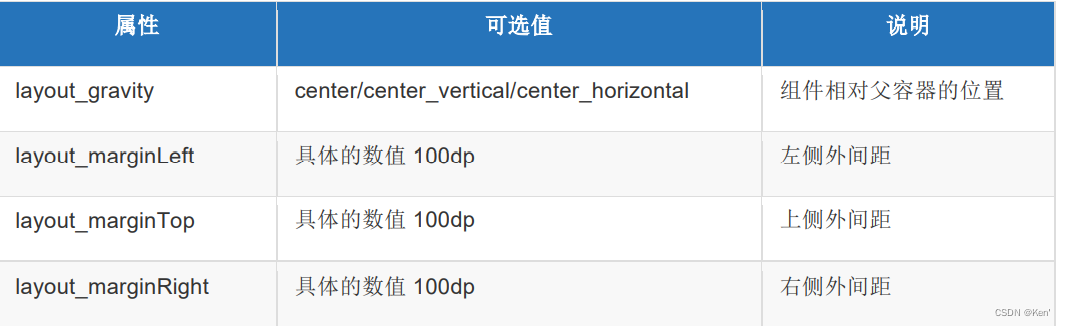
组件的默认位置都是左上角,组件之间可以重叠。像千层饼一样,一层压着一层可以设置上下左右的对齐、水平垂直居中、设置方式与线性布局相似。
常用属性
效果演示
- "1.0" encoding="utf-8"?>
- <FrameLayout xmlns:android="http://schemas.android.com/apk/res/android"
- android:layout_width="match_parent"
- android:layout_height="match_parent">
- <TextView
- android:layout_width="match_parent"
- android:layout_height="match_parent"
- android:layout_gravity="center"
- android:background="@color/purple_200"
- android:gravity="center_horizontal"
- android:paddingTop="100dp"
- android:text="layout_gravity:center"
- android:textSize="30dp" />
- <TextView
- android:layout_width="300dp"
- android:layout_height="360dp"
- android:layout_gravity="center"
- android:background="@color/purple_500" />
- <TextView
- android:layout_width="240dp"
- android:layout_height="240dp"
- android:layout_gravity="center"
- android:background="@color/purple_700" />
- <TextView
- android:layout_width="140dp"
- android:layout_height="140dp"
- android:layout_gravity="center"
- android:background="@color/teal_700" />
- <TextView
- android:layout_width="60dp"
- android:layout_height="60dp"
- android:layout_gravity="center"
- android:background="#ffffff"
- android:gravity="center" />
- FrameLayout>
总结

-
相关阅读:
RTOS的基本概念与线程基础知识
@FeignClient注解,fallback和fallbackFactory
1. MongoDB概览
2023年初中生古诗文大会初选正在进行中,详细参赛流程和实用建议
儿童医疗保健生物识别技术市场现状及未来发展趋势分析
【Android】点击按钮播放音乐,再次点击停止播放
Pytorch框架学习记录7——卷积层
5个用于地理空间数据分析的Python包
[SSD测试 1.1] SSD测试软件哪个好? 8 款固态硬盘软件对比
ffmpeg 支持用h265编码的rtmp
- 原文地址:https://blog.csdn.net/m0_58941767/article/details/127726407