-
Android学习笔记 2.4.1 实例——图片浏览器 && 2.4.2 实例——强大的图片按钮
Android学习笔记
疯狂Android讲义
第2章 Android 应用的界面编程
2.4 第3组 UI组件:ImageView及其子类
ImageView继承自 View组件,它的主要功能是用于显示图片—实际上这个说法不太严谨,因为它能显示的不仅仅是图片,任何 Drawable对象都可使用ImageView来显示。
除此之外,ImageView还派生了 ImageButton、ZoomButton等组件。

ImageView支持的常用XML属性及相关方法:

ImageView所支持的android:scaleType属性可指定如下属性值:
- matrix (Image View.ScaleType.MATRIX):使用matrix方式进行缩放。
- fitXY (ImageView.ScaleType.FIT XY):对图片横向、纵向独立缩放,使得该图片完全适应于该ImageView,图片的纵横比可能会改变。
- fitStart (ImageView.ScaleType.FIT_START):保持纵横比缩放图片,直到该图片能完全显示在 ImageView中(图片较长的边长与ImageView相应的边长相等),缩放完成后将该图片放在 ImageView的左上角。
- fitCenter (ImageView.ScaleType.FIT_CENTER):保持纵横比缩放图片,直到该图片能完全显示在 ImageView中(图片较长的边长与ImageView相应的边长相等),缩放完成后将该图片放在 Image View的中央。
- fitEnd (ImageView.ScaleType.FIT END):保持纵横比缩放图片,直到该图片能完全显示在 ImageView中(图片较长的边长与ImageView相应的边长相等),缩放完成后将该图片放在 ImageView的右下角。
- center (ImageView.ScaleType.CENTER):把图片放在 ImageView的中间,但不进行任何缩放。
- centerCrop (ImageView.ScaleType.CENTER_CROP):保持纵横比缩放图片,以使得图片能完全覆盖ImageView。只要图片的最短边能显示出来即可。
- centerInside (ImageView.ScaleType.CENTER INSIDE):保持纵横比缩放图片,以使得ImageView能完全显示该图片。
为了控制Image View显示的图片,ImageView提供了如下方法:
- setImageBitmap(Bitmap bm):使用Bitmap位图设置该ImageView显示的图片。
- setImageDrawable(Drawable drawable):使用 Drawable对象设置该ImageView显示的图片。
- setImageResource(int resld):使用图片资源ID设置该 ImageView显示的图片。
- setImageURI(Uri uri):使用图片的URI设置该ImageView显示的图片。
2.4.1 实例——图片浏览器
创建新项目

布局
<LinearLayout xmlns:android="http://schemas.android.com/apk/res/android" android:orientation="vertical" android:layout_width="match_parent" android:layout_height="match_parent"> <LinearLayout android:orientation="horizontal" android:layout_width="match_parent" android:layout_height="wrap_content" android:gravity="center"> <Button android:id="@+id/plus" android:layout_width="wrap_content" android:layout_height="wrap_content" android:text="增大透明度"/> <Button android:id="@+id/minus" android:layout_width="wrap_content" android:layout_height="wrap_content" android:text="降低透明度"/> <Button android:id="@+id/next" android:layout_width="wrap_content" android:layout_height="wrap_content" android:text="下一张"/> LinearLayout> <ImageView android:id="@+id/image1" android:layout_width="wrap_content" android:layout_height="280dp" android:src="@drawable/shuangta" android:scaleType="fitCenter"/> <ImageView android:id="@+id/image2" android:layout_width="120dp" android:layout_height="120dp" android:background="#00f" android:layout_margin="10dp"/> LinearLayout>- 1
- 2
- 3
- 4
- 5
- 6
- 7
- 8
- 9
- 10
- 11
- 12
- 13
- 14
- 15
- 16
- 17
- 18
- 19
- 20
- 21
- 22
- 23
- 24
- 25
- 26
- 27
- 28
- 29
- 30
- 31
- 32
- 33
- 34
- 35
- 36
逻辑代码
package com.dingjiaxiong.imageviewtest; import androidx.appcompat.app.AppCompatActivity; import android.graphics.Bitmap; import android.graphics.drawable.BitmapDrawable; import android.os.Bundle; import android.view.View; import android.widget.Button; import android.widget.ImageView; public class MainActivity extends AppCompatActivity { //定义图片数组 private int[] images = new int[]{ R.drawable.lijiang, R.drawable.qiao, R.drawable.shuangta, R.drawable.shui, R.drawable.xiangbi }; //定义默认显示的图片 private int currentImg = 2; //定义图片的初始透明度 private int alpha = 255; @Override protected void onCreate(Bundle savedInstanceState) { super.onCreate(savedInstanceState); setContentView(R.layout.activity_main); Button plus = findViewById(R.id.plus); Button minus = findViewById(R.id.minus); ImageView image1 = findViewById(R.id.image1); ImageView image2 = findViewById(R.id.image2); Button next = findViewById(R.id.next); next.setOnClickListener(source ->{ //控制image1显示下一张图 image1.setImageResource(images[++currentImg % images.length]); }); //定义改变图片透明度的方法 View.OnClickListener listener = v -> { if (v == plus){ alpha += 20; } if (v == minus){ alpha -= 20; } if (alpha >= 255){ alpha = 255; } if (alpha <= 0){ alpha = 0; } //改变图片的透明度 image1.setImageAlpha(alpha); }; //为两个按钮添加监听 plus.setOnClickListener(listener); minus.setOnClickListener(listener); image1.setOnTouchListener((view,event) -> { BitmapDrawable bitmapDrawable = (BitmapDrawable) image1.getDrawable(); Bitmap bitmap = bitmapDrawable.getBitmap(); double scale = 1.0 * bitmap.getHeight() / image1.getHeight(); //获取需要显示图片的开始点 long x = Math.round(event.getX() * scale); long y = Math.round(event.getY() * scale); if (x + 120 > bitmap.getWidth()){ x = bitmap.getWidth() - 120; } if (y + 120 > bitmap.getHeight()){ y = bitmap.getHeight() - 120; } //显示图片的指定区域 image2.setImageBitmap(Bitmap.createBitmap(bitmap,(int)x,(int)y,120,120)); image2.setImageAlpha(alpha); return false; }); } }- 1
- 2
- 3
- 4
- 5
- 6
- 7
- 8
- 9
- 10
- 11
- 12
- 13
- 14
- 15
- 16
- 17
- 18
- 19
- 20
- 21
- 22
- 23
- 24
- 25
- 26
- 27
- 28
- 29
- 30
- 31
- 32
- 33
- 34
- 35
- 36
- 37
- 38
- 39
- 40
- 41
- 42
- 43
- 44
- 45
- 46
- 47
- 48
- 49
- 50
- 51
- 52
- 53
- 54
- 55
- 56
- 57
- 58
- 59
- 60
- 61
- 62
- 63
- 64
- 65
- 66
- 67
- 68
- 69
- 70
- 71
- 72
- 73
- 74
- 75
- 76
- 77
- 78
- 79
- 80
- 81
- 82
- 83
- 84
- 85
- 86
- 87
- 88
- 89
运行效果

Image View派生了如下两个子类:
- ImageButton:图片按钮。
- QuickContactBadge:显示关联到特定联系人的图片。
Button与 ImageButton 的区别在于,Button生成的按钮上显示文字,而 ImageButton上则显示图片。需要指出的是,为 ImageButton按钮指定android:text属性没用(ImageButton 的本质是ImageView),即使指定了该属性,图片按钮上也不会显示任何文字。
ImageButton派生了一个ZoomButton,ZoomButton可以代表“放大”和“缩小两个按钮。ZoomButton的行为基本类似于ImageButton,只是 Android 默认提供了btn minus、 btn plus两个Drawable资源,只要为ZoomButton的 android:src属性分别指定 btn minus、 btn plus,即可实现“缩小”和“放大”按钮。
实际上Android还提供了一个 ZoomControls组件,该组件相当于同时组合了“放大”和“缩小”两个按钮,并允许分别为两个按钮绑定不同的事件监听器。ImageButton还有一个子类:FloatingActionButton,它代表一个悬浮按钮。
2.4.2 实例——强大的图片按钮
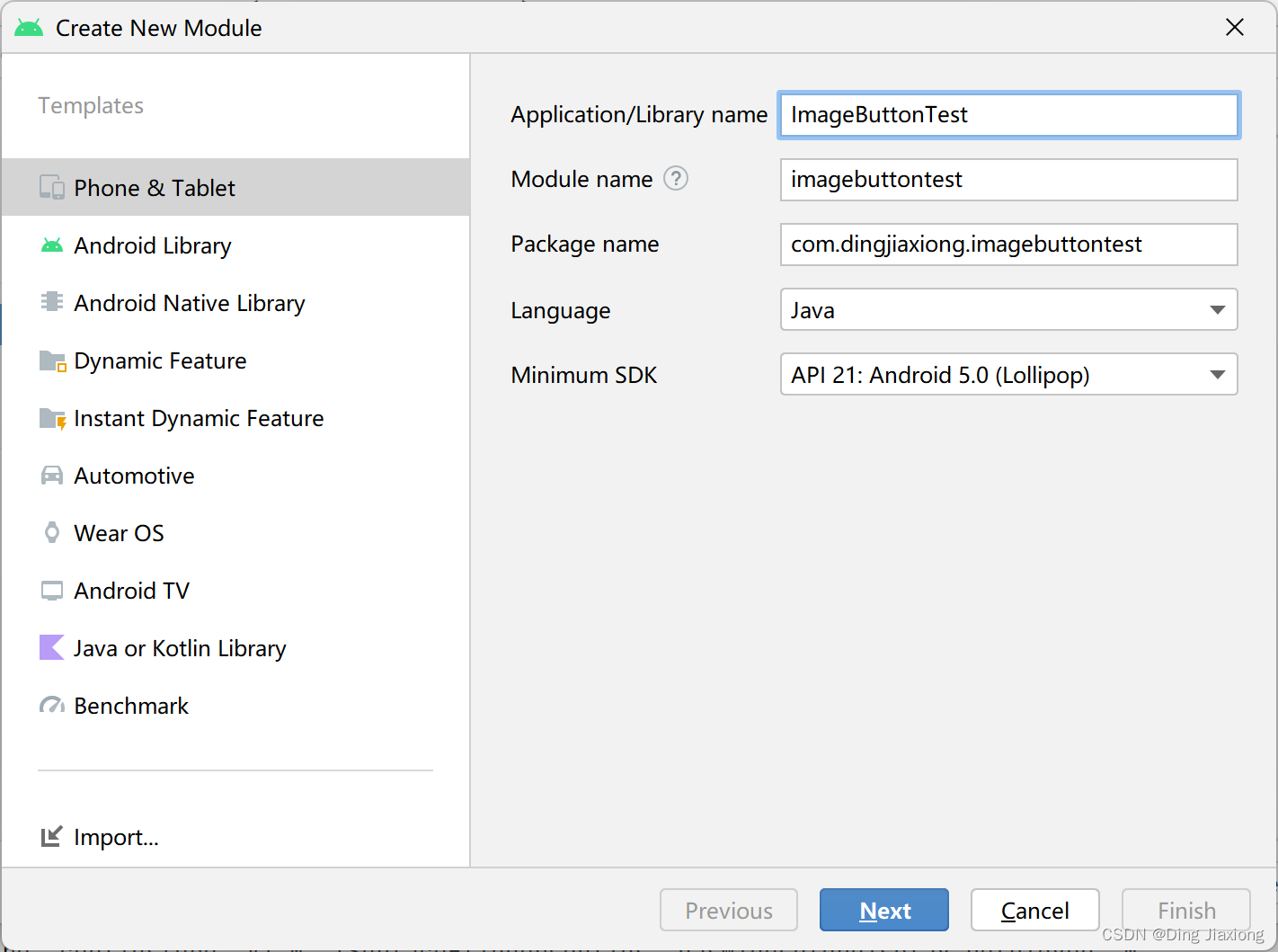
新建模块
布局
<LinearLayout xmlns:android="http://schemas.android.com/apk/res/android" android:orientation="vertical" android:layout_width="match_parent" android:layout_height="match_parent"> <ImageButton android:layout_width="wrap_content" android:layout_height="wrap_content" android:src="@drawable/blue"/> <ImageButton android:layout_width="wrap_content" android:layout_height="wrap_content" android:src="@drawable/button_selector"/> <LinearLayout android:orientation="horizontal" android:layout_width="wrap_content" android:layout_height="wrap_content" android:layout_margin="10sp" android:layout_gravity="center_horizontal"> <ZoomButton android:layout_width="wrap_content" android:layout_height="wrap_content" android:id="@+id/btn_zoom_down" android:src="@android:drawable/btn_minus" /> <ZoomButton android:layout_width="wrap_content" android:layout_height="wrap_content" android:id="@+id/btn_zoom_up" android:src="@android:drawable/btn_plus" /> LinearLayout> <ZoomControls android:id="@+id/zoomControls1" android:layout_width="wrap_content" android:layout_height="wrap_content" android:layout_gravity="center_horizontal"/> LinearLayout>- 1
- 2
- 3
- 4
- 5
- 6
- 7
- 8
- 9
- 10
- 11
- 12
- 13
- 14
- 15
- 16
- 17
- 18
- 19
- 20
- 21
- 22
- 23
- 24
- 25
- 26
- 27
- 28
- 29
- 30
- 31
- 32
- 33
- 34
- 35
- 36
- 37
- 38
- 39
直接运行

第一个ImageButton的src是一张静态图片。
第二个ImageButton的可以切换。
下面是两个ZoomButton,分别指定了放大、缩小的Drawable。
-
相关阅读:
.NET 高效灵活的API速率限制解决方案
2流高手速成记(之八):基于Sentinel实现微服务体系下的限流与熔断
wireshark数据结构
【Java】B站课程《基于分布式架构项目实战》学习总结
多变量两两相互关系联合分布图的Python绘制
SpringSecurity安全管理
前端面试题之HTTP专题
点云梯度下采样
架火炬市场现状及未来发展趋势分析
Java文件操作和IO
- 原文地址:https://blog.csdn.net/weixin_44226181/article/details/126458883
