-
magical_spider远程采集方案
magical_spider
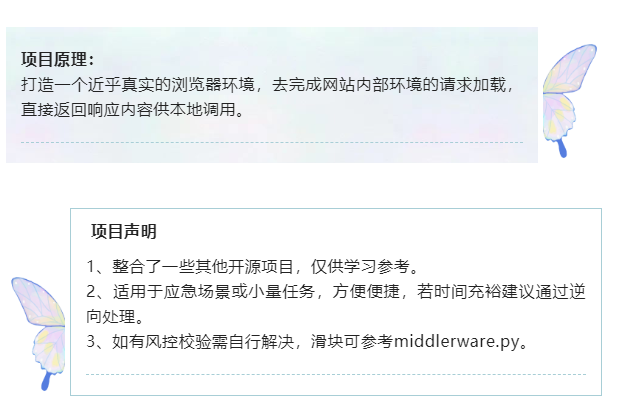
一个神奇的蜘蛛🕷项目,源码架构很简单,适用于数据采集任务。


index页面示例:


项目地址
https://github.com/lixi5338619/magical_spider
使用说明
1、配置settings.py,启动 flask 服务
2、测试代码参考demo文件内容,运行过程主要借助runflow.py。
import requests host = 'http://127.0.0.1:5000' def magical_start(project_name,base_url = 'http://www.lxspider.com'): # 1、create browser and select session_id result = requests.post(f'{host}/create',data={'name':project_name,'url':base_url}).json() session_id,process_url = result['session_id'],result['process_url'] return session_id,process_url def magical_request(session_id,process_url,request_url): # 2、request browser_xhr data = {'session_id':session_id,'process_url':process_url, 'request_url':request_url,'request_type':'get'} result = requests.post(f'{host}/xhr',data=data).json() return result['result'] def magical_close(session_id,process_url,process_name): # 4、close browser close_data = {'session_id':session_id,'process_url':process_url,'process_name':process_name} requests.post(f'{host}/close',data=close_data).json()- 1
- 2
- 3
- 4
- 5
- 6
- 7
- 8
- 9
- 10
- 11
- 12
- 13
- 14
- 15
- 16
- 17
- 18
- 19
- 20
- 21
- 22
- 23
3、测试代码
GET请求
from demo.runflow import magical_start,magical_request,magical_close project_name = 'cnipa' base_url = 'https://www.cnipa.gov.cn' session_id,process_url = magical_start(project_name,base_url) print(len(magical_request(session_id, process_url,'https://www.cnipa.gov.cn/col/col57/index.html'))) magical_close(session_id,process_url,project_name)- 1
- 2
- 3
- 4
- 5
- 6
- 7
- 8
- 9
- 10
POST请求
from demo.runflow import magical_start,magical_request,magical_close import json project_name = 'chinadrugtrials' base_url = 'http://www.chinadrugtrials.org.cn' session_id,process_url = magical_start(project_name,base_url) data = {"id": "","ckm_index": "","sort": "desc","sort2": "","rule": "CTR","secondLevel": "0","currentpage": "2","keywords": "","reg_no": "","indication": "","case_no": "","drugs_name": "","drugs_type": "","appliers": "","communities": "","researchers": "","agencies": "","state": ""} formdata = json.dumps(data) print(magical_request(session_id=session_id, process_url=process_url, request_url='http://www.chinadrugtrials.org.cn/clinicaltrials.searchlist.dhtml', request_type='post',formdata=formdata )) magical_close(session_id,process_url,project_name)- 1
- 2
- 3
- 4
- 5
- 6
- 7
- 8
- 9
- 10
- 11
- 12
- 13
- 14
- 15
- 16
- 17
4、index页可以查看和管理当前运行中的任务,也能查看系统内存和磁盘使用情况。
5、demo文件夹中有任务流程汇总runflow.py,以及抖音、药监局案例,单任务和多任务示例。
linux部署
1.安装chrome (自行选择安装位置)
yum install https://dl.google.com/linux/direct/google-chrome-stable_current_x86_64.rpm2.检查chrome的版本
google-chrome --version3.安装对应版本的 chromedriver_linux64
比如我的chrome版本是104.0.5112.79
wget https://npm.taobao.org/mirrors/chromedriver/104.0.5112.79/chromedriver_linux64.zip4.解压
unzip chromedriver_linux645.授权
chmod 777 chromedriver6.修改项目代码settings.py中的chromedriver路径
7.安装python依赖后启动flask项目
- Python依赖 :flask、sqlite3、selenium、websockets、opencv-python、numpy
- flask启动方式:python3 server.py
8.开启服务器端口访问权限
9.运行项目测试
-
相关阅读:
硅树脂油漆申请美国标准UL 790 Class A 合适吗?
fisco Java-sdk 快速入门案例
【建议背诵】软考高项考试案例简答题汇总~(7)
为了让女儿学打字,开发了个免费的打字网站
Postman中的Pre-request Scrip详解
行列视(RCV)能解决哪些问题?
设计模式-策略模式
vue项目添加水印
openstack-同一物理机中透传不同GPU时的nova配置记录
518. 零钱兑换II(完全背包问题)
- 原文地址:https://blog.csdn.net/weixin_43582101/article/details/126260395
