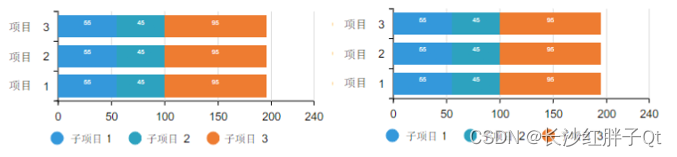
• Qt+ECharts开发笔记(三):ECharts的柱状图介绍、基础使用和Qt封装Demo


    若该文为原创文章,转载请注明原文出处
    本文章博客地址:https://hpzwl.blog.csdn.net/article/details/125731144

    红胖子(红模仿)的博文大全:开发技术集合(包含Qt实用技术、树莓派、三维、OpenCV、OpenGL、ffmpeg、OSG、单片机、软硬结合等等)持续更新中…(点击传送门)

    Qt开发专栏:三方库开发技术

    上一篇:《Qt+ECharts开发笔记(二):Qt窗口动态调整大小,使ECharts跟随Qt窗口大小变换而变换大小
    下一篇:敬请期待…


    前言

      上一篇成功是EChart随着Qt窗口变化而变化,本篇将开始正式介绍柱状图介绍、基础使用,并将其封装一层Qt。
      本篇的demo实现了隐藏js代码的方式,实现了一个条形图的基本交互方式,即Qt调用js脚本操作html。


    Demo演示

      请添加图片描述


    ECharts调试工具

      ECharts提供的纯JS代码编辑开发调试工具,可编辑js,并且查看运行效果:
      https://echarts.apache.org/examples/zh/editor.html
      在这里插入图片描述
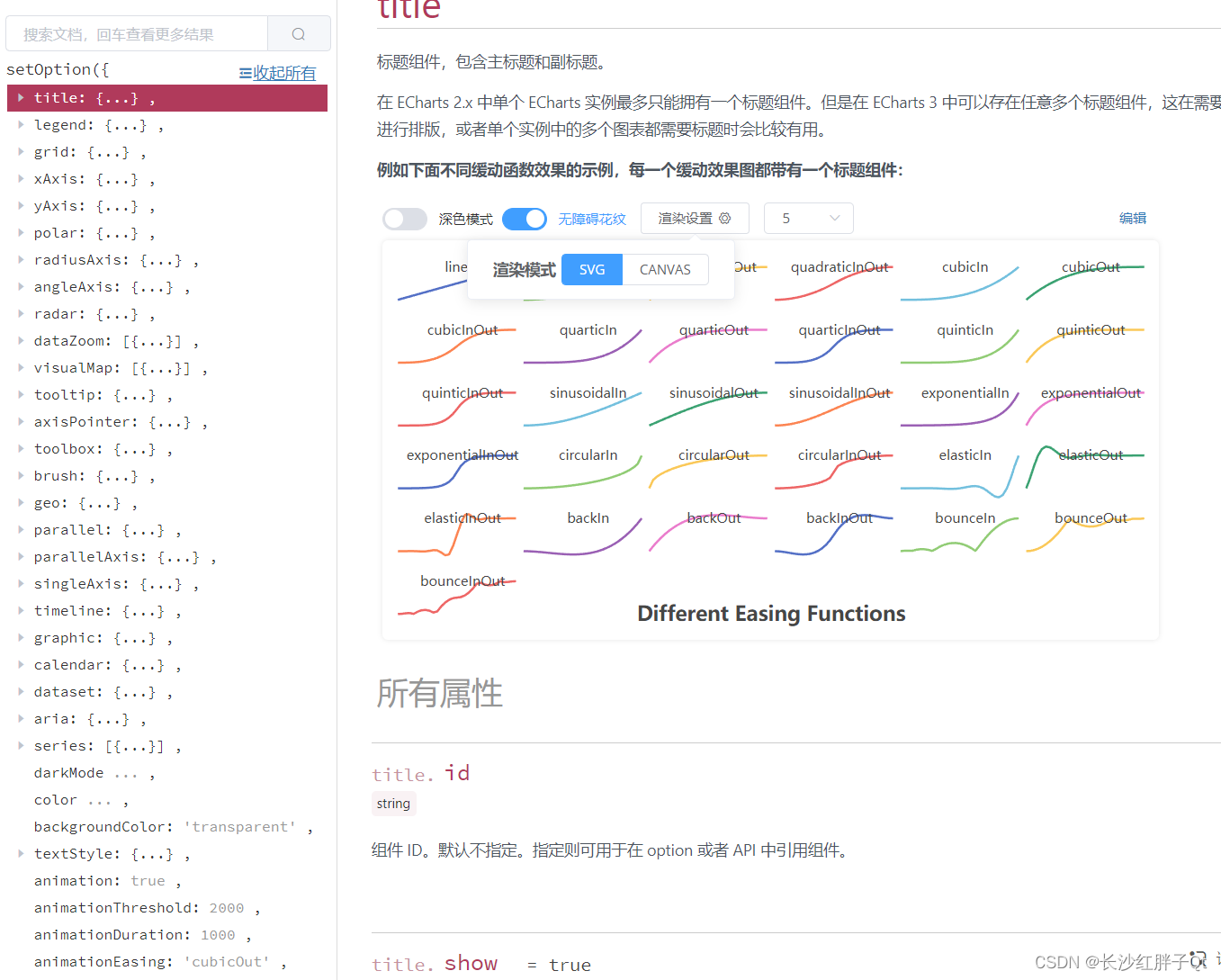
      开发过程中对于属性的查询和调试ECharts也提供了配置帮助。
      官方配置手册:https://echarts.apache.org/zh/option.html
      在这里插入图片描述


    目标

      随便找一个预期目标:
      在这里插入图片描述


    ECharts接口静态方式

      使用EChart调试工具开发,先调试出基础框架。
      这里贴出的全部代码:

    DOCTYPE html>
    <html>
      <head>
        <meta charset="utf-8" />
        <title>EChartstitle>
        
        
        <script src="./echarts.js">script>


      head>
      <body>
    
        
        <style>
            #main,
            html,
            body{
                width: 100%;
                height: 100%;
                overflow: hidden;
            }
            #main {
                width: 100%;
                height: 100%;
            }
        style>
    
    
        <div id="main">div>
        <script type="text/javascript">
            // 基于准备好的dom,初始化echarts实例
            var myChart = echarts.init(document.getElementById('main'));
            // 窗口高度变化设置
            window.onresize = function() {
                myChart.resize();
            };
            // 指定图表的配置项和数据
            var option = {
                title: {
                    text: 'ECharts 入门示例'
                },
                tooltip: {},
                legend: {
                    data: ['销量']
                },
                xAxis: {
                data: ['衬衫', '羊毛衫', '雪纺衫', '裤子', '高跟鞋', '袜子']
                },
                yAxis: {},
                series: [
                    {
                        name: '销量',
                        type: 'bar',
                        data: [5, 20, 36, 10, 10, 20]
                    }
                ]
            };
            // 使用刚指定的配置项和数据显示图表。
            myChart.setOption(option);
    
    
            function initJs() {
                var myChart = echarts.init(document.getElementById('main'));
                var option;
                option = {
                    tooltip: {
                        trigger: 'axis'
                    },
                    grid: {
                        left: '3%',
                        right: '4%',
                        bottom: '50',
                        containLabel: true
                    },
                    legend: {
                        orient: 'horizontal',
                        x: 'center',
                        y: 'bottom',
                        itemGap: 100
                    },
                    xAxis: {
                        type: 'value'
                    },
                    yAxis: {
                        type: 'category',
                        data: ['项目1', '项目2', '项目3']
                    },
                    series: [
                        {
                            name: '变量1',
                            type: 'bar',
                            stack: 'totla',
                            label: {
                                show: true
                            },
                            data: [11, 12, 13]
                        },
                        {
                            name: '子项目1',
                            type: 'bar',
                            stack: 'totla',
                            label: {
                                show: true
                            },
                            data: [24, 20, 21]
                        },
                        {
                            name: '变量3',
                            type: 'bar',
                            stack: 'totla',
                            label: {
                                show: true
                            },
                            data: [95, 87, 55]
                        }
                    ]
                };
            };
            initJs();
        script>
      body>
    html>
    
    • 1
    • 2
    • 3
    • 4
    • 5
    • 6
    • 7
    • 8
    • 9
    • 10
    • 11
    • 12
    • 13
    • 14
    • 15
    • 16
    • 17
    • 18
    • 19
    • 20
    • 21
    • 22
    • 23
    • 24
    • 25
    • 26
    • 27
    • 28
    • 29
    • 30
    • 31
    • 32
    • 33
    • 34
    • 35
    • 36
    • 37
    • 38
    • 39
    • 40
    • 41
    • 42
    • 43
    • 44
    • 45
    • 46
    • 47
    • 48
    • 49
    • 50
    • 51
    • 52
    • 53
    • 54
    • 55
    • 56
    • 57
    • 58
    • 59
    • 60
    • 61
    • 62
    • 63
    • 64
    • 65
    • 66
    • 67
    • 68
    • 69
    • 70
    • 71
    • 72
    • 73
    • 74
    • 75
    • 76
    • 77
    • 78
    • 79
    • 80
    • 81
    • 82
    • 83
    • 84
    • 85
    • 86
    • 87
    • 88
    • 89
    • 90
    • 91
    • 92
    • 93
    • 94
    • 95
    • 96
    • 97
    • 98
    • 99
    • 100
    • 101
    • 102
    • 103
    • 104
    • 105
    • 106
    • 107
    • 108
    • 109
    • 110
    • 111
    • 112
    • 113
    • 114
    • 115
    • 116
    • 117
    • 118
    • 119
    • 120
    • 121
    • 122
    • 123
    • 124
    • 125
    • 126

    ECharts接口动态方式

      动态方式,最初目的是为了动态实现数据的js操作,在开发过程中发现动态方式还能隐藏echarts代码,使echarts代码不被抓取,最后决定全部改为动态加载方式。

    步骤一:修改html

    DOCTYPE html>
    <html>
      <head>
        <meta charset="utf-8" />
        <title>EChartstitle>
        <script src="./echarts.js">script>
      head>
      <body>
        <style>
            #main,
            html,
            body{
                width: 100%;
                height: 100%;
                overflow: hidden;
            }
            #main {
                width: 95%;
                height: 95%;
            }
        style>
        <div id="main">div>
        <script type="text/javascript">
            var myChart = echarts.init(document.getElementById('main'));
            window.onresize = function() {
                myChart.resize();
            };
        script>
      body>
    html>
    
    • 1
    • 2
    • 3
    • 4
    • 5
    • 6
    • 7
    • 8
    • 9
    • 10
    • 11
    • 12
    • 13
    • 14
    • 15
    • 16
    • 17
    • 18
    • 19
    • 20
    • 21
    • 22
    • 23
    • 24
    • 25
    • 26
    • 27
    • 28
    • 29
    • 30

    步骤二:初始化

      新增了loadFinished信号槽关联。

    void BarEChartWidget::initControl()
    {
        _pWebEngineView = new QWebEngineView(this);
        _pWebEnginePage = new QWebEnginePage(this);
        _pWebChannel = new QWebChannel(this);
        QString filePath;
    #if 1
        filePath = QString("%1/%2").arg(_htmlDir).arg(_indexFileName);
    #else
        filePath = "qrc:/barEChartWidget/html/barEChartWidget.html";
    #endif
        LOG << "file exist:" << QFile::exists(filePath) << filePath;
    #if 0
        // 打印html文件内容
        QFile file(_indexFilePath);
        file.open(QIODevice::ReadOnly);
        LOG << QString(file.readAll());
        file.close();
    #endif
        connect(_pWebEnginePage, SIGNAL(loadFinished(bool)), this, SLOT(slot_loadFinished(bool)));
        _pWebEnginePage->load(QUrl(filePath));
        _pWebEnginePage->setWebChannel(_pWebChannel);
        _pWebEngineView->setPage(_pWebEnginePage);
    
        // 背景透明
    //    _pWebEngineView->setStyleSheet("background-color: transparent");
        _pWebEnginePage->setBackgroundColor(Qt::transparent);
    }
    
    • 1
    • 2
    • 3
    • 4
    • 5
    • 6
    • 7
    • 8
    • 9
    • 10
    • 11
    • 12
    • 13
    • 14
    • 15
    • 16
    • 17
    • 18
    • 19
    • 20
    • 21
    • 22
    • 23
    • 24
    • 25
    • 26
    • 27
    • 28

    步骤三:加载完成页面后进行初始化

    void BarEChartWidget::slot_loadFinished(bool result)
    {
        if(result)
        {
            initJs();
        }
    }
    void BarEChartWidget::initJs()
    {
        _initJsStr = QSTRING(
                "var option;"
                "option = {"
                "    tooltip: {"
                "        trigger: 'axis'"
                "    },"
                "    grid: {"
                "        left: '10',"
                "        right: '10',"
                "        top: '10',"
                "        bottom: 30,"
                "        containLabel: true"
                "    },"
                "    legend: {"
                "        orient: 'horizontal',"
                "        x: 'center',"
                "        y: 'bottom',"
                "        itemGap: 20"
                "    },"
                "    xAxis: {"
                "        type: 'value'"
                "    },"
                "    yAxis: {"
                "        type: 'category',"
                "        data: ['项目1', '项目2', '项目3']"
                "    },"
                "    series: ["
                "        {"
                "            name: '变量1',"
                "            type: 'bar',"
                "            stack: 'totla',"
                "            label: {"
                "                show: true"
                "            },"
                "            data: [11, 12, 13]"
                "        },"
                "        {"
                "            name: '变量2',"
                "            type: 'bar',"
                "            stack: 'totla',"
                "            label: {"
                "                show: true"
                "            },"
                "            data: [24, 20, 21]"
                "        },"
                "        {"
                "            name: '变量3',"
                "            type: 'bar',"
                "            stack: 'totla',"
                "            label: {"
                "                show: true"
                "            },"
                "            data: [95, 87, 55]"
                "        }"
                "    ]"
                "};"
                "myChart.setOption(option);");
        runJsScript(_initJsStr);
    }
    
    void BarEChartWidget::runJsScript(QString str)
    {
        if(_pWebEnginePage)
        {
            _pWebEnginePage->runJavaScript(str);
        }
    }
    
    • 1
    • 2
    • 3
    • 4
    • 5
    • 6
    • 7
    • 8
    • 9
    • 10
    • 11
    • 12
    • 13
    • 14
    • 15
    • 16
    • 17
    • 18
    • 19
    • 20
    • 21
    • 22
    • 23
    • 24
    • 25
    • 26
    • 27
    • 28
    • 29
    • 30
    • 31
    • 32
    • 33
    • 34
    • 35
    • 36
    • 37
    • 38
    • 39
    • 40
    • 41
    • 42
    • 43
    • 44
    • 45
    • 46
    • 47
    • 48
    • 49
    • 50
    • 51
    • 52
    • 53
    • 54
    • 55
    • 56
    • 57
    • 58
    • 59
    • 60
    • 61
    • 62
    • 63
    • 64
    • 65
    • 66
    • 67
    • 68
    • 69
    • 70
    • 71
    • 72
    • 73
    • 74
    • 75
    • 76

    步骤四:动态执行js操作

    重置

    void BarEChartWidget::on_pushButton_reset_clicked()
    {
        initJs();
    }
    
    • 1
    • 2
    • 3
    • 4

    刷新

    void BarEChartWidget::on_pushButton_flush_clicked()
    {
        QString jsStr =
                "var empty = {};"
                "myChart.setOption(empty, true);"
                "myChart.setOption(option, true);";
        runJsScript(jsStr);
    }
    
    • 1
    • 2
    • 3
    • 4
    • 5
    • 6
    • 7
    • 8

    清空

    void BarEChartWidget::on_pushButton_clear_clicked()
    {
        QString jsStr =
                "option.series[0].data = [];"
                "option.series[1].data = [];"
                "option.series[2].data = [];"
                "myChart.setOption(option, true);";
        runJsScript(jsStr);
    }
    
    • 1
    • 2
    • 3
    • 4
    • 5
    • 6
    • 7
    • 8
    • 9

    随机生成(使用js代码)

    void BarEChartWidget::on_pushButton_createRandom_clicked()
    {
        QString jsStr =
        "var min = 0;"
        "var max = 100;"
        "for(var i = 0; i < option.series.length; i++)"
        "{"
        "    for(var j = 0; j < option.yAxis.data.length; j++)"
        "    {"
        "        option.series[i].data[j] = Math.floor(Math.random() * (max - min)) + min;"
        "    }"
        "}"
        "myChart.setOption(option, true);";
        runJsScript(jsStr);
    }
    
    • 1
    • 2
    • 3
    • 4
    • 5
    • 6
    • 7
    • 8
    • 9
    • 10
    • 11
    • 12
    • 13
    • 14
    • 15

      后续用会将数据进行Qt的一份缓存数据,由Qt的数据去生成ecahrts的js脚本。


    Demo

    html文件

    DOCTYPE html>
    <html>
      <head>
        <meta charset="utf-8" />
        <title>EChartstitle>
        <script src="./echarts.js">script>
      head>
      <body>
        <style>
            #main,
            html,
            body{
                width: 100%;
                height: 100%;
                overflow: hidden;
            }
            #main {
                width: 95%;
                height: 95%;
            }
        style>
        <div id="main">div>
        <script type="text/javascript">
            var myChart = echarts.init(document.getElementById('main'));
            window.onresize = function() {
                myChart.resize();
            };
        script>
      body>
    html>
    
    • 1
    • 2
    • 3
    • 4
    • 5
    • 6
    • 7
    • 8
    • 9
    • 10
    • 11
    • 12
    • 13
    • 14
    • 15
    • 16
    • 17
    • 18
    • 19
    • 20
    • 21
    • 22
    • 23
    • 24
    • 25
    • 26
    • 27
    • 28
    • 29
    • 30

      在代码中使用js初始化echarts:
    BarECartWidget.h

    #ifndef BARECHARTWIDGET_H
    #define BARECHARTWIDGET_H
    
    #include 
    #include 
    #include 
    #include 
    
    namespace Ui {
    class BarEChartWidget;
    }
    
    class BarEChartWidget : public QWidget
    {
        Q_OBJECT
    
    public:
        explicit BarEChartWidget(QWidget *parent = 0);
        ~BarEChartWidget();
    
    protected:
        void initControl();
    
    protected slots:
        void slot_loadFinished(bool result);
    
    protected:
        void initJs();
    
    protected:
        void runJsScript(QString str);
    
    protected:
        void resizeEvent(QResizeEvent *event);
    
    private slots:
        void on_pushButton_clear_clicked();
        void on_pushButton_flush_clicked();
        void on_pushButton_createRandom_clicked();
        void on_pushButton_reset_clicked();
    
    private:
        Ui::BarEChartWidget *ui;
    
    private:
        QWebEngineView *_pWebEngineView;            // 浏览器窗口
        QWebEnginePage *_pWebEnginePage;            // 浏览器页面
        QWebChannel *_pWebChannel;                  // 浏览器js交互
    
        QString _htmlDir;                           // html文件夹路径
        QString _indexFileName;                     // html文件
    
        QString _initJsStr;                         // 第一次初始化的表格
    };
    
    #endif // BARECHARTWIDGET_H
    
    • 1
    • 2
    • 3
    • 4
    • 5
    • 6
    • 7
    • 8
    • 9
    • 10
    • 11
    • 12
    • 13
    • 14
    • 15
    • 16
    • 17
    • 18
    • 19
    • 20
    • 21
    • 22
    • 23
    • 24
    • 25
    • 26
    • 27
    • 28
    • 29
    • 30
    • 31
    • 32
    • 33
    • 34
    • 35
    • 36
    • 37
    • 38
    • 39
    • 40
    • 41
    • 42
    • 43
    • 44
    • 45
    • 46
    • 47
    • 48
    • 49
    • 50
    • 51
    • 52
    • 53
    • 54
    • 55
    • 56

    BarEChartWidget.cpp

    #include "BarEChartWidget.h"
    #include "ui_BarEChartWidget.h"
    
    #include 
    #include 
    #include 
    
    // QtCreator在msvc下设置编码也或有一些乱码,直接一刀切,避免繁琐的设置
    //#define MSVC
    #ifdef MSVC
    #define QSTRING(s)  QString::fromLocal8Bit(s)
    #else
    #define QSTRING(s)  QString(s)
    #endif
    
    #include 
    #include 
    //#define LOG qDebug()<<__FILE__<<__LINE__
    //#define LOG qDebug()<<__FILE__<<__LINE__<<__FUNCTION__
    //#define LOG qDebug()<<__FILE__<<__LINE__<
    //#define LOG qDebug()<<__FILE__<<__LINE__<
    #define LOG qDebug()<<__FILE__<<__LINE__<<QDateTime::currentDateTime().toString("yyyy-MM-dd hh:mm:ss:zzz")
    
    BarEChartWidget::BarEChartWidget(QWidget *parent) :
        QWidget(parent),
        ui(new Ui::BarEChartWidget),
        _pWebEngineView(0),
        _pWebEnginePage(0),
        _pWebChannel(0),
        _htmlDir("D:/qtProject/echartsDemo/echartsDemo/modules/barEChartWidget/html"),    // 使用了绝对路径,引到html文件夹
        _indexFileName("barEChartWidget.html")
    {
        ui->setupUi(this);
    
        QString version = "v1.0.0";
        setWindowTitle(QString("基于Qt的ECharts条状图Demo %1(长沙红胖子 QQ:21497936 WX:15173255813 blog:hpzwl.blog.csdn.net").arg(version));
    
        // 设置无边框,以及背景透明
        // 背景透明,在界面构架时,若为本窗口为其他窗口提升为本窗口时,
        // 则再qss会在主窗口第一级添加frame_all,防止其他窗口提升本窗口而冲掉qss设置
    //    setWindowFlag(Qt::FramelessWindowHint);
    //    setAttribute(Qt::WA_TranslucentBackground, true);
    
    #if 0
        // 这是方法一:让滚动条不出来(通过大小),还有一个方法是在html设置body的overflow: hidden
    //    resize(600 + 20, 400 + 20);
    #endif
    
        initControl();
    }
    
    BarEChartWidget::~BarEChartWidget()
    {
        delete ui;
    }
    
    void BarEChartWidget::initControl()
    {
        _pWebEngineView = new QWebEngineView(this);
        _pWebEnginePage = new QWebEnginePage(this);
        _pWebChannel = new QWebChannel(this);
        QString filePath;
    #if 1
        filePath = QString("%1/%2").arg(_htmlDir).arg(_indexFileName);
    #else
        filePath = "qrc:/barEChartWidget/html/barEChartWidget.html";
    #endif
        LOG << "file exist:" << QFile::exists(filePath) << filePath;
    #if 0
        // 打印html文件内容
        QFile file(_indexFilePath);
        file.open(QIODevice::ReadOnly);
        LOG << QString(file.readAll());
        file.close();
    #endif
        connect(_pWebEnginePage, SIGNAL(loadFinished(bool)), this, SLOT(slot_loadFinished(bool)));
        _pWebEnginePage->load(QUrl(filePath));
        _pWebEnginePage->setWebChannel(_pWebChannel);
        _pWebEngineView->setPage(_pWebEnginePage);
    
        // 背景透明
    //    _pWebEngineView->setStyleSheet("background-color: transparent");
        _pWebEnginePage->setBackgroundColor(Qt::transparent);
    }
    
    void BarEChartWidget::slot_loadFinished(bool result)
    {
        if(result)
        {
            initJs();
        }
    }
    
    void BarEChartWidget::initJs()
    {
        _initJsStr = QSTRING(
                "var option;"
                "option = {"
                "    tooltip: {"
                "        trigger: 'axis'"
                "    },"
                "    grid: {"
                "        left: '10',"
                "        right: '10',"
                "        top: '10',"
                "        bottom: 30,"
                "        containLabel: true"
                "    },"
                "    legend: {"
                "        orient: 'horizontal',"
                "        x: 'center',"
                "        y: 'bottom',"
                "        itemGap: 20"
                "    },"
                "    xAxis: {"
                "        type: 'value'"
                "    },"
                "    yAxis: {"
                "        type: 'category',"
                "        data: ['项目1', '项目2', '项目3']"
                "    },"
                "    series: ["
                "        {"
                "            name: '变量1',"
                "            type: 'bar',"
                "            stack: 'totla',"
                "            label: {"
                "                show: true"
                "            },"
                "            data: [11, 12, 13]"
                "        },"
                "        {"
                "            name: '变量2',"
                "            type: 'bar',"
                "            stack: 'totla',"
                "            label: {"
                "                show: true"
                "            },"
                "            data: [24, 20, 21]"
                "        },"
                "        {"
                "            name: '变量3',"
                "            type: 'bar',"
                "            stack: 'totla',"
                "            label: {"
                "                show: true"
                "            },"
                "            data: [95, 87, 55]"
                "        }"
                "    ]"
                "};"
                "myChart.setOption(option);");
        runJsScript(_initJsStr);
    }
    
    void BarEChartWidget::runJsScript(QString str)
    {
        if(_pWebEnginePage)
        {
            _pWebEnginePage->runJavaScript(str);
        }
    }
    
    void BarEChartWidget::resizeEvent(QResizeEvent *event)
    {
        if(_pWebEngineView)
        {
            _pWebEngineView->setGeometry(ui->label_echarts->geometry());
        }
    }
    
    void BarEChartWidget::on_pushButton_clear_clicked()
    {
        QString jsStr =
                "option.series[0].data = [];"
                "option.series[1].data = [];"
                "option.series[2].data = [];"
                "myChart.setOption(option, true);";
        runJsScript(jsStr);
    }
    
    void BarEChartWidget::on_pushButton_flush_clicked()
    {
        QString jsStr =
                "var empty = {};"
                "myChart.setOption(empty, true);"
                "myChart.setOption(option, true);";
        runJsScript(jsStr);
    }
    
    void BarEChartWidget::on_pushButton_createRandom_clicked()
    {
        QString jsStr =
        "var min = 0;"
        "var max = 100;"
        "for(var i = 0; i < option.series.length; i++)"
        "{"
        "    for(var j = 0; j < option.yAxis.data.length; j++)"
        "    {"
        "        option.series[i].data[j] = Math.floor(Math.random() * (max - min)) + min;"
        "    }"
        "}"
        "myChart.setOption(option, true);";
        runJsScript(jsStr);
    }
    
    void BarEChartWidget::on_pushButton_reset_clicked()
    {
        initJs();
    }
    
    • 1
    • 2
    • 3
    • 4
    • 5
    • 6
    • 7
    • 8
    • 9
    • 10
    • 11
    • 12
    • 13
    • 14
    • 15
    • 16
    • 17
    • 18
    • 19
    • 20
    • 21
    • 22
    • 23
    • 24
    • 25
    • 26
    • 27
    • 28
    • 29
    • 30
    • 31
    • 32
    • 33
    • 34
    • 35
    • 36
    • 37
    • 38
    • 39
    • 40
    • 41
    • 42
    • 43
    • 44
    • 45
    • 46
    • 47
    • 48
    • 49
    • 50
    • 51
    • 52
    • 53
    • 54
    • 55
    • 56
    • 57
    • 58
    • 59
    • 60
    • 61
    • 62
    • 63
    • 64
    • 65
    • 66
    • 67
    • 68
    • 69
    • 70
    • 71
    • 72
    • 73
    • 74
    • 75
    • 76
    • 77
    • 78
    • 79
    • 80
    • 81
    • 82
    • 83
    • 84
    • 85
    • 86
    • 87
    • 88
    • 89
    • 90
    • 91
    • 92
    • 93
    • 94
    • 95
    • 96
    • 97
    • 98
    • 99
    • 100
    • 101
    • 102
    • 103
    • 104
    • 105
    • 106
    • 107
    • 108
    • 109
    • 110
    • 111
    • 112
    • 113
    • 114
    • 115
    • 116
    • 117
    • 118
    • 119
    • 120
    • 121
    • 122
    • 123
    • 124
    • 125
    • 126
    • 127
    • 128
    • 129
    • 130
    • 131
    • 132
    • 133
    • 134
    • 135
    • 136
    • 137
    • 138
    • 139
    • 140
    • 141
    • 142
    • 143
    • 144
    • 145
    • 146
    • 147
    • 148
    • 149
    • 150
    • 151
    • 152
    • 153
    • 154
    • 155
    • 156
    • 157
    • 158
    • 159
    • 160
    • 161
    • 162
    • 163
    • 164
    • 165
    • 166
    • 167
    • 168
    • 169
    • 170
    • 171
    • 172
    • 173
    • 174
    • 175
    • 176
    • 177
    • 178
    • 179
    • 180
    • 181
    • 182
    • 183
    • 184
    • 185
    • 186
    • 187
    • 188
    • 189
    • 190
    • 191
    • 192
    • 193
    • 194
    • 195
    • 196
    • 197
    • 198
    • 199
    • 200
    • 201
    • 202
    • 203
    • 204
    • 205
    • 206
    • 207
    • 208
    • 209
    • 210

    入坑

    入坑一:调用js函数失败

    问题

      通过qt代码跑js调用函数失败。
      在这里插入图片描述

      在这里插入图片描述

    原理

      先要等页面加载完成后才能调用定义的函数。

    解决

      发现是调用成功了,原来只定义也会报这个错误。
       在这里插入图片描述
      由此可以看出,在qt中去初始化需要等待页面加载完成才行。

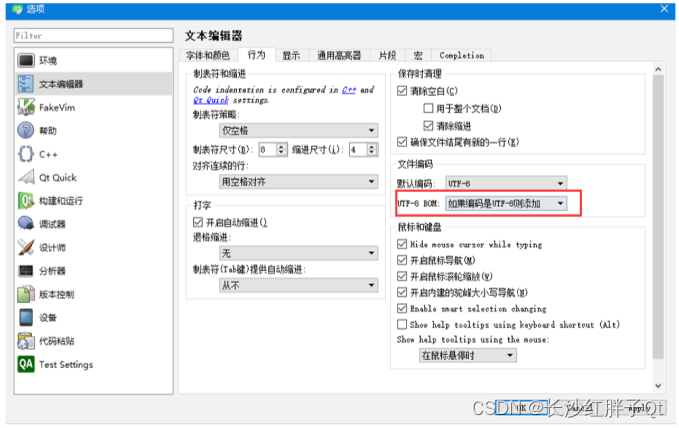
    入坑二:Qt的msvc编译器少数中文乱码

    问题

      少数中文乱码,加空格等都无法解决。
      在这里插入图片描述

    解决

      最终解决了,尝试了QTextCodec等各种都不行,最终:
      在这里插入图片描述
      在这里插入图片描述


    工程模板v1.2.0

      在这里插入图片描述


    后话

      条形图将会根据实际需求持续升级版本,下一篇会继续折线图的基础封装。


    上一篇:《Qt+ECharts开发笔记(二):Qt窗口动态调整大小,使ECharts跟随Qt窗口大小变换而变换大小
    下一篇:敬请期待…


    若该文为原创文章,转载请注明原文出处
    本文章博客地址:https://hpzwl.blog.csdn.net/article/details/125731144

  • 相关阅读:
    AndroidX App Startup 介绍及使用
    设置QCheckbox 样式的注意事项
    PHP代码审计敏感函数合集
    IDM的实用功能
    UML图 - 类图(Class Diagram)
    matlab实现线性参数的最小二乘法处理
    Mysql存储过程和游标的一点理解
    Java项目_家庭记账(简易版)
    linux 常用命令笔记
    c语言写逆置数
  • 原文地址:https://blog.csdn.net/qq21497936/article/details/125731144