-
harbor(docker仓库)仓库部署 - 高可用
harbor(docker仓库)仓库部署 - 高可用
1. harbor高可用
目前有两种主流的方案来解决这个问题:
- 双主复制
- 多harbor实例共享后端存储
1.1 方案说明
1. 双主复制
所谓的双主复制其实就是复用主从同步实现两个harbor节点之间的双向同步,来保证数据的一致性,然后在两台harbor前端顶一个负载均衡器将进来的请求分流到不同的实例中去,只要有一个实例中有了新的镜像,就是自动的同步复制到另外的的实例中去,这样实现了负载均衡,也避免了单点故障,在一定程度上实现了Harbor的高可用性:

这个方案有一个问题就是有可能两个Harbor实例中的数据不一致。假设如果一个实例A挂掉了,这个时候有新的镜像进来,那么新的镜像就会在另外一个实例B中,后面即使恢复了挂掉的A实例,Harbor实例B也不会自动去同步镜像,这样只能手动的先关掉Harbor实例B的复制策略,然后再开启复制策略,才能让实例B数据同步,让两个实例的数据一致。在实际生产使用中,主从复制十分的不靠谱,所以这里就不配置了。
2. 多harbor实例共享后端存储
利用共享存储和共享数据库来实现服务的高可用性和数据的冗余

这个方案在实际生产环境中部署需要考虑三个问题:- 共享存储的选取,Harbor的后端存储目前支持AWS S3、Openstack Swift, Ceph等,在我们的实验环境里,就直接使用nfs。
- Session在不同的实例上共享,这个现在其实已经不是问题了,在最新的harbor中,默认session会存放在redis中,我们只需要将redis独立出来即可。可以通过redis sentinel或者redis cluster等方式来保证redis的可用性。在我们的实验环境里,仍然使用单台redis。
- Harbor多实例数据库问题,这个也只需要将harbor中的数据库拆出来独立部署即可。让多实例共用一个外部数据库,数据库的高可用也可以通过数据库的高可用方案保证。可选择的数据库包括PostgreSql,mysql等等。

1.2 部署高可用(多harbor实例共享后端存储)
1. 服务器划分
服务器 IP 说明 k8s-harbor-01.xx.net 192.168.17.220 harbor1服务器 k8s-harbor-02.xx.net 192.168.17.221 harbor2服务器 k8s-harbor-lb-01.xx.net 192.168.17.225 nginx,redis,mysql,nfs 我们将在
k8s-harbor-lb-01.xx.net部署nginx,redis,mysql,nfs等服务,生产环境中应该分开,并且配置成为高可用2. 安装harbor(先部署一套Harbor,用于将其所有表结构导出)
下载安装包并上传到服务器
tar xvf harbor-offline-installer-v2.7.2.tgz cd harbor mkdir certs #证书 cd certs/ openssl genrsa -out ./harbor-ca.key #key openssl req -x509 -new -nodes -key ./harbor-ca.key -subj "/CN=harbor.xx.net" -days 7120 -out ./harbor-ca.crt #认证- 1
- 2
- 3
- 4
- 5
- 6
- 7
配置harbor.yml
cp harbor.yml.tmpl harbor.yml [root@k8s-harbor-01 harbor]# egrep -v '^$|^#|^ #' harbor.yml hostname: harbor.xx.net http: port: 80 https: port: 443 certificate: /opt/harbor/certs/harbor-ca.crt private_key: /opt/harbor/certs/harbor-ca.key harbor_admin_password: 123456 ...- 1
- 2
- 3
- 4
- 5
- 6
- 7
- 8
- 9
- 10
- 11
启动harbor
./install.sh --with-trivy --with-chartmuseum --with-trivy #镜像漏洞检测 --with-chartmuseum #Chart仓库服务- 1
- 2
- 3
本节搭建的目的是导出postgresql数据库到其他服务器,接着导出数据库
docker ps docker exec -it harbor-db /bin/bash- 1
- 2
进入容器
## 执行 psql 进入数据库 postgres [ / ]$ psql psql (9.6.14) Type "help" for help. ## 查看当前所有的数据库,postgres、template0、template1为默认数据库 postgres=# \l List of databases Name | Owner | Encoding | Collate | Ctype | Access privileges --------------+----------+----------+-------------+-------------+----------------------- notaryserver | postgres | UTF8 | en_US.UTF-8 | en_US.UTF-8 | =Tc/postgres + | | | | | postgres=CTc/postgres+ | | | | | server=CTc/postgres notarysigner | postgres | UTF8 | en_US.UTF-8 | en_US.UTF-8 | =Tc/postgres + | | | | | postgres=CTc/postgres+ | | | | | signer=CTc/postgres postgres | postgres | UTF8 | en_US.UTF-8 | en_US.UTF-8 | registry | postgres | UTF8 | en_US.UTF-8 | en_US.UTF-8 | template0 | postgres | UTF8 | en_US.UTF-8 | en_US.UTF-8 | =c/postgres + | | | | | postgres=CTc/postgres template1 | postgres | UTF8 | en_US.UTF-8 | en_US.UTF-8 | =c/postgres + | | | | | postgres=CTc/postgres (6 rows) postgres=# \q ## 导出表结构及数据 postgres [ / ]$ pg_dump -U postgres registry > /tmp/registry.sql postgres [ / ]$ pg_dump -U postgres notaryserver > /tmp/notaryserver.sql postgres [ / ]$ pg_dump -U postgres notarysigner > /tmp/notarysigner.sql -U 数据库用户 -p 访问端口 -f 指定文件,和 > 功能一样 -h 指定数据库地址 -s 表示只导出表结构,不导数据- 1
- 2
- 3
- 4
- 5
- 6
- 7
- 8
- 9
- 10
- 11
- 12
- 13
- 14
- 15
- 16
- 17
- 18
- 19
- 20
- 21
- 22
- 23
- 24
- 25
- 26
- 27
- 28
- 29
- 30
- 31
- 32
- 33
- 34
导出到宿主机
docker cp 8d69069a2cd7:/tmp/registry.sql ./ docker cp 8d69069a2cd7:/tmp/notaryserver.sql ./ docker cp 8d69069a2cd7:/tmp/notarysigner.sql ./- 1
- 2
- 3
3. 安装Postgresql
yum install -y https://download.postgresql.org/pub/repos/yum/reporpms/EL-7-x86_64/pgdg-redhat-repo-latest.noarch.rpm yum install -y postgresql13-server /usr/pgsql-13/bin/postgresql-13-setup initdb #初始化数据库 # 修改远程访问配置 vim /var/lib/pgsql/13/data/postgresql.conf ... #将 listen_addresses = 'localhost' 修改为 listen_addresses = '*' # 添加信任的远程连接,生产中不要添加0.0.0.0 vim /var/lib/pgsql/13/data/pg_hba.conf ... host all all 0.0.0.0/0 trust # host all all 0.0.0.0/0 md5 # 最后一列如果是trust,则登录pg不需要密码,若为md5,则需要密码 # start and enable server systemctl enable postgresql-13 systemctl start postgresql-13 # 检查服务是否启动成功 #ps看进程 或 ss看端口号 #给postgresql设置密码,增强安全性 su - postgres -bash-4.2$ psql ## 直接写入新密码 postgres=# \password Enter new password for user "postgres": Enter it again: postgres=# \q #验证 psql -U postgres -h localhost Password for user postgres: psql (13.14) Type "help" for help. postgres=# exit #把全部信任改为指定IP [root@k8s-harbor-lb-01 ~]# tail -3 /var/lib/pgsql/13/data/pg_hba.conf host all all 192.168.17.220/24 trust host all all 192.168.17.221/24 trust #host all all 0.0.0.0/0 trust- 1
- 2
- 3
- 4
- 5
- 6
- 7
- 8
- 9
- 10
- 11
- 12
- 13
- 14
- 15
- 16
- 17
- 18
- 19
- 20
- 21
- 22
- 23
- 24
- 25
- 26
- 27
- 28
- 29
- 30
- 31
- 32
- 33
- 34
- 35
- 36
- 37
- 38
- 39
- 40
- 41
- 42
- 43
- 44
- 45
- 46
- 47
将备份的数据,导入进单独部署的postgresql中
## 创建数据库 postgres=# CREATE DATABASE registry; postgres=# CREATE DATABASE notaryserver; postgres=# CREATE DATABASE notarysigner;- 1
- 2
- 3
- 4
将harbor服务器的导出的SQL拷贝到本机
scp -r 192.168.17.220:/opt/harbor/postgresql_export /opt/postgresql_export notaryserver.sql 100% 491 213.2KB/s 00:00 notarysigner.sql 100% 491 281.3KB/s 00:00 registry.sql 100% 101KB 19.7MB/s 00:00- 1
- 2
- 3
- 4
导入数据
## psql -h localhost -U postgres -p 5432 -d registry -f registry.sql psql -h localhost -U postgres -p 5432 -d notaryserver -f notaryserver.sql psql -h localhost -U postgres -p 5432 -d notarysigner -f notarysigner.sql -U 数据库用户 -p 访问端口 -f 指定文件,和 < 功能一样 -h 指定数据库地址 -d 指定数据库名- 1
- 2
- 3
- 4
- 5
- 6
- 7
- 8
- 9
4. 安装nginx
rpm -Uvh http://nginx.org/packages/centos/7/noarch/RPMS/nginx-release-centos-7-0.el7.ngx.noarch.rpm yum install -y nginx- 1
- 2
配置nginx.conf
[root@k8s-harbor-lb-01 ~]# cat /etc/nginx/nginx.conf ... include /etc/nginx/conf.d/*.conf; upstream harborsvr { server 192.168.17.220:80 weight=2; server 192.168.17.221:80 weight=1; } server { listen 80; server_name 192.168.17.225; location / { proxy_pass http://harborsvr; } } }- 1
- 2
- 3
- 4
- 5
- 6
- 7
- 8
- 9
- 10
- 11
- 12
- 13
- 14
- 15
- 16
- 17
- 18
启动
systemctl start nginx systemctl status nginx systemctl enable nginx- 1
- 2
- 3
5. 安装nfs
yum install -y nfs-utils # 编辑/etc/exports文件 /data *(rw,no_root_squash) chmod 777 -R /data systemctl start nfs-server systemctl enable nfs-server mdkir /data/ mount -t nfs `hostname`:/data/ /data/- 1
- 2
- 3
- 4
- 5
- 6
- 7
- 8
- 9
- 10
- 11
- 12
6. 安装redis
yum install epel-release -y yum install redis -y ## vim /etc/redis.conf ... bind 0.0.0.0 # 设置所有主机可以连接 requirepass 123456 # 设置客户端连接密码 daemonize yes # 打开守护进程模式 ... ## 启动redis systemctl start redis systemctl enable redis- 1
- 2
- 3
- 4
- 5
- 6
- 7
- 8
- 9
- 10
- 11
- 12
- 13
- 14
7. 部署harbor
我们将第2段中,部署的harbor进行修改配置文件
[root@k8s-harbor-01 harbor]# docker-compose down- 1
编辑配置文件,需要更改的主要有以下几点:
1.hostname 改为主机ip或完全限定域名,不要使用127.0.0.1或localhost
2.https选项,如需要,指定crt和key的路径,若不需要,直接注释掉
3.harbor_admin_password,默认密码,可以更改
4.data_volume,数据默认存储位置,设计为共享路径
5.注释掉database模块 及 Clair模块
6.开启external_database 和 external_redis模块及正确配置其中参数
7.集群内所有harbor配置均一样,改一下hostname值即可修改配置文件(经过后面挂掉之后,重新改的配置文件)
[root@k8s-harbor-01 harbor]# egrep -v '^$|^#|^ #' harbor.yml hostname: harbor.xx.net http: port: 80 https: port: 443 certificate: /opt/harbor/certs/harbor-ca.crt private_key: /opt/harbor/certs/harbor-ca.key harbor_admin_password: 123456 data_volume: /data trivy: ignore_unfixed: false skip_update: false offline_scan: false security_check: vuln insecure: false jobservice: max_job_workers: 10 notification: webhook_job_max_retry: 10 chart: absolute_url: disabled log: level: info local: # Log files are rotated log_rotate_count times before being removed. If count is 0, old versions are removed rather than rotated. rotate_count: 50 # Log files are rotated only if they grow bigger than log_rotate_size bytes. If size is followed by k, the size is assumed to be in kilobytes. # If the M is used, the size is in megabytes, and if G is used, the size is in gigabytes. So size 100, size 100k, size 100M and size 100G # are all valid. rotate_size: 200M # The directory on your host that store log location: /var/log/harbor _version: 2.7.0 external_database: harbor: host: 192.168.17.225 port: 5432 db_name: registry username: postgres password: 123456 ssl_mode: disable max_idle_conns: 2 max_open_conns: 0 notary_signer: host: 192.168.17.225 port: 5432 db_name: notarysigner username: postgres password: 123456 ssl_mode: disable notary_server: host: 192.168.17.225 port: 5432 db_name: notaryserver username: postgres password: 123456 ssl_mode: disable external_redis: host: 192.168.17.225:6379 password: 123456 registry_db_index: 1 jobservice_db_index: 2 chartmuseum_db_index: 3 chair_db_index: 4 trivy_db_index: 5 idle_timeout_seconds: 30 proxy: http_proxy: https_proxy: no_proxy: components: - core - jobservice - trivy metric: enabled: false port: 9090 path: /metrics upload_purging: enabled: true age: 168h interval: 24h dryrun: false cache: enabled: false expire_hours: 24- 1
- 2
- 3
- 4
- 5
- 6
- 7
- 8
- 9
- 10
- 11
- 12
- 13
- 14
- 15
- 16
- 17
- 18
- 19
- 20
- 21
- 22
- 23
- 24
- 25
- 26
- 27
- 28
- 29
- 30
- 31
- 32
- 33
- 34
- 35
- 36
- 37
- 38
- 39
- 40
- 41
- 42
- 43
- 44
- 45
- 46
- 47
- 48
- 49
- 50
- 51
- 52
- 53
- 54
- 55
- 56
- 57
- 58
- 59
- 60
- 61
- 62
- 63
- 64
- 65
- 66
- 67
- 68
- 69
- 70
- 71
- 72
- 73
- 74
- 75
- 76
- 77
- 78
- 79
- 80
- 81
- 82
- 83
- 84
- 85
- 86
- 87
- 88
启动harbor的过程中发现jobservice容器无法启动,怀疑是数据库连接失败
[root@k8s-harbor-01 harbor]# docker ps CONTAINER ID IMAGE COMMAND CREATED STATUS PORTS NAMES 767ac8431315 goharbor/harbor-jobservice:v2.7.2 "/harbor/entrypoint.…" 18 hours ago Restarting (2) 17 seconds ago harbor-jobservice ...- 1
- 2
- 3
- 4
日志
[root@k8s-harbor-01 harbor]# docker logs 767 Appending internal tls trust CA to ca-bundle ... find: '/etc/harbor/ssl': No such file or directory Internal tls trust CA appending is Done. 2024-02-21T17:00:15Z [ERROR] [/pkg/registry/client.go:82]: Failed to parse REGISTRY_HTTP_CLIENT_TIMEOUT: strconv.ParseInt: parsing "": invalid syntax, use default value: 30m0s 2024-02-21T17:00:15Z [INFO] [/controller/artifact/annotation/parser.go:71]: the annotation parser to parser artifact annotation version v1alpha1 registered 2024-02-21T17:00:15Z [INFO] [/controller/artifact/processor/processor.go:59]: the processor to process media type application/vnd.wasm.config.v1+json registered 2024-02-21T17:00:15Z [ERROR] [/lib/config/config.go:81]: failed to get config manager 2024-02-21T17:00:15Z [ERROR] [/lib/config/config.go:81]: failed to get config manager- 1
- 2
- 3
- 4
- 5
- 6
- 7
- 8
- 9
在harbor服务器安装postgresql客户端,
yum install https://download.postgresql.org/pub/repos/yum/reporpms/EL-7-x86_64/pgdg-redhat-repo-latest.noarch.rpm -y yum install postgresql13 -y [root@k8s-harbor-01 harbor]# psql -U postgres -h 192.168.17.225 -p 5432 psql (13.14) Type "help" for help. postgres=# \l List of databases Name | Owner | Encoding | Collate | Ctype | Access privileges --------------+----------+----------+-------------+-------------+----------------------- notaryserver | postgres | UTF8 | en_US.UTF-8 | en_US.UTF-8 | notarysigner | postgres | UTF8 | en_US.UTF-8 | en_US.UTF-8 | postgres | postgres | UTF8 | en_US.UTF-8 | en_US.UTF-8 | registry | postgres | UTF8 | en_US.UTF-8 | en_US.UTF-8 | template0 | postgres | UTF8 | en_US.UTF-8 | en_US.UTF-8 | =c/postgres + | | | | | postgres=CTc/postgres template1 | postgres | UTF8 | en_US.UTF-8 | en_US.UTF-8 | =c/postgres + | | | | | postgres=CTc/postgres (6 rows) postgres=#- 1
- 2
- 3
- 4
- 5
- 6
- 7
- 8
- 9
- 10
- 11
- 12
- 13
- 14
- 15
- 16
- 17
- 18
- 19
- 20
- 21
- 22
发现可以连接,注释掉缓存数据库redis配置,发现可以正常启动,说明是redis配置有问题
[root@k8s-harbor-01 harbor]# docker ps CONTAINER ID IMAGE COMMAND CREATED STATUS PORTS NAMES dccc714a7abe goharbor/harbor-jobservice:v2.7.2 "/harbor/entrypoint.…" About a minute ago Up About a minute (healthy) harbor-jobservice- 1
- 2
- 3
经过调查,原来是redis的password修改过,和默认的不匹配
 harbor1服务器配置完成,接下来配置harbor2服务器,相同配置,改下域名就可以了
[root@k8s-harbor-02 harbor]# grep hostname harbor.yml # The IP address or hostname to access admin UI and registry service. hostname: harbor2.xx.net- 1
- 2
- 3

8. 修改nginx配置
由于我们安装的harbor通过http跳转到https访问,所以前面设置的nginx的负载均衡的配置需要进行修改,否则无法访问
[root@k8s-harbor-lb-01 nginx]# cat /etc/nginx/nginx.conf ... http { include /etc/nginx/mime.types; default_type application/octet-stream; log_format main '$remote_addr - $remote_user [$time_local] "$request" ' '$status $body_bytes_sent "$http_referer" ' '"$http_user_agent" "$http_x_forwarded_for"'; access_log /var/log/nginx/access.log main; sendfile on; #tcp_nopush on; keepalive_timeout 65; #gzip on; include /etc/nginx/conf.d/*.conf; upstream harborsvrs { server 192.168.17.220:443 weight=2; server 192.168.17.221:443 weight=1; } server { listen 443; server_name 192.168.17.225; location / { proxy_pass https://harborsvrs/; proxy_set_header Host $host; proxy_set_header X-Real-IP $remote_addr; proxy_set_header X-Forwarded-Proto $scheme; } } }- 1
- 2
- 3
- 4
- 5
- 6
- 7
- 8
- 9
- 10
- 11
- 12
- 13
- 14
- 15
- 16
- 17
- 18
- 19
- 20
- 21
- 22
- 23
- 24
- 25
- 26
- 27
- 28
- 29
- 30
- 31
- 32
- 33
- 34
- 35
- 36
- 37
- 38
- 39
修改后,重启nginx
9. docker登录harbor
[root@k8s-master-01 ansible]# docker login 192.168.17.225:443 Username: admin Password: Error response from daemon: Get "http://192.168.17.225:443/v2/": Get "https://harbor1.xx.net/service/token?account=admin&client_id=docker&offline_token=true&service=harbor-registry": dial tcp: lookup harbor1.xx.net on 8.8.8.8:53: no such host- 1
- 2
- 3
- 4
解析不了harbor的域名,在没有DNS服务器的情况下,修改
/etc/hosts文件[root@k8s-master-01 ansible]# cat /etc/hosts ... 192.168.17.220 k8s-harbor-01.xx.net harbor1 harbor1.xx.net 192.168.17.221 k8s-harbor-02.xx.net harbor2 harbor2.xx.net- 1
- 2
- 3
- 4
登录
[root@k8s-master-01 ansible]# docker login 192.168.17.225:443 Username: admin Password: WARNING! Your password will be stored unencrypted in /root/.docker/config.json. Configure a credential helper to remove this warning. See https://docs.docker.com/engine/reference/commandline/login/#credentials-store Login Succeeded- 1
- 2
- 3
- 4
- 5
- 6
- 7
- 8
由于推送的时候出现问题,笔者一直未能解决,所以将harbor回退到使用http协议
[root@k8s-master-01 ansible]# docker push harbor2.xx.net/alpine/alpine:latest The push refers to repository [harbor2.xx.net/alpine/alpine] d4fc045c9e3a: Layer already exists unauthorized: unauthorized to access repository: alpine/alpine, action: push: unauthorized to access repository: alpine/alpine, action: push- 1
- 2
- 3
- 4
10. harbor修改
[root@k8s-harbor-01 harbor]# head -20 harbor.yml # Configuration file of Harbor # The IP address or hostname to access admin UI and registry service. # DO NOT use localhost or 127.0.0.1, because Harbor needs to be accessed by external clients. #hostname: harbor1.xx.net hostname: 192.168.17.220 # http related config http: # port for http, default is 80. If https enabled, this port will redirect to https port port: 80 # https related config #https: # https port for harbor, default is 443 # port: 443 # The path of cert and key files for nginx # certificate: /opt/harbor/certs/harbor-ca.crt # private_key: /opt/harbor/certs/harbor-ca.key- 1
- 2
- 3
- 4
- 5
- 6
- 7
- 8
- 9
- 10
- 11
- 12
- 13
- 14
- 15
- 16
- 17
- 18
- 19
- 20
- 21
修改harbor1和harbor2服务器的配置文件,并重启harbor
11. 修改nginx
http { include /etc/nginx/mime.types; default_type application/octet-stream; log_format main '$remote_addr - $remote_user [$time_local] "$request" ' '$status $body_bytes_sent "$http_referer" ' '"$http_user_agent" "$http_x_forwarded_for"'; access_log /var/log/nginx/access.log main; sendfile on; #tcp_nopush on; keepalive_timeout 65; #gzip on; include /etc/nginx/conf.d/*.conf; upstream harborsvrs { server 192.168.17.220:80 weight=2; server 192.168.17.221:80 weight=1; } server { listen 80; server_name 192.168.17.225; autoindex on; location / { proxy_pass http://harborsvrs/; } } }- 1
- 2
- 3
- 4
- 5
- 6
- 7
- 8
- 9
- 10
- 11
- 12
- 13
- 14
- 15
- 16
- 17
- 18
- 19
- 20
- 21
- 22
- 23
- 24
- 25
- 26
- 27
- 28
- 29
- 30
- 31
- 32
- 33
- 34
通过负载均衡可以访问harbor

12. docker推送
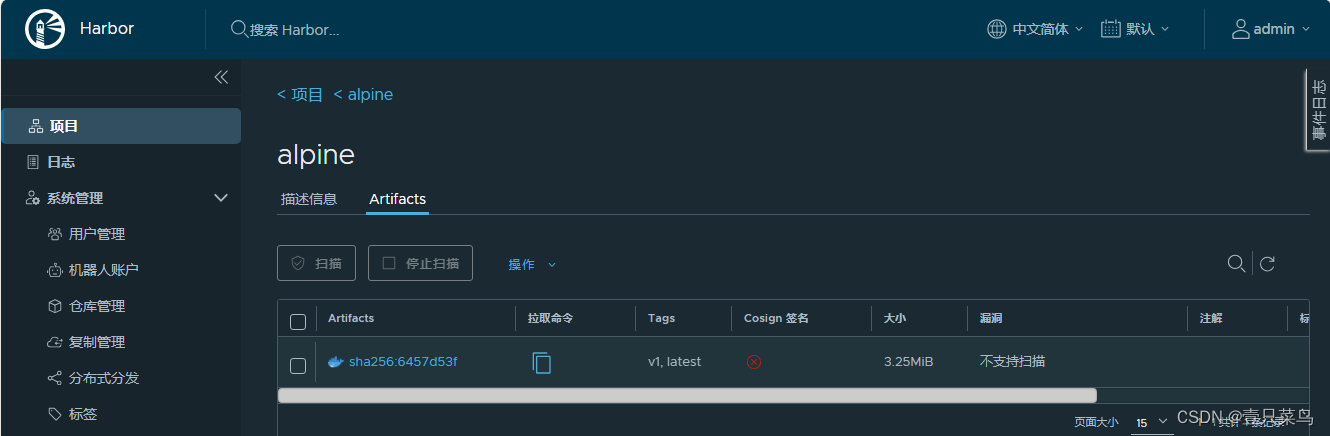
[root@k8s-master-01 ansible]# docker login 192.168.17.221:80 -u admin Password: WARNING! Your password will be stored unencrypted in /root/.docker/config.json. Configure a credential helper to remove this warning. See https://docs.docker.com/engine/reference/commandline/login/#credentials-store Login Succeeded [root@k8s-master-01 ansible]# docker tag alpine:latest 192.168.17.221:80/alpine/alpine:v1 [root@k8s-master-01 ansible]# docker push 192.168.17.221:80/alpine/alpine:v1 The push refers to repository [192.168.17.221:80/alpine/alpine] d4fc045c9e3a: Layer already exists v1: digest: sha256:6457d53fb065d6f250e1504b9bc42d5b6c65941d57532c072d929dd0628977d0 size: 528 [root@k8s-master-01 ansible]# docker login 192.168.17.220:80 -u admin Password: WARNING! Your password will be stored unencrypted in /root/.docker/config.json. Configure a credential helper to remove this warning. See https://docs.docker.com/engine/reference/commandline/login/#credentials-store Login Succeeded [root@k8s-master-01 ansible]# docker push 192.168.17.220:80/alpine/alpine:latest The push refers to repository [192.168.17.220:80/alpine/alpine] d4fc045c9e3a: Layer already exists latest: digest: sha256:6457d53fb065d6f250e1504b9bc42d5b6c65941d57532c072d929dd0628977d0 size: 528- 1
- 2
- 3
- 4
- 5
- 6
- 7
- 8
- 9
- 10
- 11
- 12
- 13
- 14
- 15
- 16
- 17
- 18
- 19
- 20
- 21
- 22
- 23
在其他服务器登录harbor后,也可以正常推送
-
相关阅读:
mysql死锁示例
HaaS学习笔记 | 基于HaaS Python轻应用的LED跑马灯明细教程
地平线GitLab使用指导
JAVA计算机毕业设计德云社剧场网上售票系统Mybatis+系统+数据库+调试部署
git学习总结
不同VLAN间的通信原理
单纯形投影算法
MySQL高级六:权限管理
Netty 的整体架构是怎样的?
【ASM】字节码操作 转换已有的类 优化 删除复杂的转换 删除加0操作
- 原文地址:https://blog.csdn.net/u010230019/article/details/136261147