-
Python实现带图形界面的计算器
Python实现带图形界面的计算器
在本文中,我们将使用Python编写一个带有图形用户界面的计算器程序。这个程序将允许用户通过点击按钮或键盘输入数字和操作符,并在显示屏上显示计算结果。
开发环境准备
要运行这个计算器程序,您需要安装Python 3和tkinter库。首先,您可以从Python官方网站https://www.python.org/downloads/下载并安装最新版本的Python。安装完成后,打开命令提示符并输入以下命令来安装tkinter库:
pip install tk- 1
创建计算器窗口
我们将使用tkinter库创建图形用户界面。首先,让我们导入必要的库并编写创建计算器窗口的函数:
import tkinter as tk from functools import partial def create_calculator_window(): window = tk.Tk() window.geometry("300x400") window.title("计算器") # 在窗口中创建一个标签作为计算器的显示屏 display = tk.Label(window, text="", font=("Helvetica", 16), height=2, width=18) display.grid(row=0, column=0, columnspan=4, pady=10) # ... window.mainloop() if __name__ == "__main__": create_calculator_window()- 1
- 2
- 3
- 4
- 5
- 6
- 7
- 8
- 9
- 10
- 11
- 12
- 13
- 14
- 15
- 16
- 17
- 18
在上面的代码中,我们使用
Tk()函数创建了一个名为window的窗口。然后,我们使用geometry()方法设置窗口的大小为300x400像素,并使用title()方法设置窗口的标题为"计算器"。接下来,我们使用
Label()函数创建了一个名为display的标签,作为计算器的显示屏。我们设置了标签的文本为空字符串,字体为Helvetica,字号为16,高度为2,宽度为18,并使用grid()方法将标签放置在窗口的第0行、第0列,横跨4列,上下间距为10像素。处理用户的输入
计算器的操作都是通过用户的输入来完成的。我们需要定义一个函数来处理每个按钮的点击事件,并更新显示屏上的文本。让我们来编写这个函数:
def on_keypress(key): if key == "AC": display["text"] = "" elif key == "←": display["text"] = display["text"][:-1] elif key == "%": try: expression = eval(display["text"]) display["text"] = str(expression / 100) except: display["text"] = "Error" elif key == "=": try: expression = display["text"] expression = expression.replace("÷", "/") expression = expression.replace("x", "*") result = eval(expression) if isinstance(result, float) and result.is_integer(): result = int(result) display["text"] = str(result) except: display["text"] = "Error" else: if "=" in display["text"]: display["text"] = "" display["text"] += key- 1
- 2
- 3
- 4
- 5
- 6
- 7
- 8
- 9
- 10
- 11
- 12
- 13
- 14
- 15
- 16
- 17
- 18
- 19
- 20
- 21
- 22
- 23
- 24
- 25
- 26
在上面的代码中,我们定义了一个名为
on_keypress()的函数,接受一个名为key的参数,表示用户按下的按钮。首先,我们检查
key的值是否为"AC",如果是,我们将显示屏的文本设置为空字符串,即清零。然后,我们检查
key的值是否为"←",如果是,我们将显示屏的文本设置为当前文本的前一个字符。接下来,我们检查
key的值是否为"%“,如果是,我们尝试将显示屏上的表达式转换为一个浮点数,并将结果除以100。如果转换和计算过程中没有出现错误,我们将结果转换为字符串并更新显示屏的文本。否则,我们将显示屏的文本设置为"Error”。然后,我们检查
key的值是否为"=“,如果是,我们尝试解析并计算显示屏上的表达式。在计算之前,我们使用replace()方法将所有的"÷"替换为”/“,将所有的"x"替换为”*“,以便让Python的eval()函数理解这些操作符。然后,我们使用eval()函数计算表达式的结果,并将结果转换为字符串更新显示屏的文本。如果计算过程中出现任何错误,我们将显示屏的文本设置为"Error”。最后,如果用户按下的是其他按钮(即数字和操作符),我们检查显示屏的文本是否包含"="。如果包含,说明用户正在输入新的表达式,我们将显示屏的文本设置为空字符串。然后,我们将用户的输入字符添加到显示屏的文本末尾。
创建按钮并绑定事件
接下来,我们需要创建所有的按钮,并将它们与对应的事件绑定在一起。让我们编写创建按钮的代码:
keys = [ ("AC", on_keypress), ("←", on_keypress), ("%", on_keypress), ("÷", on_keypress), ("7", on_keypress), ("8", on_keypress), ("9", on_keypress), ("x", on_keypress), ("4", on_keypress), ("5", on_keypress), ("6", on_keypress), ("-", on_keypress), ("1", on_keypress), ("2", on_keypress), ("3", on_keypress), ("+", on_keypress), ("0", on_keypress), (".", on_keypress), ("(", on_keypress), (")", on_keypress), ("=", on_keypress) ] row = 1 col = 0 for key, command in keys: button = tk.Button(window, text=key, font=("Helvetica", 12), height=2, width=5) button.grid(row=row, column=col, padx=5, pady=5) button.configure(command=partial(command, key)) col += 1 if col > 3: col = 0 row += 1- 1
- 2
- 3
- 4
- 5
- 6
- 7
- 8
- 9
- 10
- 11
- 12
- 13
- 14
- 15
- 16
- 17
- 18
- 19
- 20
- 21
- 22
- 23
- 24
- 25
- 26
- 27
- 28
- 29
- 30
- 31
- 32
- 33
- 34
在上面的代码中,我们创建了一个名为
keys的列表,包含了所有按钮的标签和事件处理函数。然后,我们使用
for循环遍历keys列表中的每个元素。对于每个元素,我们使用Button()函数创建一个按钮,并设置按钮的文本、字体、高度和宽度。然后,我们使用grid()方法将按钮放置在窗口中的指定位置,并设置上下和左右的间距。接下来,我们使用
configure()方法将按钮的command属性设置为要执行的事件处理函数,并使用partial()函数传递按钮的标签作为事件处理函数的参数。最后,我们更新
col和row的值,确保按钮的位置正确。处理键盘输入
除了通过点击按钮来输入内容之外,我们还希望用户能够使用键盘输入。为了实现这一点,我们需要使用
bind()方法将键盘事件与相应的处理函数关联起来。让我们完成这一部分的代码:window.bind("" , lambda event: on_keypress(event.char))- 1
在上面的代码中,我们使用
bind()方法将""事件与一个lambda函数关联起来。这个lambda函数将用户按下的字符作为参数,然后调用 on_keypress()函数来处理这个字符。运行计算器程序
最后,我们需要在
if __name__ == "__main__":代码块中调用create_calculator_window()函数来运行计算器程序。if __name__ == "__main__": create_calculator_window()- 1
- 2
完整代码
下面是完整的带有图形界面的计算器程序的代码:
import tkinter as tk from functools import partial def create_calculator_window(): window = tk.Tk() window.geometry("300x400") window.title("计算器") display = tk.Label(window, text="", font=("Helvetica", 16), height=2, width=18) display.grid(row=0, column=0, columnspan=4, pady=10) def on_keypress(key): if key == "AC": display["text"] = "" elif key == "←": display["text"] = display["text"][:-1] elif key == "%": try: expression = eval(display["text"]) display["text"] = str(expression / 100) except: display["text"] = "Error" elif key == "=": try: expression = display["text"] expression = expression.replace("÷", "/") expression = expression.replace("x", "*") result = eval(expression) if isinstance(result, float) and result.is_integer(): result = int(result) display["text"] = str(result) except: display["text"] = "Error" else: if "=" in display["text"]: display["text"] = "" display["text"] += key keys = [ ("AC", on_keypress), ("←", on_keypress), ("%", on_keypress), ("÷", on_keypress), ("7", on_keypress), ("8", on_keypress), ("9", on_keypress), ("x", on_keypress), ("4", on_keypress), ("5", on_keypress), ("6", on_keypress), ("-", on_keypress), ("1", on_keypress), ("2", on_keypress), ("3", on_keypress), ("+", on_keypress), ("0", on_keypress), (".", on_keypress), ("(", on_keypress), (")", on_keypress), ("=", on_keypress) ] row = 1 col = 0 for key, command in keys: button = tk.Button(window, text=key, font=("Helvetica", 12), height=2, width=5) button.grid(row=row, column=col, padx=5, pady=5) button.configure(command=partial(command, key)) col += 1 if col > 3: col = 0 row += 1 window.bind("" , lambda event: on_keypress(event.char)) window.mainloop() if __name__ == "__main__": create_calculator_window()- 1
- 2
- 3
- 4
- 5
- 6
- 7
- 8
- 9
- 10
- 11
- 12
- 13
- 14
- 15
- 16
- 17
- 18
- 19
- 20
- 21
- 22
- 23
- 24
- 25
- 26
- 27
- 28
- 29
- 30
- 31
- 32
- 33
- 34
- 35
- 36
- 37
- 38
- 39
- 40
- 41
- 42
- 43
- 44
- 45
- 46
- 47
- 48
- 49
- 50
- 51
- 52
- 53
- 54
- 55
- 56
- 57
- 58
- 59
- 60
- 61
- 62
- 63
- 64
- 65
- 66
- 67
- 68
- 69
- 70
- 71
- 72
- 73
- 74
- 75
- 76
- 77
- 78
- 79
总结

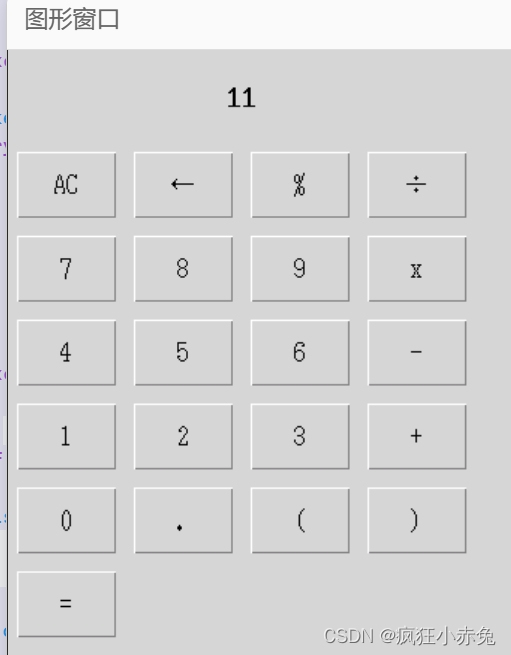
在本文中,我们使用Python的tkinter库编写了一个带有图形用户界面的计算器程序。我们学习了如何创建计算器窗口、处理用户输入、创建按钮并绑定事件、处理键盘输入以及运行程序的整个流程。
希望本文能够帮助你理解如何使用Python编写带有图形界面的计算器程序。如果您有任何问题,请随时提问!
-
相关阅读:
【Linux】命令行参数和环境变量
树莓派4b安装xenomai3(xenomai3 on raspberry4b)
【附源码】计算机毕业设计JAVA政府人才机构在线考试系统2021
# 从浅入深 学习 SpringCloud 微服务架构(六)Feign(1)
网络工程师基础笔记(一)
基于卡尔曼滤波的锂电池状态估计MATLAB仿真及程序
.NET6使用MiniExcel根据数据源横向导出头部标题及数据
航天常用术语-双想、九新、六个百分百确认、三图、三类关键特性、可靠性1+6+2、质量问题归零、技术状态更改“五条”原则、四随
css基本介绍
在 openresty 中使用 capnp lua 库
- 原文地址:https://blog.csdn.net/VicdorLin/article/details/133833690
