WPF技术的主要特点是数据驱动UI,所以在使用WPF技术开发的过程中是以数据为核心的,WPF提供了数据绑定机制,当数据发生变化时,WPF会自动发出通知去更新UI。
今天我们来学习.NET 7中的WPF里面的DataGrid的有关知识。数据表格DataGrid是一个使用非常广泛的控件,不管是在Asp.Net中的网页开发还是WinForm(WPF)应用程序开发都会频繁使用。通过数据表格DataGrid可以灵活、方便、有效的显示各种数据。自己翻看之前写的DataGrid的示例,这个示例写的有些简单,没有使用Command指令,没有使用MVVM模式,现在看来有些欠缺。准备将这个DataGrid示例进行完善一下,并在示例中应用Command指令与MVVM模式。
WPF控件DataGrid 提供了一种灵活的方法,用于在行和列中显示数据集合。 DataGrid包括用于托管自定义内容的内置列类型和模板列。内置行类型包括一个下拉详细信息部分,可用于在单元格值下方显示其他内容。
一、创建项目
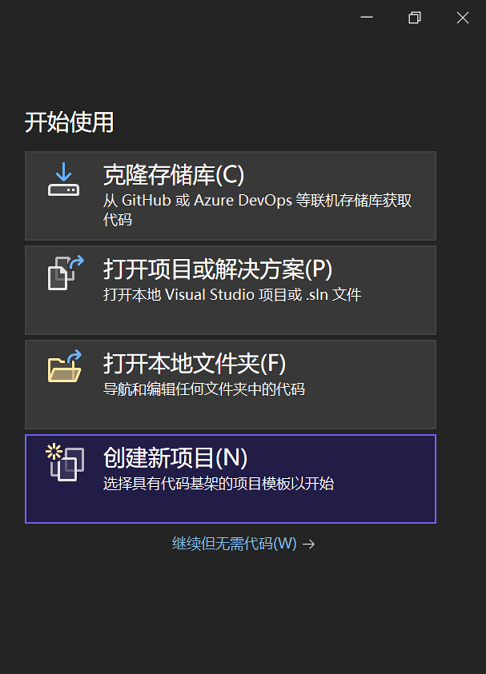
1. 在Visual Studio 2022启动界面中选择“创建新项目”,如下图。
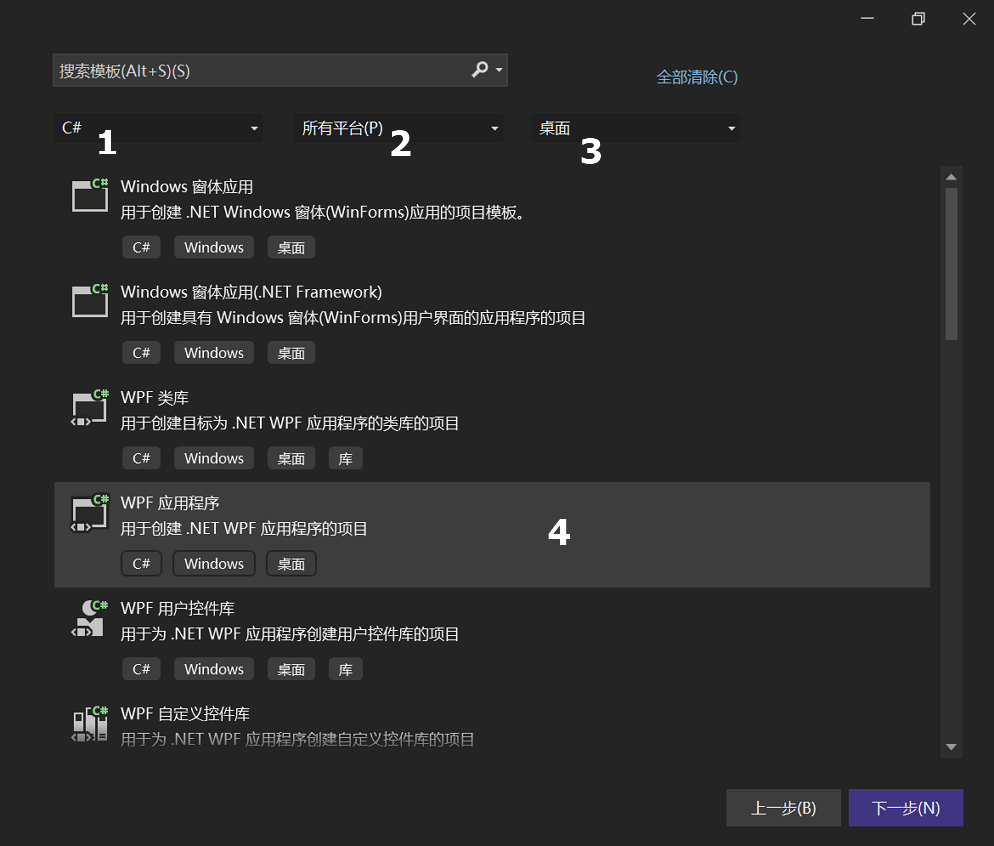
2. Visual Studio 2022弹出的“创建新项目”的对话框中做如下选择。如下图。
- 在最左边的下拉框中,选择 “C# ,如下图中1处
- 在中间的下拉框中,选择 “所有平台”,如下图2处。
- 在最右边的下拉框中,选择“桌面”,如下图3处。
- 在下图中4处,选择“WPF应用程序”模板,点击“下一步”按钮。
4.在弹出的“配置新项目”的对话框中,如下图,在“项目名称”输入框中,输入“WpfGridDemo.NET7”。然后使用鼠标点击“下一步”按钮。

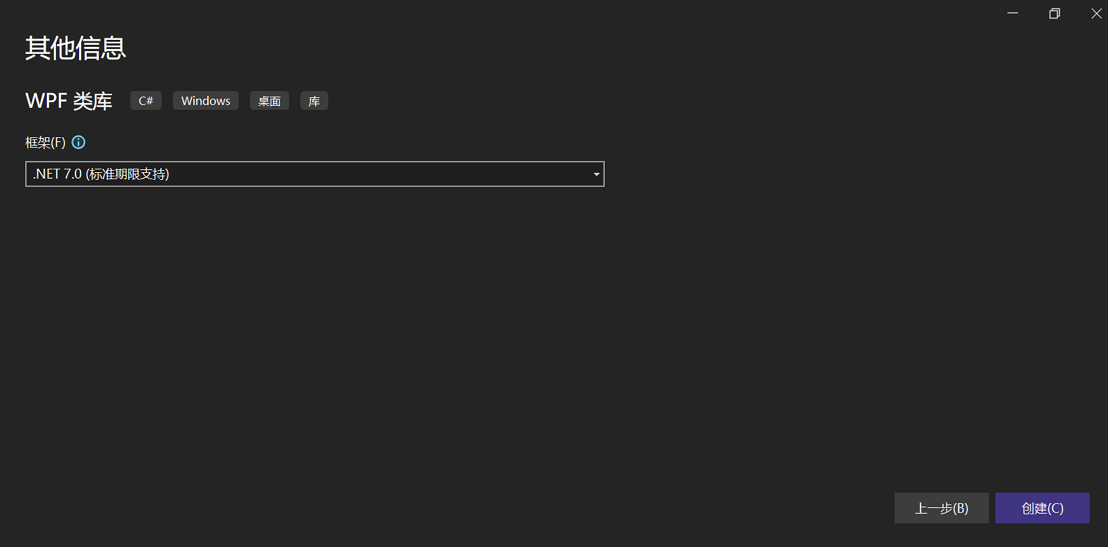
5. 在弹出的“其他信息”的对话框,如下图。在“框架”下拉框中,选择“NET 7.0(标准期限支持)”。其他值选择默认值即可。然后使用鼠标点击“创建”按钮。
二、创建实体
首先进行准备工作,先创建实体,我们使用的是省市县区的示例数据,这个数据网上比较丰富,可以方便找到。
1. 在Visual Studio 2022的“解决方案资源管理器”中,使用鼠标右键单击“WpfGridDemo.NET7”项目,在弹出菜单中选择“添加-->新建文件夹”。如下图。

2. 在Visual Studio 2022的“解决方案资源管理器”中,将“新文件夹”改名为 “Entitys”,然后使用鼠标右键单击“Entitys”文件夹,在弹出菜单中选择“添加--> 类”。 在“添加新项”对话框中将类命名为 Area,然后选择“添加”。
3. 在Visual Studio 2022的“解决方案资源管理器”中,使用鼠标双击打开刚才创建的Area.cs文件,添加如下代码:

using System;
using System.Collections.Generic;
using System.ComponentModel.DataAnnotations;
using System.Linq;
using System.Text;
using System.Threading.Tasks;

namespace WpfGridDemo.NET7.Entitys
{
    public class Area
    {
        public int Id { get; set; }

        [StringLength(10)]
        public string Code { get; set; }

        [StringLength(30)]
       public string Name { get; set; }


        [StringLength(10)]

        public string CityCode { get; set; }
        public DateTime Created { get; set; }
        public DateTime Updated { get; set; }

    }
}
4.重得执行第2,3步,在Visual Studio 2022创建City与Province类,这两个类的代码如下:
using System;
using System.Collections.Generic;
using System.ComponentModel.DataAnnotations;
using System.Linq;
using System.Text;
using System.Threading.Tasks;

namespace WpfGridDemo.NET7.Entitys
{
    public class City
    {
        public int Id { get; set; }
        [StringLength(10)]
        public string Code { get; set; }

        [StringLength(30)]
        public string Name { get; set; }

        [StringLength(10)]
        public string ProvinceCode { get; set; }
    }
}


using System;
using System.Collections.Generic;
using System.ComponentModel.DataAnnotations;
using System.Linq;
using System.Text;
using System.Threading.Tasks;

namespace WpfGridDemo.NET7.Entitys
{
    public class Province
    {
        public int Id { get; set; }
        [StringLength(10)]
        public string Code { get; set; }

        [StringLength(30)]
        public string Name { get; set; }

    }

}
5 使用NuGet下载最新版的Entity Framework Core 7。在解决方案资源管理器中——>在项目WpfGridDemo.NET7中的依赖项上鼠标右键单击——>弹出一个菜单,选中“管理NuGet程序包”,如下图。

6. 在打开的NuGet包管理界面的中选择“浏览”标签页,在搜索框中输入“Entity”,找到最新版本Entity Framework Core,点击安装。如下图。 
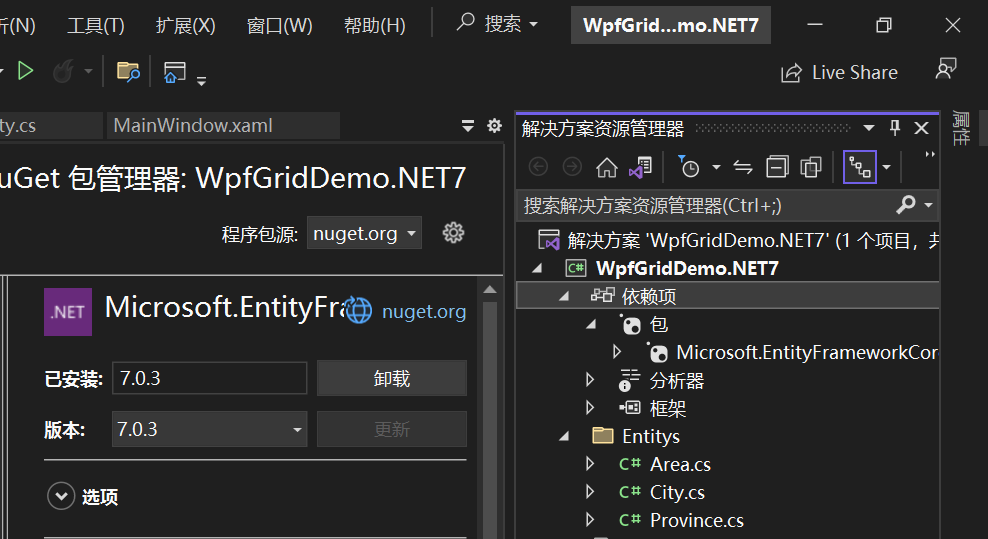
7. Visual Studio 2022 开始安装 EntityFrameworkCore 7.0.3,会弹出安装确认界面,点击“OK”按钮。如下图。
Microsoft.EntityFrameworkCore
Microsoft.EntityFrameworkCore.SqlServer

8.安装完成之后,如下图。
9. 在Visual Studio 2022的解决方案资源管理器中,使用鼠标右键点击“WpfGridDemo.NET7”项目,在弹出菜单中选择“添加-->类”,在弹出的“添加新项”对话框中,选择添加 “GridDbContext”类,并在中定义实体对应的DbSet,以应用Code First 数据迁移。添加以下代码
using Microsoft.EntityFrameworkCore;
using System.Collections.Generic;
using System.Data;
using System.Reflection;
using WpfGridDemo.NET7.Entitys;


namespace WpfGridDemo.NET7
{
    public class GridDbContext : DbContext
    {
        public GridDbContext(DbContextOptions options)

               : base(options)
        {

        }

        public DbSet Area { get; set; }
        public DbSet City { get; set; }
        public DbSet Province { get; set; }

    }
}
10.在Visual Studio 2017中的资源管理器中找到appsettings.json文件,用鼠标双击打开,在文件中添加一个连接字符串,代码如下。
xml version="1.0" encoding="utf-8" ?>
<configuration>
    <appSettings>
        <add>add>
    appSettings>
    <connectionStrings>

        <add name="GridDbContext" connectionString="Server=.;Database=EFCoreDemo;Trusted_Connection=True;
Encrypt=False;TrustServerCertificate=True;MultipleActiveResultSets=true" />

    connectionStrings>
configuration>
12. 在PMC中,默认项目选择EntityframeworkCore对应的项目后。输入以下命令:Add-Migration AddEntityCitys,创建迁移。
13. 在上面的命令执行完毕之后,创建成功后,会在Migrations文件夹下创建时间_AddEntityCitys格式的类文件,这些代码是基于DbContext指定的模型。
14.在程序包管理器控制台,输入Update-Database,回车执行迁移。执行成功后,以上三个步骤,我在前面的文章中已经多次写过了,这里就简单写一下。
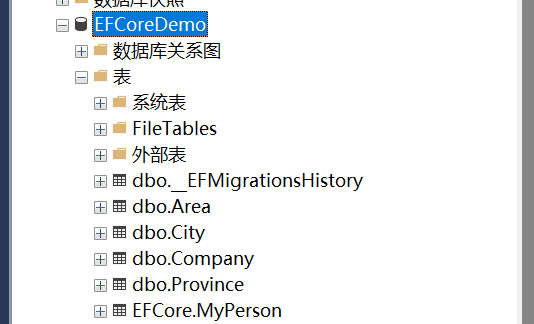
15. 在SQL Server Management Studio中查看数据库,Province、Area、City三个表创建成功。至于具体的数据,请在网上查找。