-
写了30000字 用 shell 脚本做自动化测试实战项目(全面、完整)
前言
项目中有一个功能,需要监控本地文件系统的变更,例如文件的增、删、改名、文件数据变动等等。之前只在 windows 上有实现,采用的是 iocp + ReadDirectoryChanges 方案,现在随着整个应用移植到 mac 上,需要对这一部分进行适配,macOS 上相应的底层机制为 File System Events,通知的类型大同小异。为了便于验证,写了一个 demo 来跑最核心的功能。
有不懂的可以文末加群领取!
macOS
开门见山,先来看在 mac 上的实现。
rdc-demo
这个 demo 是从 windows 迁移过来的,所以名称中仍保留了 ReadDirectoryChanges (rdc) 的痕迹。它接收一个目录路径作为监听目录,在该目录下的操作会触发系统通知从而打印相关日志。例如在监控目录输入下面的命令:
$ cd /var/tmp/rdc $ touch a-file $ echo abc > a-file $ mv a-file b-file $ rm b-file $ mkdir a-dir $ touch a-dir/c-file $ mv a-dir b-dir $ mv b-dir/c-file ./d-file $ rmdir b-dir $ mv d-file ../- 1
- 2
- 3
- 4
- 5
- 6
- 7
- 8
- 9
- 10
- 11
会生成如下的 console 输出:
$ ./rdc-demo /var/tmp/rdc dir: /var/tmp/rdc create worker thread 0x16f207000 start monitoring... add file: /private/var/tmp/rdc/a-file add file: /private/var/tmp/rdc/a-file modify file: /private/var/tmp/rdc/a-file remove file: /private/var/tmp/rdc/a-file add file: /private/var/tmp/rdc/b-file find removed flag with renamed path, ignore.. remove file: /private/var/tmp/rdc/b-file add dir: /private/var/tmp/rdc/a-dir add file: /private/var/tmp/rdc/a-dir/c-file remove dir: /private/var/tmp/rdc/a-dir add dir: /private/var/tmp/rdc/b-dir remove file: /private/var/tmp/rdc/b-dir/c-file add file: /private/var/tmp/rdc/d-file remove dir: /private/var/tmp/rdc/b-dir remove file: /private/var/tmp/rdc/d-file get char 10, errno 2 stop run loop loop exit stopping event stream... end monitor- 1
- 2
- 3
- 4
- 5
- 6
- 7
- 8
- 9
- 10
- 11
- 12
- 13
- 14
- 15
- 16
- 17
- 18
- 19
- 20
- 21
- 22
- 23
- 24
- 25
用户输入任意字符 (例如回车) 可以让 demo 退出监控。再来看监控目录中输入的命令,文件、目录的增删改都有涉及,应该说比较全面了。随着代码的不断完善,为保证不引入 bug,每次都需要执行上面一长串操作并对比着输出看,着实是一件费眼费力的事;随着考虑的场景增多 (例如将文件移到废纸篓、从监控目录外移入一个文件、文件大小写、软链接…),这个操作列表也在不断增长,如何提高测试效率成为一个摆在眼前的实际问题。于是自然而然的想:能不能用 shell 脚本自动化执行上述测试工作?通过运行一个脚本就把上面一系列操作执行完并给出最终测试结论就好了,于是有了下面的探索过程。
后台进程
一开始想法比较简单,就是在一个脚本中启动 demo,同时在监控目录中操作文件或目录,每个动作完成后,等待 demo 的输出,如果检测到对应的关键字 (例如 add / remove / rename / modify + file / dir),说明测试通过,否则测试不通过,最后打印通过与不通过的用例总数作为汇总。那么如何获取 demo 输出的内容呢?最直观的方案就是输出重定向啦,这个可以在启动 demo 时“做手脚”,因此先来看 demo 的启动部分。
启动 demo 和跑测试用例需要并行,因此有一个进程是运行在后台的。直觉是将 demo 作为后台进程更合适些,特别是将它的输入输出都重定向到 pipe 后,只要从 out-pipe 读、从 in-pipe 写就可以了,其中 out-pipe 是 demo 的 stdout 用来验证 demo 打印的信息;in-pipe 是 demo 的 stdin,用来在跑完所有用例后告诉 demo 该退出了,这个过程堪称完美!于是有了下面的脚本:
#! /bin/sh #########################################3 # main if [ -z "$RDC_HOME" ]; then echo "must define RDC_HOME to indicate test program root dir before run this test script!" exit 1 fi echo "init fifo" # need 2 fifo to do full duplex communication pipe_name_out="$$.out.fifo" pipe_name_in="$$.in.fifo" mkfifo "$pipe_name_out" mkfifo "$pipe_name_in" # 6 - out # 7 - in exec 6<>"$pipe_name_out" exec 7<>"$pipe_name_in" dir="tmp" echo "init dir: $dir" mkdir "$dir" echo "start work process" # it works again, should be error on '<>&6' # our in (6) is their out; our out (7) is their in.. "$RDC_HOME/rdc-demo" "$dir" >&6 2>&1 <&7 & # should cd after start demo, otherwise rdc-demo will complain no tmp exist..." cd "$dir" # TODO: add test cases here echo "press any key to exit..." resp="" read resp echo "notify work process to exit" echo "1" >&7 echo "start waiting work process" wait echo "waited, close fifo" exec 6<&- exec 7<&- cd .. echo "cleanup" rm -rf "$dir" rm "$pipe_name_in" rm "$pipe_name_out" echo "all done"- 1
- 2
- 3
- 4
- 5
- 6
- 7
- 8
- 9
- 10
- 11
- 12
- 13
- 14
- 15
- 16
- 17
- 18
- 19
- 20
- 21
- 22
- 23
- 24
- 25
- 26
- 27
- 28
- 29
- 30
- 31
- 32
- 33
- 34
- 35
- 36
- 37
- 38
- 39
- 40
- 41
- 42
- 43
- 44
- 45
- 46
- 47
- 48
- 49
- 50
- 51
- 52
- 53
重点在 line 28,这里简单说明一下:
- 为了屏蔽不同平台的差异,需要定义一个 RDC_HOME 的环境变量指向 rdc-demo 所在的路径;
- 为了方便,监听目录就是测试脚本同目录的 tmp 文件夹,这是 main 脚本临时创建的,测试完成后会清理掉;
- demo 输出重定向到 xx.out.fifo 文件,这里出于便捷考虑使用句柄 6 代表; 输入重定向到 xx.in.fifo,使用句柄 7 代表;其中 xx 为进程号,当重启脚本时可以防止和旧的进程相互干扰;句柄 6 和 7 就是随便找的两个数,大于 3 都可以;
- 将标准错误 2 重定向到标准输出 1,也就是 xx.out.fifo 文件中,2>&1 这一句一定要放在重定向 >&6 之后,不然不会生效;
- 最后以后台进程 (&) 运行这个 demo
启动完进程后就可以继续执行了:
在 line 32 处插入脚本跑测试用例;
- 当用例都跑完后,line 36 等待用户输入任意字符退出;
- line 39 通过句柄 7 通知 demo 退出;
- line 42 同步 demo 的退出状态;
- line 45-46 关闭 fifo 文件;
- line 50-52 清理临时文件和目录。
抽取输出
事情到这里只做了一半,demo 的输出都会存放在句柄 6 代表的 fifo 中,最好抽取出来展示一下:
pump_output() { # read until 'start' local line local str while read line do str=${line/"start"//} if [ "$str" = "$line" ]; then # no change, continue read echo "cmd skip: $line" else str=${line/"failed"//} if [ "$str" = "$line" ]; then # no change, success echo "cmd start ok: $line" return 0 else # fail echo "cmd start failed: $line" return 1 fi fi done <&6 }- 1
- 2
- 3
- 4
- 5
- 6
- 7
- 8
- 9
- 10
- 11
- 12
- 13
- 14
- 15
- 16
- 17
- 18
- 19
- 20
- 21
- 22
- 23
- 24
- 25
回忆之前 rdc-demo 的输出,在正式开始校验前会有一些无关的输出,这个 pump_output 正好能起到过滤的作用。下面简单说明一下
- line 24:这是这个 while 循环的关键,不断从句柄 6 代表的 out-fifo 中读取 demo 的输出;
- line 8:过滤 ”start monitoring failed“ 关键行,如果没有就跳过;
- line 17:定位到 start 关键行,如果没有 failed 关键字认为初始化成功,结束抽取退出循环;
- line 21:如果有 failed 关键字,初始化失败,结束抽取退出进程;
把这个函数放在 main 的 line 32 之前:
# pump out until known it start ok or fail pump_output if [ $? -eq 0 ]; then # add test case here echo "press any key to exit..." resp="" read resp echo "notify work process to exit" echo "1" >&7 else echo "start demo failed, exit.." fi- 1
- 2
- 3
- 4
- 5
- 6
- 7
- 8
- 9
- 10
- 11
- 12
- 13
- 14
上面的脚本输出如下:
$ sh rdc_main.sh init fifo init dir: tmp start work process cmd skip: dir: tmp cmd skip: create worker thread 0x16fd6f000 cmd start ok: start monitoring... press any key to exit... notify work process to exit start waiting work process waited, close fifo cleanup all done- 1
- 2
- 3
- 4
- 5
- 6
- 7
- 8
- 9
- 10
- 11
- 12
- 13
- 14
丝般顺滑。
校验输出
下面再加点戏,测试一个最简单的创建文件的场景:
# add test case here touch "a-file" read line <&6 str=${line/'add file'//} if [ "$str" = "$line" ]; then # no change, character string not find. echo "[FAIL]: $line" else echo "[PASS]: $line" fi- 1
- 2
- 3
- 4
- 5
- 6
- 7
- 8
- 9
- 10
- 11
这个用例在监控目录创建了一个文件 (line 2),它期待从 out-pipe 中读取包含 “add file xxx” 的输出 (line 3),这里使用了 shell 的字符串删除,如果删除后字符串与原串相同,说明没有这个关键字,那么验证失败,否则成功,不管是否成功,都打印原串告知用户。下面是脚本的输出:
$ sh rdc_main.sh init fifo init dir: tmp start work process cmd skip: dir: tmp cmd skip: create worker thread 0x16d753000 cmd start ok: start monitoring... [PASS]: add file: /Users/yunhai01/test/rdc-test/tmp/a-file press any key to exit... notify work process to exit start waiting work process waited, close fifo cleanup all done- 1
- 2
- 3
- 4
- 5
- 6
- 7
- 8
- 9
- 10
- 11
- 12
- 13
- 14
- 15
- 16
与预期完全一致。由于校验输出后面会经常用到,可以将它封装成一个 function:
# $1: expect # $2: output verify_output() { local expect="$1" local output="$2" local str=${output/"$expect"//} if [ "$str" = "$output" ]; then # no change, character string not find. echo "[FAIL]: $output" return 1 else echo "[PASS]: $output" return 0 fi }- 1
- 2
- 3
- 4
- 5
- 6
- 7
- 8
- 9
- 10
- 11
- 12
- 13
- 14
- 15
- 16
使用时像下面这样调用即可:
verify_output "add file" "$line"- 1
参数一表示期望包含的关键字;参数二表示从 out-pipe 读取的源串,后面会大量的使用到这个例程。
Windows
在开始编写正式用例之前,让我们再来看下 windows 平台上的实现。由于不能直接在 windows 上运行 shell 脚本,我使用了 msys2 环境,它基于 cygwin 和 mingw64,但更轻量,就是 git bash 使用的那一套东西啦~ 但毕竟是移植的,和原生的 unix shell 还有是差别的,所以这里绕了一些弯路,下面是探索的过程。
rdc-demo.exe
windows 上也有 demo 程序,之前的操作序列对应的输出如下:
$ ./rdc-demo tmp dir: tmp start monitoring... add file: tmp\a-file modify file: tmp\a-file modify file: tmp\a-file modify file: tmp\a-file rename file from tmp\a-file to tmp\b-file remove file: tmp\b-file add dir: tmp\a-dir add file: tmp\a-dir\c-file modify file: tmp\a-dir\c-file modify dir: tmp\a-dir rename dir from tmp\a-dir to tmp\b-dir remove file: tmp\b-dir\c-file add file: tmp\d-file modify dir: tmp\b-dir remove file: tmp\b-dir remove file: tmp\d-file get char 10, errno 0 end monitor- 1
- 2
- 3
- 4
- 5
- 6
- 7
- 8
- 9
- 10
- 11
- 12
- 13
- 14
- 15
- 16
- 17
- 18
- 19
- 20
- 21
- 22
可以看到和 mac 上还是有一些差异的,不过这里先不展开,重点放在对 windows demo 输出的大致了解上。
前台进程
将上面 mac 相对完善的脚本在 windows 下运行,得到了下面的输出:
$ sh rdc_main.sh init fifo init dir: tmp start work process cmd skip: dir: tmp cmd start ok: start monitoring... [FAIL]: get char -1, errno 5 press any key to exit... notify work process to exit start waiting work process waited, close fifo cleanup all done- 1
- 2
- 3
- 4
- 5
- 6
- 7
- 8
- 9
- 10
- 11
- 12
- 13
- 14
没有得到期待的 ”add file xxx“,而是直接出错了,5 是错误码 EIO:io error,而且是在 getchar 等待用户输入时报错的,正常情况下这里应该阻塞直到用户输入任意字符,这里却直接出错,难道是因为我重定向了 stdin 到 pipe-in (7) 吗?于是将这个重定向去掉,保持 stdin 为 console 不变:
"$RDC_HOME/rdc-demo" "$dir" >&6 2>&1 &- 1
再运行脚本,依然报错:
$ sh rdc_main.sh init fifo init dir: tmp start work process cmd skip: dir: tmp cmd start ok: start monitoring... [FAIL]: get char -1, errno 6 press any key to exit... notify work process to exit start waiting work process waited, close fifo cleanup all done- 1
- 2
- 3
- 4
- 5
- 6
- 7
- 8
- 9
- 10
- 11
- 12
- 13
- 14
错误码变了,6 为 ENXIO:no such device… 这回更丈二和尚摸不着头脑了。第一反应是 getchar 的问题,于是将 demo 中的 getchar 分别替换为 getc(stdin)、 scanf 甚至 ReadConsole,但是都没有改善。最后逼的我没办法,甚至把这块改成了死循环,也没有好,直接什么输出也没有了!
整理一下思路,最后一种死循环显然不可取,因为即使可行也会导致 demo 进程无法退出。因此还是聚焦在读 stdin 失败的问题上,我发现脚本也有读用户输入的场景,却完全没问题,难道是因为将 demo 启动为了后台进程的缘故?学过 《apue》进程关系这一节的人都知道,后台进程是不能直接读用户输入的,否则前后台同时读取用户输入会形成竞争问题从而造成混乱,为此 unix 会向尝试读 stdin 的后台进程发送 SIGTTIN 信号,默认行为会挂起正在执行的后台进程;同理,尝试输出到 stdout 的后台进程也会收到 SIGTTOUT 信号,默认行为在不同平台上不同,linux 为挂起,mac 为忽略。回到前面的问题,windows 上本身没有信号,所以我猜测 msys2 只能让尝试读取 stdin 的后台进程出错了事。
分析到这一步,尝试让 demo 运行在前台,将跑测试用例的脚本封装在 do_test_case 的例程中运行在后台。修改后的脚本如下:
dir="tmp" echo "init dir: $dir" mkdir "$dir" do_test_case "$dir" & echo "start work process" "$RDC_HOME/rdc-demo" "$dir" >&6 2>&1 echo "start waiting work process" wait- 1
- 2
- 3
- 4
- 5
- 6
- 7
- 8
- 9
- 10
- 11
为了保证后台进程有机会运行,将它放在 rdemo 的启动之前。下面是 do_test_case 的内容:
# $1: dir do_test_case() { local dir="$1" echo "start pumping" # pump out until known it start ok or fail pump_output if [ $? -ne 0 ]; then echo "start demo failed, exit.." return 1 fi # should cd after start demo, otherwise rdc-demo will complain no tmp exist..." # sleep (1) cd "$dir" # add test case here touch "a-file" read line <&6 verify_output "add file" "$line" echo "press any key to exit..." # cd back cd .. }- 1
- 2
- 3
- 4
- 5
- 6
- 7
- 8
- 9
- 10
- 11
- 12
- 13
- 14
- 15
- 16
- 17
- 18
- 19
- 20
- 21
- 22
- 23
- 24
- 25
与之前的几点不同:
- pump_output 从启动 demo 之后移到了这里,它执行完毕时可以确定 demo 已经输出 start monitoring ok/failed;
- 切换目录由启动 demo 之后移动了这里,由于脚本是在监控目录中执行的,所以只要保证它包住测试用例即可;不用担心切换目录早于 demo 启动从而导致后者找不到监控目录,上面的 pump_output 保证了当运行到这里时 demo 已经启动并就绪,所以这里不需要额外的 sleep (line 14);
- test case 处仍从句柄 6 读取 demo 输出,这一点不变;
- 不再等待用户输入,因为已处于后台,是 main 中的 wait 在等待我们而不是相反,所以跑完所有用例后直接退出;
- main 中也不再等待用户输入,因 demo 内部已有等待逻辑且运行在前台,当用户输入任意字符后,首先导致 demo 退出,进而引发整个 main 退出。
与之前通顺的脚本相比,这次改的面目全非,ugly 了许多,但是为了能在 windows 上跑,顾不上什么优雅不优雅了。运行起来后输出如下:
$ sh rdc_main.sh init fifo init dir: tmp start work process start pumping- 1
- 2
- 3
- 4
- 5
确实没有再报读取 stdin 的错误了,但是看样子像卡住了,没有输出完整。
行缓冲
看上去卡死了,但是输入回车后,又能接着跑:
$ sh rdc_main.sh init fifo init dir: tmp start work process start pumping cmd skip: dir: tmp cmd start ok: start monitoring... start waiting work process [FAIL]: get char 10, errno 0 press any key to exit... waited, close fifo cleanup all done- 1
- 2
- 3
- 4
- 5
- 6
- 7
- 8
- 9
- 10
- 11
- 12
- 13
- 14
从前面输出的日志看,应该是阻塞在启动 pump_output (line 7),这极有可能是在读取 out-fifo (6) 时卡住了。当输入任意字符后,pump_output 又能从阻塞处返回并打印 demo 输出,说明 demo 运行正常,而且用户的输入将 demo 从 getchar 唤醒并退出,所以后面的用例校验没有得到想要的结果,所以打印了 demo getchar 的结果。于是问题来了:为何一开始 pump_output 没有抽取到输出呢?
分析到这里想必大家已经开始怀疑 demo 的输出缓冲设置了,为了验证这种怀疑,当时我用了一种笨办法:在 demo 每行 printf 后面加了一句 fflush,结果输出就正常了,可见确实是行缓冲失效所致。一般 console 程序的输入输出是行缓冲的,一旦进行文件重定向后就会变成全缓冲,之前 pump_output 阻塞是因为系统认为数据还不够,没有让 read 及时返回。找到了问题症结,只需要在 demo 的 main 函数开始处加入以下两行代码:
setvbuf (stdout, NULL, _IONBF, 0); setvbuf (stderr, NULL, _IONBF, 0);- 1
- 2
就搞定了。明眼人可能看出来了,你这设置的是无缓冲啊,设置行缓冲不就行了么?一开始我也是这样做的:
setvbuf (stdout, NULL, _IOLBF, 0); setvbuf (stderr, NULL, _IOLBF, 0);- 1
- 2
结果还是没有输出,另外我还尝试了以下形式:
// set size setvbuf (stdout, NULL, _IOLBF, 1024); // set buf & size static char buf[1024] = { 0 }; setvbuf (stdout, buf, _IOLBF, 1024);- 1
- 2
- 3
- 4
- 5
- 6
都以失败告终,就差使用 windows 上不存在的 setlinebuf 接口了,唉,windows 坑我!所以大家记住结论就好了:在 msys2 上将 console 程序重定向后,除非显式在程序内部设置为无缓冲,否则一律为全缓冲。下面是正常的输出:
$ sh rdc_main.sh init fifo init dir: tmp start work process start pumping cmd skip: dir: tmp cmd start ok: start monitoring... [PASS]: add file: tmpa-file press any key to exit... start waiting work process waited, close fifo cleanup all done- 1
- 2
- 3
- 4
- 5
- 6
- 7
- 8
- 9
- 10
- 11
- 12
- 13
- 14
注意 msys2 将 win32 原生程序的路径分隔符 ‘\’ 给吃掉了,这是因为 read 将它当作转义符了,如果不想转义,需要给 read 指定 -r 参数:
read -r line <&6 # -r: stop transform '\'- 1
考虑到每个 verify_output 都需要这样改,干脆将这个 read 放在里面完事:
# $1: expect verify_output() { local expect="$1" local line="" read -r line <&6 # -r: stop transform '\' local str=${line/"$expect"//} if [ "$str" == "$line" ]; then # no change, character string not find. echo "[FAIL] $line" return 1 else echo "[PASS] $line" return 0 fi }- 1
- 2
- 3
- 4
- 5
- 6
- 7
- 8
- 9
- 10
- 11
- 12
- 13
- 14
- 15
- 16
另外 demo 程序有一些警告和调试输出,不希望被用例抽取到,不然会导致测试用例失败,为此将错误输出重定向到 fifo 的 2>&1 语句去除,最终启动 demo 的脚本变为:
"$RDC_HOME/rdc-demo" "$dir" >&6- 1
这样一改,setvbuf 也只需要作用于 stdout,demo 中加一行代码就可以了。
跨平台
真实的场景中,我是先将 windows 上的现成代码做成小 demo 验证的,脚本也是先在 windows 上构建的,然后就遇到了读 stdin 失败和行缓冲的问题,折腾了很久才搞定,后来迁移到 mac 上时,这个过程反而没遇到什么问题——测试脚本相对比较完善了,只补了一个 demo,调整了个别用例就能跑通了。在写作本文的时候,好奇后台进程方案在 mac 上的表现,于是重新在 mac 上验证了下,结果没什么问题,看来还是原生的好呀。为了让读者由浅入深的理解这个过程,这里调换了一下按时间线顺序述说的方式,避免一上来就掉在 msys2 的坑里产生额外的理解成本。
考虑到后台进程方案只在 mac 上可行;而前台进程在两个平台都可行,所以最后的方案选择了前台进程。
编写用例
搞定了自动化测试脚本框架,现在可以进入正题了。在前面已经展示过如何写一个最简单的用例——基本上就是操作文件、验证输出这两步,下面分别按文件与目录的类型进行说明。
文件变更
文件变更覆盖了创建、写入数据、追加数据、重命名、删除几个场景,考虑到 mac 和 windows 输出不同,这里也分平台构建,即将不同平台的用例放置在不同的脚本文件中,在 main 脚本执行时根据当前平台加载并调用之:
# $1: dir do_test_case() { local dir="$1" echo "start pumping" # pump out until known rdc-demo start ok or fail pump_output if [ $? -ne 0 ]; then echo "pump failed" return 1 fi # do real test here if [ $is_macos -ne 0 ]; then # start dirty work source ./test_case_macos.sh else # windows source ./test_case_windows.sh fi # should cd after start demo, otherwise rdc-demo will complain no tmp exist..." cd "$dir" # add test case here test_file_changes "test.txt" echo "press any key to exit..." # cd back cd .. }- 1
- 2
- 3
- 4
- 5
- 6
- 7
- 8
- 9
- 10
- 11
- 12
- 13
- 14
- 15
- 16
- 17
- 18
- 19
- 20
- 21
- 22
- 23
- 24
- 25
- 26
- 27
- 28
- 29
- 30
重点在 line 14-20,这里测试用例分两个文件存放,mac 平台放置在 test_case_macos.sh; windows 平台放置在 test_case_windows.sh;以后有新的平台 (例如 linux) 只需增加相应的平台文件和平台判断即可,有利于提升测试框架的拓展性。line 25 调用测试接口,这里约定的接口名称是 test_file_changes,它接收一个参数,是创建的测试文件名 (test.txt)。关于全局变量 is_macos,是在 main 脚本起始处初始化的:
is_macos=0 os="${OSTYPE/"darwin"//}" if [ "$os" != "$OSTYPE" ]; then # darwin: macos is_macos=1 fi- 1
- 2
- 3
- 4
- 5
- 6
这里直接使用即可,下面分平台看下 test_file_changes 的实现。
macOS
# $1: file name to monitor test_file_changes() { local file="$1" local newfile="new.$file" touch "$file" echo "touch $file :" verify_output "add file" echo "first line" > "$file" echo "modify $file :" # '>' trigger 2 actions for newly created file verify_output "add file" verify_output "modify file" echo "last line" >> "$file" echo "modify $file :" # '>>' triger 2 actions, too verify_output "add file" verify_output "modify file" mv "$file" "$newfile" echo "move $file $newfile :" # all rename on macOS is transfered to remove & add pair. verify_output "remove file" verify_output "add file" rm "$newfile" echo "remove $file :" verify_output "remove file" }- 1
- 2
- 3
- 4
- 5
- 6
- 7
- 8
- 9
- 10
- 11
- 12
- 13
- 14
- 15
- 16
- 17
- 18
- 19
- 20
- 21
- 22
- 23
- 24
- 25
- 26
- 27
- 28
- 29
- 30
- 31
- 32
比较直观。
Windows
# $1: file name to monitor test_file_changes() { local file="$1" local newfile="new.$file" touch "$file" echo "touch $file :" # touch trigger 2 actions verify_output "add file" verify_output "modify file" echo "first line" > "$file" echo "modify $file :" # '>' trigger 2 actions verify_output "modify file" verify_output "modify file" echo "last line" >> "$file" echo "modify $file :" # '>>' triger only 1 verify_output "modify file" mv "$file" "$newfile" echo "move $file :" verify_output "rename file" rm "$newfile" echo "remove $file :" verify_output "remove file" }- 1
- 2
- 3
- 4
- 5
- 6
- 7
- 8
- 9
- 10
- 11
- 12
- 13
- 14
- 15
- 16
- 17
- 18
- 19
- 20
- 21
- 22
- 23
- 24
- 25
- 26
- 27
- 28
- 29
- 30
- 31
关于 windows 与 mac 的文件变更通知的对比,参见本文后记。
目录变更
目录的场景比较多,主要是和文件结合后衍生了许多混合场景,对于每个用例组,都需要单独调用一下:
test_file_changes "test.txt" test_dir_changes_1 test_dir_changes_2 test_dir_changes_3 test_case_insensitive- 1
- 2
- 3
- 4
- 5
出于篇幅考虑,下面这里只列出最基本的场景 test_dir_changes_1。
macOS
test_dir_changes_1() { local dir="abc" local newdir="def" local file="a.txt" local newfile="b.txt" mkdir "$dir" echo "mkdir $dir :" verify_output "add dir" touch "$dir/$file" echo "touch $dir/$file :" verify_output "add file" echo "first line" > "$dir/$file" echo "modify $dir/$file :" # '>' trigger 2 actions for newly created file verify_output "add file" verify_output "modify file" echo "last line" >> "$dir/$file" echo "modify $dir/$file :" # '>>' triger 2 actions, too verify_output "add file" verify_output "modify file" mv "$dir/$file" "$dir/$newfile" echo "move $dir/$file to $dir/$newfile:" verify_output "remove file" verify_output "add file" mv "$dir" "$newdir" echo "move $dir to $newdir :" verify_output "remove dir" verify_output "add dir" rm "$newdir/$newfile" echo "remove $newdir/$newfile :" verify_output "remove file" rmdir "$newdir" echo "remove $newdir :" verify_output "remove dir" }- 1
- 2
- 3
- 4
- 5
- 6
- 7
- 8
- 9
- 10
- 11
- 12
- 13
- 14
- 15
- 16
- 17
- 18
- 19
- 20
- 21
- 22
- 23
- 24
- 25
- 26
- 27
- 28
- 29
- 30
- 31
- 32
- 33
- 34
- 35
- 36
- 37
- 38
- 39
- 40
- 41
- 42
- 43
- 44
- 45
基本场景和文件差不多。
Windows
test_dir_changes_1() { local dir="abc" local newdir="def" local file="a.txt" local newfile="b.txt" mkdir "$dir" echo "mkdir $dir :" verify_output "add dir" touch "$dir/$file" echo "touch $dir/$file :" # touch trigger 3 actions verify_output "add file" verify_output "modify file" verify_output "modify dir" echo "first line" > "$dir/$file" echo "modify $dir/$file :" # '>' trigger 2 actions verify_output "modify file" verify_output "modify file" echo "last line" >> "$dir/$file" echo "modify $dir/$file :" # '>>' triger only 1 verify_output "modify file" mv "$dir/$file" "$dir/$newfile" echo "move $dir/$file :" verify_output "rename file" verify_output "modify dir" mv "$dir" "$newdir" echo "move $dir :" verify_output "rename dir" rm "$newdir/$newfile" echo "remove $newdir/$newfile :" verify_output "remove file" verify_output "modify dir" rmdir "$newdir" echo "remove $newdir :" verify_output "remove dir" }- 1
- 2
- 3
- 4
- 5
- 6
- 7
- 8
- 9
- 10
- 11
- 12
- 13
- 14
- 15
- 16
- 17
- 18
- 19
- 20
- 21
- 22
- 23
- 24
- 25
- 26
- 27
- 28
- 29
- 30
- 31
- 32
- 33
- 34
- 35
- 36
- 37
- 38
- 39
- 40
- 41
- 42
- 43
- 44
- 45
- 46
- 47
目录测试会在内部创建数量不等的子目录和文件,由外面传入的话一是比较麻烦、二是限制内部逻辑不够灵活,因此都在内部指定好了,调用时不需要额外参数。
汇总
所有用例跑完后需要向用户展示通过与不通过用例的个数,这个很好实现,每个用例都会用到 verify_output,就把它集成在这里吧:
pass_cnt=0 fail_cnt=0 # $1: expect verify_output() { local expect="$1" local line="" read -r line <&6 # -r: stop transform '\' local str=${line/"$expect"//} if [ "$str" == "$line" ]; then # no change, character string not find. echo "[FAIL] $line" fail_cnt=$(($fail_cnt+1)) return 1 else echo "[PASS] $line" pass_cnt=$(($pass_cnt+1)) return 0 fi }- 1
- 2
- 3
- 4
- 5
- 6
- 7
- 8
- 9
- 10
- 11
- 12
- 13
- 14
- 15
- 16
- 17
- 18
- 19
- 20
- 21
新增了 line 14 和 18,两个全局变量用来记录总的成功与失败用例数量,最后将它们打印出来:
echo "" echo "test done, $pass_cnt PASS, $fail_cnt FAIL" echo "press any key to exit..."- 1
- 2
- 3
罗列了这么多脚本,下面看一下完整的输出效果。
macOS
$ sh rdc_main.sh rm: *.fifo: No such file or directory init fifo init dir: tmp start work process start pumping [SKIP] dir: /Users/yunhai01/test/rdc-test/tmp [SKIP] create worker thread 0x16b3c3000 [READY] start monitoring... touch test.txt : [PASS] add file: /Users/yunhai01/test/rdc-test/tmp/test.txt modify test.txt : [PASS] add file: /Users/yunhai01/test/rdc-test/tmp/test.txt [PASS] modify file: /Users/yunhai01/test/rdc-test/tmp/test.txt modify test.txt : [PASS] add file: /Users/yunhai01/test/rdc-test/tmp/test.txt [PASS] modify file: /Users/yunhai01/test/rdc-test/tmp/test.txt move test.txt new.test.txt : find added flag with renamed path, ignore.. find modify flag with removed path, ignoring [PASS] remove file: /Users/yunhai01/test/rdc-test/tmp/test.txt [PASS] add file: /Users/yunhai01/test/rdc-test/tmp/new.test.txt remove test.txt : find removed flag with renamed path, ignore.. [PASS] remove file: /Users/yunhai01/test/rdc-test/tmp/new.test.txt mkdir abc : [PASS] add dir: /Users/yunhai01/test/rdc-test/tmp/abc touch abc/a.txt : [PASS] add file: /Users/yunhai01/test/rdc-test/tmp/abc/a.txt modify abc/a.txt : [PASS] add file: /Users/yunhai01/test/rdc-test/tmp/abc/a.txt [PASS] modify file: /Users/yunhai01/test/rdc-test/tmp/abc/a.txt modify abc/a.txt : [PASS] add file: /Users/yunhai01/test/rdc-test/tmp/abc/a.txt [PASS] modify file: /Users/yunhai01/test/rdc-test/tmp/abc/a.txt move abc/a.txt to abc/b.txt: find added flag with renamed path, ignore.. find modify flag with removed path, ignoring [PASS] remove file: /Users/yunhai01/test/rdc-test/tmp/abc/a.txt [PASS] add file: /Users/yunhai01/test/rdc-test/tmp/abc/b.txt move abc to def : find added flag with renamed path, ignore.. [PASS] remove dir: /Users/yunhai01/test/rdc-test/tmp/abc [PASS] add dir: /Users/yunhai01/test/rdc-test/tmp/def remove def/b.txt : [PASS] remove file: /Users/yunhai01/test/rdc-test/tmp/def/b.txt remove def : find removed flag with renamed path, ignore.. [PASS] remove dir: /Users/yunhai01/test/rdc-test/tmp/def mkdir a : [PASS] add dir: /Users/yunhai01/test/rdc-test/tmp/a mkdir a/aa : [PASS] add dir: /Users/yunhai01/test/rdc-test/tmp/a/aa touch a/a1.txt : [PASS] add file: /Users/yunhai01/test/rdc-test/tmp/a/a1.txt modify a/a1.txt : [PASS] add file: /Users/yunhai01/test/rdc-test/tmp/a/a1.txt [PASS] modify file: /Users/yunhai01/test/rdc-test/tmp/a/a1.txt create & modify a/aa/a2.txt : [PASS] add file: /Users/yunhai01/test/rdc-test/tmp/a/aa/a2.txt [PASS] modify file: /Users/yunhai01/test/rdc-test/tmp/a/aa/a2.txt mkdir b : [PASS] add dir: /Users/yunhai01/test/rdc-test/tmp/b mkdir b/bb : [PASS] add dir: /Users/yunhai01/test/rdc-test/tmp/b/bb touch b/b1.txt : [PASS] add file: /Users/yunhai01/test/rdc-test/tmp/b/b1.txt cp a/a1.txt b/b1.txt : [PASS] add file: /Users/yunhai01/test/rdc-test/tmp/b/b1.txt [PASS] modify file: /Users/yunhai01/test/rdc-test/tmp/b/b1.txt cp a/aa/a2.txt b/bb/b2.txt : [PASS] add file: /Users/yunhai01/test/rdc-test/tmp/b/bb/b2.txt [PASS] modify file: /Users/yunhai01/test/rdc-test/tmp/b/bb/b2.txt modify b/b1.txt : [PASS] add file: /Users/yunhai01/test/rdc-test/tmp/b/b1.txt [PASS] modify file: /Users/yunhai01/test/rdc-test/tmp/b/b1.txt modify b/bb/b2.txt : [PASS] add file: /Users/yunhai01/test/rdc-test/tmp/b/bb/b2.txt [PASS] modify file: /Users/yunhai01/test/rdc-test/tmp/b/bb/b2.txt move b/b1.txt to a/aa/a2.txt : find added flag with renamed path, ignore.. find modify flag with removed path, ignoring find added flag with renamed path, ignore.. [PASS] remove file: /Users/yunhai01/test/rdc-test/tmp/b/b1.txt [PASS] add file: /Users/yunhai01/test/rdc-test/tmp/a/aa/a2.txt [PASS] add file: /Users/yunhai01/test/rdc-test/tmp/a/aa/a2.txt [PASS] modify file: /Users/yunhai01/test/rdc-test/tmp/a/aa/a2.txt move a/a1.txt to b/bb : find added flag with renamed path, ignore.. find modify flag with removed path, ignoring [PASS] remove file: /Users/yunhai01/test/rdc-test/tmp/a/a1.txt [PASS] add file: /Users/yunhai01/test/rdc-test/tmp/b/bb/a1.txt remove b/bb/a1.txt : find removed flag with renamed path, ignore.. [PASS] remove file: /Users/yunhai01/test/rdc-test/tmp/b/bb/a1.txt remove b/bb/b2.txt : find add & remove flag appears together, ignoring add find modify flag with removed path, ignoring [PASS] remove file: /Users/yunhai01/test/rdc-test/tmp/b/bb/b2.txt remove a/aa/a2.txt : find removed flag with renamed path, ignore.. [PASS] remove file: /Users/yunhai01/test/rdc-test/tmp/a/aa/a2.txt move a/aa to b/bb find added flag with renamed path, ignore.. [PASS] remove dir: /Users/yunhai01/test/rdc-test/tmp/a/aa [PASS] add dir: /Users/yunhai01/test/rdc-test/tmp/b/bb/aa move b to a find added flag with renamed path, ignore.. [PASS] remove dir: /Users/yunhai01/test/rdc-test/tmp/b [PASS] add dir: /Users/yunhai01/test/rdc-test/tmp/a/b remove a/b/bb/aa : [PASS] remove dir: /Users/yunhai01/test/rdc-test/tmp/a/b/bb/aa remove a/b/bb : [PASS] remove dir: /Users/yunhai01/test/rdc-test/tmp/a/b/bb remove a/b : find removed flag with renamed path, ignore.. [PASS] remove dir: /Users/yunhai01/test/rdc-test/tmp/a/b remove a : find add & remove flag appears together, ignoring add [PASS] remove dir: /Users/yunhai01/test/rdc-test/tmp/a prepare dir tree... mv /tmp/a a : [PASS] add dir: /Users/yunhai01/test/rdc-test/tmp/a move a to b : [PASS] remove dir: /Users/yunhai01/test/rdc-test/tmp/a [PASS] add dir: /Users/yunhai01/test/rdc-test/tmp/b move b to /tmp/a : [PASS] remove dir: /Users/yunhai01/test/rdc-test/tmp/b copy /tmp/a : [PASS] add dir: /Users/yunhai01/test/rdc-test/tmp/a [PASS] add file: /Users/yunhai01/test/rdc-test/tmp/a/a1.txt [PASS] modify file: /Users/yunhai01/test/rdc-test/tmp/a/a1.txt [PASS] add file: /Users/yunhai01/test/rdc-test/tmp/a/a2.txt [PASS] modify file: /Users/yunhai01/test/rdc-test/tmp/a/a2.txt [PASS] add dir: /Users/yunhai01/test/rdc-test/tmp/a/aa [PASS] add file: /Users/yunhai01/test/rdc-test/tmp/a/aa/aa2.txt [PASS] modify file: /Users/yunhai01/test/rdc-test/tmp/a/aa/aa2.txt [PASS] add file: /Users/yunhai01/test/rdc-test/tmp/a/aa/aa1.txt [FAIL] add file: /Users/yunhai01/test/rdc-test/tmp/a/aa/aa1.txt remove a : [FAIL] modify file: /Users/yunhai01/test/rdc-test/tmp/a/aa/aa1.txt find add & remove flag appears together, ignoring add find modify flag with removed path, ignoring find add & remove flag appears together, ignoring add find modify flag with removed path, ignoring find add & remove flag appears together, ignoring add find modify flag with removed path, ignoring find add & remove flag appears together, ignoring add find modify flag with removed path, ignoring find add & remove flag appears together, ignoring add find add & remove flag appears together, ignoring add [PASS] remove file: /Users/yunhai01/test/rdc-test/tmp/a/a1.txt [PASS] remove file: /Users/yunhai01/test/rdc-test/tmp/a/a2.txt [PASS] remove file: /Users/yunhai01/test/rdc-test/tmp/a/aa/aa2.txt [FAIL] remove file: /Users/yunhai01/test/rdc-test/tmp/a/aa/aa1.txt [PASS] remove dir: /Users/yunhai01/test/rdc-test/tmp/a/aa touch aBc : [FAIL] remove dir: /Users/yunhai01/test/rdc-test/tmp/a move aBc to AbC : find added flag with renamed path, ignore.. [PASS] add file: /Users/yunhai01/test/rdc-test/tmp/aBc [PASS] add file: /Users/yunhai01/test/rdc-test/tmp/AbC remove AbC : find removed flag with renamed path, ignore.. [PASS] remove file: /Users/yunhai01/test/rdc-test/tmp/AbC mkdir def : [PASS] add dir: /Users/yunhai01/test/rdc-test/tmp/def move def to DEF : find added flag with renamed path, ignore.. [PASS] add dir: /Users/yunhai01/test/rdc-test/tmp/def [PASS] add dir: /Users/yunhai01/test/rdc-test/tmp/DEF rmdir DEF : find removed flag with renamed path, ignore.. [PASS] remove dir: /Users/yunhai01/test/rdc-test/tmp/DEF test done, 79 PASS, 4 FAIL press any key to exit... wait worker process... finished, close fifo cleanup all done- 1
- 2
- 3
- 4
- 5
- 6
- 7
- 8
- 9
- 10
- 11
- 12
- 13
- 14
- 15
- 16
- 17
- 18
- 19
- 20
- 21
- 22
- 23
- 24
- 25
- 26
- 27
- 28
- 29
- 30
- 31
- 32
- 33
- 34
- 35
- 36
- 37
- 38
- 39
- 40
- 41
- 42
- 43
- 44
- 45
- 46
- 47
- 48
- 49
- 50
- 51
- 52
- 53
- 54
- 55
- 56
- 57
- 58
- 59
- 60
- 61
- 62
- 63
- 64
- 65
- 66
- 67
- 68
- 69
- 70
- 71
- 72
- 73
- 74
- 75
- 76
- 77
- 78
- 79
- 80
- 81
- 82
- 83
- 84
- 85
- 86
- 87
- 88
- 89
- 90
- 91
- 92
- 93
- 94
- 95
- 96
- 97
- 98
- 99
- 100
- 101
- 102
- 103
- 104
- 105
- 106
- 107
- 108
- 109
- 110
- 111
- 112
- 113
- 114
- 115
- 116
- 117
- 118
- 119
- 120
- 121
- 122
- 123
- 124
- 125
- 126
- 127
- 128
- 129
- 130
- 131
- 132
- 133
- 134
- 135
- 136
- 137
- 138
- 139
- 140
- 141
- 142
- 143
- 144
- 145
- 146
- 147
- 148
- 149
- 150
- 151
- 152
- 153
- 154
- 155
- 156
- 157
- 158
- 159
- 160
- 161
- 162
- 163
- 164
- 165
- 166
- 167
- 168
- 169
- 170
- 171
- 172
- 173
- 174
- 175
- 176
- 177
- 178
- 179
- 180
- 181
- 182
- 183
其中有些事件的先后顺序有随机性,不可避免的会有一些失败,只要确认这些点没有异常就可以了。
Windows
$ sh rdc_main.sh rm: cannot remove '*.fifo': No such file or directory init fifo init dir: tmp start work process start pumping [SKIP] dir: D:/test/rdc-test/tmp [READY] start monitoring... touch test.txt : [PASS] add file: D:/test/rdc-test/tmp\test.txt [PASS] modify file: D:/test/rdc-test/tmp\test.txt modify test.txt : [PASS] modify file: D:/test/rdc-test/tmp\test.txt [PASS] modify file: D:/test/rdc-test/tmp\test.txt modify test.txt : [PASS] modify file: D:/test/rdc-test/tmp\test.txt move test.txt : [PASS] rename file from D:/test/rdc-test/tmp\test.txt to D:/test/rdc-test/tmp\new.test.txt remove test.txt : [PASS] remove file: D:/test/rdc-test/tmp\new.test.txt mkdir abc : [PASS] add dir: D:/test/rdc-test/tmp\abc touch abc/a.txt : [PASS] add file: D:/test/rdc-test/tmp\abc\a.txt [PASS] modify dir: D:/test/rdc-test/tmp\abc [PASS] modify file: D:/test/rdc-test/tmp\abc\a.txt modify abc/a.txt : [PASS] modify file: D:/test/rdc-test/tmp\abc\a.txt [PASS] modify file: D:/test/rdc-test/tmp\abc\a.txt modify abc/a.txt : [PASS] modify file: D:/test/rdc-test/tmp\abc\a.txt move abc/a.txt : [PASS] rename file from D:/test/rdc-test/tmp\abc\a.txt to D:/test/rdc-test/tmp\abc\b.txt [PASS] modify dir: D:/test/rdc-test/tmp\abc move abc : [PASS] rename dir from D:/test/rdc-test/tmp\abc to D:/test/rdc-test/tmp\def remove def/b.txt : [PASS] remove file: D:/test/rdc-test/tmp\def\b.txt [PASS] modify dir: D:/test/rdc-test/tmp\def remove def : [FAIL] remove file: D:/test/rdc-test/tmp\def mkdir a : [PASS] add dir: D:/test/rdc-test/tmp\a mkdir a/aa : [PASS] add dir: D:/test/rdc-test/tmp\a\aa [PASS] modify dir: D:/test/rdc-test/tmp\a touch a/a1.txt : [PASS] add file: D:/test/rdc-test/tmp\a\a1.txt [PASS] modify dir: D:/test/rdc-test/tmp\a [PASS] modify file: D:/test/rdc-test/tmp\a\a1.txt modify a/a1.txt : [PASS] modify file: D:/test/rdc-test/tmp\a\a1.txt create & modify a/aa/a2.txt : [PASS] add file: D:/test/rdc-test/tmp\a\aa\a2.txt [PASS] modify dir: D:/test/rdc-test/tmp\a\aa [PASS] modify file: D:/test/rdc-test/tmp\a\aa\a2.txt [PASS] modify file: D:/test/rdc-test/tmp\a\aa\a2.txt mkdir b : [PASS] add dir: D:/test/rdc-test/tmp\b mkdir b/bb : [PASS] add dir: D:/test/rdc-test/tmp\b\bb [PASS] modify dir: D:/test/rdc-test/tmp\b touch b/b1.txt : [PASS] add file: D:/test/rdc-test/tmp\b\b1.txt [PASS] modify dir: D:/test/rdc-test/tmp\b [PASS] modify file: D:/test/rdc-test/tmp\b\b1.txt cp a/a1.txt b/b1.txt : [PASS] modify file: D:/test/rdc-test/tmp\b\b1.txt [PASS] modify file: D:/test/rdc-test/tmp\b\b1.txt cp a/aa/a2.txt b/bb/b2.txt : [PASS] add file: D:/test/rdc-test/tmp\b\bb\b2.txt [PASS] modify dir: D:/test/rdc-test/tmp\b\bb [PASS] modify file: D:/test/rdc-test/tmp\b\bb\b2.txt modify b/b1.txt : [PASS] modify file: D:/test/rdc-test/tmp\b\b1.txt modify b/bb/b2.txt : [PASS] modify file: D:/test/rdc-test/tmp\b\bb\b2.txt move b/b1.txt a/aa/a2.txt : [PASS] remove file: D:/test/rdc-test/tmp\a\aa\a2.txt [PASS] remove file: D:/test/rdc-test/tmp\b\b1.txt [PASS] add file: D:/test/rdc-test/tmp\a\aa\a2.txt [PASS] modify dir: D:/test/rdc-test/tmp\a\aa [PASS] modify dir: D:/test/rdc-test/tmp\b move a/a1.txt b/bb : [PASS] remove file: D:/test/rdc-test/tmp\a\a1.txt [PASS] add file: D:/test/rdc-test/tmp\b\bb\a1.txt [PASS] modify dir: D:/test/rdc-test/tmp\b\bb [PASS] modify dir: D:/test/rdc-test/tmp\a remove b/bb/a1.txt : [PASS] remove file: D:/test/rdc-test/tmp\b\bb\a1.txt [PASS] modify dir: D:/test/rdc-test/tmp\b\bb remove b/bb/b2.txt : [PASS] remove file: D:/test/rdc-test/tmp\b\bb\b2.txt [PASS] modify dir: D:/test/rdc-test/tmp\b\bb remove a/aa/a2.txt : [PASS] remove file: D:/test/rdc-test/tmp\a\aa\a2.txt [PASS] modify dir: D:/test/rdc-test/tmp\a\aa move a/aa b/bb [FAIL] remove file: D:/test/rdc-test/tmp\a\aa [PASS] add dir: D:/test/rdc-test/tmp\b\bb\aa [PASS] modify dir: D:/test/rdc-test/tmp\b\bb [PASS] modify dir: D:/test/rdc-test/tmp\a move b a [FAIL] remove file: D:/test/rdc-test/tmp\b [PASS] add dir: D:/test/rdc-test/tmp\a\b [PASS] modify dir: D:/test/rdc-test/tmp\a remove a/b/bb/aa : [FAIL] remove file: D:/test/rdc-test/tmp\a\b\bb\aa [PASS] modify dir: D:/test/rdc-test/tmp\a\b\bb remove a/b/bb : [FAIL] remove file: D:/test/rdc-test/tmp\a\b\bb [PASS] modify dir: D:/test/rdc-test/tmp\a\b remove a/b : [FAIL] remove file: D:/test/rdc-test/tmp\a\b [PASS] modify dir: D:/test/rdc-test/tmp\a remove a : [FAIL] remove file: D:/test/rdc-test/tmp\a prepare dir tree... mv ../a a : [PASS] add dir: D:/test/rdc-test/tmp\a move a to b : [PASS] rename dir from D:/test/rdc-test/tmp\a to D:/test/rdc-test/tmp\b move b to ../a : [FAIL] remove file: D:/test/rdc-test/tmp\b copy ../a a: [PASS] add dir: D:/test/rdc-test/tmp\a [PASS] add file: D:/test/rdc-test/tmp\a\a1.txt [PASS] modify dir: D:/test/rdc-test/tmp\a [PASS] modify file: D:/test/rdc-test/tmp\a\a1.txt [PASS] add file: D:/test/rdc-test/tmp\a\a2.txt [PASS] modify dir: D:/test/rdc-test/tmp\a [PASS] modify file: D:/test/rdc-test/tmp\a\a2.txt [PASS] add dir: D:/test/rdc-test/tmp\a\aa [FAIL] add file: D:/test/rdc-test/tmp\a\aa\aa1.txt [FAIL] modify dir: D:/test/rdc-test/tmp\a\aa [FAIL] modify file: D:/test/rdc-test/tmp\a\aa\aa1.txt [FAIL] add file: D:/test/rdc-test/tmp\a\aa\aa2.txt [FAIL] modify dir: D:/test/rdc-test/tmp\a\aa [FAIL] modify file: D:/test/rdc-test/tmp\a\aa\aa2.txt [FAIL] modify dir: D:/test/rdc-test/tmp\a remove a : [PASS] remove file: D:/test/rdc-test/tmp\a\a1.txt [PASS] modify dir: D:/test/rdc-test/tmp\a [PASS] remove file: D:/test/rdc-test/tmp\a\a2.txt [PASS] modify dir: D:/test/rdc-test/tmp\a [PASS] remove file: D:/test/rdc-test/tmp\a\aa\aa1.txt [FAIL] modify file: D:/test/rdc-test/tmp\a\aa [FAIL] remove file: D:/test/rdc-test/tmp\a\aa\aa2.txt [FAIL] modify file: D:/test/rdc-test/tmp\a\aa [FAIL] remove file: D:/test/rdc-test/tmp\a\aa [FAIL] modify file: D:/test/rdc-test/tmp\a [FAIL] remove file: D:/test/rdc-test/tmp\a touch aBc : [PASS] add file: D:/test/rdc-test/tmp\aBc move aBc to AbC : [PASS] modify file: D:/test/rdc-test/tmp\aBc [PASS] remove file: D:/test/rdc-test/tmp\aBc [PASS] rename file from D:/test/rdc-test/tmp\aBc to D:/test/rdc-test/tmp\AbC remove AbC : [PASS] remove file: D:/test/rdc-test/tmp\AbC mkdir def : [PASS] add dir: D:/test/rdc-test/tmp\def move def to DEF : [PASS] remove dir: D:/test/rdc-test/tmp\def [PASS] rename dir from D:/test/rdc-test/tmp\def to D:/test/rdc-test/tmp\DEF rmdir DEF : [FAIL] remove file: D:/test/rdc-test/tmp\DEF test done, 89 PASS, 22 FAIL press any key to exit... wait worker process... finished, close fifo cleanup all done- 1
- 2
- 3
- 4
- 5
- 6
- 7
- 8
- 9
- 10
- 11
- 12
- 13
- 14
- 15
- 16
- 17
- 18
- 19
- 20
- 21
- 22
- 23
- 24
- 25
- 26
- 27
- 28
- 29
- 30
- 31
- 32
- 33
- 34
- 35
- 36
- 37
- 38
- 39
- 40
- 41
- 42
- 43
- 44
- 45
- 46
- 47
- 48
- 49
- 50
- 51
- 52
- 53
- 54
- 55
- 56
- 57
- 58
- 59
- 60
- 61
- 62
- 63
- 64
- 65
- 66
- 67
- 68
- 69
- 70
- 71
- 72
- 73
- 74
- 75
- 76
- 77
- 78
- 79
- 80
- 81
- 82
- 83
- 84
- 85
- 86
- 87
- 88
- 89
- 90
- 91
- 92
- 93
- 94
- 95
- 96
- 97
- 98
- 99
- 100
- 101
- 102
- 103
- 104
- 105
- 106
- 107
- 108
- 109
- 110
- 111
- 112
- 113
- 114
- 115
- 116
- 117
- 118
- 119
- 120
- 121
- 122
- 123
- 124
- 125
- 126
- 127
- 128
- 129
- 130
- 131
- 132
- 133
- 134
- 135
- 136
- 137
- 138
- 139
- 140
- 141
- 142
- 143
- 144
- 145
- 146
- 147
- 148
- 149
- 150
- 151
- 152
- 153
- 154
- 155
- 156
- 157
- 158
- 159
- 160
- 161
- 162
- 163
- 164
- 165
- 166
- 167
- 168
- 169
- 170
- 171
- 172
- 173
- 174
- 175
- 176
windows 上也存在同样的问题,而且由于之前代码的问题,会将某种目录类型的通知弄错为文件,所以导致这里错误有点多。一般遇到这种情况,没有什么好办法,多跑几次应该能获得好看一点的数据。另外从总数上看 windows 为 111 个检查,mac 上为 83 个,这多出来的 28 个应该是文件变更时直接目录的 modify dir 通知,在 mac 上是没有的。关于更多的 windows 与 mac 文件变更通知的差异,参见本文后记。
错误处理
这个脚本对输出的要求比较高,如果不能严格实现一个动作对应 N 个输出检查,那么可能就会发生阻塞 (输出条数少于检查条数) 和混乱 (输出条数多于检查条数),特别是 mac 平台,有时会将多条通知合并成一条送达,尽管引擎会做一些过滤工作,但难免有漏网之鱼。这些事对于程序而言不是什么严重问题,大不了多做一次无用功,但对自动化脚本可就麻烦了,轻则对不齐,重则卡死,对不齐时会导致后面一系列 case 失败,卡死的话虽然可以通过 Ctrl + C 退出,但是每次要手动清理临时文件,非常麻烦。为了解决这个问题,这里提供了一个脚本用于通知 rdc_main.sh 正常退出:
#! /bin/sh resp="" while true do cnt=$(find . -type p -name "*.out.fifo" | wc -l) if [ $cnt -eq 0 ]; then echo "no pipe like *.out.fifo, exit" break fi for i in `ls *.out.fifo` do echo "send msg to $i" echo "start failed" >> "$i" done # send next msg when user press 'Enter' read resp done echo "all done"- 1
- 2
- 3
- 4
- 5
- 6
- 7
- 8
- 9
- 10
- 11
- 12
- 13
- 14
- 15
- 16
- 17
- 18
- 19
- 20
- 21
简单解释一下:
- line 5:获取当前文件所有 out-fifo 管道文件;
- line 11-15:对这些管道,传送一条消息,使卡在上面的 read 返回。消息内容可以保证对应的 rdc_main 不会 pass 相应的用例;
- line 18: 等待用户输入任意字符,循环上述过程,当 rdc_main 退出后,会清理相应的测试目录和 fifo 管道,此时 find 找不到 fifo 结尾的文件,就会自动退出这个脚本;
- 也可以注掉 line 18,这样就可以实现自动退出的效果,不论有多少未执行的 test case 都可以跳过。
在 main 脚本所在的目录输入下面的命令即可:
1 ./rdc_quit.sh- 1
早期写用例的时候,会经常遇到这种场景,后来磨合好了就用的少了。
后记
本文说明了一种在特定场景下使用 shell 脚本做自动化测试的方法,并不适用于通用化的场景,对于后者还是要求助于各种测试工具和框架。另外这里待测试的目标是一个独立运行的引擎 demo,而不是编程语言中的方法或类,所以归属于自动化测试而非单元测试,这里使用单元测试的话也是可行的,但那样就需要编译用例代码了,使用上不如这样来的方便一些。
在探索的过程中踩到了 msys2 前后台进程的坑,以及 console 重定向行缓冲问题,在上面浪费了不少时间,真正写用例反而快一些。
编写测试用例的过程中,又发现了 windows 与 mac 在文件变更通知方面的差异,主要表现为:
- windows 文件变更时会有直属目录的变更通知,mac 没有;
- windows 有文件重命名的通知,mac 也有,但不健全,最后出于稳定性考虑,全部替换为 add+remove;
- windows 对于移入移出的目录,只通知到目录本身,mac 会通知目录下的每个文件;
……
关于更多的对比,够写一篇单独的文章了,暂时打住不给自己挖坑了~
资源分享
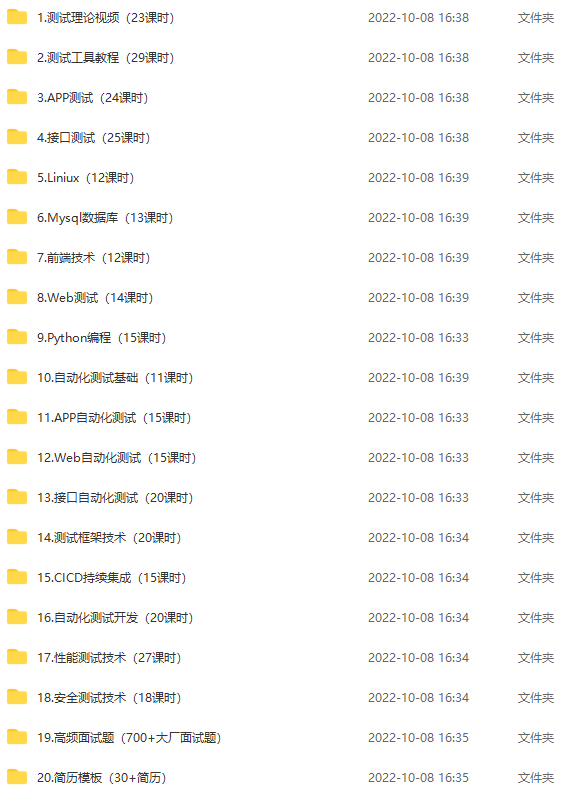
下面这份资源,对于想学习【软件测试】的朋友来说应该是最全面最完整的备战仓库,希望也能帮助到你!

-
相关阅读:
MyBatis整合Spring的原理分析
深度剖析「圈组」关系系统设计 | 「圈组」技术系列文章
MySQL 日期函数大全(更新中.....)
vscode不显示横滚动条处理
如何在JavaScript中使用高阶函数
QCC 音频输入输出
B树的定义和特点
JavaScript从入门到精通系列第二十一篇:JavaScript中的原型对象详解
ios UI 基础开发二
Django 访问静态文件的APP staticfiles
- 原文地址:https://blog.csdn.net/weixin_54696666/article/details/128206924
