-
Python +Appium 实现app自动化测试
Python +Appium 实现app自动化测试
一、Appium简介
Appium是一款开源工具,用于自动化iOS、Android和Windows桌面平台上的本地、移动web和混合应用程序。原生应用是指那些使用iOS、Android或Windows sdk编写的应用。移动网页应用是通过移动浏览器访问的网页应用(appum支持iOS和Chrome上的Safari或Android上的内置“浏览器”应用)。混合应用程序有一个“webview”的包装,这是一个允许与web内容交互的原生控件。像Apache Cordova这样的项目可以很容易地使用web技术构建应用程序,然后将这些技术捆绑到原生包装中,创建一个混合应用程序。
重要的是,Appium是“跨平台”的:它允许您使用相同的API在多个平台(iOS、Android、Windows)上编写测试。这使得代码可以在iOS、Android和Windows测试套件之间重用。二、环境所需资源
三、环境搭建教程
Appium-Server-GUI 配置Android SDK 和 Java JDK 路径

Appium-Inspector环境配置
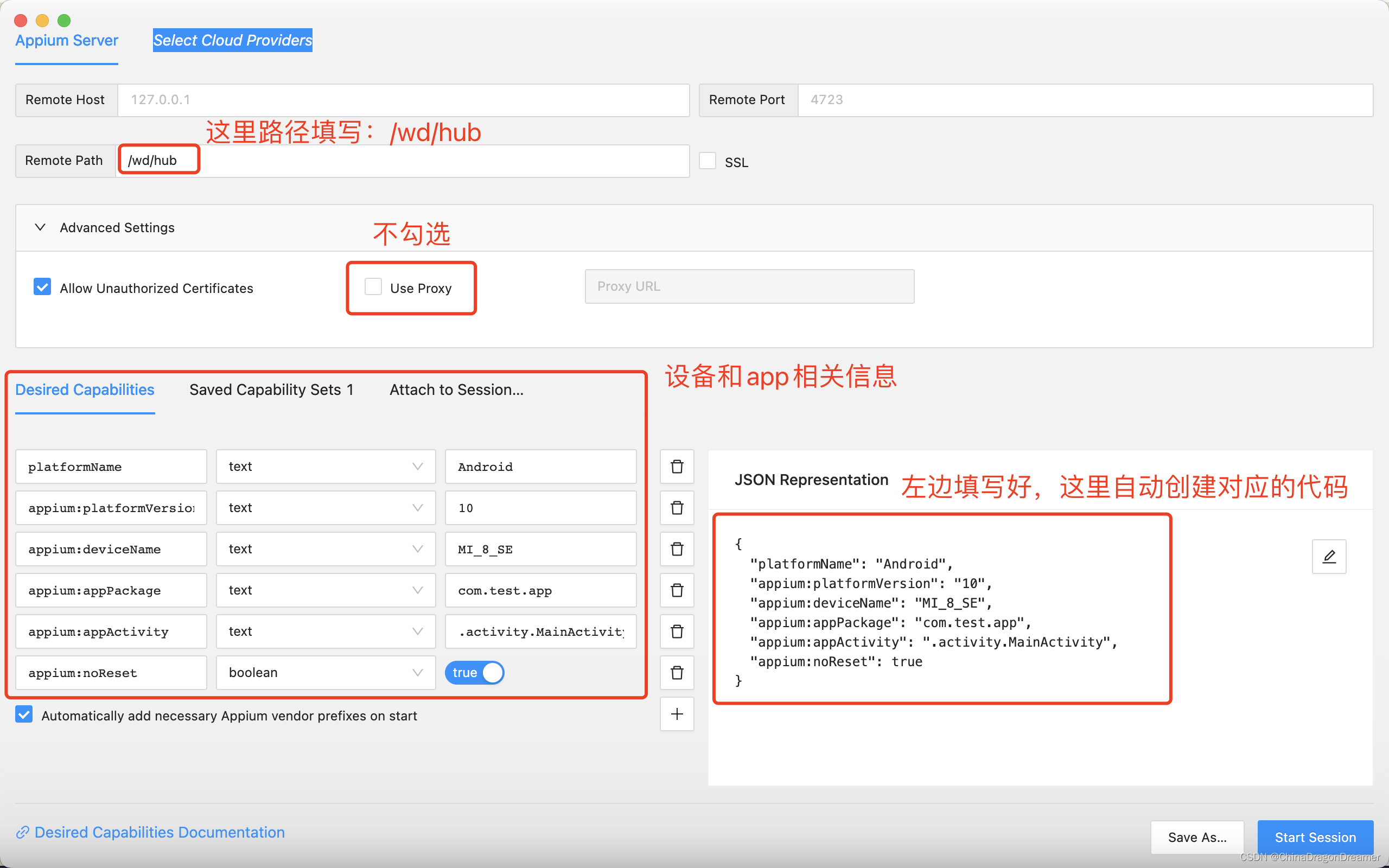
Appium-Inspector运行Start Session 界面介绍

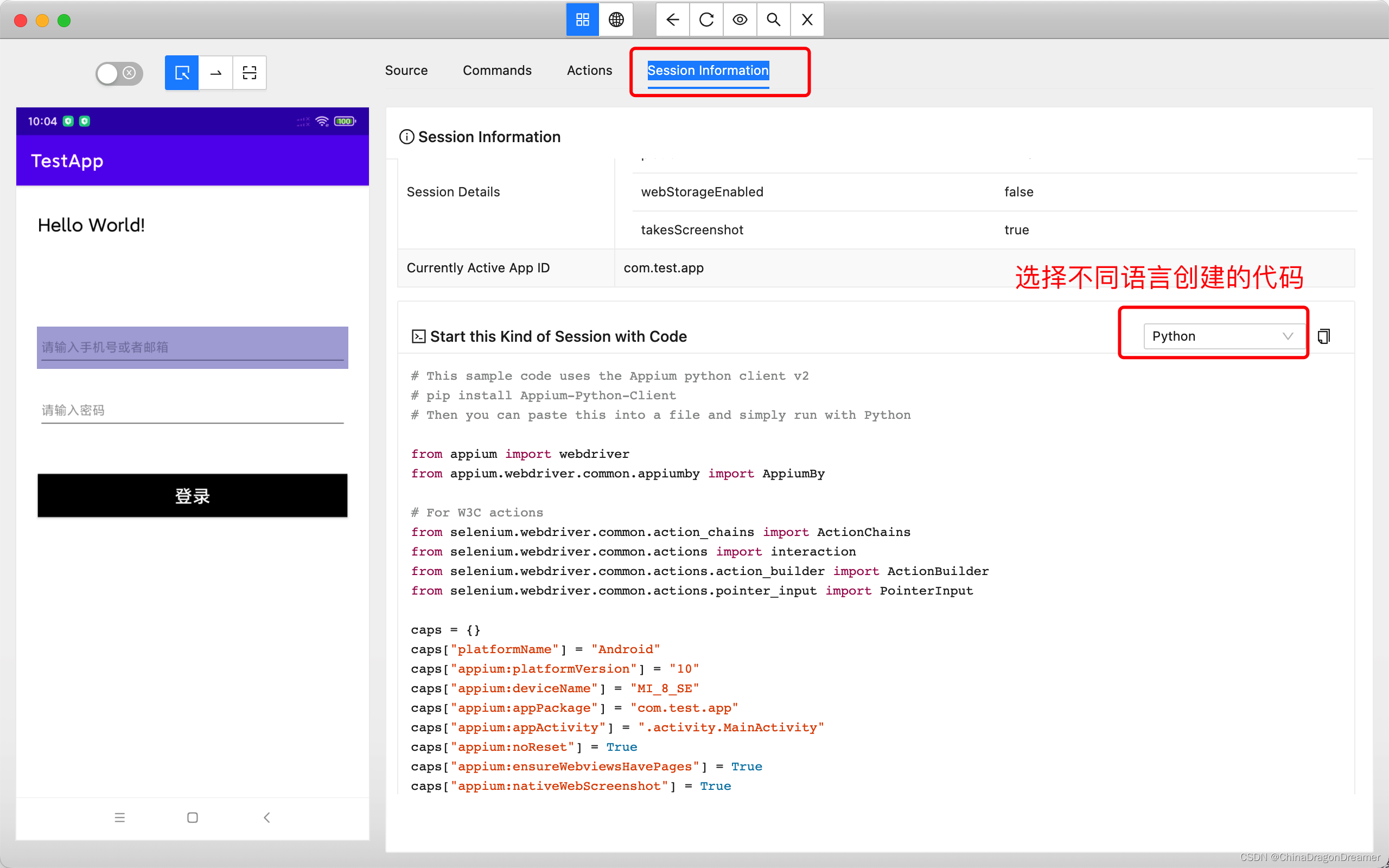
四、注意事项
一、Apium-Server-Gui 环境变量配置: 1. Android SDK安装目录; 2. Java JDK安装目录; 二、Appium-Inspector 1. 远程路径(Remote Path):/wd/hub 2. 高级设置(Advanced Settings):勾选 Allow Unauthorized Certificates,不勾选 Use Proxy 三、手机设置进入开发者选项(开发者模式) 1. 开发USB调试 2. 打开USB调试(安全设置) 四、手机安装AppiumSettings 1. 如果手机是第一次连接appium,会提示下载一个软件【Appium Settings】,正常下载安装即可- 1
- 2
- 3
- 4
- 5
- 6
- 7
- 8
- 9
- 10
- 11
- 12
- 13
- 14
- 15
五、adb 命令
1. adb devices -l 查看已链接的设备 2. adb shell getprop ro.build.version.release 查看Android内核版本号 3. adb shell dumpsys activity | findstr “mResume” 查看手机屏幕当前应用页面Activity名称已经包名 (window) 4. adb shell dumpsys window | grep mCurrent 查看手机屏幕当前应用页面Activity名称已经包名(mac)- 1
- 2
- 3
- 4
六、python代码
# 新建一个py文件,例如:mi_8se_testapp.py,将下面代码复制粘贴到py文件 import time from appium import webdriver # appium 报错 需要安装 Appium-Python-Client;webdriver 报错需要安装 Appium Python Client: WebDriver module #安装方式 在报错的提示地方点击 install from appium.webdriver.common.appiumby import AppiumBy # For W3C actions from selenium.webdriver.common.action_chains import ActionChains from selenium.webdriver.common.actions import interaction from selenium.webdriver.common.actions.action_builder import ActionBuilder from selenium.webdriver.common.actions.pointer_input import PointerInput caps = {} caps["platformName"] = "Android" caps["appium:platformVersion"] = "10" caps["appium:deviceName"] = "MI_8_SE" caps["appium:appPackage"] = "com.app.appnewframe" caps["appium:appActivity"] = ".activity.LoginActivity" caps["appium:noReset"] = True caps["appium:ensureWebviewsHavePages"] = True caps["appium:nativeWebScreenshot"] = True caps["appium:newCommandTimeout"] = 3600 caps["appium:connectHardwareKeyboard"] = True # driver = webdriver.Remote("http://127.0.0.1:4723/wd/hub", caps) # 或者用下面的配置参数 desired_caps = { 'platformName': 'Android', 'platformVersion': '10', 'deviceName': 'MI_8_SE', 'appPackage': 'com.test.app', 'appActivity': '.activity.MainActivity', 'noReset': True } driver = webdriver.Remote("http://127.0.0.1:4723/wd/hub", desired_caps) #点击Remote 查看源码,其中 command_executor: str = 'http://127.0.0.1:4444/wd/hub' driver.find_element(by=AppiumBy.ID, value="et_account").set_text("test@admin.com") driver.find_element(by=AppiumBy.ID, value="et_pwd").set_text("test 123456") driver.find_element(by=AppiumBy.ID, value="btn_login").click() # find_element(by=AppiumBy.ID, value="et_account") , 点击 find_element方法查看源码,by=AppiumBy.ID,value是元素的 id名称 # 搜索完后调用driver.quit()会直接退出app # input('**********') # 10秒钟之后退出程序 time.sleep(10) #搜索完后不会退出app # driver.quit()- 1
- 2
- 3
- 4
- 5
- 6
- 7
- 8
- 9
- 10
- 11
- 12
- 13
- 14
- 15
- 16
- 17
- 18
- 19
- 20
- 21
- 22
- 23
- 24
- 25
- 26
- 27
- 28
- 29
- 30
- 31
- 32
- 33
- 34
- 35
- 36
- 37
- 38
- 39
- 40
- 41
- 42
- 43
- 44
- 45
- 46
- 47
- 48
- 49
- 50
- 51
- 52
- 53
- 54
7、TestApp代码
build.gradle代码
plugins { id 'com.android.application' id 'org.jetbrains.kotlin.android' } android { compileSdk 31 defaultConfig { applicationId "com.test.app" minSdk 23 targetSdk 31 versionCode 1 versionName "1.0" testInstrumentationRunner "androidx.test.runner.AndroidJUnitRunner" } // 签名文件别名testapp, 123456,123456 buildTypes { release { minifyEnabled false proguardFiles getDefaultProguardFile('proguard-android-optimize.txt'), 'proguard-rules.pro' } } compileOptions { sourceCompatibility JavaVersion.VERSION_11 targetCompatibility JavaVersion.VERSION_11 } kotlinOptions { jvmTarget = '11' } } dependencies { implementation 'androidx.core:core-ktx:1.7.0' implementation 'androidx.lifecycle:lifecycle-runtime-ktx:2.2.0' implementation 'androidx.lifecycle:lifecycle-viewmodel-ktx:2.2.0' implementation 'androidx.appcompat:appcompat:1.3.0' implementation 'com.google.android.material:material:1.4.0' implementation 'androidx.constraintlayout:constraintlayout:2.0.4' implementation 'org.jetbrains.kotlinx:kotlinx-coroutines-core:1.6.0' testImplementation 'junit:junit:4.13.2' androidTestImplementation 'androidx.test.ext:junit:1.1.3' androidTestImplementation 'androidx.test.espresso:espresso-core:3.4.0' }- 1
- 2
- 3
- 4
- 5
- 6
- 7
- 8
- 9
- 10
- 11
- 12
- 13
- 14
- 15
- 16
- 17
- 18
- 19
- 20
- 21
- 22
- 23
- 24
- 25
- 26
- 27
- 28
- 29
- 30
- 31
- 32
- 33
- 34
- 35
- 36
- 37
- 38
- 39
- 40
- 41
- 42
- 43
- 44
- 45
- 46
- 47
- 48
activity_main.xml布局代码
<?xml version="1.0" encoding="utf-8"?> <androidx.appcompat.widget.LinearLayoutCompat xmlns:android="http://schemas.android.com/apk/res/android" xmlns:app="http://schemas.android.com/apk/res-auto" xmlns:tools="http://schemas.android.com/tools" android:layout_width="match_parent" android:layout_height="match_parent" android:orientation="vertical" tools:context=".activity.MainActivity"> <androidx.appcompat.widget.AppCompatTextView android:layout_width="match_parent" android:layout_height="wrap_content" android:layout_marginLeft="24dp" android:layout_marginTop="30dp" android:text="Hello World!" android:textColor="@color/black" android:textSize="20sp" /> <androidx.appcompat.widget.AppCompatEditText android:id="@+id/et_account" android:layout_width="match_parent" android:layout_height="46dp" android:layout_marginLeft="24dp" android:layout_marginTop="100dp" android:layout_marginRight="24dp" android:hint="请输入手机号或者邮箱" android:textColor="@color/black" android:textSize="14sp" /> <androidx.appcompat.widget.AppCompatEditText android:id="@+id/et_pwd" android:layout_width="match_parent" android:layout_height="46dp" android:layout_margin="24dp" android:hint="请输入6 ~ 20 位密码" android:maxLength="20" android:inputType="textPassword" android:textColor="@color/black" android:textSize="14sp" /> <androidx.appcompat.widget.AppCompatButton android:id="@+id/btn_login" android:layout_width="match_parent" android:layout_height="wrap_content" android:layout_margin="24dp" android:background="@color/black" android:gravity="center" android:text="登录" android:textColor="@color/white" android:textSize="20sp" /> </androidx.appcompat.widget.LinearLayoutCompat>- 1
- 2
- 3
- 4
- 5
- 6
- 7
- 8
- 9
- 10
- 11
- 12
- 13
- 14
- 15
- 16
- 17
- 18
- 19
- 20
- 21
- 22
- 23
- 24
- 25
- 26
- 27
- 28
- 29
- 30
- 31
- 32
- 33
- 34
- 35
- 36
- 37
- 38
- 39
- 40
- 41
- 42
- 43
- 44
- 45
- 46
- 47
- 48
- 49
- 50
- 51
- 52
- 53
MainActivity.kt代码
package com.test.app.activity import android.os.Bundle import android.text.TextUtils import android.view.Gravity import android.widget.Toast import androidx.appcompat.app.AppCompatActivity import androidx.appcompat.widget.AppCompatButton import androidx.appcompat.widget.AppCompatEditText import com.test.app.R import kotlinx.coroutines.* class MainActivity : AppCompatActivity() { private lateinit var et_account: AppCompatEditText private lateinit var et_pwd: AppCompatEditText private lateinit var btn_login: AppCompatButton private val mainScope = MainScope() private var mToast: Toast? = null override fun onCreate(savedInstanceState: Bundle?) { super.onCreate(savedInstanceState) setContentView(R.layout.activity_main) initView() initEvent() } private fun initView() { et_account = findViewById(R.id.et_account) et_pwd = findViewById(R.id.et_pwd) btn_login = findViewById(R.id.btn_login) } private fun initEvent() { btn_login.setOnClickListener { login() } } private fun login() { val account = et_account.text.toString() if (account.isNullOrBlank()) { show("请输入手机号或者邮箱") return } val pwd = et_pwd.text.toString() if (pwd.isNullOrBlank()) { show("请输入密码") return } if (pwd.length < 5) { show("输入密码长度不能小于5位") return } mainScope.launch { show("登录中...") withContext(Dispatchers.IO) { //模拟网络请求耗时操作 delay(2000) } if ("test@admin.com".equals(account) && "123456".equals(pwd)) { show("登录成功") } else { show("登录失败") } } } fun show(text: CharSequence?) { if (TextUtils.isEmpty(text)) return mToast?.let { it.cancel() mToast = null } mToast = Toast.makeText(this, "", Toast.LENGTH_SHORT) mToast?.apply { setText(text) setGravity(Gravity.CENTER, 0, 0) show() } } override fun onDestroy() { mainScope.cancel() super.onDestroy() } }- 1
- 2
- 3
- 4
- 5
- 6
- 7
- 8
- 9
- 10
- 11
- 12
- 13
- 14
- 15
- 16
- 17
- 18
- 19
- 20
- 21
- 22
- 23
- 24
- 25
- 26
- 27
- 28
- 29
- 30
- 31
- 32
- 33
- 34
- 35
- 36
- 37
- 38
- 39
- 40
- 41
- 42
- 43
- 44
- 45
- 46
- 47
- 48
- 49
- 50
- 51
- 52
- 53
- 54
- 55
- 56
- 57
- 58
- 59
- 60
- 61
- 62
- 63
- 64
- 65
- 66
- 67
- 68
- 69
- 70
- 71
- 72
- 73
- 74
- 75
- 76
- 77
- 78
- 79
- 80
- 81
- 82
- 83
- 84
- 85
- 86
- 87
- 88
- 89
- 90
- 91
- 92
- 93
- 94
8、自动化测试效果图

参考文章
欢迎关注我的公众号,不定期推送优质的文章,
微信扫一扫下方二维码即可关注。

-
相关阅读:
内存卡提示要格式化怎么办?
MindSpore数据集加载-调试小工具 py-spy
PLL-PCL 聚赖氨酸交联聚几内酯
软件设计师_计算机网络_学习笔记
PyCharm玩转ESP32
Spring MVC @Controller和@RequestMapping注解
github搜索技巧探索
【LeetCode热题100】--189.轮转数组
Spring 源码(16)Spring Bean的创建过程(7)属性填充
CSS 自定义属性(变量)
- 原文地址:https://blog.csdn.net/ChinaDragon10/article/details/128026642
