-
小程序 | 实现本地生活的首页基础布局

新建项目并梳理项目结构
- 创建一个文件夹用来存放该项目
- 打开【微信开发者工具】—>【新建项目】
注意选择不使用云服务
- 我们有三个tab页面,所以前往 app.json 进行修改
pages

配置导航栏效果

根据👇这个进行配置

// app.json
  "window":{

    "backgroundTextStyle":"light",
    "navigationBarBackgroundColor": "#2b4b6b",
    "navigationBarTitleText": "本地生活",
    "navigationBarTextStyle":"white"
  },
配置 tabBar 效果

- 将需要到的图片素材放进项目文件夹images中
- 根据以下 来进行配置


tabBar 和 window 平齐
"tabBar": { "list": [ { "pagePath": "pages/home/home", "text": "联系我们", "iconPath": "/images/home.png", "selectedIconPath": "/images/home-active.png" }, { "pagePath": "pages/message/message", "text": "消息", "iconPath": "/images/message.png", "selectedIconPath": "/images/message-active.png" }, { "pagePath": "pages/contact/contact", "text": "消息", "iconPath": "/images/contact.png", "selectedIconPath": "/images/contact-active.png" } ] },实现轮播图效果
获取轮播图数据
获取轮播图数据列表的接口
【GET】https://www.escook.cn/slides-
获取轮播图的数据(通过
wx.request()来获取)
-
将获取到的轮播图数据存放到 home.js 里面的 data 中(通过
this.setData来修改data中的数据)
// pages/home/home.js
Page({


    data: {

        // 存放轮播图数据的列表
        swiperList: [], // 一开始就是个数组形式
    },

	// 生命周期函数--监听页面加载
    onLoad(options) {

        // 页面一加载就开始调用 获取轮播图数据的方法
        this.getSwiperList();
    },

    // 获取轮播图数据的方法
    getSwiperList() {

        wx.request({

            url: 'https://www.escook.cn/slides',
            method: "GET",
            success: (res) => {

                // 修改 data 中的数据,将轮播图的数据进行修改
                this.setData({

                    swiperList: res.data,
                })
            }
        })
    },
}
渲染轮播图页面效果
每一个轮播图是对 swiperList 进行for循环拿到的,item 包括id和image,我们的轮播图里面就是 item.image
<swiper indicator-dots circular interval="3000" autoplay>
    <swiper-item wx:for="{
    {swiperList}}" wx:key="id">
        <image src="{
    {item.image}}">image>
    swiper-item>
swiper>

对轮播图进行美化
/* pages/home/home.wxss */ swiper{ height: 350rpx; } swiper image{ width: 100%; height: 100%; }实现九宫格效果
获取九宫格数据
获取九宫格数据列表的接口
【GET】https://www.escook.cn/categories
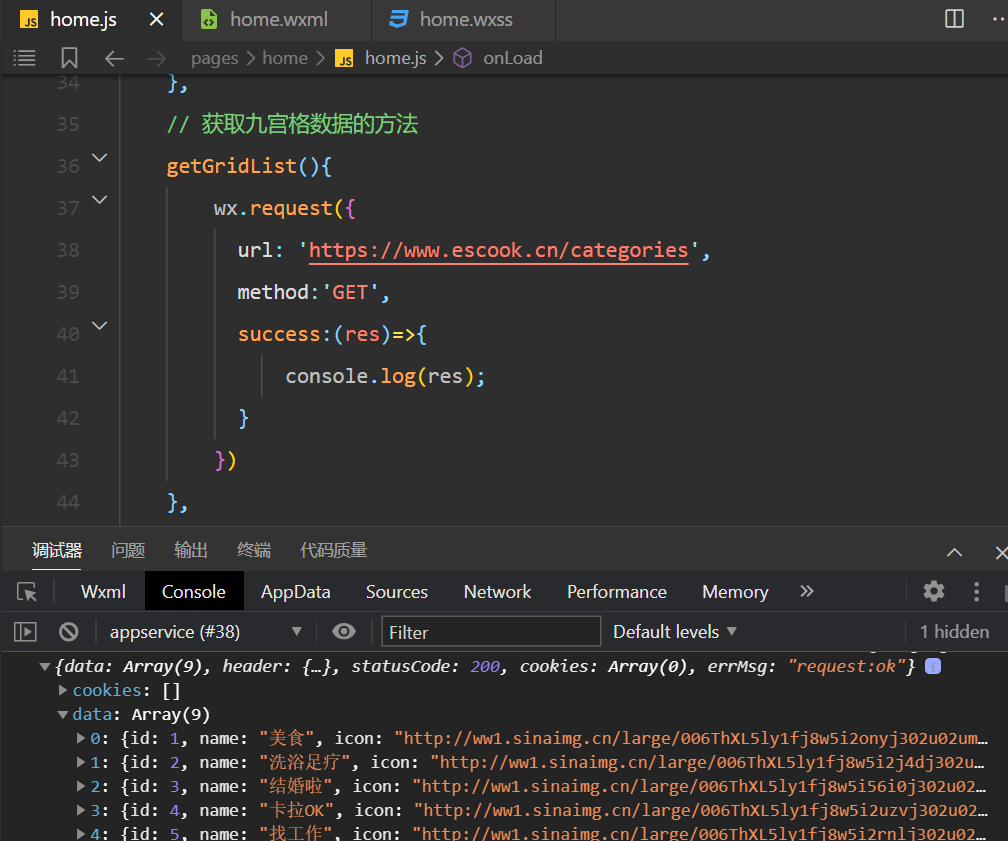
// pages/home/home.js Page({ data: { // 存放轮播图数据的列表 swiperList: [], // 一开始就是个数组形式 // 获取九宫格数据的列表 gridList:[], }, onLoad(options) { // 页面一加载就开始调用 获取轮播图数据的方法 this.getSwiperList(); this.getGridList(); }, ... // 获取九宫格数据的方法 getGridList(){ wx.request({ url: 'https://www.escook.cn/categories', method:'GET', success:(res)=>{ // 对九宫格数据进行赋值 -
相关阅读:
【运维工具】当你的老板站在你背后,看你处理故障......
2016年亚太杯APMCM数学建模大赛A题基于光学信息数据的温度及关键元素含量预测求解全过程文档及程序
【软件测试】功能测试/接口测试/自动化测试/性能测试/验收测试
浮点数算法:争议和限制
mysql数据库的授权访问
《动态规划 ---- 线性规划一》----- 动态规划的基本概念,线性动态规划-->背包问题
抽象工厂模式
2022陕西清北录取人数排名,西工大附中遥遥领先,高新一中40人
温敏传感器概述
Java8实战-总结48
- 原文地址:https://blog.csdn.net/muziqwyk/article/details/127122036
- 最新文章
-
Java + Spring实现Hermes Agent之龙虾、Skills、Mcp和沙箱代码执行环境思路
轨迹的蓝图:方程求解与交点计算
PowerMem 记忆系统的遗忘设计,从神经元到代码工程
我用了FastApiAdmin后,连夜把踩过的坑都整理出来了
一个程序员眼中的 AI 核心概念,讲透 LLM 、Agent 、MCP 、Skill 、RAG...
网络安全在线就能打的内网靶场推荐 & Dawn Breaker 单域靶场 WP
PyTorch KernelAgent 源码解读 ---(6)--- Composer
高光谱拼接算法(一)扫推式成像和航带拼接算法
一文看懂fofa常用语法,告别混淆,精准打击!
从零搭建量化投资系统:用 Qlib 一行代码搞定均线分析