-
Docker 常用命令 - 容器数据卷
容器数据卷(run -v 主机目录:容器内目录)
将容器内的目录挂载至主机上,目的是为容器的持久化与同步操作,容器之间可以共享数据。
docker run -v 主机目录:容器内目录
- [root@k8snode docker]# docker run -d -p 3306:3306 -e MYSQL_ROOT_PASSWORD=abc --name mysql01 -v /home/mysql/conf:/etc/mysql/conf.d -v /home/mysql/data:/var/lib/mysql mysql
- 38f9bebd5ffb813ebd5cb0cf1d8fd6b862aa6c3af0199b90090c39db9a7ddac8
- # 查看主机挂载目录
- [root@k8snode docker]# ls /home/mysql
- conf data
docker run -d -p 3306:3306 -e MYSQL_ROOT_PASSWORD=abc --name mysql01 -v /home/mysql/conf:/etc/mysql/conf.d -v /home/mysql/data:/var/lib/mysql mysql
-d 后台运行
-e 环境配置
-p 端囗映射(主机端囗:容器端囗)
-v 容器数据卷挂载(主机目录:容器内目录)
--name 容器名称
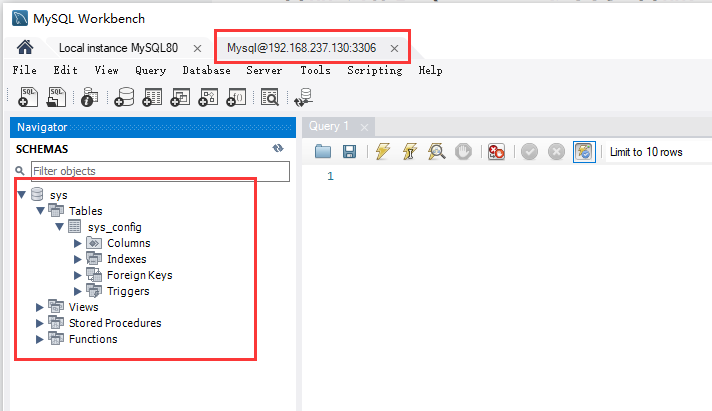
使用主机的MySQL客户端连接虚拟机中的docker启动的mysql,连接成功(注意:需要开启虚拟机中的3306端囗),如下图所示:
 查看容器数据卷
docker volume xx
- [root@k8snode docker]# docker volume --help
- Usage: docker volume COMMAND
- Manage volumes
- Commands:
- create Create a volume
- inspect Display detailed information on one or more volumes
- ls List volumes
- prune Remove all unused local volumes
- rm Remove one or more volumes
- Run 'docker volume COMMAND --help' for more information on a command.
- [root@k8snode docker]#
具名挂载
docker run -v 容器数据卷名称:容器内路径
- [root@k8snode docker]# docker run -d --name centos01 -v centos_volume:/home centos
- 20e2b5b37066cd3b0a7efa02e61c89d389b65a43cdf7f5ff346539ed27836b40
- [root@k8snode docker]# docker volume ls
- DRIVER VOLUME NAME
- local centos_volume
- [root@k8snode docker]# docker volume inspect centos_volume
- [
- {
- "CreatedAt": "2022-06-19T05:58:48+08:00",
- "Driver": "local",
- "Labels": null,
- "Mountpoint": "/var/lib/docker/volumes/centos_volume/_data",
- "Name": "centos_volume",
- "Options": null,
- "Scope": "local"
- }
- ]
- #查看docker目录中的volume目录
- [root@k8snode docker]# ls /var/lib/docker/volumes/
- backingFsBlockDev centos_volume metadata.db
匿名挂载
docker run -v 容器内的路径
# 只有容器内的路径,没有主机路径
- [root@k8snode docker]# docker run -d --name cenots02 -v /home centos
- 5e82d50161f601f2db7f112fb7627af666bcce4a32a4f8f2c32ac051f1aa5019
- [root@k8snode docker]# docker volume ls
- DRIVER VOLUME NAME
- local 8f15c1d4a8e486e64dcffc868bccfb129a1eafafd49c014d5faafeafe1d01eb4
- local centos_volume
- [root@k8snode docker]# docker volume inspect 8f15c1d4a8e486e64dcffc868bccfb129a1eafafd49c014d5faafeafe1d01eb4
- [
- {
- "CreatedAt": "2022-06-19T06:08:52+08:00",
- "Driver": "local",
- "Labels": null,
- "Mountpoint": "/var/lib/docker/volumes/8f15c1d4a8e486e64dcffc868bccfb129a1eafafd49c014d5faafeafe1d01eb4/_data",
- "Name": "8f15c1d4a8e486e64dcffc868bccfb129a1eafafd49c014d5faafeafe1d01eb4",
- "Options": null,
- "Scope": "local"
- }
- ]
设置读写权限
docker run -v /home:ro # 容器中目录只读 readonly,只能通过宿主机操作
docker run -v /home:rw # 容器中目录可读可写 read-write(默认)
Dockerfile
常用指令说明
常用指令说明 指令 说明 FROM 基础镜像,一切从这FROM开始构建 MAINTAINER 作者:姓名+邮箱 RUN 镜像构建时需要运行的命令 ADD 添加的内容,压缩包会自动解压 COPY 类似于ADD,将文件拷贝到镜像中 WORKDIR 镜像的工作目录 VOLUME 容器数据卷(挂载的目录) EXPOST 暴露端囗 CMD 容器启动时要运行的命令,只有最后一个命令会生效(命令被覆盖) ENTRYPOINT 容器启动时要运行的命令,可以追加命令 ONBUILD 当构建一个被继承的Dockerfile时会运行ONBUILD指令(触发指令) ENV 构建时设置环境变量 Docker Hub中99%镜像都是从FROM scratch开始的。
构建centos
(1)编写Dockerfile文件
vim Dockerfile
[root@k8snode docker]# vim Dockerfile文件内容如下:
FROM centos:7
MAINTAINER tracy
RUN mkdir /usr/local/golang
ENV GOPATH /usr/local/golang
WORKDIR $GOPATH
RUN yum install -y vim
EXPOSE 8088
CMD echo $GOPATH
CMD /bin/bash
按Esc退出编辑,输入:wq保存并退出。
(2)构建镜像
查看docker build帮助
docker build --help
- [root@k8snode ~]# docker build --help
- Usage: docker build [OPTIONS] PATH | URL | -
- Build an image from a Dockerfile
- Options:
- --add-host list Add a custom host-to-IP mapping (host:ip)
- --build-arg list Set build-time variables
- --cache-from strings Images to consider as cache sources
- --cgroup-parent string Optional parent cgroup for the container
- --compress Compress the build context using gzip
- --cpu-period int Limit the CPU CFS (Completely Fair Scheduler) period
- --cpu-quota int Limit the CPU CFS (Completely Fair Scheduler) quota
- -c, --cpu-shares int CPU shares (relative weight)
- --cpuset-cpus string CPUs in which to allow execution (0-3, 0,1)
- --cpuset-mems string MEMs in which to allow execution (0-3, 0,1)
- --disable-content-trust Skip image verification (default true)
- -f, --file string Name of the Dockerfile (Default is 'PATH/Dockerfile')
- --force-rm Always remove intermediate containers
- --iidfile string Write the image ID to the file
- --isolation string Container isolation technology
- --label list Set metadata for an image
- -m, --memory bytes Memory limit
- --memory-swap bytes Swap limit equal to memory plus swap: '-1' to enable unlimited swap
- --network string Set the networking mode for the RUN instructions during build (default "default")
- --no-cache Do not use cache when building the image
- --pull Always attempt to pull a newer version of the image
- -q, --quiet Suppress the build output and print image ID on success
- --rm Remove intermediate containers after a successful build (default true)
- --security-opt strings Security options
- --shm-size bytes Size of /dev/shm
- -t, --tag list Name and optionally a tag in the 'name:tag' format
- --target string Set the target build stage to build.
- --ulimit ulimit Ulimit options (default [])
构建镜像
docker build -f dockerfile文件路径 -t 镜像名称:[TAG] .
# 最后的 .表示当前路径
- [root@k8snode docker]# docker build -f Dockerfile -t my_first_centos:1.0 .
- Sending build context to Docker daemon 2.048kB
- Step 1/9 : FROM centos:7
- 7: Pulling from library/centos
- 2d473b07cdd5: Pull complete
- Digest: sha256:9d4bcbbb213dfd745b58be38b13b996ebb5ac315fe75711bd618426a630e0987
- Status: Downloaded newer image for centos:7
- ---> eeb6ee3f44bd
- Step 2/9 : MAINTAINER tracy
- ---> Running in c0e7785b55ca
- Removing intermediate container c0e7785b55ca
- ---> 83d86de424bd
- Step 3/9 : RUN mkdir /usr/local/golang
- ---> Running in f452a13fc4bd
- Removing intermediate container f452a13fc4bd
- ---> ea257c125669
- Step 4/9 : ENV GOPATH /usr/local/golang
- ---> Running in d1e43bf99621
- Removing intermediate container d1e43bf99621
- ---> 810edc15eb13
- Step 5/9 : WORKDIR $GOPATH
- ---> Running in c38d2ea76846
- Removing intermediate container c38d2ea76846
- ---> e8462a5c6513
- Step 6/9 : RUN yum install -y vim
- ---> Running in 7d86127fff9b
- Loaded plugins: fastestmirror, ovl
- Determining fastest mirrors
- * base: mirrors.huaweicloud.com
- * extras: mirrors.huaweicloud.com
- * updates: mirrors.huaweicloud.com
- Resolving Dependencies
- --> Running transaction check
- # 此处略去安装vim的诸多显示信息
- vim-common.x86_64 2:7.4.629-8.el7_9
- vim-filesystem.x86_64 2:7.4.629-8.el7_9
- which.x86_64 0:2.20-7.el7
- Complete!
- Removing intermediate container 7d86127fff9b
- ---> d6cf1e5acb67
- Step 7/9 : EXPOSE 8088
- ---> Running in 73978947272a
- Removing intermediate container 73978947272a
- ---> d1e6f8755c5b
- Step 8/9 : CMD echo $GOPATH
- ---> Running in 20af124dd8c2
- Removing intermediate container 20af124dd8c2
- ---> 7b09507b702a
- Step 9/9 : CMD /bin/bash
- ---> Running in 5be68a75a589
- Removing intermediate container 5be68a75a589
- ---> e4d0d69335b9
- Successfully built e4d0d69335b9
- Successfully tagged my_first_centos:1.0
- # 查看镜像
- [root@k8snode docker]# docker images
- REPOSITORY TAG IMAGE ID CREATED SIZE
- my_first_centos 1.0 e4d0d69335b9 31 minutes ago 430MB
- centos_new 1.0 253389f04919 18 hours ago 231MB
- tomcat_new 1.0 261703d60799 18 hours ago 231MB
- mysql latest 3218b38490ce 6 months ago 516MB
- centos 7 eeb6ee3f44bd 9 months ago 204MB
- centos latest 5d0da3dc9764 9 months ago 231MB
(3)测试
- #进入容器
- [root@k8snode docker]# docker run -it my_first_centos:1.0
- #显示当前路径
- [root@6c4da25b7587 golang]# pwd
- /usr/local/golang
- #显示环境变量值
- [root@6c4da25b7587 golang]# echo $GOPATH
- /usr/local/golang
- #编辑文件
- [root@6c4da25b7587 golang]# vim test.txt
- [root@6c4da25b7587 golang]# ls
- test.txt
CMD与ENTRYPOINT区别
(1-1)CMD - 编写Dockerfile
[root@k8snode docker]# vim Dockerfile_CMD内容如下:
FROM centos:7
CMD ["ls","-a"](1-2)CMD - 构建镜像
- [root@k8snode docker]# docker build -f Dockerfile_CMD -t centos_cmd:1.0 .
- Sending build context to Docker daemon 3.072kB
- Step 1/2 : FROM centos:7
- ---> eeb6ee3f44bd
- Step 2/2 : CMD ["ls","-a"]
- ---> Running in f3bdf1a29969
- Removing intermediate container f3bdf1a29969
- ---> 42fe762992da
- Successfully built 42fe762992da
- Successfully tagged centos_cmd:1.0
(1-3)CMD - 测试
以下启动容器时,在命令行后面加上-l, 可以看到执行结果报错,是因为-l覆盖了CMD命令,而-l在linux中不是命令,所以报错
- # 查看镜像
- [root@k8snode docker]# docker images
- REPOSITORY TAG IMAGE ID CREATED SIZE
- centos_cmd 1.0 42fe762992da 3 minutes ago 204MB
- my_first_centos 1.0 e4d0d69335b9 About an hour ago 430MB
- centos_new 1.0 253389f04919 18 hours ago 231MB
- tomcat_new 1.0 261703d60799 19 hours ago 231MB
- mysql latest 3218b38490ce 6 months ago 516MB
- centos 7 eeb6ee3f44bd 9 months ago 204MB
- centos latest 5d0da3dc9764 9 months ago 231MB
- # 启动容器,在命令行后面加上-l, 可以看到执行结果报错,是因为-l覆盖了CMD命令,而-l在linux中不是命令,所以报错
- [root@k8snode docker]# docker run 42fe762992da -l
- docker: Error response from daemon: failed to create shim task: OCI runtime create failed: runc create failed: unable to start container process: exec: "-l": executable file not found in $PATH: unknown.
- ERRO[0000] error waiting for container: context canceled
(2-1)ENTRYPOINT - 编写Dockerfile
[root@k8snode docker]# vim Dockerfile_ENTRYPOINT内容如下:
FROM centos:7
ENTRYPOINT ["ls","-a"](2-2)ENTRYPOINT- 构建镜像
- [root@k8snode docker]# docker build -f Dockerfile_ENTRYPOINT -t centos_entrypoint:1.0 .
- Sending build context to Docker daemon 4.096kB
- Step 1/2 : FROM centos:7
- ---> eeb6ee3f44bd
- Step 2/2 : ENTRYPOINT ["ls","-a"]
- ---> Running in 731e01c14704
- Removing intermediate container 731e01c14704
- ---> 1673cb2f52ad
- Successfully built 1673cb2f52ad
- Successfully tagged centos_entrypoint:1.0
(2-3)ENTRYPOINT- 测试
以下启动容器时,在命令行后面加上-l, 输入结果正常显示目录下的文件列表,是因为-l被追加到CMD命令后,即执行了 ls -a -l 命令了
- #查看镜像
- [root@k8snode docker]# docker images
- REPOSITORY TAG IMAGE ID CREATED SIZE
- centos_entrypoint 1.0 1673cb2f52ad 25 seconds ago 204MB
- centos_cmd 1.0 42fe762992da 13 minutes ago 204MB
- my_first_centos 1.0 e4d0d69335b9 About an hour ago 430MB
- centos_new 1.0 253389f04919 19 hours ago 231MB
- tomcat_new 1.0 261703d60799 19 hours ago 231MB
- mysql latest 3218b38490ce 6 months ago 516MB
- centos 7 eeb6ee3f44bd 9 months ago 204MB
- centos latest 5d0da3dc9764 9 months ago 231MB
- #启动容器,命令行后加-l,输入结果
- [root@k8snode docker]# docker run -it 1673cb2f52ad -l
- total 12
- drwxr-xr-x 1 root root 6 Jun 19 15:40 .
- drwxr-xr-x 1 root root 6 Jun 19 15:40 ..
- -rwxr-xr-x 1 root root 0 Jun 19 15:40 .dockerenv
- -rw-r--r-- 1 root root 12114 Nov 13 2020 anaconda-post.log
- lrwxrwxrwx 1 root root 7 Nov 13 2020 bin -> usr/bin
- drwxr-xr-x 5 root root 360 Jun 19 15:40 dev
- drwxr-xr-x 1 root root 66 Jun 19 15:40 etc
- drwxr-xr-x 2 root root 6 Apr 11 2018 home
- lrwxrwxrwx 1 root root 7 Nov 13 2020 lib -> usr/lib
- lrwxrwxrwx 1 root root 9 Nov 13 2020 lib64 -> usr/lib64
- drwxr-xr-x 2 root root 6 Apr 11 2018 media
- drwxr-xr-x 2 root root 6 Apr 11 2018 mnt
- drwxr-xr-x 2 root root 6 Apr 11 2018 opt
- dr-xr-xr-x 122 root root 0 Jun 19 15:40 proc
- dr-xr-x--- 2 root root 114 Nov 13 2020 root
- drwxr-xr-x 11 root root 148 Nov 13 2020 run
- lrwxrwxrwx 1 root root 8 Nov 13 2020 sbin -> usr/sbin
- drwxr-xr-x 2 root root 6 Apr 11 2018 srv
- dr-xr-xr-x 13 root root 0 Jun 19 15:40 sys
- drwxrwxrwt 7 root root 132 Nov 13 2020 tmp
- drwxr-xr-x 13 root root 155 Nov 13 2020 usr
- drwxr-xr-x 18 root root 238 Nov 13 2020 var
自定义网络
网络模式:
bridge: 桥接(默认)
none: 不配置网络
host: 与宿主机共享网络
container: 容器网络连通
网络帮助
docker network --help
- [root@k8snode ~]# docker network --help
- Usage: docker network COMMAND
- Manage networks
- Commands:
- connect Connect a container to a network
- create Create a network
- disconnect Disconnect a container from a network
- inspect Display detailed information on one or more networks
- ls List networks
- prune Remove all unused networks
- rm Remove one or more networks
- Run 'docker network COMMAND --help' for more information on a command.
-
相关阅读:
Web3 游戏周报(3.24-3.30)
云谦:谈谈前端框架的趋势与实践
Prime95怎么使用?Prime95烤机教程
第十届MathorCup高校数学建模挑战赛-A题:无车承运人平台线路定价问题
力扣每日一题:1732. 找到最高海拔【简单模拟题,有点前缀和的样子】
如何确定论文题目?
【MVC】C# MVC基础知识点、原理以及容器和管道
easyRL学习笔记:强化学习基础
计算机毕业设计Java智能家电商城(系统+源码+mysql数据库+lw文档)
Layui快速入门之第十二节 图标
- 原文地址:https://blog.csdn.net/ling1998/article/details/125354089
