-
【花雕动手做】有趣好玩的音乐可视化系列小项目(22)--LED无限魔方
偶然心血来潮,想要做一个音乐可视化的系列专题。这个专题的难度有点高,涉及面也比较广泛,相关的FFT和FHT等算法也相当复杂,不过还是打算从最简单的开始,实际动手做做试验,耐心尝试一下各种方案,逐步积累些有用的音乐频谱可视化的资料,也会争取成型一些实用好玩的音乐可视器项目。
LED无限魔方的英文是LED Infinity Cube,还有一种称呼,叫做超级立方体,大概说的都是一种三维或多维镜像LED灯。正好手头有六片有机玻璃板,这里准备从小规格的开始尝试,先做一款10X10厘米的特别迷你型,感觉有点难度,试试看。

找到一张软镜子贴纸

立方体的底面,使用这个
超薄的玻璃贴膜

其余五个面,使用这个银灰膜

贴膜手艺有所提高

立方体的六个面备好了

声音模块,使用性价比更高的MAX4466声音传感器。
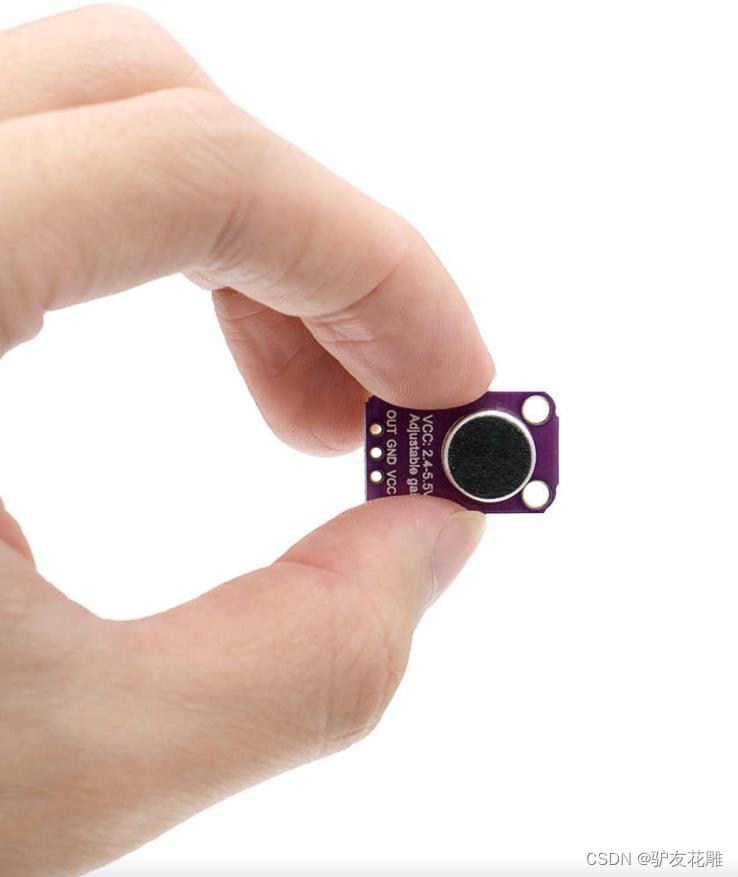
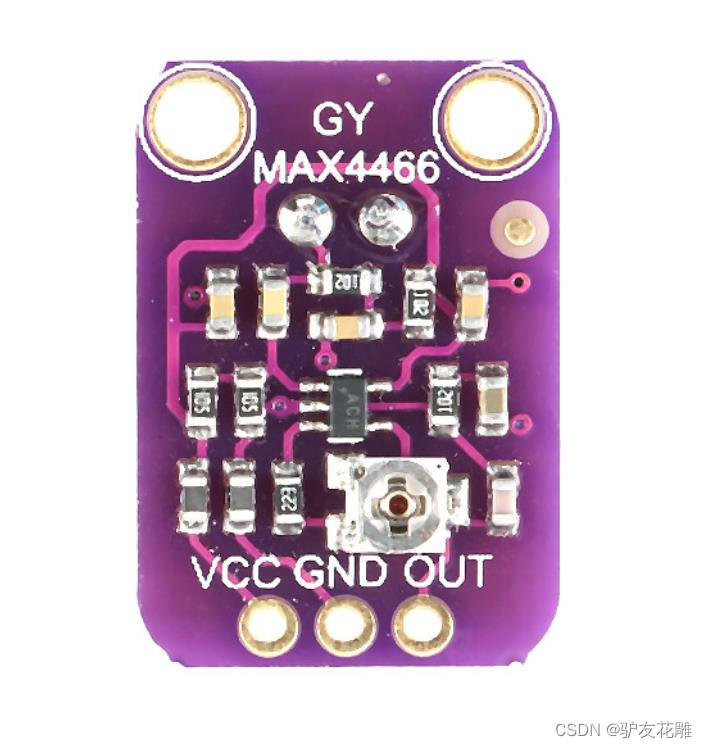
MAX4466
是微功率运算放大器,经过优化,可用作麦克风前置放大器。它们提供了优化的增益带宽产品与电源电流的理想组合,以及超小型封装中实现低电压工件环境。 MAX4466具有增益稳定特性,仅需24μA的电源电流即可提供200kHz的增益带宽。经过解压缩,可实现+5V/V的最小稳定增益,并提供600KHZ增益带宽。此外这些放大器具有轨到轨输出,高 AVOL ,以及出色的电源抑制和共模抑制比,适合在嘈杂环境中工作。广泛应用于蜂窝电话、数字复读装置、耳机、助听器、麦克风前置放大器、便携计算机和语音识别系统中。
MAX4466模块特点
电源电压:+2.4V至+5.5V(可直接接STM/ARDUNIO/树莓派等开发板)
电源抑制比:112dB
共模抑制比:126dB
AVOL:125dB(RL = 100kΩ) 轨到轨输出
静态电源电流:24μA
增益带宽:600kHz
尺寸:20.8mm x 13.8mm x 7.5mm/0.8 x 0.5 x 0.3inch该模块在 Vcc 和接地引线上都包含铁氧体,以最大限度地减少电源噪声。如果与 MCU 一起使用,最好使用 2.4V – 5.5V 范围内可用的最安静的电源。在 Arduino 上,这通常是 3.3V 电源。输出是直流耦合的。当输出信号处于静止状态时,它将位于 Vcc/2。如果 Vcc 为 5V,则输出将为 2.5V。如果输出需要交流耦合,可以在输出引脚和它驱动的电路的输入之间增加一个100uF的电容。背面的小型单圈电位器可让您将增益从 25x 调整到 125x。逆时针旋转电位器会增加增益,而逆时针旋转会降低增益。
WS2812B灯带选用的是每米60灯黑底裸板

WS2812B灯带电原理图

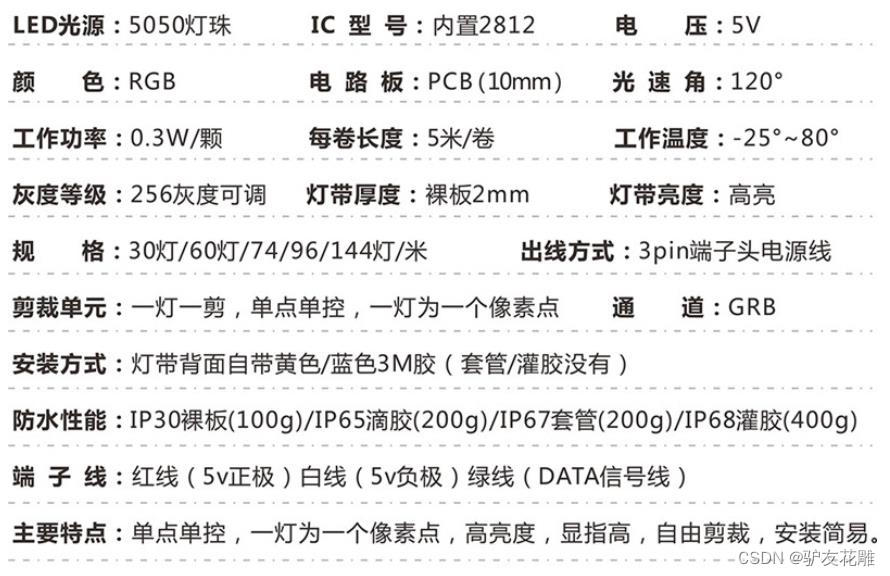

WS2812B是集控制电路和发光电路于一体的LED光源元件,其控制IC为WS2812B,发光元件是5050RGBLED,电压为5V,每个单位的峰值电流为60ma,灯带为三线制,VCC GND DIN分别为电源+、电源-、信号,当使用外部电源时,外部电源-需要与单片机的GND相连。


定制的小木条到了,这活好像有点难度…

开始组装无限魔方

【花雕动手做】有趣好玩的音乐可视化系列小项目(22)–LED无限魔方
项目程序之一:循环LED绿色LED快闪测试/* 【花雕动手做】有趣好玩的音乐可视化系列小项目(22)--LED无限魔方 项目程序之一:循环LED绿色LED快闪测试 */ #include#define PIN 6 #define MAX_LED 35 #define ADD true #define SUB false int val = 0; boolean stat = ADD; Adafruit_NeoPixel strip = Adafruit_NeoPixel( MAX_LED, PIN, NEO_RGB + NEO_KHZ800 ); void setup() { strip.begin(); strip.show(); } void loop() { uint8_t i, a = 0; uint32_t color = strip.Color(255, 0, 0); while (a < 36) { for (i = 0; i < 35; i++) { if (i == a) strip.setPixelColor(i, color); else strip.setPixelColor(i, 0); } strip.show(); delay(100); a++; } } - 1
- 2
- 3
- 4
- 5
- 6
- 7
- 8
- 9
- 10
- 11
- 12
- 13
- 14
- 15
- 16
- 17
- 18
- 19
- 20
- 21
- 22
- 23
- 24
- 25
- 26
- 27
- 28
- 29
- 30
- 31
- 32
- 33
- 34
- 35
- 36
- 37
- 38
测试已安装的一部分

实验场景图 动态图

许多失败,差点就放弃了,多方折腾后来勉强点亮…

【花雕动手做】有趣好玩的音乐可视化系列小项目(22)–LED无限魔方
项目程序之二:NeoPixel Ring 绿色柱灯/* 【花雕动手做】有趣好玩的音乐可视化系列小项目(22)--LED无限魔方 项目程序之二:NeoPixel Ring 绿色柱灯 */ #include#ifdef __AVR__ #include // Required for 16 MHz Adafruit Trinket #endif // Which pin on the Arduino is connected to the NeoPixels? #define PIN 6 // On Trinket or Gemma, suggest changing this to 1 // How many NeoPixels are attached to the Arduino? #define NUMPIXELS 60 // Popular NeoPixel ring size // When setting up the NeoPixel library, we tell it how many pixels, // and which pin to use to send signals. Note that for older NeoPixel // strips you might need to change the third parameter -- see the // strandtest example for more information on possible values. Adafruit_NeoPixel pixels(NUMPIXELS, PIN, NEO_GRB + NEO_KHZ800); #define DELAYVAL 500 // Time (in milliseconds) to pause between pixels void setup() { // These lines are specifically to support the Adafruit Trinket 5V 16 MHz. // Any other board, you can remove this part (but no harm leaving it): #if defined(__AVR_ATtiny85__) && (F_CPU == 16000000) clock_prescale_set(clock_div_1); #endif // END of Trinket-specific code. pixels.begin(); // INITIALIZE NeoPixel strip object (REQUIRED) } void loop() { pixels.clear(); // Set all pixel colors to 'off' // The first NeoPixel in a strand is #0, second is 1, all the way up // to the count of pixels minus one. for (int i = 0; i < NUMPIXELS; i++) { // For each pixel... // pixels.Color() takes RGB values, from 0,0,0 up to 255,255,255 // Here we're using a moderately bright green color: pixels.setPixelColor(i, pixels.Color(0, 250, 0)); pixels.show(); // Send the updated pixel colors to the hardware. delay(100); // Pause before next pass through loop } } - 1
- 2
- 3
- 4
- 5
- 6
- 7
- 8
- 9
- 10
- 11
- 12
- 13
- 14
- 15
- 16
- 17
- 18
- 19
- 20
- 21
- 22
- 23
- 24
- 25
- 26
- 27
- 28
- 29
- 30
- 31
- 32
- 33
- 34
- 35
- 36
- 37
- 38
- 39
- 40
- 41
- 42
- 43
- 44
- 45
- 46
- 47
- 48
- 49
- 50
实验的视频记录(1分02秒)
https://v.youku.com/v_show/id_XNTkwMDM4ODA0NA==.html?spm=a2hcb.playlsit.page.1
实验场景图 动态图

【花雕动手做】有趣好玩的音乐可视化系列小项目(22)–LED无限魔方
项目程序之三:NeoPixel 测试程序/* 【花雕动手做】有趣好玩的音乐可视化系列小项目(22)--LED无限魔方 项目程序之三:NeoPixel 测试程序 */ #include#ifdef __AVR__ #include // Required for 16 MHz Adafruit Trinket #endif // Which pin on the Arduino is connected to the NeoPixels? // On a Trinket or Gemma we suggest changing this to 1: #define LED_PIN 6 // How many NeoPixels are attached to the Arduino? #define LED_COUNT 60 // Declare our NeoPixel strip object: Adafruit_NeoPixel strip(LED_COUNT, LED_PIN, NEO_GRB + NEO_KHZ800); // Argument 1 = Number of pixels in NeoPixel strip // Argument 2 = Arduino pin number (most are valid) // Argument 3 = Pixel type flags, add together as needed: // NEO_KHZ800 800 KHz bitstream (most NeoPixel products w/WS2812 LEDs) // NEO_KHZ400 400 KHz (classic 'v1' (not v2) FLORA pixels, WS2811 drivers) // NEO_GRB Pixels are wired for GRB bitstream (most NeoPixel products) // NEO_RGB Pixels are wired for RGB bitstream (v1 FLORA pixels, not v2) // NEO_RGBW Pixels are wired for RGBW bitstream (NeoPixel RGBW products) // setup() function -- runs once at startup -------------------------------- void setup() { // These lines are specifically to support the Adafruit Trinket 5V 16 MHz. // Any other board, you can remove this part (but no harm leaving it): #if defined(__AVR_ATtiny85__) && (F_CPU == 16000000) clock_prescale_set(clock_div_1); #endif // END of Trinket-specific code. strip.begin(); // INITIALIZE NeoPixel strip object (REQUIRED) strip.show(); // Turn OFF all pixels ASAP strip.setBrightness(50); // Set BRIGHTNESS to about 1/5 (max = 255) } // loop() function -- runs repeatedly as long as board is on --------------- void loop() { // Fill along the length of the strip in various colors... colorWipe(strip.Color(255, 0, 0), 50); // Red colorWipe(strip.Color( 0, 255, 0), 50); // Green colorWipe(strip.Color( 0, 0, 255), 50); // Blue // Do a theater marquee effect in various colors... theaterChase(strip.Color(127, 127, 127), 50); // White, half brightness theaterChase(strip.Color(127, 0, 0), 50); // Red, half brightness theaterChase(strip.Color( 0, 0, 127), 50); // Blue, half brightness rainbow(10); // Flowing rainbow cycle along the whole strip theaterChaseRainbow(50); // Rainbow-enhanced theaterChase variant } // Some functions of our own for creating animated effects ----------------- // Fill strip pixels one after another with a color. Strip is NOT cleared // first; anything there will be covered pixel by pixel. Pass in color // (as a single 'packed' 32-bit value, which you can get by calling // strip.Color(red, green, blue) as shown in the loop() function above), // and a delay time (in milliseconds) between pixels. void colorWipe(uint32_t color, int wait) { for (int i = 0; i < strip.numPixels(); i++) { // For each pixel in strip... strip.setPixelColor(i, color); // Set pixel's color (in RAM) strip.show(); // Update strip to match delay(wait); // Pause for a moment } } // Theater-marquee-style chasing lights. Pass in a color (32-bit value, // a la strip.Color(r,g,b) as mentioned above), and a delay time (in ms) // between frames. void theaterChase(uint32_t color, int wait) { for (int a = 0; a < 10; a++) { // Repeat 10 times... for (int b = 0; b < 3; b++) { // 'b' counts from 0 to 2... strip.clear(); // Set all pixels in RAM to 0 (off) // 'c' counts up from 'b' to end of strip in steps of 3... for (int c = b; c < strip.numPixels(); c += 3) { strip.setPixelColor(c, color); // Set pixel 'c' to value 'color' } strip.show(); // Update strip with new contents delay(wait); // Pause for a moment } } } // Rainbow cycle along whole strip. Pass delay time (in ms) between frames. void rainbow(int wait) { // Hue of first pixel runs 5 complete loops through the color wheel. // Color wheel has a range of 65536 but it's OK if we roll over, so // just count from 0 to 5*65536. Adding 256 to firstPixelHue each time // means we'll make 5*65536/256 = 1280 passes through this outer loop: for (long firstPixelHue = 0; firstPixelHue < 5 * 65536; firstPixelHue += 256) { for (int i = 0; i < strip.numPixels(); i++) { // For each pixel in strip... // Offset pixel hue by an amount to make one full revolution of the // color wheel (range of 65536) along the length of the strip // (strip.numPixels() steps): int pixelHue = firstPixelHue + (i * 65536L / strip.numPixels()); // strip.ColorHSV() can take 1 or 3 arguments: a hue (0 to 65535) or // optionally add saturation and value (brightness) (each 0 to 255). // Here we're using just the single-argument hue variant. The result // is passed through strip.gamma32() to provide 'truer' colors // before assigning to each pixel: strip.setPixelColor(i, strip.gamma32(strip.ColorHSV(pixelHue))); } strip.show(); // Update strip with new contents delay(wait); // Pause for a moment } } // Rainbow-enhanced theater marquee. Pass delay time (in ms) between frames. void theaterChaseRainbow(int wait) { int firstPixelHue = 0; // First pixel starts at red (hue 0) for (int a = 0; a < 30; a++) { // Repeat 30 times... for (int b = 0; b < 3; b++) { // 'b' counts from 0 to 2... strip.clear(); // Set all pixels in RAM to 0 (off) // 'c' counts up from 'b' to end of strip in increments of 3... for (int c = b; c < strip.numPixels(); c += 3) { // hue of pixel 'c' is offset by an amount to make one full // revolution of the color wheel (range 65536) along the length // of the strip (strip.numPixels() steps): int hue = firstPixelHue + c * 65536L / strip.numPixels(); uint32_t color = strip.gamma32(strip.ColorHSV(hue)); // hue -> RGB strip.setPixelColor(c, color); // Set pixel 'c' to value 'color' } strip.show(); // Update strip with new contents delay(wait); // Pause for a moment firstPixelHue += 65536 / 90; // One cycle of color wheel over 90 frames } } } - 1
- 2
- 3
- 4
- 5
- 6
- 7
- 8
- 9
- 10
- 11
- 12
- 13
- 14
- 15
- 16
- 17
- 18
- 19
- 20
- 21
- 22
- 23
- 24
- 25
- 26
- 27
- 28
- 29
- 30
- 31
- 32
- 33
- 34
- 35
- 36
- 37
- 38
- 39
- 40
- 41
- 42
- 43
- 44
- 45
- 46
- 47
- 48
- 49
- 50
- 51
- 52
- 53
- 54
- 55
- 56
- 57
- 58
- 59
- 60
- 61
- 62
- 63
- 64
- 65
- 66
- 67
- 68
- 69
- 70
- 71
- 72
- 73
- 74
- 75
- 76
- 77
- 78
- 79
- 80
- 81
- 82
- 83
- 84
- 85
- 86
- 87
- 88
- 89
- 90
- 91
- 92
- 93
- 94
- 95
- 96
- 97
- 98
- 99
- 100
- 101
- 102
- 103
- 104
- 105
- 106
- 107
- 108
- 109
- 110
- 111
- 112
- 113
- 114
- 115
- 116
- 117
- 118
- 119
- 120
- 121
- 122
- 123
- 124
- 125
- 126
- 127
- 128
- 129
- 130
- 131
- 132
- 133
- 134
- 135
- 136
- 137
- 138
- 139
- 140
实验场景图 动态图

实验的视频记录(1分29秒)
https://v.youku.com/v_show/id_XNTkwMDY1MjQ3Ng==.html?spm=a2hcb.playlsit.page.1
【花雕动手做】有趣好玩的音乐可视化系列小项目(22)–LED无限魔方
项目程序之四:音乐反应LED无限魔方
模块接线:WS2812B接D6
MAX4466 UNO
VCC 5V
GND GND
OUT A0/* 【花雕动手做】有趣好玩的音乐可视化系列小项目(22)--LED无限魔方 项目程序之四:音乐反应LED无限魔方 模块接线:WS2812B接D6 MAX4466 UNO VCC 5V GND GND OUT A0 */ #include#define LED_PIN 6 #define NUM_LEDS 60 CRGB leds[NUM_LEDS]; uint8_t hue = 0; int soundsensor = A0; void setup() { delay(2000); FastLED.addLeds<WS2812B, LED_PIN, GRB>(leds, NUM_LEDS); FastLED.setBrightness(155); pinMode(soundsensor, INPUT); } void loop() { int sensval = digitalRead(soundsensor); if (sensval == 1) { leds[0] = CRGB :: Red; fill_solid(leds, NUM_LEDS, CRGB :: Blue); rainbow_moving(); FastLED.show(); delay(10); } else { leds[0] = CRGB :: Black; fill_solid(leds, NUM_LEDS, CRGB :: Black); FastLED.show(); delay(10); } } void rainbow_moving() { for (int i = 0; i < NUM_LEDS; i++) { leds[i] = CHSV(hue + (i * 10), 255, 255); } EVERY_N_MILLISECONDS(10) { hue++; } } - 1
- 2
- 3
- 4
- 5
- 6
- 7
- 8
- 9
- 10
- 11
- 12
- 13
- 14
- 15
- 16
- 17
- 18
- 19
- 20
- 21
- 22
- 23
- 24
- 25
- 26
- 27
- 28
- 29
- 30
- 31
- 32
- 33
- 34
- 35
- 36
- 37
- 38
- 39
- 40
- 41
- 42
- 43
- 44
- 45
- 46
- 47
- 48
- 49
- 50
- 51
实验场景图 动态图

实验的视频记录(2分51秒)
https://v.youku.com/v_show/id_XNTkwMDc0ODcxMg==.html?spm=a2hcb.playlsit.page.1
【花雕动手做】有趣好玩的音乐可视化系列小项目(22)–LED无限魔方
项目程序之五:多彩MegunoLink音乐节拍灯
模块接线:WS2812B接D6
MAX4466 UNO
VCC 5V
GND GND
OUT A0/* 【花雕动手做】有趣好玩的音乐可视化系列小项目(22)--LED无限魔方 项目程序之五:多彩MegunoLink音乐节拍灯 模块接线:WS2812B接D6 MAX4466 UNO VCC 5V GND GND OUT A0 */ #include#include #include #define N_PIXELS 60 #define MIC_PIN A0 #define LED_PIN 6 #define NOISE 10 #define TOP (N_PIXELS+2) #define LED_TYPE WS2811 #define BRIGHTNESS 10 #define COLOR_ORDER GRB CRGB leds[N_PIXELS]; int lvl = 0, minLvl = 0, maxLvl = 10; ExponentialFilter<long> ADCFilter(5, 0); void setup() { FastLED.addLeds<LED_TYPE, LED_PIN, COLOR_ORDER>(leds, N_PIXELS).setCorrection(TypicalLEDStrip); FastLED.setBrightness(BRIGHTNESS); } void loop() { int n, height; n = analogRead(MIC_PIN); n = abs(1023 - n); n = (n <= NOISE) ? 0 : abs(n - NOISE); ADCFilter.Filter(n); lvl = ADCFilter.Current(); // Serial.print(n); // Serial.print(" "); // Serial.println(lvl); height = TOP * (lvl - minLvl) / (long)(maxLvl - minLvl); if (height < 0L) height = 0; else if (height > TOP) height = TOP; for (uint8_t i = 0; i < N_PIXELS; i++) { if (i >= height) leds[i] = CRGB(0, 0, 0); else leds[i] = Wheel( map( i, 0, N_PIXELS - 1, 30, 150 ) ); } FastLED.show(); } CRGB Wheel(byte WheelPos) { if (WheelPos < 85) return CRGB(WheelPos * 3, 255 - WheelPos * 3, 0); else if (WheelPos < 170) { WheelPos -= 85; return CRGB(255 - WheelPos * 3, 0, WheelPos * 3); } else { WheelPos -= 170; return CRGB(0, WheelPos * 3, 255 - WheelPos * 3); } } - 1
- 2
- 3
- 4
- 5
- 6
- 7
- 8
- 9
- 10
- 11
- 12
- 13
- 14
- 15
- 16
- 17
- 18
- 19
- 20
- 21
- 22
- 23
- 24
- 25
- 26
- 27
- 28
- 29
- 30
- 31
- 32
- 33
- 34
- 35
- 36
- 37
- 38
- 39
- 40
- 41
- 42
- 43
- 44
- 45
- 46
- 47
- 48
- 49
- 50
- 51
- 52
- 53
- 54
- 55
- 56
- 57
- 58
- 59
- 60
- 61
- 62
- 63
- 64
实验的视频记录(4分50秒)
https://v.youku.com/v_show/id_XNTkwMDgzNDUwMA==.html?spm=a2hcb.playlsit.page.1
实验场景图

实验的视频记录
https://v.youku.com/v_show/id_XNTkwMDgzNDc1Ng==.html?spm=a2hcb.playlsit.page.1
参考LED序列

【花雕动手做】有趣好玩的音乐可视化系列小项目(22)–LED无限魔方
项目程序之六:一个用 FastLED 编程的LED无限魔方体/* 【花雕动手做】有趣好玩的音乐可视化系列小项目(22)--LED无限魔方 项目程序之六:一个用 FastLED 编程的LED无限魔方体 */ #include#define LED_PIN 6 #define LEDS_PER_SEGMENT 5 #define SEGMENTS 12 #define BRIGHTNESS 200 #define NUM_LEDS LEDS_PER_SEGMENT * SEGMENTS #define NUM_LEDS_WITH_SAFETY NUM_LEDS + 1 CRGB source1[NUM_LEDS_WITH_SAFETY]; CRGB source2[NUM_LEDS_WITH_SAFETY]; CRGB output[NUM_LEDS_WITH_SAFETY]; uint8_t blendAmount = 0; uint8_t patternCounter = 0; uint8_t source1Pattern = 0; uint8_t source2Pattern = 1; bool useSource1 = false; void setup() { FastLED.addLeds<WS2812B, LED_PIN, GRB>(output, NUM_LEDS_WITH_SAFETY); FastLED.setBrightness(BRIGHTNESS); Serial.begin(57600); } void loop() { EVERY_N_MILLISECONDS(10) { blend(source1, source2, output, NUM_LEDS, blendAmount); //在两个源之间混合 if (useSource1) { if (blendAmount < 255) blendAmount++; //混合“向上”到源 2 } else { if (blendAmount > 0) blendAmount--; //将“向下”混合到源 1 } } EVERY_N_SECONDS(8) { nextPattern(); } runPattern(source1Pattern, source1); //同时运行两种模式 runPattern(source2Pattern, source2); FastLED.show(); } void nextPattern() { patternCounter = (patternCounter + 1) % 5; if (useSource1) source1Pattern = patternCounter; else source2Pattern = patternCounter; useSource1 = !useSource1; } void runPattern(uint8_t pattern, CRGB *LEDarray) { switch (pattern) { case 0: rainbowComet(LEDarray);//彩虹彗星 break; case 1: prettyNoise(LEDarray);//漂亮噪声 break; case 2: randomStar(LEDarray);//随机星 break; case 3: fillRainbow(LEDarray);//填充彩虹 break; case 4: pixels(LEDarray);// 像素 break; } } uint8_t xyz(uint8_t x, uint8_t y, uint8_t z) { /*边缘的坐标从 0 到 5。每条边缘只有 5 个“真实”像素, * 所以只有 1 - 5 个 LED。缺少顶点(角)。 * 如果请求这些顶点之一,则返回一个不显示的安全像素。 * 我们对立方体内部的坐标也做同样的事情,即不在边缘上。 */ uint8_t lps = LEDS_PER_SEGMENT; uint8_t safePx = NUM_LEDS; if ((x == 0 || x == lps + 1) && (y == 0 || y == lps + 1) && (z == 0 || z == lps + 1)) return safePx; // z 方向边缘 if (x == 0 && y == 0) return (8 * lps) - z; // Seg 7 if (x == 0 && y == lps + 1) return (12 * lps) - z; // Seg 11 if (x == lps + 1 && y == 0) return (3 * lps) + z - 1; // Seg 3 if (x == lps + 1 && y == lps + 1) return (9 * lps) + z - 1; // Seg 9 // y 方向边 if (x == 0 && z == 0) return y - 1; // Seg 0 if (x == 0 && z == lps + 1) return (7 * lps) - y; // Seg 6 if (x == lps + 1 && z == 0) return (3 * lps) - y; // Seg 2 if (x == lps + 1 && z == lps + 1) return (4 * lps) + y - 1; // Seg 4 // x 方向边 if (y == 0 && z == 0) return (8 * lps) + x - 1; // Seg 8 if (y == 0 && z == lps + 1) return (11 * lps) - x; // Seg 10 if (y == lps + 1 && z == 0) return lps + x - 1; // Seg 1 if (y == lps + 1 && z == lps + 1) return (6 * lps) - x; // Seg 5 //如果以上都不是,我们的坐标无效 return safePx; } //------------ Patterns below ------------// void pixels(CRGB *LEDarray) { static uint8_t pos = 0; static uint8_t a = 0; static uint8_t b = 0; //填充所有像素并将它们混合在一起 for (int c = 0; c <= LEDS_PER_SEGMENT + 1; c++) { LEDarray[xyz(a,b,c)] = blend(LEDarray[xyz(a,b,c)], CRGB::Orange, 128); LEDarray[xyz(a,c,b)] = blend(LEDarray[xyz(a,c,b)], CRGB::Magenta, 128); LEDarray[xyz(c,a,b)] = blend(LEDarray[xyz(c,a,b)], CRGB::Blue, 128); } EVERY_N_MILLISECONDS(33) { //围绕正方形移动的坐标 if(pos < 15) a++; else if (pos <= (LEDS_PER_SEGMENT * 2) + 1) b++; else if (pos <= (LEDS_PER_SEGMENT * 3) + 2) a--; else b--; //再次开始我们到达正方形的尽头 pos = (pos + 1) % ((LEDS_PER_SEGMENT + 1) * 4); } fadeToBlackBy(LEDarray, NUM_LEDS, 10); } void fillRainbow(CRGB *LEDarray) { static uint8_t pos = 0; uint8_t noise = inoise8(millis()/5); fill_rainbow(LEDarray, LEDS_PER_SEGMENT, noise, 10); //复制到其他段 for (int i = 0; i < SEGMENTS; i++) { memmove8(&LEDarray[LEDS_PER_SEGMENT * i], &LEDarray[0], LEDS_PER_SEGMENT * sizeof(CRGB)); } //垂直柱子上下移动的白点 LEDarray[xyz(0, 0, LEDS_PER_SEGMENT - pos)] = CRGB::White; LEDarray[xyz(0, LEDS_PER_SEGMENT + 1, pos)] = CRGB::White; LEDarray[xyz(LEDS_PER_SEGMENT + 1, LEDS_PER_SEGMENT + 1, LEDS_PER_SEGMENT - pos)] = CRGB::White; LEDarray[xyz(LEDS_PER_SEGMENT + 1, 0, pos)] = CRGB::White; EVERY_N_MILLISECONDS(20) { pos = (pos + 1) % LEDS_PER_SEGMENT; } } void rainbowComet(CRGB *LEDarray) { static uint8_t easeOutVal = 0; static uint8_t easeInVal = 0; //使图案出现在两个段上 uint8_t ledsPerSegment = LEDS_PER_SEGMENT * 2; uint8_t segments = SEGMENTS / 2; easeOutVal = ease8InOutQuad(easeInVal); easeInVal++; uint8_t pos = lerp8by8(0, ledsPerSegment, easeOutVal); uint8_t hue = map(pos, 0, ledsPerSegment, 0, 230); LEDarray[pos] = CHSV(hue, 255, 255); fadeToBlackBy(LEDarray, ledsPerSegment, 20); //复制到其他段 for (int i = 0; i < segments; i++) { memmove8(&LEDarray[ledsPerSegment * i], &LEDarray[0], ledsPerSegment * sizeof(CRGB)); } } void randomStar(CRGB *LEDarray) { EVERY_N_MILLISECONDS(75) { LEDarray[random16(0, NUM_LEDS)] = CRGB::LightGrey; } for (int i = 0; i < NUM_LEDS; i++) { // 亮度 uint8_t bNoise = inoise8(i * 100, millis()); bNoise = constrain(bNoise, 50, 200); bNoise = map(bNoise, 50, 200, 20, 80); // 色调 uint8_t hNoise = inoise8(i * 20, millis() / 5); hNoise = constrain(hNoise, 50, 200); hNoise = map(hNoise, 50, 200, 160, 192); if (LEDarray[i].g == 0) { LEDarray[i] = CHSV(hNoise, 255, bNoise); } } fadeToBlackBy(LEDarray, NUM_LEDS, 5);//淡入黑色(LED 阵列,NUM LEDS,5 个) } void prettyNoise(CRGB *LEDarray) { fill_noise16 (LEDarray, NUM_LEDS, 1, 0, 100, 1, 1, 50, millis() / 3, 5); } - 1
- 2
- 3
- 4
- 5
- 6
- 7
- 8
- 9
- 10
- 11
- 12
- 13
- 14
- 15
- 16
- 17
- 18
- 19
- 20
- 21
- 22
- 23
- 24
- 25
- 26
- 27
- 28
- 29
- 30
- 31
- 32
- 33
- 34
- 35
- 36
- 37
- 38
- 39
- 40
- 41
- 42
- 43
- 44
- 45
- 46
- 47
- 48
- 49
- 50
- 51
- 52
- 53
- 54
- 55
- 56
- 57
- 58
- 59
- 60
- 61
- 62
- 63
- 64
- 65
- 66
- 67
- 68
- 69
- 70
- 71
- 72
- 73
- 74
- 75
- 76
- 77
- 78
- 79
- 80
- 81
- 82
- 83
- 84
- 85
- 86
- 87
- 88
- 89
- 90
- 91
- 92
- 93
- 94
- 95
- 96
- 97
- 98
- 99
- 100
- 101
- 102
- 103
- 104
- 105
- 106
- 107
- 108
- 109
- 110
- 111
- 112
- 113
- 114
- 115
- 116
- 117
- 118
- 119
- 120
- 121
- 122
- 123
- 124
- 125
- 126
- 127
- 128
- 129
- 130
- 131
- 132
- 133
- 134
- 135
- 136
- 137
- 138
- 139
- 140
- 141
- 142
- 143
- 144
- 145
- 146
- 147
- 148
- 149
- 150
- 151
- 152
- 153
- 154
- 155
- 156
- 157
- 158
- 159
- 160
- 161
- 162
- 163
- 164
- 165
- 166
- 167
- 168
- 169
- 170
- 171
- 172
- 173
- 174
- 175
- 176
- 177
- 178
- 179
- 180
- 181
- 182
- 183
- 184
- 185
- 186
- 187
- 188
- 189
- 190
- 191
- 192
- 193
- 194
- 195
- 196
- 197
- 198
- 199
- 200
- 201
- 202
- 203
- 204
- 205
- 206
- 207
- 208
- 209
- 210
- 211
- 212
- 213
- 214
- 215
- 216
- 217
- 218
- 219
实验的视频记录(4分37秒)
https://v.youku.com/v_show/id_XNTkwMjkxMjEwMA==.html?spm=a2hcb.playlsit.page.1
实验场景图

实验的视频记录优酷:https://v.youku.com/v_show/id_XNTkwNjYzMjIyOA==.html?spm=a2hcb.playlsit.page.1
B站:https://www.bilibili.com/video/BV1hN4y1P7U4/?vd_source=98c6b1fc23b2787403d97f8d3cc0b7e5
实验场景图
-
相关阅读:
MySQL高级篇
docker run
Java 20 新功能介绍
(2)点云库处理学习——剔除点云值
无人机覆盖路径规划综述
CMake教程(一)
HDFS**
OS2.3.9:读者-写者问题
蓝书 0x01 位运算
java docker图片叠加水印中文乱码
- 原文地址:https://blog.csdn.net/weixin_41659040/article/details/126639716

- 最新文章
-
沪漂五周年了:我越来越迷茫了
Agentic Skill Routing 实战:别再把所有 Skill 塞进 AI Agent 上下文
MySQL-Seconds_behind_master的精度误差
[MAF预定义ChatClient中间件-03]CachingChatClient——利用缓存省钱省时间
AI的至暗历史:从万众期待到被政府撤资,AI的两次死亡徘徊
Agent OS :五种驯服不确定性的范式
PortSwigger SQL注入LAB11
数据库即时编译JIT
[Begin]AI Learn Data Day 0
深度学习进阶(二十七)现代 LLM 的核心架构设计其二:SwiGLU