-
【CircuitPython】RaspberryPi Pico RP2040 自定义机械键盘实例
【CircuitPython】RaspberryPi Pico RP2040 Mechanical Keyboard实例
- ✨本示例基于
Thonny开发,所使用的固件是:CircuitPython,区别于MicroPython固件。✨
🎈最近B站某君的瀚文键盘很火热,这里介绍利用
RaspberryPi Pico RP2040实现键盘按键定制功能。由于RP2040引脚限制,最多支持20个自定义按键或组合键的输入。- 🛒现有售卖模块有16按键的,如果自己打板可以设计最多20的按键,
- 📜介绍链接:
https://shop.pimoroni.com/products/pico-rgb-keypad-base?variant=32369517166675

🍭测试方法
-📍 在线
键盘按键测试- 👉找一个测试按键的专门网站:
https://keyboard.bmcx.com/进行按键测试和验证。

-🗝测试方法:
📑调试时可以使用一根导线串联一个1K的电阻用于限流作用,一头接到
GND,另一端去触碰引脚,处理GP16引脚外,其他数字引脚都可以去碰一碰,你可以在按键测试网站上看到,按键有被模拟按下。同时如果你打开了Thonny,在Shell调试窗口有对应的按键码值打印信息。


- 📌按键映射可以自己在代码中修改成自己想要的指定按键或组合按键。
keymap = { (0): (KEY, (Keycode.GUI, Keycode.C)),# win + C (1): (KEY, (Keycode.GUI, Keycode.V)),# win +V (2): (KEY, [Keycode.THREE]), (3): (KEY, [Keycode.FOUR]), (4): (KEY, [Keycode.FIVE]), (5): (MEDIA, ConsumerControlCode.VOLUME_DECREMENT), (6): (MEDIA, ConsumerControlCode.VOLUME_INCREMENT), (7): (KEY, [Keycode.R]), (8): (KEY, [Keycode.G]), (9): (KEY, [Keycode.B]), (10): (KEY, [Keycode.UP_ARROW]), (11): (KEY, [Keycode.X]), # plus key (12): (KEY, [Keycode.Y]), (13): (KEY, [Keycode.Z]), (14): (KEY, [Keycode.I]), (15): (KEY, [Keycode.O]), (16): (KEY, [Keycode.LEFT_ARROW]), (17): (KEY, [Keycode.DOWN_ARROW]), (18): (KEY, [Keycode.RIGHT_ARROW]), (19): (KEY, [Keycode.ALT]), (20): (KEY, [Keycode.U]), }- 1
- 2
- 3
- 4
- 5
- 6
- 7
- 8
- 9
- 10
- 11
- 12
- 13
- 14
- 15
- 16
- 17
- 18
- 19
- 20
- 21
- 22
- 23
- 24
- 25
- 26
📖环境搭建说明
- ✔下载和烧录
CircuitPython固件 - 👉官方RP2040固件下载地址:
https://circuitpython.org/downloads

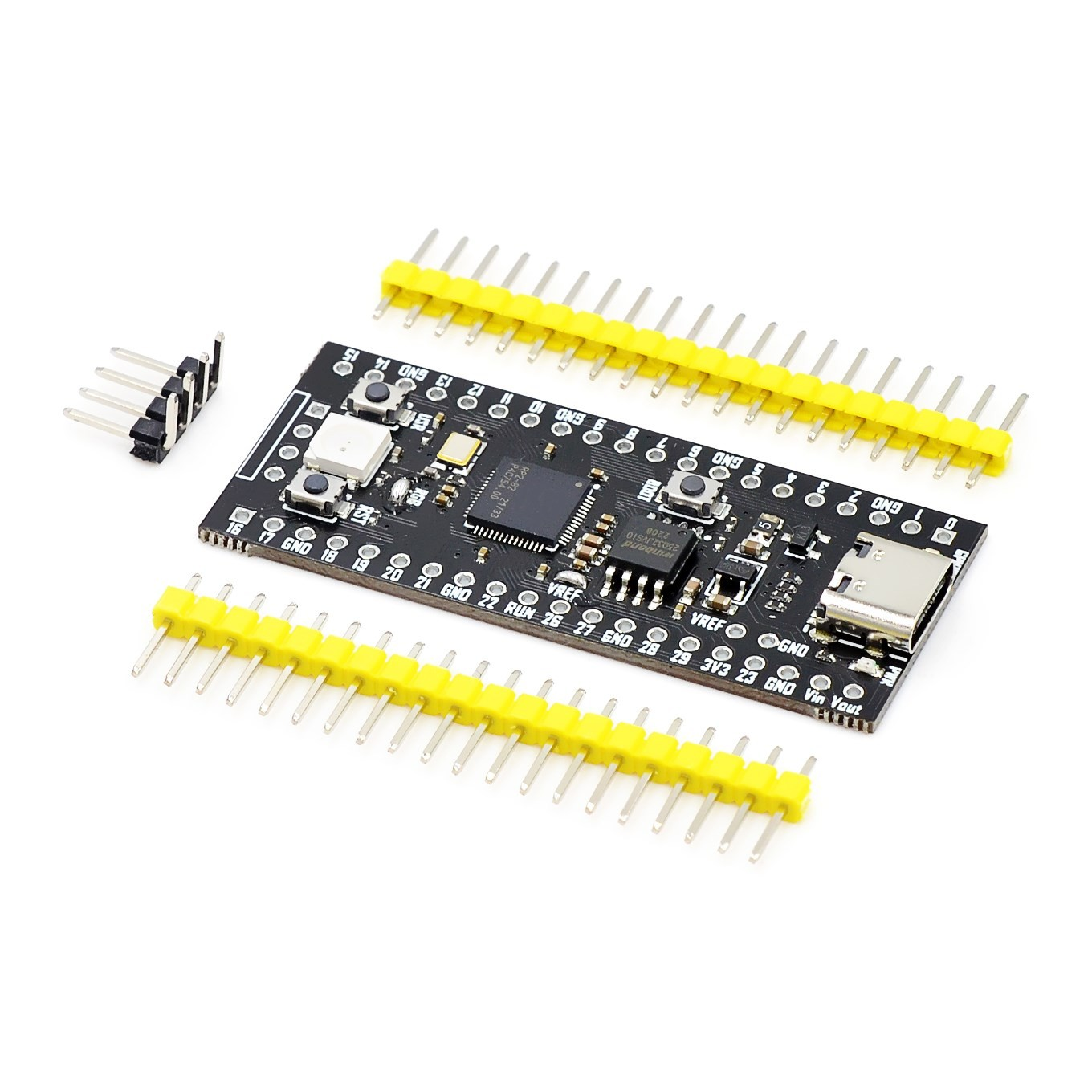
- 🌿如果使用的是YD2040的板子可以选择:
pimoroni型号flash容量分:4MB、8MB、16MB


- ⛳固件选择说明

- 🎄由于没有中文提示的,只有拼音

- 烧录方法
在插入usb到电脑前先按住boot按键,在连接到电脑上,电脑上会显示一个虚拟出来的120MB容量的U盘,然后将下载下来的.uf2文件拷贝到虚拟的U盘当中即可实现固件的烧录。
🧧库下载和导入
- 🎉在
Thonny工具栏上当中-工具-管理插件,搜索adafruit_hid


- 找到下载路径:
C:\Users\Administrator\AppData\Roaming\Thonny\plugins\Python310\site-packages
将
adafruit_hid文件夹拷贝到Pi Pico RP2040设备当中。
-
🎯先将此文件夹拷贝到桌面或其他自己能找到的地方,通过
Thonny定位到文件夹,选中,右键上传到/(注意需要将设备退出U盘模式,不然上传会出错)


-
🌿如果没有将文件菜单勾选的:

-
🌿直接拷贝方法:当
RP2040插入到电脑上默认是有一个盘符的,不像Micropython ESP32

-
📗文件结构

📝Pico_RP2040 Mech Keyboard 示例代码
- 📍示例地址:
https://github.com/adafruit/Adafruit_Learning_System_Guides/tree/main/Pico_RP2040_Mech_Keyboard - 🎆引脚注意:
GP15不要被使用,它被内部USB外设使用,具体说明:https://github.com/adafruit/circuitpython/issues/4034
🎈 在源代码上添加了按键调试串口输出,方便查阅。
# SPDX-FileCopyrightText: 2021 John Park for Adafruit Industries # SPDX-License-Identifier: MIT # RaspberryPi Pico RP2040 Mechanical Keyboard import time import board from digitalio import DigitalInOut, Direction, Pull import usb_hid from adafruit_hid.keyboard import Keyboard from adafruit_hid.keycode import Keycode from adafruit_hid.consumer_control import ConsumerControl from adafruit_hid.consumer_control_code import ConsumerControlCode print("---Pico Pad Keyboard---") led = DigitalInOut(board.LED) led.direction = Direction.OUTPUT led.value = True kbd = Keyboard(usb_hid.devices) cc = ConsumerControl(usb_hid.devices) # list of pins to use (skipping GP15 on Pico because it's funky) pins = ( board.GP0, board.GP1, board.GP2, board.GP3, board.GP4, board.GP5, board.GP6, board.GP7, board.GP8, board.GP9, board.GP10, board.GP11, board.GP12, board.GP13, board.GP14, board.GP16, board.GP17, board.GP18, board.GP19, board.GP20, board.GP21, ) MEDIA = 1 KEY = 2 keymap = { (0): (KEY, (Keycode.GUI, Keycode.C)),# win + C (1): (KEY, (Keycode.GUI, Keycode.V)),# win +V (2): (KEY, [Keycode.THREE]), (3): (KEY, [Keycode.FOUR]), (4): (KEY, [Keycode.FIVE]), (5): (MEDIA, ConsumerControlCode.VOLUME_DECREMENT), (6): (MEDIA, ConsumerControlCode.VOLUME_INCREMENT), (7): (KEY, [Keycode.R]), (8): (KEY, [Keycode.G]), (9): (KEY, [Keycode.B]), (10): (KEY, [Keycode.UP_ARROW]), (11): (KEY, [Keycode.X]), # plus key (12): (KEY, [Keycode.Y]), (13): (KEY, [Keycode.Z]), (14): (KEY, [Keycode.I]), (15): (KEY, [Keycode.O]), (16): (KEY, [Keycode.LEFT_ARROW]), (17): (KEY, [Keycode.DOWN_ARROW]), (18): (KEY, [Keycode.RIGHT_ARROW]), (19): (KEY, [Keycode.ALT]), (20): (KEY, [Keycode.U]), } switches = [] for i in range(len(pins)): switch = DigitalInOut(pins[i]) switch.direction = Direction.INPUT switch.pull = Pull.UP switches.append(switch) switch_state = [0, 0, 0, 0, 0, 0, 0, 0, 0, 0, 0, 0, 0, 0, 0, 0, 0, 0, 0, 0, 0] while True: for button in range(21): if switch_state[button] == 0: if not switches[button].value: try: if keymap[button][0] == KEY: kbd.press(*keymap[button][1]) print(keymap[button][1]) else: cc.send(keymap[button][1]) print(keymap[button][1]) except ValueError: # deals w six key limit pass switch_state[button] = 1 if switch_state[button] == 1: if switches[button].value: try: if keymap[button][0] == KEY: kbd.release(*keymap[button][1]) except ValueError: pass switch_state[button] = 0 time.sleep(0.01) # debounce- 1
- 2
- 3
- 4
- 5
- 6
- 7
- 8
- 9
- 10
- 11
- 12
- 13
- 14
- 15
- 16
- 17
- 18
- 19
- 20
- 21
- 22
- 23
- 24
- 25
- 26
- 27
- 28
- 29
- 30
- 31
- 32
- 33
- 34
- 35
- 36
- 37
- 38
- 39
- 40
- 41
- 42
- 43
- 44
- 45
- 46
- 47
- 48
- 49
- 50
- 51
- 52
- 53
- 54
- 55
- 56
- 57
- 58
- 59
- 60
- 61
- 62
- 63
- 64
- 65
- 66
- 67
- 68
- 69
- 70
- 71
- 72
- 73
- 74
- 75
- 76
- 77
- 78
- 79
- 80
- 81
- 82
- 83
- 84
- 85
- 86
- 87
- 88
- 89
- 90
- 91
- 92
- 93
- 94
- 95
- 96
- 97
- 98
- 99
- 100
- 101
- 102
- 103
- 104
- 105
- 106
- 107
- 108
- 109
- 110
- 111
- 112
- 113
- 114
- 115
- ✨本示例基于
-
相关阅读:
GIS技巧之一键下载城市路网数据
gici-open示例数据运行(1.1开阔环境数据运行)
【LVGL】ANIM(动画)学习
linux __ctype_b_loc
日常渗透刷洞的一些小工具
强化学习——PyTorch 实现 Advantage Actor-Critic (A2C)
unity使用UniStorm 5.1.0.unitypackage增加天气
好心情精神心理科医生:青春期孩子的心理特征
CPU上下文切换
Linux从入门到精通(十一)——计划任务
- 原文地址:https://blog.csdn.net/weixin_42880082/article/details/126632432
- 最新文章
-
沪漂五周年了:我越来越迷茫了
Agentic Skill Routing 实战:别再把所有 Skill 塞进 AI Agent 上下文
MySQL-Seconds_behind_master的精度误差
[MAF预定义ChatClient中间件-03]CachingChatClient——利用缓存省钱省时间
AI的至暗历史:从万众期待到被政府撤资,AI的两次死亡徘徊
Agent OS :五种驯服不确定性的范式
PortSwigger SQL注入LAB11
数据库即时编译JIT
[Begin]AI Learn Data Day 0
深度学习进阶(二十七)现代 LLM 的核心架构设计其二:SwiGLU