-
vue项目中常见的三种文件类型在线预览实现(pdf/word/excel表格)
参考文章
一丶 word 文件预览
1. 安装依赖
npm i docx-preview@0.1.4
npm i jszip2.预览在线地址文件
<template> <div class="home"> <div ref="file"></div> </div> </template> <script> import axios from 'axios' const docx = require('docx-preview'); window.JSZip = require('jszip') export default { mounted(){ axios({ method: 'get', responseType: 'blob', // 设置响应文件格式 url: '/docx', }).then(({data}) => { docx.renderAsync(data,this.$refs.file) // 渲染到页面预览 }) } } </script>- 1
- 2
- 3
- 4
- 5
- 6
- 7
- 8
- 9
- 10
- 11
- 12
- 13
- 14
- 15
- 16
- 17
- 18
- 19
- 20
- 21
- 22
3.预览本地文件
<template> <div class="my-component" ref="preview"> <input type="file" @change="preview" ref="file"> </div> </template> <script> const docx = require('docx-preview'); window.JSZip = require('jszip') export default { methods:{ preview(e){ docx.renderAsync(this.$refs.file.files[0],this.$refs.preview) // 渲染到页面预览 } } }; </script> <style lang="less" scoped> .my-component{ width: 100%; height: 90vh; border: 1px solid #000; } </style>- 1
- 2
- 3
- 4
- 5
- 6
- 7
- 8
- 9
- 10
- 11
- 12
- 13
- 14
- 15
- 16
- 17
- 18
- 19
- 20
- 21
- 22
- 23
二丶 excel 文件预览
1. 安装依赖
npm i xlsx
2.预览在线地址文件
<template> <div class="home"> <div v-html="tableau"></div> </div> </template> <script> import axios from 'axios' import XLSX from "xlsx"; export default { data(){ return { tableau: null, } }, mounted(){ axios.get('/xlsx',{ responseType: "arraybuffer", // 设置响应体类型为arraybuffer }).then(({data})=> { let workbook = XLSX.read(new Uint8Array(data), {type:"array"}); // 解析数据 var worksheet = workbook.Sheets[workbook.SheetNames[0]]; // workbook.SheetNames 下存的是该文件每个工作表名字,这里取出第一个工作表 this.tableau = XLSX.utils.sheet_to_html(worksheet); // 渲染 }) } } </script>- 1
- 2
- 3
- 4
- 5
- 6
- 7
- 8
- 9
- 10
- 11
- 12
- 13
- 14
- 15
- 16
- 17
- 18
- 19
- 20
- 21
- 22
- 23
- 24
- 25
- 26
二丶 pdf 文件预览
1. 安装vue-pdf
npm install --save vue-pdf
2.在需要的页面注册
<script> import PDF from 'vue-pdf' export default { components:{ PDF, }, data(){ return { } } </script>- 1
- 2
- 3
- 4
- 5
- 6
- 7
- 8
- 9
- 10
- 11
- 12
3. 使用
<!-- 预览PDF --> <el-dialog v-dialogDrag :visible.sync="previewDialog"> <template> <div> <div class="tools"> <el-button :theme="'default'" type="submit" :title="'上一页'" @click.stop="prePage" class="mr10"> 上一页</el-button> <el-button :theme="'default'" type="submit" :title="'下一页'" @click.stop="nextPage" class="mr10"> 下一页</el-button> <div class="page">{{pageNum}}/{{pageTotalNum}} </div> <el-button :theme="'default'" type="submit" :title="'顺时针旋转'" @click.stop="clock" class="mr10"> 顺时针旋转</el-button> <el-button :theme="'default'" type="submit" :title="'逆时针旋转'" @click.stop="counterClock" class="mr10"> 逆时针旋转</el-button> <el-button :theme="'default'" type="submit" :title="'打印'" @click.stop="pdfPrintAll" class="mr10"> 打印</el-button> </div> <pdf ref="pdf" :src="url" :page="pageNum" :rotate="pageRotate" @progress="loadedRatio = $event" @page-loaded="pageLoaded($event)" @num-pages="pageTotalNum=$event" @error="pdfError($event)" @link-clicked="page = $event"></pdf> </div> </template> </el-dialog> <script> import PDF from 'vue-pdf' export default { components:{ PDF, }, data(){ return { previewDialog:false, url: "http://storage.xuetangx.com/public_assets/xuetangx/PDF/PlayerAPI_v1.0.6.pdf", pageNum: 1, pageTotalNum: 1, pageRotate: 0, // 加载进度 loadedRatio: 0, curPageNum: 0, }, methods:{ /** * 预览PDF */ previewPDF(row,index) { this.previewDialog = true; console.log("", row,index); }, // 上一页函数, prePage() { var page = this.pageNum page = page > 1 ? page - 1 : this.pageTotalNum this.pageNum = page }, // 下一页函数 nextPage() { var page = this.pageNum page = page < this.pageTotalNum ? page + 1 : 1 this.pageNum = page }, // 页面顺时针翻转90度。 clock() { this.pageRotate += 90 }, // 页面逆时针翻转90度。 counterClock() { this.pageRotate -= 90 }, // 页面加载回调函数,其中e为当前页数 pageLoaded(e) { this.curPageNum = e }, // 错误时回调函数。 pdfError(error) { console.error(error) }, // 打印全部 pdfPrintAll() { /** * 打印界面字符乱码是因为你pdf中使用了自定义字体导致的,谷歌浏览器打印的时候预览界面真的变成了真·方块字 ,解决方案如下: * 用文章最后的pdfjsWrapper.js在替换掉node_modules/vue-pdf/src/pdfjsWrapper.js */ console.log("打印"); this.$refs.pdf.print() }, }, } </script>- 1
- 2
- 3
- 4
- 5
- 6
- 7
- 8
- 9
- 10
- 11
- 12
- 13
- 14
- 15
- 16
- 17
- 18
- 19
- 20
- 21
- 22
- 23
- 24
- 25
- 26
- 27
- 28
- 29
- 30
- 31
- 32
- 33
- 34
- 35
- 36
- 37
- 38
- 39
- 40
- 41
- 42
- 43
- 44
- 45
- 46
- 47
- 48
- 49
- 50
- 51
- 52
- 53
- 54
- 55
- 56
- 57
- 58
- 59
- 60
- 61
- 62
- 63
- 64
- 65
- 66
- 67
- 68
- 69
- 70
- 71
- 72
- 73
- 74
- 75
- 76
- 77
- 78
- 79
- 80
- 81
- 82
- 83
- 84
Luckysheet 进行 excel文件预览
官方在线文档
线上demo仓库(github)
线上demo仓库(gitee)
参考文章@启明星工作室
使用:引入
预览效果
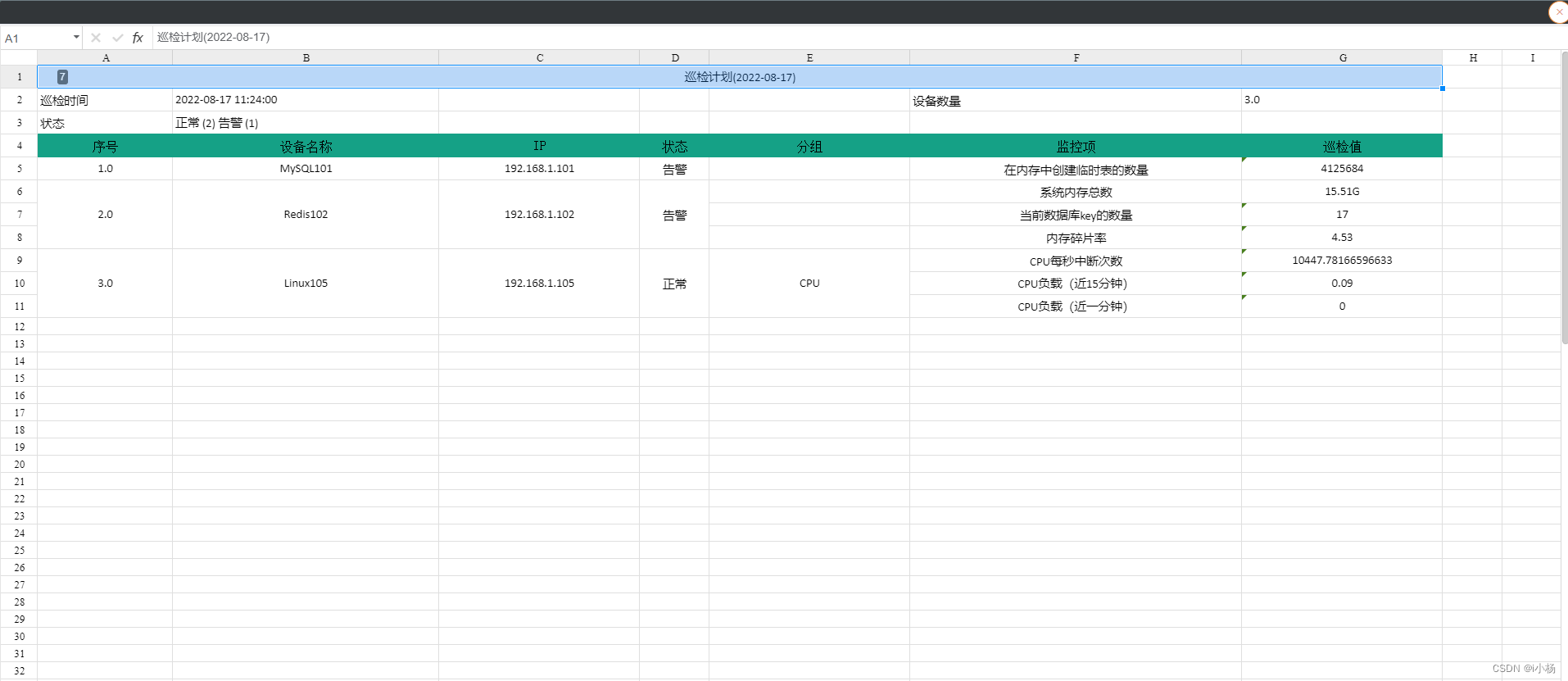
在全局入口文件index.html, 引入Luckysheet css 和外部链接
<link rel='stylesheet' href='https://cdn.jsdelivr.net/npm/luckysheet@latest/dist/plugins/css/pluginsCss.css' /> <link rel='stylesheet' href='https://cdn.jsdelivr.net/npm/luckysheet@latest/dist/plugins/plugins.css' /> <link rel='stylesheet' href='https://cdn.jsdelivr.net/npm/luckysheet@latest/dist/css/luckysheet.css' /> <link rel='stylesheet' href='https://cdn.jsdelivr.net/npm/luckysheet@latest/dist/assets/iconfont/iconfont.css' /> <script src="https://cdn.jsdelivr.net/npm/luckysheet@latest/dist/plugins/js/plugin.js"></script> <script src="https://cdn.jsdelivr.net/npm/luckysheet@latest/dist/luckysheet.umd.js"></script>- 1
- 2
- 3
- 4
- 5
- 6
安装 luckyexcel 依赖
npm i luckyexcel- 1
引入luckyexcel 并使用
html部分: <div id="luckysheet" style="margin:0px;padding:0px;position:absolute;width:100%;left: 0px;top: 30px;bottom:0px;" ></div> js部分: import LuckyExcel from 'luckyexcel' previewLuckyExcel(){ const value = this.api.BASE_FILE_PATH + '/' + this.fileUrl // 在线预览的地址 url const name = '巡检报告' if(value==""){ return; } this.isMaskShow = true; LuckyExcel.transformExcelToLuckyByUrl(value, name, (exportJson, luckysheetfile) => { if(exportJson.sheets==null || exportJson.sheets.length==0){ alert("Failed to read the content of the excel file, currently does not support xls files!"); return; } this.isMaskShow = false; window.luckysheet.destroy(); window.luckysheet.create({ container: 'luckysheet', //luckysheet is the container id showinfobar:false, showtoolbar: false, // 是否显示工具栏 data:exportJson.sheets, title:exportJson.info.name, userInfo:exportJson.info.name.creator, }); }); },- 1
- 2
- 3
- 4
- 5
- 6
- 7
- 8
- 9
- 10
- 11
- 12
- 13
- 14
- 15
- 16
- 17
- 18
- 19
- 20
- 21
- 22
- 23
- 24
- 25
- 26
- 27
- 28
- 29
- 30
- 31
- 32
- 33
- 34
- 35
- 36
- 37
报错踩坑
使用 LuckyExcel 时报 ,
chartmix is not defined
- 原因是 options 中可能配置了 plugins 属性。
解决办法:
- 把上面框选的代码删除即可。
·
注意:plugins:['chart'], 改行代码还有可能造成 项目中的 css 样式出现问题。- 解决办法同样是 删除改行代码
预览之前

预览之后
-
相关阅读:
Spring MVC的执行流程
TypeScript 介绍和开发环境搭建
Web端即时通讯技术:WebSocket、socket.io、SSE
100天精通Golang(基础入门篇)——第22天:深入探讨Go中的‘type‘关键字
SLAM学习——开启cmake的第一个项目
四大竞争对手敦促欧盟反垄断行动:阻止谷歌成为默认搜索引擎
Vulnhub靶机:HARRYPOTTER_ NAGINI
朗坤环境在创业板提交注册:前三季度收入14亿元,净利润约2亿元
MMdetection3.x个人笔记
【LeetCode: 210. 课程表 II:拓扑排序+图】
- 原文地址:https://blog.csdn.net/i_Satan/article/details/126347942


