-
微信小程序开发
一、微信小程序介绍
小程序是一种不需要下载、安装即可使用的应用,它出现了触手可及的梦想,用户扫一扫或者搜一下即开打开应用,也出现了用完即走的理念,用户不用关心安装太多应用的问题,应用随处可用,但又无须安装卸载。我当时是这样来定义什么是小程序的。
1:无需下载:我们直接使用它,所以无须安装是小程序最基础的一个特性;
2:触手可及:当我们拿着智能手机接触周边的时候,我们可以通过手机直接获得信息,就是周边的信息;
3:用完即走:对于周边要完成的任务来说我们需要的是用完即走;
4:无须卸载:小程序看起来是程序,但是它以完全不同于过去APP的形状出现,它有更灵活的应用组织形态;二、官方资料 app 各种平台的小程序都提供一个控件:web-viwe(iframe)这个控件可以包含 H5 VUE
1:工具下载地址: https://developers.weixin.qq.com/miniprogram/dev/devtools/download.html?t=2
01714 这里可以下载需要版本的小程序的IDE
2:简易教程地址: https://developers.weixin.qq.com/miniprogram/dev/ 这里可以学习先搞一个简单的
小demo
3:设计指南地址: https://developers.weixin.qq.com/miniprogram/design/index.html 这里是设计标
准,也可以自己怎么顺手怎么来
4:运营规范地址: https://developers.weixin.qq.com/miniprogram/product/index.html 在这里看到运
营的规范和禁止的事情
5:接入指南地址: https://developers.weixin.qq.com/miniprogram/introduction/index.html
6:支付文档地址:https://pay.weixin.qq.com/wiki/doc/api/wxa/wxa_api.php?chapter=7_3&index=1 需
要做支付时,look this
7:客服消息地址:https://developers.weixin.qq.com/miniprogram/introduction/custom.html?t=2016
1221
8:特殊行业所需资质材料:https://developers.weixin.qq.com/miniprogram/product/material.html?t=
201714
9:数据分析地址:https://developers.weixin.qq.com/miniprogram/analysis/index.html?t=201714三、小程序开发准备工作
1.首先打开 https://mp.weixin.qq.com/ 微信公众平台的官网

2.点击立即注册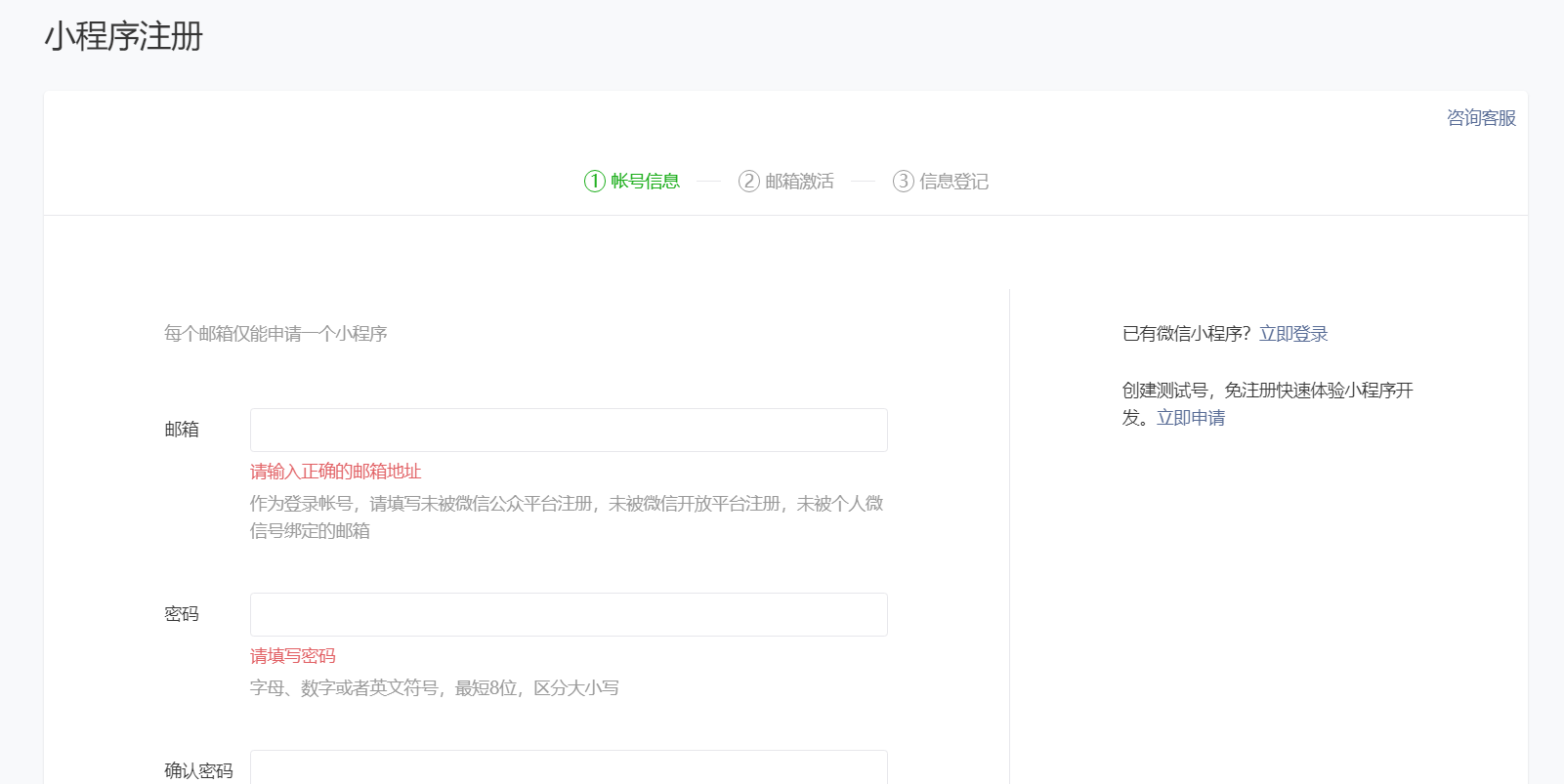
3.选择小程序账号的申请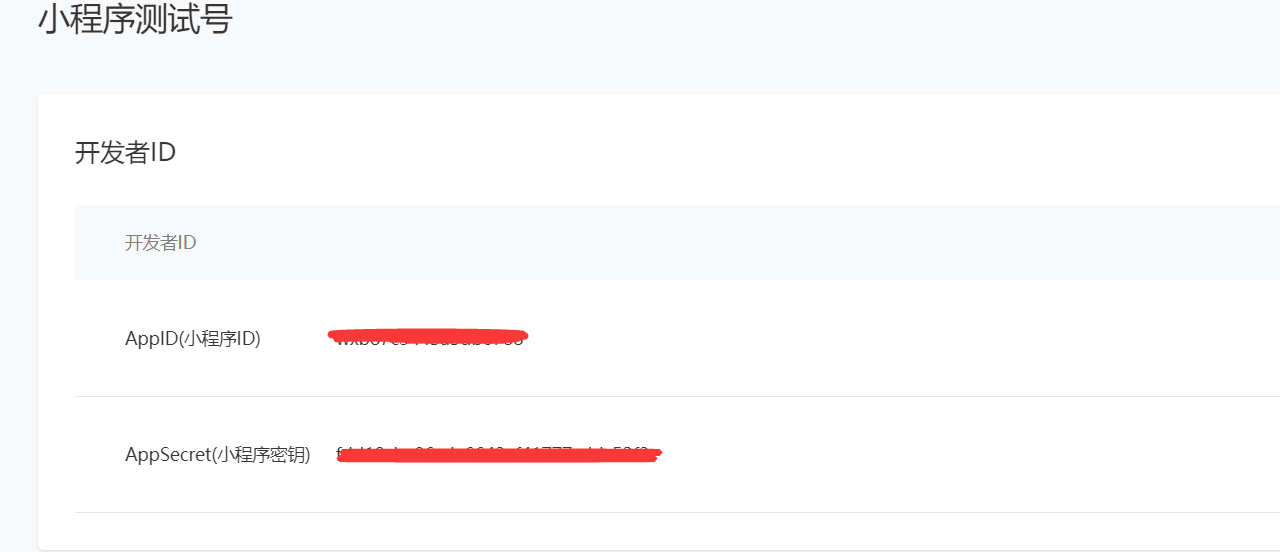
4.填写注册账号的一个信息(注册邮箱时候要注意:不可以是之前在微信公众平台注册过的,也不可以是我们个人微信号绑定过的一个邮箱)
5.邮箱激活(登录邮箱查看激活邮件,去激活邮件去点击链接)
6.然后去微信小程序主体登记(根据个人情况登记就好)
7.去微信小程序管理平台进行一些个人设置(填写小程序信息)四、开发工具介绍
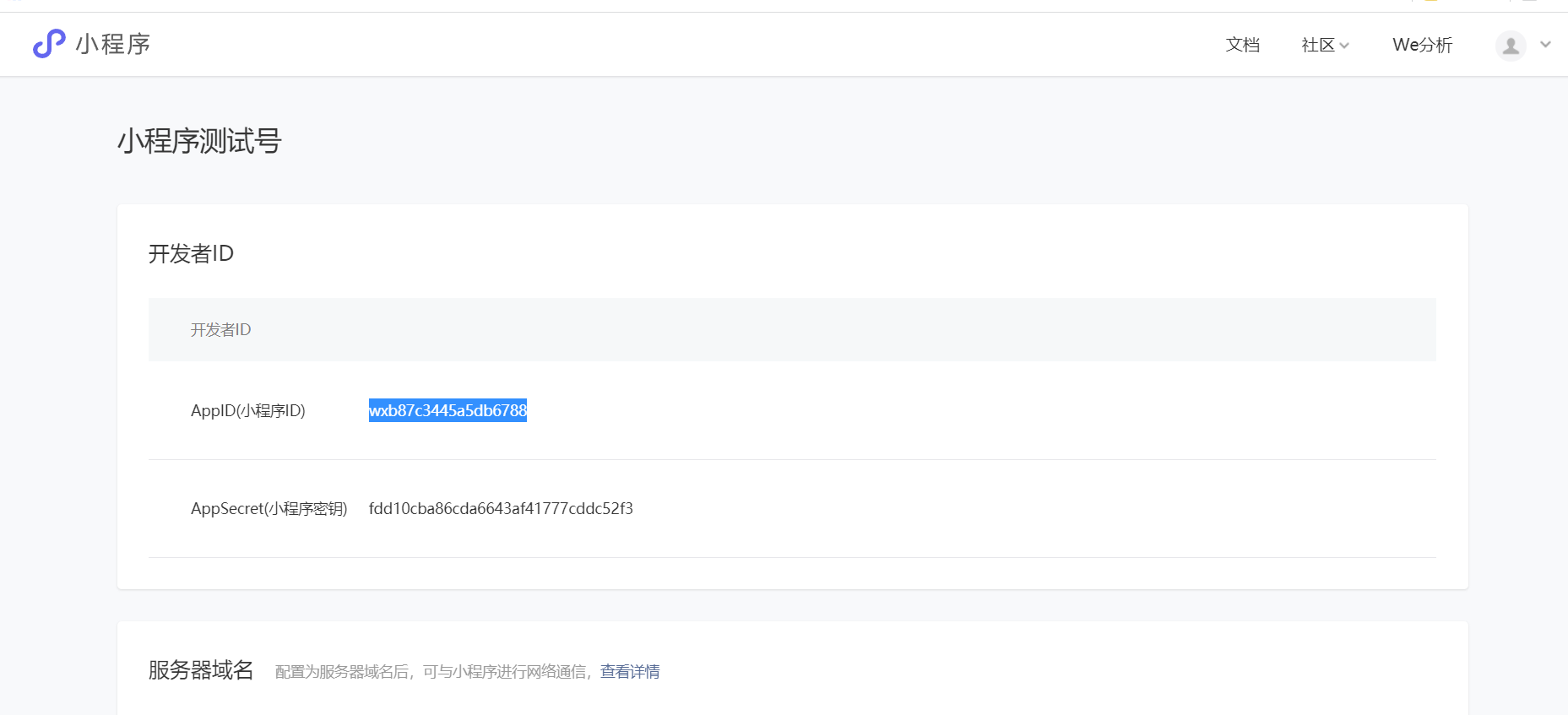
2.1 申请小程序的appID

2.2 开发工具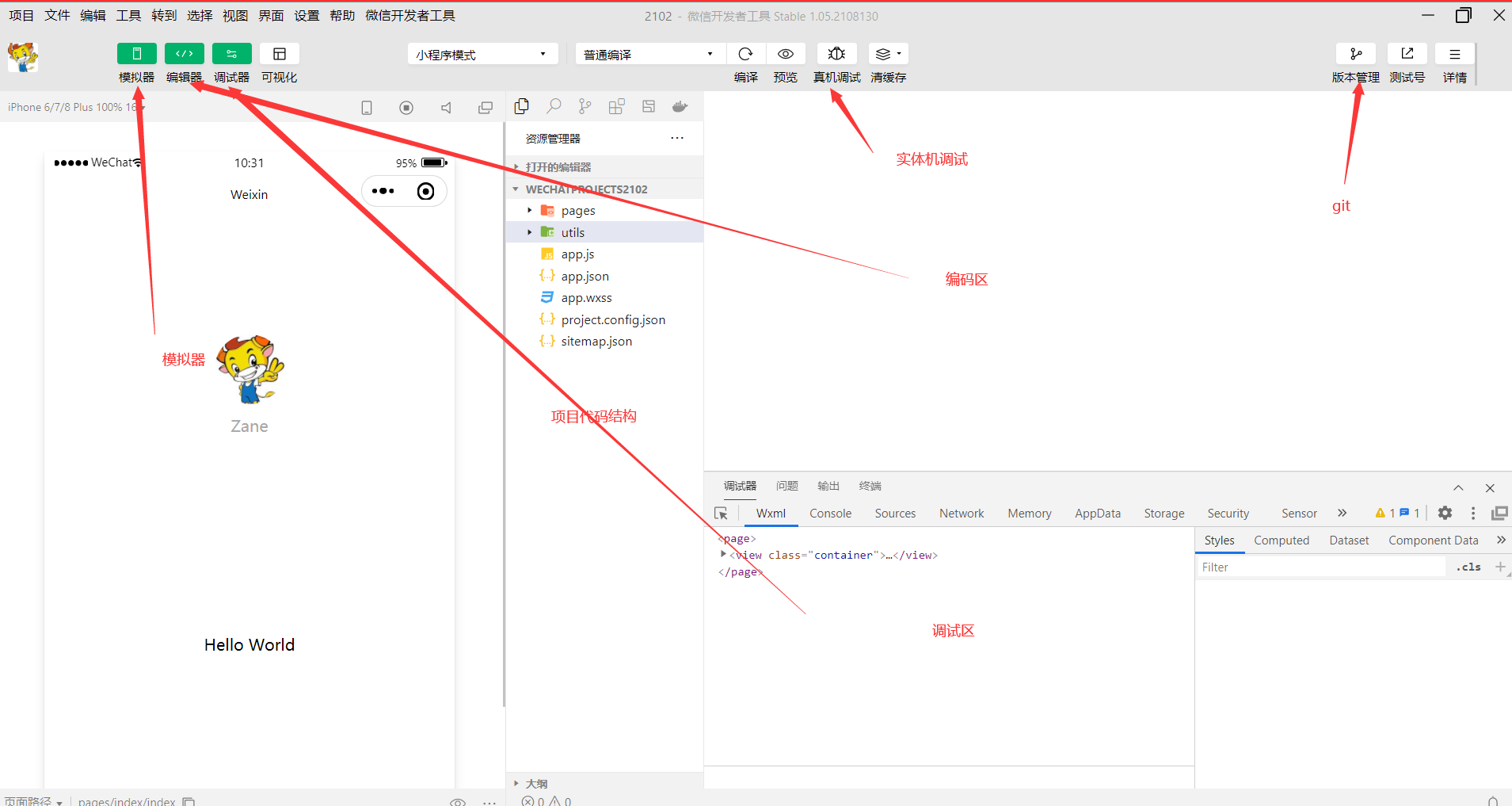
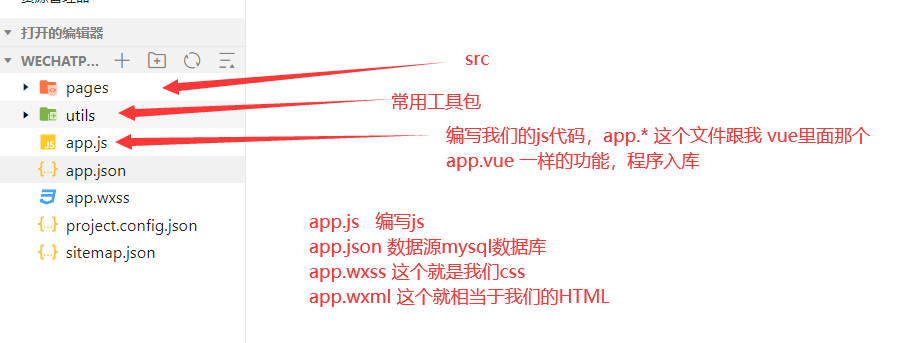
2.3 小程序的项目结构
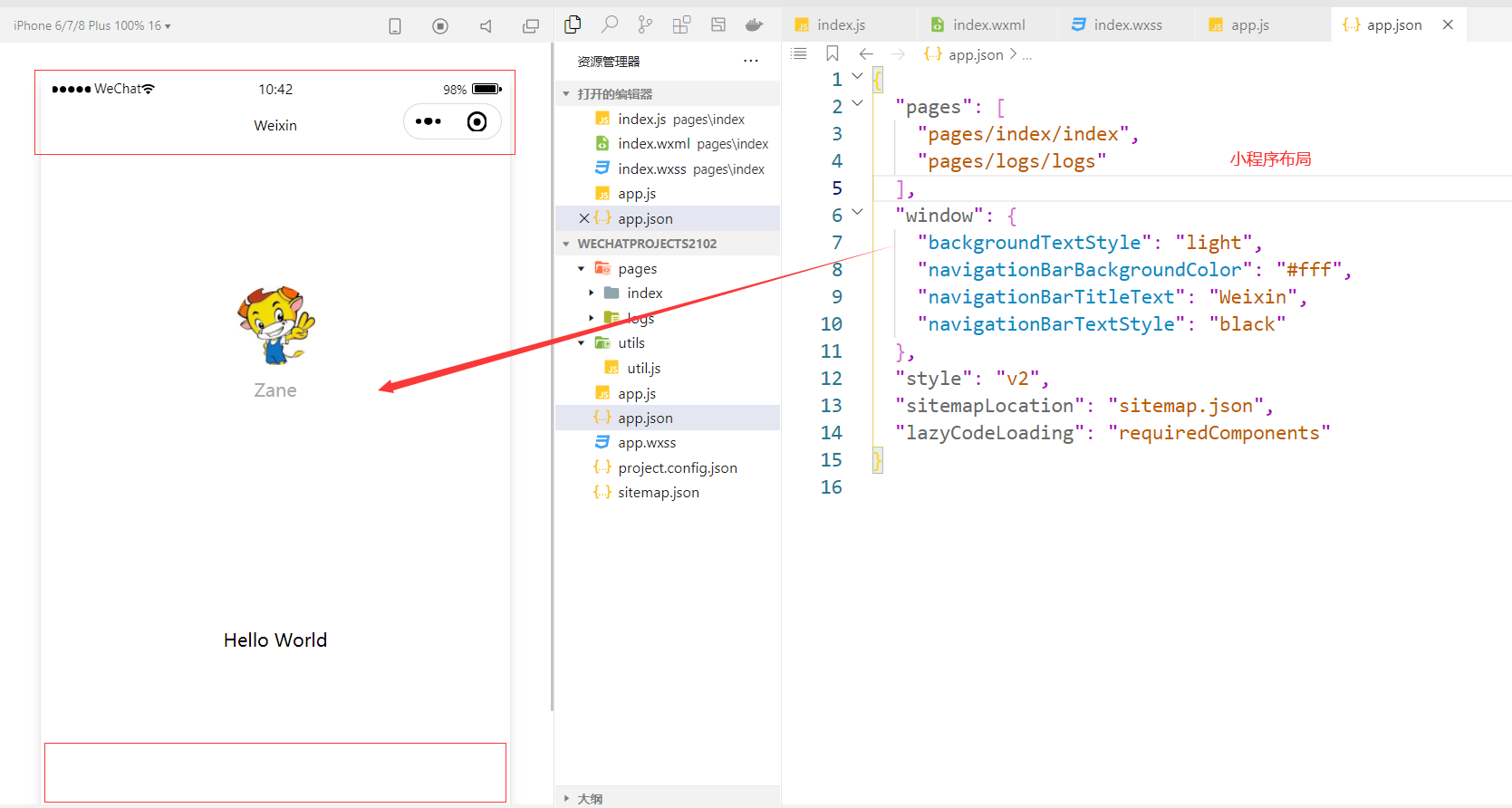
2.4 小程序布局
五 项目开发
3.1 布局
我所有pages的模块都需要注册,默认加载的是该列表中的第一个配置:pages/index/index(主页)"pages":[ "pages/index/index", "pages/userinfo/userinfo", "pages/logs/logs" ],- 1
- 2
- 3
- 4
- 5
"tabBar": { "color": "#707070", "selectedColor": "#fa8582", "backgroundColor": "#ffffff", "borderStyle":"black", "list": [{ "pagePath": "pages/index/index", "text": "首页", "iconPath":"images/首页-3 (1).png", "selectedIconPath": "images/首页-3.png" }, { "pagePath": "pages/index/index", "text": "技师", "iconPath":"images/美容 (1).png", "selectedIconPath": "images/美容.png" }, { "pagePath": "pages/index/index", "text": "我的", "iconPath":"images/我的2 (1).png", "selectedIconPath": "images/我的2.png" }] }- 1
- 2
- 3
- 4
- 5
- 6
- 7
- 8
- 9
- 10
- 11
- 12
- 13
- 14
- 15
- 16
- 17
- 18
- 19
- 20
- 21
- 22
3.2主页编写
<!--index.wxml--> <view class="container1"> <view class="swiper"> <swiper class="lb" indicator-dots="true" autoplay="true" interval="3000" duration="200"> <block wx:for="{{data_img}}" wx:key="*this"> <swiper-item> <image class="swiper-item" src="{{item}}"></image> </swiper-item> </block> </swiper> </view> <view class="nav_top"> <block wx:for="{{data_nav_tab}}" wx:key="{{item.id}}"> <view class="nav_top_item {{curNavId==item.id?'active_'+colors[index]:'active'}}" data-index="{{item.id-1}}" data-id="{{item.id}}" bindtap="switchTab"> <image class="nav_image" src="{{item.icon}}" mode="aspectFill"></image> <text>{{item.title}}</text> </view> </block> </view> <view class="nav_section"> <view wx:if="{{list[curIndex]}}"> <block wx:for="{{list[curIndex]}}" wx:key="{{item.id}}"> <view class="nav_section_items"> <!--图片--> <view class="section_image" data_id="{{item.id}}" bindtap="navgetDetall"> <block wx:if="{{item.coverpath}}"> <image src="{{item.coverpath}}" mode="aspectFill"></image> </block> <block wx:else> <image src="../../images/default_pic.png" mode="aspectFill"></image> </block> </view> <!--文字--> <view class="section_content" data-id="{{item.id}}" bindtap="navgetDetall"> <view class="section_content_sub"><text>{{item.subject}}</text></view> <view class="section_content_price">{{item.price}}</view> <view>描述:{{item.message}}</view> <!--预约按钮--> <view class="section_book" bindtap="booTap" data-id="{{item.id}}"> <text>预约</text> </view> </view> </view> </block> </view> </view> </view>- 1
- 2
- 3
- 4
- 5
- 6
- 7
- 8
- 9
- 10
- 11
- 12
- 13
- 14
- 15
- 16
- 17
- 18
- 19
- 20
- 21
- 22
- 23
- 24
- 25
- 26
- 27
- 28
- 29
- 30
- 31
- 32
- 33
- 34
- 35
- 36
- 37
- 38
- 39
- 40
- 41
- 42
- 43
- 44
- 45
- 46
- 47
- 48
- 49
- 50
- 51
- 52
- 53
2、JavaScript脚本
// index.js // 获取应用实例 const app = getApp() var data2 = require('../../utils/data.js') Page({ data: { data_img: [],//data2.getImagesArr(), data_nav_tab: [],//data2.getNavData(), curNavId: 1, curIndex: 0, colors: ["red","orange","yellow","green"], navSection: data2.getNacSection() }, bindViewTap:function() { wx.navigateTo({ url:'../logs/logs' }) }, onLoad: function() { //重新在data内创建新的属性 let that = this; console.log(this.data.navSection) this.setData({ list:this.data.navSection }), wx.login({ success:resp =>{ let code = resp.code console.log("这是小程序的:"+code) } }), data2.getData('http://localhost:9011/web/type/v1/findByType/lb').then(function(res){ console.log("这是轮播图片数据") console.log(res) var lbArrImg = [] if(res.code == 200){ let lbList = res.data console.log("这是轮播图片数据2") console.log(lbList) lbArrImg = new Array() for(var i = 0;i<lbList.length;i++){ lbArrImg.push("http://localhost:9011"+lbList[i].fileUrl) } console.log("组装新的图片数组") console.log(lbArrImg) } that.setData({ data_img : lbArrImg }) }), data2.getData('http://localhost:9011/web/type/v1/findByType/fz').then(function(res){ var zfArrImg = [] if(res.code == 200){ let zfList = res.data for(var i = 0;i<zfList.length;i++){ //var subArr = []; var map = {} map["id"]=parseInt(zfList[i].code) map["icon"]="http://localhost:9011"+zfList[i].fileUrl map["title"]=zfList[i].name //subArr.push(map) zfArrImg.push(map) } console.log("组装新的这是分组图片数据") console.log(zfArrImg) } that.setData({ data_nav_tab : zfArrImg }) }) }, switchTab: function(e){ let id = parseInt(e.currentTarget.dataset.id) ; let index = parseInt(e.currentTarget.dataset.index); console.log(id) console.log(index) this.setData({ curNavId:id, curIndex:index }) }, //跳转详情页 navgetDetall: function(){ wx.navigateTo({ url: '../datail/datail', }) } })- 1
- 2
- 3
- 4
- 5
- 6
- 7
- 8
- 9
- 10
- 11
- 12
- 13
- 14
- 15
- 16
- 17
- 18
- 19
- 20
- 21
- 22
- 23
- 24
- 25
- 26
- 27
- 28
- 29
- 30
- 31
- 32
- 33
- 34
- 35
- 36
- 37
- 38
- 39
- 40
- 41
- 42
- 43
- 44
- 45
- 46
- 47
- 48
- 49
- 50
- 51
- 52
- 53
- 54
- 55
- 56
- 57
- 58
- 59
- 60
- 61
- 62
- 63
- 64
- 65
- 66
- 67
- 68
- 69
- 70
- 71
- 72
- 73
- 74
- 75
- 76
- 77
- 78
- 79
- 80
- 81
- 82
- 83
- 84
- 85
- 86
- 87
- 88
- 89
- 90
- 91
- 92
- 93
- 94
- 95
- 96
- 97
- 98
- 99
- 100
3、CSS样式
/**index.wxss**/ .container1{ height: 100%; display: flex; flex-direction: column; align-items: center; justify-content: space-between; box-sizing: border-box; } .swiper{ width: 100%; margin: 0rpx; } .swiper-item{ width: 100%; } .nav_top{ display:flex; flex-direction: row; justify-content: space-around; width: 100%; box-sizing: border-box; padding: 20rpx 10rpx; color: #fff; } .nav_top_item{ text-align: center; font-size: 28rpx; width: 100rpx; } .nav_top_item image{ width: 83rpx; height: 93rpx; display: inline-block; } /* .nav_top_item text{ color: #000; } */ .nav_top .active{ color: #38b337; } .nav_top .active_red{ color: #e5004f; } .nav_top .active_orange{ color: #F3A066; } .nav_top .active_yellow{ color: #fff100; } .nav_top .active_green{ color: #B1D563; } .nav_section{ width: 100%; } .nav_section_items{ display: flex; flex-direction: row; justify-content: space-between; padding: 30rpx; border-bottom: 2rpx solid #dddddd ; position: relative; } .nav_section_items .section_image{ width: 240rpx; height: 158rpx; } .nav_section_items .section_image image{ width: 100%; height: 100%; } .nav_section_items .section_content{ width: 400rpx; font-size: 26rpx; color: #a9a9a9; } .nav_section_items .section_content view{ overflow: hidden; white-space: nowrap; text-overflow: ellipsis; display: block; } .section_content_sub{ color: black; font-size: 32rpx; line-height: 60rpx; font-weight:bold; } .section_content_price{ color:crimson; line-height: 60rpx; font-size: 32rpx; font-weight:bold; } .section_book{ width: 80rpx; height: 80rpx; border-radius: 50%; background-color: crimson; color: #fff; font-size: 27rpx; font-weight: 900; text-align: center; line-height: 80rpx; position: absolute; right: 15rpx; top:40rpx; }- 1
- 2
- 3
- 4
- 5
- 6
- 7
- 8
- 9
- 10
- 11
- 12
- 13
- 14
- 15
- 16
- 17
- 18
- 19
- 20
- 21
- 22
- 23
- 24
- 25
- 26
- 27
- 28
- 29
- 30
- 31
- 32
- 33
- 34
- 35
- 36
- 37
- 38
- 39
- 40
- 41
- 42
- 43
- 44
- 45
- 46
- 47
- 48
- 49
- 50
- 51
- 52
- 53
- 54
- 55
- 56
- 57
- 58
- 59
- 60
- 61
- 62
- 63
- 64
- 65
- 66
- 67
- 68
- 69
- 70
- 71
- 72
- 73
- 74
- 75
- 76
- 77
- 78
- 79
- 80
- 81
- 82
- 83
- 84
- 85
- 86
- 87
- 88
- 89
- 90
- 91
- 92
- 93
- 94
- 95
- 96
- 97
- 98
- 99
- 100
- 101
- 102
- 103
- 104
- 105
- 106
- 107
- 108
- 109
- 110
- 111
- 112
- 113
- 114
-
相关阅读:
LeetCode 2591. 将钱分给最多的儿童
JMeter + InfluxDB2
delphi中使用CADVCL 10.0 Enterprise控件解析DXF文件生成图片保存到本地
Greenplum 查找数据目录占用最大的表
高并发下秒杀促销活动,你必须知道的9个细节
目标检测YOLO系列从入门到精通技术详解100篇-【目标检测】机器人视觉
企业应用现代化之 如何快、准、狠地进行容器化改造?
vs code
C++学习 day--21 地震监测系统实现、内存泄漏检测工具
ElementUI之MessgageBox使用
- 原文地址:https://blog.csdn.net/yc_Cabbage/article/details/126338688

- 最新文章
-
【FHE】我们如何实现同态加密推理(八):SiLU 的密文化——两条路径,和一个 8 字节的开关
SQLcl 中 c/old/new 替换变量为何失效?先定位再替换
不让模型写作文,直接从它脑子里读答案:Jev 决策在 .NET 的两条路线
Halo插件:支持GitHub的图床附件策略
电视投屏界的“一股清流”!SimpleTVCast 6.0.0-beta 抢先体验:无需TV端App,界面大换血!✨
华三VXLAN集中式网关实战指南:Spine多活网关 + 双活接入(M-LAG)
软件更好写之后口碑会更重要
大 O、大 Omega、大 Theta 的区别,O(n) 复杂度是什么意思
Java标签跳转:一个鲜为人知但却很实用的小技巧
多智能体系统论文速读