-
vue实现数字金额动态变化效果
1 前言
在某些场景中,要求我们能够动态与用户进行交互,如页面加载一个数字的时候,动态改变一个固定地数字,然后将数字展现在页面上,如当前的积分或者余额等;以达到提高与用户交互体验的效果。下面我们就在vue中使用两种方法来实现数字动态滚动效果。
2 数字动态滚动
2.1 计时器实现
先上效果:

以上效果是点击按钮加载金额,实际情况是页面加载的时候就需要。这个时候我们需要在页面加载的时候执行用该方法。以上实例用到的代码如下:
代码:<template> <div> <title-bar :title="title" @goBack="goback">title-bar> <div class="amount-box"> <label>您的余额为:label> <label>{{ amountFormatPage }}label> div> <t-button @clickhandle="changeAmount" name="计时器">t-button> div> template> <script> import TitleBar from "@/components/TitleBar"; import tButton from "@/components/TButton"; import { amountFormat } from "@/util/utils"; export default { components: { TitleBar, tButton }, data() { return { res: false, // title: "动态变化金额", amount: 0, //初始amout amoutFrame: 0, amountShow: 0 }; }, computed: { // 计算属性格式化页面金额 amountFormatPage() { return amountFormat(this.amount); } }, methods: { changeAmount() { const total = 16000; //设置初始总金额 const _this = this; let i = 0; //变化15次,每次间隔30毫秒 const amoutInterval = setInterval(() => { if (i < 15) { i++; _this.amount = (total * i) / 15; } else { clearInterval(amoutInterval); } }, 30); }, goback() { // } } }; script> <style lang="scss" scoped> .amount-box { label { display: box; } } style>- 1
- 2
- 3
- 4
- 5
- 6
- 7
- 8
- 9
- 10
- 11
- 12
- 13
- 14
- 15
- 16
- 17
- 18
- 19
- 20
- 21
- 22
- 23
- 24
- 25
- 26
- 27
- 28
- 29
- 30
- 31
- 32
- 33
- 34
- 35
- 36
- 37
- 38
- 39
- 40
- 41
- 42
- 43
- 44
- 45
- 46
- 47
- 48
- 49
- 50
- 51
- 52
- 53
- 54
- 55
- 56
- 57
- 58
- 59
- 60
- 61
- 62
- 63
除了这个效果以外,我们可以通过调节计时器的间隔时间来控制金额变化的速度;通过调节
i的大小来控制变化的次数。主要是控制这两个参数来达到我们想要的效果。2.2 动画帧实现
实现效果如下:
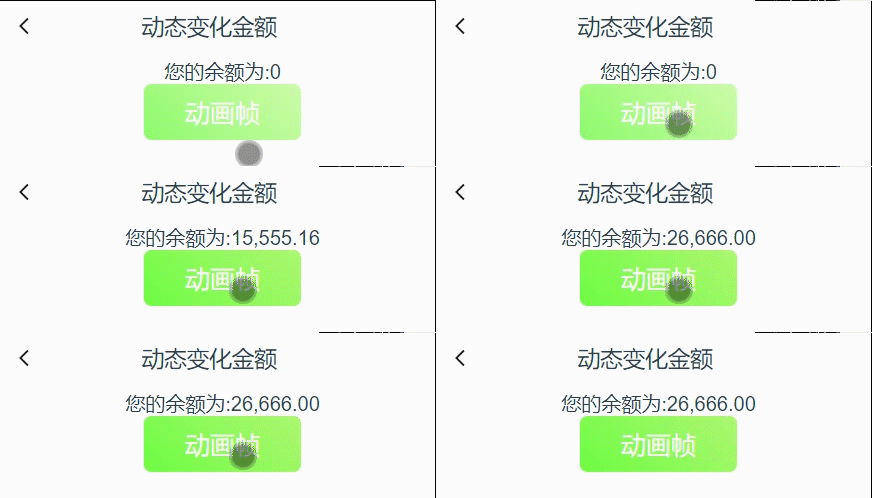
vue代码如下:
<template> <div> <title-bar :title="title" @goBack="goback">title-bar> <div> <label>您的余额为:label> <label>{{ amountShow }}label> div> <t-button @clickhandle="changeAmountFrame" name="动画帧">t-button> div> template> <script> import TitleBar from "@/components/TitleBar"; import tButton from "@/components/TButton"; import { amountFormat } from "@/util/utils"; export default { components: { TitleBar, tButton }, data() { return { res: false, // title: "动态变化金额", amount: 0, //初始amout amoutFrame: 0, amountShow: 0 }; }, methods: { changeAmountFrame() { const total = 26666; const frameNum = 60; const _this = this; let animation = window.requestAnimationFrame(function f() { if (_this.amoutFrame < total) { _this.amoutFrame = _this.amoutFrame + total / frameNum; // 动画继续 animation = window.requestAnimationFrame(f); } else { _this.amoutFrame = total; // 动画停止 window.cancelAnimationFrame(f); } _this.amountShow = amountFormat(_this.amoutFrame); }); }, goback() { // } } }; script> <style lang="scss" scoped> .amount-box { label { display: box; } } style>- 1
- 2
- 3
- 4
- 5
- 6
- 7
- 8
- 9
- 10
- 11
- 12
- 13
- 14
- 15
- 16
- 17
- 18
- 19
- 20
- 21
- 22
- 23
- 24
- 25
- 26
- 27
- 28
- 29
- 30
- 31
- 32
- 33
- 34
- 35
- 36
- 37
- 38
- 39
- 40
- 41
- 42
- 43
- 44
- 45
- 46
- 47
- 48
- 49
- 50
- 51
- 52
- 53
- 54
- 55
- 56
- 57
- 58
- 59
- 60
window.requestAnimationFrame()是执行动画帧的关键方法,对应window.cancelAnimationFrame()是停止动画帧的方法。其中动画帧的价格时间一把为16ms,同上,通过调节framenum参数来控制一共播放多少帧,来达到我们想要的效果。3 总结
本次用两种方法实现金额数字等动态变化,偏向应用领域,若想了解即使器和动画帧的更深层次原理,请一部专业网站或者动手舱室一下。
-
相关阅读:
《c++ Primer Plus 第6版》读书笔记(4)
“第四十五天” 数据结构基本概念
Git常用命令用法
vs2019配置opencv,解决报错“无法打开源opencv2/opencv.hpp”
布谷鸟搜索算法的改进及其在优化问题中的应用(Matlab代码实现)
Java泛型进阶学习
037、目标检测-算法速览
ansible问题排查
HDFS的启动流程和HA
有没有简单好用的换天空背景软件推荐?
- 原文地址:https://blog.csdn.net/m0_46309087/article/details/126333785
