-
docker-compose + elasticsearch7.6(配置密码及证书) + kibana7.6 + elasticsearch-head搭建集群
目录
描述
最近研究了一下docker-compose发布elasticsearch7.6,虽然网上有一些教程,但是根据教程操作,最后根本跑不起来或者有三个节点的集群,配置密码后只有一个节点是活的,其他节点无法跟这个节点通信。踩了不少坑,最后还是看官方文档学习。
ES官网docker配置文档
ES官网证书配置文档
如果您只是简单的玩一玩,不需要配置证书、密码,只需参照ES官网docker配置文档即可制作自定义elasticsearch7.6镜像
ES_Dockerfile配置,包含了ik分词器、生成证书。
ik分词器下载地址
ik下载之后是zip包,需要将zip解压后,压缩成tar.gz格式的#官方镜像 FROM elasticsearch:7.6.2 USER root ##添加ik分词器 ADD elasticsearch-analysis-ik-7.6.2.tar.gz /usr/share/elasticsearch/plugins/ RUN mv /usr/share/elasticsearch/plugins/elasticsearch-analysis-ik-7.6.2 /usr/share/elasticsearch/plugins/ik RUN chmod 777 /usr/share/elasticsearch/plugins/ik -R #生成证书,密码可自己配置 RUN bin/elasticsearch-certutil ca --out config/elastic-stack-ca.p12 --pass 123456 #生成证书,密码可自己配置 RUN bin/elasticsearch-certutil cert --ca config/elastic-stack-ca.p12 --ca-pass 123456 --out config/elastic-certificates.p12 --pass 123456 #创建keystore RUN bin/elasticsearch-keystore create #将密码添加至keystore RUN sh -c '/bin/echo -e "123456" | sh bin/elasticsearch-keystore add xpack.security.transport.ssl.keystore.secure_password' RUN sh -c '/bin/echo -e "123456" | sh bin/elasticsearch-keystore add xpack.security.transport.ssl.truststore.secure_password' #文件赋权限 RUN chmod 777 /usr/share/elasticsearch/config/elastic-certificates.p12 RUN chmod 777 /usr/share/elasticsearch/config/elastic-stack-ca.p12- 1
- 2
- 3
- 4
- 5
- 6
- 7
- 8
- 9
- 10
- 11
- 12
- 13
- 14
- 15
- 16
- 17
- 18
- 19
- 20
- 21
- 22
- 23
- 24
- 25
构建镜像
注:centos7docker:443是我自己搭建的harbor镜像仓库,如果您没有镜像仓库您也可以使用阿里云的容器镜像服务。如果您只是在本地做测试,也可以不用镜像仓库。# docker build -t centos7docker:443/aliang-xyl/elasticsearch:7.6.2 . -f ES_DockerFile- 1
生成的镜像
[root@centos7docker elasticsearch]# docker images | grep '7.6.2' centos7docker:443/aliang-xyl/elasticsearch 7.6.2 66d1054960ee 46 minutes ago 820MB kibana 7.6.2 f70986bc5191 5 months ago 1.01GB elasticsearch 7.6.2 f29a1ee41030 5 months ago 791MB- 1
- 2
- 3
- 4
推送至镜像仓库
# docker push centos7docker:443/aliang-xyl/elasticsearch:7.6.2- 1
制作自定义elasticsearch-head镜像
如果使用原版elasticsearch-head镜像会出现无法使用的情况,报错如下:
{"error":"Content-Type header [application/x-www-form-urlencoded] is not supported","status":406}- 1
出现这种错误是因为Content-Type不支持,支持的格式是application/json;charset=UTF-8
启动elasticsearch-head容器,将容器中的/usr/src/app/_site/vendor.js拷贝出来,然后将vendor.js里面的application/x-www-form-urlencoded替换成application/json;charset=UTF-8。
ES_Head_DockerFile配置:#原版镜像 FROM mobz/elasticsearch-head:5 USER root #删除原本的vendor.js RUN rm -f /usr/src/app/_site/vendor.js #将修改后的vendor.js添加进来 ADD vendor.js /usr/src/app/_site/ RUN chmod 777 /usr/src/app/_site/vendor.js- 1
- 2
- 3
- 4
- 5
- 6
- 7
- 8
- 9
构建镜像
# docker build -t centos7docker:443/aliang-xyl/elasticsearch-head:5 . -f ES_Head_DockerFile- 1
推送镜像
# docker push centos7docker:443/aliang-xyl/elasticsearch-head:5- 1
elasticsearch.yml配置
注意证书的配置要和自定义镜像中的证书信息一致
network.host: 0.0.0.0 #master节点es01 cluster.initial_master_nodes: ["es01"] discovery.seed_hosts: ["es01","es02","es03"] cluster.name: "es-docker-cluster" http.cors.enabled: true http.cors.allow-origin: "*" http.cors.allow-headers: Authorization,X-Requested-With,Content-Length,Content-Type #开启kibana监控配置,如果不开启,也可以在kibana监控界面开启 xpack.monitoring.collection.enabled: true #开启安全认证相关配置 xpack.security.enabled: true xpack.security.transport.ssl.enabled: true xpack.security.audit.enabled: true xpack.license.self_generated.type: basic xpack.security.transport.ssl.keystore.type: PKCS12 xpack.security.transport.ssl.verification_mode: certificate #名字要和自定义镜像中的名字一致 xpack.security.transport.ssl.keystore.path: elastic-certificates.p12 xpack.security.transport.ssl.truststore.path: elastic-certificates.p12 xpack.security.transport.ssl.truststore.type: PKCS12- 1
- 2
- 3
- 4
- 5
- 6
- 7
- 8
- 9
- 10
- 11
- 12
- 13
- 14
- 15
- 16
- 17
- 18
- 19
- 20
- 21
kibana.yml配置
这里我事先定义好了账号的密码信息
server.name: kibana server.host: "0" kibana.index: ".kibana" elasticsearch.hosts: [ "http://192.168.147.129:9200" ] xpack.monitoring.ui.container.elasticsearch.enabled: true i18n.locale: zh-CN elasticsearch.username: 'kibana' elasticsearch.password: 'Es123456'- 1
- 2
- 3
- 4
- 5
- 6
- 7
- 8
docker-compose.yml配置
version: '2.2' services: es01: image: centos7docker:443/aliang-xyl/elasticsearch:7.6.2 container_name: es01 environment: - node.name=es01 - cluster.name=es-docker-cluster - discovery.seed_hosts=es02,es03 - cluster.initial_master_nodes=es01 - bootstrap.memory_lock=true - "ES_JAVA_OPTS=-Xms512m -Xmx512m" - TZ=Asia/Shanghai - node.master=true - node.data=true - http.cors.enabled=true - http.cors.allow-origin=* - http.cors.allow-headers=Authorization,X-Requested-With,Content-Length,Content-Type - xpack.security.enabled=true - xpack.security.transport.ssl.enabled=true - xpack.security.audit.enabled=true - xpack.license.self_generated.type=basic - xpack.monitoring.collection.enabled=true ulimits: memlock: soft: -1 hard: -1 volumes: - ./es01/data:/usr/share/elasticsearch/data - ./es01/logs:/usr/share/elasticsearch/logs - ./elasticsearch.yml:/usr/share/elasticsearch/config/elasticsearch.yml ports: - 9200:9200 networks: - elastic es02: image: centos7docker:443/aliang-xyl/elasticsearch:7.6.2 container_name: es02 environment: - node.name=es02 - cluster.name=es-docker-cluster - discovery.seed_hosts=es01,es03 - cluster.initial_master_nodes=es01 - bootstrap.memory_lock=true - "ES_JAVA_OPTS=-Xms512m -Xmx512m" - TZ=Asia/Shanghai - node.master=true - node.data=true - http.cors.enabled=true - http.cors.allow-origin=* - http.cors.allow-headers=Authorization,X-Requested-With,Content-Length,Content-Type - xpack.security.enabled=true - xpack.security.transport.ssl.enabled=true - xpack.security.audit.enabled=true - xpack.license.self_generated.type=basic - xpack.monitoring.collection.enabled=true ulimits: memlock: soft: -1 hard: -1 volumes: - ./es02/data:/usr/share/elasticsearch/data - ./es02/logs:/usr/share/elasticsearch/logs - ./elasticsearch.yml:/usr/share/elasticsearch/config/elasticsearch.yml ports: - 9202:9200 networks: - elastic es03: image: centos7docker:443/aliang-xyl/elasticsearch:7.6.2 container_name: es03 environment: - node.name=es03 - cluster.name=es-docker-cluster - discovery.seed_hosts=es01,es02 - cluster.initial_master_nodes=es01 - bootstrap.memory_lock=true - "ES_JAVA_OPTS=-Xms512m -Xmx512m" - TZ=Asia/Shanghai - node.master=true - node.data=true - http.cors.enabled=true - http.cors.allow-origin=* - http.cors.allow-headers=Authorization,X-Requested-With,Content-Length,Content-Type - xpack.security.enabled=true - xpack.security.transport.ssl.enabled=true - xpack.security.audit.enabled=true - xpack.license.self_generated.type=basic - xpack.monitoring.collection.enabled=true ulimits: memlock: soft: -1 hard: -1 volumes: - ./es03/data:/usr/share/elasticsearch/data - ./es03/logs:/usr/share/elasticsearch/logs - ./elasticsearch.yml:/usr/share/elasticsearch/config/elasticsearch.yml ports: - 9203:9200 networks: - elastic kibana: depends_on: - es01 image: kibana:7.6.2 container_name: kibana ports: - 5601:5601 environment: - elasticsearch.url=http://es01:9200 - elasticsearch.hosts=http://es01:9200 - i18n.locale=zh-CN - TZ=Asia/Shanghai volumes: - ./kibana.yml:/usr/share/kibana/config/kibana.yml - /etc/localtime:/etc/localtime networks: - elastic eshead: image: centos7docker:443/aliang-xyl/elasticsearch-head:5 container_name: eshead networks: - elastic ports: - 9100:9100 networks: elastic: driver: bridge- 1
- 2
- 3
- 4
- 5
- 6
- 7
- 8
- 9
- 10
- 11
- 12
- 13
- 14
- 15
- 16
- 17
- 18
- 19
- 20
- 21
- 22
- 23
- 24
- 25
- 26
- 27
- 28
- 29
- 30
- 31
- 32
- 33
- 34
- 35
- 36
- 37
- 38
- 39
- 40
- 41
- 42
- 43
- 44
- 45
- 46
- 47
- 48
- 49
- 50
- 51
- 52
- 53
- 54
- 55
- 56
- 57
- 58
- 59
- 60
- 61
- 62
- 63
- 64
- 65
- 66
- 67
- 68
- 69
- 70
- 71
- 72
- 73
- 74
- 75
- 76
- 77
- 78
- 79
- 80
- 81
- 82
- 83
- 84
- 85
- 86
- 87
- 88
- 89
- 90
- 91
- 92
- 93
- 94
- 95
- 96
- 97
- 98
- 99
- 100
- 101
- 102
- 103
- 104
- 105
- 106
- 107
- 108
- 109
- 110
- 111
- 112
- 113
- 114
- 115
- 116
- 117
- 118
- 119
- 120
- 121
- 122
- 123
- 124
- 125
- 126
- 127
- 128
- 129
- 130
- 131
- 132
- 133
启动容器
创建文件夹并给权限:
# mkdir -p es01/logs es01/data es02/logs es02/data es03/logs es03/data # chmod 777 es0* -R- 1
- 2
此时当前目录下文件:
[root@centos7docker elasticsearch]# ll 总用量 4636 -rw-r--r--. 1 root root 4063 9月 2 10:40 docker-compose.yml -rw-r--r--. 1 root root 4261000 8月 23 16:36 elasticsearch-analysis-ik-7.6.2.tar.gz -rwxrwxrwx. 1 root root 770 9月 1 21:03 elasticsearch.yml drwxrwxrwx. 4 root root 30 9月 1 14:47 es01 drwxrwxrwx. 4 root root 30 9月 1 14:47 es02 drwxrwxrwx. 4 root root 30 9月 1 14:47 es03 -rw-r--r--. 1 root root 925 9月 1 22:24 ES_DockerFile -rw-r--r--. 1 root root 162 8月 23 17:43 ES_Head_DockerFile -rwxrwxrwx. 1 root root 261 9月 1 15:21 kibana.yml -rw-r--r--. 1 root root 459899 8月 23 17:41 vendor.js- 1
- 2
- 3
- 4
- 5
- 6
- 7
- 8
- 9
- 10
- 11
- 12
启动
# docker-compose -f docker-compose.yml up -d Creating es01 ... done Creating kibana ... done Creating eshead ... Creating es03 ... Creating es01 ... Creating kibana ... [root@centos7docker elasticsearch]# docker-compose ps Name Command State Ports ---------------------------------------------------------------------------------- es01 /usr/local/bin/docker-entr ... Up 0.0.0.0:9200->9200/tcp, 9300/tcp es02 /usr/local/bin/docker-entr ... Up 0.0.0.0:9202->9200/tcp, 9300/tcp es03 /usr/local/bin/docker-entr ... Up 0.0.0.0:9203->9200/tcp, 9300/tcp eshead /bin/sh -c grunt server Up 0.0.0.0:9100->9100/tcp kibana /usr/local/bin/dumb-init - ... Up 0.0.0.0:5601->5601/tcp- 1
- 2
- 3
- 4
- 5
- 6
- 7
- 8
- 9
- 10
- 11
- 12
- 13
- 14
- 15
配置密码
进入master节点容器配置密码
[root@centos7docker elasticsearch]# docker exec -it es01 /bin/bash [root@2e2238365006 elasticsearch]# ./bin/elasticsearch-setup-passwords interactive --verbose Running with configuration path: /usr/share/elasticsearch/config Testing if bootstrap password is valid for http://172.20.0.3:9200/_security/_authenticate?pretty { "username" : "elastic", "roles" : [ "superuser" ], "full_name" : null, "email" : null, "metadata" : { "_reserved" : true }, "enabled" : true, "authentication_realm" : { "name" : "reserved", "type" : "reserved" }, "lookup_realm" : { "name" : "reserved", "type" : "reserved" } } Checking cluster health: http://172.20.0.3:9200/_cluster/health?pretty { "cluster_name" : "es-docker-cluster", "status" : "green", "timed_out" : false, "number_of_nodes" : 3, "number_of_data_nodes" : 3, "active_primary_shards" : 1, "active_shards" : 2, "relocating_shards" : 0, "initializing_shards" : 0, "unassigned_shards" : 0, "delayed_unassigned_shards" : 0, "number_of_pending_tasks" : 0, "number_of_in_flight_fetch" : 0, "task_max_waiting_in_queue_millis" : 0, "active_shards_percent_as_number" : 100.0 } Initiating the setup of passwords for reserved users elastic,apm_system,kibana,logstash_system,beats_system,remote_monitoring_user. You will be prompted to enter passwords as the process progresses. Please confirm that you would like to continue [y/N]y Enter password for [elastic]: Reenter password for [elastic]: Enter password for [apm_system]: Reenter password for [apm_system]: Enter password for [kibana]: Reenter password for [kibana]: Enter password for [logstash_system]: Reenter password for [logstash_system]: Enter password for [beats_system]: Reenter password for [beats_system]: Enter password for [remote_monitoring_user]: Reenter password for [remote_monitoring_user]: Trying user password change call http://172.20.0.3:9200/_security/user/apm_system/_password?pretty { } Changed password for user [apm_system] Trying user password change call http://172.20.0.3:9200/_security/user/kibana/_password?pretty { } Changed password for user [kibana] Trying user password change call http://172.20.0.3:9200/_security/user/logstash_system/_password?pretty { } Changed password for user [logstash_system] Trying user password change call http://172.20.0.3:9200/_security/user/beats_system/_password?pretty { } Changed password for user [beats_system] Trying user password change call http://172.20.0.3:9200/_security/user/remote_monitoring_user/_password?pretty { } Changed password for user [remote_monitoring_user] Trying user password change call http://172.20.0.3:9200/_security/user/elastic/_password?pretty { } Changed password for user [elastic]- 1
- 2
- 3
- 4
- 5
- 6
- 7
- 8
- 9
- 10
- 11
- 12
- 13
- 14
- 15
- 16
- 17
- 18
- 19
- 20
- 21
- 22
- 23
- 24
- 25
- 26
- 27
- 28
- 29
- 30
- 31
- 32
- 33
- 34
- 35
- 36
- 37
- 38
- 39
- 40
- 41
- 42
- 43
- 44
- 45
- 46
- 47
- 48
- 49
- 50
- 51
- 52
- 53
- 54
- 55
- 56
- 57
- 58
- 59
- 60
- 61
- 62
- 63
- 64
- 65
- 66
- 67
- 68
- 69
- 70
- 71
- 72
- 73
- 74
- 75
- 76
- 77
- 78
- 79
- 80
- 81
- 82
- 83
- 84
- 85
- 86
- 87
- 88
- 89
- 90
- 91
- 92
- 93
登陆 kibana 和 elasticsearch-head
浏览器访问:http://centos7docker:5601/
我的谷歌浏览器访问时,登陆成功但是无法跳转至首页,一直在登陆页。
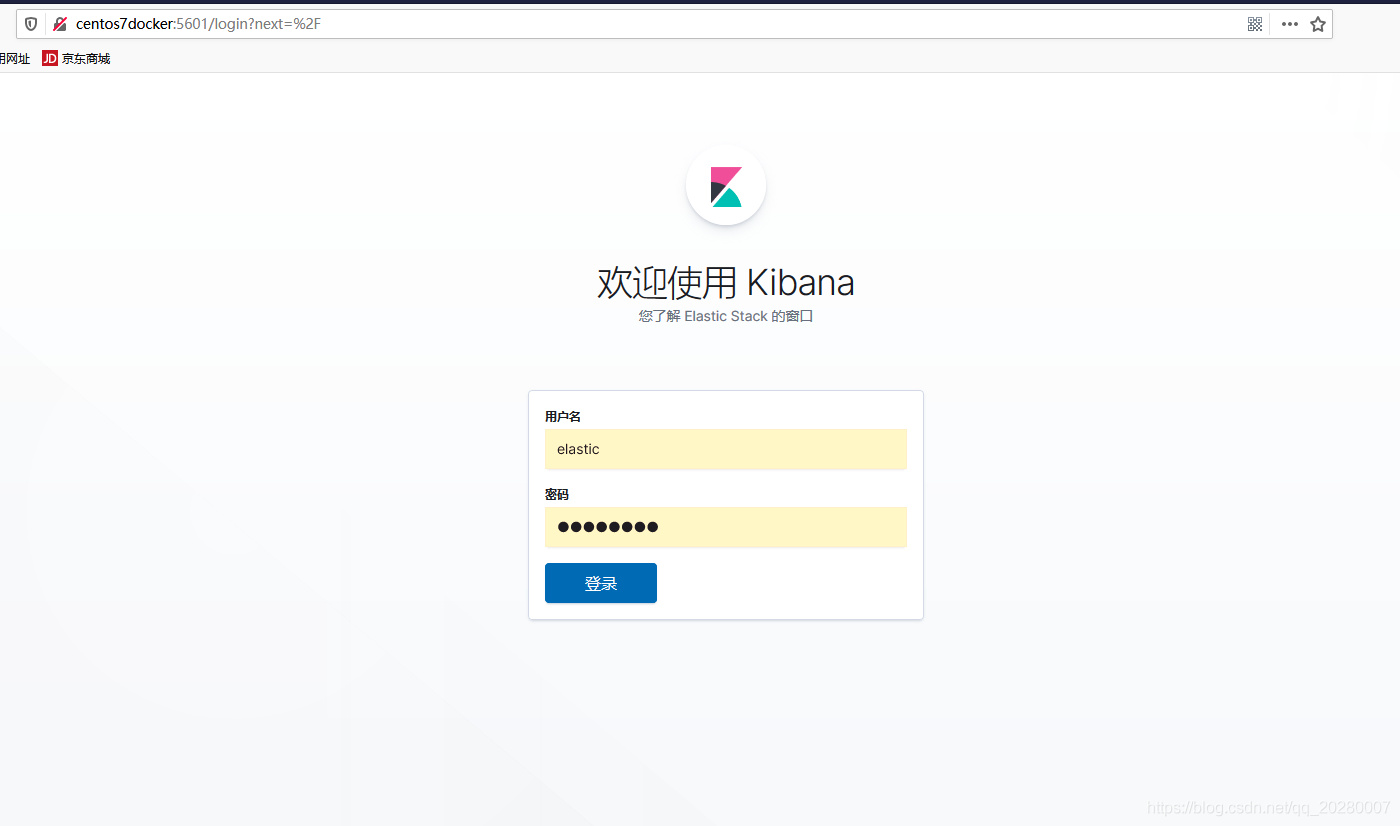
谷歌浏览器无法登陆kibana,具体原因没有去查,直接使用了火狐浏览器。

登陆成功后进入监控界面:


elasticsearch-head界面
访问http://centos7docker:9100/auth_user=elastic&auth_password=Es123456
这里的centos7docker:9100换成你自己的ip和端口号即可

-
相关阅读:
22071华清远见(上海中心)
【Flink状态管理五】Checkpoint的设计与实现
Java——》可见性
ChartMuseum的安装教程和基本配置
R基础运算
删除idea时没有删除缓存文件导致现在下载新版本idea打不开
18.Raising and Lower Indexs
Markdown使用emoji图标【美化你的文章】
Midway.js打通WebSocket前后端监听通道
kubelet gc 源码分析
- 原文地址:https://blog.csdn.net/m0_67403272/article/details/126327284
- 最新文章
-
【FHE】我们如何实现同态加密推理(八):SiLU 的密文化——两条路径,和一个 8 字节的开关
SQLcl 中 c/old/new 替换变量为何失效?先定位再替换
不让模型写作文,直接从它脑子里读答案:Jev 决策在 .NET 的两条路线
Halo插件:支持GitHub的图床附件策略
电视投屏界的“一股清流”!SimpleTVCast 6.0.0-beta 抢先体验:无需TV端App,界面大换血!✨
华三VXLAN集中式网关实战指南:Spine多活网关 + 双活接入(M-LAG)
软件更好写之后口碑会更重要
大 O、大 Omega、大 Theta 的区别,O(n) 复杂度是什么意思
Java标签跳转:一个鲜为人知但却很实用的小技巧
多智能体系统论文速读