-
Vue实战篇三十三:实现新闻的浏览历史
系列文章目录
Vue基础篇一:编写第一个Vue程序
Vue基础篇二:Vue组件的核心概念
Vue基础篇三:Vue的计算属性与侦听器
Vue基础篇四:Vue的生命周期(秒杀案例实战)
Vue基础篇五:Vue的指令
Vue基础篇六:Vue使用JSX进行动态渲染
Vue提高篇一:使用Vuex进行状态管理
Vue提高篇二:使用vue-router实现静态路由
Vue提高篇三:使用vue-router实现动态路由
Vue提高篇四:使用Element UI组件库
Vue提高篇五:使用Jest进行单元测试
Vue提高篇六: 使用Vetur+ESLint+Prettier插件提升开发效率
Vue实战篇一: 使用Vue搭建注册登录界面
Vue实战篇二: 实现邮件验证码发送
Vue实战篇三:实现用户注册
Vue实战篇四:创建多步骤表单
Vue实战篇五:实现文件上传
Vue实战篇六:表格渲染动态数据
Vue实战篇七:表单校验
Vue实战篇八:实现弹出对话框进行交互
Vue实战篇九:使用省市区级联选择插件
Vue实战篇十:响应式布局
Vue实战篇十一:父组件获取子组件数据的常规方法
Vue实战篇十二:多项选择器的实际运用
Vue实战篇十三:实战分页组件
Vue实战篇十四:前端excel组件实现数据导入
Vue实战篇十五:表格数据多选在实际项目中的技巧
Vue实战篇十六:导航菜单
Vue实战篇十七:用树型组件实现一个知识目录
Vue实战篇十八:搭建一个知识库框架
Vue实战篇十九:使用printjs打印表单
Vue实战篇二十:自定义表格合计
Vue实战篇二十一:实战Prop的双向绑定
Vue实战篇二十二:生成二维码
Vue实战篇二十三:卡片风格与列表风格的切换
Vue实战篇二十四:分页显示
Vue实战篇二十五:使用ECharts绘制疫情折线图
Vue实战篇二十六:创建动态仪表盘
Vue实战篇二十七:实现走马灯效果的商品轮播图
Vue实战篇二十八:实现一个手机版的购物车
Vue实战篇二十九:模拟一个简易留言板
Vue项目实战篇一:实现一个完整的留言板(带前后端源码下载)
Vue实战篇三十:实现一个简易版的头条新闻
Vue实战篇三十一:实现一个改进版的头条新闻
Vue实战篇三十二:实现新闻的无限加载
一、背景
- 在上一篇文章中,我们加入了新闻浏览的无限滚动功能,这次我们继续扩充功能,给webApp加入浏览历史的功能。

二、实现浏览历史功能
2.1 添加浏览历史的状态管理器

- 代码
const my = { state: { // 存储浏览历史 histroy: [], // 存储我的收藏 favourite: [] }, mutations: { SET_HISTROY: (state, histroy) => { state.histroy.unshift({ createTime: new Date(), histroy: histroy }) }, SET_FAVOURITE: (state, favourite) => { state.favourite.unshift(favourite) } }, actions: { setHistroy({ commit }, histroy) { return new Promise(resolve => { commit('SET_HISTROY', histroy) }) }, setFavourite({ commit }, favourite) { return new Promise(resolve => { commit('SET_FAVOURITE', favourite) }) } } } export default my- 1
- 2
- 3
- 4
- 5
- 6
- 7
- 8
- 9
- 10
- 11
- 12
- 13
- 14
- 15
- 16
- 17
- 18
- 19
- 20
- 21
- 22
- 23
- 24
- 25
- 26
- 27
- 28
- 29
- 30
- 31
- 32
- 33
- 34
- 35
- 36
- 37
2.2 浏览内容存储

- 代码改造
<template> <div> <div class="header"> <span /> <span>新闻span> <span /> div> <channel /> <div ref="container" class="nav-content"> <div v-if="loading == false" ref="scroll" v-infinite-scroll="load" class="news-list"> <div v-for="(item, index) in newData" :key="index" class="section" @click="toNews(index)" > <div class="news"> <div class="news-left"> <img :src="item.pic" alt=""> div> <div class="news-right"> <div class="newsTitle">{{ item.title }}div> <div class="newsMessage"> <span>{{ item.time }}span> <span>{{ item.src }}span> div> div> div> div> div> div> div> template> <script> export default { ... methods: { ... // 打开新闻阅读 toNews(index) { // 存储浏览历史 this.$store.commit('SET_HISTROY', this.newData[index]) // 打开明细 this.$store.commit('SET_NEWS_INDEX', index) this.$router.push('/news') } } } script>- 1
- 2
- 3
- 4
- 5
- 6
- 7
- 8
- 9
- 10
- 11
- 12
- 13
- 14
- 15
- 16
- 17
- 18
- 19
- 20
- 21
- 22
- 23
- 24
- 25
- 26
- 27
- 28
- 29
- 30
- 31
- 32
- 33
- 34
- 35
- 36
- 37
- 38
- 39
- 40
- 41
- 42
- 43
- 44
- 45
- 46
- 47
- 48
- 49
- 50
- 51
- 52
- 53
- 54
- 55
- 56
2.3 在我的页面中添加浏览历史
- 我们在我的页面中添加浏览历史,直接调取存储管理器的计数,进行显示。
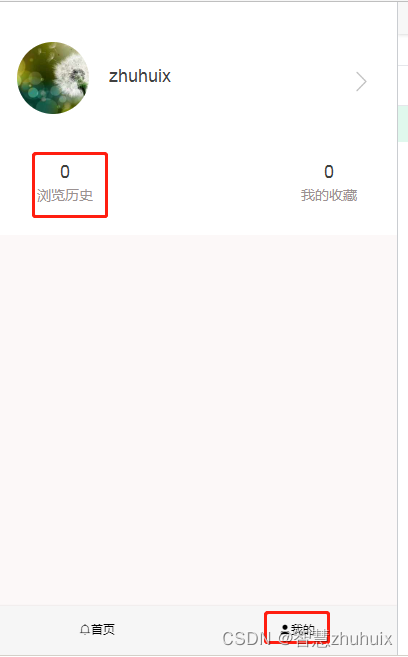
<template> <div class="content"> <div class="header"> <div class="user"> <img class="avatar" src="@/assets/images/avatar.png"> <p class="user-name">{{ 'zhuhuix' }}p> <img class="right" src="@/assets/images/right.png"> div> <div class="info"> <div class="histroy" @click="toHistroy()"> <span class="histroy-count">{{ histroryCount }}span> <span class="histroy-text">{{ '浏览历史' }}span> div> <div class="fav"> <span class="fav-count">{{ favCount }}span> <span class="fav-text">{{ '我的收藏' }}span> div> div> div> div> template> <script> export default { computed: { // 调取浏览历史存储管理器中的计数 histroryCount() { return this.$store.state.my.histroy.length }, favCount() { return this.$store.state.my.favourite.length } }, methods: { toHistroy() { if (this.histroryCount > 0) { this.$router.push('/list') } } } } script> <style lang="css" scoped> .content { width: 100%; height: 100%; background-color: rgb(252, 248, 248); } .header { width: 100%; height: 5.33rem; background-color: #fff; } .user { margin-top: 0.5rem; overflow: hidden; padding: 0.5rem; height: 2.5rem; width: 100%; } .avatar { float: left; width: 1.8rem; height: 1.8rem; border-radius: 50%; } .user-name { float: left; margin-top: 0.6rem; margin-left: 0.5rem; color: #404040; font-size: 18px; } .right { float: right; width: 0.8rem; height: 0.8rem; margin-top: 0.6rem; } .info { float: left; padding: 1rem; height: 2.5rem; width: 100%; } .histroy { display: flex; float: left; flex-direction: column; align-items: center; justify-content: center; cursor: pointer; } .histroy-count { color: #404040; font-size: 18px; } .histroy-text { margin-top: 0.1rem; color: #9b9191; font-size: 14px; } .fav { display: flex; float: right; flex-direction: column; align-items: center; justify-content: center; cursor: pointer; } .fav-count { color: #404040; font-size: 18px; } .fav-text { margin-top: 0.1rem; color: #9b9191; font-size: 14px; } style>- 1
- 2
- 3
- 4
- 5
- 6
- 7
- 8
- 9
- 10
- 11
- 12
- 13
- 14
- 15
- 16
- 17
- 18
- 19
- 20
- 21
- 22
- 23
- 24
- 25
- 26
- 27
- 28
- 29
- 30
- 31
- 32
- 33
- 34
- 35
- 36
- 37
- 38
- 39
- 40
- 41
- 42
- 43
- 44
- 45
- 46
- 47
- 48
- 49
- 50
- 51
- 52
- 53
- 54
- 55
- 56
- 57
- 58
- 59
- 60
- 61
- 62
- 63
- 64
- 65
- 66
- 67
- 68
- 69
- 70
- 71
- 72
- 73
- 74
- 75
- 76
- 77
- 78
- 79
- 80
- 81
- 82
- 83
- 84
- 85
- 86
- 87
- 88
- 89
- 90
- 91
- 92
- 93
- 94
- 95
- 96
- 97
- 98
- 99
- 100
- 101
- 102
- 103
- 104
- 105
- 106
- 107
- 108
- 109
- 110
- 111
- 112
- 113
- 114
- 115
- 116
- 117
- 118
- 119
- 120
- 121
- 122
- 123
- 124
- 125
- 126
- 127
- 128
- 129
- 130
- 131
- 132
- 133
- 134
- 135
- 136
- 137
- 138
- 139
2.4 动图演示

三、添加新的浏览历史页面
1、增加一个新的浏览历史页面,该页面类似于新闻列表页面。
2、该页面按浏览时间从新到旧显示列表内容。
- 完整的页面源码:
<template> <div> <div class="header"> <img src="@/assets/images/back.png" @click="back"> <span>浏览历史span> <span /> div> <div ref="container" class="nav-content"> <div ref="scroll" v-infinite-scroll="load" class="news-list"> <div v-for="(item, index) in data" :key="index" class="section" @click="toNews(index)" > <div class="news"> <div class="news-left"> <img :src="item.histroy.pic" alt=""> div> <div class="news-right"> <div class="newsTitle">{{ item.histroy.title }}div> <div class="newsMessage"> <span>{{ item.histroy.time }}span> <span>{{ item.histroy.src }}span> div> div> div> div> div> div> div> template> <script> export default { name: 'List', beforeRouteLeave(to, from, next) { this.scroll = this.$refs.scroll.scrollTop next() }, data() { return { data: [], scrollTop: 0, currentPage: 0 } }, computed: { histroy() { return this.$store.state.my.histroy } }, activated() { this.$refs.scroll.scrollTop = this.scroll }, methods: { // 获取下一页历史 load() { // 判断当前已加载多少页 console.log('currentPage', this.currentPage) const totalPage = Math.floor(this.$store.state.my.histroy.length / this.$store.state.news.num) console.log('totalPage', totalPage) if (this.currentPage <= totalPage) { // 当前加载的起始位置 const start = this.currentPage * this.$store.state.news.num // 结束位置 let end = start + this.$store.state.news.num // 如果剩余未加载的条数小于固定加载条数,则取剩余条数 const banlance = this.histroy.length - this.currentPage * this.$store.state.news.num if (banlance < this.$store.state.news.num) { end = start + banlance } console.log(start) console.log(end) for (let i = start; i < end; i++) { this.data.push(this.histroy[i]) } console.log(this.data) this.currentPage++ } }, // 打开新闻阅读 toNews(index) { // 打开明细 this.$store.commit('SET_NEWS_INDEX', index) this.$router.push('/news') }, back() { this.$router.back() } } } script> <style lang="scss" scoped> .header { width: 100%; height: 1.33rem; background-color: #d43d3d; color: #fff; font-size: 20px; font-weight: 700; letter-spacing: 3px; display: flex; align-items: center; justify-content: space-between; position: fixed; top: 0; } .header img { width: 0.67rem; height: 0.67rem; cursor: pointer; } .nav-content { margin-top: 1.4rem; } .news-list { position: relative; height:calc(100vh - 1.4rem - 49px); overflow-y:auto; width: 100%; } .section { width: 100%; height: 2.5rem; border-bottom: 1px solid #ccc; } .news { height: 2.25rem; box-sizing: border-box; margin: 10px 10px; display: flex; } .news-left { height: 100%; width: 2.8rem; display: inline-block; } .news-left img { width: 100%; height: 100%; } .news-right { flex: 1; padding-left: 10px; } .newsTitle { width: 100%; height: 62%; color: #404040; font-size: 17px; overflow: hidden; } .newsMessage { width: 100%; height: 38%; display: flex; align-items: flex-end; color: #888; justify-content: space-between; } .load { width: 100%; height: 100%; overflow: hidden; } .loading-more { margin-top: 5px; width: 100%; height: 20px; text-align: center; } style>- 1
- 2
- 3
- 4
- 5
- 6
- 7
- 8
- 9
- 10
- 11
- 12
- 13
- 14
- 15
- 16
- 17
- 18
- 19
- 20
- 21
- 22
- 23
- 24
- 25
- 26
- 27
- 28
- 29
- 30
- 31
- 32
- 33
- 34
- 35
- 36
- 37
- 38
- 39
- 40
- 41
- 42
- 43
- 44
- 45
- 46
- 47
- 48
- 49
- 50
- 51
- 52
- 53
- 54
- 55
- 56
- 57
- 58
- 59
- 60
- 61
- 62
- 63
- 64
- 65
- 66
- 67
- 68
- 69
- 70
- 71
- 72
- 73
- 74
- 75
- 76
- 77
- 78
- 79
- 80
- 81
- 82
- 83
- 84
- 85
- 86
- 87
- 88
- 89
- 90
- 91
- 92
- 93
- 94
- 95
- 96
- 97
- 98
- 99
- 100
- 101
- 102
- 103
- 104
- 105
- 106
- 107
- 108
- 109
- 110
- 111
- 112
- 113
- 114
- 115
- 116
- 117
- 118
- 119
- 120
- 121
- 122
- 123
- 124
- 125
- 126
- 127
- 128
- 129
- 130
- 131
- 132
- 133
- 134
- 135
- 136
- 137
- 138
- 139
- 140
- 141
- 142
- 143
- 144
- 145
- 146
- 147
- 148
- 149
- 150
- 151
- 152
- 153
- 154
- 155
- 156
- 157
- 158
- 159
- 160
- 161
- 162
- 163
- 164
- 165
- 166
- 167
- 168
- 169
- 170
- 171
- 172
- 173
- 174
- 175
- 176
- 177
- 178
- 179
- 180
- 181
四、效果演示

五、源码地址
- 请关注文末的微信公众号,回复“新闻客户端”。

-
相关阅读:
【头歌实验】一、Python初体验——Hello World
AUTOSAR规范与ECU软件开发(实践篇)10.5、Adaptive AUTOSAR平台新概念介绍
element -ui table表格内容无限滚动 使用插件vue-seamless-scroll
io+day8
H3CNE
1.5-36:计算多项式的值
mybatis-plus中更新null值的问题
C++ BFS相关题目
【pyspider】爬取ajax请求数据(post),如何处理python2字典的unicode编码字段?
ruoyi-vue-pro版本
- 原文地址:https://blog.csdn.net/jpgzhu/article/details/126220994
