-
Github每日精选(第10期):终端操作录制工具asciinema
asciinema
asciinema是一款命令行操作录制工具,当我们在进行linux下的命令行操作时,对操作的顺序进行录制,当然同时也可以进行回放操作,如果是在命令端进行回放的话,相当于重新操作一遍,下面看看asciinema的安装和使用方法,一开始我觉得这工具挺神奇的,当我下载下来尽然能够使用,顿时感到这更神奇了。github地址在这里。

安装
asciinema本身是用python进行编写的额,如果需要按源码安装的话,可以参考python的安装方法:git clone https://github.com/asciinema/asciinema.git cd asciinema python3 -m asciinema --version- 1
- 2
- 3
我们这里做一个简单的安装方法在
ubuntu下可以直接用apt进行安装。sudo apt-add-repository ppa:zanchey/asciinema sudo apt-get update sudo apt-get install asciinema- 1
- 2
- 3
文档中,也有介绍不同系统的安装方式,看这里。
使用asciinema
asciinema的主要是两个功能,一个是录制一个是回放。录制:asciinema rec [fileName]
使用
rec录制命令,保存的文件可以有两种方式,一种是写上文件的名称,这样情况下,录制的记录存在本地中,如果不写文件的名称,退出录制的时候会提示你是上传到asciinema.org网站上,还是取个名字放在本地里。通常情况下,想把录制记录放在本地的就填文件名称,不填的话,就是要长传到网站上。
试试录制本地的操作:
root@ubuntu:~# asciinema rec demo.cast asciinema: recording asciicast to demo.cast asciinema: press <ctrl-d> or type "exit" when you're done root@ubuntu:~# cd Public/ root@ubuntu:~/Public# ls root@ubuntu:~/Public# cd .. root@ubuntu:~# exit exit asciinema: recording finished asciinema: asciicast saved to demo.cast- 1
- 2
- 3
- 4
- 5
- 6
- 7
- 8
- 9
- 10

这样我们就把命令录制在demo.cast{"version": 2, "width": 124, "height": 18, "timestamp": 1658461061, "env": {"SHELL": "/bin/bash", "TERM": "xterm"}} [0.028217, "o", "\u001b]0;root@ubuntu: ~\u0007root@ubuntu:~# "] [1.385115, "o", "c"] [1.53656, "o", "d"] [1.696669, "o", " "] [2.728604, "o", "P"] [2.98708, "o", "\u0007"] [3.584772, "o", "u"] [3.837316, "o", "blic/"] [5.320715, "o", "\r\n"] [5.32199, "o", "\u001b]0;root@ubuntu: ~/Public\u0007root@ubuntu:~/Public# "] [5.736796, "o", "l"] [5.881211, "o", "s"] [6.330729, "o", "\r\n"] [6.333183, "o", "\u001b]0;root@ubuntu: ~/Public\u0007root@ubuntu:~/Public# "] [9.144858, "o", "c"] [9.330947, "o", "d"] [9.514502, "o", " "] [9.85106, "o", "."] [10.024827, "o", "."] [10.456993, "o", "\r\n\u001b]0;root@ubuntu: ~\u0007root@ubuntu:~# "] [11.066981, "o", "e"] [11.29908, "o", "x"] [11.424897, "o", "i"] [11.637648, "o", "t"] [14.192782, "o", "\r\nexit"] [14.194417, "o", "\r\n"]- 1
- 2
- 3
- 4
- 5
- 6
- 7
- 8
- 9
- 10
- 11
- 12
- 13
- 14
- 15
- 16
- 17
- 18
- 19
- 20
- 21
- 22
- 23
- 24
- 25
- 26
- 27
这样看就非常清楚了,
demo.cast记录了我们的操作过程,他相当于一个简单的脚本形式,可以用来记录操作的命令和操作的结果等一些细节的问题。录制并上传到网站中:
root@ubuntu:~# asciinema rec asciinema: recording asciicast to /tmp/tmp2chocxlr-ascii.cast asciinema: press <ctrl-d> or type "exit" when you're done root@ubuntu:~# cd Music/ root@ubuntu:~/Music# ls root@ubuntu:~/Music# cd .. root@ubuntu:~# exit exit asciinema: recording finished asciinema: pressto upload to asciinema.org, t been linked to any asciinema.org account. All unclaimed recordings (from unknown installations like this one) are automatically archived 7 days after upload. If you want to preserve all recordings made on this machine, connect this installation with asciinema.org account by opening the following link: ----to save locally View the recording at: ---- This installation of asciinema recorder hasn' - 1
- 2
- 3
- 4
- 5
- 6
- 7
- 8
- 9
- 10
- 11
- 12
- 13
- 14
- 15
- 16
- 17
- 18
- 19
- 20
- 21
- 22
- 23
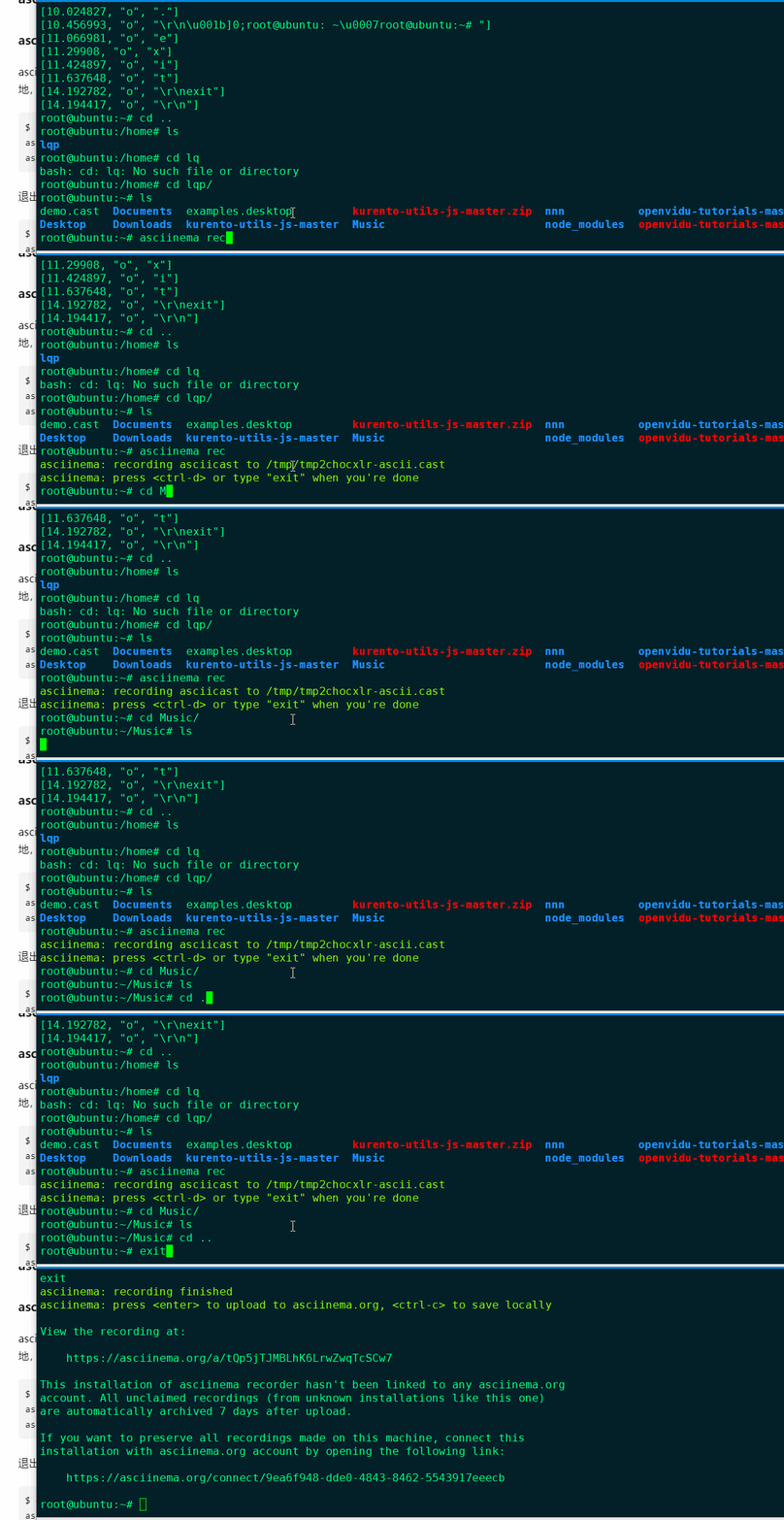
这样就生成了一个连接,还告诉我们的大概意思是我们没有注册账号,这个链接有效期只有7天而已。
访问这个链接,就可以看到录制的视频。
通过代码,我们发现了核心的关键代码:
def record( # pylint: disable=too-many-arguments,too-many-locals path_: str, command: Optional[str] = None, append: bool = False, idle_time_limit: Optional[float] = None, record_stdin: bool = False, title: Optional[str] = None, command_env: Optional[Dict[str, str]] = None, capture_env: Optional[List[str]] = None, writer: Type[w2] = v2.writer, record_: Callable[..., None] = pty.record, notify: Callable[[str], None] = lambda _: None, key_bindings: Optional[Dict[str, Any]] = None, cols_override: Optional[int] = None, rows_override: Optional[int] = None, ) -> None: if command is None: command = os.environ.get("SHELL", "sh") if command_env is None: command_env = os.environ.copy() if key_bindings is None: key_bindings = {} command_env["ASCIINEMA_REC"] = "1" if capture_env is None: capture_env = ["SHELL", "TERM"] time_offset: float = 0 if append and os.stat(path_).st_size > 0: time_offset = v2.get_duration(path_) with tty_fds() as (tty_stdin_fd, tty_stdout_fd), async_notifier( notify ) as _notifier: get_tty_size = _get_tty_size( tty_stdout_fd, cols_override, rows_override ) cols, rows = get_tty_size() metadata = build_metadata( cols, rows, idle_time_limit, capture_env, command_env, title ) sync_writer = writer( path_, metadata, append, on_error=_notifier.queue.put ) with async_writer(sync_writer, time_offset, record_stdin) as _writer: record_( ["sh", "-c", command], command_env, _writer, get_tty_size, _notifier.notify, key_bindings, tty_stdin_fd=tty_stdin_fd, tty_stdout_fd=tty_stdout_fd, )- 1
- 2
- 3
- 4
- 5
- 6
- 7
- 8
- 9
- 10
- 11
- 12
- 13
- 14
- 15
- 16
- 17
- 18
- 19
- 20
- 21
- 22
- 23
- 24
- 25
- 26
- 27
- 28
- 29
- 30
- 31
- 32
- 33
- 34
- 35
- 36
- 37
- 38
- 39
- 40
- 41
- 42
- 43
- 44
- 45
- 46
- 47
- 48
- 49
- 50
- 51
- 52
- 53
- 54
- 55
- 56
- 57
- 58
- 59
- 60
- 61
回放:asciinema play [fileName]
同样的分为本地和网站,这里我们播放一下本地的回放。
当我们输入
asciinema play demo.cast命令以后,脚本就开始自动运行了。
root@ubuntu:~# asciinema play demo.cast root@ubuntu:~# cd Public/ root@ubuntu:~/Public# ls root@ubuntu:~/Public# cd .. root@ubuntu:~# exit exit root@ubuntu:~#- 1
- 2
- 3
- 4
- 5
- 6
- 7
- 8

回放的核心代码如下:class Player: # pylint: disable=too-few-public-methods def play( self, asciicast: Union[v1, v2], idle_time_limit: Optional[int] = None, speed: float = 1.0, key_bindings: Optional[Dict[str, Any]] = None, out_fmt: str = "raw", stream: Optional[str] = None, ) -> None: if key_bindings is None: key_bindings = {} output: Output = ( RawOutput(stream) if out_fmt == "raw" else AsciicastOutput(stream) ) try: with open("/dev/tty", "rt", encoding="utf-8") as stdin: with raw(stdin.fileno()): self._play( asciicast, idle_time_limit, speed, stdin, key_bindings, stream, output, ) except Exception: # pylint: disable=broad-except self._play( asciicast, idle_time_limit, speed, None, key_bindings, stream, output, ) @staticmethod def _play( # pylint: disable=too-many-locals asciicast: Union[v1, v2], idle_time_limit: Optional[int], speed: float, stdin: Optional[TextIO], key_bindings: Dict[str, Any], stream: Optional[str], output: Output, ) -> None: idle_time_limit = idle_time_limit or asciicast.idle_time_limit pause_key = key_bindings.get("pause") step_key = key_bindings.get("step") events = asciicast.events() events = ev.to_relative_time(events) events = ev.cap_relative_time(events, idle_time_limit) events = ev.to_absolute_time(events) events = ev.adjust_speed(events, speed) output.start(asciicast.v2_header) base_time = time.time() ctrl_c = False paused = False pause_time: Optional[float] = None for t, event_type, text in events: delay = t - (time.time() - base_time) while stdin and not ctrl_c and delay > 0: if paused: while True: data = read_blocking(stdin.fileno(), 1000) if 0x03 in data: # ctrl-c ctrl_c = True break if data == pause_key: paused = False assert pause_time is not None base_time += time.time() - pause_time break if data == step_key: delay = 0 pause_time = time.time() base_time = pause_time - t break else: data = read_blocking(stdin.fileno(), delay) if not data: break if 0x03 in data: # ctrl-c ctrl_c = True break if data == pause_key: paused = True pause_time = time.time() slept = t - (pause_time - base_time) delay = delay - slept if ctrl_c: raise KeyboardInterrupt() output.write(t, event_type, text)- 1
- 2
- 3
- 4
- 5
- 6
- 7
- 8
- 9
- 10
- 11
- 12
- 13
- 14
- 15
- 16
- 17
- 18
- 19
- 20
- 21
- 22
- 23
- 24
- 25
- 26
- 27
- 28
- 29
- 30
- 31
- 32
- 33
- 34
- 35
- 36
- 37
- 38
- 39
- 40
- 41
- 42
- 43
- 44
- 45
- 46
- 47
- 48
- 49
- 50
- 51
- 52
- 53
- 54
- 55
- 56
- 57
- 58
- 59
- 60
- 61
- 62
- 63
- 64
- 65
- 66
- 67
- 68
- 69
- 70
- 71
- 72
- 73
- 74
- 75
- 76
- 77
- 78
- 79
- 80
- 81
- 82
- 83
- 84
- 85
- 86
- 87
- 88
- 89
- 90
- 91
- 92
- 93
- 94
- 95
- 96
- 97
- 98
- 99
- 100
- 101
- 102
- 103
- 104
- 105
- 106
- 107
- 108
- 109
- 110
asciinema 脚本转gif或者mp4
asciinema 脚本转gif或者mp4,需要用到另外一个github项目,他叫asciicast2gif
这里我们就不做详细介绍了,直接看:
安装:
npm install --global asciicast2gif- 1
使用方法:
$ asciicast2gif asciicast2gif - Generate GIF animations from asciicasts (asciinema recordings) usage: asciicast2gif [-t theme] [-s speed] [-S scale] [-w columns] [-h rows] <input-json-path-or-url> <output-gif-path> options: -t <theme> color theme, one of: asciinema, tango, solarized-dark, solarized-light, monokai (default: asciinema) -s <speed> animation speed (default: 1) -S <scale> image scale / pixel density (default: 2) -w <columns> clip terminal to specified number of columns (width) -h <rows> clip terminal to specified number of rows (height)- 1
- 2
- 3
- 4
- 5
- 6
- 7
- 8
- 9
- 10
- 11
例子:
asciicast2gif -s 2 demo.cast demo.gif- 1
如果对
gif还不满意,直接用ffmpeg转成其他格式的:ffmpeg -i demo.gif demo.mp4- 1
-
相关阅读:
MySQL创建和管理表
vue封装请求、合并js、合并多个js
高云FPGA系列教程(8):ARM串口数据接收(中断和轮询方式)
@requestmapping注解的作用及用法
python中的一个实用的库imghdr,用于探测图片格式
【stm32】大一上学期笔记复制
需求变化频繁的情况下,如何实施自动化测试
Cy3 PEG N-羟基琥珀酰亚胺,花菁染料CY3标记N-羟基琥珀酰亚胺,CY3-N-Hydroxy succinimide
LeetCode 1822. 数组元素积的符号
11.5MyBatis(进阶)
- 原文地址:https://blog.csdn.net/weixin_40425640/article/details/125928590
