-
C# Winfrom 常用功能整合-1
目录
Winfrom TabControl选项卡 动态添加,删除,修改
Winform FlowLayoutPanel 控件居中排列
Winform 最大化遮挡任务栏和全屏显示问题
在打开最大化窗体时,如果不进行配置,那么默认情况下窗体是被任务栏档住,导致有部分界面看不见,看看下面代码的效果,也许对你有帮助
新建一个Winform项目,添加三个按钮,给三个按钮添加点击事件

代码:
- using System;
- using System.Collections.Generic;
- using System.ComponentModel;
- using System.Data;
- using System.Drawing;
- using System.Linq;
- using System.Text;
- using System.Threading.Tasks;
- using System.Windows.Forms;
- namespace Test5
- {
- public partial class Form1 : Form
- {
- public Form1()
- {
- InitializeComponent();
- }
- private Size WindowMaximumSize;
- private void Form1_Load(object sender, EventArgs e)
- {
- WindowMaximumSize = this.MaximumSize;
- this.TopMost = true;
- }
- private void button1_Click(object sender, EventArgs e)
- {
- //任务栏不会被遮挡
- if (this.WindowState == FormWindowState.Maximized)
- {
- this.WindowState = FormWindowState.Normal;
- }
- else
- {
- this.WindowState = FormWindowState.Maximized;
- }
- }
- private void button2_Click(object sender, EventArgs e)
- {
- //任务栏会被遮挡
- if (this.WindowState == FormWindowState.Maximized)
- {
- this.FormBorderStyle = FormBorderStyle.FixedSingle;
- this.WindowState = FormWindowState.Normal;
- }
- else
- {
- this.FormBorderStyle = FormBorderStyle.None;
- this.MaximumSize = WindowMaximumSize;
- this.WindowState = FormWindowState.Maximized;
- }
- }
- private void button3_Click(object sender, EventArgs e)
- {
- //任务栏不会被遮挡
- if (this.WindowState == FormWindowState.Maximized)
- {
- this.FormBorderStyle = FormBorderStyle.FixedSingle;
- this.WindowState = FormWindowState.Normal;
- }
- else
- {
- this.FormBorderStyle = FormBorderStyle.FixedSingle;
- this.MaximumSize = new Size(Screen.PrimaryScreen.WorkingArea.Width, Screen.PrimaryScreen.WorkingArea.Height);
- this.WindowState = FormWindowState.Maximized;
- }
- }
- }
- }
效果:
点击按钮1,会最大化,但窗体不会遮挡任务栏,
点击按钮2,会全屏显示,
点击按钮3,会最大化,但窗体不会遮挡任务栏
Winfrom 给图片画 矩形,椭圆形,文字
- private void Button_Test_Click(object sender, EventArgs e)
- {
- string path = TextBox_Img1Path.Text;
- if (string.IsNullOrEmpty(path))
- {
- Console.WriteLine("路径不能为空");
- return;
- }
- if (!System.IO.File.Exists(path))
- {
- Console.WriteLine("图片不存在");
- return;
- }
- Bitmap bitmap = new Bitmap(path);
- Point point1 = new Point(100, 100);
- Point point2 = new Point(120, 120);
- //bitmap = DrawRoundInPicture(bitmap, point1, point2, Color.Red, 3, "起泡");
- //pictureBox1.Image = bitmap;
- Size size = new Size();
- size.Width = 200;
- size.Height = 200;
- Bitmap bitmap1 = DrawRectangleInPicture(bitmap, point1, size, Color.Red, 2, "气泡", 13);
- pictureBox1.Image = bitmap1;
- //Point point3 = new Point(200, 200);
- //Point point4 = new Point(210, 210);
- //bitmap = DrawRoundInPicture(bitmap, point3, point4, Color.AntiqueWhite, 3, "破裂");
- //bitmap.Save(path, System.Drawing.Imaging.ImageFormat.Bmp);
- }
- ///
- /// 在图片上画椭圆
- ///
- /// 图片的bitmap
- /// 位置
- /// 颜色
- /// 圆圈厚度
- /// 标题
- /// 线条的线型
- ///
- public static Bitmap DrawRoundInPicture(Bitmap bmp, Point p0, Point p1, Color lineColor, int lineWidth, string text, DashStyle ds = DashStyle.Solid)
- {
- if (bmp == null) return null;
- Graphics g = Graphics.FromImage(bmp);
- Brush brush = new SolidBrush(lineColor);
- Pen pen = new Pen(brush, lineWidth);
- pen.DashStyle = ds;
- //画椭圆
- //g.DrawEllipse(pen, new Rectangle(p0.X, p0.Y, Math.Abs(p0.X - p1.X), Math.Abs(p0.Y - p1.Y)));
- //画矩形
- g.DrawRectangle(pen, p0.X, p0.Y, 20, 20);
- Font myFont = new Font("宋体", 30, FontStyle.Bold);
- Brush bush = new SolidBrush(lineColor);//填充的颜色
- g.DrawString(text, myFont, bush, p0.X - 30, p1.Y + 10);
- g.Dispose();
- return bmp;
- }
- ///
- /// 图片上画矩形和标记文字
- ///
- /// 图片bitmap
- /// 矩形的坐标位置
- /// 矩形的宽高
- /// 线条的颜色
- /// 线条
- /// 矩形的文本
- /// 字体大小
- /// 线条的线型
- ///
- public static Bitmap DrawRectangleInPicture(Bitmap bmp, Point pos, Size size, Color lineColor, int lineWidth, string text, int fontSize, DashStyle ds = DashStyle.Solid)
- {
- if (bmp == null) return null;
- Graphics g = Graphics.FromImage(bmp);
- Brush brush = new SolidBrush(lineColor);
- Pen pen = new Pen(brush, lineWidth);
- pen.DashStyle = ds;
- //画中心点(用于测试)
- //g.DrawEllipse(pen, new Rectangle(pos.X, pos.Y, 3, 3));
- //画矩形
- int rectX = pos.X - (size.Width / 2);
- int rectY = pos.Y - (size.Height / 2);
- //g.DrawRectangle(pen, pos.X, pos.Y, size.Width, size.Height);
- g.DrawRectangle(pen, rectX, rectY, size.Width, size.Height);
- Font myFont = new Font("宋体", fontSize, FontStyle.Regular);
- Brush bush = new SolidBrush(lineColor);//填充的颜色
- //计算字体的长度
- SizeF sizeF = g.MeasureString(text, myFont);
- int fontPosX = (int)(pos.X - (sizeF.Width / 2));
- int fontPosY = (int)(pos.Y + (sizeF.Height / 2) + (size.Height / 2));
- Console.WriteLine();
- g.DrawString(text, myFont, bush, fontPosX, fontPosY);
- g.Dispose();
- return bmp;
- }
Winfrom TabControl选项卡 动态添加,删除,修改
效果:

代码
- using System;
- using System.Collections.Generic;
- using System.ComponentModel;
- using System.Data;
- using System.Drawing;
- using System.Linq;
- using System.Text;
- using System.Threading.Tasks;
- using System.Windows.Forms;
- namespace 选项卡
- {
- public partial class Form1 : Form
- {
- public Form1()
- {
- InitializeComponent();
- }
- private int index = 0;
- private void Form1_Load(object sender, EventArgs e)
- {
- }
- private void button1_Click(object sender, EventArgs e)
- {
- TabPage Page = new TabPage();
- Page.Name = "Page" + index.ToString();
- Page.Text = "tabPage" + index.ToString();
- Page.TabIndex = index;
- this.tabControl1.Controls.Add(Page);
- #region 三种设置某个选项卡为当前选项卡的方法
- //this.tabControl1.SelectedIndex = index;
- this.tabControl1.SelectedTab = Page;
- //this.tabControl1.SelectTab("Page" + index.ToString());
- #endregion
- index++;
- }
- private void button2_Click(object sender, EventArgs e)
- {
- bool first = true;
- if (index > 0)
- {
- #region 两种删除某个选项卡的方法
- this.tabControl1.Controls.RemoveAt(this.tabControl1.SelectedIndex);
- //this.tabControl1.Controls.Remove(this.tabControl1.TabPages[this.tabControl1.TabPages.Count-1]);
- #endregion
- }
- else
- {
- return;
- }
- #region 用于设置删除最后一个TabPage后,将倒数第二个设置为当前选项卡
- if (first)
- {
- this.tabControl1.SelectedIndex = --index - 1;
- first = false;
- }
- else
- {
- this.tabControl1.SelectedIndex = index--;
- }
- #endregion
- }
- private void button3_Click(object sender, EventArgs e)
- {
- this.tabControl1.SelectedTab.Text = "xyt";//修改当前选项卡的属性
- //this.tabControl1.SelectedTab.Name = "";
- //this.tabControl1.SelectedTab.Tag = "";
- //this.tabControl1.SelectedTab.Select();
- }
- private void tabControl1_SelectedIndexChanged(object sender, EventArgs e)
- {
- }
- }
- }
源码:点击下载
Winform ErrorProvider控件
代码
- using System;
- using System.Collections.Generic;
- using System.ComponentModel;
- using System.Data;
- using System.Drawing;
- using System.Linq;
- using System.Text;
- using System.Threading.Tasks;
- using System.Windows.Forms;
- namespace ErrorProvider控件
- {
- public partial class Form1 : Form
- {
- public Form1()
- {
- InitializeComponent();
- }
- private void button1_Click(object sender, EventArgs e)
- {
- // 设置闪烁样式
- // BlinkIfDifferentError 当图标已经显示并且为控件设置了一个新的错误字符串时,闪烁。
- // AlwaysBlink 当第一次显示错误图标时,或者当为控件设置了错误描述字符串而错误图标已经显示时,始终闪烁。
- // NeverBlink 错误图标从不闪烁
- errorProvider1.BlinkStyle = ErrorBlinkStyle.BlinkIfDifferentError;
- // 错误图标的闪烁速率(以毫秒为单位)。默认为 250 毫秒
- errorProvider1.BlinkRate = 500;
- //设置错误图标距离控件的距离
- errorProvider1.SetIconPadding(textBox1, 5);
- errorProvider1.SetError(textBox1, "请输入用户名");
- }
- private void button2_Click(object sender, EventArgs e)
- {
- //去掉错误图标
- errorProvider1.SetError(textBox1, "");
- }
- }
- }
Winform 读取Resources图片
添加图片

二、使用方法
this.pictureBox1.Image = Properties.Resources.WindowNormal;比如背景图片,点击这行属性后面到方框按钮

就会弹出一个界面,在项目资源文件这里,就可以找到对应到图片了

Winfrom 读取内存条占用大小,硬盘占用大小
先建一个读取系统数据工具类
- using System;
- using System.Management;
- namespace Utils
- {
- public class SystemInfo
- {
- #region 字段定义
- public static SystemInfo Instance;
- private long m_PhysicalMemory = 0;
- ///
- /// 获取物理内存
- ///
- public long PhysicalMemory { get => m_PhysicalMemory; }
- ///
- /// 获取可用内存
- ///
- public long MemoryAvailable
- {
- get
- {
- long availablebytes = 0;
- ManagementClass mos = new ManagementClass("Win32_OperatingSystem");
- foreach (ManagementObject mo in mos.GetInstances())
- {
- if (mo["FreePhysicalMemory"] != null)
- {
- availablebytes = 1024 * long.Parse(mo["FreePhysicalMemory"].ToString());
- }
- }
- return availablebytes;
- }
- }
- #endregion
- #region 构造函数
- static SystemInfo()
- {
- Instance = new SystemInfo();
- }
- private SystemInfo()
- {
- //获得物理内存
- ManagementClass mc = new ManagementClass("Win32_ComputerSystem");
- ManagementObjectCollection moc = mc.GetInstances();
- foreach (ManagementObject mo in moc)
- {
- if (mo["TotalPhysicalMemory"] != null)
- {
- m_PhysicalMemory = long.Parse(mo["TotalPhysicalMemory"].ToString());
- }
- }
- }
- #endregion
- ///
- /// 获取内存大小
- ///
- ///
- /// 返回值
- /// 参数1代表内存已使用大小,
- /// 参数2代表内存总大小,
- /// 参数3代表已使用占用百分比
- ///
- public Tuple<double, double, double> GetMemorySize()
- {
- double used = (PhysicalMemory - MemoryAvailable) / 1024.0 / 1024.0 / 1024.0;//已用内存
- double physicalMemory = PhysicalMemory / 1024.0 / 1024.0 / 1024.0;//物理内存总量
- double proportion = (PhysicalMemory - MemoryAvailable) * 100.0 / PhysicalMemory;
- used = Math.Round(used, 2);
- physicalMemory = Math.Round(physicalMemory, 2);
- proportion = (int)proportion;
- return new Tuple<double, double, double>(used, physicalMemory, proportion);
- }
- ///
- /// 获取指定磁盘空间到大小
- ///
- ///
- ///
- /// 返回值
- /// 参数1代表磁盘已使用大小,
- /// 参数2代表磁盘总大小
- ///
- public Tuple<long, long> GetHardDiskSize(string hardDiskName)
- {
- long freeSpace = new long();
- long totalSize = new long();
- hardDiskName = hardDiskName + ":\\";
- System.IO.DriveInfo[] drives = System.IO.DriveInfo.GetDrives();
- foreach (System.IO.DriveInfo drive in drives)
- {
- if (drive.Name == hardDiskName)
- {
- freeSpace = drive.TotalFreeSpace / (1024 * 1024 * 1024);
- totalSize = drive.TotalSize / (1024 * 1024 * 1024);
- }
- }
- return new Tuple<long, long>(freeSpace, totalSize);
- }
- }
- }
调用:
- Tuple<long, long> tuple1 = SystemInfo.Instance.GetHardDiskSize("C");
- Console.WriteLine(string.Format("硬盘剩余大小:{0}GB,总大小:{1}GB", tuple1.Item1, tuple1.Item2));
- Tuple<double, double, double> tuple2 = SystemInfo.Instance.GetMemorySize();
- Console.WriteLine(string.Format("获取内存大小,剩余大小:{0}GB,总大小:{1}GB,占用百分比:{2}%", tuple2.Item1, tuple2.Item2, tuple2.Item3));
输出:

Winform 全局捕获异常
代码
- using System;
- using System.Collections.Generic;
- using System.Linq;
- using System.Text;
- using System.Threading;
- using System.Threading.Tasks;
- using System.Windows.Forms;
- namespace Test
- {
- static class Program
- {
- ///
- /// 应用程序的主入口点。
- ///
- [STAThread]
- static void Main()
- {
- try
- {
- //设置应用程序处理异常方式:ThreadException处理
- Application.SetUnhandledExceptionMode(UnhandledExceptionMode.CatchException);
- //处理UI线程异常
- Application.ThreadException += new System.Threading.ThreadExceptionEventHandler(Application_ThreadException);
- //处理非UI线程异常
- AppDomain.CurrentDomain.UnhandledException += new UnhandledExceptionEventHandler(CurrentDomain_UnhandledException);
- #region 应用程序的主入口点
- Application.EnableVisualStyles();
- Application.SetCompatibleTextRenderingDefault(false);
- Application.Run(new Form1());
- #endregion
- }
- catch (Exception ex)
- {
- string str = GetExceptionMsg(ex, string.Empty);
- MessageBox.Show(str, "系统错误", MessageBoxButtons.OK, MessageBoxIcon.Error);
- }
- }
- static void Application_ThreadException(object sender, System.Threading.ThreadExceptionEventArgs e)
- {
- string str = GetExceptionMsg(e.Exception, e.ToString());
- MessageBox.Show(str, "系统错误", MessageBoxButtons.OK, MessageBoxIcon.Error);
- }
- static void CurrentDomain_UnhandledException(object sender, UnhandledExceptionEventArgs e)
- {
- string str = GetExceptionMsg(e.ExceptionObject as Exception, e.ToString());
- MessageBox.Show(str, "系统错误", MessageBoxButtons.OK, MessageBoxIcon.Error);
- }
- ///
- /// 生成自定义异常消息
- ///
- /// 异常对象
- /// 备用异常消息:当ex为null时有效
- ///
异常字符串文本 - static string GetExceptionMsg(Exception ex, string backStr)
- {
- StringBuilder sb = new StringBuilder();
- sb.AppendLine("****************************异常文本****************************");
- sb.AppendLine("【出现时间】:" + DateTime.Now.ToString());
- if (ex != null)
- {
- sb.AppendLine("【异常类型】:" + ex.GetType().Name);
- sb.AppendLine("【异常信息】:" + ex.Message);
- sb.AppendLine("【堆栈调用】:" + ex.StackTrace);
- }
- else
- {
- sb.AppendLine("【未处理异常】:" + backStr);
- }
- sb.AppendLine("***************************************************************");
- return sb.ToString();
- }
- }
- }
Winform 用线程写入TXT文件,并更新UI和进度
效果:

UI控件定义如下
共有三个控件,一个按钮:Button_Write,一个进度条:ProgressBar_WriteProgress,一个Label:Label_WriteStatus
新建脚本 DataWrite 用来管理写入操作
- using System;
- using System.IO;
- using System.Text;
- using System.Windows.Forms;
- namespace Winform_vs2022
- {
- public class DataWrite
- {
- //声明一个更新主线程的委托
- public delegate void UpdateUI(int step);
- public UpdateUI UpdateUIDelegate;
- //声明一个在完成任务时通知主线程的委托
- public delegate void AccomplishTask();
- public AccomplishTask TaskEndCallBack;
- private string Path = Application.StartupPath + "\\test.txt";
- public void Write(object lineCount)
- {
- StreamWriter writeIO = new StreamWriter(Path, false, Encoding.GetEncoding("gb2312"));
- string head = "编号,省,市";
- writeIO.Write(head);
- for (int i = 0; i < (int)lineCount; i++)
- {
- writeIO.WriteLine(i.ToString() + ",湖南,衡阳");
- //写入一条数据,调用更新主线程ui状态的委托
- UpdateUIDelegate(1);
- }
- //任务完成时通知主线程作出相应的处理
- TaskEndCallBack();
- writeIO.Close();
- }
- public DataWrite()
- {
- if (!File.Exists(Path))
- {
- Console.WriteLine("文件不存在");
- }
- }
- }
- }
Form1.cs
- using System;
- using System.Threading;
- using System.Windows.Forms;
- namespace Winform_vs2022
- {
- public partial class Form1 : Form
- {
- public Form1()
- {
- InitializeComponent();
- }
- private delegate void AsynUpdateUI(int step);
- private DataWrite DataWrite = new DataWrite();
- private void Button_Write_Click(object sender, EventArgs e)
- {
- //任务量为10000
- int taskCount = 10000;
- this.ProgressBar_WriteProgress.Maximum = taskCount;
- this.ProgressBar_WriteProgress.Value = 0;
- //绑定更新任务状态的委托
- DataWrite.UpdateUIDelegate += UpdataUIStatus;
- //绑定完成任务要调用的委托
- DataWrite.TaskEndCallBack += Accomplish;
- Thread thread = new Thread(new ParameterizedThreadStart(DataWrite.Write));
- thread.IsBackground = true;
- thread.Start(taskCount);
- }
- //更新UI
- private void UpdataUIStatus(int step)
- {
- //如果是跨线程访问,就切换线程,否则直接更新UI
- if (this.InvokeRequired)
- {
- this.Invoke(new AsynUpdateUI(delegate (int s)
- {
- this.ProgressBar_WriteProgress.Value += s;
- this.Label_WriteStatus.Text = this.ProgressBar_WriteProgress.Value.ToString() + "/" + this.ProgressBar_WriteProgress.Maximum.ToString();
- }), step);
- }
- else
- {
- this.ProgressBar_WriteProgress.Value += step;
- this.Label_WriteStatus.Text = this.ProgressBar_WriteProgress.Value.ToString() + "/" + this.ProgressBar_WriteProgress.Maximum.ToString();
- }
- }
- //完成任务时需要调用
- private void Accomplish()
- {
- MessageBox.Show("任务完成");
- }
- }
- }
这里可以看出:
更新UI数据用的是委托,和网上一些帖子的区别是,这里在UI线程中定义了一个委托进行执行的,而进度条的进度则是遍历时,for循环中的 i 的值,线程除了UI线程之外,也只是开启了一个线程
源码下载地址:点击下载
Winform 摄像头识别二维码,保存图片
效果:
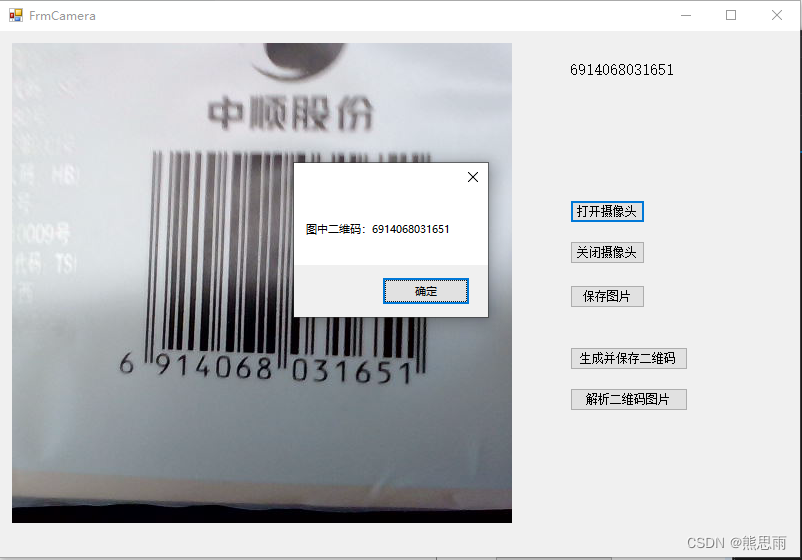
测试,识别速度还是可以的,摄像头自动对焦功能越好,识别就越快
源码:点击跳转
由于代码是复制别人的,所以这里就不帖代码了,代码我在原有的基础上做了一定的优化,有兴趣的可以原帖查看:点击跳转
Winform 判断窗体是否已打开
代码
- Form1 form = null;
- ///
- /// 开始检测
- ///
- ///
- ///
- private void button1_Click(object sender, EventArgs e)
- {
- if (form==null) //如果子窗体为空则创造实例 并显示
- {
- form = new Form1();
- form.StartPosition = FormStartPosition.CenterScreen;//子窗体居中显示
- form.Show();
- }
- else
- {
- if (form.IsDisposed) //若子窗体关闭 则打开新子窗体 并显示
- {
- form = new Form1();
- form.StartPosition = FormStartPosition.CenterScreen;//子窗体居中显示
- form.Show();
- }
- else
- {
- form.Activate(); //使子窗体获得焦点
- }
- }
- }
Winform 动态添加菜单列表,点击切换对应面板
效果:
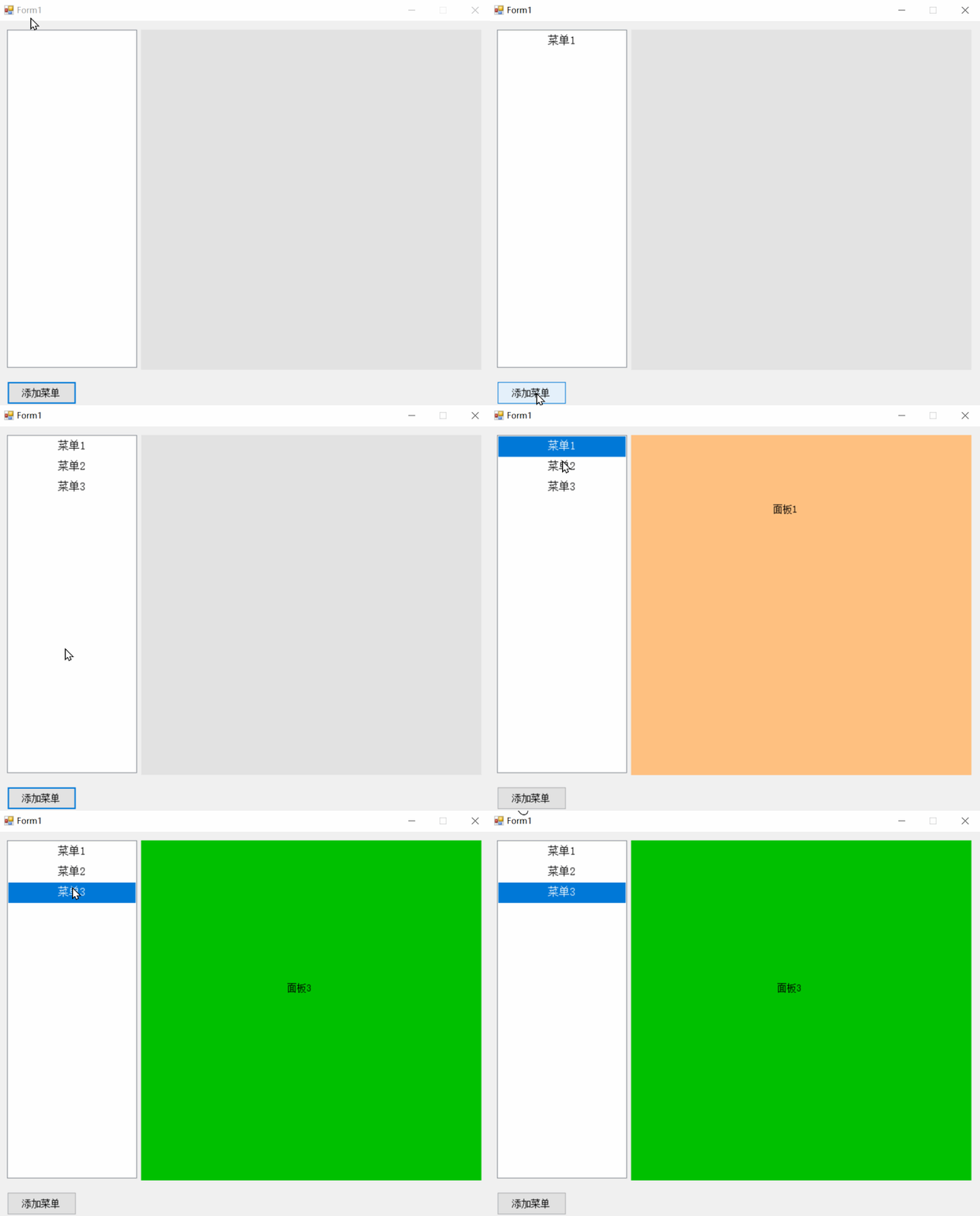
一、需求
目前的效果是妥协后的效果,刚开始设想是有一个容器,动态向内部添加按钮列表,列表长度超过容器时可以上下拖动,于是我了解了一下Winfrom所有的组件,开始想用 ListView 方式向内部添加按钮,结果发现加进去的按钮的样式不一样,按钮的边缘上多了一圈灰边,调整起来也是特麻烦,于是就改用ListBox了,效果不是很理想,但效果算是达到了,做了当前这个例子,我不由得感觉,以后项目还是不要用Winform了,WPF就挺好的。
二、项目
新建一个Winform项目,拖入一个ListBox,一个Panel,一个Buttton即可,界面如下
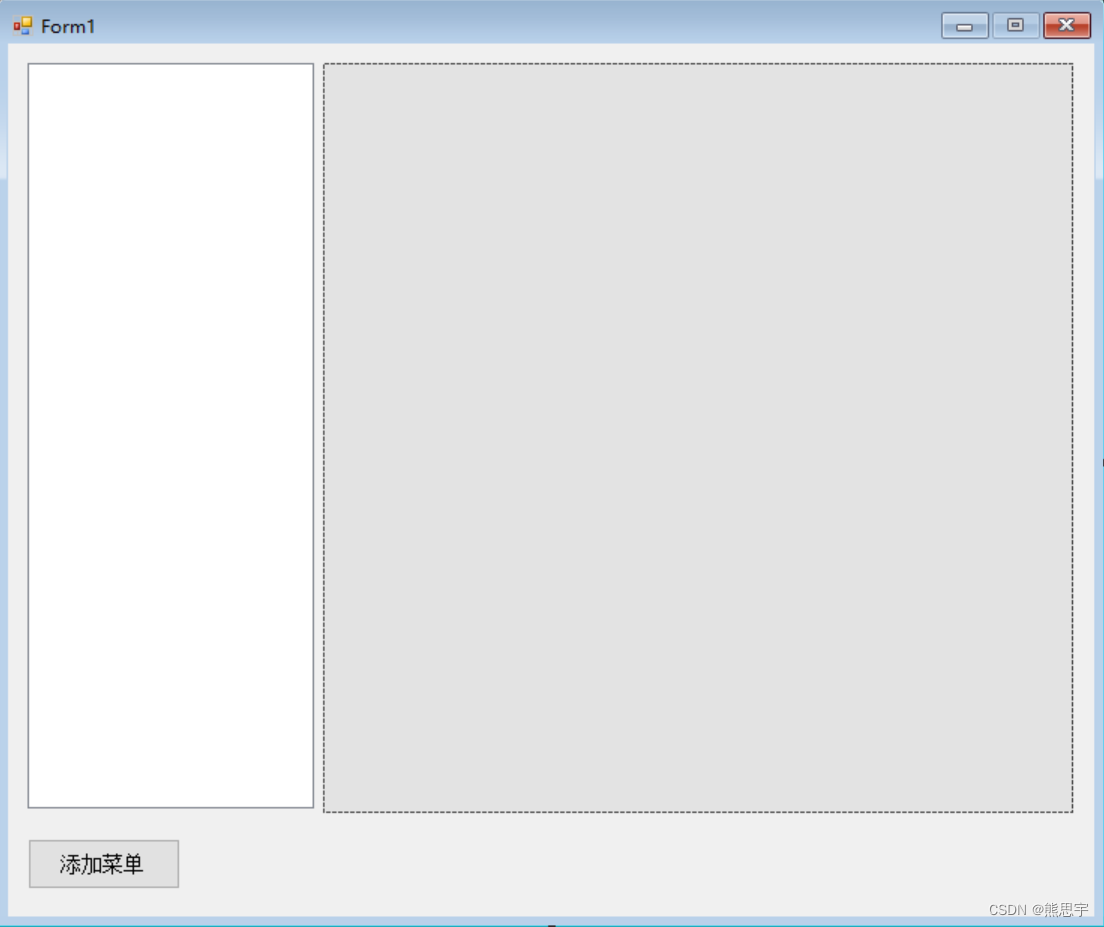
ListBox 还需要进行一系列设置,不然后面的代码不起作用
将Listbox的DrawMode属性设置为DrawMode.OwnerDrawVariable

再添加三个用户自定义界面,在界面里随便加几个文字,用来区分

下面是Form1代码
- using System;
- using System.Collections.Generic;
- using System.ComponentModel;
- using System.Data;
- using System.Drawing;
- using System.Linq;
- using System.Text;
- using System.Threading.Tasks;
- using System.Windows.Forms;
- namespace 滚动菜单
- {
- public partial class Form1 : Form
- {
- public Form1()
- {
- InitializeComponent();
- }
- private void Form1_Load(object sender, EventArgs e)
- {
- }
- private int ButtonIndex = 0;
- private void button1_Click(object sender, EventArgs e)
- {
- //Console.WriteLine("测试按钮:" + ((Button)sender).Name);
- ButtonIndex++;
- AddListBoxContent("菜单" + ButtonIndex);
- }
- private void AddListBoxContent(string content)
- {
- //读取当前ListBox列表长度
- int len = listBox1.Items.Count;
- //插入新的一行
- listBox1.Items.Insert(len, content);
- //列表长度大于30,那么就删除第1行的数据
- //if (len > 30)
- // listBox1.Items.RemoveAt(0);
- //插入新的数据后,将滚动条移动到最下面
- //int visibleItems = listBox1.ClientSize.Height / listBox1.ItemHeight;
- //listBox1.TopIndex = Math.Max(listBox1.Items.Count - visibleItems + 1, 0);
- }
- private void listBox1_DrawItem(object sender, DrawItemEventArgs e)
- {
- e.DrawBackground();
- e.DrawFocusRectangle();
- StringFormat strFmt = new System.Drawing.StringFormat();
- strFmt.Alignment = StringAlignment.Center; //文本垂直居中
- strFmt.LineAlignment = StringAlignment.Center; //文本水平居中
- e.Graphics.DrawString(listBox1.Items[e.Index].ToString(), e.Font, new SolidBrush(e.ForeColor), e.Bounds, strFmt);
- }
- private void listBox1_MeasureItem(object sender, MeasureItemEventArgs e)
- {
- e.ItemHeight = 30;
- }
- private void listBox1_MouseDown(object sender, MouseEventArgs e)
- {
- int index = this.listBox1.IndexFromPoint(e.Location);
- if (index != System.Windows.Forms.ListBox.NoMatches)
- {
- //Console.WriteLine(index.ToString());
- string content = listBox1.Items[index].ToString();
- Console.WriteLine(content);
- if (index == 0)
- {
- panel1.Controls.Clear();
- Panel1 test = new Panel1();
- test.Location = new Point((panel1.Width - test.Width) / 2, 0);//子控件位置
- test.Show();
- panel1.Controls.Add(test);
- }
- else if (index == 1)
- {
- panel1.Controls.Clear();
- Panel2 test = new Panel2();
- test.Location = new Point((panel1.Width - test.Width) / 2, 0);//子控件位置
- test.Show();
- panel1.Controls.Add(test);
- }
- else if(index == 2)
- {
- panel1.Controls.Clear();
- Panel3 test = new Panel3();
- test.Location = new Point((panel1.Width - test.Width) / 2, 0);//子控件位置
- test.Show();
- panel1.Controls.Add(test);
- }
- }
- }
- }
- }
给控件 listBox1 的事件选上对应的方法


还有添加事件按钮也选上对于的方法
从代码中可以看出,由于只是添加了三个自定义面板,所以菜单列表只有1,2,3,有效,后面的我就不加了,这里也可以用一个通用面板,实例化时,传入固定的参数,根据参数来显示不同的控件。
运行后,效果就如文章开头所示
源码:点击下载
Winform FlowLayoutPanel 控件居中排列
官方文档
微软官方的文档:点击跳转
向容器内添加组件
- Label label = new Label();
- label.AutoSize = true;
- label.Text = "123";
- flowLayoutPanel1.Controls.Add(label);
FlowLayoutPanel 控件排列的几种方式
1.LeftToRight


2. TopDown


3.RightToLeft


4.BottomUp


FlowLayoutPanel 控件居中排列
使用控件居中排列,一般使用 TopDown作为排序方法


但是在官方的文档中,目前还没找到自动居中的方法,不过有个方式可以设置,就是内边距,在启动软件的时候,可以执行下面的代码进行自动计算,并添加内边距,使得控件会自动居中
- //获容器的宽度
- Size flowLayoutPanelSize = flowLayoutPanel1.Size;
- //获取按钮的宽度
- Size buttonSize = flowLayoutPanel1.Controls[0].Size;
- //内边距 = (容器的宽度 / 2)- (按钮宽度 / 2) - 3 自带3像素内边距
- int paddingLift = (flowLayoutPanelSize.Width / 2) - (buttonSize.Width / 2) - 3;
- Padding paddings = flowLayoutPanel1.Padding;
- paddings.Left = paddingLift;
- flowLayoutPanel1.Padding = paddings;
通过设置内边距,容器内的所有按钮都居中了,如下
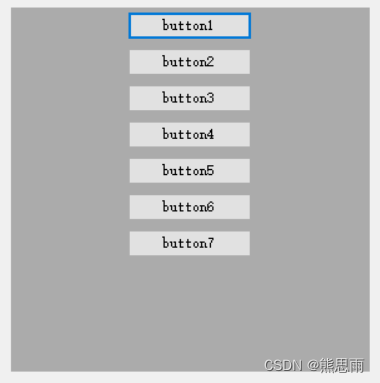
结束
如果这个帖子对你有用,欢迎 关注 + 点赞 + 留言,谢谢
end
-
相关阅读:
【深度强化学习】Python:OpenAI Gym-CarRacing 自动驾驶 | 提供项目完整代码 | 车道检测功能 | 路径训练功能 | 车辆控制功能
配置Linux
Springboot——整合Druid、mybatisPlus实现SQL监控
leetcode 1642. Furthest Building You Can Reach(能到达的最远的建筑)
如何用好Nginx的gzip指令
Qt5开发及实例V2.0-第十五章-Qt单元测试框架
cad快捷键
初阶指针---从入门到入坟
记录Centos7.9 安装mongodb 6.0 过程遇到的坑和解决办法
【Java Web】Servlet规范讲解
- 原文地址:https://blog.csdn.net/qq_38693757/article/details/125988558

- 最新文章
-
沪漂五周年了:我越来越迷茫了
Agentic Skill Routing 实战:别再把所有 Skill 塞进 AI Agent 上下文
MySQL-Seconds_behind_master的精度误差
[MAF预定义ChatClient中间件-03]CachingChatClient——利用缓存省钱省时间
AI的至暗历史:从万众期待到被政府撤资,AI的两次死亡徘徊
Agent OS :五种驯服不确定性的范式
PortSwigger SQL注入LAB11
数据库即时编译JIT
[Begin]AI Learn Data Day 0
深度学习进阶(二十七)现代 LLM 的核心架构设计其二:SwiGLU