-
png图片自动转ttf字体(使用python实现)
一、任务概述

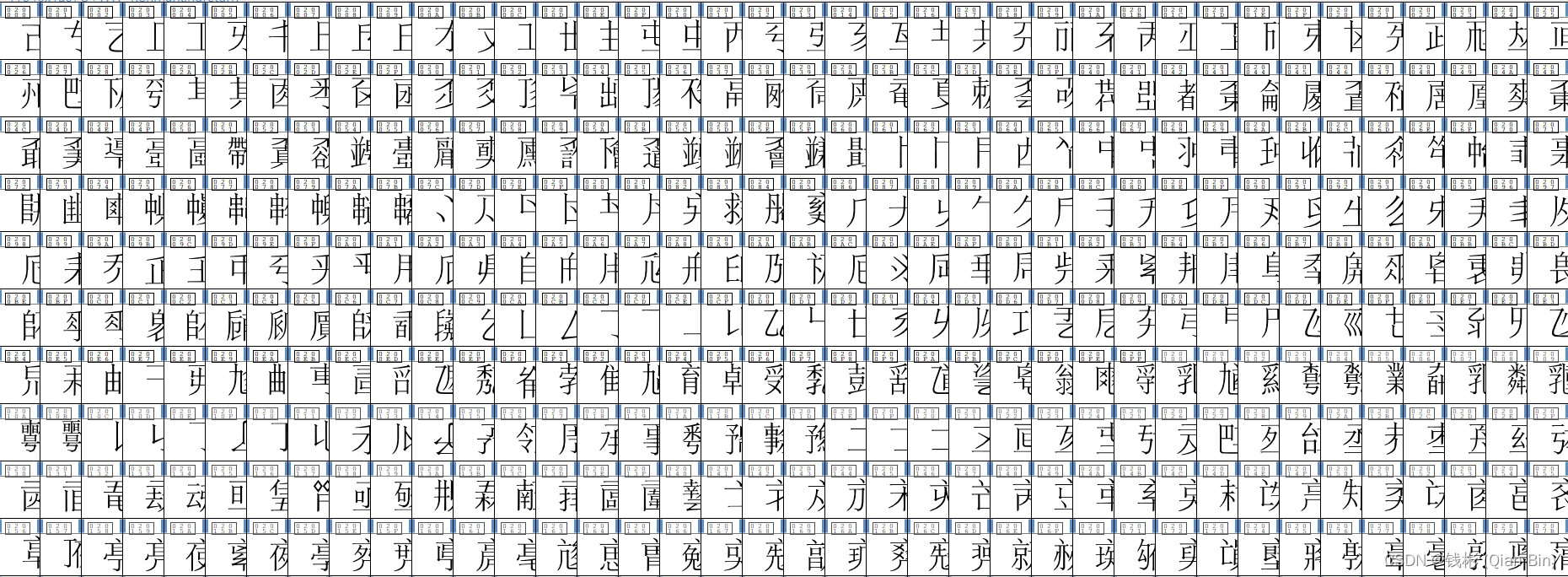
任务要求:需要将上述生僻字png图片批量自动转成ttf字体文件,该字体对应的unicode码为图中下半部分对应的16进制值。整个任务分成几个部分实现:
- OCR识别:识别出图片下半部分对应的16进制数值;
- png图片转svg: 通过图像处理算法提取上半部分图片的字形轮廓,将其转成svg文件;
- svg转ttf:通过FontForge提供的Python工具实现批量转换;
二、实现
2.1 ocr识别
综合考虑识别精度和CPU推理速度要求,本文使用PaddleOCR实现。
2.1.1 安装环境
python -m pip install paddlepaddle==2.3.0 -i https://mirror.baidu.com/pypi/simple pip install paddlehub -i https://pypi.tuna.tsinghua.edu.cn/simple pip install shapely -i https://pypi.tuna.tsinghua.edu.cn/simple- 1
- 2
- 3
2.1.2 实现脚本
# 导入系统库 import cv2 import os # 导入字体识别库 import paddlehub as hub def main(): ''' 主函数 ''' # 定义参数 img_list = list() img_dir = './org' target_width, target_height = 363, 269 # 获取文件列表 for file in os.listdir(img_dir): if os.path.splitext(file)[1].lower() in '.png|.jpg': img_list.append(file) print('当前总图片数量: %d' % len(img_list)) # 创建识别器 ocr = hub.Module(name="chinese_ocr_db_crnn_server") # 循环处理图片 index = 0 error_index = 0 for img_path in img_list: img = cv2.imread(os.path.join(img_dir,img_path),cv2.IMREAD_COLOR) # 图像标准化 h, w, _=img.shape if h != target_height or w != target_width: img = cv2.resize(img, dsize=(target_width, target_height)) # 提取ocr区域 ocrimg = img[161:259,40:300,:] result = ocr.recognize_text([ocrimg]) nn = 1 code = result[0]['data'] if len(code)==0: error_index+=1 cv2.imwrite('error/%d.png' % error_index, img) continue code = code[0]["text"].strip() if len(code) < 4 or len(code) > 5: error_index+=1 cv2.imwrite('error/%d.png' % error_index, img) continue try: a = int(code,16) except Exception as e: error_index+=1 cv2.imwrite('error/%d.png' % error_index, img) continue index += 1 print(img_path+' 识读结果:'+code) # 提取图形区域 textimg = img[10:154,107:251,:] cv2.imwrite('ocr/%s.png' % code, textimg) if __name__ == "__main__": ''' 程序入口 ''' main()- 1
- 2
- 3
- 4
- 5
- 6
- 7
- 8
- 9
- 10
- 11
- 12
- 13
- 14
- 15
- 16
- 17
- 18
- 19
- 20
- 21
- 22
- 23
- 24
- 25
- 26
- 27
- 28
- 29
- 30
- 31
- 32
- 33
- 34
- 35
- 36
- 37
- 38
- 39
- 40
- 41
- 42
- 43
- 44
- 45
- 46
- 47
- 48
- 49
- 50
- 51
- 52
- 53
- 54
- 55
- 56
- 57
- 58
- 59
- 60
- 61
- 62
- 63
- 64
- 65
- 66
- 67
- 68
- 69
- 70
识读结果如下图所示:

2.2 png转svg
这里主要通过opencv的形态学操作提取图像轮廓实现转换。
# 导入系统库 import cv2 import os def main(): ''' 主函数 ''' # 定义参数 img_list = list() img_dir = './ocr' # 获取文件列表 for file in os.listdir(img_dir): if os.path.splitext(file)[1].lower() in '.png|.jpg': img_list.append(file) print('当前总图片数量: %d' % len(img_list)) # 循环处理图片 index = 0 for img_path in img_list: # 读取图像并提取轮廓 textimg = cv2.imread(os.path.join(img_dir,img_path),cv2.IMREAD_COLOR) textimg = cv2.resize(textimg, dsize=(640, 640)) blur = cv2.GaussianBlur(textimg, (3, 3), 0) gray = cv2.cvtColor(blur, cv2.COLOR_BGR2GRAY) ret, thresh = cv2.threshold(gray, 10, 255, cv2.THRESH_BINARY_INV + cv2.THRESH_OTSU) binary,contours,hierarchy = cv2.findContours(thresh, mode=cv2.RETR_TREE, method=cv2.CHAIN_APPROX_SIMPLE) # 写入svg格式图片 epsilon = 3 h, w, _ = textimg.shape code = os.path.splitext(img_path)[0] svg_path = 'svg/'+code+'.svg' with open(svg_path, "w+") as f: f.write(f'<svg version="1.0" xmlns="http://www.w3.org/2000/svg" width="{w}.000000pt" height="{h}.000000pt" viewBox="0 0 680.000000 680.000000" preserveAspectRatio="xMidYMid meet">') f.write(f'<g stroke="black" transform="scale(1.00000,1.00000)">') for c in contours: f.write('<path d="M') approx = cv2.approxPolyDP(c,epsilon,False) for i in range(len(approx)): x, y = approx[i][0] f.write(f"{x} {y} ") f.write('" style="stroke:black" fill="#000000"/>') f.write(f'</g>') f.write("</svg>") index +=1 print('当前处理完 %d 张图片' % index) print('全部处理结束') if __name__ == "__main__": ''' 程序入口 ''' main()- 1
- 2
- 3
- 4
- 5
- 6
- 7
- 8
- 9
- 10
- 11
- 12
- 13
- 14
- 15
- 16
- 17
- 18
- 19
- 20
- 21
- 22
- 23
- 24
- 25
- 26
- 27
- 28
- 29
- 30
- 31
- 32
- 33
- 34
- 35
- 36
- 37
- 38
- 39
- 40
- 41
- 42
- 43
- 44
- 45
- 46
- 47
- 48
- 49
- 50
- 51
- 52
- 53
- 54
- 55
- 56
- 57
- 58
部分样例转换结果如下图所示:

2.3 svg转ttf
ttf是专门的字体库文件,目前能够支持ttf编辑的软件并不多。这里推荐使用FontForge,该软件提供了python处理接口,可以使用python脚本批量转换svg到ttf。
首先从官网下载windows版的FontForge并安装,本文将其安装到D盘的toolplace的文件夹中。要使用FontForge提供的python接口,我们必须要使用FontForge的python执行器,这个执行器位于FontForge安装目录的bin文件夹中,完整路径如下图所示:
D:\toolplace\FontForgeBuilds\bin- 1
在这个目录下面有个名为ffpython.exe的可执行文件,这个就是FontForge提供的python执行器。为了能够正常使用这个执行器,我们需要将我们的可执行目录切换到bin文件夹下面,然后创建一个转换脚本main_ttf.py,内容如下:
# 导入系统库 import fontforge, os def main(): ''' 主函数 ''' # 定义参数 img_list = list() img_dir = './svg' # 获取文件列表 for file in os.listdir(img_dir): if os.path.splitext(file)[1].lower() in '.svg': img_list.append(file) print('当前总图片数量: %d' % len(img_list)) # 循环处理图片 index = 0 # 创建字体 font = fontforge.font() for img_path in img_list: # 获取unicode code = os.path.splitext(img_path)[0] code = int(code,16) # 创建字符 glyph = font.createChar(code, "qb"+str(index)) glyph.importOutlines(os.path.join(img_dir,img_path)) index +=1 print('当前处理完 %d 张图片' % index) # 写入ttf font.generate("test.ttf") print('全部处理结束') if __name__ == "__main__": ''' 程序入口 ''' main()- 1
- 2
- 3
- 4
- 5
- 6
- 7
- 8
- 9
- 10
- 11
- 12
- 13
- 14
- 15
- 16
- 17
- 18
- 19
- 20
- 21
- 22
- 23
- 24
- 25
- 26
- 27
- 28
- 29
- 30
- 31
- 32
- 33
- 34
- 35
- 36
- 37
- 38
- 39
- 40
- 41
- 42
- 43
- 44
- 45
- 46
- 47
然后使用下面的命令执行该脚本:
./ffpython.exe main_ttf.py- 1
最后在当前目录下会生成test.ttf文件。
我们可以使用FontForge的客户端查看我们这个生成的字体文件,打开后在菜单栏上选择Encoding-Compact,如下图所示:
可以看到我们已经成功的将我们的png图片转换成了ttf。 -
相关阅读:
Oracle(PLSQL连接Oracle的三种方式)
Java中的集合
Vue太难啦!从入门到放弃day05——Vue前后端交互
6、DockerFile解析与微服务
MindFusion.Diagramming 6.8.4 Crack
CAPL语言编译的那些事
数据结构(郝斌)】03线性结构-栈
分布式系分发展概览
HDFS 动态扩容、动态缩容以及黑白名单
【NOI模拟赛】防AK题(生成函数,单位根,Pollard-Rho)
- 原文地址:https://blog.csdn.net/qianbin3200896/article/details/125177765

- 最新文章
-
沪漂五周年了:我越来越迷茫了
Agentic Skill Routing 实战:别再把所有 Skill 塞进 AI Agent 上下文
MySQL-Seconds_behind_master的精度误差
[MAF预定义ChatClient中间件-03]CachingChatClient——利用缓存省钱省时间
AI的至暗历史:从万众期待到被政府撤资,AI的两次死亡徘徊
Agent OS :五种驯服不确定性的范式
PortSwigger SQL注入LAB11
数据库即时编译JIT
[Begin]AI Learn Data Day 0
深度学习进阶(二十七)现代 LLM 的核心架构设计其二:SwiGLU