-
Python tkinter - 第9章 多选按钮控件(Checkbutton)方法
9.2 多选按钮的方法
以下为常用的方法:方法 描述 deselect() 清除多选按钮选中选项。 flash() 在激活状态颜色和正常颜色之间闪烁几次多选按钮,但保持它开始时的状态。 invoke() 可以调用此方法来获得与用户单击多选按钮以更改其状态时发生的操作相同的操作 select() 设置多选按钮为选中。 toggle() 选中与没有选中之间切换 9.2.1 select()
设置某一个多选按钮为选中的状态,可以通过select()指定特定的单选按钮被选中。import tkinter as tk root=tk.Tk() root.geometry('300x240') b1 = tk.Checkbutton(root,bg='red',text='红色',bd=5) b1.pack() b2 = tk.Checkbutton(root,text='蓝色',bg='blue',bd=5) b2.pack() b3 = tk.Checkbutton(root,text='绿色',bg='green',bd=5) b3.pack() b2.select() root.mainloop()- 1
- 2
- 3
- 4
- 5
- 6
- 7
- 8
- 9
- 10
- 11
结果:

9.2.2 deselect()
跟select方法是相反的操作,取消某个单选按钮被选中。import tkinter as tk root=tk.Tk() root.geometry('300x240') b1 = tk.Checkbutton(root,bg='red',text='红色',bd=5) b1.pack() b2 = tk.Checkbutton(root,text='蓝色',bg='blue',bd=5) b2.pack() b3 = tk.Checkbutton(root,text='绿色',bg='green',bd=5) b3.pack() def deselect(): b2.deselect() b4=tk.Button(root,text='取消蓝色',command=deselect) b4.pack() root.mainloop()- 1
- 2
- 3
- 4
- 5
- 6
- 7
- 8
- 9
- 10
- 11
- 12
- 13
- 14
- 15
- 16
- 17
结果:


9.2.3 flash()
在激活状态颜色和正常颜色之间闪烁几次多选按钮,但保持它开始时的状态。必须设置activeforeground或者activebackground中的任何一个或者全部,否则没有效果。注意只有被选中的按钮才会起作用。import tkinter as tk root=tk.Tk() root.geometry('300x240') check=[tk.StringVar(),tk.StringVar(),tk.StringVar()] for i in range(0,3): check[i].set("0") b1 = tk.Checkbutton(root,bg='red',text='红色',bd=5, variable=check[0],activebackground='green', activeforeground='yellow') b1.pack() b2 = tk.Checkbutton(root,text='蓝色',bg='blue',bd=5, variable=check[1],activebackground='red', activeforeground='yellow') b2.pack() b3 = tk.Checkbutton(root,text='绿色',bg='green',bd=5, variable=check[2],activebackground='blue', activeforeground='yellow') b3.pack() def flash(): if check[0].get()=="1": b1.flash() if check[1].get()=="1": b2.flash() if check[2].get()=="1": b3.flash() b4=tk.Button(root,text='Flash',command=flash) b4.pack() root.mainloop()- 1
- 2
- 3
- 4
- 5
- 6
- 7
- 8
- 9
- 10
- 11
- 12
- 13
- 14
- 15
- 16
- 17
- 18
- 19
- 20
- 21
- 22
- 23
- 24
- 25
- 26
- 27
- 28
- 29
- 30
9.2.4 invoke()
模拟多选按钮被选中的情况。import tkinter as tk root=tk.Tk() root.geometry('300x240') b1 = tk.Checkbutton(root,bg='red',text='红色',bd=5) b1.pack() b2 = tk.Checkbutton(root,text='蓝色',bg='blue',bd=5) b2.pack() b3 = tk.Checkbutton(root,text='绿色',bg='green',bd=5) b3.pack() def invoke(): b2.invoke() b4=tk.Button(root,text='Invoke',command=invoke) b4.pack() root.mainloop()- 1
- 2
- 3
- 4
- 5
- 6
- 7
- 8
- 9
- 10
- 11
- 12
- 13
- 14
- 15
- 16
- 17
结果:


9.2.5 toggle()
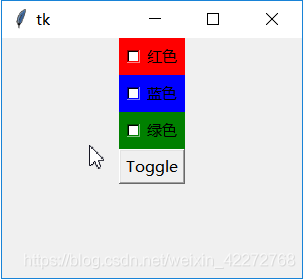
切换多选按钮的状态。如果目前是选中的状态,则变为未选中。反之亦然。toggle()的效果也invoke()是一样的。import tkinter as tk root=tk.Tk() root.geometry('300x240') b1 = tk.Checkbutton(root,bg='red',text='红色',bd=5) b1.pack() b2 = tk.Checkbutton(root,text='蓝色',bg='blue',bd=5) b2.pack() b3 = tk.Checkbutton(root,text='绿色',bg='green',bd=5) b3.pack() def toggle(): b2.toggle() b4=tk.Button(root,text='Toggle',command=toggle) b4.pack() root.mainloop()- 1
- 2
- 3
- 4
- 5
- 6
- 7
- 8
- 9
- 10
- 11
- 12
- 13
- 14
- 15
- 16
- 17
结果:

-
相关阅读:
vie的刷新机制
JAVA登录界面
gurobi 安装/license激活 记录
第十四届蓝桥杯(Web应用开发)模拟赛1期-大学组
hdu 1052(田忌赛马 贪心算法,sort排序)
七大排序算法
C++设计模式----装饰器模式
六、【常用工具组】
数据库技术基础
CPVT(ICLR 2023)论文解读
- 原文地址:https://blog.csdn.net/weixin_42272768/article/details/100725162
- 最新文章
-
Paxos算法:如何解决分布式系统中的共识问题?
和AI一起搞事情#5:技能进阶与Claude Design初体验
.NET 11 Preview 4 正式发布:Runtime-Async 全面启用、Process API 大幅扩展
大数据没那么远:把散乱数据理顺,让业务敢用
高性能百度OCR ONNX Runtime C#实现
C#/.NET/.NET Core技术前沿周刊 | 第 70 期(2026年5.01-5.10)
Triton学习 · Part 1 · Hello, world!
manyspeech-cli 本地命令行语音识别工具
PortSwigger SQL注入LAB5 & LAB6
Go-Spring 项目概览