-
Linux高级实战部署专题篇一:Docker入门(容器的安装部署,基本命令使用)
一,容器介绍
1,什么是容器
容器其实是一种沙盒技术。顾名思义,沙盒就是能够像一个集装箱一样, 把你的应用"装"起来的技术。这样,应用与应用之间,就因为有了边界 而不至于相互干扰;而被装进集装箱的应用,也可以被方便地搬来搬去, 这其实是 PaaS 最理想的状态。- 1
- 2
- 3
- 4
2,云计算服务类型
基础设施即服务Iaas 平台即服务(PaaS) 软件即服务(SaaS)- 1
- 2
- 3
3,容器本质
容器的本质是进程,是基于操作系统运行的,容器就是未来云计算系统中 的进程。 容器本质上是一种进程隔离的技术。 容器为进程提供了一个隔离的环境,容器内的进程无法访问容器外的进程。- 1
- 2
- 3
- 4
4,容器和虚拟机对比
容器是应用程序层的抽象,将代码和依赖项打包在一起。多个容器可以在同 一台计算机上运行,并与其他容器共享OS宿主机内核,每个容器在用户空间 中作为隔离的进程运行。容器占用的空间少于VM,可以处理更多的应用程序, 并且需要的VM和操作系统更少。 特性 虚拟机 容器 启动 分钟级 秒级 硬盘启动 一般为GB 一般为MB 性能 弱于 接近原生 系统支持量 一般几十个 单机支持上千个容器- 1
- 2
- 3
- 4
- 5
- 6
- 7
- 8
- 9
- 10
- 11
5,docker基本概念
Docker系统有两个程序:docker服务端和docker客户端 Docker服务端: 是一个服务进程,管理着所有的容器。 Docker客户端: 是docker服务端的远程控制器,可以用来控制docker的服务端进程。- 1
- 2
- 3
- 4
- 5
- 6
6,docker的优势
1,交付物标准化 Docker是软件工程领域的"标准化"交付组件,最恰到好处的类比是"集装箱"。 集装箱将零散、不易搬运的大量物品封装成一个整体,集装箱更重要的意义 在于它提供了一种通用的封装货物的标准,卡车、火车、货轮、桥吊等运输 或搬运工具采用此标准,隧道、桥梁等也采用此标准。以集装箱为中心的 标准化设计大大提高了物流体系的运行效率。 传统的软件交付物包括:应用程序、依赖软件安装包、配置说明文档、安装 文档、上线文档等非标准化组件。 Docker的标准化交付物称为"镜像",它包含了应用程序及其所依赖的运行 环境,大大简化了应用交付的模式。 2,一次构建,多次交付 类似于集装箱的"一次装箱,多次运输",Docker镜像可以做到"一次构建, 多次交付"。当涉及到应用程序多副本部署或者应用程序迁移时,更能 体现Docker的价值。 3,应用隔离 集装箱可以有效做到货物之间的隔离,使化学物品和食品可以堆砌在一起 运输。Docker可以隔离不同应用程序之间的相互影响,但是比虚拟机开销 更小。总之,容器技术部署速度快,开发、测试更敏捷;提高系统利用率, 降低资源成本。 namespace cgroups rootfs- 1
- 2
- 3
- 4
- 5
- 6
- 7
- 8
- 9
- 10
- 11
- 12
- 13
- 14
- 15
- 16
- 17
- 18
- 19
- 20
- 21
- 22
- 23
- 24
- 25
- 26

7,Docker三大核心组件
Docker 镜像 - Docker images Docker 仓库 - Docker registeries Docker 容器 - Docker containers ```bash 1,Docker仓库 用来保存镜像,可以理解为代码控制中的代码仓库。同样的,Docker仓库 也有公有和私有的概念。 公有的Docker仓库名字是 Docker Hub。Docker Hub提供了庞大的镜像 集合供使用。这些镜像可以是自己创建,或者在别人的镜像基础上创建。 Docker仓库是 Docker 的分发部分。 库:registry 公有库: Docker-hub Daocloud ali 网易蜂巢 私有库: 公司内部使用(自己部署) 分类: 操作系统名称 centos ubuntu 应用名称 nginx tomcat mysql Tag:表示镜像版本 2,Docker镜像 Docker镜像是 Docker 容器运行时的只读模板,每一个镜像由一系列的层 (layers) 组成。 每一个镜像都可能依赖于由一个或多个下层的组成的另一个镜像。下层那个 镜像是上层镜像的父镜像。 镜像名称: 仓库名称+镜像分类+tag名称(镜像版本) 完整镜像名称: docker.io/nginx:v1 docker.io/nginx:latest daocloud.io/centos:6 镜像ID: 64位的id号 基础镜像: 一个没有任何父镜像的镜像,谓之基础镜像。 注意: Registry中镜像是通过Repository来组织的,而每个Repository又 包含了若干个Image。Registry包含一个或多个Repository Docker 容器 Docker 容器和文件夹很类似,一个Docker容器包含了所有的某个应用 运行所需要的环境。每一个 Docker 容器都是从 Docker 镜像创建的 。Docker容器可以运行、开始、停止、移动和删除。每一个Docker容器 都是独立和安全的应用平台,Docker 容器是 Docker 的运行部分。- 1
- 2
- 3
- 4
- 5
- 6
- 7
- 8
- 9
- 10
- 11
- 12
- 13
- 14
- 15
- 16
- 17
- 18
- 19
- 20
- 21
- 22
- 23
- 24
- 25
- 26
- 27
- 28
- 29
- 30
- 31
- 32
- 33
- 34
- 35
- 36
- 37
- 38
- 39
- 40
- 41
- 42
- 43
- 44
- 45
- 46
二,容器安装部署
1,删除已安装的Docker
(注意:这个是可选项,如果系统中存在那么我们就删除) [root@xingdian ~]# yum remove docker \ docker-client \ docker-client-latest \ docker-common \ docker-latest \ docker-latest-logrotate \ docker-logrotate \ docker-selinux \ docker-engine-selinux \ docker-engine- 1
- 2
- 3
- 4
- 5
- 6
- 7
- 8
- 9
- 10
- 11
- 12
2,安装并配置阿里云Docker Yum源
[root@docker-compose ~]# wget https://mirrors.aliyun.com/docker-ce/linux/centos/docker-ce.repo [root@docker-compose ~]# mv docker-ce.repo /etc/yum.repos.d/ [root@docker-compose ~]# yum -y install docker-ce [root@docker-compose ~]# systemctl start docker-ce && systemctl enable docker [root@docker-compose ~]# docker -v Docker version 20.10.16, build aa7e414- 1
- 2
- 3
- 4
- 5
- 6
3,查看docker运行状态:
[root@xingdian ~]# docker info- 1
- 2
4,找到daocloud下载tomcat镜像
https://dashboard.daocloud.io/packages/47f127d0-8f1d-4f91-9647-739cf3146a04

[root@xingdian ~]# docker pull daocloud.io/library/tomcat:8.0.45- 1
5,启动tomcat,8080端口跳转80
[root@localhost ~]#docker run -itd -p 80:8080 daocloud.io/library/tomcat:8.0.45- 1

三,国内镜像仓库的使用(道云)
国内镜像站(道云) https://www.daocloud.io 可以在网站上直接部署,不用手动命令执行了,了解一下- 1
- 2
- 3
。

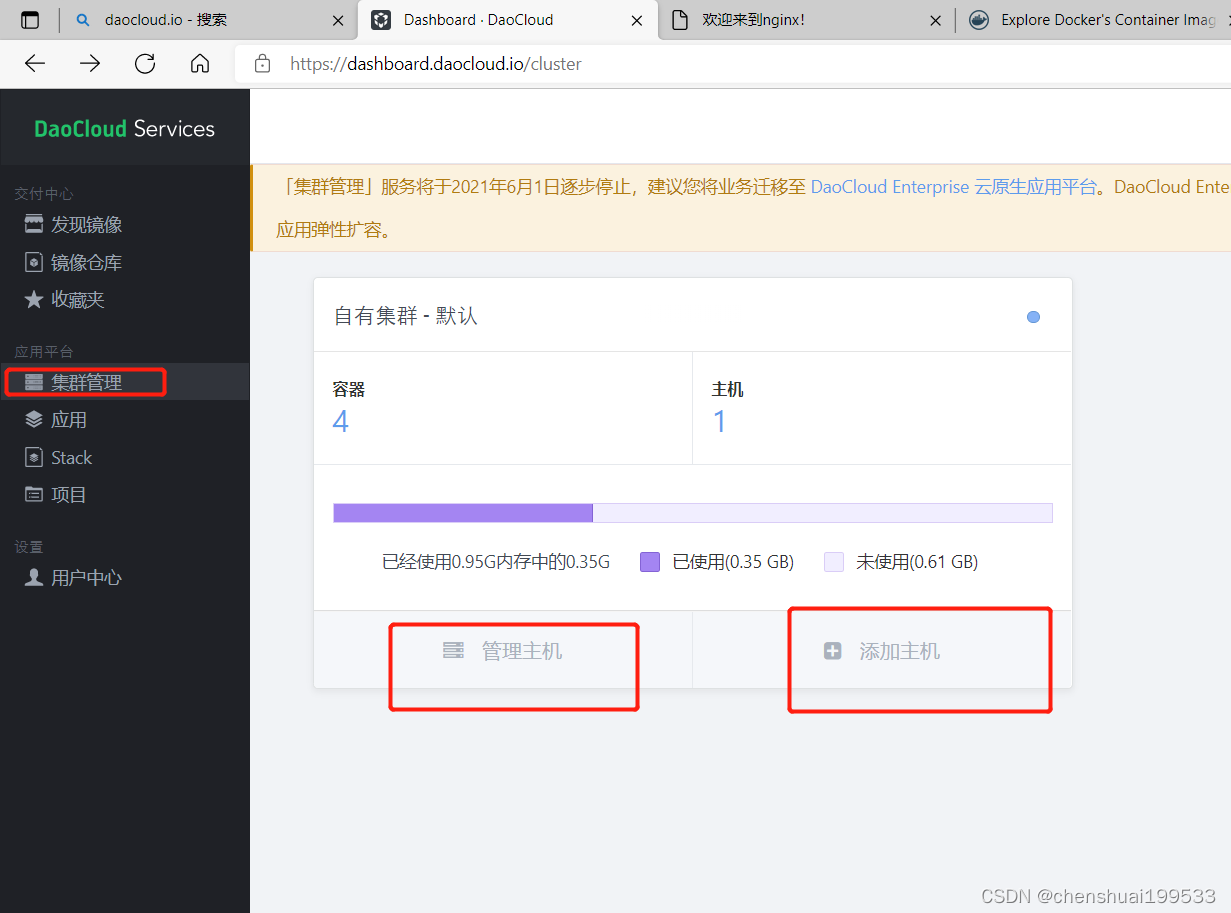


镜像加速器(加快下载镜像速度)[root@localhost ~]#curl -sSL https://get.daocloud.io/daotools/set_mirror.sh | sh -s http://f1361db2.m.daocloud.io [root@localhost ~]#systemctl restart docker- 1
- 2
- 3


四,国外镜像站(hub.docker.com)
https://hub.docker.com

五,docker的基本使用
1,登陆登出Docker
默认是国内下载
登录的话国外的,要先注册国外Docker Hub账号 [root@localhost ~]# docker login Login with your Docker ID to push and pull images from Docker Hub. If you don't have a Docker ID, head over to https://hub.docker.com to create one. Username: [root@localhost ~]# docker logout Removing login credentials for https://index.docker.io/v1/- 1
- 2
- 3
- 4
- 5
- 6
- 7
2,查看docker基本信息(了解)
[root@localhost ~]# docker info Client: Context: default Debug Mode: false Plugins: app: Docker App (Docker Inc., v0.9.1-beta3) buildx: Docker Buildx (Docker Inc., v0.8.2-docker) scan: Docker Scan (Docker Inc., v0.17.0) Server: Containers: 4 Running: 2 Paused: 0 Stopped: 2 Images: 4 Server Version: 20.10.16 Storage Driver: overlay2 Backing Filesystem: xfs Supports d_type: true Native Overlay Diff: true userxattr: false Logging Driver: json-file Cgroup Driver: cgroupfs Cgroup Version: 1 Plugins: Volume: local Network: bridge host ipvlan macvlan null overlay Log: awslogs fluentd gcplogs gelf journald json-file local logentries splunk syslog Swarm: inactive Runtimes: io.containerd.runc.v2 io.containerd.runtime.v1.linux runc Default Runtime: runc Init Binary: docker-init containerd version: 212e8b6fa2f44b9c21b2798135fc6fb7c53efc16 runc version: v1.1.1-0-g52de29d init version: de40ad0 Security Options: seccomp Profile: default Kernel Version: 3.10.0-693.el7.x86_64 Operating System: CentOS Linux 7 (Core) OSType: linux Architecture: x86_64 CPUs: 1 Total Memory: 976.3MiB Name: localhost.localdomain ID: A36T:BWP6:FHCW:UWTX:6EVU:YU7Q:RMC4:HANW:SHQT:HFNE:XAUE:M7R7 Docker Root Dir: /var/lib/docker Debug Mode: false Registry: https://index.docker.io/v1/ Labels: Experimental: false Insecure Registries: 127.0.0.0/8 Registry Mirrors: http://f1361db2.m.daocloud.io/ Live Restore Enabled: false WARNING: bridge-nf-call-iptables is disabled WARNING: bridge-nf-call-ip6tables is disabled- 1
- 2
- 3
- 4
- 5
- 6
- 7
- 8
- 9
- 10
- 11
- 12
- 13
- 14
- 15
- 16
- 17
- 18
- 19
- 20
- 21
- 22
- 23
- 24
- 25
- 26
- 27
- 28
- 29
- 30
- 31
- 32
- 33
- 34
- 35
- 36
- 37
- 38
- 39
- 40
- 41
- 42
- 43
- 44
- 45
- 46
- 47
- 48
- 49
- 50
- 51
- 52
- 53
- 54
- 55
- 56
- 57
- 58
- 59
3,docker帮助手册
[root@localhost ~]# docker --help Usage: docker [OPTIONS] COMMAND A self-sufficient runtime for containers Options: --config string Location of client config files (default "/root/.docker") -c, --context string Name of the context to use to connect to the daemon (overrides DOCKER_HOST env var and default context set with "docker context use") -D, --debug Enable debug mode -H, --host list Daemon socket(s) to connect to -l, --log-level string Set the logging level ("debug"|"info"|"warn"|"error"|"fatal") (default "info") --tls Use TLS; implied by --tlsverify --tlscacert string Trust certs signed only by this CA (default "/root/.docker/ca.pem") --tlscert string Path to TLS certificate file (default "/root/.docker/cert.pem") --tlskey string Path to TLS key file (default "/root/.docker/key.pem") --tlsverify Use TLS and verify the remote -v, --version Print version information and quit Management Commands: app* Docker App (Docker Inc., v0.9.1-beta3) builder Manage builds buildx* Docker Buildx (Docker Inc., v0.8.2-docker) config Manage Docker configs container Manage containers context Manage contexts image Manage images manifest Manage Docker image manifests and manifest lists network Manage networks node Manage Swarm nodes plugin Manage plugins scan* Docker Scan (Docker Inc., v0.17.0) secret Manage Docker secrets service Manage services stack Manage Docker stacks swarm Manage Swarm system Manage Docker trust Manage trust on Docker images volume Manage volumes Commands: attach Attach local standard input, output, and error streams to a running container build Build an image from a Dockerfile commit Create a new image from a container's changes cp Copy files/folders between a container and the local filesystem create Create a new container diff Inspect changes to files or directories on a container's filesystem events Get real time events from the server exec Run a command in a running container export Export a container's filesystem as a tar archive history Show the history of an image images List images import Import the contents from a tarball to create a filesystem image info Display system-wide information inspect Return low-level information on Docker objects kill Kill one or more running containers load Load an image from a tar archive or STDIN login Log in to a Docker registry logout Log out from a Docker registry logs Fetch the logs of a container pause Pause all processes within one or more containers port List port mappings or a specific mapping for the container ps List containers pull Pull an image or a repository from a registry push Push an image or a repository to a registry rename Rename a container restart Restart one or more containers rm Remove one or more containers rmi Remove one or more images run Run a command in a new container save Save one or more images to a tar archive (streamed to STDOUT by default) search Search the Docker Hub for images start Start one or more stopped containers stats Display a live stream of container(s) resource usage statistics stop Stop one or more running containers tag Create a tag TARGET_IMAGE that refers to SOURCE_IMAGE top Display the running processes of a container unpause Unpause all processes within one or more containers update Update configuration of one or more containers version Show the Docker version information wait Block until one or more containers stop, then print their exit codes Run 'docker COMMAND --help' for more information on a command. To get more help with docker, check out our guides at https://docs.docker.com/go/guides/- 1
- 2
- 3
- 4
- 5
- 6
- 7
- 8
- 9
- 10
- 11
- 12
- 13
- 14
- 15
- 16
- 17
- 18
- 19
- 20
- 21
- 22
- 23
- 24
- 25
- 26
- 27
- 28
- 29
- 30
- 31
- 32
- 33
- 34
- 35
- 36
- 37
- 38
- 39
- 40
- 41
- 42
- 43
- 44
- 45
- 46
- 47
- 48
- 49
- 50
- 51
- 52
- 53
- 54
- 55
- 56
- 57
- 58
- 59
- 60
- 61
- 62
- 63
- 64
- 65
- 66
- 67
- 68
- 69
- 70
- 71
- 72
- 73
- 74
- 75
- 76
- 77
- 78
- 79
- 80
- 81
- 82
- 83
- 84
- 85
- 86
- 87
- 88
- 89
- 90
- 91
- 92
- 93
- 94
4,docker常用的命令(重点)
1,查看本地镜像 [root@localhost ~]# docker images REPOSITORY TAG IMAGE ID CREATED SIZE nginx latest de2543b9436b 8 days ago 142MB daocloud.io/library/tomcat 8.0.45 fa6ad595ba45 4 years ago 357MB daocloud.io/library/nginx 1.12.0 313ec0a602bc 4 years ago 107MB daocloud.io/daocloud/daocloud-toolset latest bbdc71e950ea 5 years ago 147MB 注意:第一列是仓库,第二列是版本,第三列是镜像id,第四列是创建时间,第五列是镜像大小。 2,删除容器 [root@localhost ~]# docker ps -a CONTAINER ID IMAGE COMMAND CREATED STATUS PORTS NAMES 3682248d5d02 nginx "/docker-entrypoint.…" 39 minutes ago Up 39 minutes 0.0.0.0:67->80/tcp, :::67->80/tcp haha bcfebb0a7ca2 nginx "/docker-entrypoint.…" 46 minutes ago Up 46 minutes 0.0.0.0:66->80/tcp, :::66->80/tcp chen 35b50e63331a nginx "/docker-entrypoint.…" 2 hours ago Exited (0) 2 hours ago web 1340ebadaf17 nginx "/docker-entrypoint.…" 3 hours ago Exited (0) 2 hours ago chenge 3e555de8792e nginx "/docker-entrypoint.…" 3 hours ago Exited (0) 2 hours ago elegant_hodgkin ada6f696c617 nginx:latest "/docker-entrypoint.…" 5 hours ago Exited (0) 2 hours ago eager_blackburn 42ed84a39267 313ec0a602bc "nginx -g 'daemon of…" 5 hours ago Exited (0) 5 hours ago dao_shuai_1 d617b196a420 daocloud.io/library/tomcat:8.0.45 "catalina.sh run" 8 hours ago Exited (143) 5 hours ago epic_cannon 8c8d66ac5f9f daocloud.io/library/tomcat:8.0.45 "catalina.sh run" 8 hours ago Exited (143) 2 hours ago quirky_rosalind [root@localhost ~]# docker rm chenge 删除容器chenge chenge [root@localhost ~]# docker rm haha chen web 删除容器 haha chen web 所有的容器删除后,再删除镜像 [root@localhost ~]# docker rmi nginx:latest --force i是给一个结果,--force是强制删除 停止容器才能删除容器 删除容器docker rm 容器名或则id 删除镜像docker rmi 容器名或则id --force 3,停止和启动所有运行的镜像 [root@localhost ~]#docker ps -a -q 查看所有镜像的id 3682248d5d02 bcfebb0a7ca2 35b50e63331a 3e555de8792e ada6f696c617 42ed84a39267 [root@localhost ~]#docker stop `docker ps -a -q` [root@localhost ~]#docker start `docker ps -a -q` 4,运行nginx镜像 [root@localhost ~]#docker run -itd nginx -itd是后台运行 [root@localhost ~]#docker run -itd --name chen --hostname nginx -p 82:80 -v /mnt:/mnt nginx 注意: run是运行 -itd是非交互模式后台运行容器 --name 指定容器的名字 --hostname 指定容器的主机名,可以登录容器的时候看到 -p指端口映射跳转,格式为:主机(宿主)端口:容器端口, -v文件映射,格式为:主机目录:容器目录,类似于nfs共享存储 5,登录容器chen,可以看到容器的主机名为nginx [root@localhost ~]# docker exec -it chen /bin/bash root@nginx:/# ls bin boot dev docker-entrypoint.d docker-entrypoint.sh etc home lib lib64 media mnt opt proc root run sbin srv sys tmp usr var 本地文件复制到容器中 [root@localhost ~]# mkdir /root/1234 [root@localhost ~]# docker cp 1234 chen1:/root root@nginx:/# ls /root 1234 将容器里面的文件复制到本地 [root@localhost ~]# docker cp chen1:/root/haha.txt /root [root@localhost ~]# ls 1111 1234 anaconda-ks.cfg haha.txt 6,下载镜像 作者: library 最新版本: latest 镜像地址: daocloud.io/library/rabbitmq 从daocloud下载tomcat镜像,可以选择版本 方法一: [root@localhost ~]#docker pull daocloud.io/library/tomcat:8.0.45 方法二: 先下载国内的ngin镜像 [root@localhost ~]# docker pull nginx Using default tag: latest latest: Pulling from library/nginx 214ca5fb9032: Already exists 66eec13bb714: Already exists 17cb812420e3: Already exists 56fbf79cae7a: Already exists c4547ad15a20: Already exists d31373136b98: Already exists Digest: sha256:2d17cc4981bf1e22a87ef3b3dd20fbb72c3868738e3f307662eb40e2630d4320 Status: Downloaded newer image for nginx:latest docker.io/library/nginx:latest 然后再去运行容器 [root@localhost ~]# docker run -itd --name chen1 --hostname nginx -p 81:80 -v /mnt:/mnt nginx 8c46215b836ee1c23c74ed5c38996b1a7d97ed397ee886f36f865b711f8d3cfc --cidfile生成一个存放uuid的文件 [root@localhost ~]# docker run -itd --name nginx --cidfile=/root/uuid.txt nginx [root@localhost ~]# ls uuid.txt 查看镜像详情: [root@localhost ~]# docker inspect nginx- 1
- 2
- 3
- 4
- 5
- 6
- 7
- 8
- 9
- 10
- 11
- 12
- 13
- 14
- 15
- 16
- 17
- 18
- 19
- 20
- 21
- 22
- 23
- 24
- 25
- 26
- 27
- 28
- 29
- 30
- 31
- 32
- 33
- 34
- 35
- 36
- 37
- 38
- 39
- 40
- 41
- 42
- 43
- 44
- 45
- 46
- 47
- 48
- 49
- 50
- 51
- 52
- 53
- 54
- 55
- 56
- 57
- 58
- 59
- 60
- 61
- 62
- 63
- 64
- 65
- 66
- 67
- 68
- 69
- 70
- 71
- 72
- 73
- 74
- 75
- 76
- 77
- 78
- 79
- 80
- 81
- 82
- 83
- 84
- 85
- 86
- 87
- 88
- 89
- 90
- 91
- 92
- 93
- 94
- 95
- 96
- 97
- 98
- 99
- 100
- 101
- 102
- 103
- 104
- 105
- 106
5,拓展理解
namespace 空间隔离 名字空间是 Linux 内核一个强大的特性。每个容器都有自己单独的 名字空间,运行在其中的应用都像是在独立的操作系统中运行一样 名字空间保证了容器之间彼此互不影响。 cgroup 资源限制 cgroup是control group的简称,它为Linux内核提供了一种任务聚集 和划分的机制,通过一组参数集合将一些任务组织成一个或多个子系统。 rootfs 文件系统(了解)- 1
- 2
- 3
- 4
- 5
- 6
- 7
- 8
- 9
- 10
-
相关阅读:
win11 无法登录微软账户 终极解决方案
万字总结数据库Redis,值得大家收藏
python面试题之read、readline、readlines的区别
[ vulhub漏洞复现篇 ] JBOSS AS 4.x以下反序列化远程代码执行漏洞CVE-2017-7504
因为CMake文件出错,导致链接器报错重定义
函数栈帧(详解)
[shell] 判断字符串是否包含子字符串方法([[ 、=~、##、%%)
07【SpringMVC常用注解】
CAD多张图纸批量转PDF怎么转?分享批量转换方法
人工智能学习笔记
- 原文地址:https://blog.csdn.net/chenshuai199533/article/details/124981853
- 最新文章
-
沪漂五周年了:我越来越迷茫了
Agentic Skill Routing 实战:别再把所有 Skill 塞进 AI Agent 上下文
MySQL-Seconds_behind_master的精度误差
[MAF预定义ChatClient中间件-03]CachingChatClient——利用缓存省钱省时间
AI的至暗历史:从万众期待到被政府撤资,AI的两次死亡徘徊
Agent OS :五种驯服不确定性的范式
PortSwigger SQL注入LAB11
数据库即时编译JIT
[Begin]AI Learn Data Day 0
深度学习进阶(二十七)现代 LLM 的核心架构设计其二:SwiGLU