-
Electron学习笔记(一)
相关笔记
- Electron学习笔记(一)
- Electron学习笔记(二)
- Electron学习笔记(三)
- Electron学习笔记(四)
- Electron学习笔记(五)
- Electron学习笔记(六)
- 使用 electron-vite-vue 构建 electron + vue3 项目并打包
笔记说明
文本为学习《Electron 实战 入门、进阶与性能优化 刘晓伦 著》时所记录的笔记 主要将书本上的案例运行一遍,针对原理部分并无相关记录。笔记记录于 2023年9月。
一、轻松入门
1、搭建开发环境
安装 yarn :
npm i -g yarn创建一个文件夹,进行项目的初始化:
yarn init -y配置 Electron 的镜像网站:
yarn config set electron_mirror https://registry.npmmirror.com/-/binary/electron/使用 yarn 安装 Electron:
yarn add electron --dev2、创建窗口界面
创建一个 index.html 文件,内容如下:
DOCTYPE html>
<html lang="en">
<head>
    <meta charset="UTF-8">
    <meta name="viewport" content="width=device-width, initial-scale=1.0">
    <title>Electrontitle>
head>
<body>
    <h1>Hello Worldh1>
body>
html>
新建一个 index.js 文件,内容如下:
const {app,BrowserWindow} = require('electron');

let win = null;

app.on('ready', function() {
    win = new BrowserWindow({
        // 为页面集成Node.js环境
        webPreferences: {
            nodeIntegration: true
        }
    });
    // 访问资源文件
    win.loadFile('index.html');

    // 程序启动后开启 开发者工具
    // win.webContents.openDevTools();

    win.on('close',function() {
        win = null;
    })
});

app.on('window-all-closed',function() {
    app.quit();
})
更新 package.json 文件:
"scripts": {
"start": "electron ./index.js"
},
启动项目:
yarn start结果展示:

3、调试主进程
点击调试按钮,创建 launch.json 文件 -> 选择Node.js环境

修改 launch.json 文件如下:
{
    "version": "0.2.0",
    "configurations": [
        {
            "name": "调试主进程",
            // type: 调试环境为 Node.js 环境
            "type": "node",
            "request": "launch",
            "cwd": "${workspaceRoot}",
            // runtimeExecutable: 指向的是批处理文件,该批处理文件用于启动 Electron
            // ${workspaceRoot} 是正在进行调试的程序的工作目录的绝对路径
            "runtimeExecutable": "${workspaceRoot}/node_modules/.bin/electron",
            "windows": {
                "runtimeExecutable": "${workspaceRoot}/node_modules/.bin/electron.cmd"
            },
            // 此处的参数是主进程程序路径的简写形式,填写 "./index.js" 亦可
            "args": ["."],
            "outputCapture": "std"
        }
    ]
}
快捷键:
Ctrl+Shift+I:打开渲染进程的调试窗口Ctrl+R:代码修改后,刷新界面二、主进程和渲染进程
1、进程互访
注:原书籍中的代码由于 Electron 版本的更新,remote 模块无法直接导入使用,需要进行下载:
下载 remote 模块:
yarn add @electron/remote更新 index.js 文件如下:(主进程代码)
const {app,BrowserWindow} = require('electron'); app.on('ready', function() { win = new BrowserWindow({ // 为页面集成Node.js环境 webPreferences: { nodeIntegration: true, contextIsolation: false } }); require("@electron/remote/main").initialize(); require("@electron/remote/main").enable(win.webContents); // 访问资源文件 win.loadFile('index.html'); // 程序启动后开启 开发者工具 // win.webContents.openDevTools(); win.on('close',function() { win = null; }) }); app.on('window-all-closed',function() { app.quit(); })参考链接:https://blog.csdn.net/m0_45961428/article/details/122982510
在 index.html 添加以下代码:
<button id="openDevToolsBtn">打开开发者工具button>
<script>
    const remote =require('@electron/remote');
    document.querySelector('#openDevToolsBtn').addEventListener('click',function() {
        remote.getCurrentWindow().webContents.openDevTools();
    })
script>
运行程序:
yarn start运行结果:(点击按钮可打开开发者工具)

2、渲染进程访问主进程类型
主进程代码:主进程代码
更新 index.html 文件如下:
<button id="makeNewWindow">创建新窗口button>
<script>
    const remote = require('@electron/remote');

    // 在渲染进程中创建一个新的窗口
    document.querySelector('#makeNewWindow').addEventListener('click',function() {
        win = new remote.BrowserWindow({
            webPreferences: {
                nodeIntegration: true,
            }
        });
        win.loadFile('newWin.html');
    });
script>
说明:创建 BrowserWindow 的过程依然在主进程中进行,是由 remote 模块通知主进程完成相应的操作的,主进程创建了 BrowserWindow 对象的实例后,把对象的实例以远程对象的形式返回给渲染进程。
3、渲染进程访问主进程自定义内容
主进程代码:主进程代码
新建文件 mainModel.js:
let {BrowserWindow} = require('electron');

exports.makeWin = function() {
    let win = new BrowserWindow({
        webPreferences: {
            nodeIntegration: true,
        }
    });
    return win;
}
更新 index.html 文件如下:
<button id="makeNewWindow2">创建新窗口2button>
<script>
    const remote = require('@electron/remote');
    const mainModel = remote.require('./mainModel');

    let win2 = null;
    document.querySelector('#makeNewWindow2').addEventListener('click',function() {
        win2 = mainModel.makeWin();
        win2.loadFile('newWin.html');
    });
script>
4、渲染进程向主进程发送消息
更新 index.html 文件:
<button id="sendMsg">向主进程发送消息button>
<script>
    const {ipcRenderer} = require('electron');

    document.querySelector('#makeNewWindow2').addEventListener('click',() => {
        // msg:消息管道的名称
        ipcRenderer.send('msg',{name: 'xiaom'},{name: 'xiaoh'});
    });
script>
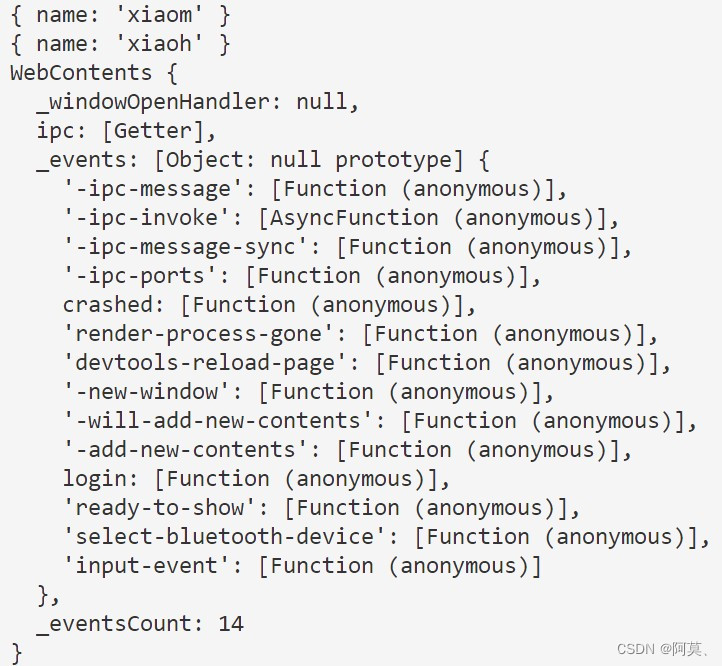
index.js 文件添加以下内容:(其余主进程代码见:主进程代码)
const {ipcMain} = require('electron');

ipcMain.on('msg',(event,param1,param2) => {
    console.log(param1);
    console.log(param2);
    console.log(event.sender);
})
运行结果:
5、主进程向渲染进程发送消息
在主进程 index.js 文件中添加以下代码:
const {app,BrowserWindow} = require('electron');
const {ipcMain} = require('electron');

let win = null;

app.on('ready', function() {
    win = new BrowserWindow({
        // 为页面集成Node.js环境
        webPreferences: {
            nodeIntegration: true,
            contextIsolation: false
        }
    });

    // 监听渲染进程发来的消息,随后再次发回给渲染进程
    ipcMain.on('msg',(event,param1,param2) => {
        win.webContents.send('msg_main',param1,param2);
    })

    // 访问资源文件
    win.loadFile('index.html');

    win.on('close',function() {
        win = null;
    })
});
更新渲染进程 index.html 文件如下:
<button id="sendMsg">向主进程发送消息button>
<script>
    const {ipcRenderer} = require('electron');

    // 接收 主进程发送的消息
    ipcRenderer.on('msg_main',(event,param1,param2) => {
        console.log(param1);
        console.log(param2);
        console.log(event.sender);
    })

    document.querySelector('#sendMsg').addEventListener('click',() => {
        ipcRenderer.send('msg',{name: 'xiaom'},{name: 'xiaoh'});
    });
script>
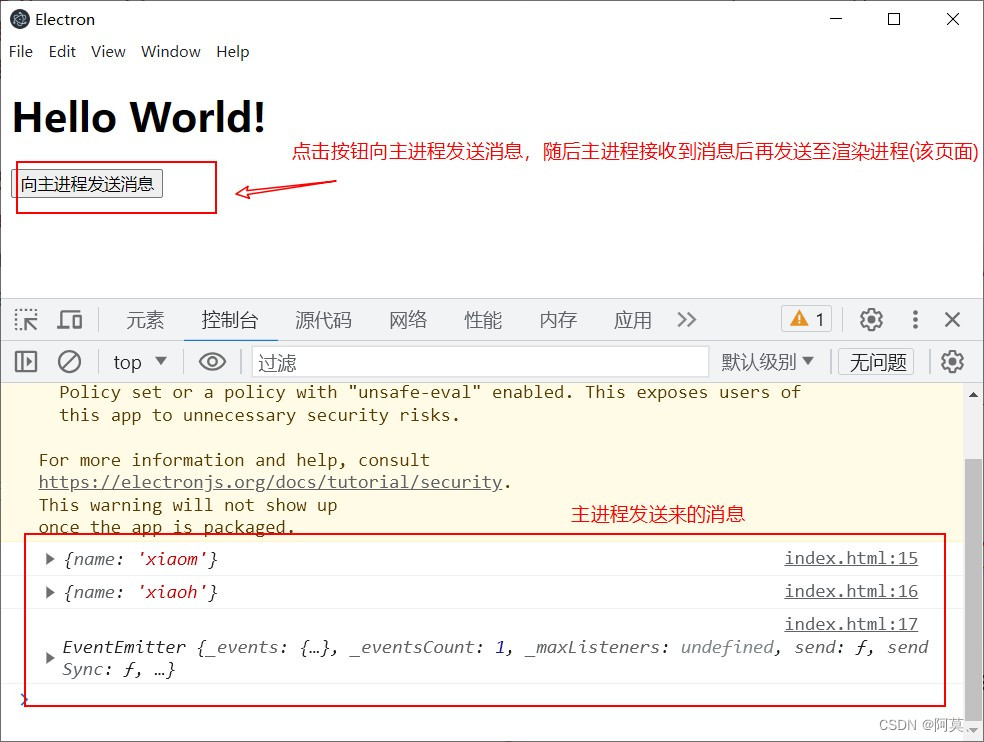
运行程序后 -> 点击按钮(向主进程发送消息) -> Electron 程序控制台将会打印主进程发送来的消息。
运行结果:
6、多个窗口的渲染进程接收主进程发送的消息
更新主进程 index.js 文件:
const {app,BrowserWindow} = require('electron');
const {ipcMain} = require('electron');

// 接收 渲染进程 发送来的消息 在VSCode控制台打印消息
ipcMain.on('msg',(event,param1,param2) => {
    console.log(param1);
    console.log(param2);
    console.log(event.sender);
});

let win = null;

app.on('ready', function() {
    win = new BrowserWindow({
        // 为页面集成Node.js环境
        webPreferences: {
            nodeIntegration: true,
            contextIsolation: false
        }
    });

    // 为了使 remote 模块能够使用需要执行以下操作
    require("@electron/remote/main").initialize();
    require("@electron/remote/main").enable(win.webContents);

    // 监听 渲染进程 发来的消息,随后再次发回给渲染进程
    ipcMain.on('msg',(event,param1,param2) => {
        // 单个窗口时使用:
        // win.webContents.send('msg_main',param1,param2);

        // 多个窗口时使用
        // 方法一:
        // event.sender.send('msg_main',param1,param2);
        // 方法二:
        event.reply('msg_main',param1,param2);
    })

    // 访问资源文件
    win.loadFile('index.html');

    win.on('close',function() {
        win = null;
    })
});

app.on('window-all-closed',function() {
    app.quit();
});
更新 index.html 文件如下:
<button id="makeNewWindow">创建新窗口button>
<button id="sendMsg">向主进程发送消息button>
<script>

    const remote = require('@electron/remote');
    const { ipcRenderer } = require('electron');

    // 在渲染进程中创建一个新的窗口
    document.querySelector('#makeNewWindow').addEventListener('click', function () {
        win = new remote.BrowserWindow({
            webPreferences: {
                nodeIntegration: true,
                contextIsolation: false
            }
        });
        win.loadFile('newWin.html');
    });

    // 监听主进程发送来的消息
    ipcRenderer.on('msg_main', (event, param1, param2) => {
        console.log(param1);
        console.log(param2);
        console.log(event.sender);
    })

    // 点击发送按钮 发送消息至主进程
    document.querySelector('#sendMsg').addEventListener('click', () => {
        ipcRenderer.send('msg', { name: 'xiaom' }, { name: 'xiaoh' });
    });
script>
newWin.html 文件内容如下:
<h1>newWindowh1>
<button id="sendMsg2">向主进程发送消息button>
<script>
    const { ipcRenderer } = require('electron');

    // 监听主进程发送来的消息
    ipcRenderer.on('msg_main', (event, param1, param2) => {
        console.log(param1);
        console.log(param2);
        console.log(event.sender);
    })

    // 点击发送按钮 发送消息至主进程
    document.querySelector('#sendMsg2').addEventListener('click', () => {
        ipcRenderer.send('msg', { name: 'xiaod' }, { name: 'xiaoc' });
    });
script>
7、渲染进程之间消息传递
一个程序有多个窗口,并要在窗口之间传递消息,可以通过主进程中转,此处通过win1先将消息发送给主进程,主进程再将消息发送给win2。
方法一:利用主进程进行中转
窗口(win1) --> 主进程(中转) --> 窗口(win2)
窗口(win2) --> 主进程(中转) --> 窗口(win1)
主进程 index.js 文件内容如下:
const {app,BrowserWindow} = require('electron');
const {ipcMain} = require('electron');

let win = null;

app.on('ready', function() {
    win = new BrowserWindow({
        // 为页面集成Node.js环境
        webPreferences: {
            nodeIntegration: true,
            contextIsolation: false
        }
    });

    require("@electron/remote/main").initialize();
    require("@electron/remote/main").enable(win.webContents);

    // 监听 窗口win1 (index.html) 发来的消息
    ipcMain.on('msg_1',(event,param1,param2) => {
        // 向 窗口win1 (index.html) 发送消息
        win.webContents.send('msg_main',param1,param2);
    });

    // 访问资源文件
    win.loadFile('index.html');

    // 程序启动后开启 开发者工具
    win.webContents.openDevTools();

    win.on('close',function() {
        win = null;
    })
});

app.on('window-all-closed',function() {
    app.quit();
})
窗口(win1) index.html 文件内容如下:
<h1>win1h1>
<button id="makeNewWindow">创建新窗口win2button>
<button id="sendMsg">向主进程发送消息button>
<script>

    const remote = require('@electron/remote');
    const { ipcRenderer } = require('electron');

    // 在渲染进程中创建一个新的窗口(win2)
    document.querySelector('#makeNewWindow').addEventListener('click', function () {
        win2 = new remote.BrowserWindow({
            webPreferences: {
                nodeIntegration: true,
                contextIsolation: false
            }
        });
        win2.loadFile('win2.html');
        win2.webContents.openDevTools();

        // 接收 主进程 的消息后 向 win2 发送消息
        ipcRenderer.on('msg_main', (event, param1, param2) => {
            win2.webContents.send('msg_win2',param1,param2);
        });
    });

    // 接收 主进程 发送的消息
    ipcRenderer.on('msg_main', (event, param1, param2) => {
        console.log(param1);
        console.log(param2);
        console.log(event.sender);
    })

    // 点击按钮向 主进程 发送消息
    document.querySelector('#sendMsg').addEventListener('click', () => {
        ipcRenderer.send('msg_1', { name: 'xiaom' }, { name: 'xiaoh' });
    });
script>
窗口(win2) win2.html 文件内容如下:
<h1>win2h1>
<button id="sendMsg2">向主进程发送消息button>
<script>
    const { ipcRenderer } = require('electron');

    // 接收 窗口 win1 (index.html) 发送来的消息
    ipcRenderer.on('msg_win2', (event, param1, param2) => {
        console.log(param1);
        console.log(param2);
        console.log(event.sender);
    })

    // 点击按钮向 主进程 发送消息
    document.querySelector('#sendMsg2').addEventListener('click', () => {
        ipcRenderer.send('msg_1', { name: 'xiaod' }, { name: 'xiaoc' });
    });
script>
结果展示:

方法二:单向传递
窗口(win1) --> 窗口(win2)
主进程 index.js 文件内容如下:(此方法无需主进程中转,所以主进程无需接收消息)
const {app,BrowserWindow} = require('electron');

let win = null;

app.on('ready', function() {
    win = new BrowserWindow({
        // 为页面集成Node.js环境
        webPreferences: {
            nodeIntegration: true,
            contextIsolation: false
        }
    });

    require("@electron/remote/main").initialize();
    require("@electron/remote/main").enable(win.webContents);

    // 访问资源文件
    win.loadFile('index.html');

    // 程序启动后开启 开发者工具
    win.webContents.openDevTools();

    win.on('close',function() {
        win = null;
    })
});

app.on('window-all-closed',function() {
    app.quit();
});
窗口(win1) index.html 文件内容如下:
<h1>win1h1>
<button id="makeNewWindow">创建新窗口win2button>
<button id="sendMsg">向窗口win2发送消息button>
<script>

    const remote = require('@electron/remote');
    const { ipcRenderer } = require('electron');

    // 在渲染进程中创建一个新的窗口(win2)
    document.querySelector('#makeNewWindow').addEventListener('click', function () {
        win2 = new remote.BrowserWindow({
            webPreferences: {
                nodeIntegration: true,
                contextIsolation: false
            }
        });
        win2.loadFile('win2.html');
        win2.webContents.openDevTools();

        // 获取 窗口(win2) 的 webContents.id 并通过 ipcRenderer.sendTo 方法发送消息至 win2
        document.querySelector('#sendMsg').addEventListener('click', () => {
            ipcRenderer.sendTo(win2.webContents.id,'msg_win2', { name: 'xiaom' }, { name: 'xiaoh' });
        });
    });

script>
窗口(win2) win2.html 文件内容如下:
<h1>win2h1>
<script>
    const { ipcRenderer } = require('electron');

    // 接收 窗口(win1) 发送来的消息
    ipcRenderer.on('msg_win2', (event, param1, param2) => {
        console.log(param1);
        console.log(param2);
        console.log(event.sender);
    });
script>
结果展示:

-
相关阅读:
unity 判断平台
numpy 笔记:重视 numpy 广播
Matlab地理信息绘图—研究区域绘制
Kafka 3.x.x 入门到精通(03)——对标尚硅谷Kafka教程
kafka消息重复消费解决方案
23种设计模式之建造者模式
[libevent:构建高性能事件驱动应用的利器]
解决连接MQTT时报的Connection refused: connect问题以及无权连接的问题
SqlServer单机发布订阅
中电文思海辉:塑造全球AI能力,持续强化诸多行业战略
- 原文地址:https://blog.csdn.net/qq_45897239/article/details/138608520