-
掌握Shell:从新手到编程大师的Linux之旅
1 shell介绍
1.1 shell脚本的意义
1.记录命令执行的过程和执行逻辑,以便以后重复执行
2.脚本可以批量处理主机
3.脚本可以定时处理主机1.2 脚本的创建
#!/bin/bash # 运行脚本时候执行的环境- 1


1.3 自动添加脚本说明信息
/etc/vimrc # vim主配置文件 ~/.vimrc # 该用户环境下的文件- 1
- 2
autocmd BufNewFile *.sh,*.script call NOTE() func NOTE() call append(0,"####################") call append(1,"# Author: sxl") call append(2,"# Version: ") call append(3,"# Create_Time: ".strftime("%Y/%m/%d")) call append(4,"################################################") call append(5,"#!/bin/bash") endfunc- 1
- 2
- 3
- 4
- 5
- 6
- 7
- 8
- 9

1.4 执行shell脚本
当脚本没有可执行权限时候
1.4.1 手动在环境中开启指定解释器
sh script.sh- 1

1.4.2 直接在当前环境中运行shell中的指令不开启新的shell
source script.sh . script.sh- 1
- 2

当脚本有可执行权限时候
1.4.3 开启脚本中指定的shell并使用此shell环境运行脚本中的指令
chmod +x script.sh /xxx/xxx/script.sh ./script.sh- 1
- 2
- 3

1.5 调试
sh -x /mnt/westos.sh # 进入debug模式 + ##运行指令 不带+ ##命令运行的输出- 1
- 2
- 3

2 shell变量
2.1 变量的定义
- 变量就是内存一片区域的地址
- 变量定义的规范性
2.1.1 变量名称
可包含:
字母
下划线_
数字不能用数字开头
建议:
变量名称短全用大写字符 变量名称长用_区分子类 WESTOS Westos_Linux westoS_Linux- 1
- 2
- 3
- 4
- 5
2.2 不同级别的变量设定
2.2.1 环境变量
export a=1 在环境关闭后变量失效- 1
- 2

2.2.2 用户级别
vim ~/.bash_profile export a=1- 1
- 2

2.2.3 系统级别
vim /etc/profile export a=2 vim /etc/profile.d/westos.sh export b=3- 1
- 2
- 3
- 4


2.3 变量转义
2.3.1 转译
\ #转译单个字符 "" #弱引用,批量转译个数字符 不能转译"\ " "" "$" "!" '' #强引用- 1
- 2
- 3

2.3.2 声明变量及其引用
a=1 echo ${a}b- 1
- 2

2.3.3 变量数组的使用
a=(1 2 3 4 5) a$[a[@]:起始元素id:元素个数] echo ${a[0]} ##数组中第一个元素 echo ${a[1]} ##数组中最后一个元素 echo ${a[*]} ##数组中所有元素 echo ${a[@]} ##数组中所有元素 echo ${a[@]:0:3} ##数组中13个元素 echo ${#a[@]} ##数组中元素的个数 unset a[n] ##删除数组中的第n1个元素 unset a ##删除a这个数组- 1
- 2
- 3
- 4
- 5
- 6
- 7
- 8
- 9
- 10

2.4 命令的别名设定
aliasalias xie='vim' ##临时设定 vim ~/.bashrc alias xie='vim' ##只针对与用户生效 vim /etc/bashrc ##针对系统所以用户生效 alias xie='vim' unalias xie ##删除当前环境中的alias- 1
- 2
- 3
- 4
- 5
- 6

2.5 用户环境变量的更改
设定方式: ~/.bash_profile # 当前用户环境变量 export PATH=$PATH:/mnt /etc/bash_profile # 整个系统变量 export PATH=$PATH:/mnt- 1
- 2
- 3
- 4
- 5

2.6 直接利用命令执行结果
$()##优先执行 TIME=`date` # 范围更广- 1
- 2

2.7 脚本中的传参
2.7.1 非交互式
非交互模式: $0 is /mnt/test.sh <!脚本本身> $1 is westos <!脚本后所输入的第一串字符> $2 is linux $3 is redhat $* is westos linux redhat <!脚本后所输入的所有字符"westos linux redhat"> $@ is westos linux redhat <!脚本后所输入的所有字符'westos' 'linux' 'redhat'> $# is 3 <!脚本后所输入的字符串个数>- 1
- 2
- 3
- 4
- 5
- 6
- 7
- 8

2.7.2 交互式
read WESTOS ##对westos赋值 read -p "please input word:" ##输出提示语 -s ##隐藏输入内容- 1
- 2
- 3

2.8 脚本函数
设定方式: WORD() { action1 action2 } WORD 在脚本中就代表action1 action2这两个动作- 1
- 2
- 3
- 4
- 5
- 6
- 7


3 shell编程流程
3.1 for
for i in 1 2 3 4 5 sxl do echo $i done echo "################" for i in `seq 1 2 5` # 步长为2 do echo $i done echo "################" for i in {1..5} do echo $i done echo "################" for ((i=6;i<10;i++)) do echo $i done- 1
- 2
- 3
- 4
- 5
- 6
- 7
- 8
- 9
- 10
- 11
- 12
- 13
- 14
- 15
- 16
- 17
- 18
- 19
- 20


3.2 条件
3.2.1 while do

3.2.2 until do

3.2.3 if

3.3 case
执行按钮操作,点名机制,相对于IF语句效率更高
case $1 in word1|WORD1) action1 ;; word2|WORD2) action2 ;; *) action3 esac- 1
- 2
- 3
- 4
- 5
- 6
- 7
- 8
- 9
- 10

3.4 expect
3.4.1 shell应答方式
问题expect.sh
#!/bin/bash read -p "what's your name:" NAME read -p "How old are you: " AGE read -p "Which objective: " OBJ read -p "Are you ok? " OK echo $NAME is $AGE\'s old study $OBJ feel $OK- 1
- 2
- 3
- 4
- 5
- 6
回答answer.sh
/root/Desktop/expect.sh <<EOF SXL 20 REAHAT OK EOF- 1
- 2
- 3
- 4
- 5
- 6


3.4.2 expect应答方式
dnf install expect -y- 1
#!/usr/bin/expect set timeout 1 set NAME [ lindex $argv 0 ] set AGE [ lindex $argv 1 ] set OBJ [ lindex $argv 2 ] set FEEL [ lindex $argv 3 ] spawn /mnt/ask.sh expect { "name" { send "$NAME\r";exp_continue } "old" { send "$AGE\r";exp_continue } "objective" { send "$OBJ\r";exp_continue } "ok" { send "$FEEL\r" } } expect eof- 1
- 2
- 3
- 4
- 5
- 6
- 7
- 8
- 9
- 10
- 11
- 12
- 13
- 14


4 shell运算
4.1 运算符号
+ ##加法 - ##减法 * ##乘法 / ##除法 % ##除法后的余数 ** ##乘方 ++ ##自加一 -- ##自减一 < ##小于 <= ##小于等与 > ##大于 >= ##大于等与 >= ##等于 += j+=i ##j=j+i *= *##j=j*i /= ##j=j/i %= ##j=j%i- 1
- 2
- 3
- 4
- 5
- 6
- 7
- 8
- 9
- 10
- 11
- 12
- 13
- 14
- 15
- 16
- 17

4.2 运算指令
(()) ##((a=1+2)) let ##let a=1+2 expr ##expr 1 + 2 bc bc << EOF 1+2 EOF $[] ##echo $[1+2] printf '%0.2f' .3 ==== 0.30 printf '%0.3f' .3 ====0.300 printf '%0.4f' .3 ====0.3000- 1
- 2
- 3
- 4
- 5
- 6
- 7
- 8
- 9
- 10
- 11


5 脚本练习
5.1 IP采集
ifconfig $* | awk '/inet\>/{print $2}'- 1

5.2 日志清理
[ "$USER" = "root" ]&&{ echo clean ok > /var/log/message }||{ echo clean error }- 1
- 2
- 3
- 4
- 5
- 6
- 7

5.3 采集系统登录用户信息
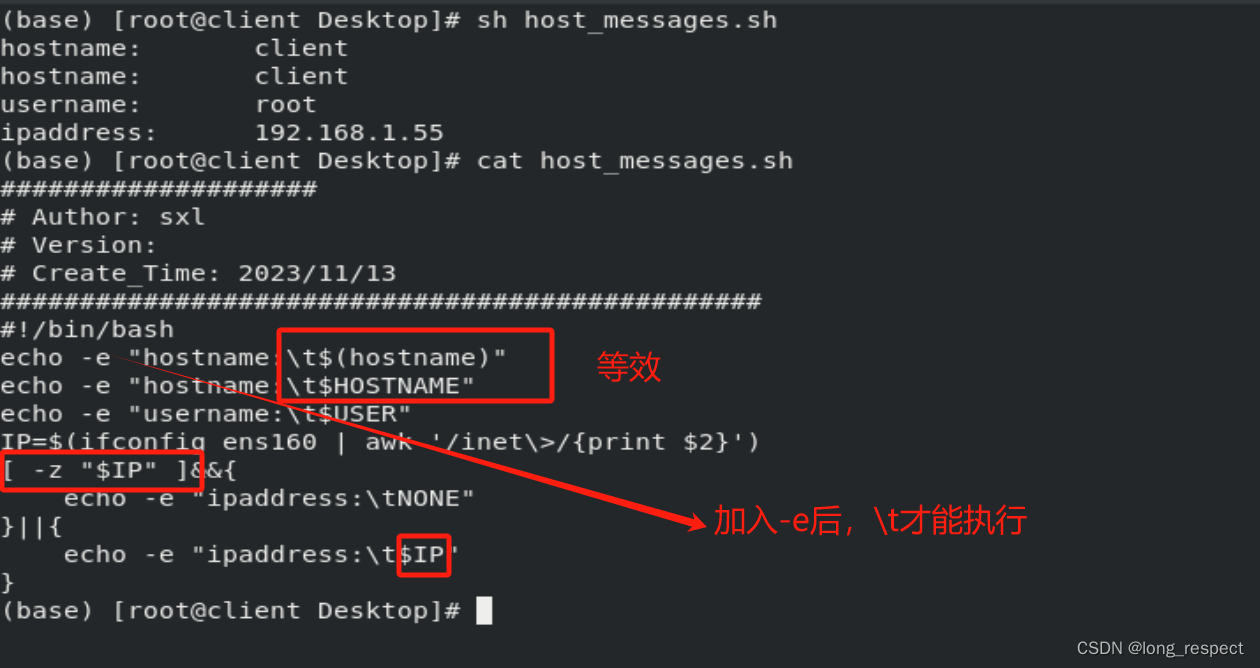
echo -e "hostname:\t$(hostname)" echo -e "hostname:\t$HOSTNAME" echo -e "username:\t$USER" IP=$(ifconfig ens160 | awk '/inet\>/{print $2}') [ -z "$IP" ]&&{ echo -e "ipaddress:\tNONE" }||{ echo -e "ipaddress:\t$IP" }- 1
- 2
- 3
- 4
- 5
- 6
- 7
- 8
- 9
5.4 脚本函数创建用户
ACTION() { read -p "please name:" NAME [ "exit" = "$NAME" ]&&{ exit } id $NAME &> /dev/null &&{ echo "user exit" ACTION }||{ echo "user not exit" read -p "please input passwd:" PASSWD adduser $NAME echo $PASSWD | passwd --stdin &> /dev/null &&{ echo "$NAME create ok" } ACTION } } ACTION- 1
- 2
- 3
- 4
- 5
- 6
- 7
- 8
- 9
- 10
- 11
- 12
- 13
- 14
- 15
- 16
- 17
- 18
- 19
- 20
- 21

5.5 检测直连网络中可以与主机通信的主机IP
for ip in {50..64} do ping -w 1 -c 1 192.168.1.$ip &> /dev/null &&{ echo 192.168.1.$ip } done- 1
- 2
- 3
- 4
- 5
- 6

5.6 用户建立脚本
5.7 系统CPU使用情况
ps ax -o %cpu | awk 'BEGIN{N=0}!/$CPU|0.0/{N+=$1}END{print "%CPU:\t"N"%"}'- 1

5.8 倒计时
MIN=1 SEC=60 SECS=$[MIN*60+SEC] for ((;SECS>0;SECS--)) do MIN=$[SECS/60] SEC=$[SECS%60] echo -ne "$MIN:$SEC" echo -ne '\r' sleep 1 done- 1
- 2
- 3
- 4
- 5
- 6
- 7
- 8
- 9
- 10
- 11
- 12

-
相关阅读:
嵌入式Linux(树莓派)环境设置和交叉编译
DevOps:从历史到实践的全面解析
【单片机】51单片机存储使用总结
Vuex——笔试题、Vuex简介、引入方式、State、Getter、Mutation、Action、Module
haskell 的where 或者 let ..in 表达式
C++ 20 协程(一)
待看12313132
pycocotools库的使用
微信小程序-自定义组件checkbox
openGauss学习笔记-75 openGauss 数据库管理-创建和管理序列
- 原文地址:https://blog.csdn.net/weixin_43945111/article/details/134360203
