-
CSS高级的详细解析
CSS高级
目标:掌握定位的作用及特点;掌握 CSS 高级技巧
01-定位
作用:灵活的改变盒子在网页中的位置
实现:
1.定位模式:position
2.边偏移:设置盒子的位置
-
left
-
right
-
bottom
相对定位
position: relative
特点:
-
不脱标,占用自己原来位置
-
显示模式特点保持不变
-
设置边偏移则相对自己原来位置移动
- div {
- position: relative;
- top: 100px;
- left: 200px;
- }
绝对定位
position: absolute
使用场景:子级绝对定位,父级相对定位(子绝父相)
特点:
-
脱标,不占位
-
显示模式具备行内块特点
-
设置边偏移则相对最近的已经定位的祖先元素改变位置
-
如果祖先元素都未定位,则相对浏览器可视区改变位置
- .father {
- position: relative;
- }
-
- .father span {
- position: absolute;
- top: 0;
- right: 0;
- }
定位居中

实现步骤:
-
绝对定位
-
水平、垂直边偏移为 50%
-
子级向左、上移动自身尺寸的一半
-
左、上的外边距为 –尺寸的一半
-
transform: translate(-50%, -50%)
- img {
- position: absolute;
- left: 50%;
- top: 50%;
-
- /* margin-left: -265px;
- margin-top: -127px; */
-
- /* 方便: 50% 就是自己宽高的一半 */
- transform: translate(-50%, -50%);
- }
固定定位
position: fixed
场景:元素的位置在网页滚动时不会改变
特点:
-
脱标,不占位
-
显示模式具备行内块特点
-
设置边偏移相对浏览器窗口改变位置
- div {
- position: fixed;
- top: 0;
- right: 0;
-
- width: 500px;
- }
堆叠层级z-index
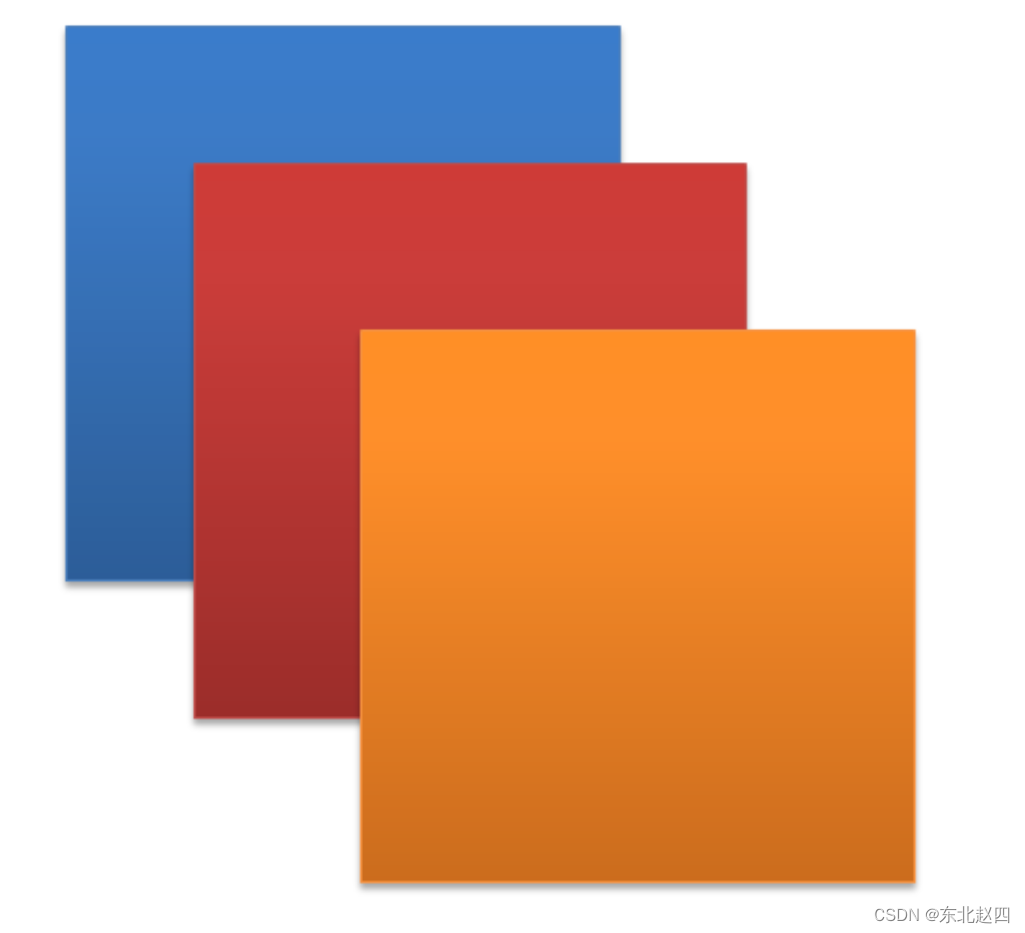
默认效果:按照标签书写顺序,后来者居上
作用:设置定位元素的层级顺序,改变定位元素的显示顺序
属性名:z-index
属性值:整数数字(默认值为0,取值越大,层级越高)
- .box1 {
- background-color: pink;
- /* 取值是整数,默认是0,取值越大显示顺序越靠上 */
- z-index: 1;
- }
-
- .box2 {
- background-color: skyblue;
- left: 100px;
- top: 100px;
-
- z-index: 2;
- }
02-高级技巧
CSS精灵
CSS 精灵,也叫 CSS Sprites,是一种网页图片应用处理方式。把网页中一些背景图片整合到一张图片文件中,再background-position 精确的定位出背景图片的位置。
优点:减少服务器被请求次数,减轻服务器的压力,提高页面加载速度

实现步骤:
-
创建盒子,盒子尺寸与小图尺寸相同
-
设置盒子背景图为精灵图
-
添加 background-position 属性,改变背景图位置
3.1 使用 PxCook 测量小图片左上角坐标
3.2 取负数坐标为 background-position 属性值(向左上移动图片位置)
案例-京东服务

HTML结构
- <div class="service">
- <ul>
- <li>
- <h5>h5>
- <p>品类齐全,轻松购物p>
- li>
- <li>
- <h5>h5>
- <p>多仓直发,极速配送p>
- li>
- <li>
- <h5>h5>
- <p>正品行货,精致服务p>
- li>
- <li>
- <h5>h5>
- <p>天天低价,畅选无忧p>
- li>
- ul>
- div>
CSS样式
- <style>
- * {
- margin: 0;
- padding: 0;
- box-sizing: border-box;
- }
-
- li {
- list-style: none;
- }
-
- .service {
- margin: 100px auto;
- width: 1190px;
- height: 42px;
- /* background-color: pink; */
- }
-
- .service ul {
- display: flex;
- }
-
- .service li {
- display: flex;
- padding-left: 40px;
- width: 297px;
- height: 42px;
- /* background-color: skyblue; */
- }
-
- .service li h5 {
- margin-right: 10px;
- width: 36px;
- height: 42px;
- /* background-color: pink; */
- background: url(./images/sprite.png) 0 -192px;
- }
-
- .service li:nth-child(2) h5 {
- background-position: -41px -192px;
- }
-
- .service li:nth-child(3) h5 {
- background-position: -82px -192px;
- }
-
- .service li:nth-child(4) h5 {
- background-position: -123px -192px;
- }
-
- .service li p {
- font-size: 18px;
- color: #444;
- font-weight: 700;
- line-height: 42px;
- }
- style>
字体图标

字体图标:展示的是图标,本质是字体
作用:在网页中添加简单的、颜色单一的小图标
优点
-
灵活性:灵活地修改样式,例如:尺寸、颜色等
-
轻量级:体积小、渲染快、降低服务器请求次数
-
兼容性:几乎兼容所有主流浏览器
-
使用方便:先下载再使用
下载字体
iconfont 图标库:iconfont-阿里巴巴矢量图标库
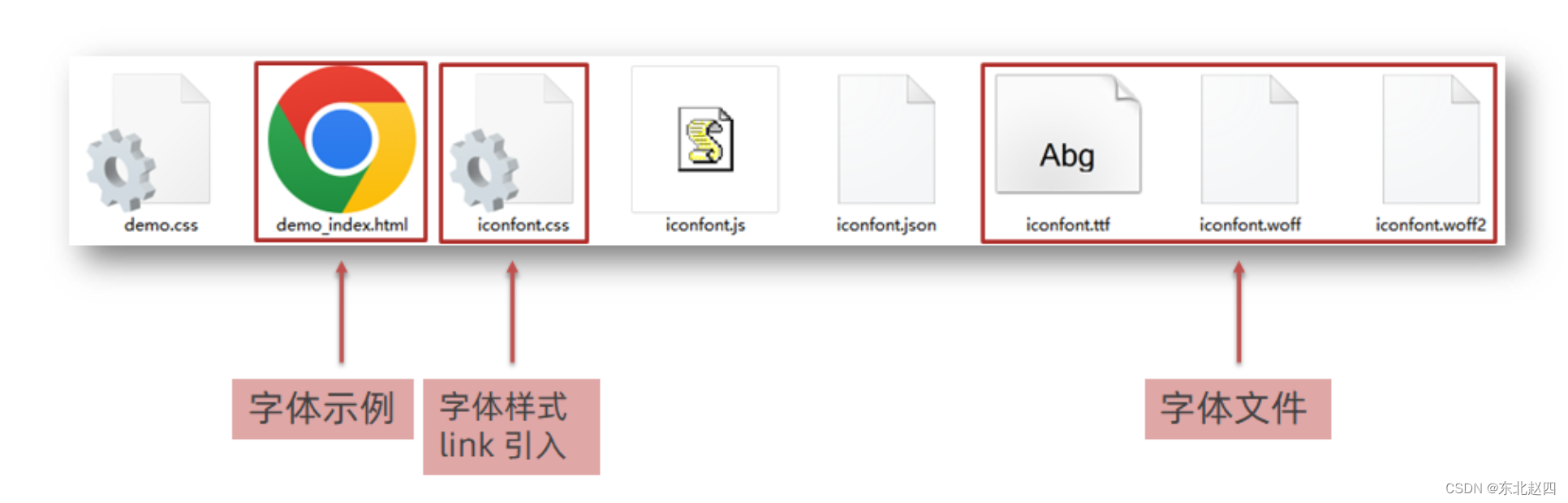
登录 → 素材库 → 官方图标库 → 进入图标库 → 选图标,加入购物车 → 购物车,添加至项目,确定 → 下载至本地
使用字体
-
引入字体样式表(iconfont.css)
-

-
标签使用字体图标类名
-
iconfont:字体图标基本样式(字体名,字体大小等等)
-
icon-xxx:图标对应的类名
-

-
上传矢量图
作用:项目特有的图标上传到 iconfont 图标库,生成字体

上传步骤:上传 → 上传图标 → 选择 svg 矢量图,打开 → 提交 → 系统审核
03-CSS修饰属性
垂直对齐方式

属性名:vertical-align

过渡
作用:可以为一个元素在不同状态之间切换的时候添加过渡效果
属性名:transition(复合属性)
属性值:过渡的属性 花费时间 (s)
提示:
-
过渡的属性可以是具体的 CSS 属性
-
也可以为 all(两个状态属性值不同的所有属性,都产生过渡效果)
-
transition 设置给元素本身
- img {
- width: 200px;
- height: 200px;
- transition: all 1s;
- }
-
- img:hover {
- width: 500px;
- height: 500px;
- }
透明度opacity
作用:设置整个元素的透明度(包含背景和内容)
属性名:opacity
属性值:0 – 1
-
0:完全透明(元素不可见)
-
1:不透明
-
0-1之间小数:半透明
光标类型cursor
作用:鼠标悬停在元素上时指针显示样式
属性名:cursor

04-综合案例-轮播图

图片效果
HTML结构
- <div class="banner">
- <ul>
- <li><a href="#"><img src="./images/banner1.jpg" alt="">a>li>
- <li><a href="#"><img src="./images/banner2.jpg" alt="">a>li>
- <li><a href="#"><img src="./images/banner3.jpg" alt="">a>li>
- ul>
- div>
CSS样式
- * {
- margin: 0;
- padding: 0;
- box-sizing: border-box;
- }
-
- li {
- list-style: none;
- }
-
- .banner {
- position: relative;
- margin: 100px auto;
- width: 564px;
- height: 315px;
- /* background-color: pink; */
- overflow: hidden;
- }
-
- /* 图片 */
- .banner img {
- width: 564px;
- border-radius: 12px;
- vertical-align: middle;
- }
-
- .banner ul {
- display: flex;
- }
箭头
HTML结构
- <a href="#" class="prev">
- <i class="iconfont icon-zuoce">i>
- a>
- <a href="#" class="next">
- <i class="iconfont icon-youce">i>
- a>
CSS样式
- /* 箭头 */
- .banner .prev,
- .banner .next {
- /* 隐藏 */
- display: none;
- position: absolute;
- top: 50%;
- transform: translateY(-50%);
-
- width: 20px;
- height: 30px;
- background-color: rgba(0,0,0, 0.3);
-
- text-decoration: none;
- color: #fff;
- line-height: 30px;
- }
-
- /* 鼠标滑到banner区域,箭头要显示 display:block */
- .banner:hover .prev,
- .banner:hover .next {
- display: block;
- }
-
- .banner .prev {
- left: 0;
- border-radius: 0 15px 15px 0;
- }
-
- .banner .next {
- right: 0;
- border-radius: 15px 0 0 15px;
- text-align: center;
- }
圆点
HTML结构
- <ol>
- <li>li>
- <li class="active">li>
- <li>li>
- ol>
CSS样式
- /* 圆点 */
- .banner ol {
- position: absolute;
- bottom: 20px;
- left: 50%;
- transform: translateX(-50%);
- height: 13px;
- background-color: rgba(255,255,255,0.3);
-
- display: flex;
-
- border-radius: 10px;
- }
-
- .banner ol li {
- margin: 3px;
- width: 8px;
- height: 8px;
- background-color: #fff;
- border-radius: 50%;
- cursor: pointer;
- }
-
- /* 橙色的li */
- .banner ol .active {
- background-color: #ff5000;
- }
-
-
相关阅读:
组合模式
关键字volatile用法
爬虫HTTP代理:获取多种类型数据的神器
借助Spire.Doc for Java控件,将 ODT 转换为 PDF。
链表的简单描述及代码的简单实现
Zone 和 Zoneset 是什么关系
【知识】从音频CS4334 DAC转换的电路引发的一些知识
java毕业设计校园招聘系统设计mybatis+源码+调试部署+系统+数据库+lw
虹科分享|如何保障医疗数据安全?移动目标防御技术给你满意的答案
软件测试———linux
- 原文地址:https://blog.csdn.net/qq_69748833/article/details/134042366

- 最新文章
-
沪漂五周年了:我越来越迷茫了
Agentic Skill Routing 实战:别再把所有 Skill 塞进 AI Agent 上下文
MySQL-Seconds_behind_master的精度误差
[MAF预定义ChatClient中间件-03]CachingChatClient——利用缓存省钱省时间
AI的至暗历史:从万众期待到被政府撤资,AI的两次死亡徘徊
Agent OS :五种驯服不确定性的范式
PortSwigger SQL注入LAB11
数据库即时编译JIT
[Begin]AI Learn Data Day 0
深度学习进阶(二十七)现代 LLM 的核心架构设计其二:SwiGLU