-
Mac运行Docker报错
Mac运行Docker报错
📔 千寻简笔记介绍
千寻简笔记已开源,Gitee与GitHub搜索
chihiro-notes,包含笔记源文件.md,以及PDF版本方便阅读,且是用了精美主题,阅读体验更佳,如果文章对你有帮助请帮我点一个Star~更新:
支持在线阅读文章,根据发布日期分类。简介
本文关键词
Job for docker.service failed because the control process exited with error code. See "systemctl status docker.service" and "journalctl -xeu docker.service" for details.、Job for docker.service failed because the control process exited with error code、systemctl status docker.service" and "journalctl -xeu docker.service实现步骤
1. 启动docker报错
root@primary:/service/java/docker# systemctl start docker.service Job for docker.service failed because the control process exited with error code. See "systemctl status docker.service" and "journalctl -xeu docker.service" for details.- 1
- 2
- 3
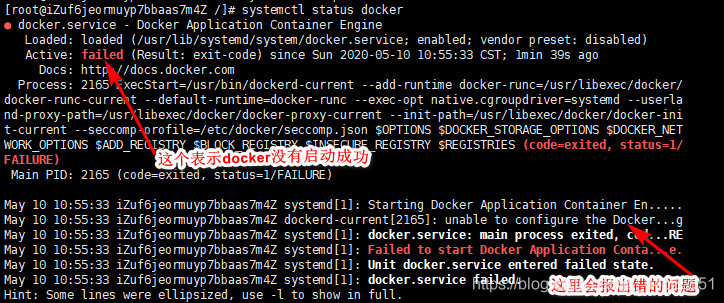
1.1 systemctl status docker.service查看docker服务的状态
- 使用docker时,遇到 docker.service的作业失败,因为控制进程已退出,并返回错误代码。
- 有关详细信息,请参阅“systemctl status docker.service”和“journalctl -xe”时,不一定要重装 docker。
systemctl status docker.service # 报错信息 × docker.service - Docker Application Container Engine Loaded: loaded (/lib/systemd/system/docker.service; enabled; vendor preset: enabled) Active: failed (Result: exit-code) since Tue 2023-05-30 23:04:30 CST; 5min ago TriggeredBy: × docker.socket Docs: https://docs.docker.com Process: 925 ExecStart=/usr/bin/dockerd -H fd:// --containerd=/run/containerd/containerd.sock (code=exited, status> Main PID: 925 (code=exited, status=1/FAILURE) CPU: 60ms May 30 23:04:27 primary systemd[1]: docker.service: Main process exited, code=exited, status=1/FAILURE May 30 23:04:27 primary systemd[1]: docker.service: Failed with result 'exit-code'. May 30 23:04:27 primary systemd[1]: Failed to start Docker Application Container Engine. May 30 23:04:30 primary systemd[1]: docker.service: Scheduled restart job, restart counter is at 3. May 30 23:04:30 primary systemd[1]: Stopped Docker Application Container Engine. May 30 23:04:30 primary systemd[1]: docker.service: Start request repeated too quickly. May 30 23:04:30 primary systemd[1]: docker.service: Failed with result 'exit-code'. May 30 23:04:30 primary systemd[1]: Failed to start Docker Application Container Engine.- 1
- 2
- 3
- 4
- 5
- 6
- 7
- 8
- 9
- 10
- 11
- 12
- 13
- 14
- 15
- 16
- 17
- 18
- 19
1.2 journalctl -xe 查看报错信息
root@primary:/etc/docker# journalctl -xe Journal file /var/log/journal/8c1bf4cc93844889a4cf1a8b67be1748/user-1000@0005fa7b9a7766ed-645e5933b08e3d15.journal~ is truncated, ignoring file. May 30 23:24:03 primary rsyslogd[594]: action 'action-3-builtin:omfile' (module 'builtin:omfile') message lost, could not be processed. Check for additional error messages before>- 1
- 2
- 3
分析错误:
No space left on devic>设备上没有剩余空间,在错误日志中我们发现是docker安装目录满了。解决方案:
- 查看目录下剩余空间
df -hl /var/lib/docker # 显示的信息:使用已经百分百 Filesystem Size Used Avail Use% Mounted on /dev/sda1 4.7G 4.7G 0 100% /- 1
- 2
- 3
- 4
- 查看分区容量
df -h # 显示的信息 Filesystem Size Used Avail Use% Mounted on tmpfs 97M 11M 86M 12% /run /dev/sda1 4.7G 4.7G 0 100% / tmpfs 482M 0 482M 0% /dev/shm tmpfs 5.0M 0 5.0M 0% /run/lock /dev/sda15 98M 6.3M 92M 7% /boot/efi tmpfs 97M 4.0K 97M 1% /run/user/1000- 1
- 2
- 3
- 4
- 5
- 6
- 7
- 8
- 9
- 知道是磁盘不足,由于我们现在docker启动不了,星辰推荐先扩容,后面在对容器和镜像进行优化。
我是在Mac虚拟机(multipass)上运行的docker,默认磁盘5G,所以我们调整一下磁盘大小就可以,下面有我找到的一个博主的参考。
# 打开终端 xingchen@star-2 ~ % multipass ls Name State IPv4 Image primary Stopped -- Ubuntu 22.04 LTS # 扩容命令,等号左右不能有空格 # 要修改其中一个属性,请先停止实例,然后发出命令set。例如: multipass set local.primary.disk=10G xingchen@star-2 ~ % multipass set local.primary.disk=10G xingchen@star-2 ~ % # 可以使用命令查询这些属性get。不必为此停止实例。例如: multipass get local.primary.disk # 扩容完毕我们启动虚拟机在查看容量 df -h root@primary:/home/ubuntu# df -h # 显示的信息 Filesystem Size Used Avail Use% Mounted on tmpfs 97M 11M 86M 12% /run /dev/sda1 4.7G 4.7G 0 100% / tmpfs 482M 0 482M 0% /dev/shm tmpfs 5.0M 0 5.0M 0% /run/lock /dev/sda15 98M 6.3M 92M 7% /boot/efi tmpfs 97M 4.0K 97M 1% /run/user/1000 # 发现一个问题,multipass 扩容以后系统磁盘不变 # 扩展完磁盘后使用lsblk查看的结果变了而使用df -h结果大小却没变,这是因为前者查看的是磁盘的大小而后者查看的是文件系统的大小。磁盘和文件系统在不严格区分时可视为同一个东西,但追究起来确实是两样东西。 root@primary:/home/ubuntu# fdisk -l Disk /dev/loop0: 43.18 MiB, 45277184 bytes, 88432 sectors Units: sectors of 1 * 512 = 512 bytes Sector size (logical/physical): 512 bytes / 512 bytes I/O size (minimum/optimal): 512 bytes / 512 bytes Disk /dev/loop1: 59.12 MiB, 61988864 bytes, 121072 sectors Units: sectors of 1 * 512 = 512 bytes Sector size (logical/physical): 512 bytes / 512 bytes I/O size (minimum/optimal): 512 bytes / 512 bytes Disk /dev/loop2: 868 KiB, 888832 bytes, 1736 sectors Units: sectors of 1 * 512 = 512 bytes Sector size (logical/physical): 512 bytes / 512 bytes I/O size (minimum/optimal): 512 bytes / 512 bytes Disk /dev/loop3: 43.19 MiB, 45289472 bytes, 88456 sectors Units: sectors of 1 * 512 = 512 bytes Sector size (logical/physical): 512 bytes / 512 bytes I/O size (minimum/optimal): 512 bytes / 512 bytes Disk /dev/loop4: 4 KiB, 4096 bytes, 8 sectors Units: sectors of 1 * 512 = 512 bytes Sector size (logical/physical): 512 bytes / 512 bytes I/O size (minimum/optimal): 512 bytes / 512 bytes Disk /dev/loop5: 59.09 MiB, 61960192 bytes, 121016 sectors Units: sectors of 1 * 512 = 512 bytes Sector size (logical/physical): 512 bytes / 512 bytes I/O size (minimum/optimal): 512 bytes / 512 bytes Disk /dev/loop6: 109.61 MiB, 114929664 bytes, 224472 sectors Units: sectors of 1 * 512 = 512 bytes Sector size (logical/physical): 512 bytes / 512 bytes I/O size (minimum/optimal): 512 bytes / 512 bytes Disk /dev/vda: 52 KiB, 53248 bytes, 104 sectors Units: sectors of 1 * 512 = 512 bytes Sector size (logical/physical): 512 bytes / 512 bytes I/O size (minimum/optimal): 512 bytes / 512 bytes GPT PMBR size mismatch (10485759 != 20971519) will be corrected by write. The backup GPT table is not on the end of the device. Disk /dev/sda: 10 GiB, 10737418240 bytes, 20971520 sectors Disk model: QEMU HARDDISK Units: sectors of 1 * 512 = 512 bytes Sector size (logical/physical): 512 bytes / 512 bytes I/O size (minimum/optimal): 512 bytes / 512 bytes Disklabel type: gpt Disk identifier: 377B9709-DEFE-4067-8E1D-220FD9F66D56 Device Start End Sectors Size Type /dev/sda1 206848 10485726 10278879 4.9G Linux filesystem /dev/sda15 2048 204800 202753 99M EFI System Partition table entries are not in disk order. root@primary:/home/ubuntu# # 关于“linux磁盘扩容成功文件系统大小却没变化”问题详细解决方案 https://blog.csdn.net/qq_41999034/article/details/111030811- 1
- 2
- 3
- 4
- 5
- 6
- 7
- 8
- 9
- 10
- 11
- 12
- 13
- 14
- 15
- 16
- 17
- 18
- 19
- 20
- 21
- 22
- 23
- 24
- 25
- 26
- 27
- 28
- 29
- 30
- 31
- 32
- 33
- 34
- 35
- 36
- 37
- 38
- 39
- 40
- 41
- 42
- 43
- 44
- 45
- 46
- 47
- 48
- 49
- 50
- 51
- 52
- 53
- 54
- 55
- 56
- 57
- 58
- 59
- 60
- 61
- 62
- 63
- 64
- 65
- 66
- 67
- 68
- 69
- 70
- 71
- 72
- 73
- 74
- 75
- 76
- 77
- 78
- 79
- 80
- 81
- 82
- 83
- 84
- 85
- 86
- 87
- 88
- 89
- 90
- 91
- 92
- 93
- 94
- 95
- 96
- 97
- 98
-
相关阅读:
springcloud05——Zookeeper实现支付微服务
ML307R OpenCPU UDP使用
ChatGPT Plus 支付出现「您的银行卡被拒绝/your card has been declined」怎么办?
配置zabbix监控nginx状态,监控华为路由器
是时候重视官网了,寄生平台的生意表达,就是在给平台打工
助力大厂offer,这份Java面试最全八股文不可错过
Webpack 的作用和工作原理是什么?
如何完成一次 git pr
React 入门:使用脚手架创建应用
007:连续跌三天,第四天上涨的概率--可视化优化1
- 原文地址:https://blog.csdn.net/IUTStar/article/details/134013768