在UI交互中,拖拽操作是一种非常简单友好的交互。尤其是在ListBox,TabControl,ListView这类列表控件中更为常见。通常要实现拖拽排序功能的做法是自定义控件。本文将分享一种在原生控件上设置附加属性的方式实现拖拽排序功能。
该方法的使用非常简单,仅需增加一个附加属性就行。
<TabControl
    assist:SelectorDragDropAttach.IsItemsDragDropEnabled="True"
    AlternationCount="{Binding ClassInfos.Count}"
    ContentTemplate="{StaticResource contentTemplate}"
    ItemContainerStyle="{StaticResource TabItemStyle}"
    ItemsSource="{Binding ClassInfos}"
    SelectedIndex="0" />
实现效果如下:
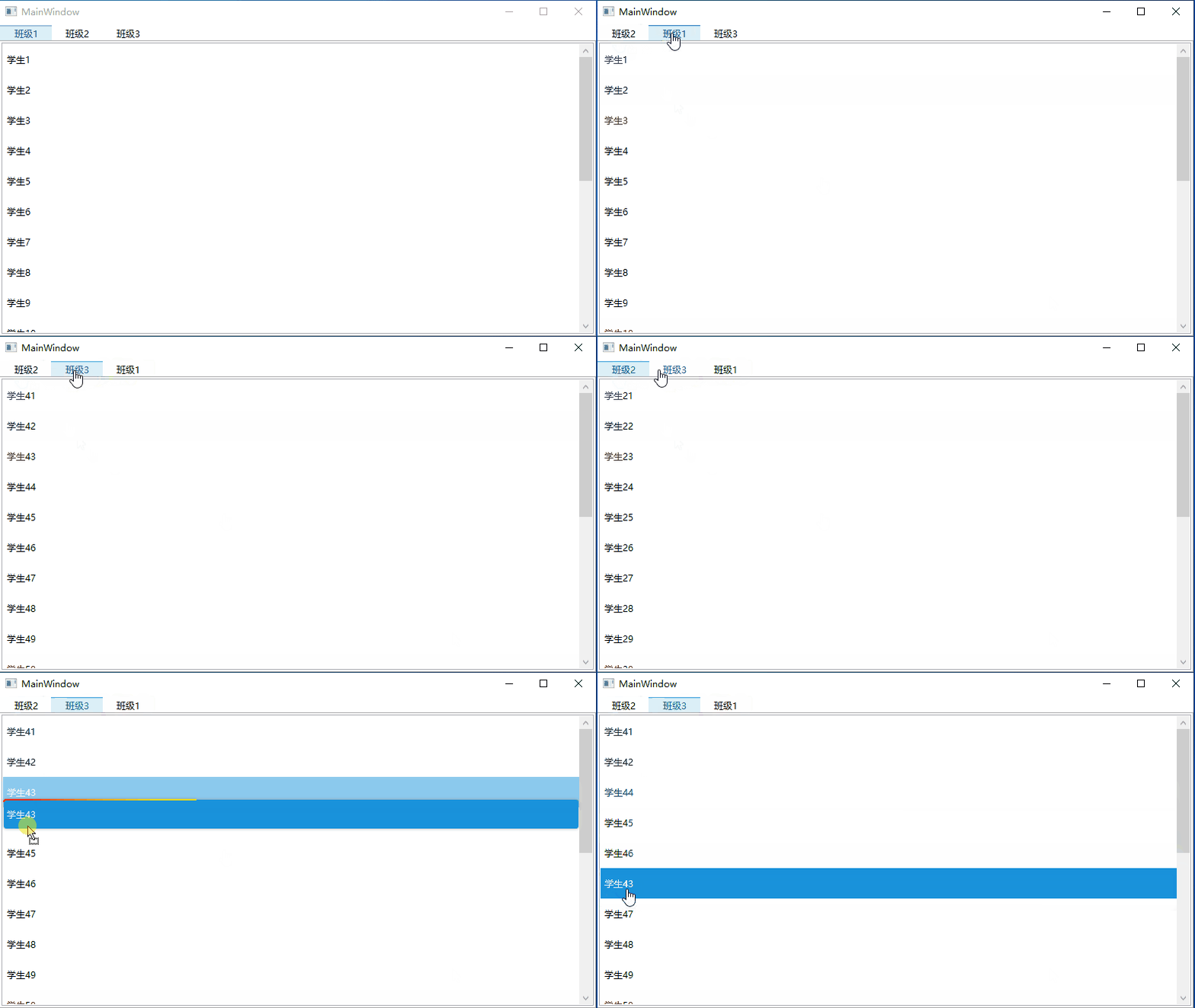
主要思路#
WPF中核心基类UIElement包含了DragEnter,DragLeave,DragEnter,Drop等拖拽相关的事件,因此只需对这几个事件进行监听并做相应的处理就可以实现WPF中的UI元素拖拽操作。
另外,WPF的一大特点是支持数据驱动,即由数据模型来推动UI的呈现。因此,可以通过通过拖拽事件处理拖拽的源位置以及目标位置,并获取到对应位置渲染的数据,然后操作数据集中数据的位置,从而实现数据和UI界面上的顺序更新。
首先定义一个附加属性类SelectorDragDropAttach,通过附加属性IsItemsDragDropEnabled控制是否允许拖拽排序。
public static class SelectorDragDropAttach
{
    public static bool GetIsItemsDragDropEnabled(Selector scrollViewer)
    {
        return (bool)scrollViewer.GetValue(IsItemsDragDropEnabledProperty);
    }

    public static void SetIsItemsDragDropEnabled(Selector scrollViewer, bool value)
    {
        scrollViewer.SetValue(IsItemsDragDropEnabledProperty, value);
    }

    public static readonly DependencyProperty IsItemsDragDropEnabledProperty =
        DependencyProperty.RegisterAttached("IsItemsDragDropEnabled", typeof(bool), typeof(SelectorDragDropAttach), new PropertyMetadata(false, OnIsItemsDragDropEnabledChanged));

    private static readonly DependencyProperty SelectorDragDropProperty =
        DependencyProperty.RegisterAttached("SelectorDragDrop", typeof(SelectorDragDrop), typeof(SelectorDragDropAttach), new PropertyMetadata(null));

    private static void OnIsItemsDragDropEnabledChanged(DependencyObject d, DependencyPropertyChangedEventArgs e)
    {
        bool b = (bool)e.NewValue;
        Selector selector = d as Selector;
        var selectorDragDrop = selector?.GetValue(SelectorDragDropProperty) as SelectorDragDrop;
        if (selectorDragDrop != null)
            selectorDragDrop.Selector = null;
        if (b == false)
        {
            selector?.SetValue(SelectorDragDropProperty, null);
            return;
        }
        selector?.SetValue(SelectorDragDropProperty, new SelectorDragDrop(selector));

    }

}
其中SelectorDragDrop就是处理拖拽排序的对象,接下来看下几个主要事件的处理逻辑。
通过PreviewMouseLeftButtonDown确定选中的需要拖拽操作的元素的索引
void selector_PreviewMouseLeftButtonDown(object sender, MouseButtonEventArgs e)
{
    if (this.IsMouseOverScrollbar)
    {
        //Set the flag to false when cursor is over scrollbar.
        this.canInitiateDrag = false;
        return;
    }

    int index = this.IndexUnderDragCursor;
    this.canInitiateDrag = index > -1;

    if (this.canInitiateDrag)
    {
        // Remember the location and index of the SelectorItem the user clicked on for later.
        this.ptMouseDown = GetMousePosition(this.selector);
        this.indexToSelect = index;
    }
    else
    {
        this.ptMouseDown = new Point(-10000, -10000);
        this.indexToSelect = -1;
    }
}
在PreviewMouseMove事件中根据需要拖拽操作的元素创建一个AdornerLayer,实现鼠标拖着元素移动的效果。其实拖拽移动的只是这个AdornerLayer,真实的元素并未移动。
void selector_PreviewMouseMove(object sender, MouseEventArgs e)
{
    if (!this.CanStartDragOperation)
        return;

    // Select the item the user clicked on.
    if (this.selector.SelectedIndex != this.indexToSelect)
        this.selector.SelectedIndex = this.indexToSelect;

    // If the item at the selected index is null, there's nothing
    // we can do, so just return;
    if (this.selector.SelectedItem == null)
        return;

    UIElement itemToDrag = this.GetSelectorItem(this.selector.SelectedIndex);
    if (itemToDrag == null)
        return;

    AdornerLayer adornerLayer = this.ShowDragAdornerResolved ? this.InitializeAdornerLayer(itemToDrag) : null;

    this.InitializeDragOperation(itemToDrag);
    this.PerformDragOperation();
    this.FinishDragOperation(itemToDrag, adornerLayer);
}
DragEnter,DragLeave,DragEnter事件中处理AdornerLayer的位置以及是否显示。
Drop事件中确定了拖拽操作目标位置以及渲染的数据元素,然后移动元数据,通过数据顺序的变化更新界面的排序。从代码中可以看到列表控件的ItemsSource不能为空,否则拖拽无效。这也是后边将提到的一个缺点。
void selector_Drop(object sender, DragEventArgs e)
{
    if (this.ItemUnderDragCursor != null)
        this.ItemUnderDragCursor = null;

    e.Effects = DragDropEffects.None;

    var itemsSource = this.selector.ItemsSource;
    if (itemsSource == null) return;

    int itemsCount = 0;
    Type type = null;
    foreach (object obj in itemsSource)
    {
        type = obj.GetType();
        itemsCount++;
    }

    if (itemsCount < 1) return;
    if (!e.Data.GetDataPresent(type))
        return;

    object data = e.Data.GetData(type);
    if (data == null)
        return;

    int oldIndex = -1;
    int index = 0;
    foreach (object obj in itemsSource)
    {
        if (obj == data)
        {
            oldIndex = index;
            break;
        }
        index++;
    }
    int newIndex = this.IndexUnderDragCursor;

    if (newIndex < 0)
    {
        if (itemsCount == 0)
            newIndex = 0;
        else if (oldIndex < 0)
            newIndex = itemsCount;
        else
            return;
    }
    if (oldIndex == newIndex)
        return;

    if (this.ProcessDrop != null)
    {
        // Let the client code process the drop.
        ProcessDropEventArgs args = new ProcessDropEventArgs(itemsSource, data, oldIndex, newIndex, e.AllowedEffects);
        this.ProcessDrop(this, args);
        e.Effects = args.Effects;
    }
    else
    {
        dynamic dItemsSource = itemsSource;
        if (oldIndex > -1)
            dItemsSource.Move(oldIndex, newIndex);
        else
            dItemsSource.Insert(newIndex, data);
        e.Effects = DragDropEffects.Move;
    }
}
优点与缺点#
优点:
- 用法简单,封装好拖拽操作的附加属性后,只需一行代码实现拖拽功能。
- 对现有项目友好,对于已有项目需要扩展拖拽操作排序功能,无需替换控件。
- 支持多种列表控件扩展。派生自
Selector的ListBox,TabControl,ListView,ComboBox都可使用该方法。
缺点:
- 仅支持通过数据绑定动态渲染的列表控件,XAML硬编码或者后台代码循环添加列表元素创建的列表控件不适用该方法。
- 仅支持列表控件内的元素拖拽,不支持穿梭框拖拽效果。
- 不支持同时拖拽多个元素。
小结#
本文介绍列表拖拽操作的解决方案不算完美,功能简单但轻量,并且很好的体现了WPF的数据驱动的思想。个人非常喜欢这种方式,它能让我们轻松的实现列表数据的增删以及排序操作,而不是耗费时间和精力去自定义可增删数据的控件。
参考#
https://www.codeproject.com/Articles/17266/Drag-and-Drop-Items-in-a-WPF-ListView#xx1911611xx