-
Vue基础与常用指令,Element基础
1.vue快速入门
vue概述
Vue是一套构建用户界面的渐进式前端框架
只关注视图层,并且非常容易学习,还可以很方便的与其它库或已有项目整合
通过尽可能简单的API来实现响应数据的绑定和组合的视图组件
特点
易用:在有HTMLCSSJavaScript的基础上,快速上手。
灵活:简单小巧的核心,渐进式技术栈,足以应付任何规模的应用。
性能:20kbmin+gzip运行大小、超快虚拟DOM、最省心的优化
快速入门
1.下载和引入vue.js文件
2.编写入门程序
视图:负责页面渲染,主要由HTML+CSS构成
脚本:负责业务数据模型(Model)以及数据的处理逻辑
- html>
- <html lang="en">
- <head>
- <meta charset="UTF-8">
- <meta name="viewport" content="width=device-width, initial-scale=1.0">
- <title>快速入门title>
- head>
- <body>
- <div id="div">
- {{msg}}
- div>
- body>
- <script src="vue.js">script>
- <script>
- //脚本
- new Vue({
- el:"#div",
- data:{
- msg:"Hello Vue"
- }
- });
- script>
- html>
Vue 核心对象:每一个 Vue 程序都是从一个 Vue 核心对象开始的
- let vm = new Vue({
- 选项列表;
- });
选项列表
el选项:用于接收获取到页面中的元素。(根据常用选择器获取)
data选项:用于保存当前Vue对象中的数据。在视图中声明的变量需要在此处赋值
methods选项:用于定义方法。方法可以直接通过对象名调用,this代表当前Vue对象
数据绑定
在视图部分获取脚本部分的数据。
{{变量名}}
快速入门升级
- html>
- <html lang="en">
- <head>
- <meta charset="UTF-8">
- <meta name="viewport" content="width=device-width, initial-scale=1.0">
- <title>快速入门升级title>
- head>
- <body>
- <div id="div">
- <div>姓名:{{name}}div>
- <div>班级:{{classRoom}}div>
- <button onclick="hi()">打招呼button>
- <button onclick="update()">修改班级button>
- div>
- body>
- <script src="vue.js">script>
- <script>
- // 脚本
- let vm = new Vue({
- el:"#div",
- data:{
- name:"张三",
- classRoom:"一班"
- },
- methods:{
- study(){
- alert(this.name + "正在" + this.classRoom + "好好学习!");
- }
- }
- });
- //定义打招呼方法
- function hi(){
- vm.study();
- }
- //定义修改班级
- function update(){
- vm.classRoom = "二班";
- }
- script>
- html>
2.vue常用指令
1.指令的介绍
指令:是带有 v- 前缀的特殊属性,不同指令具有不同含义。例如 v-html,v-if,v-for
使用指令时,通常编写在标签的属性上,值可以使用 JS 的表达式
指令:vue框架定义的,一些标签的自定义的属性
常用指令
指令 作用 v-html 把文本解析为HTML代码 v-bind 为HTML标签绑定属性值 v-if 条件性的渲染某元素,判定为true时渲染,否则不渲染 v-else v-else-if v-show 根据条件展示某元素,区别在于切换的是display属性的值 v-for 列表渲染,遍历容器的元素或者对象的属性 v-on 为HTML标签绑定事件 v-model 为表单元素上创建双向数据绑定 2.文本插值
v-html:把文本解析为 HTML 代码
- html>
- <html lang="en">
- <head>
- <meta charset="UTF-8">
- <meta name="viewport" content="width=device-width, initial-scale=1.0">
- <title>文本插值title>
- head>
- <body>
- <div id="div">
- <div>{{msg}}div>
- <div v-html="msg">div>
- div>
- body>
- <script src="vue.js">script>
- <script>
- new Vue({
- el:"#div",
- data:{
- msg:"Hello Vue"
- }
- });
- script>
- html>
3.绑定属性
v-bind:为 HTML 标签绑定属性值
- html>
- <html lang="en">
- <head>
- <meta charset="UTF-8">
- <meta name="viewport" content="width=device-width, initial-scale=1.0">
- <title>绑定属性title>
- <style>
- .my{
- border: 1px solid red;
- }
- style>
- head>
- <body>
- <div id="div">
- <a v-bind:href="url">百度一下a>
- <br>
- <a :href="url">百度一下a>
- <br>
- <div :class="cls">我是divdiv>
- div>
- body>
- <script src="vue.js">script>
- <script>
- new Vue({
- el:"#div",
- data:{
- url:"https://www.baidu.com",
- cls:"my"
- }
- });
- script>
- html>
4.条件渲染
v-if:条件性的渲染某元素,判定为真时渲染,否则不渲染
v-else:条件性的渲染
v-else-if:条件性的渲染
v-show:根据条件展示某元素,区别在于切换的是display属性的值
- html>
- <html lang="en">
- <head>
- <meta charset="UTF-8">
- <meta name="viewport" content="width=device-width, initial-scale=1.0">
- <title>条件渲染title>
- head>
- <body>
- <div id="div">
- <div v-if="num % 3 == 0">div1div>
- <div v-else-if="num % 3 == 1">div2div>
- <div v-else="num % 3 == 2">div3div>
- <div v-show="flag">div4div>
- div>
- body>
- <script src="vue.js">script>
- <script>
- new Vue({
- el:"#div",
- data:{
- num:1,
- flag:false
- }
- });
- script>
- html>
5.列表渲染
v-for:列表渲染,遍历容器的元素或者对象的属性
- html>
- <html lang="en">
- <head>
- <meta charset="UTF-8">
- <meta name="viewport" content="width=device-width, initial-scale=1.0">
- <title>列表渲染title>
- head>
- <body>
- <div id="div">
- <ul>
- <li v-for="name in names">
- {{name}}
- li>
- <li v-for="value in student">
- {{value}}
- li>
- ul>
- div>
- body>
- <script src="vue.js">script>
- <script>
- new Vue({
- el:"#div",
- data:{
- names:["张三","李四","王五"],
- student:{
- name:"张三",
- age:23
- }
- }
- });
- script>
- html>
6.事件绑定
v-on:为 HTML 标签绑定事件
- html>
- <html lang="en">
- <head>
- <meta charset="UTF-8">
- <meta name="viewport" content="width=device-width, initial-scale=1.0">
- <title>事件绑定title>
- head>
- <body>
- <div id="div">
- <div>{{name}}div>
- <button v-on:click="change()">改变div的内容button>
- <button v-on:dblclick="change()">改变div的内容button>
- <button @click="change()">改变div的内容button>
- div>
- body>
- <script src="vue.js">script>
- <script>
- new Vue({
- el:"#div",
- data:{
- name:"周杰伦"
- },
- methods:{
- change(){
- this.name = "王力宏"
- }
- }
- });
- script>
- html>
7.表单绑定
表单绑定
v-model:在表单元素上创建双向数据绑定
双向数据绑定
更新data数据,页面中的数据也会更新
更新页面数据,data数据也会更新
MVVM模型(ModelViewViewModel):是MVC模式的改进版
在前端页面中,JS对象表示Model,页面表示View,两者做到了最大限度的分离
将Model和View关联起来的就是ViewModel,它是桥梁
ViewModel负责把Model的数据同步到View显示出来,还负责把View修改的数据同步回Model

- html>
- <html lang="en">
- <head>
- <meta charset="UTF-8">
- <meta name="viewport" content="width=device-width, initial-scale=1.0">
- <title>表单绑定title>
- head>
- <body>
- <div id="div">
- <form autocomplete="off">
- 姓名:<input type="text" name="username" v-model="username">
- <br>
- 年龄:<input type="number" name="age" v-model="age">
- form>
- div>
- body>
- <script src="vue.js">script>
- <script>
- new Vue({
- el:"#div",
- data:{
- username:"张三",
- age:23
- }
- });
- script>
- html>
3.Element基本使用
1.Element概述
Element:网站快速成型工具。是饿了么公司前端开发团队提供的一套基于Vue的网站组件库。
使用Element前提必须要有Vue。
组件:组成网页的部件,例如超链接、按钮、图片、表格等等
Element官网:https://element.eleme.cn/#/zh-CN
2.Element快速入门
1.下载 Element 核心库。
2.引入 Element 样式文件。
3.引入 Vue 核心 js 文件。
4.引入 Element 核心 js 文件。
5.编写按钮标签。
6.通过 Vue 核心对象加载元素
- html>
- <html lang="en">
- <head>
- <meta charset="UTF-8">
- <meta name="viewport" content="width=device-width, initial-scale=1.0">
- <title>快速入门title>
- <link rel="stylesheet" href="element-ui/lib/theme-chalk/index.css">
- <script src="vue.js">script>
- <script src="element-ui/lib/index.js">script>
- head>
- <body>
- <button>我是按钮button>
- <br>
- <div id="div">
- <el-row>
- <el-button>默认按钮el-button>
- <el-button type="primary">主要按钮el-button>
- <el-button type="success">成功按钮el-button>
- <el-button type="info">信息按钮el-button>
- <el-button type="warning">警告按钮el-button>
- <el-button type="danger">危险按钮el-button>
- el-row>
- <br>
- <el-row>
- <el-button plain>朴素按钮el-button>
- <el-button type="primary" plain>主要按钮el-button>
- <el-button type="success" plain>成功按钮el-button>
- <el-button type="info" plain>信息按钮el-button>
- <el-button type="warning" plain>警告按钮el-button>
- <el-button type="danger" plain>危险按钮el-button>
- el-row>
- <br>
- <el-row>
- <el-button round>圆角按钮el-button>
- <el-button type="primary" round>主要按钮el-button>
- <el-button type="success" round>成功按钮el-button>
- <el-button type="info" round>信息按钮el-button>
- <el-button type="warning" round>警告按钮el-button>
- <el-button type="danger" round>危险按钮el-button>
- el-row>
- <br>
- <el-row>
- <el-button icon="el-icon-search" circle>el-button>
- <el-button type="primary" icon="el-icon-edit" circle>el-button>
- <el-button type="success" icon="el-icon-check" circle>el-button>
- <el-button type="info" icon="el-icon-message" circle>el-button>
- <el-button type="warning" icon="el-icon-star-off" circle>el-button>
- <el-button type="danger" icon="el-icon-delete" circle>el-button>
- el-row>
- div>
- body>
- <script>
- new Vue({
- el:"#div"
- });
- script>
- html>
3.基础布局
将页面分成最多 24 个部分,自由切分
- html>
- <html lang="en">
- <head>
- <meta charset="UTF-8">
- <meta name="viewport" content="width=device-width, initial-scale=1.0">
- <title>基础布局title>
- <link rel="stylesheet" href="element-ui/lib/theme-chalk/index.css">
- <script src="vue.js">script>
- <script src="element-ui/lib/index.js">script>
- <style>
- .el-row {
- /* 行距为20px */
- margin-bottom: 20px;
- }
- .bg-purple-dark {
- background: red;
- }
- .bg-purple {
- background: blue;
- }
- .bg-purple-light {
- background: green;
- }
- .grid-content {
- /* 边框圆润度 */
- border-radius: 4px;
- /* 行高为36px */
- min-height: 36px;
- }
- style>
- head>
- <body>
- <div id="div">
- <el-row>
- <el-col :span="24"><div class="grid-content bg-purple-dark">div>el-col>
- el-row>
- <el-row>
- <el-col :span="12"><div class="grid-content bg-purple">div>el-col>
- <el-col :span="12"><div class="grid-content bg-purple-light">div>el-col>
- el-row>
- <el-row>
- <el-col :span="8"><div class="grid-content bg-purple">div>el-col>
- <el-col :span="8"><div class="grid-content bg-purple-light">div>el-col>
- <el-col :span="8"><div class="grid-content bg-purple">div>el-col>
- el-row>
- <el-row>
- <el-col :span="6"><div class="grid-content bg-purple">div>el-col>
- <el-col :span="6"><div class="grid-content bg-purple-light">div>el-col>
- <el-col :span="6"><div class="grid-content bg-purple">div>el-col>
- <el-col :span="6"><div class="grid-content bg-purple-light">div>el-col>
- el-row>
- <el-row>
- <el-col :span="4"><div class="grid-content bg-purple">div>el-col>
- <el-col :span="4"><div class="grid-content bg-purple-light">div>el-col>
- <el-col :span="4"><div class="grid-content bg-purple">div>el-col>
- <el-col :span="4"><div class="grid-content bg-purple-light">div>el-col>
- <el-col :span="4"><div class="grid-content bg-purple">div>el-col>
- <el-col :span="4"><div class="grid-content bg-purple-light">div>el-col>
- el-row>
- div>
- body>
- <script>
- new Vue({
- el:"#div"
- });
- script>
- html>
4.容器布局
将页面分成头部区域、侧边栏区域、主区域、底部区域
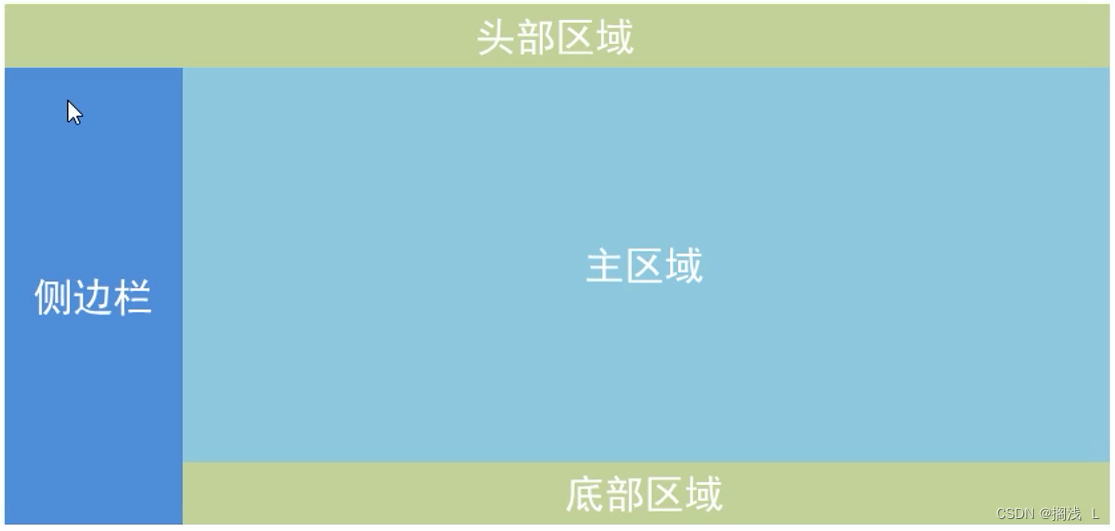
- html>
- <html lang="en">
- <head>
- <meta charset="UTF-8">
- <meta name="viewport" content="width=device-width, initial-scale=1.0">
- <title>容器布局title>
- <link rel="stylesheet" href="element-ui/lib/theme-chalk/index.css">
- <script src="vue.js">script>
- <script src="element-ui/lib/index.js">script>
- <style>
- .el-header, .el-footer {
- background-color: #d18e66;
- color: #333;
- text-align: center;
- height: 100px;
- }
- .el-aside {
- background-color: #55e658;
- color: #333;
- text-align: center;
- height: 580px;
- }
- .el-main {
- background-color: #5fb1f3;
- color: #333;
- text-align: center;
- height: 520px;
- }
- style>
- head>
- <body>
- <div id="div">
- <el-container>
- <el-header>头部区域el-header>
- <el-container>
- <el-aside width="200px">侧边栏区域el-aside>
- <el-container>
- <el-main>主区域el-main>
- <el-footer>底部区域el-footer>
- el-container>
- el-container>
- el-container>
- div>
- body>
- <script>
- new Vue({
- el:"#div"
- });
- script>
- html>
5.表单组件
表单:由输入框、下拉列表、单选框、多选框等控件组成,用以收集、校验、提交数据
- html>
- <html lang="en">
- <head>
- <meta charset="UTF-8">
- <meta name="viewport" content="width=device-width, initial-scale=1.0">
- <title>表单组件title>
- <link rel="stylesheet" href="element-ui/lib/theme-chalk/index.css">
- <script src="vue.js">script>
- <script src="element-ui/lib/index.js">script>
- head>
- <body>
- <div id="div">
- <el-form :model="ruleForm" :rules="rules" ref="ruleForm" label-width="100px" class="demo-ruleForm">
- <el-form-item label="活动名称" prop="name">
- <el-input v-model="ruleForm.name">el-input>
- el-form-item>
- <el-form-item label="活动区域" prop="region">
- <el-select v-model="ruleForm.region" placeholder="请选择活动区域">
- <el-option label="区域一" value="shanghai">el-option>
- <el-option label="区域二" value="beijing">el-option>
- el-select>
- el-form-item>
- <el-form-item label="活动时间" required>
- <el-col :span="11">
- <el-form-item prop="date1">
- <el-date-picker type="date" placeholder="选择日期" v-model="ruleForm.date1" style="width: 100%;">el-date-picker>
- el-form-item>
- el-col>
- <el-col class="line" :span="2">-el-col>
- <el-col :span="11">
- <el-form-item prop="date2">
- <el-time-picker placeholder="选择时间" v-model="ruleForm.date2" style="width: 100%;">el-time-picker>
- el-form-item>
- el-col>
- el-form-item>
- <el-form-item label="即时配送" prop="delivery">
- <el-switch v-model="ruleForm.delivery">el-switch>
- el-form-item>
- <el-form-item label="活动性质" prop="type">
- <el-checkbox-group v-model="ruleForm.type">
- <el-checkbox label="美食/餐厅线上活动" name="type">el-checkbox>
- <el-checkbox label="地推活动" name="type">el-checkbox>
- <el-checkbox label="线下主题活动" name="type">el-checkbox>
- <el-checkbox label="单纯品牌曝光" name="type">el-checkbox>
- el-checkbox-group>
- el-form-item>
- <el-form-item label="特殊资源" prop="resource">
- <el-radio-group v-model="ruleForm.resource">
- <el-radio label="线上品牌商赞助">el-radio>
- <el-radio label="线下场地免费">el-radio>
- el-radio-group>
- el-form-item>
- <el-form-item label="活动形式" prop="desc">
- <el-input type="textarea" v-model="ruleForm.desc">el-input>
- el-form-item>
- <el-form-item>
- <el-button type="primary" @click="submitForm('ruleForm')">立即创建el-button>
- <el-button @click="resetForm('ruleForm')">重置el-button>
- el-form-item>
- el-form>
- div>
- body>
- <script>
- new Vue({
- el:"#div",
- data:{
- ruleForm: {
- name: '',
- region: '',
- date1: '',
- date2: '',
- delivery: false,
- type: [],
- resource: '',
- desc: ''
- },
- rules: {
- name: [
- { required: true, message: '请输入活动名称', trigger: 'blur' },
- { min: 3, max: 5, message: '长度在 3 到 5 个字符', trigger: 'blur' }
- ],
- region: [
- { required: true, message: '请选择活动区域', trigger: 'change' }
- ],
- date1: [
- { type: 'date', required: true, message: '请选择日期', trigger: 'change' }
- ],
- date2: [
- { type: 'date', required: true, message: '请选择时间', trigger: 'change' }
- ],
- type: [
- { type: 'array', required: true, message: '请至少选择一个活动性质', trigger: 'change' }
- ],
- resource: [
- { required: true, message: '请选择活动资源', trigger: 'change' }
- ],
- desc: [
- { required: true, message: '请填写活动形式', trigger: 'blur' }
- ]
- }
- },
- methods:{
- submitForm(formName) {
- this.$refs[formName].validate((valid) => {
- if (valid) {
- alert('submit!');
- } else {
- console.log('error submit!!');
- return false;
- }
- });
- },
- resetForm(formName) {
- this.$refs[formName].resetFields();
- }
- }
- });
- script>
- html>
6.表格组件
表格:用于展示多条结构类似的数据,可对数据进行编辑、删除或其他自定义操作
- html>
- <html lang="en">
- <head>
- <meta charset="UTF-8">
- <meta name="viewport" content="width=device-width, initial-scale=1.0">
- <title>表格组件title>
- <link rel="stylesheet" href="element-ui/lib/theme-chalk/index.css">
- <script src="vue.js">script>
- <script src="element-ui/lib/index.js">script>
- head>
- <body>
- <div id="div">
- <template>
- <el-table
- :data="tableData"
- style="width: 100%">
- <el-table-column
- prop="date"
- label="日期"
- width="180">
- el-table-column>
- <el-table-column
- prop="name"
- label="姓名"
- width="180">
- el-table-column>
- <el-table-column
- prop="address"
- label="地址">
- el-table-column>
- <el-table-column
- label="操作"
- width="180">
- <el-button type="warning">编辑el-button>
- <el-button type="danger">删除el-button>
- el-table-column>
- el-table>
- template>
- div>
- body>
- <script>
- new Vue({
- el:"#div",
- data:{
- tableData: [{
- date: '2016-05-02',
- name: '王小虎',
- address: '上海市普陀区金沙江路 1518 弄'
- }, {
- date: '2016-05-04',
- name: '王小虎',
- address: '上海市普陀区金沙江路 1517 弄'
- }, {
- date: '2016-05-01',
- name: '王小虎',
- address: '上海市普陀区金沙江路 1519 弄'
- }, {
- date: '2016-05-03',
- name: '王小虎',
- address: '上海市普陀区金沙江路 1516 弄'
- }]
- }
- });
- script>
- html>
7.顶部导航栏组件

- html>
- <html lang="en">
- <head>
- <meta charset="UTF-8">
- <meta name="viewport" content="width=device-width, initial-scale=1.0">
- <title>顶部导航栏title>
- <link rel="stylesheet" href="element-ui/lib/theme-chalk/index.css">
- <script src="vue.js">script>
- <script src="element-ui/lib/index.js">script>
- head>
- <body>
- <div id="div">
- <el-menu
- :default-active="activeIndex2"
- class="el-menu-demo"
- mode="horizontal"
- @select="handleSelect"
- background-color="#545c64"
- text-color="#fff"
- active-text-color="#ffd04b">
- <el-menu-item index="1">处理中心el-menu-item>
- <el-submenu index="2">
- <template slot="title">我的工作台template>
- <el-menu-item index="2-1">选项1el-menu-item>
- <el-menu-item index="2-2">选项2el-menu-item>
- <el-menu-item index="2-3">选项3el-menu-item>
- <el-submenu index="2-4">
- <template slot="title">选项4template>
- <el-menu-item index="2-4-1">选项1el-menu-item>
- <el-menu-item index="2-4-2">选项2el-menu-item>
- <el-menu-item index="2-4-3">选项3el-menu-item>
- el-submenu>
- el-submenu>
- <el-menu-item index="3" disabled>消息中心el-menu-item>
- <el-menu-item index="4"><a href="https://www.ele.me" target="_blank">订单管理a>el-menu-item>
- el-menu>
- div>
- body>
- <script>
- new Vue({
- el:"#div"
- });
- script>
- html>
8.侧边导航栏组件
- html>
- <html lang="en">
- <head>
- <meta charset="UTF-8">
- <meta name="viewport" content="width=device-width, initial-scale=1.0">
- <title>侧边导航栏title>
- <link rel="stylesheet" href="element-ui/lib/theme-chalk/index.css">
- <script src="vue.js">script>
- <script src="element-ui/lib/index.js">script>
- head>
- <body>
- <div id="div">
- <el-col :span="6">
- <el-menu
- default-active="2"
- class="el-menu-vertical-demo"
- @open="handleOpen"
- @close="handleClose"
- background-color="#545c64"
- text-color="#fff"
- active-text-color="#ffd04b">
- <el-submenu index="1">
- <template slot="title">
- <i class="el-icon-location">i>
- <span>导航一span>
- template>
- <el-menu-item-group>
- <template slot="title">分组一template>
- <el-menu-item index="1-1">选项1el-menu-item>
- <el-menu-item index="1-2">选项2el-menu-item>
- el-menu-item-group>
- <el-menu-item-group title="分组2">
- <el-menu-item index="1-3">选项3el-menu-item>
- el-menu-item-group>
- <el-submenu index="1-4">
- <template slot="title">选项4template>
- <el-menu-item index="1-4-1">选项1el-menu-item>
- el-submenu>
- el-submenu>
- <el-menu-item index="2">
- <i class="el-icon-menu">i>
- <span slot="title">导航二span>
- el-menu-item>
- <el-menu-item index="3" disabled>
- <i class="el-icon-document">i>
- <span slot="title">导航三span>
- el-menu-item>
- <el-menu-item index="4">
- <i class="el-icon-setting">i>
- <span slot="title">导航四span>
- el-menu-item>
- el-menu>
- el-col>
- div>
- body>
- <script>
- new Vue({
- el:"#div"
- });
- script>
- html>
4.vue高级使用
1.自定义组件
组件其实就是自定义的标签。例如
就是对 本质上,组件是带有一个名字且可复用的 Vue 实例,完全可以自己定义
定义格式
- Vue.component(组件名称, {
- props:组件的属性,
- data: 组件的数据函数,
- template: 组件解析的标签模板
- })
- html>
- <html lang="en">
- <head>
- <meta charset="UTF-8">
- <meta name="viewport" content="width=device-width, initial-scale=1.0">
- <title>自定义组件title>
- <script src="vue.js">script>
- head>
- <body>
- <div id="div">
- <my-button>我的按钮my-button>
- div>
- body>
- <script>
- Vue.component("my-button",{
- // 属性
- props:["style"],
- // 数据函数
- data: function(){
- return{
- msg:"我的按钮"
- }
- },
- //解析标签模板
- template:""
- });
- new Vue({
- el:"#div"
- });
- script>
- html>
2.vue的生命周期

生命周期的八个状态
状态 阶段周期 beforeCreate 创建前 created 创建后 beforeMount 载入前 mounted 载入后 beforeUpdate 更新前 updated 更新后 beforeDestory 销毁前 destoryed 销毁后 - html>
- <html lang="en">
- <head>
- <meta charset="UTF-8">
- <meta name="viewport" content="width=device-width, initial-scale=1.0">
- <title>生命周期title>
- <script src="vue.js">script>
- head>
- <body>
- <div id="app">
- {{message}}
- div>
- body>
- <script>
- let vm = new Vue({
- el: '#app',
- data: {
- message: 'Vue的生命周期'
- },
- beforeCreate: function() {
- console.group('------beforeCreate创建前状态------');
- console.log("%c%s", "color:red", "el : " + this.$el); //undefined
- console.log("%c%s", "color:red", "data : " + this.$data); //undefined
- console.log("%c%s", "color:red", "message: " + this.message);//undefined
- },
- created: function() {
- console.group('------created创建完毕状态------');
- console.log("%c%s", "color:red", "el : " + this.$el); //undefined
- console.log("%c%s", "color:red", "data : " + this.$data); //已被初始化
- console.log("%c%s", "color:red", "message: " + this.message); //已被初始化
- },
- beforeMount: function() {
- console.group('------beforeMount挂载前状态------');
- console.log("%c%s", "color:red", "el : " + (this.$el)); //已被初始化
- console.log(this.$el);
- console.log("%c%s", "color:red", "data : " + this.$data); //已被初始化
- console.log("%c%s", "color:red", "message: " + this.message); //已被初始化
- },
- mounted: function() {
- console.group('------mounted 挂载结束状态------');
- console.log("%c%s", "color:red", "el : " + this.$el); //已被初始化
- console.log(this.$el);
- console.log("%c%s", "color:red", "data : " + this.$data); //已被初始化
- console.log("%c%s", "color:red", "message: " + this.message); //已被初始化
- },
- beforeUpdate: function() {
- console.group('beforeUpdate 更新前状态===============》');
- let dom = document.getElementById("app").innerHTML;
- console.log(dom);
- console.log("%c%s", "color:red", "el : " + this.$el);
- console.log(this.$el);
- console.log("%c%s", "color:red", "data : " + this.$data);
- console.log("%c%s", "color:red", "message: " + this.message);
- },
- updated: function() {
- console.group('updated 更新完成状态===============》');
- let dom = document.getElementById("app").innerHTML;
- console.log(dom);
- console.log("%c%s", "color:red", "el : " + this.$el);
- console.log(this.$el);
- console.log("%c%s", "color:red", "data : " + this.$data);
- console.log("%c%s", "color:red", "message: " + this.message);
- },
- beforeDestroy: function() {
- console.group('beforeDestroy 销毁前状态===============》');
- console.log("%c%s", "color:red", "el : " + this.$el);
- console.log(this.$el);
- console.log("%c%s", "color:red", "data : " + this.$data);
- console.log("%c%s", "color:red", "message: " + this.message);
- },
- destroyed: function() {
- console.group('destroyed 销毁完成状态===============》');
- console.log("%c%s", "color:red", "el : " + this.$el);
- console.log(this.$el);
- console.log("%c%s", "color:red", "data : " + this.$data);
- console.log("%c%s", "color:red", "message: " + this.message);
- }
- });
- // 销毁Vue对象
- //vm.$destroy();
- //vm.message = "hehe"; // 销毁后 Vue 实例会解绑所有内容
- // 设置data中message数据值
- vm.message = "good...";
- script>
- html>
3.异步操作
在Vue中发送异步请求,本质上还是AJAX。我们可以使用axios这个插件来简化操作
使用步骤
1.引入axios核心js文件
2.调用axios对象的方法来发起异步请求
3.调用axios对象的方法来处理响应的数据
方法名 作用 get(请求的资源路径与请求的参数) 发起GET请求 post(请求的资源路径,请求的参数) 发起POST方式请求 then(response) 请求成功后的回调函数,通过response获取响应的数据 catch(error) 请求失败后的回调函数,通过error获取错误信息 - html>
- <html lang="en">
- <head>
- <meta charset="UTF-8">
- <title>异步操作title>
- <script src="js/vue.js">script>
- <script src="js/axios.js">script>
- head>
- <body>
- <div id="div">
- {{name}}
- <button @click="send()">发起请求button>
- div>
- body>
- <script>
- new Vue({
- el:"#div",
- data:{
- name: "张三"
- },
- methods:{
- send(){
- //GET方式请求
- // axios.get("testServlet?name=" + this.name)
- // .then(resp => {
- // alert(resp.data);
- // })
- // .catch(error => {
- // alert(error);
- // })
- // POST方式请求
- axios.post("testServlet","name="+this.name)
- .then(resp => {
- alert(resp.data);
- })
- .catch(error => {
- alert(error);
- })
- }
- }
- });
- script>
- html>
- import javax.servlet.ServletException;
- import javax.servlet.annotation.WebServlet;
- import javax.servlet.http.HttpServlet;
- import javax.servlet.http.HttpServletRequest;
- import javax.servlet.http.HttpServletResponse;
- import java.io.IOException;
- @WebServlet("/testServlet")
- public class TestServlet extends HttpServlet {
- @Override
- protected void doGet(HttpServletRequest req, HttpServletResponse resp) throws ServletException, IOException {
- //设置请求和响应的编码
- req.setCharacterEncoding("UTF-8");
- resp.setContentType("text/html;charset=UTF-8");
- //获取请求参数
- String name = req.getParameter("name");
- System.out.println(name);
- //响应客户端
- resp.getWriter().write("请求成功");
- }
- @Override
- protected void doPost(HttpServletRequest req, HttpServletResponse resp) throws ServletException, IOException {
- this.doGet(req,resp);
- }
- }
-
相关阅读:
(10)学习笔记:动手深度学习(模型选择 + 过拟合和欠拟合)
对已经关闭的 channel 进行读写关闭操作会发生什么?
nginx版本平滑升级(超详细)
P1387 最大正方形
阿里云CentOS环境之docker安装,启动,加速器,docker-compose(十四)
[附源码]JAVA毕业设计个人饮食营养管理信息系统(系统+LW)
01 MongoDB的概述、应用场景、下载方式、连接方式和发展历史等
一文带你读懂:TCP连接的三次握手和四次挥手(下篇)
深拷贝与浅拷贝
【react】基础知识补充及原理【粗略版】
- 原文地址:https://blog.csdn.net/weixin_61611746/article/details/133933066
