-
three.js学习-智慧城市
前言
在前面基础知识(摄像机,渲染器,轨道控制器,坐标轴,场景适配,渲染循环、几何体、材质、光等)有了基础了解后,还需要对着色器(坐标)有一定的学习了解 然后就可以做智慧城市的项目了 技术:vite+js 以下是项目预览- 1
- 2
- 3
- 4
1697009690667050

页面下面附有git项目地址,自取1. 需求
实现智慧城市,对城市数据实时监控,对建筑动效标注和预览 1、城市模型处理(材质颜色、边线效果、着色器白膜效果、水波纹倒影效果、建筑物点击信息查看、产业分布查看) 2、游船(游船移动路线、轮船漫游) 3、火灾和火灾影响范围 4、天空(背景、鸟瞰路线) 5、城市加载优化 模型: 3D 部分:天空背景,城市模型,游船模型,火灾报警,鸟瞰模式,漫游模式 2D 部分:图表统计,城市概况,城市收入,产业分布(与 3D 交互)- 1
- 2
- 3
- 4
- 5
- 6
- 7
- 8
- 9
项目准备

entry/index.js初始化three.js渲染import * as THREE from 'three' import { OrbitControls } from 'three/examples/jsm/controls/OrbitControls' import { CSS2DRenderer } from 'three/examples/jsm/renderers/CSS2DRenderer' let scene, camera, renderer, control, css2Renderer // 初始化 3d 基本环境 function init() { scene = new THREE.Scene() camera = new THREE.PerspectiveCamera(75, window.innerWidth / window.innerHeight, 0.1, 10000); camera.position.set(-148, 55, -101) // 创建渲染器 renderer = new THREE.WebGLRenderer({ antialias: true }) renderer.setSize(window.innerWidth, window.innerHeight) // 创建2D渲染器 css2Renderer = new CSS2DRenderer() css2Renderer.setSize(window.innerWidth, window.innerHeight) css2Renderer.domElement.style.position = 'absolute' css2Renderer.domElement.style.top = '0px' css2Renderer.domElement.style.pointerEvents = 'none' // DOM 添加到页面 const canvas = document.getElementById('canvas') canvas.appendChild(renderer.domElement) canvas.appendChild(css2Renderer.domElement) // 轨道控制器 control = new OrbitControls(camera, renderer.domElement) control.update() // 坐标轴 const axesHelper = new THREE.AxesHelper(1500) scene.add(axesHelper) } // 渲染循环 function renderLoop() { // 这里不再调用轨道控制器 update 方法,会影响摄像机 lookAt renderer.render(scene, camera) css2Renderer.render(scene, camera) requestAnimationFrame(renderLoop) } // 灯光 function createLight() { // 基础光-环境光 const ambientLight = new THREE.AmbientLight('#fff', 3) scene.add(ambientLight) } // 适配 window.addEventListener('resize', function () { camera.aspect = window.innerWidth / window.innerHeight; camera.updateProjectionMatrix(); renderer.setSize(window.innerWidth, window.innerHeight); css2Renderer.setSize(window.innerWidth, window.innerHeight); }) // 启动 window.addEventListener('DOMContentLoaded', function () { init() createLight() renderLoop() })- 1
- 2
- 3
- 4
- 5
- 6
- 7
- 8
- 9
- 10
- 11
- 12
- 13
- 14
- 15
- 16
- 17
- 18
- 19
- 20
- 21
- 22
- 23
- 24
- 25
- 26
- 27
- 28
- 29
- 30
- 31
- 32
- 33
- 34
- 35
- 36
- 37
- 38
- 39
- 40
- 41
- 42
- 43
- 44
- 45
- 46
- 47
- 48
- 49
- 50
- 51
- 52
- 53
- 54
- 55
- 56
- 57
- 58
- 59
- 60
- 61
- 62
- 63
- 64
- 65
- 66
- 67
- 68
utils/eventbus.js 封装eventBus做组件交互
// 发布订阅模式(注入名字和函数)进行调度 export class EventBus { constructor() { this.eventMap = {} } static getInstance() { if (!this.instance) { this.instance = new EventBus() } return this.instance } on(eventName, fn) { if (!this.eventMap[eventName]) { this.eventMap[eventName] = [] } this.eventMap[eventName].push(fn) } emit(eventName, ...args) { if (!this.eventMap[eventName]) return this.eventMap[eventName].forEach((fn) => { fn(...args) }) } }- 1
- 2
- 3
- 4
- 5
- 6
- 7
- 8
- 9
- 10
- 11
- 12
- 13
- 14
- 15
- 16
- 17
- 18
- 19
- 20
- 21
- 22
- 23
- 24
index.html页面静态
Doctype html> <html lang="en"> <head> <meta charset="utf-8" /> <meta name="viewport" content="width=device-width, initial-scale=1, minimum-scale=1, maximum-scale=1, user-scalable=no" /> <title>智慧城市title> <link href="/style.css" rel="stylesheet" type="text/css" /> head> <body> <div id="app"> <div class="index-wrapper"> <div class="header"> <img class="logo" src="/image/park-logo.png" alt="" /> div> <div class="page-container" ref="container"> <div class="model-container"> <div id="loading" class="loading"> <p id="processing" class="text">园区资源加载中<span id="processing-number">span>…p> <div id="loading-bar" class="loading-bar">div> div> <div id="canvas" class="canvas">div> <div id="all-charts" class="all-charts" > <div class="section-one"> <img class="img-header" src="/image/city-gaikuang.png" alt="" /> <div class="icons-container" > <div class="item"> <div class="icons-item building-icon"> <span id="building-number" class="number"> 28 span> div> <span class="title">电量峰值span> <span class="unity">(度)span> div> <div class="item"> <div class="icons-item enterprise-icon"> <span id="enterprise-number" class="number"> 6 span> div> <span class="title"> 实时温度span> <span class="unity">(度)span> div> <div class="item"> <div class="icons-item car-icon"> <span id="car-number" class="number"> 1530 span> div> <span class="title">出租车运力span> <span class="unity">(个)span> div> <div class="item"> <div class="icons-item rod-icon"> <span id="rod-number" class="number"> 48 span> div> <span class="title">拥堵程度span> <span class="unity">(个)span> div> div> div> <div class="section-two"> <img class="img-header" src="/image/city-shouru.png" alt="" /> <div id="bar-chart" class="bar-chart" >div> div> <div class="section-three"> <img class="img-header" src="/image/city-chanye.png" alt="" /> <div id="pie-chart" class="pie-chart" >div> div> div> <div id="right-btns" class="right-btns" style="pointer-events: all;"> <div> <img id="mode-topView" class="mode-topView" src="/image/city-niaokan.png" style="pointer-events: all;" alt=""> div> <div> <img id="mode-roaming" class="mode-roaming" src="/image/city-manyou.png" style="pointer-events: all;" alt=""> div> div> div> div> <div id="tag-1" class="building-name" style="display: none;">东方明珠div> <div id="tag-2" class="building-info" style="display: none;"> <div>总平米数: 2000div> <div>容纳人数: 10000div> <div>可出租位: 50div> <div>空余车位: 10div> div> <div id="tag-3" class="building-fire" style="display: none;"> <div>着火大楼: 东方明珠div> <div>着火楼层: 18层div> <div>疏散人数: 1800人div> div> div> <script type="module" src="/main.js">script> body> html>- 1
- 2
- 3
- 4
- 5
- 6
- 7
- 8
- 9
- 10
- 11
- 12
- 13
- 14
- 15
- 16
- 17
- 18
- 19
- 20
- 21
- 22
- 23
- 24
- 25
- 26
- 27
- 28
- 29
- 30
- 31
- 32
- 33
- 34
- 35
- 36
- 37
- 38
- 39
- 40
- 41
- 42
- 43
- 44
- 45
- 46
- 47
- 48
- 49
- 50
- 51
- 52
- 53
- 54
- 55
- 56
- 57
- 58
- 59
- 60
- 61
- 62
- 63
- 64
- 65
- 66
- 67
- 68
- 69
- 70
- 71
- 72
- 73
- 74
- 75
- 76
- 77
- 78
- 79
- 80
- 81
- 82
- 83
- 84
- 85
- 86
- 87
- 88
- 89
- 90
- 91
- 92
- 93
- 94
- 95
- 96
- 97
- 98
- 99
- 100
- 101
- 102
- 103
- 104
- 105
- 106
- 107
// 样式 import './styles/all.less' // Three.js 3D 入口 import '@/entry'- 1
- 2
- 3
- 4
- 5
all.less
#app { width: 100%; height: 100%; } html { height: 100%; } body { margin: 0; display: flex; place-items: center; min-width: 320px; height: 100%; } p { margin-bottom: 0; } .index-wrapper { position: relative; height: 100%; background-color: black; .header { position: fixed; top: 0; display: flex; flex-direction: row; justify-content: space-between; align-items: center; height: 50px; width: 100%; margin-bottom: 30px; z-index: 10; .logo { width: 460px; } .btn-list { img { width: 96px; margin-right: 24px; cursor: pointer; } } } .page-container { width: 100%; height: 100%; overflow-x: hidden; display: flex; flex-direction: row; scroll-behavior: smooth; } } .model-container { position: relative; height: 100%; background-color: black; width: 100%; flex-shrink: 0; } .loading { position: absolute; left: 50%; top: 40%; transform: translateX(-50%); text-align: center; .text { font-size: 14px; color: #909399; margin-bottom: 16px; } .loading-process { width: 280px; height: 4px; background: rgba(255, 255, 255, 0.16); border-radius: 20px; overflow: hidden; } .loading-bar { transform: scaleX(0.3); transform-origin: top left; width: 280px; height: 4px; background: linear-gradient(90deg, #48ffff 0%, #3656ff 100%); border-radius: 20px; overflow: hidden; } } .all-charts { position: absolute; top: 0; left: 0; bottom: 0; width: 480px; padding: 88px 20px 0; display: flex; flex-direction: column; background: linear-gradient(to left, rgba(0, 6, 15, 0.00) 0%, rgba(0, 6, 15, 0.00) 20%, rgba(0, 0, 0, 0.40) 30%, rgba(0, 0, 0, 0.60) 40%, rgba(1, 4, 11, 1) 70%, #04070d 100%); img { width: 100%; } } .right-btns { position: absolute; top: 0; right: 0; bottom: 0; padding: 88px 20px 0; display: flex; flex-direction: column; background: linear-gradient(to right, rgba(0, 6, 15, 0.00) 0%, rgba(0, 6, 15, 0.00) 20%, rgba(0, 0, 0, 0.40) 70%, rgba(0, 0, 0, 0.60) 80%); div { margin-bottom: 48px; margin-right: 24px; } img { width: 96px; cursor: pointer; } } .section-one { flex-basis: 25%; .icons-container { display: flex; justify-content: space-between; .item { text-align: center; display: flex; flex-direction: column; flex: 1; padding: 10px 0; .icons-item { position: relative; height: 80px; .number { position: absolute; left: 50%; transform: translateX(-50%); font-size: 18px; font-family: FontquanXinYiGuanHeiTi, FontquanXinYiGuanHeiTi-Regular; color: #ffffff; } } .building-icon { background: url('./assets/building-icon.png') no-repeat 50% 0 / contain; } .enterprise-icon { background: url('./assets/enterprise-icon.png') no-repeat 50% 0 / contain; } .rod-icon { background: url('./assets/rod-icon.png') no-repeat 50% 0 / contain; } .car-icon { background: url('./assets/car-icon.png') no-repeat 50% 0 / contain; } .title, .unity { font-size: 14px; color: #cdd7e1; } .title { margin-top: 8px; } } } } .section-two { flex-basis: 35%; display: flex; flex-direction: column; .bar-chart { width: 100%; // height: 100%; flex: 1; } } .section-three { flex-basis: 40%; display: flex; flex-direction: column; .pie-chart { position: relative; margin: 0 auto; padding-bottom: 20px; width: 80%; // height: 100%; flex: 1; } } .bar-chart-titile { display: flex; margin-top: 20px; justify-content: space-between; font-size: 14px; color: #c6d1db; .bar-icon { display: inline-block; width: 12px; vertical-align: middle; } .blue-bar-icon { background: linear-gradient(to right, #74c0f8, rgba(116, 192, 248, 0)); } .red-bar-icon { background: linear-gradient(to right, #ff7152, rgba(255, 113, 82, 0)); } } .building-name { text-align: center; color: #fff; font-size: 10px; background-size: 100% 100%; background-image: url('./icon/text_select.png'); background-repeat: no-repeat; padding: 16px; } .building-info { display: flex; width: 300px; justify-content: space-between; align-items: flex-end; flex-wrap: wrap; text-align: center; color: #ccc; font-size: 10px; padding: 12px; background-size: 100% 100%; // text.png background-image: url('./icon/modal-bg.png'); background-repeat: no-repeat; margin-top: 60px; } .building-info div { width: 40%; position: relative; margin: 10px 0; } // 左边 .building-info div:nth-child(odd) { text-align: right; padding-right: 12px; } .building-info div:nth-child(odd)::after { position: absolute; content: ''; width: 10px; background-color: lightblue; border-radius: 10px; top: 33%; right: 0; } // 右边 .building-info div:nth-child(even) { text-align: left; // padding-left: 12px; } .building-info div:nth-child(even)::before { position: absolute; content: ''; width: 10px; background-color: #00FFFF; border-radius: 10px; top: 33%; left: 0; } .building-fire { color: #ccc; font-size: 10px; padding: 12px 28px; background-size: 100% 100%; background-image: url('./icon/modal-bg.png'); background-repeat: no-repeat; } .building-fire div { position: relative; } .building-fire div::before { position: absolute; content: ''; width: 10px; background-color: red; border-radius: 10px; top: 33%; left: -20px; }- 1
- 2
- 3
- 4
- 5
- 6
- 7
- 8
- 9
- 10
- 11
- 12
- 13
- 14
- 15
- 16
- 17
- 18
- 19
- 20
- 21
- 22
- 23
- 24
- 25
- 26
- 27
- 28
- 29
- 30
- 31
- 32
- 33
- 34
- 35
- 36
- 37
- 38
- 39
- 40
- 41
- 42
- 43
- 44
- 45
- 46
- 47
- 48
- 49
- 50
- 51
- 52
- 53
- 54
- 55
- 56
- 57
- 58
- 59
- 60
- 61
- 62
- 63
- 64
- 65
- 66
- 67
- 68
- 69
- 70
- 71
- 72
- 73
- 74
- 75
- 76
- 77
- 78
- 79
- 80
- 81
- 82
- 83
- 84
- 85
- 86
- 87
- 88
- 89
- 90
- 91
- 92
- 93
- 94
- 95
- 96
- 97
- 98
- 99
- 100
- 101
- 102
- 103
- 104
- 105
- 106
- 107
- 108
- 109
- 110
- 111
- 112
- 113
- 114
- 115
- 116
- 117
- 118
- 119
- 120
- 121
- 122
- 123
- 124
- 125
- 126
- 127
- 128
- 129
- 130
- 131
- 132
- 133
- 134
- 135
- 136
- 137
- 138
- 139
- 140
- 141
- 142
- 143
- 144
- 145
- 146
- 147
- 148
- 149
- 150
- 151
- 152
- 153
- 154
- 155
- 156
- 157
- 158
- 159
- 160
- 161
- 162
- 163
- 164
- 165
- 166
- 167
- 168
- 169
- 170
- 171
- 172
- 173
- 174
- 175
- 176
- 177
- 178
- 179
- 180
- 181
- 182
- 183
- 184
- 185
- 186
- 187
- 188
- 189
- 190
- 191
- 192
- 193
- 194
- 195
- 196
- 197
- 198
- 199
- 200
- 201
- 202
- 203
- 204
- 205
- 206
- 207
- 208
- 209
- 210
- 211
- 212
- 213
- 214
- 215
- 216
- 217
- 218
- 219
- 220
- 221
- 222
- 223
- 224
- 225
- 226
- 227
- 228
- 229
- 230
- 231
- 232
- 233
- 234
- 235
- 236
- 237
- 238
- 239
- 240
- 241
- 242
- 243
- 244
- 245
- 246
- 247
- 248
- 249
- 250
- 251
- 252
- 253
- 254
- 255
- 256
- 257
- 258
- 259
- 260
- 261
- 262
- 263
- 264
- 265
- 266
- 267
- 268
- 269
- 270
- 271
- 272
- 273
- 274
- 275
- 276
- 277
- 278
- 279
- 280
- 281
- 282
- 283
- 284
- 285
- 286
- 287
- 288
- 289
- 290
- 291
- 292
- 293
- 294
- 295
- 296
- 297
- 298
- 299
- 300
- 301
- 302
- 303
- 304
- 305
- 306
- 307
- 308
- 309
- 310
- 311
- 312
- 313
- 314
- 315
- 316
- 317
- 318
- 319
- 320
- 321
- 322
- 323
- 324
- 325
- 326
- 327
- 328
- 329
- 330
- 331
- 332
- 333
- 334
- 335
- 336
- 337
- 338
style.css
* { margin: 0; padding: 0; box-sizing: border-box; } body { position: relative; }- 1
- 2
- 3
- 4
- 5
- 6
- 7
- 8
- 9
2.模型加载
分析
要加载的模型有city.fbx和ship.gfb,需要两个load加载器
准备专门加载各种模型文件的通用函数,并加载城市和游船模型对象
传入模型文件路径,以及封装成功回调函数

load是异步的 可以通过model.length === pathList.length 来判断是否模型文件都加载完成,完成加载执行suc(model)- 1
- 2
import { FBXLoader } from 'three/examples/jsm/loaders/FBXLoader.js' import { GLTFLoader } from 'three/examples/jsm/loaders/GLTFLoader' import * as THREE from 'three' /** * 专门加载模型文件=>模型对象 * @param {*} pathList 模型文件路径数组 * @param {*} suc 接收成功结果回调函数 */ export function loadManager(pathList, suc) { // 定义加载器对象 const gltfLoader = new GLTFLoader(manager) const fbxLoader = new FBXLoader(manager) pathList.forEach(path => { if (path.indexOf('fbx') > -1) { fbxLoader.load(path, obj => { // 数据结构 model.push({ model: obj, url: path }); (model.length === pathList.length) && suc(model) }) } else if (path.indexOf('gltf') > -1) { gltfLoader.load(path, gltf => { model.push({ model: gltf.scene, url: path }); · && suc(model) }) } }) }- 1
- 2
- 3
- 4
- 5
- 6
- 7
- 8
- 9
- 10
- 11
- 12
- 13
- 14
- 15
- 16
- 17
- 18
- 19
- 20
- 21
- 22
- 23
- 24
- 25
- 26
- 27
- 28
- 29
- 30
- 31
- 32
- 33
- 34
- 35
3.城市加载
分析
创建一个基类(城市、天空、轮船都可以继承基类)
基类:场景、模型、相机、轨道控制器
封装城市类,用于加载并管理城市相关细节和功能
实现:
1.创建 BaseModel.js 基础模型类
2.创建 City.js 城市类并继承 BaseModel
3.判断模型名字并加载模型到网页中
在 src/model/BaseModel.js 准备基类属性和代码// 基础模型 export class BaseModel { constructor(model, scene, camera, control) { this.model = model this.scene = scene this.camera = camera this.control = control // 子类无需定义 constructor,所以没有地方调用 init 方法,因此在这里调用子类的 init this.init() } }- 1
- 2
- 3
- 4
- 5
- 6
- 7
- 8
- 9
- 10
- 11
- 12
在 src/model/City.js 新建
// 城市类 import { BaseModel } from "./BaseModel"; import * as THREE from 'three' export class City extends BaseModel { init() { this.scene.add(this.model) } }- 1
- 2
- 3
- 4
- 5
- 6
- 7
- 8
- 9
4.城市修改-材质颜色
分析
城市3d模型加载后做些微处理、修改城市模型材质,确认对应物体
实现:在city.js中加入initEffect方法
1.找到模型对象名字
2.隐藏自带的建筑名字
3.排除地面和河水,设置四周和中心模型对象材质

// 初始化城市效果 initEffect() { // 中心城市建筑材质 const centerMaterial = new THREE.MeshBasicMaterial({ color: 0xA8CDED, transparent: true }) // 外围城市建筑材质 const periphery = new THREE.MeshBasicMaterial({ color: 0xA8CDED, transparent: true }) this.model.traverse(model => { if (model.name === 'Text') { // 隐藏默认建筑名字 model.visible = false return } // 排除地板和河水物体 if (model.name !== 'Shanghai-09-Floor' && model.name !== 'Shanghai-08-River') { // 修改城市建筑模型材质 if (model.name == 'Shanghai-02' || model.name == 'Shanghai-03' || model.name == 'Shanghai-04' || model.name == 'Shanghai-05' || model.name == 'Shanghai-06' || model.name == 'Shanghai-07') { // 周围建筑 model.material = periphery } else { // 中心建筑 model.material = centerMaterial } } }) }- 1
- 2
- 3
- 4
- 5
- 6
- 7
- 8
- 9
- 10
- 11
- 12
- 13
- 14
- 15
- 16
- 17
- 18
- 19
- 20
- 21
- 22
- 23
- 24
- 25
- 26
- 27
- 28
- 29
- 30
- 31
- 32
- 33
- 34
- 35
- 36
- 37
5.城市修改-边线效果
分析
使用three.js提供的边缘几何体为城市模型物体描边边缘几何体
实现
1.创建 EdgesLine.js 边缘几何类
2.基于 three.js 添加边缘线条
3.在 City.js 城市类中引入调用
在 src/effect/EdgesLine.js 新建// 边缘边线效果 import * as THREE from 'three' export class EdgesLine { constructor(scene, mesh, color){ this.scene = scene this.mesh = mesh // 需要添加边线的小物体模型对象 this.color = color // 边线颜色 this.init() } init() { const edgesGeometry = new THREE.EdgesGeometry(this.mesh.geometry) const material = new THREE.LineBasicMaterial({ color: this.color }) const line = new THREE.LineSegments(edgesGeometry, material) // 把目标小物体模型对象(位置,旋转角度,缩放)赋予给边线物体 line.position.copy(this.mesh.position) line.rotation.copy(this.mesh.rotation) line.scale.copy(this.mesh.scale) this.scene.add(line) } }- 1
- 2
- 3
- 4
- 5
- 6
- 7
- 8
- 9
- 10
- 11
- 12
- 13
- 14
- 15
- 16
- 17
- 18
- 19
- 20
- 21
在 City.js 中调用
// 修改城市建筑模型材质 if (model.name == 'Shanghai-02' || model.name == 'Shanghai-03' || model.name == 'Shanghai-04' || model.name == 'Shanghai-05' || model.name == 'Shanghai-06' || model.name == 'Shanghai-07') { // 周围建筑 model.material = periphery new EdgesLine(this.scene, model, new THREE.Color('#666666')) } else { // 中心建筑 model.material = centerMaterial new EdgesLine(this.scene, model, new THREE.Color('#00ffff')) }- 1
- 2
- 3
- 4
- 5
- 6
- 7
- 8
- 9
- 10
- 11
- 12
6.城市修改-着色器
分析
我们要做的是为城市模型添加渐变颜色白膜效果
实现:
1.基于材质对象的 onBeforeCompile 方法修改内置材质
2.查找并使用白膜效果的着色器代码
在src/shader/modifyCityMaterial.js新建import * as THREE from "three" // 使用着色器代码 - 修改城市默认细节 export function modifyCityDefaultMaterial(mesh, isCenter) { // 中心城市物体 if (isCenter) { // 给现有材质追加着色器内代码 mesh.material.onBeforeCompile = (shader) => { // 替换片元着色器内代码字符串 // 对混色 dithering_fragment 部分准备改写 // 注意:打印 shader.fragmentShader 发现是类 c 语法,引入了各种插件和实现过程代码(这里对 c 语法做出替换,从而让颜色改变) shader.fragmentShader = shader.fragmentShader.replace( "#include" , ` #include//#end# ` ) // 给物体内着色器代码进行修改和替换,添加过渡颜色 addGradColor(shader, mesh) } } else { // 周围建筑 mesh.material.onBeforeCompile = (shader) => { shader.fragmentShader = shader.fragmentShader.replace( "#include" , ` #include//#end# ` ) addLowGradColor(shader, mesh) } } } export function addGradColor(shader, mesh) { // 计算当前几何物体,边缘图形:链接:https://threejs.org/docs/index.html#api/zh/core/BufferGeometry.computeBoundingBox mesh.geometry.computeBoundingBox() // 就能拿到这个物体的坐标值 let { min, max } = mesh.geometry.boundingBox let uHeight = max.z - min.z let uMaxX = max.x let uMinX = min.x // 向 shader 中传入全局参数 shader.uniforms.uTopColor = { value: new THREE.Color("#1B2569") }; shader.uniforms.uHeight = { value: uHeight }; shader.uniforms.uMaxX = { value: uMaxX } shader.uniforms.uMinX = { value: uMinX } // 顶点着色器代码替换 shader.vertexShader = shader.vertexShader.replace( // common 包含着色器公共模块(包含常用的数学工具函数以及一些常量定义什么的) "#include" , ` #includevarying vec3 vPosition; ` ) shader.vertexShader = shader.vertexShader.replace( // 顶点着色器开始的位置 "#include" , ` #includevPosition = position; ` ) // 片元着色器代码替换 shader.fragmentShader = shader.fragmentShader.replace( "#include" , ` #includeuniform vec3 uTopColor; uniform float uHeight; varying vec3 vPosition; ` ) shader.fragmentShader = shader.fragmentShader.replace( "//#end#", ` vec4 distGradColor = gl_FragColor; // 设置渐变色比例 float gradMix = (vPosition.z+uHeight/2.0)/uHeight; // 设置渐变效果 mix(a,b,r) = (1-r)*a + br vec3 gradMixColor = mix(distGradColor.xyz,uTopColor,gradMix); // 片元赋色 gl_FragColor = vec4(gradMixColor,0.8); //#end# ` ) } export function addLowGradColor(shader, mesh) { mesh.geometry.computeBoundingBox() let { min, max } = mesh.geometry.boundingBox let uHeight = max.z - min.z let uMaxX = max.x let uMinX = min.x shader.uniforms.uTopColor = { value: new THREE.Color("#000"), } shader.uniforms.uHeight = { value: uHeight, } shader.uniforms.uMaxX = { value: uMaxX } shader.uniforms.uMinX = { value: uMinX } shader.vertexShader = shader.vertexShader.replace( "#include" , ` #includevarying vec3 vPosition; ` ); shader.vertexShader = shader.vertexShader.replace( "#include" , ` #includevPosition = position; ` ) shader.fragmentShader = shader.fragmentShader.replace( "#include" , ` #includeuniform vec3 uTopColor; uniform float uHeight; varying vec3 vPosition; ` ) shader.fragmentShader = shader.fragmentShader.replace( "//#end#", ` vec4 distGradColor = vec4(0.4,0.5,0.6,1.0); float gradMix = (vPosition.z+uHeight/2.0)/uHeight; vec3 gradMixColor = mix(distGradColor.xyz,uTopColor,gradMix); gl_FragColor = vec4(gradMixColor,0.8); //#end# ` ) } // 饼状图->点击选择城市效果 export function modifySelectCityMaterial(mesh) { mesh.material.onBeforeCompile = (shader) => { shader.fragmentShader = shader.fragmentShader.replace( "#include" , ` #include//#end# ` ); addGradColor(shader, mesh); }; }- 1
- 2
- 3
- 4
- 5
- 6
- 7
- 8
- 9
- 10
- 11
- 12
- 13
- 14
- 15
- 16
- 17
- 18
- 19
- 20
- 21
- 22
- 23
- 24
- 25
- 26
- 27
- 28
- 29
- 30
- 31
- 32
- 33
- 34
- 35
- 36
- 37
- 38
- 39
- 40
- 41
- 42
- 43
- 44
- 45
- 46
- 47
- 48
- 49
- 50
- 51
- 52
- 53
- 54
- 55
- 56
- 57
- 58
- 59
- 60
- 61
- 62
- 63
- 64
- 65
- 66
- 67
- 68
- 69
- 70
- 71
- 72
- 73
- 74
- 75
- 76
- 77
- 78
- 79
- 80
- 81
- 82
- 83
- 84
- 85
- 86
- 87
- 88
- 89
- 90
- 91
- 92
- 93
- 94
- 95
- 96
- 97
- 98
- 99
- 100
- 101
- 102
- 103
- 104
- 105
- 106
- 107
- 108
- 109
- 110
- 111
- 112
- 113
- 114
- 115
- 116
- 117
- 118
- 119
- 120
- 121
- 122
- 123
- 124
- 125
- 126
- 127
- 128
- 129
- 130
- 131
- 132
- 133
- 134
- 135
- 136
- 137
- 138
- 139
- 140
- 141
- 142
- 143
- 144
- 145
- 146
- 147
- 148
- 149
- 150
- 151
- 152
- 153
- 154
- 155
- 156
- 157
- 158
- 159
- 160
- 161
- 162
- 163
- 164
- 165
- 166
- 167
- 168
- 169
- 170
- 171
- 172
- 173
- 174
- 175
- 176
- 177
- 178
- 179
- 180
在 City.js 中判断引入并使用
import { modifyCityDefaultMaterial } from '@/shader/modifyCityMaterial' ··· // 修改城市建筑模型材质 if (model.name == 'Shanghai-02' || model.name == 'Shanghai-03' || model.name == 'Shanghai-04' || model.name == 'Shanghai-05' || model.name == 'Shanghai-06' || model.name == 'Shanghai-07') { // 周围建筑 model.material = periphery new EdgesLine(this.scene, model, new THREE.Color('#666666')) // 对物体追加混合的着色器代码(渐变色白膜效果) modifyCityDefaultMaterial(model, false) } else { // 中心建筑 model.material = centerMaterial new EdgesLine(this.scene, model, new THREE.Color('#00ffff')) modifyCityDefaultMaterial(model, true) }- 1
- 2
- 3
- 4
- 5
- 6
- 7
- 8
- 9
- 10
- 11
- 12
- 13
- 14
- 15
7.城市-添加水面效果
分析
实现水面效果
1.使用 three.js 提供附加组件 Water 实现
2.隐藏模型里自带的水物,使用 CityWater 显示

新建 src/effect/CityWater.js 实现水物体效果import * as THREE from 'three' import { Water } from 'three/examples/jsm/objects/Water' export class CityWater { constructor(model, scene) { this.scene = scene this.model = model this.init() } init() { const modelGeo = this.model.geometry // 先保存原来水模型的几何图形对象 // 新的水模型 this.model = new Water( modelGeo, { textureWidth: 512, // 水贴图的宽度 textureHeight: 512, // 水贴图的高度(值越大细节越多) waterNormals: new THREE.TextureLoader().load('textures/waternormals.jpg', function (texture) { // 水模型的法线贴图(不同像素点有不同反光效果) // 纹理图片 UV 环绕到目标物体身上的重复方式 // wrapS这个值定义了纹理贴图在水平方向上将如何包裹,在UV映射中对应于U // wrapT这个值定义了纹理贴图在垂直方向上将如何包裹,在UV映射中对应于V // 使用RepeatWrapping,纹理将简单地重复到无穷大 texture.wrapS = texture.wrapT = THREE.RepeatWrapping; }), sunDirection: new THREE.Vector3(), // 阳光方向 sunColor: 0xffffff, // 阳光颜色 waterColor: new THREE.Color("#1e90ff"), // 水颜色 distortionScale: 4, // 水倒影分散度(值大越分散) } ) this.model.rotation.x = -Math.PI / 2 // 默认模型是垂直于 x 轴,所以翻转 this.scene.add(this.model) // 物体模型添加到场景中 } // 给水波纹做动画 onTick(t) { // t的值:渲染循环启动过了多少毫秒时间 // time 全局参数是 Water 内置好的,我们只需要不断传入新的偏移单位数值即可实现水波纹动态效果 this.model.material.uniforms['time'].value = t / 1000 } }- 1
- 2
- 3
- 4
- 5
- 6
- 7
- 8
- 9
- 10
- 11
- 12
- 13
- 14
- 15
- 16
- 17
- 18
- 19
- 20
- 21
- 22
- 23
- 24
- 25
- 26
- 27
- 28
- 29
- 30
- 31
- 32
- 33
- 34
- 35
- 36
- 37
- 38
- 39
- 40
- 41
在 City.js 判断并引入使用
// 针对水物体单独处理 if (model.name === 'Shanghai-08-River') { // 把原本水物体隐藏 model.visible = false // 创建更加真实的水面效果物体 const theWater = new CityWater(model, this.scene) // 把水波纹物体传入到动效管理类当中 EffectManager.getInstance().addObj(theWater) }- 1
- 2
- 3
- 4
- 5
- 6
- 7
- 8
- 9
8.添加游船物体
实现
实现游船物体
1.创建 Ship 类,加载和管理游船模型对象
2.设置游船默认位置,旋转角度和缩放大小

在 src/model/Ship.js 新建
// 游船类 import * as THREE from 'three' import { BaseModel } from './BaseModel' export class Ship extends BaseModel { init() { this.scene.add(this.model) } }- 1
- 2
- 3
- 4
- 5
- 6
- 7
- 8
在 src/entry/index.js 使用
loadManager(['fbx/city.fbx', 'gltf/ship.glb'], modelList => { modelList.forEach(async obj => { if (obj.url === 'fbx/city.fbx') { const city = new City(obj.model, scene, camera, control) } else if (obj.url === 'gltf/ship.glb') { const ship = new Ship(obj.model, scene, camera, control) } }) })- 1
- 2
- 3
- 4
- 5
- 6
- 7
- 8
- 9
在 entry/index.js 加载模型回调函数中
const ship = new Ship(obj.model, scene, camera, control) ship.model.position.set(150, 0, -80) ship.model.rotation.set(0, -Math.PI / 2, 0) ship.model.scale.set(100, 100, 100) // 游船物体很小要与大城市模型匹配需要放大- 1
- 2
- 3
- 4
9.项目-天空背景
分析
1.创建 Sky 天空背景类,加载和管理天空背景
2.实例化天空,传入必须要的贴图参数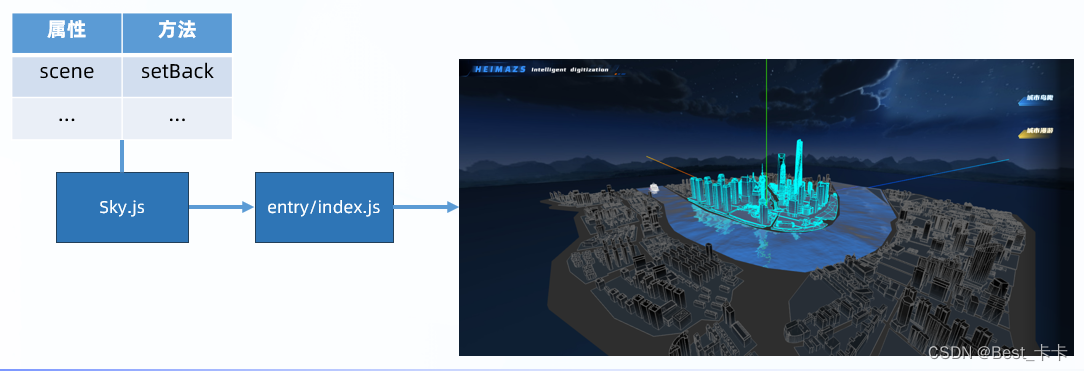
新建 src/environment/Sky.js
// 天空背景类 import * as THREE from 'three' export class Sky { constructor(scene) { this.scene = scene } // 创建并设置天空背景 pathList贴图数组 setBack(publicPath, pathList) { (new THREE.CubeTextureLoader()).setPath(publicPath).load(pathList, (texture) => { this.scene.background = texture }) } }- 1
- 2
- 3
- 4
- 5
- 6
- 7
- 8
- 9
- 10
- 11
- 12
- 13
在 entry/index.js 中使用
// 初始化天空背景 // 传入6个面的贴图 (new Sky(scene)).setBack('textures/sky/', [ 'px.jpg', 'nx.jpg', 'py.jpg', 'ny.jpg', 'pz.jpg', 'nz.jpg' ])- 1
- 2
- 3
- 4
- 5
- 6
- 7
- 8
- 9
10.城市-火灾标记
分析
创建火灾标记精灵物体
实现:(加载、位置)
1.创建 Fire 火灾标记类,加载和管理火灾标记
2.引入计算物体中心和宽高深的函数,确定火灾标记位置
3.在 City 类中实例化创建火灾标记回顾 // 区别: // CSS3D:始终不面向摄像机,场景缩放时跟随着变大/变小,不被模型遮挡,通过 DOM 事件点击 // CSS2D:始终面向摄像机, 场景缩放时不跟随变化, 不被模型遮挡,通过 DOM 事件点击 精灵体:始终面向摄像机, 场景缩放时跟随着变大/变小,被模型遮挡, 通过光射投影交互 // 平面体:始终不面向摄像机,场景缩放时跟随着变大/变小,被模型遮挡, 通过光射投影交互- 1
- 2
- 3
- 4
- 5
- 6
讲解

新建 src/effect/Fire.js
// 火灾标记类 import * as THREE from 'three' export class Fire { constructor(scene, center, size) { this.scene = scene this.center = center // 建筑物中心点三维向量对象 this.size = size // 建筑物大小的三维向量对象 this.init() } // 初始化火灾标记 init() { const texture = new THREE.TextureLoader().load('icon/fire.png') texture.colorSpace = THREE.SRGBColorSpace const spriteMaterial = new THREE.SpriteMaterial({ map: texture }) const sprite = new THREE.Sprite(spriteMaterial) // +3 让精灵物体中心点不在建筑物顶点,再往上移动一些单位 sprite.position.set(this.center.x, this.center.y + this.size.y / 2 + 3, this.center.z) sprite.scale.set(10, 10, 10) this.scene.add(sprite) this.model = sprite } }- 1
- 2
- 3
- 4
- 5
- 6
- 7
- 8
- 9
- 10
- 11
- 12
- 13
- 14
- 15
- 16
- 17
- 18
- 19
- 20
- 21
- 22
- 23
- 24
- 25
- 26
在 City.js 中 init 方法中调用,并新建 initFire 实例方法
// 随机为01-shanghaizhongxindasha设置火灾标记 后续可以通过接口获取那个建筑火灾了 this.initFire('01-shanghaizhongxindasha')- 1
- 2
// 创建火灾标记 // buildName 就是建模师模型中的小物体名字 initFire(buildName) { const build = this.model.getObjectByName(buildName) const { center, size } = getBoxCenter(build) const fire = new Fire(this.scene, center, size) }- 1
- 2
- 3
- 4
- 5
- 6
- 7
- 8
在 utils/getBoxCenter.js新建getBoxCenter函数获取物体中心点坐标
import * as THREE from 'three' /** * 获取模型中心点和高度差 * @param {*} mesh 目标模型对象 * @returns { center: 中心点坐标, uHeight: 高度差值 } */ // 基于 three.js 的 Box3 可以计算出目标物体的中心点坐标和宽高深大小 export const getBoxCenter = mesh => { let box = new THREE.Box3() // expandByObject:包裹在包围盒中的3d对象 box.expandByObject(mesh) // 计算包围盒的中心点三维坐标对象 let center = new THREE.Vector3() box.getCenter(center) // 计算物体宽,高,深(x,y,z)的值 var size = new THREE.Vector3() box.getSize(size) return { center, size } }- 1
- 2
- 3
- 4
- 5
- 6
- 7
- 8
- 9
- 10
- 11
- 12
- 13
- 14
- 15
- 16
- 17
- 18
- 19
- 20
- 21
- 22
- 23
- 24
- 25
11.城市-火灾影响范围
分析
在建筑底部添加火灾影响范围球体标记
实现:
1.创建 FireBall 火灾球体类(半球体),标记火灾影响范围
2.在 City 类中实例化火灾球体,并传入参数

新建 src/effect/FireBall.js 火灾影响范围球体类// 火灾影响范围-球体标记类 import * as THREE from 'three' export class FireBall { constructor(scene, center) { this.scene = scene this.center = center this.init() } init() { // 半球体物体 const geometry = new THREE.SphereGeometry( 25, 32, 16, 0, Math.PI * 2, // 水平方向扫描角度 0, Math.PI / 2, // 垂直方向扫描角度(一半)-半球体 ) const material = new THREE.MeshBasicMaterial({ color: new THREE.Color('#f4790d'), side: THREE.DoubleSide, depthTest: false // 关闭深度测试(透视效果)- 多个像素点同时渲染 }) const sphere = new THREE.Mesh(geometry, material) sphere.position.set(this.center.x, 0, this.center.z) this.scene.add(sphere) this.nowMesh = sphere this.nowMesh.scale.set(0, 0, 0) // 缩小成不显示,后续做动效再出现 } }- 1
- 2
- 3
- 4
- 5
- 6
- 7
- 8
- 9
- 10
- 11
- 12
- 13
- 14
- 15
- 16
- 17
- 18
- 19
- 20
- 21
- 22
- 23
- 24
- 25
- 26
- 27
- 28
- 29
- 30
- 31
- 32
在 City.js 中引入并在 initFire 方法中使用
const ball = new FireBall(this.scene, center)- 1
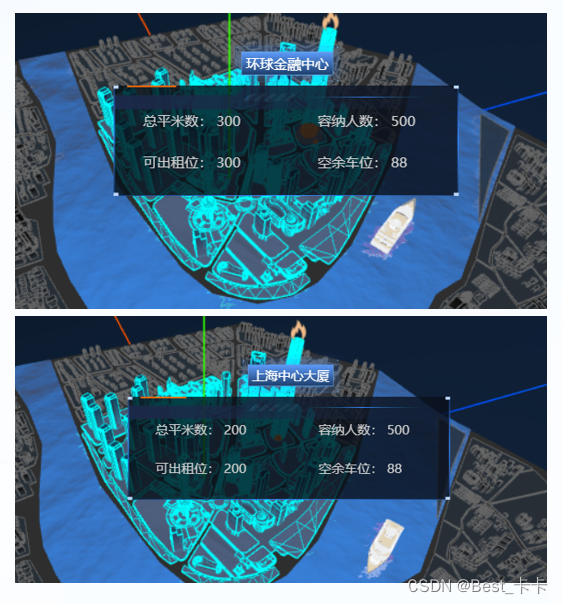
12.城市-建筑物信息
分析
1.创建 BuildInfo 建筑信息类,基于 CSS2D 渲染器,标记建筑物信息
2.在 City 类中实例化使用并传入参数
参数:场景、建筑中心坐标、数据、标题函数、信息函数

新建 src/dom/BuildInfo.js 类
// 2D 物体 - 建筑信息 import { CSS2DObject } from 'three/examples/jsm/renderers/CSS2DRenderer'; export class BuildInfo { constructor(scene, center, dataObj) { this.scene = scene this.center = center this.dataObj = dataObj this.list = [] // 保存名字和信息的 2 个 2D 物体 this.createNameDiv() this.createInfoDiv() } // 建筑名字的 2D 物体 createNameDiv() { const nameDiv = document.querySelector('#tag-1') nameDiv.innerHTML = this.dataObj.name // 建筑名字 // 标签虽然有 display:none; 但是转化成 2D 物体后会在 2D 渲染器中直接显示 const nameObject = new CSS2DObject(nameDiv) nameObject.position.set(this.center.x, this.center.y + 10, this.center.z) this.scene.add(nameObject) this.list.push(nameObject) } // 建筑信息的 2D 物体 createInfoDiv() { const infoDiv = document.querySelector('#tag-2') infoDiv.style.pointerEvents = 'all' const { squareMeters, accommodate, officesRemain, parkingRemain } = this.dataObj const textHtml = `总平米数: ${squareMeters}容纳人数: ${accommodate}可出租位: ${officesRemain}空余车位: ${parkingRemain}` infoDiv.innerHTML = textHtml const infoObject = new CSS2DObject(infoDiv) infoObject.position.set(this.center.x, this.center.y + 5, this.center.z) this.scene.add(infoObject) this.list.push(infoObject) } }- 1
- 2
- 3
- 4
- 5
- 6
- 7
- 8
- 9
- 10
- 11
- 12
- 13
- 14
- 15
- 16
- 17
- 18
- 19
- 20
- 21
- 22
- 23
- 24
- 25
- 26
- 27
- 28
- 29
- 30
- 31
- 32
- 33
- 34
- 35
- 36
- 37
- 38
- 39
- 40
- 41
- 42
在 model/City.js init 中定义数据结构
this.buildNameObj = { // 模型名字和建筑显示名字对应关系 '01-shanghaizhongxindasha': '上海中心大厦', "02-huanqiujinrongzhongxin": "环球金融中心", "03-jinmaodasha": "金茂大厦", "04-dongfangmingzhu": "东方明珠", }- 1
- 2
- 3
- 4
- 5
- 6
在 model/City.js initFire 中调用
// 只有单独设置有名字的物体,才能被获取到并绑定事件 new BuildInfo(this.scene, center, { "squareMeters": "200", "name": this.buildNameObj[buildName], "officesRemain": "200", "accommodate": "500", "parkingRemain": "88", "cameraPosition": { "x": "-27.60404773326758", "y": "77.6723594934777", "z": "190.86129619259177" } })- 1
- 2
- 3
- 4
- 5
- 6
- 7
- 8
- 9
- 10
- 11
- 12
- 13
13.项目-水波纹动效
分析
添加水波纹动函数并在渲染循环中不断调度
1、设置EffectManager动效类:{ list:保存将来要做动效的实例对象 addObj: 添加要做动效的实例对象 tickForEach:将来渲染循环传过来的毫秒级时间数值的动效 }- 1
- 2
- 3
- 4
- 5
2、渲染循环中不断调度实例对象的onTick动效函数
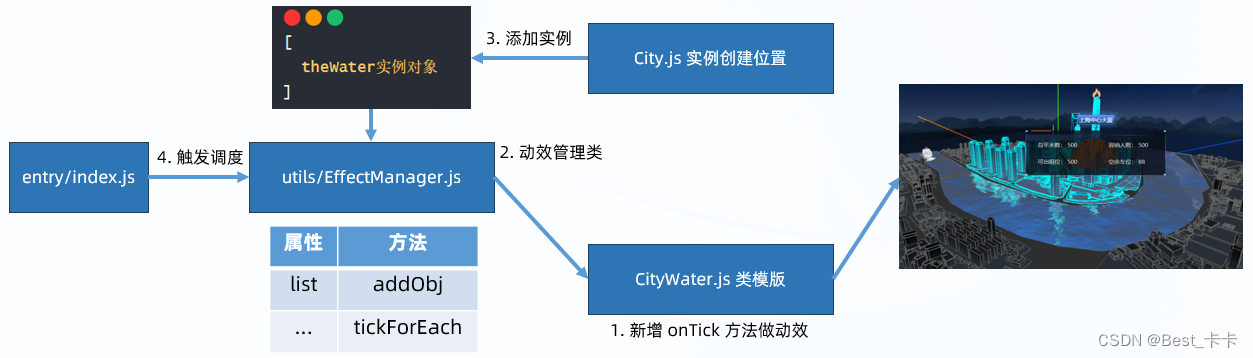
实现:
1.水面效果类中,添加 onTick 方法做动效
// 给水波纹做动画 // Water 做动效改变全局参数 time 到着色器代码中,不断影响水物体的像素点位移,从而有波纹效果 onTick(t) { // t的值:渲染循环启动过了多少毫秒时间 // time 全局参数是 Water 内置好的,我们只需要不断传入新的偏移单位数值即可实现水波纹动态效果 this.model.material.uniforms['time'].value = t / 1000 }- 1
- 2
- 3
- 4
- 5
- 6
- 7
2.创建 EffectManager 动效管理类,管理项目中所有动效实例对象
// 整个项目-动效管理类 // 思路:要做动效的实例对象加入到这里,后续会不断分别调度每个实例对象内置的 onTick 方法 export class EffectManager { constructor() { this.list = [] // 保存将来要做动效的实例对象 } static getInstance() { if (!this.instance) { this.instance = new EffectManager() } return this.instance } // 添加要做动效的实例对象 addObj(obj) { this.list.push(obj) } tickForEach(t) { // t: 将来渲染循环传过来的毫秒级时间数值 this.list.forEach(obj => { obj.onTick(t) }) } }- 1
- 2
- 3
- 4
- 5
- 6
- 7
- 8
- 9
- 10
- 11
- 12
- 13
- 14
- 15
- 16
- 17
- 18
- 19
- 20
- 21
- 22
- 23
- 24
- 25
3.添加实例物体到动态管理类中
// 针对水物体单独处理 if (model.name === 'Shanghai-08-River') { // 把原本水物体隐藏 model.visible = false // 创建更加真实的水面效果物体 const theWater = new CityWater(model, this.scene) // 把水波纹物体传入到动效管理类当中 EffectManager.getInstance().addObj(theWater) }- 1
- 2
- 3
- 4
- 5
- 6
- 7
- 8
- 9
4.渲染循环中不断调度,动效管理类中实例对象们的 onTick 方法,做动效
// 动效是依赖渲染循环,不断重新调度并设置不同变量值来实现动效 // 渲染循环 function renderLoop(t) { // 这里不再调用轨道控制器 update 方法,会影响摄像机 lookAt renderer.render(scene, camera) css2Renderer.render(scene, camera) // 开始做动效->遍历所有要做动效的实例物体内置的 onTick 方法 EffectManager.getInstance().tickForEach(t) requestAnimationFrame(renderLoop) }- 1
- 2
- 3
- 4
- 5
- 6
- 7
- 8
- 9
- 10
14.城市-游船移动效果
分析
游船移动:路径、方向、动画
物体移动路径规划,可以借助三维样条曲线 CatmullRomCurve3 设置几个关键点,就能得到一组很多坐标点数据,让物体不断修改坐标位置实现移动效果- 1

实现:
在 Ship.js 的 init 中新增属性和调用方法
this.pointIndex = 0 // 保存当前游船所在位置坐标的索引 this.generatorMovePath() // 生成游船移动的路径 this.isMoveCamera = false // 开关属性(控制摄像机是否跟随游船移动) this.onModelAttach() // 鼠标事件- 1
- 2
- 3
- 4
- 5
- 6
- 7
1.游船 Ship 类,新增路径生成方法
// 生成游船行进的路线坐标点集合 generatorMovePath() { // 设置平滑的三维样条曲线路线坐标点,CatmullRomCurve3 // 设置关键的几个点坐标,其他的构造函数内会帮我们计算 // CatmullRomCurve3(points:Vector3点数组,closed – 该曲线是否闭合,默认值为false,curveType – 曲线的类型,tension – 曲线的张力,默认为0.5) const shipPath = new THREE.CatmullRomCurve3([ new THREE.Vector3(134.356097129589, 2.0112688541412354, -78.91746888546072), new THREE.Vector3(13.132075955743915, 2.0112688541412425, -69.85260460470285), new THREE.Vector3(13.132075955743915, 2.0112688541412425, -69.85260460470285), new THREE.Vector3(-80.28995611104816, 2.0112688541412282, -12.640254617216172), new THREE.Vector3(-71.5470123066941, 2.0112688541412354, 25.641138454485144), new THREE.Vector3(-71.5470123066941, 2.0112688541412354, 25.641138454485144), new THREE.Vector3(-17.5179164111899, 2.0112688541412354, 139.95062075065943), new THREE.Vector3(-67.10547001341894, 2.0112688541412354, 64.30494908329582), new THREE.Vector3(-87.03568940230136, 2.0112688541412354, 20.40776369519459), new THREE.Vector3(-88.0509634357777, 2.0112688541412425, -32.429601593890354), new THREE.Vector3(-70.27457116256328, 2.0112688541412425, -50.370253013515836), new THREE.Vector3(-39.206573479212764, 2.0112688541412425, -64.28841112963838), new THREE.Vector3(47.33347662423566, 2.0112688541412354, -73.13885409538068), new THREE.Vector3(134.356097129589, 2.0112688541412354, -78.91746888546072), ]) // getSpacedPoints 等间距的坐标点 this.pointArr = shipPath.getSpacedPoints(3500) // 要将曲线划分为的分段数 每次移动一个点控制船的速度 // 把坐标点 => 几何图形 => 线段物体显示一下(辅助我们理解) const geometry = new THREE.BufferGeometry().setFromPoints(this.pointArr) const material = new THREE.LineBasicMaterial({ color: 0x00ff00, side: THREE.DoubleSide}) const line = new THREE.Line(geometry, material) // this.scene.add(line) }- 1
- 2
- 3
- 4
- 5
- 6
- 7
- 8
- 9
- 10
- 11
- 12
- 13
- 14
- 15
- 16
- 17
- 18
- 19
- 20
- 21
- 22
- 23
- 24
- 25
- 26
- 27
- 28
- 29
- 30
- 31
2.游船 Ship 类,新增 onTick 方法做动效
// 游船行进方法-切换坐标点位置 onTick() { if (this.pointIndex < this.pointArr.length - 1) { const { x, y, z } = this.pointArr[this.pointIndex + 1] // 游船移动: // 取出坐标设置给模型对象 this.model.position.copy(this.pointArr[this.pointIndex]) // 确保船头朝向下一个坐标点位置(前进船头效果) // 让物体朝着自己 z 轴正方向作为前面 this.model.lookAt(this.pointArr[this.pointIndex + 1]) this.pointIndex += 1 } else { // 索引回到 0,重新继续做坐标的取值然后做动画效果 this.pointIndex = 0 } }- 1
- 2
- 3
- 4
- 5
- 6
- 7
- 8
- 9
- 10
- 11
- 12
- 13
- 14
- 15
- 16
- 17
3.添加游船实例物体到动态管理类中,在 entery/index.js
// 让游船物体也做动效 EffectManager.getInstance().addObj(ship)- 1
- 2
15.城市-查看建筑信息
分析
建筑信息点击显示
three.js 的 3D 物体点击 - 光线投射代码封装起来,需要交互的物体对象和要执行的回调函数传入并映射 Map 数据结构,有交互时回调对应的函数执行

步骤:
1.准备 ClickHandler 类,管理项目的光线投射,在 enter/index.js 中注册
utils/ClickHander.js
// 单击事件管理类 import * as THREE from 'three' export class ClickHandler { static getInstance() { if (!this.instance) { this.instance = new ClickHandler() } return this.instance } init(camera) { this.camera = camera this.list = [] // 光线投射交互计算的物体 this.map = new Map() // key 可以是 three.js 物体(与点击要执行的回调函数产生一对一关系) // 光线投射 const rayCaster = new THREE.Raycaster() const pointer = new THREE.Vector2() window.addEventListener('click', e => { e.stopPropagation() // 鼠标所在uv坐标 pointer.x = (e.clientX / window.innerWidth) * 2 - 1 pointer.y = -(e.clientY / window.innerHeight) * 2 + 1 rayCaster.setFromCamera(pointer, this.camera) // 获取当前鼠标点击位置所在的物体集合 const resultList = rayCaster.intersectObjects(this.list, false) // 默认只触发第一个收集到的物体(后面物体不触发交互) if (resultList.length > 0) { const targetObj = resultList[0] const fn = this.map.get(targetObj.object) // 回调绑定点击事件函数体,并回传当前触发的这个 three.js 物体 fn(targetObj.object) } }) } // 传入要点击物体和函数体 addMesh(mesh, fn) { this.list.push(mesh) this.map.set(mesh, fn) } }- 1
- 2
- 3
- 4
- 5
- 6
- 7
- 8
- 9
- 10
- 11
- 12
- 13
- 14
- 15
- 16
- 17
- 18
- 19
- 20
- 21
- 22
- 23
- 24
- 25
- 26
- 27
- 28
- 29
- 30
- 31
- 32
- 33
- 34
- 35
- 36
- 37
- 38
- 39
- 40
- 41
- 42
- 43
在 entry/index.js 中
// 光线投射注册 ClickHandler.getInstance().init(camera);- 1
- 2
2.City 类中,新增 bindClick 方法给中心建筑绑定事件和显示信息标签逻辑
// 中心 4 个建筑绑定点击事件 bindClick() { Object.keys(this.buildNameObj).forEach(key => { const build = this.model.getObjectByName(key) ClickHandler.getInstance().addMesh(build, (object) => { // object: 3d 物体 const { center } = getBoxCenter(object) new BuildInfo(this.scene, center, this.dataObj.buildingsIntroduce[object.name]) }) }) }- 1
- 2
- 3
- 4
- 5
- 6
- 7
- 8
- 9
- 10
- 11
16.城市-建筑信息隐藏
分析
点击信息标签隐藏
隐藏 2D / 3D 物体,使用 visible 属性

步骤:
1.修改 BuildInfo 类,新增 list 属性保存标签物体
this.list = [] // 保存名字和信息的 2 个 2D 物体- 1
2.新增 clear 方法,隐藏所有标签物体
// 隐藏信息物体 clear() { this.list.forEach(obj => obj.visible = false) }- 1
- 2
- 3
- 4
3.给原生 DOM 绑定点击事件,触发 clear 方法
// DOM 点击事件 => 隐藏此建筑物的信息标签 infoDiv.addEventListener('click', (e) => { e.stopPropagation() this.clear.call(this) })- 1
- 2
- 3
- 4
- 5
17.城市-火灾影响动画
分析
完成火灾影响动画
思路:哪个物体要做动效,就新增 onTick 实例方法,把物体加入到动效管理类中,等待渲染循环不断调度触发 onTick 实现物体动效
实现:
1.新增 FireBall 类中 onTick 方法做火灾影响动效(缩放效果)
// 动效 onTick() { if (this.nowScale < 1) { this.nowScale += 0.001 // 增加放大的比例 this.nowMesh.scale.set(this.nowScale, this.nowScale, this.nowScale) } else { this.nowScale = 0 } }- 1
- 2
- 3
- 4
- 5
- 6
- 7
- 8
- 9
2.添加火灾球体实例,到动效管理类中
// 注册动效管理 EffectManager.getInstance().addObj(ball)- 1
- 2
18.天空-鸟瞰效果
分析
点击dom标签,在天空设置路径移动一个飞行物体(暂定正方体),摄像机跟随移动完成城市鸟瞰浏览效果

实现:
1.新增 Fly 飞行器类,生成运动路径
// 飞行器 import { BaseModel } from './BaseModel' import * as THREE from 'three' export class Fly extends BaseModel { init() { this.scene.add(this.model) this.pointIndex = 0 // 数组下标,用于换取坐标数组里,某个坐标对象 this.isCameraMove = false // 控制摄像机是否跟随切换位置的开关 this.generateMovePath() } // 飞行器运动的路径 generateMovePath() { // EllipseCurve 椭圆曲线 const AirFly_PATH = new THREE.EllipseCurve( 0, 0, // 椭圆中心坐标 110, 110, // x和y轴向上椭圆的半径 0, -2 * Math.PI, // 开始角度和扫描角度 false, // 是否按照顺时针来绘制 0 // 以弧度表示,椭圆从X轴正方向逆时针的旋转角度 ); let tempArr = AirFly_PATH.getPoints(3500) // 把坐标向 y 轴移动 120 单位(模仿在天空的效果) let result = [] for (var i = 0; i < tempArr.length; i++) { // z 轴的坐标位置,是几何图形未旋转之前,垂直于世界坐标系 y 轴的坐标点 let item = new THREE.Vector3(tempArr[i].x, 120, tempArr[i].y) result.push(item) } this.pointsArr = result } // 动效-不断切换最新的最标点 onTick() { if (this.pointIndex < this.pointsArr.length - 1) { // 重要:如果其他东西也要跟着我的坐标来动 if (this.isCameraMove) { // 更改摄像机位置 this.camera.position.copy(this.pointsArr[this.pointIndex]) // 让摄像机中心观察点往上偏移一点 this.camera.lookAt(0, 10, 0) } this.model.position.copy(this.pointsArr[this.pointIndex]); this.pointIndex += 1; //调节速度 } else { this.pointIndex = 0 } } }- 1
- 2
- 3
- 4
- 5
- 6
- 7
- 8
- 9
- 10
- 11
- 12
- 13
- 14
- 15
- 16
- 17
- 18
- 19
- 20
- 21
- 22
- 23
- 24
- 25
- 26
- 27
- 28
- 29
- 30
- 31
- 32
- 33
- 34
- 35
- 36
- 37
- 38
- 39
- 40
- 41
- 42
- 43
- 44
- 45
- 46
- 47
- 48
- 49
2.实例化飞行器,实现环绕飞行动效,在 entry/index.js 模型加载的回调函数内
// 生成飞行器对象 const meshObj = new THREE.Mesh(new THREE.BoxGeometry(5, 5, 5), new THREE.MeshBasicMaterial({ color: 'lightblue' })) meshObj.visible = false const fly = new Fly(meshObj, scene, camera, control) // 注册动效 EffectManager.getInstance().addObj(fly) // 注册事件-控制摄像机是否移动鸟瞰 EventBus.getInstance().on('mode-topView', (isOpen) => { fly.control.enabled = !isOpen // 鸟瞰时轨道控制器禁止交互 fly.isCameraMove = isOpen // 控制摄像机是否跟随飞行器切换坐标点位置 })- 1
- 2
- 3
- 4
- 5
- 6
- 7
- 8
- 9
- 10
- 11
- 12
3.菜单点击切换开关,控制摄像机位置是否跟着移动,实现鸟瞰浏览
新增 src/dom/menu.js
import { EventBus } from '@/utils/EventBus'; // 右上角 2 个按钮 let modeArr = [ { mode: 'mode-topView', // id 名字,也作为 EventBus 中自定义事件名字 isOpen: false // 当前按钮状态-true开始,false关闭中 }, { mode: 'mode-roaming', isOpen: false }, ] for (var i = 0; i < modeArr.length; i++) { let item = modeArr[i] // 获取右上角按钮绑定原生点击事件 document.getElementById(item.mode).onclick = function () { item.isOpen = !item.isOpen // 控制打开状态等 // 触发这个名字在发布订阅对象里,下属数组里所有方法触发,并传递第二个参数过去 EventBus.getInstance().emit(item.mode, item.isOpen) } }- 1
- 2
- 3
- 4
- 5
- 6
- 7
- 8
- 9
- 10
- 11
- 12
- 13
- 14
- 15
- 16
- 17
- 18
- 19
- 20
- 21
- 22
- 23
- 24
19.游船-漫游模式
分析
摄像机跟随游船移动(同理)
等待 DOM 点击修改开关属性,控制摄像机和游船一起改变坐标位置

实现:
1.修改 Ship 游船类,onTick 方法影响摄像机移动
// 游船行进方法-切换坐标点位置 onTick() { if (this.pointIndex < this.pointArr.length - 1) { const { x, y, z } = this.pointArr[this.pointIndex + 1] if (this.isMoveCamera) { // 移动摄像机 if (!this.isMouseTouching) { // 鼠标没有被按下时,才设置摄像机的 lookAt // 如果处于漫游模式+鼠标被按下,证明自己要旋转摄像机,那就不能让摄像的 lookAt 执行影响旋转效果 this.camera.lookAt(x, y + 20, z) } this.camera.position.set(x, y + 20, z) } // 游船移动: // 取出坐标设置给模型对象 this.model.position.copy(this.pointArr[this.pointIndex]) // 确保船头朝向下一个坐标点位置(前进船头效果) // 让物体朝着自己 z 轴正方向作为前面 this.model.lookAt(this.pointArr[this.pointIndex + 1]) this.pointIndex += 1 } else { // 索引回到 0,重新继续做坐标的取值然后做动画效果 this.pointIndex = 0 } }- 1
- 2
- 3
- 4
- 5
- 6
- 7
- 8
- 9
- 10
- 11
- 12
- 13
- 14
- 15
- 16
- 17
- 18
- 19
- 20
- 21
- 22
- 23
- 24
- 25
2.通过 EventBus 设置摄像机开关模式, 在 entry/index.js
// 订阅改变摄像机跟随游船移动的事件 EventBus.getInstance().on('mode-roaming', isOpen => { ship.control.enabled = !isOpen // 关闭/开启轨道控制器 ship.isMoveCamera = isOpen // 摄像机跟随移动 })- 1
- 2
- 3
- 4
- 5
20.游船-漫游模式-旋转相机
分析
游船的时候,按下鼠标左右移动镜头查看建筑物
思路:点击鼠标后,鼠标移动的点方向上控制相机旋转
实现:
1.Ship 类新增 onModelAttach 方法,绑定/移除鼠标按下,移动,抬起事件
在 init 方法中
init() { this.scene.add(this.model) this.pointIndex = 0 // 保存当前游船所在位置坐标的索引 this.generatorMovePath() // 生成游船移动的路径 this.isMoveCamera = false // 开关属性(控制摄像机是否跟随游船移动) this.onModelAttach() // 鼠标事件 }- 1
- 2
- 3
- 4
- 5
- 6
- 7
- 8
- 9
- 10
// 绑定/移除鼠标事件 onModelAttach() { // 点击漫游模式 - 绑定/移除鼠标相关事件 EventBus.getInstance().on('mode-roaming', isOpen => { if (isOpen) { window.addEventListener('mousedown', this.mousedownFn) window.addEventListener('mousemove', this.mousemoveFn) window.addEventListener('mouseup', this.mouseupFn) } else { window.removeEventListener('mousedown', this.mousedownFn) window.removeEventListener('mousemove', this.mousemoveFn) window.removeEventListener('mouseup', this.mouseupFn) } }) }- 1
- 2
- 3
- 4
- 5
- 6
- 7
- 8
- 9
- 10
- 11
- 12
- 13
- 14
- 15
2.按下和抬起控制 isMouseTouching 属性值 true / false
3.鼠标移动时,旋转摄像机// 鼠标按下 mousedownFn = () => { this.isMouseTouching = true // 鼠标已经按下 } // 鼠标移动 mousemoveFn = (e) => { if (this.isMouseTouching) { // 只有按下时进入此逻辑代码 // 旋转核心思想:在原有的旋转角度基础上,新增移动的偏移量,乘以 0.01 让旋转弧度降低 // rotateY() 在上一次旋转的角度上继续新增你传入的弧度数值 // rotation.y = 直接赋予一个旋转的最终弧度数值 this.camera.rotateY((this.prePos - e.clientX) * 0.01) } this.prePos = e.clientX } // 鼠标抬起 mouseupFn = () => { this.isMouseTouching = false this.prePos = undefined // 清空上一次记录的坐标点位置 }- 1
- 2
- 3
- 4
- 5
- 6
- 7
- 8
- 9
- 10
- 11
- 12
- 13
- 14
- 15
- 16
- 17
- 18
- 19
- 20
4.修改 onTick 方法,鼠标移动旋转摄像机时,摄像机 lookAt 方法不执行
// 游船行进方法-切换坐标点位置 onTick() { if (this.pointIndex < this.pointArr.length - 1) { const { x, y, z } = this.pointArr[this.pointIndex + 1] if (this.isMoveCamera) { // 移动摄像机 if (!this.isMouseTouching) { // 鼠标没有被按下时,才设置摄像机的 lookAt // 如果处于漫游模式+鼠标被按下,证明自己要旋转摄像机,那就不能让摄像的 lookAt 执行影响旋转效果 this.camera.lookAt(x, y + 20, z) } this.camera.position.set(x, y + 20, z) } // 游船移动: // 取出坐标设置给模型对象 this.model.position.copy(this.pointArr[this.pointIndex]) // 确保船头朝向下一个坐标点位置(前进船头效果) // 让物体朝着自己 z 轴正方向作为前面 this.model.lookAt(this.pointArr[this.pointIndex + 1]) this.pointIndex += 1 } else { // 索引回到 0,重新继续做坐标的取值然后做动画效果 this.pointIndex = 0 } }- 1
- 2
- 3
- 4
- 5
- 6
- 7
- 8
- 9
- 10
- 11
- 12
- 13
- 14
- 15
- 16
- 17
- 18
- 19
- 20
- 21
- 22
- 23
- 24
- 25
21.城市-模型加载进度
分析
实现模型加载进度条

步骤:
1.基于 three.js 提供的 LoadingManager 管理类,管理模型加载进度
2.实例化管理器对象,传入加载器构造函数中
3.监听进度管理器事件,并实现数字和进度条变化效果
import { FBXLoader } from 'three/examples/jsm/loaders/FBXLoader.js' import { GLTFLoader } from 'three/examples/jsm/loaders/GLTFLoader' import * as THREE from 'three' import gsap from 'gsap' const manager = new THREE.LoadingManager() /** * 专门加载模型文件=>模型对象 * @param {*} pathList 模型文件路径数组 * @param {*} suc 接收成功结果回调函数 */ export function loadManager(pathList, suc) { // 定义加载器对象 const gltfLoader = new GLTFLoader(manager) const fbxLoader = new FBXLoader(manager) // 保存加载成功模型对象数组 const model = [] let preValue = 0 // 上一次进度值 // 加载器对象关联属性和回调函数 manager.onProgress = (url, loadedNum, totalNum) => { // url: 当前被加载完成的模型路径 // loadedNum: 当前加载完成的个数 // totalNum: 总共要加载的个数 // * 100 目的:为了让 0.5 进度变成 50 后续添加 % 后缀 // 当前已经加载的进度数字 let progressRatio = Math.floor(loadedNum / totalNum * 100) gsap.fromTo('#processing-number', { innerText: preValue // 暂时先传入一个数字(后面再去加 % 字符串) }, { innerText: progressRatio, onUpdate() { // 详细控制显示的内容 // 取出当前正在做动画的目标对象的属性值(进度数字) const num = gsap.getProperty(this.targets()[0], 'innerText') this.targets()[0].innerText = num + '%' preValue = progressRatio // 把当前最新的加载进度值,赋予到外面变量上 if (num === 100) { // loader 加载器工作完毕 suc(model) document.querySelector('.loading').style.display = 'none' } } }) // 对进度条再来做一个动画 // scaleX 范围是 0 - 1 做横向的缩放 gsap.fromTo('#loading-bar', { scaleX: preValue / 100 }, { scaleX: progressRatio / 100 }) } pathList.forEach(path => { if (path.indexOf('fbx') > -1) { fbxLoader.load(path, obj => { // 数据结构 model.push({ model: obj, url: path }); // (model.length === pathList.length) && suc(model) }) } else if (path.indexOf('gltf') > -1) { gltfLoader.load(path, gltf => { model.push({ model: gltf.scene, url: path }); // (model.length === pathList.length) && suc(model) }) } }) }- 1
- 2
- 3
- 4
- 5
- 6
- 7
- 8
- 9
- 10
- 11
- 12
- 13
- 14
- 15
- 16
- 17
- 18
- 19
- 20
- 21
- 22
- 23
- 24
- 25
- 26
- 27
- 28
- 29
- 30
- 31
- 32
- 33
- 34
- 35
- 36
- 37
- 38
- 39
- 40
- 41
- 42
- 43
- 44
- 45
- 46
- 47
- 48
- 49
- 50
- 51
- 52
- 53
- 54
- 55
- 56
- 57
- 58
- 59
- 60
- 61
- 62
- 63
- 64
- 65
- 66
- 67
- 68
- 69
- 70
- 71
- 72
- 73
- 74
- 75
- 76
- 77
- 78
- 79
- 80
22.项目-模拟城市数据接口
目标
模mock接口
注意:这里采用 apifox 配合 mock 模拟数据使用
步骤:
1.启动 mock 环境,得到接口地址使用模拟数据
2.获取并使用 DataManager 数据管理类并请求
import { EventBus } from '@/utils/EventBus' import axios from 'axios' axios.defaults.baseURL = 'http://127.0.0.1:4523/m1/2896102-0-default' export class DataManager { static getInstance() { if (!this.instance) { this.instance = new DataManager() } return this.instance } // 获取数据 getData() { return new Promise((resolve, reject) => { axios.get("/city").then(response => { resolve(response.data) }) }) } // 模拟轮询请求服务器 refreshData() { // 15 秒刷新一次数据 setInterval(async () => { let data = await this.getData() EventBus.getInstance().emit('refreshHomeCount', data) }, 15000) } }- 1
- 2
- 3
- 4
- 5
- 6
- 7
- 8
- 9
- 10
- 11
- 12
- 13
- 14
- 15
- 16
- 17
- 18
- 19
- 20
- 21
- 22
- 23
- 24
- 25
- 26
- 27
- 28
- 29
- 30
- 31
3.请求接口并设置点击时显示不同建筑的真实数据
模拟json文件在资源里有,下载后导入apifox即可- 1
23.项目-ECharts集成
目标
集成 ECharts 实现 2D 图表

1.获取并使用 charts/index.js 集成图表相关内容
import * as echarts from 'echarts' import { EventBus } from '@/utils/eventBus' import { DataManager } from '@/utils/DataManager' import gsap from 'gsap' window.addEventListener('DOMContentLoaded', () => { // 创建柱状图 const myBarChart = echarts.init(document.getElementById('bar-chart')) // 创建饼状图 const myPieChart = echarts.init(document.getElementById('pie-chart')) // 开始初始化 ECharts 图表 initChart() async function initChart() { // 获取默认数据 let dataJson = await DataManager.getInstance().getData() // 解构需要的数据 const { parkIncome: { yIncome }, parkIndustry, base, } = dataJson // ECharts 配置项 const barOption = { tooltip: { trigger: 'axis', axisPointer: { type: 'shadow', }, }, grid: { // 让图表占满容器 top: '10px', left: '0px', right: '0px', bottom: '0px', containLabel: true, }, xAxis: [ { type: 'category', axisTick: { alignWithLabel: true, show: false, }, data: [ "6月", "7月", "8月", "9月", "10月", "11月", "12月", "1月", "2月", "3月", "4月", "5月" ], }, ], yAxis: [ { type: 'value', splitLine: { show: false, }, }, ], series: [ { name: '居民收入情况', type: 'bar', barWidth: '10px', data: yIncome.map((item, index) => { const color = index % 2 === 0 ? new echarts.graphic.LinearGradient(0, 0, 0, 1, [ { offset: 0.23, color: '#74c0f8' }, { offset: 1, color: 'rgba(116,192,248,0.00)' }, ]) : new echarts.graphic.LinearGradient(0, 0, 0, 1, [ { offset: 0.23, color: '#ff7152' }, { offset: 1, color: 'rgba(255,113,82,0.00)' }, ]); return { value: item, itemStyle: { color } }; }), }, ], textStyle: { color: '#B4C0CC', }, }; const pieOption = { color: [ '#00B2FF', '#2CF2FF', '#892CFF', '#FF624D', '#FFCF54', '#86ECA2'], legend: { itemGap: 20, bottom: '0', icon: 'rect', itemHeight: 10, // 图例icon高度 itemWidth: 10, // 图例icon宽度 textStyle: { color: '#c6d1db', }, }, tooltip: { trigger: 'item' }, series: [ { name: '产业分布', type: 'pie', radius: ['55%', '60%'], // 设置内圈与外圈的半径使其呈现为环形 center: ['50%', '40%'], // 圆心位置, 用于调整整个图的位置 tooltip: { trigger: 'item', formatter: (params) => { return `${params.seriesName}`; } }, label: { show: false, position: 'center', }, data: parkIndustry, }, ], }; // 给图表设置配置项 myBarChart.setOption(barOption); myPieChart.setOption(pieOption); // 饼状图-点击事件 myPieChart.on('click', function (param) { // 0 素质教育 // 1 医疗健康 // 2 生活服务 // 3 商业娱乐 // 4 其他 if (param.dataIndex == 0) { EventBus.getInstance().emit('pieClick', "Shanghai-02") } else if (param.dataIndex == 1) { EventBus.getInstance().emit('pieClick', "Shanghai-03") } else if (param.dataIndex == 2) { EventBus.getInstance().emit('pieClick', "Shanghai-04") } else if (param.dataIndex == 3) { EventBus.getInstance().emit('pieClick', "Shanghai-05") } else if (param.dataIndex == 4) { EventBus.getInstance().emit('pieClick', "Shanghai-06") } // 07 模型暂时没用上 }); // ECharts 适配 window.addEventListener('resize', function () { myPieChart.resize(); myBarChart.resize(); }); } // 更新左上角-城市概况数据 EventBus.getInstance().on('refreshHomeCount', (data) => { console.log('监听') animateValue(data) }) // 数据动画更新效果 async function animateValue(data) { if (data && data.base) { const { buildingTotal, chargePoleTotal, enterpriseTotal, parkingTotal } = data.base gsap.to('#building-number', { duration: 1, innerText: function () { return buildingTotal.toFixed(0) }, transformOrigin: 'center bottom', onUpdate: function () { let n = (gsap.getProperty(this.targets()[0], "innerText")); this.targets()[0].innerText = n.toFixed(0) }, }) gsap.to('#enterprise-number', { duration: 1, innerText: function () { return chargePoleTotal.toFixed(0) }, transformOrigin: 'center bottom', onUpdate: function () { let n = (gsap.getProperty(this.targets()[0], "innerText")); this.targets()[0].innerText = n.toFixed(0) }, }) gsap.to('#car-number', { duration: 1, innerText: function () { return enterpriseTotal.toFixed(0) }, transformOrigin: 'center bottom', onUpdate: function () { let n = (gsap.getProperty(this.targets()[0], "innerText")); this.targets()[0].innerText = n.toFixed(0) }, }) gsap.to('#rod-number', { duration: 1, innerText: function () { return parkingTotal.toFixed(0) }, transformOrigin: 'center bottom', onUpdate: function () { let n = (gsap.getProperty(this.targets()[0], "innerText")); this.targets()[0].innerText = n.toFixed(0) }, }) } } })${params.marker}${params.name}${params.percent}%- 1
- 2
- 3
- 4
- 5
- 6
- 7
- 8
- 9
- 10
- 11
- 12
- 13
- 14
- 15
- 16
- 17
- 18
- 19
- 20
- 21
- 22
- 23
- 24
- 25
- 26
- 27
- 28
- 29
- 30
- 31
- 32
- 33
- 34
- 35
- 36
- 37
- 38
- 39
- 40
- 41
- 42
- 43
- 44
- 45
- 46
- 47
- 48
- 49
- 50
- 51
- 52
- 53
- 54
- 55
- 56
- 57
- 58
- 59
- 60
- 61
- 62
- 63
- 64
- 65
- 66
- 67
- 68
- 69
- 70
- 71
- 72
- 73
- 74
- 75
- 76
- 77
- 78
- 79
- 80
- 81
- 82
- 83
- 84
- 85
- 86
- 87
- 88
- 89
- 90
- 91
- 92
- 93
- 94
- 95
- 96
- 97
- 98
- 99
- 100
- 101
- 102
- 103
- 104
- 105
- 106
- 107
- 108
- 109
- 110
- 111
- 112
- 113
- 114
- 115
- 116
- 117
- 118
- 119
- 120
- 121
- 122
- 123
- 124
- 125
- 126
- 127
- 128
- 129
- 130
- 131
- 132
- 133
- 134
- 135
- 136
- 137
- 138
- 139
- 140
- 141
- 142
- 143
- 144
- 145
- 146
- 147
- 148
- 149
- 150
- 151
- 152
- 153
- 154
- 155
- 156
- 157
- 158
- 159
- 160
- 161
- 162
- 163
- 164
- 165
- 166
- 167
- 168
- 169
- 170
- 171
- 172
- 173
- 174
- 175
- 176
- 177
- 178
- 179
- 180
- 181
- 182
- 183
- 184
- 185
- 186
- 187
- 188
- 189
- 190
- 191
- 192
- 193
- 194
- 195
- 196
- 197
- 198
- 199
- 200
- 201
- 202
- 203
- 204
- 205
- 206
- 207
- 208
- 209
- 210
- 211
- 212
- 213
- 214
- 215
- 216
- 217
- 218
- 219
2.在 enter/index.js 注册定时轮询数据接口 - 不断更新城市概况
// 注册轮询的事件,负责间隔 15 秒更新城市概况的数据 DataManager.getInstance().refreshData()- 1
- 2
24.城市-产业分布查看
分析
点击饼状图,对应建筑物高亮
实现:1.饼状图点击事件,并基于 EventBus 传递对应模型名字 2.在 enter/index.js 注册事件,控制对应模型材质 注意:要保留模型原本材质,在点击其他产业时,上一个模型恢复原本材质 把物体本身材质对象保存,回复时把材质对象覆盖回去- 1
- 2
- 3
- 4
- 5

// 监听自定义饼状图事件,让模型高亮 city.lastOriginMat = [] // 上一次高亮物体本来的材质 EventBus.getInstance().on('pieClick', buildName => { // 如果有上一个物体,先把上一个物体的材质恢复一下 let index = 0 if (city.lastClick && city.lastOriginMat.length > 0) { city.lastClick.traverse(model => { model.material = city.lastOriginMat[index++] }) } // 设置当前点击的物体的高亮材质 const targetBuild = city.model.getObjectByName(buildName) targetBuild.traverse(model => { if (model.type === 'Mesh') { city.lastOriginMat.push(model.material) // 保留小物体中每个细节物体的材质对象 model.material = new THREE.MeshBasicMaterial({ color: 0x0000ff }) modifySelectCityMaterial(model) // 再给选中的小物体边线再设置上去 } }) city.lastClick = targetBuild // 上一次点击的小物体对象 })- 1
- 2
- 3
- 4
- 5
- 6
- 7
- 8
- 9
- 10
- 11
- 12
- 13
- 14
- 15
- 16
- 17
- 18
- 19
- 20
- 21
- 22
- 23
- 24
25.项目-火灾标记切换
分析
实现:
1.根据接口返回的建筑名字,动态创建火灾标记和范围影响球体
2.15 秒后火灾标记清空(接口轮询时间15秒)

在 Fire.js 新增 clear 方法
clear() { this.scene.remove(this.model) }- 1
- 2
- 3
在 FireBall.js 新增 clear 方法
clear() { this.nowMesh.geometry.dispose() this.nowMesh.material.dispose() this.scene.remove(this.nowMesh) }- 1
- 2
- 3
- 4
- 5
在 EffectManager.js 中新增删除做动效物体
// 移除指定物体,不参与动效 removeObj(obj) { const index = this.list.findIndex(target => target === obj) this.list.splice(index, 1) }- 1
- 2
- 3
- 4
- 5
在 City.js 中新建时,暂停 15 秒后消失
// 创建火灾标记 // buildName 就是建模师模型中的小物体名字 initFire(buildName) { const build = this.model.getObjectByName(buildName) const { center, size } = getBoxCenter(build) const fire = new Fire(this.scene, center, size) const ball = new FireBall(this.scene, center) // 注册动效管理 EffectManager.getInstance().addObj(ball) // 过了 15 秒以后清除标记 setTimeout(() => { fire.clear() ball.clear() // 移除动效 EffectManager.getInstance().removeObj(ball) }, 15000) }- 1
- 2
- 3
- 4
- 5
- 6
- 7
- 8
- 9
- 10
- 11
- 12
- 13
- 14
- 15
- 16
- 17
- 18
- 19
- 20
- 21
项目地址
鸣谢-广告
-
相关阅读:
如何搭建node_exporter
听书项目总结
开始学习Python的第一天
软件测试面试题:黑盒测试、白盒测试以及单元测试、集成测试、系统测试、验收测试的区别与联系?
C++语法基础知识面经汇总
Redis之Redis 6.0中Hash(ziplist)解读
医学图像分割的深度学习:综述
【漏洞复现】74cms任意文件读取
图书出版如何做好软文营销
类似Tower的而故事还没结束
- 原文地址:https://blog.csdn.net/weixin_43909743/article/details/133771949
