-
【hadoop3.x】一 搭建集群调优
一、基础环境安装
https://blog.csdn.net/fen_dou_shao_nian/article/details/120945221
二、hadoop运行环境搭建
2.1 模板虚拟机环境准备
0)安装模板虚拟机,IP 地址 192.168.10.100、主机名称 hadoop100、内存 4G、硬盘 50G
1)hadoop100 虚拟机配置要求如下(本文 Linux 系统全部以 CentOS-7.5-x86-1804 为例)
(1)使用 yum 安装需要虚拟机可以正常上网,yum 安装前可以先测试下虚拟机联网情
况[root@hadoop100 ~]# ping www.baidu.com PING www.baidu.com (14.215.177.39) 56(84) bytes of data. 64 bytes from 14.215.177.39 (14.215.177.39): icmp_seq=1 ttl=128 time=8.60 ms 64 bytes from 14.215.177.39 (14.215.177.39): icmp_seq=2 ttl=128 time=7.72 ms- 1
- 2
- 3
- 4
- 5
- 6
(2)安装 epel-release
注:Extra Packages for Enterprise Linux 是为“红帽系”的操作系统提供额外的软件包,
适用于 RHEL、CentOS 和 Scientific Linux。相当于是一个软件仓库,大多数 rpm 包在官方
repository 中是找不到的)
[root@hadoop100 ~]# yum install -y epel-release

(3)注意:如果 Linux 安装的是最小系统版,还需要安装如下工具;如果安装的是 Linux
桌面标准版,不需要执行如下操作
➢ net-tool:工具包集合,包含 ifconfig 等命令
[root@hadoop100 ~]# yum install -y net-tools
➢ vim:编辑器
[root@hadoop100 ~]# yum install -y vim
2)关闭防火墙,关闭防火墙开机自启## 关闭防火墙 [root@hadoop100 ~]# systemctl stop firewalld ## 开启启动是关闭防火墙 [root@hadoop100 ~]# systemctl disable firewalld.service- 1
- 2
- 3
- 4
注意:在企业开发时,通常单个服务器的防火墙时关闭的。公司整体对外会设置非常安全的防火墙
3)创建 atguigu 用户,并修改 atguigu 用户的密码[root@hadoop100 ~]# useradd atguigu [root@hadoop100 ~]# passwd atguigu- 1
- 2
4)配置 atguigu 用户具有 root 权限,方便后期加 sudo 执行 root 权限的命令
[root@hadoop100 ~]# vim /etc/sudoers- 1
修改/etc/sudoers 文件,在%wheel 这行下面添加一行,如下所示:
atguigu ALL=(ALL) NOPASSWD:ALL- 1


注意:atguigu 这一行不要直接放到 root 行下面,因为所有用户都属于 wheel 组,你先
配置了 atguigu 具有免密功能,但是程序执行到%wheel 行时,该功能又被覆盖回需要
密码。所以 atguigu 要放到%wheel 这行下面。5)在/opt 目录下创建文件夹,并修改所属主和所属组
(1)在/opt 目录下创建 module、software 文件夹[root@hadoop100 ~]# mkdir /opt/module [root@hadoop100 ~]# mkdir /opt/software- 1
- 2
(2)修改 module、software 文件夹的所有者和所属组均为 atguigu 用户
[root@hadoop100 ~]# chown atguigu:atguigu /opt/module [root@hadoop100 ~]# chown atguigu:atguigu /opt/software- 1
- 2
(3)查看 module、software 文件夹的所有者和所属组
[root@hadoop100 ~]# cd /opt/ [root@hadoop100 opt]# ll 总用量 12 drwx--x--x. 4 root root 4096 8月 24 07:23 containerd drwxr-xr-x. 2 atguigu atguigu 4096 9月 7 06:37 module drwxr-xr-x. 2 atguigu atguigu 4096 9月 7 06:39 software- 1
- 2
- 3
- 4
- 5
- 6
- 7
6)卸载虚拟机自带的 JDK
注意:如果你的虚拟机是最小化安装不需要执行这一步。[root@hadoop100 ~]# rpm -qa | grep -i java | xargs -n1 rpm -e --nodeps- 1

➢ rpm -qa:查询所安装的所有 rpm 软件包
➢ grep -i:忽略大小写
➢ xargs -n1:表示每次只传递一个参数
➢ rpm -e –nodeps:强制卸载软件
7)重启虚拟机
[root@hadoop100 ~]# reboot2.2 克隆虚拟机
1)利用模板机 hadoop100,克隆三台虚拟机:hadoop102 hadoop103 hadoop104
注意:克隆时,要先关闭 hadoop100
第一步:右键》电源》关机
第二步:右键》管理》克隆


注意:不同的虚拟机要建立在不同的文件夹下,否则不能同时启动多个虚拟机


同理,再刻录2个

删除hadoop100
右键》管理》从磁盘中删除2)修改克隆机 IP,以下以 hadoop102 举例说明
(1)修改克隆虚拟机的静态 IP[root@hadoop100 ~]# vim /etc/sysconfig/network-scripts/ifcfg-ens33 改成 DEVICE=ens33 TYPE=Ethernet ONBOOT=yes BOOTPROTO=static NAME="ens33" IPADDR=192.168.10.102 PREFIX=24 GATEWAY=192.168.10.2 DNS1=192.168.10.2- 1
- 2
- 3
- 4
- 5
- 6
- 7
- 8
- 9
- 10
- 11
(2)查看 Linux 虚拟机的虚拟网络编辑器,编辑->虚拟网络编辑器->VMnet8

(3)查看 Windows 系统适配器 VMware Network Adapter VMnet8 的 IP 地址

(4)保证 Linux 系统 ifcfg-ens33 文件中 IP 地址、虚拟网络编辑器地址和 Windows 系
统 VM8 网络 IP 地址相同。
3)修改克隆机主机名,以下以 hadoop102 举例说明
(1)修改主机名称[root@hadoop100 ~]# vim /etc/hostname hadoop102- 1
- 2
(2)配置 Linux 克隆机主机名称映射 hosts 文件,打开/etc/hosts
[root@hadoop100 ~]# vim /etc/hosts- 1
添加如下内容
192.168.10.100 hadoop100 192.168.10.101 hadoop101 192.168.10.102 hadoop102 192.168.10.103 hadoop103 192.168.10.104 hadoop104 192.168.10.105 hadoop105 192.168.10.106 hadoop106 192.168.10.107 hadoop107 192.168.10.108 hadoop108- 1
- 2
- 3
- 4
- 5
- 6
- 7
- 8
- 9
4)重启克隆机 hadoop102
[root@hadoop100 ~]# reboot- 1
5)修改 windows 的主机映射文件(hosts 文件)
(1)如果操作系统是 window7,可以直接修改
(a)进入 C:\Windows\System32\drivers\etc 路径
(b)打开 hosts 文件并添加如下内容,然后保存192.168.10.100 hadoop100 192.168.10.101 hadoop101 192.168.10.102 hadoop102 192.168.10.103 hadoop103 192.168.10.104 hadoop104 192.168.10.105 hadoop105 192.168.10.106 hadoop106 192.168.10.107 hadoop107 192.168.10.108 hadoop108- 1
- 2
- 3
- 4
- 5
- 6
- 7
- 8
- 9
(2)如果操作系统是 window10,先拷贝出来,修改保存以后,再覆盖即可
(a)进入 C:\Windows\System32\drivers\etc 路径
(b)拷贝 hosts 文件到桌面
(c)打开桌面 hosts 文件并添加如下内容192.168.10.100 hadoop100 192.168.10.101 hadoop101 192.168.10.102 hadoop102 192.168.10.103 hadoop103 192.168.10.104 hadoop104 192.168.10.105 hadoop105 192.168.10.106 hadoop106 192.168.10.107 hadoop107 192.168.10.108 hadoop108- 1
- 2
- 3
- 4
- 5
- 6
- 7
- 8
- 9
(d)将桌面 hosts 文件覆盖 C:\Windows\System32\drivers\etc 路径 hosts 文件
2.3 在 hadoop102 安装 JDK
1)卸载现有 JDK
注意:安装 JDK 前,一定确保提前删除了虚拟机自带的 JDK。详细步骤见问文档 3.1 节
中卸载 JDK 步骤。
2)用 XShell 传输工具将 JDK 导入到 opt 目录下面的 software 文件夹下面

3)在 Linux 系统下的 opt 目录中查看软件包是否导入成功[atguigu@hadoop102 ~]$ ls /opt/software/- 1
看到如下结果:
jdk-8u212-linux-x64.tar.gz
4)解压 JDK 到/opt/module 目录下[atguigu@hadoop102 software]$ tar -zxvf jdk-8u212-linuxx64.tar.gz -C /opt/module/- 1
5)配置 JDK 环境变量
(1)新建/etc/profile.d/my_env.sh 文件[atguigu@hadoop102 ~]$ sudo vim /etc/profile.d/my_env.sh- 1
添加如下内容
#JAVA_HOME export JAVA_HOME=/opt/module/jdk1.8.0_212 export PATH=$PATH:$JAVA_HOME/bin- 1
- 2
- 3
(2)保存后退出 :wq
(3)source 一下/etc/profile 文件,让新的环境变量 PATH 生效[atguigu@hadoop102 ~]$ source /etc/profile- 1
6)测试 JDK 是否安装成功
[atguigu@hadoop102 ~]$ java -version- 1
如果能看到以下结果,则代表 Java 安装成功。
java version "1.8.0_212"- 1
注意:重启(如果 java -version 可以用就不用重启)
[atguigu@hadoop102 ~]$ sudo reboot- 1
2.4 在 hadoop102 安装 Hadoop
Hadoop 下载地址:https://archive.apache.org/dist/hadoop/common/hadoop-3.1.3/
1)用 XShell 文件传输工具将 hadoop-3.1.3.tar.gz 导入到 opt 目录下面的 software 文件夹下
面
2)进入到 Hadoop 安装包路径下[atguigu@hadoop102 ~]$ cd /opt/software/- 1
3)解压安装文件到/opt/module 下面
[atguigu@hadoop102 software]$ tar -zxvf hadoop-3.1.3.tar.gz -C /opt/module/- 1
4)查看是否解压成功
[atguigu@hadoop102 software]$ ls /opt/module/ hadoop-3.1.3- 1
- 2
5)将 Hadoop 添加到环境变量
(1)获取 Hadoop 安装路径[atguigu@hadoop102 hadoop-3.1.3]$ pwd /opt/module/hadoop-3.1.3- 1
- 2
(2)打开/etc/profile.d/my_env.sh 文件
[atguigu@hadoop102 hadoop-3.1.3]$ sudo vim /etc/profile.d/my_env.sh- 1
➢ 在 my_env.sh 文件末尾添加如下内容:(shift+g)
#HADOOP_HOME export HADOOP_HOME=/opt/module/hadoop-3.1.3 export PATH=$PATH:$HADOOP_HOME/bin export PATH=$PATH:$HADOOP_HOME/sbin- 1
- 2
- 3
- 4
➢ 保存并退出: :wq
(3)让修改后的文件生效[atguigu@hadoop102 hadoop-3.1.3]$ source /etc/profile- 1
6)测试是否安装成功
[atguigu@hadoop102 hadoop-3.1.3]$ hadoop version Hadoop 3.1.3- 1
- 2
7)重启(如果 Hadoop 命令不能用再重启虚拟机)
[atguigu@hadoop102 hadoop-3.1.3]$ sudo reboot- 1
2.5 Hadoop 目录结构
1)查看 Hadoop 目录结构
[atguigu@hadoop102 hadoop-3.1.3]$ ll 总用量 52 drwxr-xr-x. 2 atguigu atguigu 4096 5 月 22 2017 bin drwxr-xr-x. 3 atguigu atguigu 4096 5 月 22 2017 etc drwxr-xr-x. 2 atguigu atguigu 4096 5 月 22 2017 include drwxr-xr-x. 3 atguigu atguigu 4096 5 月 22 2017 lib drwxr-xr-x. 2 atguigu atguigu 4096 5 月 22 2017 libexec -rw-r--r--. 1 atguigu atguigu 15429 5 月 22 2017 LICENSE.txt -rw-r--r--. 1 atguigu atguigu 101 5 月 22 2017 NOTICE.txt -rw-r--r--. 1 atguigu atguigu 1366 5 月 22 2017 README.txt drwxr-xr-x. 2 atguigu atguigu 4096 5 月 22 2017 sbin drwxr-xr-x. 4 atguigu atguigu 4096 5 月 22 2017 share- 1
- 2
- 3
- 4
- 5
- 6
- 7
- 8
- 9
- 10
- 11
- 12
2)重要目录
(1)bin 目录:存放对 Hadoop 相关服务(hdfs,yarn,mapred)进行操作的脚本
(2)etc 目录:Hadoop 的配置文件目录,存放 Hadoop 的配置文件
(3)lib 目录:存放 Hadoop 的本地库(对数据进行压缩解压缩功能)
(4)sbin 目录:存放启动或停止 Hadoop 相关服务的脚本
(5)share 目录:存放 Hadoop 的依赖 jar 包、文档、和官方案例第 3 章 Hadoop 运行模式
1)Hadoop 官方网站:http://hadoop.apache.org/
2)Hadoop 运行模式包括:本地模式、伪分布式模式以及完全分布式模式。➢ 本地模式:单机运行,只是用来演示一下官方案例。生产环境不用。 ➢ 伪分布式模式:也是单机运行,但是具备 Hadoop 集群的所有功能,一台服务器模 拟一个分布式的环境。个别缺钱的公司用来测试,生产环境不用。 ➢ 完全分布式模式:多台服务器组成分布式环境。生产环境使用。- 1
- 2
- 3
- 4
3.1 本地运行模式(官方 WordCount)
1)创建在 hadoop-3.1.3 文件下面创建一个 wcinput 文件夹[atguigu@hadoop102 hadoop-3.1.3]$ cd /opt/module/hadoop-3.1.3 [atguigu@hadoop102 hadoop-3.1.3]$ mkdir wcinput- 1
- 2
2)在 wcinput 文件下创建一个 word.txt 文件
[atguigu@hadoop102 hadoop-3.1.3]$ cd wcinput- 1
3)编辑 word.txt 文件
[atguigu@hadoop102 wcinput]$ vim word.txt- 1
➢ 在文件中输入如下内容
hadoop yarn hadoop mapreduce atguigu atguigu- 1
- 2
- 3
- 4
➢ 保存退出::wq
4)回到 Hadoop 目录/opt/module/hadoop-3.1.3
5)执行程序[atguigu@hadoop102 hadoop-3.1.3]$ hadoop jar share/hadoop/mapreduce/hadoop-mapreduce-examples-3.1.3.jar wordcount wcinput wcoutput- 1
6)查看结果
[atguigu@hadoop102 hadoop-3.1.3]$ cat wcoutput/part-r-00000- 1
看到如下结果:
atguigu 2 hadoop 2 mapreduce 1 yarn 1- 1
- 2
- 3
- 4
3.2 完全分布式运行模式(开发重点)
分析:
1)准备 3 台客户机(关闭防火墙、静态 IP、主机名称)
2)安装 JDK
3)配置环境变量
4)安装 Hadoop
5)配置环境变量
6)配置集群
7)单点启动
8)配置 ssh
9)群起并测试集群3.2.2 编写集群分发脚本 xsync
1)scp(secure copy)安全拷贝
(1)scp 定义
scp 可以实现服务器与服务器之间的数据拷贝。(from server1 to server2)
(2)基本语法
scp -r p d i r / pdir/ pdir/fname u s e r @ user@ user@host: p d i r / pdir/ pdir/fname
命令 递归 要拷贝的文件路径/名称 目的地用户@主机:目的地路径/名称
(3)案例实操
➢ 前提:在 hadoop102、hadoop103、hadoop104 都已经创建好的/opt/module、
/opt/software 两个目录,并且已经把这两个目录修改为 atguigu:atguigu[atguigu@hadoop102 ~]$ sudo chown atguigu:atguigu -R /opt/module- 1
(a)在 hadoop102 上,将 hadoop102 中/opt/module/jdk1.8.0_212 目录拷贝到
hadoop103 上。[atguigu@hadoop102 ~]$ scp -r /opt/module/jdk1.8.0_212 atguigu@hadoop103:/opt/module- 1
(b)在 hadoop103 上,将 hadoop102 中/opt/module/hadoop-3.1.3 目录拷贝到
hadoop103 上。[atguigu@hadoop103 ~]$ scp -r atguigu@hadoop102:/opt/module/hadoop-3.1.3 /opt/module/- 1
(c)在 hadoop103 上操作,将 hadoop102 中/opt/module 目录下所有目录拷贝到
hadoop104 上。[atguigu@hadoop103 opt]$ scp -r atguigu@hadoop102:/opt/module/* atguigu@hadoop104:/opt/module- 1
2)rsync 远程同步工具
rsync 主要用于备份和镜像。具有速度快、避免复制相同内容和支持符号链接的优点。
rsync 和 scp 区别:用 rsync 做文件的复制要比 scp 的速度快,rsync 只对差异文件做更
新。scp 是把所有文件都复制过去。
(1)基本语法
rsync -av p d i r / pdir/ pdir/fname u s e r @ user@ user@host: p d i r / pdir/ pdir/fname
命令 选项参数 要拷贝的文件路径/名称 目的地用户@主机:目的地路径/名称
(2)案例实操
(a)删除 hadoop103 中/opt/module/hadoop-3.1.3/wcinput[atguigu@hadoop103 hadoop-3.1.3]$ rm -rf wcinput/- 1
(b)同步 hadoop102 中的/opt/module/hadoop-3.1.3 到 hadoop103
[atguigu@hadoop102 module]$ rsync -av hadoop-3.1.3/ atguigu@hadoop103:/opt/module/hadoop-3.1.3/- 1

3)xsync 集群分发脚本
(1)需求:循环复制文件到所有节点的相同目录下
(2)需求分析:
(a)rsync 命令原始拷贝:rsync -av /opt/module atguigu@hadoop103:/opt/- 1
(b)期望脚本:
xsync 要同步的文件名称
(c)期望脚本在任何路径都能使用(脚本放在声明了全局环境变量的路径)[atguigu@hadoop102 ~]$ echo $PATH /usr/local/bin:/usr/bin:/usr/local/sbin:/usr/sbin:/home/atguigu/.local/bin:/home/atguigu/bin:/opt/module/jdk1.8.0_212/bin- 1
- 2
(3)脚本实现
(a)在/home/atguigu/bin 目录下创建 xsync 文件[atguigu@hadoop102 opt]$ cd /home/atguigu [atguigu@hadoop102 ~]$ mkdir bin [atguigu@hadoop102 ~]$ cd bin [atguigu@hadoop102 bin]$ vim xsync- 1
- 2
- 3
- 4
在该文件中编写如下代码
#!/bin/bash #1. 判断参数个数 if [ $# -lt 1 ] then echo Not Enough Arguement! exit; fi #2. 遍历集群所有机器 for host in hadoop102 hadoop103 hadoop104 do echo ==================== $host ==================== #3. 遍历所有目录,挨个发送 for file in $@ do #4. 判断文件是否存在 if [ -e $file ] then #5. 获取父目录,-P 软连接时也能找到真是的路径 pdir=$(cd -P $(dirname $file); pwd) #6. 获取当前文件的名称 fname=$(basename $file) # -p 如果有这个文件夹就不创建 ssh $host "mkdir -p $pdir" rsync -av $pdir/$fname $host:$pdir else echo $file does not exists! fi done done- 1
- 2
- 3
- 4
- 5
- 6
- 7
- 8
- 9
- 10
- 11
- 12
- 13
- 14
- 15
- 16
- 17
- 18
- 19
- 20
- 21
- 22
- 23
- 24
- 25
- 26
- 27
- 28
- 29
(b)修改脚本 xsync 具有执行权限
[atguigu@hadoop102 bin]$ chmod +x xsync- 1
(c)测试脚本
[atguigu@hadoop102 ~]$ xsync /home/atguigu/bin- 1
(d)将脚本复制到/bin 中,以便全局调用
[atguigu@hadoop102 bin]$ sudo cp xsync /bin/- 1
(e)同步环境变量配置(root 所有者)
#这里为什么要全路劲,因为sudo相当于root权限,root权限下的环境变量中没有/home/atguigu/bin [atguigu@hadoop102 ~]$ sudo /home/atguigu/bin/xsync /etc/profile.d/my_env.sh- 1
- 2
注意:如果用了 sudo,那么 xsync 一定要给它的路径补全。
让环境变量生效[atguigu@hadoop103 bin]$ source /etc/profile [atguigu@hadoop104 opt]$ source /etc/profile- 1
- 2
3.2.3 SSH 无密登录配置
1)配置 ssh
(1)基本语法
ssh 另一台电脑的 IP 地址
(2)ssh 连接时出现 Host key verification failed 的解决方法[atguigu@hadoop102 ~]$ ssh hadoop103- 1
➢ 如果出现如下内容
Are you sure you want to continue connecting (yes/no)?
➢ 输入 yes,并回车
(3)退回到 hadoop102[atguigu@hadoop103 ~]$ exit- 1
2)无密钥配置
(1)免密登录原理

(2)生成公钥和私钥[atguigu@hadoop102 .ssh]$ pwd /home/atguigu/.ssh # 任意目录下执行 [atguigu@hadoop102 .ssh]$ ssh-keygen -t rsa- 1
- 2
- 3
- 4

然后敲(三个回车),就会生成两个文件 id_rsa(私钥)、id_rsa.pub(公钥)
(3)将公钥拷贝到要免密登录的目标机器上
#任意目录下执行 [atguigu@hadoop102 .ssh]$ ssh-copy-id hadoop102 [atguigu@hadoop102 .ssh]$ ssh-copy-id hadoop103 [atguigu@hadoop102 .ssh]$ ssh-copy-id hadoop104- 1
- 2
- 3
- 4
- 5

注意:
还需要在 hadoop103 上采用 atguigu 账号配置一下无密登录到 hadoop102、hadoop103、 hadoop104 服务器上。 还需要在 hadoop104 上采用 atguigu 账号配置一下无密登录到 hadoop102、hadoop103、 hadoop104 服务器上。 还需要在 hadoop102 上采用 root 账号,配置一下无密登录到 hadoop102、hadoop103、 hadoop104;- 1
- 2
- 3
- 4
- 5
- 6
测试
# 新建两个文件 [atguigu@hadoop102 ~]$ touch aaa.txt bbb.txt #分发 [atguigu@hadoop102 ~]$ xsync aaa.txt bbb.txt- 1
- 2
- 3
- 4

结果

3.2.4 集群配置
1)集群部署规划
注意:
➢ NameNode 和 SecondaryNameNode 不要安装在同一台服务器
➢ ResourceManager 也很消耗内存,不要和 NameNode、SecondaryNameNode 配置在
同一台机器上。
hadoop102 hadoop103 hadoop104
HDFS NameNode
DataNode DataNode
SecondaryNameNode
DataNode
YARN
NodeManager
ResourceManager
NodeManager NodeManager
2)配置文件说明
Hadoop 配置文件分两类:默认配置文件和自定义配置文件,只有用户想修改某一默认
配置值时,才需要修改自定义配置文件,更改相应属性值。
(1)默认配置文件:
要获取的默认文件 文件存放在 Hadoop 的 jar 包中的位置[core-default.xml] hadoop-common-3.1.3.jar/core-default.xml [hdfs-default.xml] hadoop-hdfs-3.1.3.jar/hdfs-default.xml [yarn-default.xml] hadoop-yarn-common-3.1.3.jar/yarn-default.xml [mapred-default.xml] hadoop-mapreduce-client-core-3.1.3.jar/mapred-default.xml- 1
- 2
- 3
- 4
(2)自定义配置文件:
core-site.xml、hdfs-site.xml、yarn-site.xml、mapred-site.xml 四个配置文件存放在
$HADOOP_HOME/etc/hadoop 这个路径上,用户可以根据项目需求重新进行修改配置。
3)配置集群
(1)核心配置文件
配置 core-site.xml[atguigu@hadoop102 ~]$ cd $HADOOP_HOME/etc/hadoop [atguigu@hadoop102 hadoop]$ vim core-site.xml- 1
- 2
文件内容如下:
fs.defaultFS hdfs://hadoop102:8020 hadoop.tmp.dir /opt/module/hadoop-3.1.3/data hadoop.http.staticuser.user atguigu - 1
- 2
- 3
- 4
- 5
- 6
- 7
- 8
- 9
- 10
- 11
- 12
- 13
- 14
- 15
- 16
- 17
- 18
- 19
(2)HDFS 配置文件
配置 hdfs-site.xml[atguigu@hadoop102 hadoop]$ vim hdfs-site.xml- 1
文件内容如下:
- 1
- 2
dfs.namenode.http-address hadoop102:9870 dfs.namenode.secondary.http-address hadoop104:9868 - 1
- 2
- 3
- 4
- 5
- 6
- 7
- 8
- 9
- 10
- 11
- 12
(3)YARN 配置文件
配置 yarn-site.xml[atguigu@hadoop102 hadoop]$ vim yarn-site.xml- 1
文件内容如下:
yarn.nodemanager.aux-services mapreduce_shuffle yarn.resourcemanager.hostname hadoop103 yarn.nodemanager.env-whitelist JAVA_HOME,HADOOP_COMMON_HOME,HADOOP_HDFS_HOME,HADOOP_CONF_DIR,CLASSPATH_PREPEND_DISTCACHE,HADOOP_YARN_HOME,HADOOP_MAPRED_HOME - 1
- 2
- 3
- 4
- 5
- 6
- 7
- 8
- 9
- 10
- 11
- 12
- 13
- 14
- 15
- 16
- 17
- 18
- 19
- 20
- 21
(4)MapReduce 配置文件
配置 mapred-site.xml[atguigu@hadoop102 hadoop]$ vim mapred-site.xml- 1
文件内容如下:
mapreduce.framework.name yarn - 1
- 2
- 3
- 4
- 5
- 6
- 7
- 8
- 9

4)在集群上分发配置好的 Hadoop 配置文件
[atguigu@hadoop102 hadoop]$ xsync /opt/module/hadoop-3.1.3/etc/hadoop/- 1
5)去 103 和 104 上查看文件分发情况
[atguigu@hadoop103 ~]$ cat /opt/module/hadoop-3.1.3/etc/hadoop/core-site.xml [atguigu@hadoop104 ~]$ cat /opt/module/hadoop-3.1.3/etc/hadoop/core-site.xml- 1
- 2
3.2.5 群起集群
1)配置 workers[atguigu@hadoop102 hadoop]$ vim /opt/module/hadoop-3.1.3/etc/hadoop/workers- 1
在该文件中增加如下内容:
hadoop102 hadoop103 hadoop104- 1
- 2
- 3
注意:该文件中添加的内容结尾不允许有空格,文件中不允许有空行。
同步所有节点配置文件[atguigu@hadoop102 hadoop]$ xsync /opt/module/hadoop-3.1.3/etc- 1
2)启动集群
(1)如果集群是第一次启动,需要在 hadoop102 节点格式化 NameNode(注意:格式
化 NameNode,会产生新的集群 id,导致 NameNode 和 DataNode 的集群 id 不一致,集群找
不到已往数据。如果集群在运行过程中报错,需要重新格式化 NameNode 的话,一定要先停
止 namenode 和 datanode 进程,并且要删除所有机器的 data 和 logs 目录,然后再进行格式
化。)# 只有第一次启动的集群的时候才需要初始化 [atguigu@hadoop102 hadoop-3.1.3]$ hdfs namenode -format- 1
- 2


(2)启动集群,只在hadoop102上启动, HDFS
[atguigu@hadoop102 hadoop-3.1.3]$ /opt/module/hadoop-3.1.3/sbin/start-dfs.sh- 1
(3)启动集群,在配置了 ResourceManager 的节点(在hadoop103上)启动 YARN
[atguigu@hadoop103 hadoop-3.1.3]$ /opt/module/hadoop-3.1.3/sbin/start-yarn.sh- 1

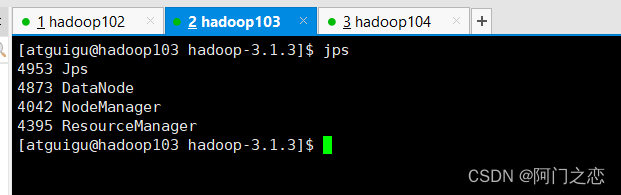

与配置需求对应

如果一下网页访问不到,需要关闭防火墙
sudo systemctl stop firewalld- 1
(4)Web 端查看 HDFS 的 NameNode
(a)浏览器中输入:http://hadoop102:9870
(b)查看 HDFS 上存储的数据信息

(5)Web 端查看 YARN 的 ResourceManager
(a)浏览器中输入:http://hadoop103:8088
(b)查看 YARN 上运行的 Job 信息

3)集群基本测试
(1)上传文件到集群
➢ 上传小文件[atguigu@hadoop102 ~]$ hadoop fs -mkdir /wcinput [atguigu@hadoop102 hadoop-3.1.3]$ hadoop fs -put wcinput/word.txt /wcinput 2023-09-16 07:12:20,952 INFO sasl.SaslDataTransferClient: SASL encryption trust check: localHostTrusted = false, remoteHostTrusted = false- 1
- 2
- 3
- 4
➢ 上传大文件
[atguigu@hadoop102 ~]$ hadoop fs -put /opt/software/jdk-8u212-linux-x64.tar.gz / 2023-09-16 07:13:40,174 INFO sasl.SaslDataTransferClient: SASL encryption trust check: localHostTrusted = false, remoteHostTrusted = false 2023-09-16 07:13:42,711 INFO sasl.SaslDataTransferClient: SASL encryption trust check: localHostTrusted = false, remoteHostTrusted = false- 1
- 2
- 3

(2)上传文件后查看文件存放在什么位置
➢ 查看 HDFS 文件存储路径[atguigu@hadoop102 subdir0]$ pwd /opt/module/hadoop-3.1.3/data/dfs/data/current/BP-1436128598-192.168.10.102-1610603650062/current/finalized/subdir0/subdir0- 1
- 2
➢ 查看 HDFS 在磁盘存储文件内容
[atguigu@hadoop102 subdir0]$ cat blk_1073741825 hadoop yarn hadoop mapreduce atguigu atguigu- 1
- 2
- 3
- 4
- 5

(3)拼接-rw-rw-r--. 1 atguigu atguigu 134217728 5 月 23 16:01 blk_1073741836 -rw-rw-r--. 1 atguigu atguigu 1048583 5 月 23 16:01 blk_1073741836_1012.meta -rw-rw-r--. 1 atguigu atguigu 63439959 5 月 23 16:01 blk_1073741837 -rw-rw-r--. 1 atguigu atguigu 495635 5 月 23 16:01 blk_1073741837_1013.meta [atguigu@hadoop102 subdir0]$ cat blk_1073741836>>tmp.tar.gz [atguigu@hadoop102 subdir0]$ cat blk_1073741837>>tmp.tar.gz [atguigu@hadoop102 subdir0]$ tar -zxvf tmp.tar.gz- 1
- 2
- 3
- 4
- 5
- 6
- 7
(4)下载
[atguigu@hadoop104 software]$ hadoop fs -get /wcinput/jdk-8u212-linux-x64.tar.gz ./- 1

(5)执行 wordcount 程序
[atguigu@hadoop102 hadoop-3.1.3]$ hadoop jar share/hadoop/mapreduce/hadoop-mapreduce-examples-3.1.3.jar wordcount /wcinput /wcoutput- 1

3.2.6 配置历史服务器
为了查看程序的历史运行情况,需要配置一下历史服务器。具体配置步骤如下:
1)配置 mapred-site.xml[atguigu@hadoop102 hadoop]$ vim mapred-site.xml- 1
在该文件里面增加如下配置。
mapreduce.jobhistory.address hadoop102:10020 mapreduce.jobhistory.webapp.address hadoop102:19888 - 1
- 2
- 3
- 4
- 5
- 6
- 7
- 8
- 9
- 10
2)分发配置
[atguigu@hadoop102 hadoop]$ xsync $HADOOP_HOME/etc/hadoop/mapred-site.xml- 1
3)在 hadoop102 启动历史服务器
[atguigu@hadoop102 hadoop]$ mapred --daemon start historyserver- 1
4)查看历史服务器是否启动
[atguigu@hadoop102 hadoop]$ jps- 1

5)查看 JobHistoryhttp://hadoop102:19888/jobhistory- 1
3.2.7 配置日志的聚集
日志聚集概念:应用运行完成以后,将程序运行日志信息上传到 HDFS 系统上。

日志聚集功能好处:可以方便的查看到程序运行详情,方便开发调试。
注意:开启日志聚集功能,需要重新启动 NodeManager 、ResourceManager 和
HistoryServer。开启日志聚集功能具体步骤如下:
1)配置 yarn-site.xml[atguigu@hadoop102 ~]$ cd /opt/module/hadoop-3.1.3/etc/hadoop/ [atguigu@hadoop102 hadoop]$ vim yarn-site.xml- 1
- 2
在该文件里面增加如下配置。
yarn.log-aggregation-enable true yarn.log.server.url http://hadoop102:19888/jobhistory/logs yarn.log-aggregation.retain-seconds 604800 - 1
- 2
- 3
- 4
- 5
- 6
- 7
- 8
- 9
- 10
- 11
- 12
- 13
- 14
- 15
2)分发配置
[atguigu@hadoop102 hadoop]$ xsync $HADOOP_HOME/etc/hadoop/yarn-site.xml- 1
3)关闭 NodeManager 、ResourceManager 和 HistoryServer
- 1
[atguigu@hadoop103 hadoop-3.1.3]$ cd /opt/module/hadoop-3.1.3/
[atguigu@hadoop103 hadoop-3.1.3]$ sbin/stop-yarn.sh
[atguigu@hadoop103 hadoop-3.1.3]$ mapred --daemon stop historyserver- 1
5)删除 HDFS 上已经存在的输出文件
[atguigu@hadoop102 ~]$ hadoop fs -rm -r /output- 1
6)执行 WordCount 程序
[atguigu@hadoop102 hadoop-3.1.3]$ hadoop jar share/hadoop/mapreduce/hadoop-mapreduce-examples-3.1.3.jar wordcount /input /output- 1
7)查看日志
(1)历史服务器地址http://hadoop102:19888/jobhistory- 1
(2)历史任务列表

(3)查看任务运行日志

(4)运行日志详情

3.2.8 集群启动/停止方式总结
1)各个模块分开启动/停止(配置 ssh 是前提)常用
(1)整体启动/停止 HDFSstart-dfs.sh/stop-dfs.sh- 1
(2)整体启动/停止 YARN
start-yarn.sh/stop-yarn.sh- 1
2)各个服务组件逐一启动/停止
(1)分别启动/停止 HDFS 组件hdfs --daemon start/stop namenode/datanode/secondarynamenode- 1
(2)启动/停止 YARN
yarn --daemon start/stop resourcemanager/nodemanager- 1
3.2.9 编写 Hadoop 集群常用脚本
1)Hadoop 集群启停脚本(包含 HDFS,Yarn,Historyserver):myhadoop.sh[atguigu@hadoop102 ~]$ cd /home/atguigu/bin [atguigu@hadoop102 bin]$ vim myhadoop.sh- 1
- 2
➢ 输入如下内容
#!/bin/bash if [ $# -lt 1 ] then echo "No Args Input..." exit ; fi case $1 in "start") echo " =================== 启动 hadoop 集群 ===================" echo " --------------- 启动 hdfs ---------------" ssh hadoop102 "/opt/module/hadoop-3.1.3/sbin/start-dfs.sh" echo " --------------- 启动 yarn ---------------" ssh hadoop103 "/opt/module/hadoop-3.1.3/sbin/start-yarn.sh" echo " --------------- 启动 historyserver ---------------" ssh hadoop102 "/opt/module/hadoop-3.1.3/bin/mapred --daemon start historyserver" ;; "stop") echo " =================== 关闭 hadoop 集群 ===================" echo " --------------- 关闭 historyserver ---------------" ssh hadoop102 "/opt/module/hadoop-3.1.3/bin/mapred --daemon stop historyserver" echo " --------------- 关闭 yarn ---------------" ssh hadoop103 "/opt/module/hadoop-3.1.3/sbin/stop-yarn.sh" echo " --------------- 关闭 hdfs ---------------" ssh hadoop102 "/opt/module/hadoop-3.1.3/sbin/stop-dfs.sh" ;; *) echo "Input Args Error..." ;; esac- 1
- 2
- 3
- 4
- 5
- 6
- 7
- 8
- 9
- 10
- 11
- 12
- 13
- 14
- 15
- 16
- 17
- 18
- 19
- 20
- 21
- 22
- 23
- 24
- 25
- 26
- 27
- 28
- 29
- 30
- 31
➢ 保存后退出,然后赋予脚本执行权限
[atguigu@hadoop102 bin]$ chmod +x myhadoop.sh- 1
2)查看三台服务器 Java 进程脚本:jpsall
[atguigu@hadoop102 ~]$ cd /home/atguigu/bin [atguigu@hadoop102 bin]$ vim jpsall- 1
- 2
➢ 输入如下内容
#!/bin/bash for host in hadoop102 hadoop103 hadoop104 do echo =============== $host =============== ssh $host jps done- 1
- 2
- 3
- 4
- 5
- 6
➢ 保存后退出,然后赋予脚本执行权限
[atguigu@hadoop102 bin]$ chmod +x jpsall- 1
3)分发/home/atguigu/bin 目录,保证自定义脚本在三台机器上都可以使用
[atguigu@hadoop102 ~]$ xsync /home/atguigu/bin/- 1
3.2.10 常用端口号说明

3.2.11 集群时间同步
如果服务器在公网环境(能连接外网),可以不采用集群时间同步,因为服务器会定期
和公网时间进行校准;
如果服务器在内网环境,必须要配置集群时间同步,否则时间久了,会产生时间偏差,
导致集群执行任务时间不同步。

2)时间服务器配置(必须 root 用户)
(1)查看所有节点 ntpd 服务状态和开机自启动状态[atguigu@hadoop102 ~]$ sudo systemctl status ntpd [atguigu@hadoop102 ~]$ sudo systemctl start ntpd [atguigu@hadoop102 ~]$ sudo systemctl is-enabled ntpd- 1
- 2
- 3

(2)修改 hadoop102 的 ntp.conf 配置文件
[atguigu@hadoop102 ~]$ sudo vim /etc/ntp.conf- 1
修改内容如下
(a)修改 1(授权 192.168.10.0-192.168.10.255 网段上的所有机器可以从这台机器上查
询和同步时间)#restrict 192.168.10.0 mask 255.255.255.0 nomodify notrap- 1
为
restrict 192.168.10.0 mask 255.255.255.0 nomodify notrap(b)修改 2(集群在局域网中,不使用其他互联网上的时间)
server 0.centos.pool.ntp.org iburst server 1.centos.pool.ntp.org iburst server 2.centos.pool.ntp.org iburst server 3.centos.pool.ntp.org iburst- 1
- 2
- 3
- 4
为
#server 0.centos.pool.ntp.org iburst #server 1.centos.pool.ntp.org iburst #server 2.centos.pool.ntp.org iburst #server 3.centos.pool.ntp.org iburst- 1
- 2
- 3
- 4

(c)添加 3(当该节点丢失网络连接,依然可以采用本地时间作为时间服务器为集群中
的其他节点提供时间同步)server 127.127.1.0 fudge 127.127.1.0 stratum 10- 1
- 2
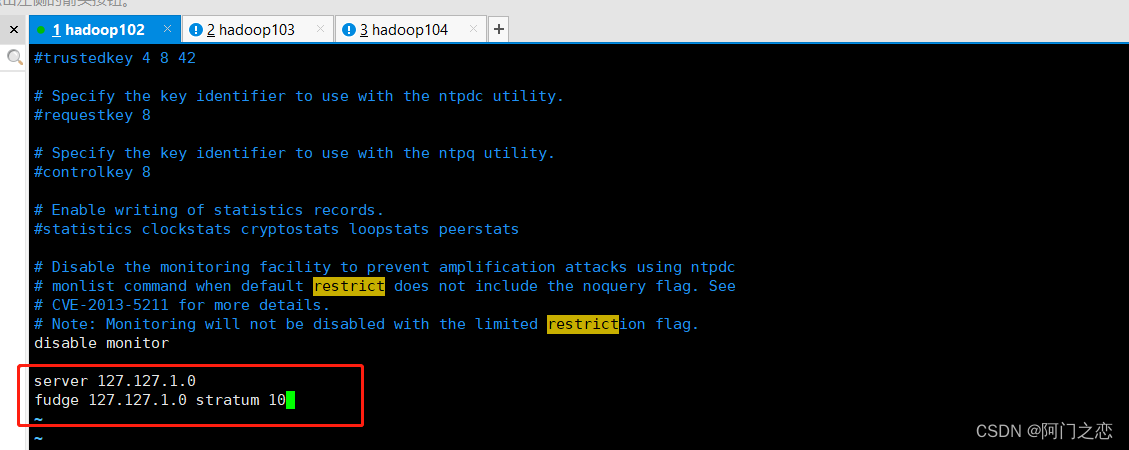
(3)修改 hadoop102 的/etc/sysconfig/ntpd 文件
[atguigu@hadoop102 ~]$ sudo vim /etc/sysconfig/ntpd- 1
增加内容如下(让硬件时间与系统时间一起同步)
SYNC_HWCLOCK=yes- 1

(4)重新启动 ntpd 服务
[atguigu@hadoop102 ~]$ sudo systemctl start ntpd- 1
(5)设置 ntpd 服务开机启动
[atguigu@hadoop102 ~]$ sudo systemctl enable ntpd- 1
3)其他机器配置(必须 root 用户)
(1)关闭所有节点上 ntp 服务和自启动[atguigu@hadoop103 ~]$ sudo systemctl stop ntpd [atguigu@hadoop103 ~]$ sudo systemctl disable ntpd [atguigu@hadoop104 ~]$ sudo systemctl stop ntpd [atguigu@hadoop104 ~]$ sudo systemctl disable ntpd- 1
- 2
- 3
- 4
(2)在其他机器配置 1 分钟与时间服务器同步一次
[atguigu@hadoop103 ~]$ sudo crontab -e- 1
编写定时任务如下:
*/1 * * * * /usr/sbin/ntpdate hadoop102- 1
(3)修改任意机器时间
[atguigu@hadoop103 ~]$ sudo date -s "2021-9-11 11:11:11"- 1
(4)1 分钟后查看机器是否与时间服务器同步
[atguigu@hadoop103 ~]$ sudo date- 1
第 4 章 常见错误及解决方案
1)防火墙没关闭、或者没有启动 YARN
INFO client.RMProxy: Connecting to ResourceManager at hadoop108/192.168.10.108:8032
2)主机名称配置错误
3)IP 地址配置错误
4)ssh 没有配置好
5)root 用户和 atguigu 两个用户启动集群不统一
6)配置文件修改不细心
7)不识别主机名称java.net.UnknownHostException: hadoop102: hadoop102 at java.net.InetAddress.getLocalHost(InetAddress.java:1475) at org.apache.hadoop.mapreduce.JobSubmitter.submitJobInternal(Job Submitter.java:146) at org.apache.hadoop.mapreduce.Job$10.run(Job.java:1290) at org.apache.hadoop.mapreduce.Job$10.run(Job.java:1287) at java.security.AccessController.doPrivileged(Native Method) at javax.security.auth.Subject.doAs(Subject.java:415)- 1
- 2
- 3
- 4
- 5
- 6
- 7
- 8
- 9
- 10
- 11
解决办法:
(1)在/etc/hosts 文件中添加 192.168.10.102 hadoop102
(2)主机名称不要起 hadoop hadoop000 等特殊名称
8)DataNode 和 NameNode 进程同时只能工作一个。

9)执行命令不生效,粘贴 Word 中命令时,遇到-和长–没区分开。导致命令失效
解决办法:尽量不要粘贴 Word 中代码。
10)jps 发现进程已经没有,但是重新启动集群,提示进程已经开启。
原因是在 Linux 的根目录下/tmp 目录中存在启动的进程临时文件,将集群相关进程删
除掉,再重新启动集群。
11)jps 不生效
原因:全局变量 hadoop java 没有生效。解决办法:需要 source /etc/profile 文件。
12)8088 端口连接不上
[atguigu@hadoop102 桌面]$ cat /etc/hosts
注释掉如下代码
#127.0.0.1 localhost localhost.localdomain localhost4 localhost4.localdomain4
#::1 hadoop102 -
相关阅读:
【JavaEE】JUC(java.util.concurrent)的常见类以及线程安全的集合类
LaTex(1):使用在线表格生成器工具生成LaTex表格
GEE3:吴秋生geemap介绍和安装
FDMA 3.1 米联客的Axi-DDR3控制器及其配套的Dbuf
【京东开源项目】微前端框架MicroApp 1.0正式发布
安卓开发中ViewBinding的使用
FFmpeg工具使用集
(JavaSE)抽象类和接口
Java8-17 --- idea2022
Kotlin语法学习(四)_空指针检查
- 原文地址:https://blog.csdn.net/fen_dou_shao_nian/article/details/132727328
