-
Django搭建一个简易GPT网站

环境安装
pip install django openai- 1
创建主项目和应用程序
处理完项目的环境后,让我们现在创建主项目,在端中运行此命令:
django-admin startproject webassistant- 1
根据Django 文档,django-admin它是一个用于管理任务的命令行实用程序。切换到项目的文件夹,使用命令如下
cd webassistant- 1
并创建应用程序assistant,运行命令:
python manage.py startapp assistant- 1
到目前为止,现在应该有一个如下所示的文件夹结构:

让我们通过测试 Django 是否安装成功来结束本节,在终端中运行此命令:python manage.py runserver- 1
上面的命令用于启动 Django 本地服务器,如果服务器运行成功,请复制 URL地址: http://127.0.0.1:8000/并将其粘贴到您的网络浏览器中。确保在浏览器中获得此结果:
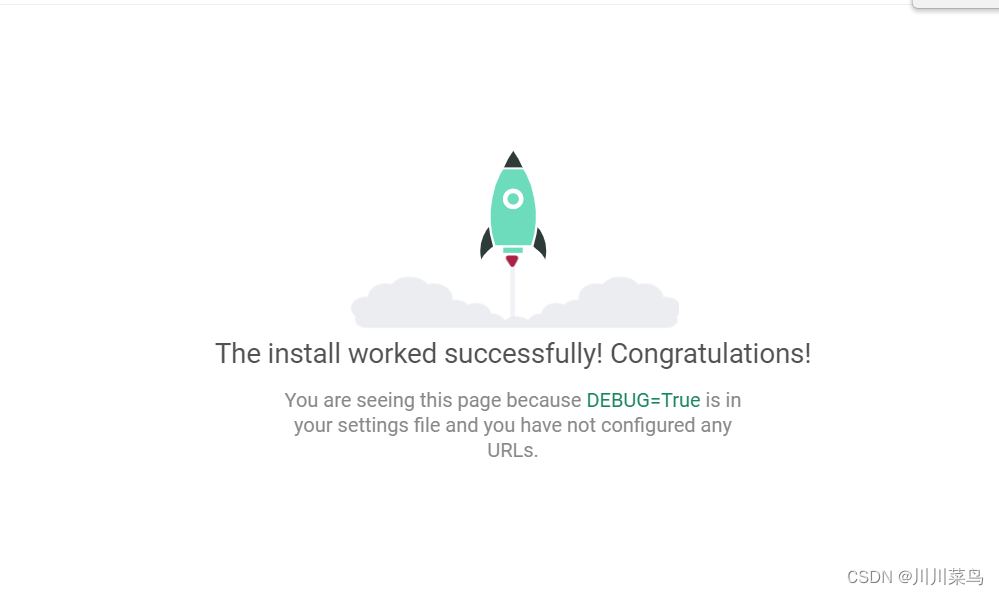
恭喜Django安装成功!在 settings.py 文件中注册应用程序
使用 Django,可以在项目中创建任意数量的应用程序,但每个项目都必须注册。在 Django 中,所有应用程序都注册在一个名为 的文件中settings.py,可以在项目文件夹中找到该文件。

这个文件负责项目的所有配置,编辑它时要小心,因为一行乱七八糟的代码可能会破坏你的整个项目。打开它并向下滚动到列表INSTALLED_APPS,像这样添加assistant应用程序:
INSTALLED_APPS = [ 'django.contrib.admin', 'django.contrib.auth', 'django.contrib.contenttypes', 'django.contrib.sessions', 'django.contrib.messages', 'django.contrib.staticfiles', # 注册APP 'assistant', ]- 1
- 2
- 3
- 4
- 5
- 6
- 7
- 8
- 9
- 10
在 views.py 文件中为应用程序创建视图
在 Django 中views.py,文件起着重要的作用,它处理应用程序的所有业务逻辑,如捕获和验证表单数据、验证用户、向 API 发送请求等。文件views.py位于应用程序的文件夹内:

我们的应用程序将有两个视图,home()和error_handler(),打开views.py文件并使其看起来像这样:
from django.shortcuts import render # import HttpResponse from django.urls from django.http import HttpResponse # this is the home view for handling home page logic def home(request): return HttpResponse('The Home Page') # this is the view for handling errors def error_handler(request): return HttpResponse('404 Page')- 1
- 2
- 3
- 4
- 5
- 6
- 7
- 8
- 9
- 10
- 11
- 12
- 13
在代码片段中,我们有两个函数都返回一个字符串作为响应,这是在将HttpResponse()字符串作为输入的函数的帮助下完成的。
配置应用程序的 URL
现在我们已经准备好视图,让我们注册 URL。urls.py在文件夹内创建一个名为的文件assistant,不要以其他方式命名,因为这是 Django 的做事方式
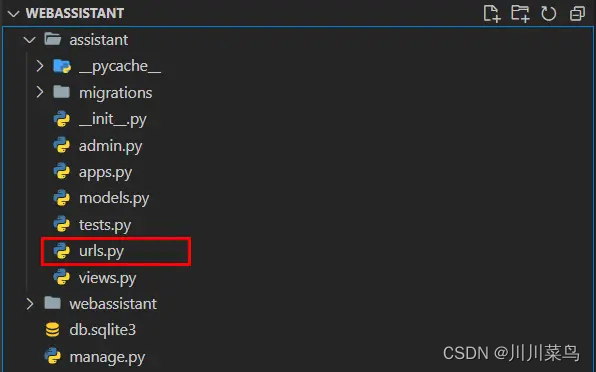
该文件的主要目的urls.py是在文件中注册视图views.py,打开它并粘贴此代码:# here we are import path from in-built django-urls from django.urls import path # here we are importing all the Views from the views.py file from . import views # a list of all the urls urlpatterns = [ path('', views.home, name='home'), path('new_chat/', views.new_chat, name='new_chat'), path('error-handler/', views.error_handler, name='error_handler'), ]- 1
- 2
- 3
- 4
- 5
- 6
- 7
- 8
- 9
- 10
- 11
- 12
现在,必须注册这些新创建的 URL,以便项目知道它们。在webassistant文件夹内,还有一个urls.py文件:

现在这里有一点值得您注意,应用程序的urls.py文件与项目的文件不同urls.py。assistant 文件夹内的文件urls.py用于注册所有应用程序的视图,文件urls.py夹内的文件webassistant用于注册所有应用程序的URL。打开它,让它看起来像这样:
from django.contrib import admin from django.urls import path, include # a list of all the projects urls urlpatterns = [ # the url to the admin site path('admin/', admin.site.urls), # registering all the assistant application urls path('', include('assistant.urls')), ]- 1
- 2
- 3
- 4
- 5
- 6
- 7
- 8
- 9
- 10
- 11
在代码中,我们有一个urlpatterns包含两个路径的列表,一个用于管理站点,另一个用于应用程序。要注册应用程序的 URL,我们使用path()将字符串作为路径名的函数,以及include()将所有应用程序的 URL 作为输入的函数。
创建和渲染模板
在本节中,我们将创建和呈现我们的模板。我们将使用 HTML 和样式,我们将使用Bootstrap 5.3框架。在assistant文件夹内,创建一个名为 的新文件夹templates,不要拼错它,因为这是 Django 的做事方式,否则你会得到错误。在该templates文件夹内,创建另一个名为 的文件夹assistant,所有模板都将位于该文件夹中。
我们的应用程序将具有三个模板,home.html, 404.html, 并且base.html像这样:

让我们从base.html模板开始,打开它并粘贴以下代码:<!DOCTYPE html> <html lang="en"> <head> <meta charset="UTF-8"> <meta http-equiv="X-UA-Compatible" content="IE=edge"> <meta name="viewport" content="width=device-width, initial-scale=1.0"> <title>Web Assistant | {% block title %} {% endblock %}</title> <link href="https://cdn.jsdelivr.net/npm/bootstrap@5.3.0-alpha1/dist/css/bootstrap.min.css" rel="stylesheet"> </head> <body> {% block content %} {% endblock %} </body> </html>- 1
- 2
- 3
- 4
- 5
- 6
- 7
- 8
- 9
- 10
- 11
- 12
- 13
- 14
这是一个 HTML 样板文件,通过链接向其中添加了 Bootstrap5.3 CSS。
home.html:
{% extends 'assistant/base.html' %} {% block title %} Home {% endblock %} {% block content %} <div class="row justify-content-center my-4"> <div class="col-md-7 mt-4"> <div class="card"> <h1 class="card-header text-center">A.I WEB ASSISTANT</h1> <div class="card-body"> <div class="d-flex justify-content-end"> <button type="button" class="btn btn-primary mb-3" onclick="location.href='{% url 'new_chat' %}'">New Chat +</button> </div> <div class="chat-history mb-3"> {% for message in messages %} <div class="card mb-2 {% if message.role == 'assistant' %}bg-success text-white{% endif %}"> <div class="card-body p-2"> <strong>{{ message.role|title }}:</strong> {{ message.content|linebreaksbr }} </div> </div> {% endfor %} </div> <form action="." method="POST"> <!-- this secures the form from malicious attacks during submission --> {% csrf_token %} <input class="form-control mb-2" required type="text" autofocus="autofocus" name="prompt" value="{{ prompt }}" id=""> <label for="temperature" class="form-label">Temperature:</label> <input class="form-control mb-2" type="number" step="0.01" min="0" max="2" name="temperature" value="{{ temperature }}" id="temperature"> <button class="btn btn-success fw-bold" type="submit"> GENERATE </button> </form> </div> </div> </div> </div> {% endblock %}- 1
- 2
- 3
- 4
- 5
- 6
- 7
- 8
- 9
- 10
- 11
- 12
- 13
- 14
- 15
- 16
- 17
- 18
- 19
- 20
- 21
- 22
- 23
- 24
- 25
- 26
- 27
- 28
- 29
- 30
- 31
- 32
- 33
- 34
- 35
- 36
404.html
{% extends 'assistant/base.html' %} {% block title %} 404 {% endblock %} {% block content %} <div class="row justify-content-center my-4"> <div class="col-md-7 mt-4"> <h1>Page Not Found</h1> <p>Make sure you are connected to the internet or your query is correct</p> <a href="{% url 'home' %}" class="btn btn-secondary">Go Home</a> </div> </div> {% endblock %}- 1
- 2
- 3
- 4
- 5
- 6
- 7
- 8
- 9
- 10
- 11
views.py文件代码如下:
from django.shortcuts import render # this is the home view for handling home page logic def home(request): return render(request, 'assistant/home.html') # this is the view for handling errors def error_handler(request): return render(request, 'assistant/404.html')- 1
- 2
- 3
- 4
- 5
- 6
- 7
- 8
- 9
KEY
创建一个文件为secret_key.py

填写KEY:API_KEY = 'put your API key here'- 1
实现发送提示功能
现在我们已经为 Web 助手设计了界面并且我们已经成功生成了 API 密钥,现在让我们将这个 API 与我们的 Django 应用程序集成。打开views.py文件并使其看起来像这样:
# 导入 render 和 redirect from django.shortcuts import render, redirect # 导入 openai API import openai # 从 secret_key 文件导入生成的 API 密钥 from .secret_key import API_KEY # 从 secret_key 文件加载 API 密钥 openai.api_key = API_KEY # 这是处理主页逻辑的主页视图 def home(request): try: # 如果会话中没有包含 messages 键,则创建一个 if 'messages' not in request.session: request.session['messages'] = [ {"role": "系统", "content": "您现在正在与用户聊天,为他们提供全面、简短和简洁的答案."}, ] if request.method == 'POST': # 从表单获取提示 prompt = request.POST.get('prompt') # 从表单获取温度 temperature = float(request.POST.get('temperature', 0.1)) # 将提示添加到 messages 列表 request.session['messages'].append({"role": "user", "content": prompt}) # 将会话设置为已修改 request.session.modified = True # 调用 openai API response = openai.ChatCompletion.create( model="gpt-3.5-turbo", messages=request.session['messages'], temperature=temperature, max_tokens=1000, ) # 格式化响应 formatted_response = response['choices'][0]['message']['content'] # 将响应添加到 messages 列表 request.session['messages'].append({"role": "assistant", "content": formatted_response}) request.session.modified = True # 重定向到主页 context = { 'messages': request.session['messages'], 'prompt': '', 'temperature': temperature, } return render(request, 'assistant/home.html', context) else: # 如果请求不是 POST 请求,渲染主页 context = { 'messages': request.session['messages'], 'prompt': '', 'temperature': 0.1, } return render(request, 'assistant/home.html', context) except Exception as e: print(e) # 如果有错误,重定向到错误处理器 return redirect('error_handler') def new_chat(request): # 清除 messages 列表 request.session.pop('messages', None) return redirect('home') # 这是处理错误的视图 def error_handler(request): return render(request, 'assistant/404.html')- 1
- 2
- 3
- 4
- 5
- 6
- 7
- 8
- 9
- 10
- 11
- 12
- 13
- 14
- 15
- 16
- 17
- 18
- 19
- 20
- 21
- 22
- 23
- 24
- 25
- 26
- 27
- 28
- 29
- 30
- 31
- 32
- 33
- 34
- 35
- 36
- 37
- 38
- 39
- 40
- 41
- 42
- 43
- 44
- 45
- 46
- 47
- 48
- 49
- 50
- 51
- 52
- 53
- 54
- 55
- 56
- 57
- 58
- 59
- 60
- 61
- 62
- 63
- 64
- 65
- 66
- 67
注意事项
由于请求的是官方接口,使用需要打开魔法。
我的工具箱:https://openai.nm.cn/- 1
完整源码
gong 众 号:川川带你学AI 回复:230422- 1
- 2
-
相关阅读:
Python MongoDB
流媒体直播播放协议:HLS、RTMP、HTTP-FLV
02 C++ 变量和基本类型
性能测试知识科普(一)
【大数据】 linux | 安装hadoop | 单机hadoop
ubuntu16.04+cuda10.0+cudnn7.6+tensorflow_gpu-1.11.0环境安装
2024年华为HCIA-DATACOM新增题库(H12-811)
面试必问之JVM常用参数
计算机网络--应用层(http)
MyMusic 重点实现
- 原文地址:https://blog.csdn.net/weixin_46211269/article/details/130297810

- 最新文章
-
沪漂五周年了:我越来越迷茫了
Agentic Skill Routing 实战:别再把所有 Skill 塞进 AI Agent 上下文
MySQL-Seconds_behind_master的精度误差
[MAF预定义ChatClient中间件-03]CachingChatClient——利用缓存省钱省时间
AI的至暗历史:从万众期待到被政府撤资,AI的两次死亡徘徊
Agent OS :五种驯服不确定性的范式
PortSwigger SQL注入LAB11
数据库即时编译JIT
[Begin]AI Learn Data Day 0
深度学习进阶(二十七)现代 LLM 的核心架构设计其二:SwiGLU