-
uni-app常用场景速查记录
记录一下uniapp开发过程中遇到的问题场景,方便后期查看.
1.elementUI中textarea文本如何设置换行显示
2.uniapp中实现文字滚动显示
3.下拉刷新和触底分页查询
4.图片高斯模糊处理
5.vue.prototype定义全局方法在配置文件不生效问题记录
6.H5隐藏导航栏返回按钮
7.微信小程序分享页参数拼接与获取
8.实现圆形头像显示
9.view设置width:100不生效处理方案
10.微信小程序webview向h5传参
11.scss样式复用之@extend 与 @mixin
12.view居中且左右间隔相同
13./pages/xxx/xxx.wxml not found问题处理
14.间隔执行定时器
15.盒子在屏幕左右两边有相同间隔
16.三元表达式替换之||和&&
17.文本指定文字添加样式
18.post请求文件上传
19. 自定义按钮并按钮文字居中,同一元素显示多个class
20. 设置段落首行缩进
21. scss样式复用之同一元素显示多个class自定义公共scss
22. 样式高度宽度修改不生效处理方法
23. vue中axios中的服务器地址如何在文件中引用
24. 数组相关
25. 文本居中
26. flex布局
27. position定位
28. scroll-view实现横向以及纵向案例
29.盒子模型
291.盒子宽高计算方式
292.阴影效果
293.渐变效果
294.多行多列间距相等
295.文本过长超过盒子高度处理
296.文本内容过高问题
30.css实现三角形和四边形
31.元素样式放大或缩小
32.根据相邻组件高度设置组件距离底部的高度
33.事件优先级:失去焦点事件与单击事件优先级设置
34.细线
35.url中拼接布尔类型
36.前景图片在背景图居中
37.app以及web浏览器导航栏左上角返回按钮指定返回页面
38.数字保留两位小数
39.导航栏右上角自定义标题
40.创建连续递增数组
41.自定义日期时间选择器
42.组件数据初始化2.uniapp中实现文字滚动显示实现逻辑是利用swiper组件,定时展示多个swiper-item即可.实现代码如下:
<template> <view> <view class="scroll_box"> <swiper class="swiper" circular="true" :autoplay="autoplay" :interval="interval" :duration="duration"> <swiper-item v-for="(item,index) in list" :key="index"> <view class="swiper-item uni-bg-green">{{item}}</view> </swiper-item> </swiper> </view> </view> </template> <script> export default { data() { return { // 轮播 autoplay:true, interval:6000, duration:12000, list:[ '项目上线初期,使用有问题可以联系客服', '项目上线初期,使用有问题可以联系客服', '项目上线初期,使用有问题可以联系客服', ] }; } } </script> <style lang="scss"> .scroll_box { position: fixed; top:10rpx; width: 100%; height: 10%; background: #FFFFFF; border-radius: 10rpx; .swiper{ width: 100%; height: 100%; } } </style>- 1
- 2
- 3
- 4
- 5
- 6
- 7
- 8
- 9
- 10
- 11
- 12
- 13
- 14
- 15
- 16
- 17
- 18
- 19
- 20
- 21
- 22
- 23
- 24
- 25
- 26
- 27
- 28
- 29
- 30
- 31
- 32
- 33
- 34
- 35
- 36
- 37
- 38
- 39
- 40
- 41
- 42
- 43
- 44
- 45
- 46
展示效果如下:
 3.下拉刷新和触底分页查询
分页数据展示是很常见的场景,简单记录一下下拉刷新查询最新数据以及上滑到底部分页加载更多数据.两种方式分别使用到的页面生命周期:onPullDownRefresh和onReachBottom,具体代码可以参考如下:
data() { return { dynamicList:[], // 动态记录 currentPageDynamicList:[], // 当前查询页的动态记录 currentPage: 1, // 当前页 pageSize:2 // 每页显示条数 }; }, async onPullDownRefresh() { // 下拉刷新 // 每次下拉需要重置当前页以及显示的动态 this.dynamicList=[], this.currentPageDynamicList=[], this.currentPage=1 await this.serverFindDynamicInfoList(this.currentPage,this.pageSize) uni.stopPullDownRefresh(); }, onReachBottom(){ // 触底加载下一页 this.currentPage++ this.serverFindDynamicInfoList(this.currentPage,this.pageSize) }, methods:{ async serverFindDynamicInfoList(currentPage,pageSize){ await findDynamicInfoList({ 'custom': { 'auth': true }, data:{ "currentPage":currentPage, "pageSize":pageSize } }).then(response => { this.currentPageDynamicList=response.data.list.map(item=> ({ // 数据处理 }) ) if(this.dynamicList.length == 0){ this.dynamicList=this.currentPageDynamicList }else{ this.dynamicList=[...this.dynamicList,...this.currentPageDynamicList]; } }).catch((data) => { this.$api.showMsg(data.data.msg) }) }, }- 1
- 2
- 3
- 4
- 5
- 6
- 7
- 8
- 9
- 10
- 11
- 12
- 13
- 14
- 15
- 16
- 17
- 18
- 19
- 20
- 21
- 22
- 23
- 24
- 25
- 26
- 27
- 28
- 29
- 30
- 31
- 32
- 33
- 34
- 35
- 36
- 37
- 38
- 39
- 40
- 41
- 42
- 43
- 44
- 45
- 46
- 47
- 48
注意:
this.dynamicList=[...this.dynamicList,...this.currentPageDynamicList];- 1
为ESC6语法,意思是数组拼接,当时操作的时候使用this.dynamicList.concat(this.currentPageDynamicList)发现数组信息不变化即concat失效,故采用的前面参数拼接的方式.
4.图片高斯模糊处理使用css中filter: blur(radius)进行实现,"radius"一值设定高斯函数的标准差,或者是屏幕上以多少像素融在一起, 所以值越大越模糊;
示例:.img_content{ filter: blur(4px); }- 1
- 2
- 3
处理前:

处理后:
 5.vue.prototype定义全局方法在配置文件不生效问题记录
最近封装常用的GET、POST、DELETE、PUT请求,想在封装的文件中使用全局定义的方法,发现不生效.相关文件如下:
封装的公共方法commonMethod.js:/** * 显示加载中 * @author txm * */ const showLoading=()=>{ uni.showLoading({ title: '加载中', mask: true }) } /** * 取消加载中 * @author txm * */ const hideLoading=()=>{ uni.hideLoading(); } //注册定义的方法 export const commonMethod={ showLoading, hideLoading }- 1
- 2
- 3
- 4
- 5
- 6
- 7
- 8
- 9
- 10
- 11
- 12
- 13
- 14
- 15
- 16
- 17
- 18
- 19
- 20
- 21
- 22
- 23
- 24
- 25
- 26
- 27
- 28
- 29
封装请求方法packageMethod.js:
import httpApi from '@/common/httpApi.js' import config from '@/common/config.js' // 服务器路径 const serverUrl = config.serverUrl; // 用户token const token = uni.getStorageSync('token'); // post请求封装 function postRequest(url, data, header) { var promise = new Promise((resolve, reject) => { console.log('commonMethod:',commonMethod) // 打印内容为undefined // 显示加载中 this.$commonMethod.showLoading() var that = this; var postData = data; console.log('postData',JSON.stringify(postData)) uni.request({ url: serverUrl + url, data: postData, method: 'POST', timeout: 100000, header: { 'content-type': header || 'application/json', 'token': token, }, success: function(res){ console.log('success:res',JSON.stringify(res)) this.$commonMethod.showLoading() if (res.data.code == 200) { resolve(res.data.data); } }, fail: function(e) { this.$commonMethod.showLoading().hideLoading(); this.$commonMethod.showLoading().showMsg('网络错误') console.log('e',JSON.stringify(e)) reject('网络错误'); } }) }); return promise; } module.exports = { postRequest }- 1
- 2
- 3
- 4
- 5
- 6
- 7
- 8
- 9
- 10
- 11
- 12
- 13
- 14
- 15
- 16
- 17
- 18
- 19
- 20
- 21
- 22
- 23
- 24
- 25
- 26
- 27
- 28
- 29
- 30
- 31
- 32
- 33
- 34
- 35
- 36
- 37
- 38
- 39
- 40
- 41
- 42
- 43
- 44
- 45
- 46
commonMethod实际打印内容为undefined,之前在页面中都是直接使用this.$commonMethod.方法就可以显示

仔细考虑了一下Vue.prototype定义全局变量的方式只是对vue实例生效,比如说各种vue文件,但是封装的js文件不属于vue实例,所以不会生效.下面讲一下如何处理这个问题.最简单的办法就是在请求封装js中引入公共方法js.具体引入方式如下:import {commonMethod} from '@/common/commonMethod.js'- 1
调用方式:
commonMethod.showLoading()- 1
另外说下
export const commonMethod={}与export default{}的引用方式:
前者引用方式:import {commonMethod} from '@/common/commonMethod.js'- 1
commonMethod名称固定,且需要带{}
后者引用方式:import commonMethod from '@/common/commonMethod.js'- 1
commonMethod可随意定义
再说下resolve与reject,前者表示接口回调成功,后者表示回调失败.在实际方法调用中resolve对应then,reject对应catch.请求方法示例:methods: { serverBindUserGzhOpenId(){ bindUserGzhOpenId({ 'gzhCode': "123" }).then(response => { // 封装请求方法中的resolve会进入到then中 console.log("serverBindUserGzhOpenId开始response") }).catch((data) => { // 封装请求方法中的reject会进入到then中 this.$commonMethod.showMsg(JSON.stringify(data.msg)) }) } }- 1
- 2
- 3
- 4
- 5
- 6
- 7
- 8
- 9
- 10
- 11
- 12
- 13
6.H5隐藏导航栏返回按钮对应页面中添加如下内容:
mounted(){ // 隐藏导航栏的返回箭头,页面会显示导航栏背景色 document.querySelector('.uni-page-head-hd').style.display = 'none' // 隐藏导航栏 document.querySelector('.uni-page-head').style.display = 'none' }- 1
- 2
- 3
- 4
- 5
- 6
7.微信小程序分享页参数拼接与获取要求实现用户A分享内容到好友以及朋友圈,其他用户进入到小程序后绑定与用户A直接的关系记录.
分享好友以及分享到朋友圈设置:// 发送好友 onShareAppMessage(res) { return { title: '我是分享给好友', //分享的名称 path: '/pages/index/index?userId=256', mpId:'12456' //此处配置微信小程序的AppId } }, //分享到朋友圈 onShareTimeline(res) { return { title: '我是分享给朋友圈', query: 'userId=456' } },- 1
- 2
- 3
- 4
- 5
- 6
- 7
- 8
- 9
- 10
- 11
- 12
- 13
- 14
- 15
分享页初始化解析是否存在分享用户ID:
created(){ // 获取页面信息 let currentPage=getCurrentPages(); console.log("getCurrentPages()",currentPage) let page=currentPage[0].options console.log("userId:",page.userId) }- 1
- 2
- 3
- 4
- 5
- 6
- 7
- 8
8.实现圆形头像显示讲一种实现圆形头像的方式:
上传的原图:<image src="https://oss.haokeruanjian.top/drift/user_img/tmp_001ee2b5a10ad53a51516d2b08f846b6.jpg" ></image>- 1
处理圆形显示:
<image src="https://oss.haokeruanjian.top/drift/user_img/tmp_001ee2b5a10ad53a51516d2b08f846b6.jpg" style="height: 80px;width: 80px;border-radius:100px"></image>- 1
添加样式:保持图片宽高相等,使用border-radius将圆角去掉.效果如下:
 9.view设置width:100不生效处理方案
设置view高度或是宽度100%时需要保证父元素是100%.如果不生效可以考虑修改单位为vw、vh
进行处理,vw:1vw等于视口宽度的1%。 100vw等于窗口的宽度
vh:1vh等于视口高度的1%。 100vh等于窗口的高度10.微信小程序webview向h5传参小程序跳转到h5可以通过webview进行实现,如果涉及到传参,直接在webview的路径上拼接即可,h5解析的使用直接使用event进行接收.示例:
微信小程序跳转h5:<web-view src="https://abc.com?userId=2"">成为VIP</web-view>- 1
h5解析路径参数:
onload(event){ console.log("userId:",event.userId) }- 1
- 2
- 3
11.scss样式复用之@extend 与 @mixin对于存在相同内容的样式代码,可以使用@extend 与 @mixin进行简化处理,后者更类似于函数,支持传参.具体说明:
以下样式存在重复:

可以进行复用优化,仅宽高不同,优化后(宽高重新定义后可覆盖复用中的宽高):

关于@mixin也可以实现上面样式复用的效果,但是更多的适用于样式参数值不同的场景,观察下面的代码会发现高度和宽度都有设置,但是样式设置中都会有不同,这个时候就可以使用@mixin进行处理.

使用@mixin进行处理,先定义一下宽度高度设置的函数height-width-setting,然后使用@include进行引入.
 12.view居中且左右间隔相同
实现效果如下:

实现方式:.view{ margin:auto; height:100%; // 左右间隔5% width:95%; }- 1
- 2
- 3
- 4
- 5
- 6
13./pages/xxx/xxx.wxml not found问题处理问题描述:
pages下面存在页面A,路径为/pages/A/A.vue,然后将vue文件名改成了B.vue.pages.json中pages、tabbar配置中的路径由/pages/A/A改成了/pages/A/B,然后重新编译就出现了上面的提示,重启都不生效.
处理办法:
将/pages/A/A.vue连同A目录删除,main.json中也删除相关配置.重新编译,编译成功后将A文件夹复制,main.json中添加相关配置重新编译即可!14.间隔执行定时器格式:setInterval(执行函数,间隔时间)- 1
使用场景:
间隔一秒执行一次,执行六次之后停止执行,实现如下:var intervalCount=0 var timer= setInterval(function() { intervalCount++; console.log('我执行了')//间隔1秒执行一次 我执行了 // 定时器停止 if(intervalCount == 6){ clearInterval(timer) } }, 1000)- 1
- 2
- 3
- 4
- 5
- 6
- 7
- 8
- 9
另一种实现方式,定时器关闭与定时执行逻辑分离:
data() { return { timer:null // 定时器 } }, methods:{ intervalGetPdfToWord(bizId){ this.timer= setInterval(function() { console.log('我执行了')//间隔1秒执行一次 我执行了 }, 1000) }, stopInterval{ // 定时器停止 clearInterval(this.timer) }- 1
- 2
- 3
- 4
- 5
- 6
- 7
- 8
- 9
- 10
- 11
- 12
- 13
- 14
定时器执行逻辑中this不能生效问题处理:
定时执行逻辑中会发现使用this调用methods中的方法会失效,处理方式,使用箭头函数:箭头函数中的this指向是固定不变(定义函数时的指向),在vue中指向vue,就是平常使用的this
普通函数中的this指向是变化的(使用函数时的指向),谁调用的指向谁,此处this指定时函数,可打印到控制台对比
data() { return { timer:null // 定时器 } }, methods:{ intervalGetPdfToWord(bizId){ this.timer= setInterval(()=> { this.test() }, 1000) }, stopInterval{ // 定时器停止 clearInterval(this.timer) }, test(){ console.log('我执行了')//间隔1秒执行一次 我执行了 } }- 1
- 2
- 3
- 4
- 5
- 6
- 7
- 8
- 9
- 10
- 11
- 12
- 13
- 14
- 15
- 16
- 17
- 18
或是在定时函数之外进行重新赋值,类似success回调处理不生效处理方式:
var that=this setTimeout(function() { console.log("定时执行") // 调用项目封装跳转tabbar方法 that.$commonMethod.goToTabbar('/pages/index/index') }, 1000)- 1
- 2
- 3
- 4
- 5
- 6
定时器取消不生效问题记录:
场景:定时查询转换结果状态,转化结果状态成功则停止定时处理,由于查询逻辑执行时间较长,超过定时执行间隔,导致重复执行定时.处理方法是延长定时执行的间隔时间,另一种是使用watch监听,监听到执行结果成功则终止定时,当然也是基于定时间隔设置较长时间上执行.15.盒子在屏幕左右两边有相同间隔处理方法:在盒子里面再添加一层,宽度占用父盒子一定比例,margin:auto;会自动进行间隔.示例代码:
.parent{ .son{ margin:auto; height:100%; width:96%; // 左右两边间隔屏幕4% }- 1
- 2
- 3
- 4
- 5
- 6
16.三元表达式替换之||和&&header: { // contentType为空、false、null则赋值'content-type':'application/json' 'content-type': contentType || 'application/json', // needsToken为true时则执行uni.getStorageSync('token') 'token': needsToken && uni.getStorageSync('token') },- 1
- 2
- 3
- 4
- 5
- 6
17.文本指定文字添加样式
代码:<view class="private_desc"> 感谢您使用****小程序,您使用本小程序前应当阅读并同意 <span style="color: RGB(0,112,217);" @tap="gotoWebview(1)">《隐私政策》</span> 和 <span style="color: RGB(0,112,217);" @tap="gotoWebview(2)">《用户协议》</span> ,如果拒绝将无法进入小程序! </view>- 1
- 2
- 3
- 4
- 5
- 6
- 7
18.post请求文件上传简单记录常用的文件上传:
服务端接口:@PostMapping("/uploadFile") public ResultVo uploadFile(@NotNull(message = "文件对象不允许为空!") MultipartFile multipartFile, @NotNull(message = "文件类型不允许为空!") Integer fileType) { }- 1
- 2
- 3
- 4
仅上传文件不携带参数:
uni.uploadFile({ url: "服务端请求地址", filePath: "文件地址", name: 'multipartFile', // 对应服务端文件参数名:multipartFile success: (uploadFileRes) => { // 上传成功处理逻辑 } }- 1
- 2
- 3
- 4
- 5
- 6
- 7
- 8
- 9
- 10
上传文件携带参数方式一:
uni.uploadFile({ url: "服务端请求地址?fileType=4", filePath: "文件地址", name: 'multipartFile', // 对应服务端文件参数名:multipartFile success: (uploadFileRes) => { // 上传成功处理逻辑 } }- 1
- 2
- 3
- 4
- 5
- 6
- 7
- 8
- 9
- 10
上传文件携带参数方式二:
uni.uploadFile({ url: "服务端请求地址", filePath: "文件地址", name: 'multipartFile', // 对应服务端文件参数名:multipartFile formData: { // 对应服务端其他参数名 "fileType": fileType, "fileName": fileName }, success: (uploadFileRes) => { // 上传成功处理逻辑 } }- 1
- 2
- 3
- 4
- 5
- 6
- 7
- 8
- 9
- 10
- 11
- 12
- 13
19. 自定义按钮并按钮文字居中view:
<view class="btns"> <button class="item reject" style="background: #f4f4f5;color: #909399;"><text>拒绝</text></button> <button class="item agree" type="primary" open-type="agreePrivacyAuthorization" @tap="login()"> <text>同意</text> </button> </view>- 1
- 2
- 3
- 4
- 5
- 6
- 7
样式:
.btns { margin-top: 48rpx; width: 90%; display: flex; .item { justify-content: space-between; width: 244rpx; height: 80rpx; display: flex; align-items: center; justify-content: center; border-radius: 16rpx; box-sizing: border-box; border: none; } .reject { background: #f4f4f5; color: #909399; } .agree { background: #07c160; color: #fff; } }- 1
- 2
- 3
- 4
- 5
- 6
- 7
- 8
- 9
- 10
- 11
- 12
- 13
- 14
- 15
- 16
- 17
- 18
- 19
- 20
- 21
- 22
- 23
- 24
- 25
- 26
- 27
补充:使用view创建按钮
<view class="sendBtn"> 发 送 </view> .sendBtn{ background: rgb(5, 196, 96); text-align: center; font-size: 22rpx; line-height: 44rpx; border-radius: 8rpx; color: white; width: 50px; margin-bottom: 12rpx; }- 1
- 2
- 3
- 4
- 5
- 6
- 7
- 8
- 9
- 10
- 11
- 12
- 13
效果:
 20.设置段落首行缩进
text-indent进行首行缩进
text-align表示是字体对齐方式,
两个使用均是基于父组件来设置,不是设置text实现效果:

代码:<view class="des"> <view style="font-size: 15px;"> 使用说明: </view> <view class="des_item"> <text> 1.我是第一行!</text> </view> <view class="des_item"> <text> 2.我是第二行!从上周末开始,位于杭州的浙江大学医学院附属邵逸夫医院庆春院区、钱塘院区发热门诊的就诊人数已经开始逐步攀升,近一周,两院区发热门诊的接诊量均在400-500人次/日,而平峰时段发热门诊就诊人数都在100人次/日 </text> </view> <view class="des_item"> <text> 3.我是第三行! </text> </view> </view> script: .des{ margin-top: 20%; .des_item{ width: 100%; text-indent:5%; // 设置首行缩进 } text{ font-size: 10px; color: #afaa14; } }- 1
- 2
- 3
- 4
- 5
- 6
- 7
- 8
- 9
- 10
- 11
- 12
- 13
- 14
- 15
- 16
- 17
- 18
- 19
- 20
- 21
- 22
- 23
- 24
- 25
- 26
- 27
- 28
- 29
- 30
21. scss样式复用之同一元素显示多个class现在有一个需求.设置的view中都需要有一个边框样式设置:
.boderSetting{ border: 1rpx solid; }- 1
- 2
- 3
效果如下:
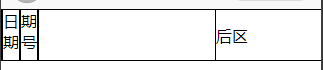
可以参考:11.scss样式复用之@extend 与 @mixin进行设置.另外也可以按照同一标签显示多个class设置,相关代码如下:
公共样式:<style lang="scss"> .boderSetting{ border: 1rpx solid; } </style>- 1
- 2
- 3
- 4
- 5
- 6
标签中的class中都加上boderSetting:
<view class="out"> <view class="title boderSetting"> <view class="t1 boderSetting">日期</view> <view class="t2 boderSetting">期号</view> <view class="t3 boderSetting"> </view> <view>后区</view> </view>- 1
- 2
- 3
- 4
- 5
- 6
- 7
- 8
补充
可以将试用频率很高的样式封装到一个单独的scss文件中,直接从class属性中添加.下面进行举例:
实现这种样式:

实现代码如下:<template> <view class="content"> <view class="item">1</view> <view class="item">2</view> <view class="item">3</view> <view class="item">4</view> <view class="item">5</view> <view class="item">6</view> <view class="item">7</view> </view> </template> <style lang="scss"> .content { margin: 0 10px; display: flex; flex-direction: row; flex-wrap: wrap; .item{ width: 50px; height: 100px; text-align: center; line-height: 100px; background-color: yellow; margin: 2px 2px; } } </style>- 1
- 2
- 3
- 4
- 5
- 6
- 7
- 8
- 9
- 10
- 11
- 12
- 13
- 14
- 15
- 16
- 17
- 18
- 19
- 20
- 21
- 22
- 23
- 24
- 25
- 26
- 27
- 28
现在想将下面几个放到公共scss中,减少重复使用
display: flex; flex-direction: row; flex-wrap: wrap;- 1
- 2
- 3
创建公共scss
项目根目录创建common文件下传播common.scss,添加如下内容:.display-flex{ display: flex; } .flex-row{ flex-direction: row; } .flex-wrap{ flex-wrap: wrap; }- 1
- 2
- 3
- 4
- 5
- 6
- 7
- 8
- 9
在APP.vue中引入定义的公共scss
<style lang="scss"> /*每个页面公共css */ @import url("common/common.scss"); </style>- 1
- 2
- 3
- 4
页面中直接从class中添加自定义样式即可:
<view class="content display-flex flex-row flex-wrap"> <view class="item">1</view> <view class="item">2</view> <view class="item">3</view> <view class="item">4</view> <view class="item">5</view> <view class="item">6</view> <view class="item">7</view> </view>- 1
- 2
- 3
- 4
- 5
- 6
- 7
- 8
- 9
22. 样式高度宽度修改不生效处理方法平常会遇到样式高度或是宽度修改不生效的问题,问题原因各有不同,这里提供一个简单的办法:
通过微信开发者工具修改右侧的样式手动修改对应的值,左侧会自动添加补齐标签.
简单说明一下操作过程:
现在有下面需求:

想实现的效果是姓名年龄生日水平显示,但是设置view宽度之后不生效.可以通过右侧显示的页面手动修改宽度.以修改姓名为例进行演示修改过程:


修改完成之后可以看到姓名已经横向展示,右侧样式中已添加对应的样式设置,只需要将样式内容复制到代码中即可.
 23. vue中axios中的服务器地址如何在文件中引用
axios文件:
// 正式环境 // export const baseURL = 'https://A.COM/admin/' // 测试环境 // export const baseURL = 'https://B.COM/admin/' // 本地8080环境 // export const baseURL = 'https://127.0.0.1:8080/admin/' // 本地8081环境 export const baseURL = 'https://127.0.0.1:8081/admin/' const request = axios.create({ baseURL: baseURL, timeout: 10000, }) let CancelToken = axios.CancelToken // 请求拦截 request.interceptors.request.use( config => { //对于访客模式,除GET请求外,都拦截并提示 const userJson = window.localStorage.getItem('user') || '{}' const user = JSON.parse(userJson) if (userJson !== '{}' && user.role !== 'ROLE_admin' && config.method !== 'get') { config.cancelToken = new CancelToken(function executor(cancel) { cancel('演示模式,不允许操作') }) return config } NProgress.start() const token = window.localStorage.getItem('token') if (token) { // modify by txm 修改请求头名称 // config.headers.Authorization = token config.headers.token = token } return config } ) // 响应拦截 request.interceptors.response.use( config => { NProgress.done() return config.data }, error => { if (error.message === '演示模式,不允许操作') { Message.error(error) } } ) export default request- 1
- 2
- 3
- 4
- 5
- 6
- 7
- 8
- 9
- 10
- 11
- 12
- 13
- 14
- 15
- 16
- 17
- 18
- 19
- 20
- 21
- 22
- 23
- 24
- 25
- 26
- 27
- 28
- 29
- 30
- 31
- 32
- 33
- 34
- 35
- 36
- 37
- 38
- 39
- 40
- 41
- 42
- 43
- 44
- 45
- 46
- 47
- 48
- 49
- 50
- 51
- 52
vue文件中引入请求路径:
// /plugins/axio为axio.js文件路径 import {baseURL} from "@/plugins/axios";- 1
- 2
直接使用baseURL即可
24. 数组相关数组中添加元素:
let arr = [1, 2, 3]; arr.push(4); console.log(arr); // 输出:[1, 2, 3, 4]- 1
- 2
- 3
数组中添加数组:
let arr = [1, 2, 3]; arr.push(4); console.log(arr); // 输出:[1, 2, 3, 4] let arr2=[5,6] arr.push(arr2); // 输出:[1, 2, 3, 4,[5,6]] arr.push(...arr2); // 输出:[1, 2, 3, 4,5,6] console.log(arr);- 1
- 2
- 3
- 4
- 5
- 6
- 7
push方法添加数组时如果直接添加数组会将数组作为一个元素添加到最后,如下图:

如果想将数组中的元素单独添加到原数组可以用拓展运算符…将数组拆分成元素添加
数组中中删除符合条件的元素:let arr = [1, 2, 3,5,6]; // 删除5,注意要重新给arr赋值,否则输出还是原来的数组 arr=arr.filter(item=>item != 5) console.log(arr); // 输出:[1, 2, 3, 6]- 1
- 2
- 3
- 4
或是删除数组中指定位置元素:
let arr = [1, 2, 3, 4, 5]; arr.splice(2,1); // 第一个参数是要删除元素的索引,第二个参数是删除的个数 console.log(arr) // 打印内容:[1,2,3,4]- 1
- 2
- 3
数组转化为字符串:
let arr = [1, 2, 3, 4, 5]; let str = arr.join(); console.log(str); // 输出:1,2,3,4,5- 1
- 2
- 3
25. 文本居中使用flex布局两种实现方式
view中文本居中处理(text-align: center+line-height:父元素高度):<view class="content"> <view class="item">1</view> </view> <style> .content { display: flex; } .itme{ background-color: yellow; height: 200px; width: 200px; text-align: center; line-height: 200px; } </style>- 1
- 2
- 3
- 4
- 5
- 6
- 7
- 8
- 9
- 10
- 11
- 12
- 13
- 14
- 15
- 16
效果如下:

或是按照下面这种实现(用justify-content和align-items):<view class="content"> <view class="item">1</view> </view> <style> .content { display: flex; } .itme{ background-color: yellow; height: 200px; width: 200px; display: flex; justify-content: center; align-items: center; } </style>- 1
- 2
- 3
- 4
- 5
- 6
- 7
- 8
- 9
- 10
- 11
- 12
- 13
- 14
- 15
- 16
https://www.runoob.com/cssref/css-selectors.html
选择器div p 选择所有的div标签和p标签 div,p 选择div下面的p标签- 1
- 2
26. flex布局排列方式flex-direction
row水平显示;row-reverse:反向水平显示;column:垂直显示;column-reverse:垂直反向<view class="content"> <view class="item">1</view> <view class="item">2</view> <view class="item">3</view> <view class="item">4</view> <view class="item">5</view> </view> <style lang="scss"> .content { display: flex; margin: 0 10px; // 排列方式:row水平显示;row-reverse:反向水平显示;column:垂直显示;column-reverse:垂直反向显示 flex-wrap: nowrap; .item{ width: 200px; height: 100px; text-align: center; line-height: 100px; background-color: yellow; margin: 0 2px; } } </style>- 1
- 2
- 3
- 4
- 5
- 6
- 7
- 8
- 9
- 10
- 11
- 12
- 13
- 14
- 15
- 16
- 17
- 18
- 19
- 20
- 21
- 22
- 23
- 24
注意元素宽度超过屏幕时会被压缩

换行:flex-wrap
nowrap:不换行;wrap:换行;wrap-reverse:反向换行
代码:<view class="content"> <view class="item">1</view> <view class="item">2</view> <view class="item">3</view> <view class="item">4</view> <view class="item">5</view> <view class="item">6</view> <view class="item">7</view> </view> <style lang="scss"> .content { display: flex; margin: 0 10px; // 排列方式:row水平显示;row-reverse:反向水平显示;column:垂直显示;column-reverse:垂直反向显示 flex-direction: row; // 换行方式:nowrap:不换行;wrap:换行;wrap-reverse:反向换行 flex-wrap: wrap; .item{ width: 100px; height: 100px; text-align: center; line-height: 100px; background-color: yellow; margin: 2px 2px; } } </style>- 1
- 2
- 3
- 4
- 5
- 6
- 7
- 8
- 9
- 10
- 11
- 12
- 13
- 14
- 15
- 16
- 17
- 18
- 19
- 20
- 21
- 22
- 23
- 24
- 25
- 26
- 27
- 28
反向换行:

flex-direction、flex-wrap可以用flex-flow进行代替flex-flow: row wrap; // 相当于按照行排列,换行- 1
27. position定位绝对定位
absolute,相对于父元素的位置,没有父元素时相当于fixed
固定定位
fixed,相对于浏览器的定位
相对定位
relative,相对于自己正常位置的定位,类比于padding
粘性定位
sticky,使用场景可以参考:
https://www.runoob.com/try/try.php?filename=trycss_position_sticky28. scroll-view实现案例纵向实现:实现需求是中间部分为数据展示区域,支持上下滑动展示,但是不能与顶部底部产生交集.

需要注意的地方时scroll-view使用时需要设置高度,实现过程中scroll-view中flex布局来使数据换行展示但是不生效,解决办法是从里面再套一层,在这一层中进行flex布局.
实现代码:<template> <view class="body"> <view class="head">头</view> <view class="content"> <scroll-view scroll-y="true" class="scroll-Y"> <view class="item_content"> <view class="item"> <image src="../../static/logo.png" ></image> <view>uniapp实战</view> <view>免费</view> </view> <view class="item"> <image src="../../static/logo.png"></image> <view>uniapp实战</view> <view>免费</view> </view> <view class="item"> <image src="../../static/logo.png" mode="scaleToFill"></image> <view>uniapp实战</view> <view>免费</view> </view> <view class="item"> <image src="../../static/logo.png"></image> <view>uniapp实战</view> <view>免费</view> </view> <view class="item"> <image src="../../static/logo.png" mode="scaleToFill"></image> <view>uniapp实战</view> <view>免费</view> </view> <view class="item"> <image src="../../static/logo.png"></image> <view>uniapp实战</view> <view>免费</view> </view> </view> </scroll-view> </view> <view class="bottom_class"> <view class="bottom_item"> <image src="../../static/mine_select.png" mode="scaleToFill"></image> <view>首页</view> </view> <view class="bottom_item"> <image src="../../static/mine_select.png" mode="scaleToFill"></image> <view>发现</view> </view> <view class="bottom_item"> <image src="../../static/mine_select.png" mode="scaleToFill"></image> <view>精彩</view> </view> <view class="bottom_item"> <image src="../../static/mine_select.png" mode="scaleToFill"></image> <view>我的</view> </view> </view> </view> </template> <script> export default { data() { return { } }, methods: { } } </script> <style> .body{ display: flex; flex-direction: column; } .head{ margin-top: 10px; text-align: center; background-color: gray; } .content{ height: 70%; width: 100%; position: fixed; bottom: 15%; } .scroll-Y{ height: 100%; width: 100%; } .item_content{ display: flex; flex-direction: row; margin: 0 1vw; justify-content: space-between; flex-wrap: wrap; } .item{ width: 40vw; height: 55vw; display: flex; flex-direction: column; margin: 2rpx; } .item image{ // 图片默认scaleToFill,填充满image width: 100%; } .bottom_class{ width: 100%; height: 15%; position: fixed; bottom: 1rpx; display: flex; flex-direction: row; justify-content: space-between; align-items: center; background-color: gray; } .bottom_item{ width: 20%; height: 100%; display: flex; flex-direction: column; justify-content: center; align-items: center; } .bottom_item image{ width: 100%; height: 70%; } </style>- 1
- 2
- 3
- 4
- 5
- 6
- 7
- 8
- 9
- 10
- 11
- 12
- 13
- 14
- 15
- 16
- 17
- 18
- 19
- 20
- 21
- 22
- 23
- 24
- 25
- 26
- 27
- 28
- 29
- 30
- 31
- 32
- 33
- 34
- 35
- 36
- 37
- 38
- 39
- 40
- 41
- 42
- 43
- 44
- 45
- 46
- 47
- 48
- 49
- 50
- 51
- 52
- 53
- 54
- 55
- 56
- 57
- 58
- 59
- 60
- 61
- 62
- 63
- 64
- 65
- 66
- 67
- 68
- 69
- 70
- 71
- 72
- 73
- 74
- 75
- 76
- 77
- 78
- 79
- 80
- 81
- 82
- 83
- 84
- 85
- 86
- 87
- 88
- 89
- 90
- 91
- 92
- 93
- 94
- 95
- 96
- 97
- 98
- 99
- 100
- 101
- 102
- 103
- 104
- 105
- 106
- 107
- 108
- 109
- 110
- 111
- 112
- 113
- 114
- 115
- 116
- 117
- 118
- 119
- 120
- 121
- 122
- 123
- 124
- 125
- 126
- 127
- 128
- 129
- 130
- 131
- 132
- 133
- 134
- 135
- 136
- 137
- 138
横向实现

实现注意事项:scroll-view中可以直接包含子元素,scroll-view中需要添加不换行(white-space:nowrap),子元素中需要使用块级显示(display: inline-block)
实现代码:<template> <view class="body"> <view class="head">头</view> <view class="content"> <scroll-view scroll-x="true" class="scroll-X"> <view class="item"> <image src="../../static/logo.png" ></image> <view>uniapp实战</view> <view>免费</view> </view> <view class="item"> <image src="../../static/logo.png"></image> <view>uniapp实战</view> <view>免费</view> </view> <view class="item"> <image src="../../static/logo.png" mode="scaleToFill"></image> <view>uniapp实战</view> <view>免费</view> </view> <view class="item"> <image src="../../static/logo.png"></image> <view>uniapp实战</view> <view>免费</view> </view> <view class="item"> <image src="../../static/logo.png" mode="scaleToFill"></image> <view>uniapp实战</view> <view>免费</view> </view> <view class="item"> <image src="../../static/logo.png"></image> <view>uniapp实战</view> <view>免费</view> </view> <view class="item"> <image src="../../static/logo.png"></image> <view>uniapp实战</view> <view>免费</view> </view> </scroll-view> </view> <view class="bottom_class"> <view class="bottom_item"> <image src="../../static/mine_select.png" mode="scaleToFill"></image> <view>首页</view> </view> <view class="bottom_item"> <image src="../../static/mine_select.png" mode="scaleToFill"></image> <view>发现</view> </view> <view class="bottom_item"> <image src="../../static/mine_select.png" mode="scaleToFill"></image> <view>精彩</view> </view> <view class="bottom_item"> <image src="../../static/mine_select.png" mode="scaleToFill"></image> <view>我的</view> </view> </view> </view> </template> <script> export default { data() { return { } }, methods: { } } </script> <style> .body{ display: flex; flex-direction: column; } .head{ margin-top: 10px; text-align: center; background-color: gray; } .content{ height: 30%; width: 100%; position: fixed; top: 15%; } .scroll-X{ height: 100%; width: 100%; white-space: nowrap; } .item{ display: inline-block; width: 30%; height: 100%; margin: 2rpx; } .item image{ // 图片默认scaleToFill,填充满image width: 100%; height: 70%; } .bottom_class{ width: 100%; height: 15%; position: fixed; bottom: 1rpx; display: flex; flex-direction: row; justify-content: space-between; align-items: center; background-color: gray; } .bottom_item{ width: 20%; height: 100%; display: flex; flex-direction: column; justify-content: center; align-items: center; } .bottom_item image{ width: 100%; height: 70%; } </style>- 1
- 2
- 3
- 4
- 5
- 6
- 7
- 8
- 9
- 10
- 11
- 12
- 13
- 14
- 15
- 16
- 17
- 18
- 19
- 20
- 21
- 22
- 23
- 24
- 25
- 26
- 27
- 28
- 29
- 30
- 31
- 32
- 33
- 34
- 35
- 36
- 37
- 38
- 39
- 40
- 41
- 42
- 43
- 44
- 45
- 46
- 47
- 48
- 49
- 50
- 51
- 52
- 53
- 54
- 55
- 56
- 57
- 58
- 59
- 60
- 61
- 62
- 63
- 64
- 65
- 66
- 67
- 68
- 69
- 70
- 71
- 72
- 73
- 74
- 75
- 76
- 77
- 78
- 79
- 80
- 81
- 82
- 83
- 84
- 85
- 86
- 87
- 88
- 89
- 90
- 91
- 92
- 93
- 94
- 95
- 96
- 97
- 98
- 99
- 100
- 101
- 102
- 103
- 104
- 105
- 106
- 107
- 108
- 109
- 110
- 111
- 112
- 113
- 114
- 115
- 116
- 117
- 118
- 119
- 120
- 121
- 122
- 123
- 124
- 125
- 126
- 127
- 128
- 129
- 130
- 131
- 132
- 133
- 134
- 135
[29.盒子模型291.盒子宽高计算方式<view style="height: 100px; width: 100px; padding: 30px;border:5px solid red;background-color: greenyellow;">2</view>- 1
box-sizing默认为content-box
盒子宽度/高度=内容区域宽度/高度+内边距+边框

box-sizing:border-box
 292.阴影效果
// 分别表示水平方向垂直方向偏移距离、阴影模糊半径、阴影拓展半径、阴影颜色 box-shadow: 2px 2px 10px 2px #e5e5e5;- 1
- 2
常见的效果是右边下边有阴影效果,所以偏移量是2px
293.渐变效果background: -webkit-linear-gradient(left,white, rgb(5,239,169));- 1
参考链接:https://www.python100.com/html/17A1HJ09UK0R.html
294.多行多列间距相等
要求实现内容如上,实现思路时水平方向按照justify-content: space-between;排列,垂直方向上保证下面的元素与上面元素间隔等于水平方向的间隔,通过计算水平方向间隔的百分比来进行计算,content中水平方向两个item宽度为48%.中间的间隔就是2%.所以垂直方向上的间隔就是2%<view class="content"> <view class="item" style="background: -webkit-linear-gradient(left,rgb(49, 187, 249),rgb(0,209,245));"> </view> <view class="item" style="background: -webkit-linear-gradient(left,rgb(108, 102, 252),rgb(0,127,255));"> </view> <view class="item" style="background: -webkit-linear-gradient(left,rgb(48,216,131),rgb(0,196,138));"> </view> <view class="item" style="background: -webkit-linear-gradient(left,rgb(48,216,131),rgb(0,196,138));"> </view> </view> <script lang="scss> .content{ margin:auto; width: 96%; display: flex; justify-content: space-between; flex-wrap:wrap .item{ height: 100px; width: 48%; margin-top: 4%; border-radius: 5px; box-shadow: 0 2px 2px 2px rgba(0,0,0,0.05); } } </script>- 1
- 2
- 3
- 4
- 5
- 6
- 7
- 8
- 9
- 10
- 11
- 12
- 13
- 14
- 15
- 16
- 17
- 18
- 19
- 20
- 21
- 22
- 23
- 24
- 25
- 26
- 27
295.文本过长超过盒子高度处理问题展示:

由于文件名过长导致下一行超出盒子高度.<view class="item" v-for="convertRecordItem in convertRecordList" :key="convertRecord.convertRecordItem"> <view class="sub_item">文件名:{{convertRecordItem.fileName}}</view> <view class="sub_item">操作时间:{{convertRecordItem.createTime}}</view> </view> <script> .item{ display: flex; justify-content: flex-start; flex-direction: column; border: 1px solid gray; border-radius: 10px; height: 50px; margin-top: 5px; padding-left: 5px; .sub_item{ margin-bottom: 4px; } } </script>- 1
- 2
- 3
- 4
- 5
- 6
- 7
- 8
- 9
- 10
- 11
- 12
- 13
- 14
- 15
- 16
- 17
- 18
- 19
- 20
处理方式是将文件名所在行超出部分显示省略号,样式处理仅修改:
.sub_item{ margin-bottom: 4px; white-space:nowrap; overflow: hidden; text-overflow:ellipsis; width: 95%; }- 1
- 2
- 3
- 4
- 5
- 6
- 7
处理之后:
 296.文本内容过高问题
设置内容区域view高度为自动:
height:auto- 1
30.css实现三角形和四边形四边形:
class="square"></div>- 1
样式:
.square { width: 0; height: 0; border-top: 50px solid skyblue; border-bottom: 50px solid purple; border-left: 50px solid pink; border-right: 50px solid tomato; }- 1
- 2
- 3
- 4
- 5
- 6
- 7
- 8
效果:

向左三角形:
class="leftAngle"></view> .leftAngle { width: 0; height: 0; border-right: 50px solid yellow; border-top: 50px solid transparent; border-bottom: 50px solid transparent; } - 1
- 2
- 3
- 4
- 5
- 6
- 7
- 8
效果:

向右三角形:class="rightAngle"></view> .rightAngle{ width: 0; height: 0; border-left: 50px solid #95EB6C; border-top: 50px solid transparent; border-bottom: 50px solid transparent; } - 1
- 2
- 3
- 4
- 5
- 6
- 7
- 8
效果:

向下三角形:.bottomAngle { width: 0; height: 0; border-left: 50px solid transparent; /* 左边的透明线 */ border-right: 50px solid transparent; /* 右边的透明线 */ border-top: 100px solid black; /* 底部的实心线 */ }- 1
- 2
- 3
- 4
- 5
- 6
- 7

向上三角形
.topAngle { width: 0; height: 0; border-left: 50px solid transparent; /* 左边的透明线 */ border-right: 50px solid transparent; /* 右边的透明线 */ border-bottom: 100px solid black; /* 底部的实心线 */ }- 1
- 2
- 3
- 4
- 5
- 6
- 7
31.元素样式放大或缩小transform:scale(0.5)- 1
表示整体缩小一半,也支持按照某个方向缩放:
scaleX()通过x轴定义,仅水平方向缩放
scaleY()通过y轴定义,仅垂直方向缩放
scaleZ()通过z轴定义,定义3d缩放32.根据相邻组件高度设置组件距离底部的高度场景描述:
类似于微信聊天窗口,点击表情按钮,弹出表情列表,并在聊天输入框上面显示固定大小的红色区域.当表情按钮再次点击,关闭表情列表,并关闭聊天输入框上显示的固定大小的红色区域.打开前后截图如下:


这里只介绍如何实现红色区域距离底部高度随着下面的输入框高度变化.
页面:<view> <view class="switchUser" v-if="showSwitchUser"> <view class="content"> </view> </view> <view class="submit"> <!-- 聊天输入框内容此处省略 --> </view> </view>- 1
- 2
- 3
- 4
- 5
- 6
- 7
- 8
- 9
红色区域样式如下,主要实现bottom属性随着下面的聊天输入框高度变化
.switchUser{ width: 80px; height: 80px; z-index: 150; position: fixed; bottom: var(--height); background-color: red; .content{ width: 100%; height: 80%; display: flex; justify-content: center; align-items: center; flex-direction: column; } }- 1
- 2
- 3
- 4
- 5
- 6
- 7
- 8
- 9
- 10
- 11
- 12
- 13
- 14
- 15
- 16
获取聊天输入框高度:
// 获取相邻组件的高度 const submit = document.querySelector('.submit'); const height = getComputedStyle(submit).getPropertyValue('height').replace(/[^-\d.]/g, ''); // 将相邻组件的高度作为自定义变量传入目标元素的样式中 document.documentElement.style.setProperty('--height', height+"px");- 1
- 2
- 3
- 4
- 5
- 6
1.elementUI中textarea本设置换行显示el-input标签中type为textarea中录入的文本内容,在表格中显示没有换行的样式,现要求进行换行显示.
处理方式:显示的时候按照html的格式进行显示,这样只需要将显示的内容中添加换行样式即可,这里使用的br换行标签.<el-table-column prop="content" label="前端迭代内容" width="500"> <template slot-scope="scope"> <span v-html="scope.row.content"></span> </template> </el-table-column>- 1
- 2
- 3
- 4
- 5
- 6
- 7
- 8
预览效果:
 33.事件优先级:失去焦点事件与单击事件优先级设置
描述一下场景:文本框获取焦点时左上角会显示切换组件,想要实现的效果是失去焦点切换组件隐藏,点击切换组件跳转到对应的切换列表.实际出现的问题是,当点击切换组件时不会跳转切换列表而是隐藏掉切换组件,出现问题的原因是文本框的失去焦点事件当点击切换组件时要优先于切换组件上的点击事件先执行,处理方式可以设置定时(注意定时时间,太短可能不生效)

blur(e){ setTimeout(() => { // 150毫秒之后执行不显示切换组件 this.showSwitchUser= false }, 150) },- 1
- 2
- 3
- 4
- 5
- 6
34.细线<view class="line"></view> .line{ height:0; width: 100%; border: 1rpx solid #c8c7cc; transform: scaleY(0.5); }- 1
- 2
- 3
- 4
- 5
- 6
- 7
效果:

补充:通过设置view高度以及transform缩放实现细线.line{ height: 1rpx; width: 100%; background-color: red; transform: scaleY(0.5); }- 1
- 2
- 3
- 4
- 5
- 6
效果:
 35.url中拼接布尔类型
要求拼接内容:
/a.com/delFlag=true- 1
传参:
' /a.com/delFlag='+(param ? 1 : '') 传参只要param不是空字符串接收值为true,前提接收页面用Boolean函数转换- 1
- 2
接收页面:
onLoad(e){ // console.log(Boolean(e)) }- 1
- 2
- 3
- 4
36.前景图片在背景图居中实现效果如下:

需要实现暂停按前景图片在背景图片居中显示.需要将父类添加position:relative,然后将前景图片position设置为absolute,然后left、right设置为固定比例。absolute是相对于已定位的父元素,所以只对父元素设置为relative但不设置偏移距离..medium{ width: 100%; height: 100%; margin-right: 16rpx; border-radius: 20rpx 20rpx 20rpx 20rpx; position: relative; .orign_img{ max-width: 400rpx; border-radius: 20rpx; } .pause{ // 前景图片 width: 40px; height: 40px; position: absolute; top: 40%; left: 40%; z-index: 1; } .time{ position: absolute; bottom: 5%; right: 5%; z-index: 1; color: #fff; } }- 1
- 2
- 3
- 4
- 5
- 6
- 7
- 8
- 9
- 10
- 11
- 12
- 13
- 14
- 15
- 16
- 17
- 18
- 19
- 20
- 21
- 22
- 23
- 24
- 25
- 26
37.app以及web浏览器导航栏左上角返回按钮指定返回页面测试发现onBackPress生命周期函数仅支持返回到上一页,点击按钮该函数可以监听但是在该函数中自定义跳转不生效,处理办法是onUnload生命周期函数,监听页面销毁时自定义跳转指定页面.
onUnload(){ uni.navigateTo({ url:"/pages/chat/chat_record" }) },- 1
- 2
- 3
- 4
- 5
38.数字保留两位小数// 注意此处changedAccount为字符串,parseFloat(str):将字符串转化为浮点数;toFixed(n)表示对数字进行四舍五入,保留n为小数 var changedAccount="" if(changedAccount.indexOf(".") != -1){ this.changedAccount=parseFloat(this.changedAccount).toFixed(2) }else{ this.changedAccount=this.changedAccount.concat(".00") }- 1
- 2
- 3
- 4
- 5
- 6
- 7
39.导航栏右上角自定义标题实现方式是自定义导航栏,首先将原有导航栏去除,去除方式修改pages.json中navigationStyle为 custom,具体如下:
{ "path" : "pages/account/wx_lingqian", "style" : { "navigationBarTitleText": "", "enablePullDownRefresh": false, "navigationStyle": "custom" } }- 1
- 2
- 3
- 4
- 5
- 6
- 7
- 8
- 9
- 10
页面上需要做的处理就是将自定义的导航栏置于最顶部,当然记得左上角的返回添加返回到指定页面效果.
<view class="custom_nav"> <image src="../../static/zuojiantou.png"></image> <view class="right_title">右上角标题</view> </view> 样式如下: .custom_nav{ display: flex; align-items: center; justify-content: space-between; height: 44px; width: 100%; image{ height: 20px; width: 20px; } .right_title{ margin-right: 10px; } }- 1
- 2
- 3
- 4
- 5
- 6
- 7
- 8
- 9
- 10
- 11
- 12
- 13
- 14
- 15
- 16
- 17
- 18
- 19
效果如下:
 40.创建连续递增数组
/** * 生成一个从 start 到 end 的连续数组 */ function generateArray (start, end) { return Array.from(new Array(end + 1).keys()).slice(start) }- 1
- 2
- 3
- 4
- 5
- 6
41.自定义日期时间选择器实现效果:

点击之后选择器显示内容同上面展示内容,支持更改.

实现方式如下:<view class="item"> <view>转账时间:</view> <picker :range="dateTimeList" :value='pickeredValue' @change="dateTimeChange" mode="multiSelector"> {{dateTimeList[0][monthIndex]}}月{{dateTimeList[1][dayIndex]}}日 {{dateTimeList[2][hourIndex]}}:{{dateTimeList[3][minuteIndex]}} </picker> </view>- 1
- 2
- 3
- 4
- 5
- 6
- 7
js:
<script> export default { name:"transfer_record", data() { let currentMonthIndex = new Date().getMonth(); let currentDayIndex = new Date().getDay()+6; let currentHourIndex = new Date().getHours()-1; let currentMinuteIndex = new Date().getMinutes()-1; return { dateTimeList:[ ['1','2','3','4','5','6','7','8','9','10','11','12'], ['1','2','3','4','5','6','7','8','9','10','11','12', '13','14','15','16','17','18','19','20','21','22', '23','24','25','26','27','28','29','30','31'], ['01','02','03','04','05','06','07','08','09','10','11','12', '13','14','15','16','17','18','19','20','21','22','23','24'], ['01','02','03','04','05','06','07','08','09','10','11','12', '13','14','15','16','17','18','19','20','21','22', '23','24','25','26','27','28','29','30', '31','32','33','34','35','36','37','38','39','40', '41','42','43','44','45','46','47','48','49','50', '51','52','53','54','55','56','57','58','59'], ], monthIndex:currentMonthIndex, dayIndex: currentDayIndex, hourIndex: currentHourIndex, minuteIndex: currentMinuteIndex, pickeredValue: [currentMonthIndex, currentDayIndex,currentHourIndex, currentMinuteIndex] }; }, methods:{ dateTimeChange(e){ //获得对象的 detail的 value //通过数组的下标改变显示在页面的值 this.monthIndex = e.detail.value[0]; this.dayIndex = e.detail.value[1]; this.hourIndex = e.detail.value[2]; this.minuteIndex = e.detail.value[3]; } } } </script>- 1
- 2
- 3
- 4
- 5
- 6
- 7
- 8
- 9
- 10
- 11
- 12
- 13
- 14
- 15
- 16
- 17
- 18
- 19
- 20
- 21
- 22
- 23
- 24
- 25
- 26
- 27
- 28
- 29
- 30
- 31
- 32
- 33
- 34
- 35
- 36
- 37
- 38
- 39
- 40
- 41
- 42
- 43
42.组件数据初始化补充一种数据初始化赋值的方式.可以在data中计算数据并给变量赋值,类似:
data() { let currentMonthIndex = new Date().getMonth(); return { monthIndex:currentMonthIndex } }- 1
- 2
- 3
- 4
- 5
- 6
- 相关阅读:
tomcat (SCI)ServletContainerInitializer 的加载原理
【GCN】《Adaptive Propagation Graph Convolutional Network》(TNNLS 2020)
洛谷 P4735 最大异或和
接口测试框架实战 | 流程封装与基于加密接口的测试用例设计
orangepi 香橙派-实时时钟模块使用DS1307/DS3231/PCF8563
0-30 VDC 稳压电源,电流控制 0.002-3 A
linux日常免交互汇总
什么是AES加密?详解AES加密算法原理流程
C++15 ---继承2:重载与覆盖、隐藏、拷贝构造函数、赋值运算符重载、静态数据成员
网络安全防御体系建设-防守实例
- 原文地址:https://blog.csdn.net/weixin_43401380/article/details/130902241
