-
JupyterLab | 这几款插件推荐给天天使用JupyterLab的你!~
1写在前面
最近用了用
JupyterLab,总体来说体验还是不错的,代码写完就是一篇完整的Paper了,非常给力。🥳不过单纯使用
JupyterLab可能还是有一些不尽人意的地方,这些问题基本都可以通过添加插件来弥补,今天就跟大家分享一下我个人觉得几个比较好用的插件吧,也欢迎大家留言分享你觉得好用的插件,我会再介绍给大家。😘2开启插件功能
这里和大家说一下,我的
JupyterLab版本是3.4.4,python是3.9,均是通过Anaconda管理。😉
2.1 开启插件
在
JupyterLab中,默认是不开启插件的,大家需要在这里先开启插件。🤨
2.2 必备程序
你可能会遇到无法显示的情况,这个主要是你的环境里没有
Node.js, 可以通过安装它来解决这个问题。下载地址在这里:👇
https://nodejs.org/en/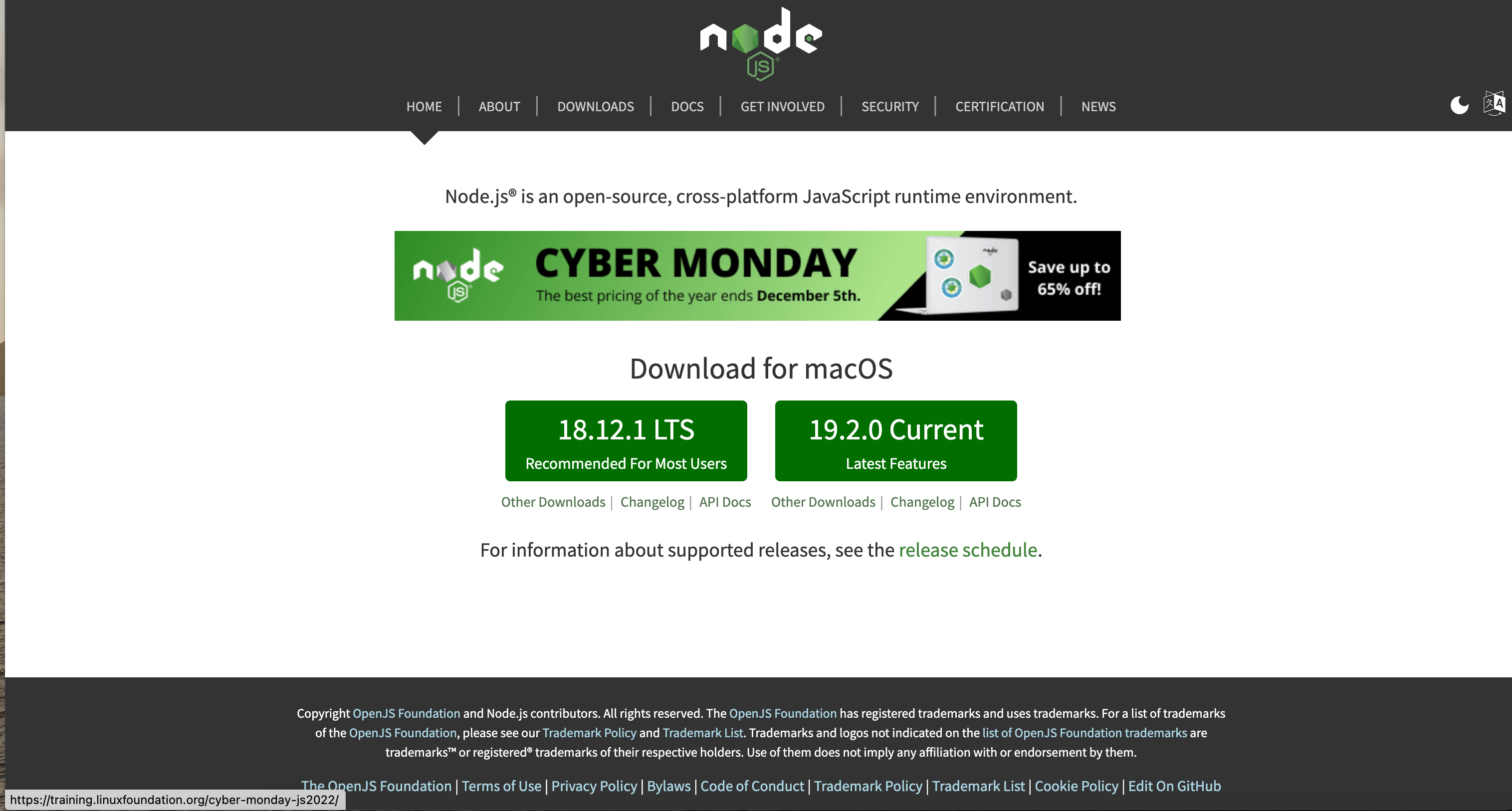
如果你使用的是
conda,可以直接通过命令安装。🤜conda install nodejs- 1
安装好
Node.js以后,你就会发现左边的插件栏显示了,你可以在这里通过点击install进行安装插件。😂
2.3 管理插件常用命令
我们一般安装的
插件都是通过npm来源的,常用命令如下:👇1️⃣ 安装插件 :
jupyter labextension install my-extension my-other-extension- 1
2️⃣ 安装指定版本插件 :
jupyter labextension install my-extension@1.2.3- 1
3️⃣ 卸载插件 :
jupyter labextension uninstall my-extension my-other-extension- 1
4️⃣ Rebuild :
jupyter lab build- 1
5️⃣ 查看已经安装的插件 :
jupyter labextension list- 1
3Git和Github
经常使用
Git和Github的你一定会用到这些插件,非常好用。🥰补充一下,总是有人分不清
Git和Github,这里简单说明一下:👇-
Git:免费、开源的分布式版本控制 系统 ; -
Github: 用Git做版本控制的代码托管 平台 ;

3.1 Github
这个
插件可以用来访问Github仓库,安装后JupyterLab的左边区域将增加一个额外的文件浏览器标签,可以选择GitHub的organizations和users,浏览他们的仓库,并打开这些存储库中的文件。😗如果这些文件是
notebook的话,你可以直接运行。🤗
安装命令:👇
pip install jupyterlab-github- 1
试一下吧,我在这里输入了
jupyterlab来查看他的项目都有哪些,哈哈哈哈哈哈。🤩

Note! 不知道大家有没有注意到
binder的logo,具体大家可以去这里看一下,如果不知道的话会有新收获哦 :👇https://mybinder.org/
3.2 Git
接着是
Git,安装命令如下:👇1️⃣
pippip install --upgrade jupyterlab jupyterlab-git- 1
2️⃣
condaconda install -c conda-forge jupyterlab jupyterlab-git- 1
试一下吧,因为需要配置一下才能使用,这里我就不做具体演示了,以后再出专门的教程教大家怎么配置吧。🥰

4jupyterlab-drawio
这个是
git上一个作者开发的免费、开源的流程图插件,这样我们就可以在JupyterLab里画流程图了。安装命令:👇
1️⃣
mambamamba install -c conda-forge jupyterlab-drawio- 1
2️⃣
condaconda install -c conda-forge jupyterlab-drawio- 1
3️⃣
pippip install jupyterlab-drawio- 1
安装好以后就可以使用啦,新建一个
Diagram吧~😗
大家需要什么元素就在左边栏里自取吧,非常简单!~🥳

5jupyterlab-execute-time
如果我们想知道每个
cell运行的时间,就可以用这个插件,非常nice!~🤗安装命令:👇
1️⃣
pippip install jupyterlab_execute_time- 1
2️⃣
condaconda install -c conda-forge jupyterlab_execute_time- 1
安装好以后再运行代码就会有执行时间了,嘿嘿~🤪

6jupyterlab-cell-flash
这个插件可以让
代码块运行后有一个变色的闪烁,我个人觉得还是挺有必要的,如果你不需要这个可以不安装。😂
安装命令:👇
pip install jupyterlab-cell-flash- 1
安装好以后就可以看到代码运行的变色闪烁效果了。😘

7JupyterLab Spreadsheet
由于
JupyterLab不支持读取Excel文件,我们往往需要在JupyterLab和Excel之间来回切换,非常麻烦。🫠这个时候可以安装这个插件来解决这个问题,安装好以后就可以查看
Excel文件了。🤫安装命令:👇
jupyter labextension install jupyterlab-spreadsheet- 1
成功查看
Excel文件。🤒
8JupyterLab Top Bar
这里要说明一下,其实这是多个插件,但都在顶部的菜单栏显示,帮助你操作,就一起推荐了哈。😏
安装命令:👇
pip install jupyterlab-topbar
pip install jupyterlab-topbar-text
pip install jupyterlab-logout
pip install jupyterlab-system-monitor
jupyter labextension install jupyterlab-topbar-extension jupyterlab-theme-toggle- 1
好了,现在你的
Top Bar就拥有了实时显示内存使用情况、切换主题模式、注销等功能了。🤪
Note!, 切换主题模式的快捷键默认是
Cmd/Ctrl+y。🤛9jupyterlab_variableinspector
JupyterLab的变量查看非常不好用,为了解决这个问题,大家可以试试这个插件,variableinspector。安装命令:👇
pip install lckr-jupyterlab-variableinspector- 1
安装好以后就可以右键来查看变量啦~🥰

变量的名称、类型、大小等参数一览无余,越配置越像
VS code了。😂
10ipympl
用
Python画图就一定绕不开matplotlib,这个插件可以让你的Matplotlib具备交互性,使用时只需要输入magic命令即可:👇%matplotlib widget- 1
安装命令:👇
1️⃣
condaconda install -c conda-forge ipympl- 1
2️⃣
pippip install ipympl- 1
安装好插件以后就可以愉快的画图啦!~🥳

11Jupyterlab-plotly
和
ipympl插件类似,这也是解决交互问题的一个插件,经常使用plotly的你一定不陌生吧。🧐
安装命令:👇
1️⃣
condaconda install -c plotly plotly=5.11.0- 1
2️⃣
pippip install plotly==5.11.0- 1
如果你遇到没有
ipywidgets的话,可以这样安装:👇1️⃣
condaconda install "jupyterlab>=3" "ipywidgets>=7.6"- 1
2️⃣
pippip install "jupyterlab>=3" "ipywidgets>=7.6"- 1
接着看看效果吧,嘿嘿。🤓

12jupyterlab-lsp
这是代码自动补全的一个小插件,不仅支持
Python,还支持R,bash,typescript等多种语言。😉本来想和大家推荐一下
Kite,但现在Kite已经停止维护了,在这里就不和大家推荐了。🫠
安装命令 :👇
1️⃣
condaconda install -c conda-forge 'jupyterlab>=3.0.0,<4.0.0a0' jupyterlab-lsp- 1
2️⃣
pippip install 'jupyterlab>=3.0.0,<4.0.0a0' jupyterlab-lsp- 1
安装LSP servers:👇
这里以
Python和R为例。🥳1️⃣
condaconda install -c conda-forge python-lsp-server r-languageserver- 1
2️⃣
pippip install 'python-lsp-server[all]'
R -e 'install.packages("languageserver")'- 1
停用jedi(可选步骤):👇
这一步不是必须的,如果你只用
IPython,效果可能会更好。%config Completer.use_jedi = False # 暂时禁用- 1
如果要永久停用
jedi,需要找到ipython_config.py, 然后修改为:👇c.Completer.use_jedi = False- 1
接着我们把
Continuous hinting开启,这样就一直有提示啦~🥳
哈哈哈哈哈哈哈,非常
nice~可以愉快的码字啦~~~🤩


最后祝大家早日不卷!~
点个在看吧各位~ ✐.ɴɪᴄᴇ ᴅᴀʏ 〰
📍 往期精彩 📍 🤩 ComplexHeatmap | 颜狗写的高颜值热图代码!
📍 🤥 ComplexHeatmap | 你的热图注释还挤在一起看不清吗!?
📍 🤨 Google | 谷歌翻译崩了我们怎么办!?(附完美解决方案)
📍 🤩 scRNA-seq | 吐血整理的单细胞入门教程
📍 🤣 NetworkD3 | 让我们一起画个动态的桑基图吧~
📍 🤩 RColorBrewer | 再多的配色也能轻松搞定!~
📍 🧐 rms | 批量完成你的线性回归
📍 🤩 CMplot | 完美复刻Nature上的曼哈顿图
📍 🤠 Network | 高颜值动态网络可视化工具
📍 🤗 boxjitter | 完美复刻Nature上的高颜值统计图
📍 🤫 linkET | 完美解决ggcor安装失败方案(附教程)
📍 ......本文由 mdnice 多平台发布
-
相关阅读:
基于减法平均算法的无人机航迹规划-附代码
Blazor入门100天 : 自做一个支持长按事件的按钮组件
leveldb-FilterBlock实现
【云原生之K8s】 K8s之持久化存储PV、PVC
正点原子嵌入式linux驱动开发——Linux INPUT子系统
Redis常见数据类型下
PHP 简介
【物理】斜面交点之处机械能/动量损失问题
Git日常使用技巧 - 笔记
Visual Studio 2022即将发布,重磅升级为64位应用程序!
- 原文地址:https://blog.csdn.net/m0_72224305/article/details/128211273
- 最新文章
-
沪漂五周年了:我越来越迷茫了
Agentic Skill Routing 实战:别再把所有 Skill 塞进 AI Agent 上下文
MySQL-Seconds_behind_master的精度误差
[MAF预定义ChatClient中间件-03]CachingChatClient——利用缓存省钱省时间
AI的至暗历史:从万众期待到被政府撤资,AI的两次死亡徘徊
Agent OS :五种驯服不确定性的范式
PortSwigger SQL注入LAB11
数据库即时编译JIT
[Begin]AI Learn Data Day 0
深度学习进阶(二十七)现代 LLM 的核心架构设计其二:SwiGLU