-
微信小程序--数据列表
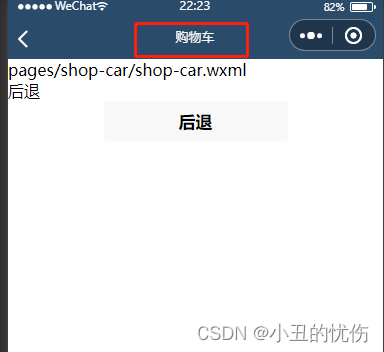

设置页面标题
首页可以使用:
app.json中window对象的"navigationBarTitleText"参数进行标题设置,
每个页面也可以在对应json文件中使用"navigationBarTitleText"参数进行标题设置
也可以在js文件的onRead函数中使用:js中的会覆盖掉json文件中的参数
onReady() {
wx.setNavigationBarTitle({
title: '购物车',
})
},
数据列表

- <view class="goods-item" wx:for="{{goodsList}}" wx:key="id" >
- <view class="goods-img">
- <image src="{{item.coverImg}}"></image>
- </view>
- <view class="goods-info">
- <text class="goods-name">{{item.name}}</text>
- <text>数量:x{{item.num}}</text>
- <text>价格:{{item.price}}</text>
- <text>有效期:{{item.endTime}}</text>
- </view>
- </view>
代码说明,每个商品独立展示(view),左右布局
.goods-item{
display: flex; // 弹性布局,使得图片和文字左右布局
padding: 15rpx; // 距离边框(外边距)
border: 1rpx solid #efefef; // 添加边框并设置颜色
margin: 15rpx; // 内边距,距离边框的间隙
border-radius: 8rpx; // 设置圆角
box-shadow: 1rpx 1rpx 15rpx #dddddd; // 设置偏移量及阴影颜色
}
.goods-img image{
height: 250rpx; // 设置图片固定宽高
width: 250rpx;
display: block;
margin-right: 15rpx; // 设置距离右侧内容间隙
}
.goods-info{
display: flex; // 弹性布局
flex-direction: column; // 设置纵向对齐
justify-content: space-around; // 设置横向对齐
font-size: 24rpx; // 字体颜色
}
.goods-name{
font-weight: bold; // 标题加粗
}
wxs脚本使用
创建wxs结尾的文件,创建函数并共享
function filterName(str){
// do some thing
return str+"-我的过滤数据"
}
// 将函数共享出去
module.exports={
filterName:filterName
}
页面调用:
// 创建wxs标签,并命名
// 过滤设置数据

-
相关阅读:
MongoDB——入门篇(介绍)
论文阅读 Real-Time Streaming Graph Embedding Through Local Actions 11
网络知识——局域网和交换机
混合Rollup:探秘 Metis、Fraxchain、Aztec、Miden和Ola
redis漏洞修复:CVE-2022-35977、CVE-2023-22458、CVE-2023-28856
认识Java笔记(2)
python联欢会评分 青少年编程电子学会python编程等级考试三级真题解析2020年9月
如何快速通过pmp考试,求攻略?
【无标题】
蓝桥杯每日一题2023.10.16
- 原文地址:https://blog.csdn.net/wdz985721191/article/details/127760338