-
Android自定义控件(五) 自定义View实现Android Loading效果
前言
最近看到了
Android一个开机动画,感觉效果还挺不错,本篇文章记录通过自定义View方式来实现这个Loading效果。自定义实现效果主要涉及到以下知识点:Canvas绘制圆弧drawArc()。- 属性动画
ValueAnimator的使用。 - 路径
Path与路径测量类PathMeasureh获取路径相关参数。 - 画笔的渐变色属性
setShaper()与SweepGradient使用。
说明
1、动画效果
视频中可看出,有一个大圆弧和N个小圆弧在相向转动,小圆弧有种生成于大圆弧,又被大圆弧吞噬的效果,下方有文字
Loading和不断在加载的小圆点。
下面我们分析一下如何实现上面的效果,动态的效果不好分析,那么我们把这个动画暂停,提取出一帧,先分析静态画面,再在动画加持下实现我们需要的效果。

静态图分析:
静态图上能看到四个元素,1个大圆弧、2个小圆弧、1个
Loading文字,加上视频中Loading后面的小点,一共就5个元素,下面逐一拆解分析:- 大圆弧: 一个未闭合的半圆。
- 小圆弧: 两个小圆弧是大小一致,且是对称的,路径和大圆弧在同一个圆上。
- Loading: 文字在圆弧的正下方,右边有小白点。
2、实现步骤
上面提取分析动画的一帧图片,我们先将这一帧图片上的元素进行实现。
1、绘制大的半圆弧和两个小圆弧
新建
LoadingView继承Viewclass LoadingView(context: Context, attributeSet: AttributeSet): View(context,attributeSet) { private var mWidth = 0 private var mHeight = 0 //文字X坐标 private var textX = 0f //文字Y坐标 private var textY = 0f private var text = "Loading" private var textRect = Rect() //文字距离上方的距离 private var textTopMargin = 40f private var rectF = RectF() private var radius = 120f //大圆弧开始角度 private var mainStartAngle = 180f //大圆弧扫过角度(负值表示顺时针) private var mainArcSweepAngle = -180f //小圆弧开始角度 private var unitStartAngle = 60f //小圆弧旋转角度 (负值表示顺时针) private var unitSweepAngle = - 12f //小圆弧之间间隔角度 (负值表示顺时针) private var unitIntervalAngle = - 60f //大圆弧路径 private var mainArcPath = Path() //小圆弧路径 private lateinit var unitArcPath:Path /** * 圆弧画笔 */ private var mPaint = Paint().apply { style = Paint.Style.STROKE strokeCap = Paint.Cap.ROUND strokeWidth = 50f isAntiAlias = true isDither = true color = context.getColor(R.color.colorLoading) } /** * 矩形画笔 */ private var rectPaint = Paint().apply { style = Paint.Style.STROKE isAntiAlias = true isDither = true strokeWidth = 4f color = context.getColor(R.color.white) } /** * 文字画笔 */ private var textPaint = Paint().apply { style = Paint.Style.FILL strokeCap = Paint.Cap.BUTT isAntiAlias = true isDither = true textSize = 50f color = context.getColor(R.color.white) } init{ rectF.apply { left = - radius right = radius top = - radius bottom = radius } } /** * 覆写onSizeChanged,获取设备屏幕宽高 */ override fun onSizeChanged(w: Int, h: Int, oldw: Int, oldh: Int) { super.onSizeChanged(w, h, oldw, oldh) mWidth = w mHeight = h textPaint.getTextBounds(text,0,text.length,textRect) calculateTextPos() } /** * 覆写onDraw, */ @SuppressLint("DrawAllocation") override fun onDraw(canvas: Canvas) { super.onDraw(canvas) //将画布移动到屏幕中央 canvas.withTranslation(mWidth / 2f ,mHeight / 2f) { //绘制矩形 drawRect(rectF,rectPaint) //绘制大圆弧 drawMainArc(this) //绘制两个小圆弧 drawUnitArc(this) } } /** * 绘制主圆弧[step 1 - 固定的开始角度] */ private fun drawMainArc(canvas: Canvas) { mainArcPath.addArc(rectF, mainStartAngle ,mainArcSweepAngle) canvas.drawPath(mainArcPath,mPaint) } /** * 绘制小圆弧[step 1 - 固定的开始角度] */ private fun drawUnitArc(canvas: Canvas) { for(i in 0 until 2){ unitArcPath = Path() mPaint.color = context.getColor(R.color.colorWhite) //计算小圆弧路径 unitArcPath.addArc(rectF, - unitStartAngle * i + unitIntervalAngle + unitSweepAngle / 2, - unitSweepAngle) //绘制小圆弧路径 canvas.drawPath(unitArcPath,mPaint) } /** * 绘制文字 */ private fun drawTextAndLoading(canvas: Canvas) { canvas.drawText(text,textX, textY + radius + textTopMargin,textPaint) } /** * 计算文字绘制坐标 */ private fun calculateTextPos() { textX = -abs(textRect.right - textRect.left) / 2f textY = abs(textRect.top) + abs(textRect.bottom) } }- 1
- 2
- 3
- 4
- 5
- 6
- 7
- 8
- 9
- 10
- 11
- 12
- 13
- 14
- 15
- 16
- 17
- 18
- 19
- 20
- 21
- 22
- 23
- 24
- 25
- 26
- 27
- 28
- 29
- 30
- 31
- 32
- 33
- 34
- 35
- 36
- 37
- 38
- 39
- 40
- 41
- 42
- 43
- 44
- 45
- 46
- 47
- 48
- 49
- 50
- 51
- 52
- 53
- 54
- 55
- 56
- 57
- 58
- 59
- 60
- 61
- 62
- 63
- 64
- 65
- 66
- 67
- 68
- 69
- 70
- 71
- 72
- 73
- 74
- 75
- 76
- 77
- 78
- 79
- 80
- 81
- 82
- 83
- 84
- 85
- 86
- 87
- 88
- 89
- 90
- 91
- 92
- 93
- 94
- 95
- 96
- 97
- 98
- 99
- 100
- 101
- 102
- 103
- 104
- 105
- 106
- 107
- 108
- 109
- 110
- 111
- 112
- 113
- 114
- 115
- 116
- 117
- 118
- 119
- 120
- 121
- 122
- 123
- 124
- 125
- 126
- 127
- 128
- 129
- 130
- 131
- 132
- 133
- 134
- 135
- 136
- 137
- 138
- 139
- 140
- 141
- 142
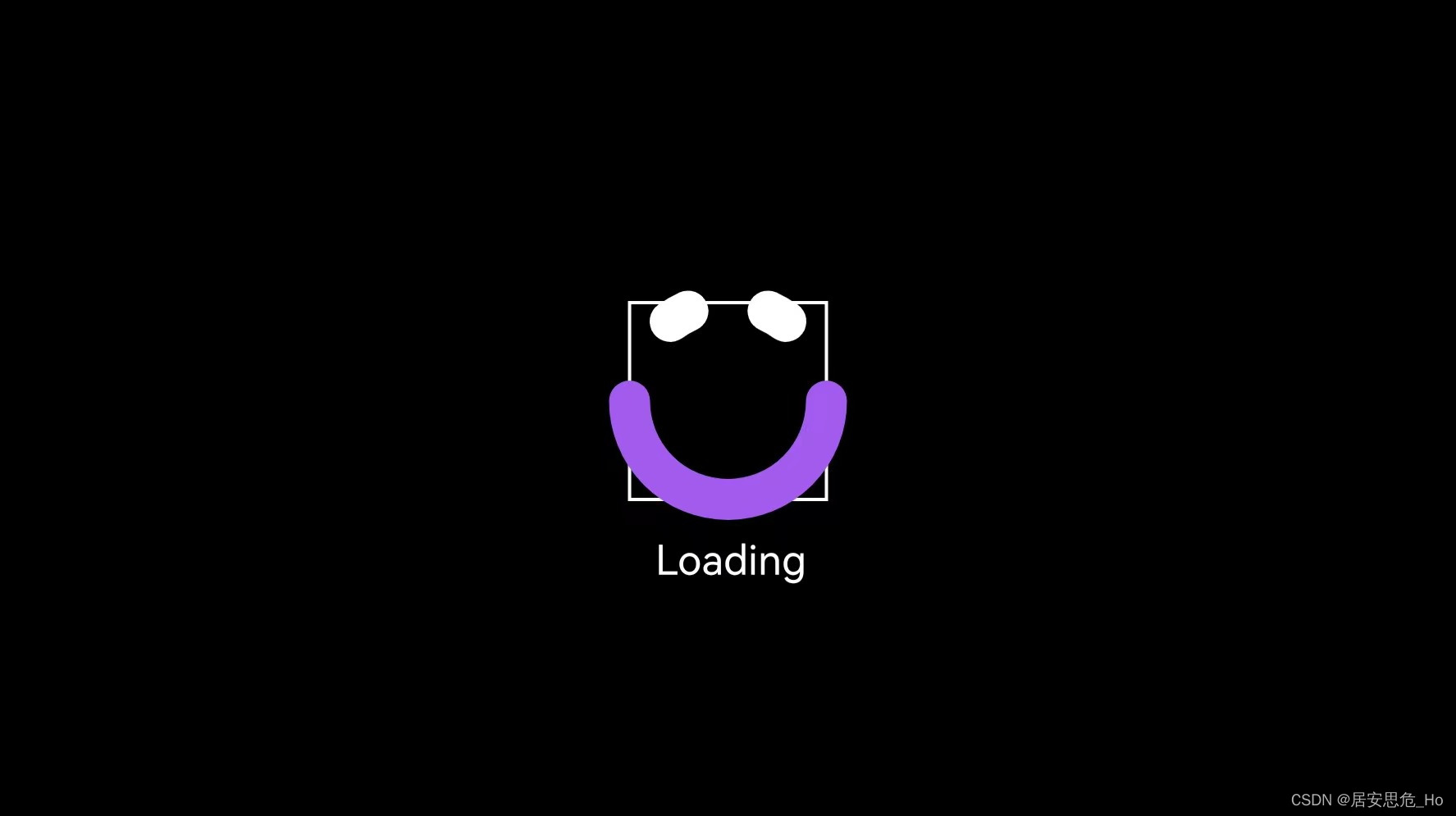
经过努力,完成了第一步,把
Loading部分基础四个元素的UI绘制好了。那么下面就要进行第二步了,让圆弧部分动起来~
2、大圆弧和小圆弧转动起来
动画分析:
我们注意看下动画的效果,大圆弧始终是保持一个半圆弧状态,小圆弧和大圆弧的旋转方向是相对的。一个顺时针旋转,一个逆时针旋转。这里我的思路是,通过
属性动画ValueAnimator,让大圆弧和小圆弧不断地改变起始角度startAngle,然后重新绘制,其他保持不变,这样就能达到旋转的效果了,话不多说,开搞!!!//动画当前值 private var value = 0f //小圆点数目 private var circleNum = 0 //小圆点的间距 private var circleEndMargin = 10f private var circleRadius = 3f //声明动画 private var animator: ValueAnimator = ValueAnimator.ofFloat(1f,15f) init{ rectF.apply { left = - radius right = radius top = - radius bottom = radius } initAnimator() } /** * 初始化动画 */ private fun initAnimator() { animator.apply { duration = 15000 //无线重复 repeatCount = ValueAnimator.INFINITE //重复模式-重头 repeatMode = ValueAnimator.RESTART } animator.addUpdateListener { //获取当前值 value = (it.animatedValue) as Float //生成Loading后小圆的数目 circleNum = (value % 3).toInt invalidate() } //设置插值器 animator.interpolator = LinearInterpolator() animator.start() } /** * 绘制主圆弧[step 2 - 不断改变开始角度] */ private fun drawMainArc(canvas: Canvas) { mPaint.color = context.getColor(R.color.colorLoading) //不断去更改startAngle mainArcPath.addArc(rectF, mainStartAngle * value ,mainArcSweepAngle) canvas.drawPath(mainArcPath,mPaint) } /** * 绘制小圆弧[step 2 - 不断改变开始角度] */ private fun drawUnitArc(canvas: Canvas) { for(i in 0 until 2){ unitArcPath = Path() mPaint.color = context.getColor(R.color.colorWhite) //计算小圆弧路径,这里也是不断地改变起始角度startAngle unitArcPath.addArc(rectF, - unitStartAngle * i + unitIntervalAngle + unitSweepAngle / 2, - unitSweepAngle) //绘制小圆弧路径 canvas.drawPath(unitArcPath,mPaint) }- 1
- 2
- 3
- 4
- 5
- 6
- 7
- 8
- 9
- 10
- 11
- 12
- 13
- 14
- 15
- 16
- 17
- 18
- 19
- 20
- 21
- 22
- 23
- 24
- 25
- 26
- 27
- 28
- 29
- 30
- 31
- 32
- 33
- 34
- 35
- 36
- 37
- 38
- 39
- 40
- 41
- 42
- 43
- 44
- 45
- 46
- 47
- 48
- 49
- 50
- 51
- 52
- 53
- 54
- 55
- 56
- 57
- 58
- 59
- 60
- 61
- 62
- 63
- 64
- 65
- 66
- 67
- 68
新增属性动画,在动画周期中不断地去改变路径
mainArcPath,unitArcPath的startAngle起始角度,sweepAngle扫过的角度保持不变,我们来看下效果。
两个圆弧对相的运动起来了!但是也能明显的看出和最终效果视频中的区别,视频中始终是有两个小圆弧在我们的视野中,那么要如何优化?仔细分析下,只要将小圆弧的数量增加就能实现。旋转的起始角度是顺时针加60度,整个圆是360度,分成6等分即可,就是说我们要绘制6个小圆弧就能满足需求。
/** * 绘制小圆弧[step 3 - 小圆弧数目增加到6个] */ private fun drawUnitArc(canvas: Canvas) { for(i in 0 until 6){ unitArcPath = Path() mPaint.color = context.getColor(R.color.colorWhite) //计算小圆弧路径,这里也是不断地改变起始角度startAngle unitArcPath.addArc(rectF, - unitStartAngle * i + unitIntervalAngle + unitSweepAngle / 2, - unitSweepAngle) //绘制小圆弧路径 canvas.drawPath(unitArcPath,mPaint) }- 1
- 2
- 3
- 4
- 5
- 6
- 7
- 8
- 9
- 10
- 11
- 12
- 13
- 14

改个颜色,再让圆弧旋转起来,看看效果把。

终于!我们将
Loading的效果完成了90%,大圆弧和小圆弧的旋转功能完成。这里为什么说工作量完成了90%呢,我们仔细观察下视频,还有三个小功能没有做。Loading渐变色效果- 文字后面的小圆数量的变化
- 大圆弧和最接近的两个小圆弧之间有粘黏效果(使小圆弧看起来更像是被大圆弧"生成"和"吞噬")
OK,我将将上面三个效果也进行实现
3、圆弧渐变色效果 & Loading后小圆
渐变色效果这里使用了
SweepGradient,传入中心坐标,渐变的颜色值,给画笔设置setShaper即可生效。小圆的生成主要是生成数目,循环去调用
drawCircle绘制圆,这里只要注意下小圆之间的位置。//RGB颜色数组 为渐变准备为数组,起始颜色值和终止颜色值 private val colors: IntArray = intArrayOf( Color.parseColor("#744DF4"), Color.parseColor("#AA92F8"), Color.parseColor("#AA5AEC"), Color.parseColor("#744DF4") ) mPaint.shader = SweepGradient(rectF.centerX(),rectF.centerY(),colors,null) /** * 绘制文字和小圆 */ private fun drawTextAndLoading(canvas: Canvas) { canvas.apply { drawText(text,textX, abs(textRect.top) + abs(textRect.bottom) + radius + textTopMargin,textPaint) //绘制小圆 for(i in 0..circleNum){ if(i != 0){ drawCircle(textX + abs(textRect.right) + circleEndMargin + (i - 1) * circleEndMargin, abs(textRect.top) + abs(textRect.bottom) + radius + textTopMargin,circleRadius, circlePaint) } } } }- 1
- 2
- 3
- 4
- 5
- 6
- 7
- 8
- 9
- 10
- 11
- 12
- 13
- 14
- 15
- 16
- 17
- 18
- 19
- 20
- 21
- 22
- 23
- 24
- 25
- 26
- 27
- 28
4、大圆弧和小圆弧粘黏效果
我们先看下视频中的效果,在小圆弧逼近近大圆弧时,更准确的说,小圆弧上某个点与大圆弧上某个点之间的直线距离小于某个数值时,小圆弧和大圆弧是之间会有粘黏效果,这个效果也会动画看起来更丝滑一些。

实现思路:这里,我用了一个简单(偷懒)的方式去实现,分别获取大圆弧和小圆弧上的两个点,当两个点之间的直线距离小于某个值时,将两个点用直线连接。那么如何获取两个圆弧上的点?这里就要用到了
Android中的路径Path的路径测量类PathMeasure,下面认识下PathMeasure中要用到的方法。PathMeasure: /** * 返回轮廓的总长度 */ public float getLength() { return length; } /** * 获取轮廓上指定距离的点坐标以及对应点的正切值 * distance:指定距离 范围为0 - getLength * pos:传入的float类型空数组,返回坐标点pos[0]:x坐标,pos[1]:y坐标 * tan:传入的float类型空数组,返回正切值 */ public boolean getPosTan(float distance, float pos[], float tan[]) { return native_getPosTan(native_instance, distance, pos, tan); }- 1
- 2
- 3
- 4
- 5
- 6
- 7
- 8
- 9
- 10
- 11
- 12
- 13
- 14
- 15
- 16
- 17
- 18
- 19
- 20
上面可以看到两个方法对应的功能,使用
getLength来获取圆弧的总长度,使用getPosTan来获取每个圆弧上两个坐标点,这里取开始点和结束点最合适。代码实现如下://小圆弧的开始点坐标数组 private var unitPos0 = FloatArray(2) //小圆弧的结束点坐标数组 private var unitPosTotal = FloatArray(2) //大圆弧的开始点坐标数组 private var mainPos0 = FloatArray(2) //大圆弧的结束点坐标数组 private var mainPosTotal = FloatArray(2) /** * 绘制单位圆弧 */ private fun drawUnitArc(canvas: Canvas) { //创建大圆弧pathMeasure对象 PathMeasure(mainArcPath,false).apply { //获取大圆弧的距离0的坐标(顶端) getPosTan(0f,mainPos0,null) //获取大圆弧的坐标距离为总长度的坐标(末端) getPosTan(this.length,mainPosTotal,null) } //绘制大圆弧上小白圆 canvas.apply{ drawPoint(mainPos0[0],mainPos0[1],circlePaint) drawPoint(mainPosTotal[0],mainPosTotal[1],circlePaint) } for(i in 0 until 6){ unitArcPath = Path() when(i){ 0 -> mPaint.color = context.getColor(R.color.colorSoftBlue) 1 -> mPaint.color = context.getColor(R.color.purple_200) 2 -> mPaint.color = context.getColor(R.color.colorGrassGreen) 3 -> mPaint.color = context.getColor(R.color.colorGray) 4 -> mPaint.color = context.getColor(R.color.teal_700) 5 -> mPaint.color = context.getColor(R.color.purple_500) } unitArcPath.addArc(rectF, - unitStartAngle * i + unitIntervalAngle + unitSweepAngle / 2 - 60f * value, - unitSweepAngle) canvas.drawPath(unitArcPath,mPaint) //创建小圆弧pathMeasure对象 PathMeasure(unitArcPath,false).apply { //获取小圆弧的距离0的坐标(顶端) getPosTan(0f,unitPosTotal,null) //获取小圆弧的距离总长度的坐标(末端) getPosTan(this.length,unitPos0,null) } //绘制小圆弧上的小白圆 canvas.apply { drawPoint(unitPos0[0],unitPos0[1],circlePaint) drawPoint(unitPosTotal[0],unitPosTotal[1],circlePaint) } } }- 1
- 2
- 3
- 4
- 5
- 6
- 7
- 8
- 9
- 10
- 11
- 12
- 13
- 14
- 15
- 16
- 17
- 18
- 19
- 20
- 21
- 22
- 23
- 24
- 25
- 26
- 27
- 28
- 29
- 30
- 31
- 32
- 33
- 34
- 35
- 36
- 37
- 38
- 39
- 40
- 41
- 42
- 43
- 44
- 45
- 46
- 47
- 48
- 49
- 50
- 51
- 52
- 53
- 54
- 55
- 56
- 57
- 58
为了方便查看效果,将小圆弧修改成不同的颜色。可以看到,每个圆弧上都获取到了位置为
0和totalLength所对应的坐标点。大圆弧上也是同理,这里就不做展示,根据我们现在的动画效果,以紫色小圆弧为例,下方的小白点为开始点,上面小白点为结束点,当前大圆弧上右侧为开始点,左侧为结束点。
整个自定义
Loading的最后一步,实现粘黏效果,把小圆弧的开始点和大圆弧的开始点坐标使用直线连接,结束点与结束点坐标直线连接,这里主要用到勾股定理,计算两点之间的直线距离。
//粘黏线路径 private var linePath = Path() /** * 直线画笔 */ private var linePaint = Paint().apply { style = Paint.Style.STROKE isAntiAlias = true isDither = true strokeWidth = 20f } @SuppressLint("DrawAllocation") override fun onDraw(canvas: Canvas) { super.onDraw(canvas) resetAllPath() //将画布移动到屏幕中央 canvas.withTranslation(mWidth / 2f ,mHeight / 2f) { //设置渐变色 mPaint.shader = SweepGradient(rectF.centerX(),rectF.centerY(),colors,null) //设置渐变色 linePaint.shader = SweepGradient(rectF.centerX(),rectF.centerY(),colors,null) drawMainArc(this) drawUnitArc(this) drawTextAndLoading(this) } } /** * 绘制单位圆弧 */ private fun drawUnitArc(canvas: Canvas) { //创建大圆弧pathMeasure对象 PathMeasure(mainArcPath,false).apply { //获取大圆弧的距离0的坐标(顶端) getPosTan(0f,mainPos0,null) //获取大圆弧的坐标距离为总长度的坐标(末端) getPosTan(this.length,mainPosTotal,null) } for(i in 0 until 6){ unitArcPath = Path() unitArcPath.addArc(rectF, - unitStartAngle * i + unitIntervalAngle + unitSweepAngle / 2 - 60f * value, - unitSweepAngle) canvas.drawPath(unitArcPath,mPaint) //创建小圆弧pathMeasure对象 PathMeasure(unitArcPath,false).apply { //获取小圆弧的距离0的坐标(顶端) getPosTan(0f,unitPosTotal,null) //获取小圆弧的距离总长度的坐标(末端) getPosTan(this.length,unitPos0,null) } //计算大圆弧的开始点和小圆弧开始点之间距离 val ds0 = sqrt(abs(mainPos0[0] - unitPos0[0]).toDouble().pow(2) + abs(mainPos0[1] - unitPos0[1]).pow(2)) if(ds0 < 90f){ canvas.drawLine(unitPos0[0],unitPos0[1],mainPos0[0],mainPos0[1],linePaint) } //计算大圆弧的结束点和小圆弧结束点之间距离 val dsTotal = sqrt(abs(mainPosTotal[0] - unitPosTotal[0]).toDouble().pow(2) + abs(mainPosTotal[1] - unitPosTotal[1]).pow(2)) if(dsTotal < 90f){ canvas.drawLine(mainPosTotal[0],mainPosTotal[1],unitPosTotal[0],unitPosTotal[1],linePaint) } } }- 1
- 2
- 3
- 4
- 5
- 6
- 7
- 8
- 9
- 10
- 11
- 12
- 13
- 14
- 15
- 16
- 17
- 18
- 19
- 20
- 21
- 22
- 23
- 24
- 25
- 26
- 27
- 28
- 29
- 30
- 31
- 32
- 33
- 34
- 35
- 36
- 37
- 38
- 39
- 40
- 41
- 42
- 43
- 44
- 45
- 46
- 47
- 48
- 49
- 50
- 51
- 52
- 53
- 54
- 55
- 56
- 57
- 58
- 59
- 60
- 61
- 62
- 63
- 64
- 65
- 66
- 67
- 68
- 69
- 70
- 71
- 72
- 73
OK,看下最终实现的效果,和原动画视频对比,基本是实现了整个
Loading动画。为了方便拓展,可以将属性通过declare-styleable声明,这里就不做介绍了。
总结
END~
-
相关阅读:
Windows系统电脑本地部署AI音乐创作工具并实现无公网IP远程使用
关于知识图谱(第二天)
【PB续命03】借用Oracle的编码解码续命
Unity Editor 遍历指定文件夹下的所有prefab
翻转单词序列、按之字形顺序打印二叉树、二叉搜索树的第k个节点
Thymeleaf th:insert、th:replace、th:include的使用
C# 正确实现IDisposable 释放非托管资源
Vue从入门到精通
X86&ARM
pandas|Task03索引
- 原文地址:https://blog.csdn.net/qq_17470165/article/details/126898901
