-
【树莓派 Pico 基于MicroPython编程Thonny开发】
【树莓派 Pico 基于MicroPython编程Thonny开发】
1. MicroPython 介绍
MicroPython是具有部分原生代码编译功能的 Python 解释器。MicroPython 实现了 Python 3.4 和 Python 3.5 及更高版本的一些精选功能,用于嵌入式处理器和受限系统。它与 CPython 不同,您可以在此处阅读有关差异的更多信息。

- MicroPython 是 Python 3编程语言的精简高效实现,其中包括 Python 标准库的一小部分,并且经过优化,可在微控制器和受限环境中运行。
- MicroPython pyboard是在裸机上运行 MicroPython 的紧凑型电子电路板,为您提供可用于控制各种电子项目的低级 Python 操作系统。
- MicroPython 充满了高级功能,例如交互式提示、任意精度整数、闭包、列表推导、生成器、异常处理等等。然而,它足够紧凑,可以在 256k 的代码空间和 16k 的 RAM 内安装和运行。
- MicroPython 旨在尽可能与普通 Python 兼容,让您可以轻松地将代码从桌面传输到微控制器或嵌入式系统。

2. 入门
首先,我们将Pi RP2040 连接到计算机,并从 MicroPython 上传一个简单的代码来检查板子是否运行良好。
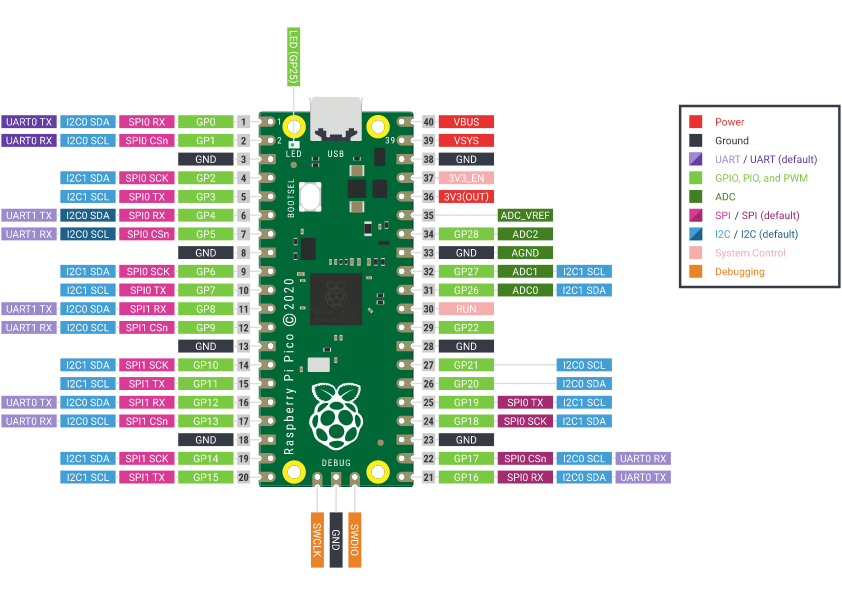
2.1 硬件设置
- Pi RP2040 x1
- 安卓Micro数据线 x1
- 电脑 x1
2.2 软件设置
-
步骤 2 :启动Thonny
选择简体中文和Pi

-
步骤 3 :点击“切换至一般模式”,重新启动。

效果如下

第 4 步。连接
Pi Pico,依次选择运行>配置解释器>解释器>端口,选择设备为MicroPython(Raspberry Pi Pico),端口为Try to detect prot automatically

3. RP2040 连接到 PC 并点亮

3.1 步骤 1
按住“BOOT”按钮,然后通过安卓线将RP2040连接到PC。如果运行良好,PC 上会显示“RPI-RP2”桌面。👻👻👻

3.2 步骤 2
按下“停止/重启后端”按钮,将弹出一个窗口,帮助您在板上安装 MicroPython 固件。
为您的开发板下载正确的 MicroPython UF2 文件:- Raspberry Pi Pico
- Raspberry Pi Pico W
固件完成后,打开设备管理器查看端口。😀😀😀

端口是COM253.3 步骤 3
检查解释器是否一致
COM25
将以下代码复制到 Thonny。from machine import Pin, Timer led = Pin(25, Pin.OUT) Counter = 0 Fun_Num = 0 def fun(tim): global Counter Counter = Counter + 1 print(Counter) led.value(Counter%2) tim = Timer(-1) tim.init(period=1000, mode=Timer.PERIODIC, callback=fun)- 1
- 2
- 3
- 4
- 5
- 6
- 7
- 8
- 9
- 10
- 11
- 12
- 13
- 14
第 4 步。通过单击“运行当前脚本”按钮上传代码。第一次,Thonny 会询问您要将代码文件保存在哪里。This Computer和Raspberry Pi Pico都很好。


如果运行良好,您将看到 LED 灯每秒打开和关闭一次。并且越来越多的输出也将显示在 Shell 中。

4. IIC 连接RP2040在SSD1306显示
在本项目中,我们将通过IIC接口连接Grove - OLED Display 0.96" (SSD1306),在Seeed Studio XIAO RP2040上演示IIC功能。
4.1 硬件连接
步骤 1。下载ssd1306.py库并用 Thonny 打开它。
# MicroPython SSD1306 OLED driver, I2C and SPI interfaces from micropython import const import framebuf # register definitions SET_CONTRAST = const(0x81) SET_ENTIRE_ON = const(0xA4) SET_NORM_INV = const(0xA6) SET_DISP = const(0xAE) SET_MEM_ADDR = const(0x20) SET_COL_ADDR = const(0x21) SET_PAGE_ADDR = const(0x22) SET_DISP_START_LINE = const(0x40) SET_SEG_REMAP = const(0xA0) SET_MUX_RATIO = const(0xA8) SET_COM_OUT_DIR = const(0xC0) SET_DISP_OFFSET = const(0xD3) SET_COM_PIN_CFG = const(0xDA) SET_DISP_CLK_DIV = const(0xD5) SET_PRECHARGE = const(0xD9) SET_VCOM_DESEL = const(0xDB) SET_CHARGE_PUMP = const(0x8D) # Subclassing FrameBuffer provides support for graphics primitives # http://docs.micropython.org/en/latest/pyboard/library/framebuf.html class SSD1306(framebuf.FrameBuffer): def __init__(self, width, height, external_vcc): self.width = width self.height = height self.external_vcc = external_vcc self.pages = self.height // 8 self.buffer = bytearray(self.pages * self.width) super().__init__(self.buffer, self.width, self.height, framebuf.MONO_VLSB) self.init_display() def init_display(self): for cmd in ( SET_DISP | 0x00, # off # address setting SET_MEM_ADDR, 0x00, # horizontal # resolution and layout SET_DISP_START_LINE | 0x00, SET_SEG_REMAP | 0x01, # column addr 127 mapped to SEG0 SET_MUX_RATIO, self.height - 1, SET_COM_OUT_DIR | 0x08, # scan from COM[N] to COM0 SET_DISP_OFFSET, 0x00, SET_COM_PIN_CFG, 0x02 if self.width > 2 * self.height else 0x12, # timing and driving scheme SET_DISP_CLK_DIV, 0x80, SET_PRECHARGE, 0x22 if self.external_vcc else 0xF1, SET_VCOM_DESEL, 0x30, # 0.83*Vcc # display SET_CONTRAST, 0xFF, # maximum SET_ENTIRE_ON, # output follows RAM contents SET_NORM_INV, # not inverted # charge pump SET_CHARGE_PUMP, 0x10 if self.external_vcc else 0x14, SET_DISP | 0x01, ): # on self.write_cmd(cmd) self.fill(0) self.show() def poweroff(self): self.write_cmd(SET_DISP | 0x00) def poweron(self): self.write_cmd(SET_DISP | 0x01) def contrast(self, contrast): self.write_cmd(SET_CONTRAST) self.write_cmd(contrast) def invert(self, invert): self.write_cmd(SET_NORM_INV | (invert & 1)) def show(self): x0 = 0 x1 = self.width - 1 if self.width == 64: # displays with width of 64 pixels are shifted by 32 x0 += 32 x1 += 32 self.write_cmd(SET_COL_ADDR) self.write_cmd(x0) self.write_cmd(x1) self.write_cmd(SET_PAGE_ADDR) self.write_cmd(0) self.write_cmd(self.pages - 1) self.write_data(self.buffer) class SSD1306_I2C(SSD1306): def __init__(self, width, height, i2c, addr=0x3C, external_vcc=False): self.i2c = i2c self.addr = addr self.temp = bytearray(2) self.write_list = [b"\x40", None] # Co=0, D/C#=1 super().__init__(width, height, external_vcc) def write_cmd(self, cmd): self.temp[0] = 0x80 # Co=1, D/C#=0 self.temp[1] = cmd self.i2c.writeto(self.addr, self.temp) def write_data(self, buf): self.write_list[1] = buf self.i2c.writevto(self.addr, self.write_list) class SSD1306_SPI(SSD1306): def __init__(self, width, height, spi, dc, res, cs, external_vcc=False): self.rate = 10 * 1024 * 1024 dc.init(dc.OUT, value=0) res.init(res.OUT, value=0) cs.init(cs.OUT, value=1) self.spi = spi self.dc = dc self.res = res self.cs = cs import time self.res(1) time.sleep_ms(1) self.res(0) time.sleep_ms(10) self.res(1) super().__init__(width, height, external_vcc) def write_cmd(self, cmd): self.spi.init(baudrate=self.rate, polarity=0, phase=0) self.cs(1) self.dc(0) self.cs(0) self.spi.write(bytearray([cmd])) self.cs(1) def write_data(self, buf): self.spi.init(baudrate=self.rate, polarity=0, phase=0) self.cs(1) self.dc(1) self.cs(0) self.spi.write(buf) self.cs(1)- 1
- 2
- 3
- 4
- 5
- 6
- 7
- 8
- 9
- 10
- 11
- 12
- 13
- 14
- 15
- 16
- 17
- 18
- 19
- 20
- 21
- 22
- 23
- 24
- 25
- 26
- 27
- 28
- 29
- 30
- 31
- 32
- 33
- 34
- 35
- 36
- 37
- 38
- 39
- 40
- 41
- 42
- 43
- 44
- 45
- 46
- 47
- 48
- 49
- 50
- 51
- 52
- 53
- 54
- 55
- 56
- 57
- 58
- 59
- 60
- 61
- 62
- 63
- 64
- 65
- 66
- 67
- 68
- 69
- 70
- 71
- 72
- 73
- 74
- 75
- 76
- 77
- 78
- 79
- 80
- 81
- 82
- 83
- 84
- 85
- 86
- 87
- 88
- 89
- 90
- 91
- 92
- 93
- 94
- 95
- 96
- 97
- 98
- 99
- 100
- 101
- 102
- 103
- 104
- 105
- 106
- 107
- 108
- 109
- 110
- 111
- 112
- 113
- 114
- 115
- 116
- 117
- 118
- 119
- 120
- 121
- 122
- 123
- 124
- 125
- 126
- 127
- 128
- 129
- 130
- 131
- 132
- 133
- 134
- 135
- 136
- 137
- 138
- 139
- 140
- 141
- 142
- 143
- 144
- 145
- 146
- 147
- 148
- 149
- 150
- 151
- 152
- 153
- 154
- 155
- 156
步骤 2。单击“文件→另存为”并将库保存在“Raspberry Pi Pico”中
选择“Raspberry Pi Pico”作为我们保存的位置。
确保保存的文件名为“ssd1306.py”,否则将无法使用。

步骤 3。将以下代码复制到 Thonny。
from ssd1306 import SSD1306_I2C from machine import Pin, I2C from time import sleep i2c = I2C(1, scl=Pin(7), sda=Pin(6), freq=200000)#Grove - OLED Display 0.96" (SSD1315) oled = SSD1306_I2C(128, 64, i2c) while True: oled.fill(0)#clear oled.text("Hello,World!",0,0) oled.show() #sleep(0.5)- 1
- 2
- 3
- 4
- 5
- 6
- 7
- 8
- 9
- 10
- 11
- 12
第 4 步。通过单击“运行当前脚本”按钮上传代码。第一次,Thonny 会询问您要将代码文件保存在哪里。This Computer和Raspberry Pi Pico都很好。

接线入下
端口A 板子 端口B 板子 VCC SSD1306 3V3 Pico GND SSD1306 GND Pico SCL SSD1306 GPIO7 Pico SDA SSD1306 GPIO6 Pico 如果运行良好,您将看到文本“Hello,World!” 显示在屏幕上。

5. 其他资源
一些额外的库和示例代码在这里:
[ZIP] XIAO-RP2040-MicroPython-Grove.zip
MicroPython
【树莓派 Pico 基于Arduino IDE编程开发】
【树莓派 Pico 和 Pico W】 -
相关阅读:
Redis Java整合
Java 函数式编程「一」
MySQL数据库
华为机试真题 Python 实现【过滤组合字符串】【2022.11 Q4新题】
Calibre license问题
yarn节点属性及调度
Leetcode1-两数之和详解
线性代数(四)| 解方程 齐次性 非齐次性 扩充问题
智能驾驶域控制器硬件方案演进趋势分析
WATLOW CAS200 CLS216 释放人工智能(AI)能力用于导航
- 原文地址:https://blog.csdn.net/vor234/article/details/126861231


