-
Linux常用命令
第一周
前言
本文主要介绍了一些Linux常见命令。
运行环境为:Ubuntu 20.04
`提示:以下是本篇文章正文内容,
操作常用命令
查看硬件信息
lscpu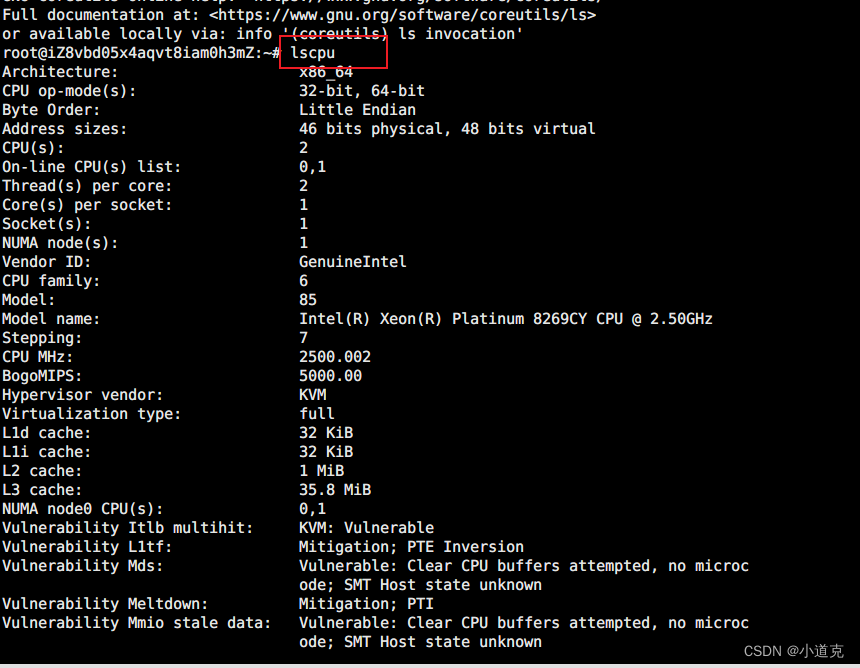
查看内存大小
free- 1

查看系统版本信息
查看系统架构
arch- 1

查看内核版本
uname -r- 1

查看操作系统发行版本
# Centos8查看发行版本 cat /etc/redhat -realease # Ubuntu 查看发行版本 cat /etc/os-release- 1
- 2
- 3
- 4

日期和时间
1、系统时钟:由Linux内核通过CPU的工作频率进行的
2、硬件时钟:主板date 显示和设置系统时间

clock, hwclock 显示硬件时钟-s,--hctosys # 以硬件时钟为准,校正系统时钟 -w,--sysytohc # 以系统时钟为准,校正硬件时钟- 1
- 2

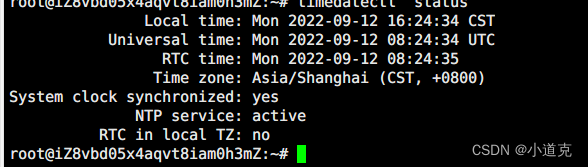
时区
#查看时区 timedatectl status # 修改时区 datetimesctl set-timezone Asia/Shanghai- 1
- 2
- 3
- 4
显示日历
cal -y- 1

关机和重启
关机
halt poweoff- 1
- 2
重启
reboot- 1
关机或 重启
shutdownshutdown -r #重启 shutdown -h #关机 shutdown -c #取消关机或重启任务 -now #立刻,相等于+0 +# #相对时间表示法,几分钟之后 hh:mm 用绝对时间表示,指明具体时间- 1
- 2
- 3
- 4
- 5
- 6
- 7
用户登录信息查看命令
whoamis 显示当前登录有效用户
who 系统当前所有的登录会话
w:系统当前所有的登录会话以及所有的操作文本编辑
nano 工具可以实现文本的编辑(vi或vim也是可以)
gedit 图形文本编辑工具查看命令的帮助
# 查看命令的类型(内部命令和外部命令) type COMMAND- 1
- 2
- 3
查看内部命令的帮助
help COMMAND man bash#可以查看手册- 1
- 2


外部命令及帮助
COMMAND --help或 COMMAND -h
使用man手册(manual)man COMMAND
信息页: info COMMAND
程序自身的帮助文档:README INSTALL ChangeLog
程序官方文档
相关网站,如技术论坛
搜索引擎#显示用法总结和参数列表,但是并非所有的 date --help date -h- 1
- 2
- 3
- 4
- 5
文件操作命令
显示当前工作目录
pwd命令:print working directory
-P:显示真实物理路径
-L:显示链接路径(默认)root@iZ8vbd05x4aqvt8iam0h3mZ:~# pwd -P /root- 1
- 2
更改目录
命令cd:change directory
选项:-P 切换至物理路径,而非软链接目录相关环境变量:
PWD:当前工作目录路径
OLDPWD: 上一次目录路径列出目录内容
ls 命令可以列出当前目录或指定目录
用法ls [options] [file_or_dirs]- 1
常见选项
-a 包含隐藏文件
-l 显示额外的信息
-R 目录递归
-1 文件分行显示
-S 按从大到小的顺序排序
-t 按mtime排序
-u 配合-t选项,显示并按atime 从新到旧排序
-U 按目录存放顺序排序
-X 按文件后缀排序
-F:对不同类型的文件显示时间附件不同的符号
-C文件多时,以多列的方式显示文件,默认是一列(标准输出)查看文件的状态
stat
每个文件都有三个时间戳
access time 访问时间 atime 读取文件内容的时间
modify time 修改时间 mtime 改变文件内容的时间
change time 改变事件 ctime 原数据发生改变确定文件的内容
file [options] <filename>...- 1
常用选项:
- -b 列出文件的辨识结果,不显示文件名称
- -f filelist 列出文件filelist中文件名的文件类型
- -F 使用和指定分割符号替换输出文件名后默认的“:” 分割符
- -L 查看对应软链接对应文件的文件类型
- –help 显示命令在线帮助
创建空文件和刷新时间
touch 命令可以用来创建空文件或刷新文件的时间
格式:touch [options]...file....- 1
选项说明
- -a 仅改变atime和ctime
- -m 仅改变mtime和ctime
- -t 指定啊time和mtime的时间戳
- -c 如果文件不存在,则不予创建
移动和重命名文件夹
mv命令可以实现文件或目录的移动和改名
同一分区移动数据,速度很快,数据位置没有发生变化
不同分区移动数据,速度相对较慢,数据位置发生了变化
格式:mv [option]...[-T] source dest mv [option]...source...directory mv [option]...-t directory source...- 1
- 2
- 3
常用选项
- -l 交互式
- -f 强制
- -b 目标存在,覆盖先前备份
利用rename可以批量修改文件名
格式:
rename [options] <expression> <replacement> <file>...- 1
举例
#为所有的f开头包含conf的文件加上.bak后缀 rename 'conf' 'conf.bak' f* # 去掉所有的bak后缀 rename '.bak' '' *.bak- 1
- 2
- 3
- 4
删除文件
rm命令
rm [ options ] …file…
常用选项:- -i 交互式
- -f 强制删除
- -r递归
- –no-preserve-root 删除/
目录操作
显示目录树tree
常见选项
- -d 只显示目录
- -l level 指定显示的层级目录i
- -P pattern 只显示由指定wild-card pattern 匹配里的路径
创建目录mkdir
常见选项
- -p:存在于不报错,且可自动创建所需的各目录
- -v: 显示详细i信息
- -m MODE:创建目录时直接指定权限
删除空目录rmdir
常见选项:
- -p 递归删除父空目录
- -v显示详细i信息
注意: rmdir只能删除空目录,如果希望删除非空目录,可使用 rm -r 命令,递归删除目录树
更多命令详见传送门
通过帮助命令了解 useradd命令
使用命令帮助找到用户添加命令的,-s, -m, -C, -d, -M选项的含义,并使用测试用户证明选项生效。
useradd --help root@iZ8vbd05x4aqvt8iam0h3mZ:~# useradd --help Usage: useradd [options] LOGIN useradd -D useradd -D [options] Options: --badnames do not check for bad names -b, --base-dir BASE_DIR base directory for the home directory of the new account --btrfs-subvolume-home use BTRFS subvolume for home directory -c, --comment COMMENT GECOS field of the new account -d, --home-dir HOME_DIR home directory of the new account -D, --defaults print or change default useradd configuration -e, --expiredate EXPIRE_DATE expiration date of the new account -f, --inactive INACTIVE password inactivity period of the new account -g, --gid GROUP name or ID of the primary group of the new account -G, --groups GROUPS list of supplementary groups of the new account -h, --help display this help message and exit -k, --skel SKEL_DIR use this alternative skeleton directory -K, --key KEY=VALUE override /etc/login.defs defaults -l, --no-log-init do not add the user to the lastlog and faillog databases -m, --create-home create the user's home directory -M, --no-create-home do not create the user's home directory -N, --no-user-group do not create a group with the same name as the user -o, --non-unique allow to create users with duplicate (non-unique) UID -p, --password PASSWORD encrypted password of the new account -r, --system create a system account -R, --root CHROOT_DIR directory to chroot into -P, --prefix PREFIX_DIR prefix directory where are located the /etc/* files -s, --shell SHELL login shell of the new account -u, --uid UID user ID of the new account -U, --user-group create a group with the same name as the user -Z, --selinux-user SEUSER use a specific SEUSER for the SELinux user mapping --extrausers Use the extra users database- 1
- 2
- 3
- 4
- 5
- 6
- 7
- 8
- 9
- 10
- 11
- 12
- 13
- 14
- 15
- 16
- 17
- 18
- 19
- 20
- 21
- 22
- 23
- 24
- 25
- 26
- 27
- 28
- 29
- 30
- 31
- 32
- 33
- 34
- 35
- 36
- 37
- 38
- 39
- 40
- 41
常用参数 -s 参数 在新建用户时指定用户所使用的shell类型 -G 参数 指定用户的用户组 -c 给新建的用户添加备注 -m 创建用户的家目录 -d 指定用户的家目录 -M 不创建用户的家目录 root@iZ8vbd05x4aqvt8iam0h3mZ:~# groupadd testgroud root@iZ8vbd05x4aqvt8iam0h3mZ:~# useradd -s /sbin/nologin -G testgroud -c 'daokeuser' daoke root@iZ8vbd05x4aqvt8iam0h3mZ:~# id daoke uid=1000(daoke) gid=1001(daoke) groups=1001(daoke),1000(testgroud) root@iZ8vbd05x4aqvt8iam0h3mZ:/# cat /etc/passwd | grep "daoke" #此时可以看到备注为daokeuser daoke:x:1000:1001:daokeuser:/home/daoke:/sbin/nologin #登录时提示用户不能登录 root@iZ8vbd05x4aqvt8iam0h3mZ:/home# su - daoke su: warning: cannot change directory to /home/daoke: No such file or directory This account is currently not available. #删除用户 root@iZ8vbd05x4aqvt8iam0h3mZ:/home# userdel -r daoke userdel: daoke mail spool (/var/mail/daoke) not found userdel: /home/daoke not owned by daoke, not removing root@iZ8vbd05x4aqvt8iam0h3mZ:/home# id daoke id: ‘daoke’: no such user #此时用户已经被删除 # 再次新建 root@iZ8vbd05x4aqvt8iam0h3mZ:/home# groupadd daokegroup root@iZ8vbd05x4aqvt8iam0h3mZ:/home# useradd -d /home/daokehome -m -c 'daokeuser' -G daokegroup -s /bin/sh daoke #指定用户的目录并且创建出来,而且指定用户的家目录、用户组、使用的shell类型。 root@iZ8vbd05x4aqvt8iam0h3mZ:/home# cat /etc/passwd | grep "daoke" daoke:x:1000:1002:daokeuser:/home/daokehome:/bin/sh root@iZ8vbd05x4aqvt8iam0h3mZ:/home# su - daoke $ pwd /home/daokehome $- 1
- 2
- 3
- 4
- 5
- 6
- 7
- 8
- 9
- 10
- 11
- 12
- 13
- 14
- 15
- 16
- 17
- 18
- 19
- 20
- 21
- 22
- 23
- 24
- 25
- 26
- 27
- 28
- 29
- 30
- 31
- 32
- 33
- 34
- 35
- 36
- 37
- 38
- 39
- 40
- 41
- 42
- 43
- 44
- 45
- 46
- 47
-
相关阅读:
Linux(基于Centos7)(一)
Linux常用命令总结
Centos下安装 oracle11g 博客2
DCMM数据能力成熟度评估模型--学习笔记(1)
KubeEdge 云端架构设计
兽医诊所温湿度失衡,该如何止损?
Deepwalk,Node2vec算法原理生动理解(图文)
GemBox.Bundle 47.0.1227 Crack
论文笔记:UrbanGPT: Spatio-Temporal Large Language Models
财报解读:双轮驱动下,香飘飘究竟能打开多大的获利空间?
- 原文地址:https://blog.csdn.net/qq_46140800/article/details/126786847