-
Word文档Aspose.Words使用教程:构建适用于Android的Word转PDF应用程序
Word转PDF是一种广泛使用的文档转换方式,这也是MS Word提供内置功能将Word文档保存为PDF的原因。由于PDF是共享文档或在线保存文档的首选格式,因此在各种情况下都需要Word到PDF的转换。另一方面,基于Android的智能手机通过应用程序在手机中提供了多种功能,使人们的生活更加轻松。
在本文中,将展示如何在Android应用程序中将Word集成为PDF转换功能。为了演示,本文将在几个步骤中为Android构建一个简单的Word转PDF应用程序,该应用程序具有以下功能。
- 将Word文档转换为PDF
- 将PDF保存在手机的存储空间中
- 在应用程序中查看PDF
点击下载最新版Aspose.Words for Android via Java(技术交流Q群761297826)
 https://www.evget.com/product/3250/download
在Android中创建Word to PDF Converter的步骤
以下是在Java中使用Aspose.Words for Android通过Java创建简单的Word to PDF Converter应用程序的步骤:
- 在Android Studio(或Eclipse)中创建一个新项目,然后选择“空活动”模板。

- 配置您的项目。

- 打开build.gradle文件。

- 在build.gradle中添加以下存储库部分。
repositories { mavenCentral() maven { url "https://repository.aspose.com/repo/" } } - 在build.gradle的dependencies部分中添加以下条目。
implementation 'com.google.android.material:material:1.1.0'
implementation 'com.android.support:multidex:2.0.0'
implementation 'com.github.barteksc:android-pdf-viewer:2.8.2'
compile (group: 'com.aspose', name: 'aspose-words', version: '20.6', classifier: 'android.via.java')
- 通过在build.gradle的defaultConfig部分下添加以下条目来启用multidex。
// enable multiDex
multiDexEnabled true
- 完整的build.gradle文件将如下所示:
apply plugin: 'com.android.application' android { compileSdkVersion 30 buildToolsVersion "30.0.1" defaultConfig { applicationId "com.example.wordtopdf" minSdkVersion 16 targetSdkVersion 30 versionCode 1 versionName "1.0" // enable multiDex multiDexEnabled true testInstrumentationRunner "androidx.test.runner.AndroidJUnitRunner" } buildTypes { release { minifyEnabled false proguardFiles getDefaultProguardFile('proguard-android-optimize.txt'), 'proguard-rules.pro' } } } repositories { mavenCentral() maven { url "https://repository.aspose.com/repo/" } } dependencies { implementation fileTree(dir: "libs", include: ["*.jar"]) implementation 'androidx.appcompat:appcompat:1.1.0' implementation 'androidx.constraintlayout:constraintlayout:1.1.3' implementation 'com.google.android.material:material:1.1.0' implementation 'com.android.support:multidex:2.0.0' implementation 'com.github.barteksc:android-pdf-viewer:2.8.2' compile (group: 'com.aspose', name: 'aspose-words', version: '20.6', classifier: 'android.via.java') testImplementation 'junit:junit:4.12' androidTestImplementation 'androidx.test.ext:junit:1.1.1' androidTestImplementation 'androidx.test.espresso:espresso-core:3.2.0' } - 打开activity_main.xml文件。

- 将以下脚本粘贴为主要活动的布局。
- 打开MainActivity.java文件。
- 将以下Java代码粘贴到MainActivity.java中。
package com.example.wordtopdf; import androidx.annotation.RequiresApi; import androidx.appcompat.app.AppCompatActivity; import android.annotation.TargetApi; import android.app.Activity; import android.content.Intent; import android.net.Uri; import android.os.Build; import android.os.Bundle; import java.io.File; import java.io.FileNotFoundException; import java.io.IOException; import java.io.InputStream; import com.aspose.words.Document; import com.aspose.words.License; import com.github.barteksc.pdfviewer.PDFView; import com.google.android.material.floatingactionbutton.FloatingActionButton; import android.os.Environment; import android.view.View; import android.widget.TextView; import android.widget.Toast; @TargetApi(Build.VERSION_CODES.FROYO) public class MainActivity extends AppCompatActivity { private static final int PICK_PDF_FILE = 2; private final String storageDir = Environment.getExternalStoragePublicDirectory(Environment.DIRECTORY_DOWNLOADS) + File.separator; private final String outputPDF = storageDir + "Converted_PDF.pdf"; private TextView textView = null; private Uri document = null; @Override protected void onCreate(Bundle savedInstanceState) { super.onCreate(savedInstanceState); setContentView(R.layout.activity_main); // apply the license if you have the Aspose.Words license... applyLicense(); // get treeview and set its text textView = (TextView) findViewById(R.id.textView); textView.setText("Select a Word DOCX file..."); // define click listener of floating button FloatingActionButton myFab = (FloatingActionButton) findViewById(R.id.fab); myFab.setOnClickListener(new View.OnClickListener() { @Override public void onClick(View view) { try { // open Word file from file picker and convert to PDF openaAndConvertFile(null); } catch (Exception e) { e.printStackTrace(); } } }); } private void openaAndConvertFile(Uri pickerInitialUri) { // create a new intent to open document Intent intent = new Intent(Intent.ACTION_OPEN_DOCUMENT); intent.addCategory(Intent.CATEGORY_OPENABLE); // mime types for MS Word documents String[] mimetypes = {"application/vnd.openxmlformats-officedocument.wordprocessingml.document", "application/msword"}; intent.setType("*/*"); intent.putExtra(Intent.EXTRA_MIME_TYPES, mimetypes); // start activiy startActivityForResult(intent, PICK_PDF_FILE); } @RequiresApi(api = Build.VERSION_CODES.KITKAT) @Override public void onActivityResult(int requestCode, int resultCode, Intent intent) { super.onActivityResult(requestCode, resultCode, intent); if (resultCode == Activity.RESULT_OK) { if (intent != null) { document = intent.getData(); // open the selected document into an Input stream try (InputStream inputStream = getContentResolver().openInputStream(document);) { Document doc = new Document(inputStream); // save DOCX as PDF doc.save(outputPDF); // show PDF file location in toast as well as treeview (optional) Toast.makeText(MainActivity.this, "File saved in: " + outputPDF, Toast.LENGTH_LONG).show(); textView.setText("PDF saved at: " + outputPDF); // view converted PDF viewPDFFile(); } catch (FileNotFoundException e) { e.printStackTrace(); Toast.makeText(MainActivity.this, "File not found: " + e.getMessage(), Toast.LENGTH_LONG).show(); } catch (IOException e) { e.printStackTrace(); Toast.makeText(MainActivity.this, e.getMessage(), Toast.LENGTH_LONG).show(); } catch (Exception e) { e.printStackTrace(); Toast.makeText(MainActivity.this, e.getMessage(), Toast.LENGTH_LONG).show(); } } } } public void viewPDFFile() { // load PDF into the PDFView PDFView pdfView = (PDFView) findViewById(R.id.pdfView); pdfView.fromFile(new File(outputPDF)).load(); } public void applyLicense() { // set license License lic= new License(); InputStream inputStream = getResources().openRawResource(R.raw.license); try { lic.setLicense(inputStream); } catch (Exception e) { e.printStackTrace(); } } } - 生成应用并在您的Android智能手机或虚拟设备中运行。
- 转到设置->应用程序->权限->权限管理器->存储,以允许该应用访问存储。
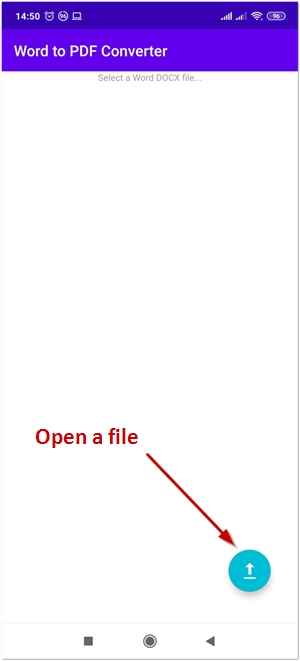
Word to PDF Converter Android应用程序–演示
以下是如何使用刚刚创建的Word to PDF Converter应用程序将Word DOCX文档转换为PDF的演示。(点击图片观看)

-
相关阅读:
【XCTF】【GFSJ0522】【Crypto】【难度1】base64
YOLOv5全面解析教程②:如何制作训练效果更好的数据集
windows FFmpeg安装教程
【大数据之Kafka】十二、Kafka之offset位移及漏消费和重复消费
java面试时如何做好5分钟自我介绍?
C++学习——引用详解
Python装饰器探究
五个做原型的好处和意义
36.【C/C++ 重载运算符,(全干的无水分)】
微信小程序分享、转发朋友、分享朋友圈使用整理
- 原文地址:https://blog.csdn.net/m0_67129275/article/details/126760345