-
本地Win10用SSH登录腾讯轻量云Ubuntu20.04,允许root用密码远程 登录
文章目录
本地Win10用SSH登录腾讯轻量云Ubuntu20.04.1
重装了云系统, 选择了 Ubuntu Server 20.04 LTS 64bit

先确保防火墙 22 端口打开


先选择免密,在浏览器网页上登陆


系统自带免密初始账号 :lighthouse
lighthouse登录不用密码, 但必须在官方指定控制台登录, 其它控制台不能登录
ubuntu和root一开始都没有密码,需要指定密码才能使用
lighthouse使用sudo不用输入密码, 可以为ubuntu和root指定密码登录lighthouse

用vi打开
/etc/ssh/sshd_config进行编辑 设置PasswordAuthentication属性
sudo vi /etc/ssh/sshd_config- 1
- 2
腾讯轻量云Ubuntu20.04Server原版/etc/ssh/sshd_config👇
### 腾讯轻量云Ubuntu20.04Server原版/etc/ssh/sshd_config # $OpenBSD: sshd_config,v 1.103 2018/04/09 20:41:22 tj Exp $ # This is the sshd server system-wide configuration file. See # sshd_config(5) for more information. # This sshd was compiled with PATH=/usr/bin:/bin:/usr/sbin:/sbin # The strategy used for options in the default sshd_config shipped with # OpenSSH is to specify options with their default value where # possible, but leave them commented. Uncommented options override the # default value. Include /etc/ssh/sshd_config.d/*.conf #Port 22 AddressFamily any #ListenAddress 0.0.0.0 #ListenAddress :: #HostKey /etc/ssh/ssh_host_rsa_key #HostKey /etc/ssh/ssh_host_ecdsa_key #HostKey /etc/ssh/ssh_host_ed25519_key # Ciphers and keying #RekeyLimit default none # Logging #SyslogFacility AUTH #LogLevel INFO # Authentication: #LoginGraceTime 2m #PermitRootLogin prohibit-password #StrictModes yes #MaxAuthTries 6 #MaxSessions 10 #PubkeyAuthentication yes # Expect .ssh/authorized_keys2 to be disregarded by default in future. #AuthorizedKeysFile .ssh/authorized_keys .ssh/authorized_keys2 #AuthorizedPrincipalsFile none #AuthorizedKeysCommand none #AuthorizedKeysCommandUser nobody # For this to work you will also need host keys in /etc/ssh/ssh_known_hosts #HostbasedAuthentication no # Change to yes if you don't trust ~/.ssh/known_hosts for # HostbasedAuthentication #IgnoreUserKnownHosts no # Don't read the user's ~/.rhosts and ~/.shosts files #IgnoreRhosts yes # To disable tunneled clear text passwords, change to no here! #PasswordAuthentication yes #PermitEmptyPasswords no # Change to yes to enable challenge-response passwords (beware issues with # some PAM modules and threads) ChallengeResponseAuthentication no # Kerberos options #KerberosAuthentication no #KerberosOrLocalPasswd yes #KerberosTicketCleanup yes #KerberosGetAFSToken no # GSSAPI options #GSSAPIAuthentication no #GSSAPICleanupCredentials yes #GSSAPIStrictAcceptorCheck yes #GSSAPIKeyExchange no # Set this to 'yes' to enable PAM authentication, account processing, # and session processing. If this is enabled, PAM authentication will # be allowed through the ChallengeResponseAuthentication and # PasswordAuthentication. Depending on your PAM configuration, # PAM authentication via ChallengeResponseAuthentication may bypass # the setting of "PermitRootLogin without-password". # If you just want the PAM account and session checks to run without # PAM authentication, then enable this but set PasswordAuthentication # and ChallengeResponseAuthentication to 'no'. UsePAM yes #AllowAgentForwarding yes #AllowTcpForwarding yes #GatewayPorts no X11Forwarding yes #X11DisplayOffset 10 #X11UseLocalhost yes #PermitTTY yes PrintMotd no #PrintLastLog yes #TCPKeepAlive yes #PermitUserEnvironment no #Compression delayed #ClientAliveInterval 0 #ClientAliveCountMax 3 #UseDNS no #PidFile /var/run/sshd.pid #MaxStartups 10:30:100 #PermitTunnel no #ChrootDirectory none #VersionAddendum none # no default banner path #Banner none # Allow client to pass locale environment variables AcceptEnv LANG LC_* # override default of no subsystems Subsystem sftp /usr/lib/openssh/sftp-server # Example of overriding settings on a per-user basis #Match User anoncvs # X11Forwarding no # AllowTcpForwarding no # PermitTTY no # ForceCommand cvs server PasswordAuthentication no- 1
- 2
- 3
- 4
- 5
- 6
- 7
- 8
- 9
- 10
- 11
- 12
- 13
- 14
- 15
- 16
- 17
- 18
- 19
- 20
- 21
- 22
- 23
- 24
- 25
- 26
- 27
- 28
- 29
- 30
- 31
- 32
- 33
- 34
- 35
- 36
- 37
- 38
- 39
- 40
- 41
- 42
- 43
- 44
- 45
- 46
- 47
- 48
- 49
- 50
- 51
- 52
- 53
- 54
- 55
- 56
- 57
- 58
- 59
- 60
- 61
- 62
- 63
- 64
- 65
- 66
- 67
- 68
- 69
- 70
- 71
- 72
- 73
- 74
- 75
- 76
- 77
- 78
- 79
- 80
- 81
- 82
- 83
- 84
- 85
- 86
- 87
- 88
- 89
- 90
- 91
- 92
- 93
- 94
- 95
- 96
- 97
- 98
- 99
- 100
- 101
- 102
- 103
- 104
- 105
- 106
- 107
- 108
- 109
- 110
- 111
- 112
- 113
- 114
- 115
- 116
- 117
- 118
- 119
- 120
- 121
- 122
- 123
- 124
- 125
PasswordAuthentication这个属性出现了两次PasswordAuthentication第一次 出现在58行, 加了#号注释 ,不起作用(vi在一般模式(esc模式)下输入冒号:set nu , 可显示行号)

57 # To disable tunneled clear text passwords, change to no here! 58 #PasswordAuthentication yes 59 #PermitEmptyPasswords no- 1
- 2
- 3
PasswordAuthentication第二次在末尾124行, 值被设为了 yes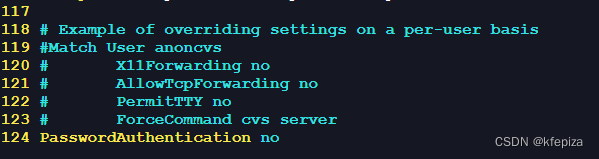
118 # Example of overriding settings on a per-user basis 119 #Match User anoncvs 120 # X11Forwarding no 121 # AllowTcpForwarding no 122 # PermitTTY no 123 # ForceCommand cvs server 124 PasswordAuthentication no- 1
- 2
- 3
- 4
- 5
- 6
- 7
更改
PasswordAuthentication为yes或 取消PasswordAuthentication就能启用远程密码登录可以给所以PasswordAuthentication加上#号,或者移出, 系统在没有指定PasswordAuthentication时是允许用密码远程 登录的

也可以把 PasswordAuthentication 的值改为 yes
或者在下方加上 PasswordAuthentication yes , 会覆盖上方的值
只要最后一个PasswordAuthentication的值是yes 就能远程密码登录
一步允许普通用户远程密码登录
echo -e "\n# 允许普通用户用密码远程登录\nPasswordAuthentication yes" | sudo tee -a /etc/ssh/sshd_config ; sudo systemctl restart sshd- 1
给
root,ubuntu设置密码sudo passwd root- 1
- 2

也可以用云官方提供的按钮给root设置密码, 但难免排版会变, 不好找

系统还带一个叫
ubuntu的账户, 也给设置密码sudo passwd ubuntu- 1
- 2
用
adduser创建一个用户 , Ubuntu环境下的useradd不大好用,/home/用户主目录,也要手动指定
题外: CentOS7的adduser是useradd的软链接(符号链接), 而且自动创建用户主目录sudo adduser user- 1
根据提示指定密码,全名,电话…
让
root也可以远程登录PermitRootLogin yes设置
PasswordAuthentication yes后, ubuntu 和新增的 user 都可以远程登录了, 但 root 还不能远程登录;
原因是系统默认不允许以root身份用密码远程登录
/etc/ssh/sshd_config, 在34行有这么一条#PermitRootLogin prohibit-password
prohibit-password是禁止密码的意思, 用途就是阻止以root身份远程用密码登录
将#PermitRootLogin prohibit-password改为PermitRootLogin yes或者另起一行
重启sshdsudo systemctl restart sshd- 1
- 2
一步设置
root也可以远程登录echo -e "\n#允许root用密码远程登录\nPermitRootLogin yes" | sudo tee -a /etc/ssh/sshd_config ; sudo systemctl restart sshd ;- 1
- 2
一步设置普通用户和root都可以用密码远程登录
echo -e "\n# 允许普通用户用密码远程登录\nPasswordAuthentication yes\n# 允许root用密码远程登录\nPermitRootLogin yes" | sudo tee -a /etc/ssh/sshd_config ; sudo systemctl restart sshd- 1
- 2
OpenSSH 登录语法
Win10自带OpenSSH客户端,可以在命令行或PowerShell控制台用ssh进行远程登录
基本登录
ssh root@域名或IP 或 ssh root@域名或IP -p 22(端口)- 1
- 2
- 3
登录,并且长时间保持连接
#保持连接 #TCPKeepAlive=yes是TCP层的保持连接, ServerAliveInterval=300是每300秒发送心跳包,是OpenSSH自己的保持连接方式, 可以只用一个 ssh -o TCPKeepAlive=yes -o ServerAliveInterval=300 用户@域名或IP -p 端口- 1
- 2
- 3
登录,不检查公钥,保持连接
# ssh登录 # StrictHostKeyChecking=no 是不严格检查公钥, 远程机重装后,公钥会变, # TCPKeepAlive=yes是TCP层的保持连接, # ServerAliveInterval=300是每300秒发送心跳包,是OpenSSH自己的保持连接方式, 可以只用一个 ssh -o StrictHostKeyChecking=no -o TCPKeepAlive=yes -o ServerAliveInterval=300 用户@域名或IP -p 端口- 1
- 2
- 3
- 4
- 5
如果ssh登录遇到WARNING: REMOTE HOST IDENTIFICATION HAS CHANGED!
ssh登录重装系统的远程机, 报:
@@@@@@@@@@@@@@@@@@@@@@@@@@@@@@@@@@@@@@@@@@@@@@@@@@@@@@@@@@@ @ WARNING: REMOTE HOST IDENTIFICATION HAS CHANGED! @ @@@@@@@@@@@@@@@@@@@@@@@@@@@@@@@@@@@@@@@@@@@@@@@@@@@@@@@@@@@ IT IS POSSIBLE THAT SOMEONE IS DOING SOMETHING NASTY! Someone could be eavesdropping on you right now (man-in-the-middle attack)! It is also possible that a host key has just been changed. The fingerprint for the ECDSA key sent by the remote host is SHA256:SfkkNfqNK0VZsvnX6PS+XKicWzxx9GoG/vWhbtCjiBI. Please contact your system administrator. Add correct host key in C:\\Users\\K/.ssh/known_hosts to get rid of this message. Offending ECDSA key in C:\\Users\\K/.ssh/known_hosts:17- 1
- 2
- 3
- 4
- 5
- 6
- 7
- 8
- 9
- 10
- 11
原因是远端的公钥改变, 比如远端重装了系统
解决办法1:Windows下, 打开编辑 “C:\Users\用户目录\.ssh\known_hosts”
删除地址对应的一行
或者删除全部行,或干脆删除这个文件
known_hosts解决办法2:
命令行输入:ssh-keygen -R <远程机地址>ssh-keygen -R 远程机地址- 1
-
相关阅读:
说说我的实习收获
设备指纹是一个小型风控系统
小程序 BUG 记录
无线通信测量仪器-4945B/C 无线电通信综合测试仪
数据结构(4)树形结构——二叉树(概述、前序、中序、后序、层序遍历JAVA实现)
用vba实现将记录集输出到Excel模板
python自动化测试(二):获取元素定位的基本方式
怎么写出美观,可读性高的代码?
Libtorch各版本下载
Elasticsearch 出现 “429 rejected” 报错,怎么办?
- 原文地址:https://blog.csdn.net/kfepiza/article/details/126720602
